If managing Cash on Delivery (COD) payments is taking up too much of your time and effort, Salla provides a simple and efficient solution. With clear steps and centralized controls, you can enable COD, customize its conditions, and track your balance accurately; all from one place.
This article explains how to activate and manage Cash on Delivery using Salla shipping labels, monitor your COD balance, and review transaction records with ease.
Note: This feature is currently available only for stores operating within the Kingdom of Saudi Arabia.
📌 Article overview
- Shipping companies that support COD via Salla shipping labels
- Managing COD operations
- How customers use COD
- Viewing the current COD balance
- Managing COD transaction history
- Frequently asked questions
Shipping companies that support COD via Salla shipping labels
The following shipping companies support COD through Salla shipping labels:
- Aramex
- J&T Express
- AyMakan
- SMSA
- RedBox
- Shipa
Managing COD operations
1. Steps to enable COD
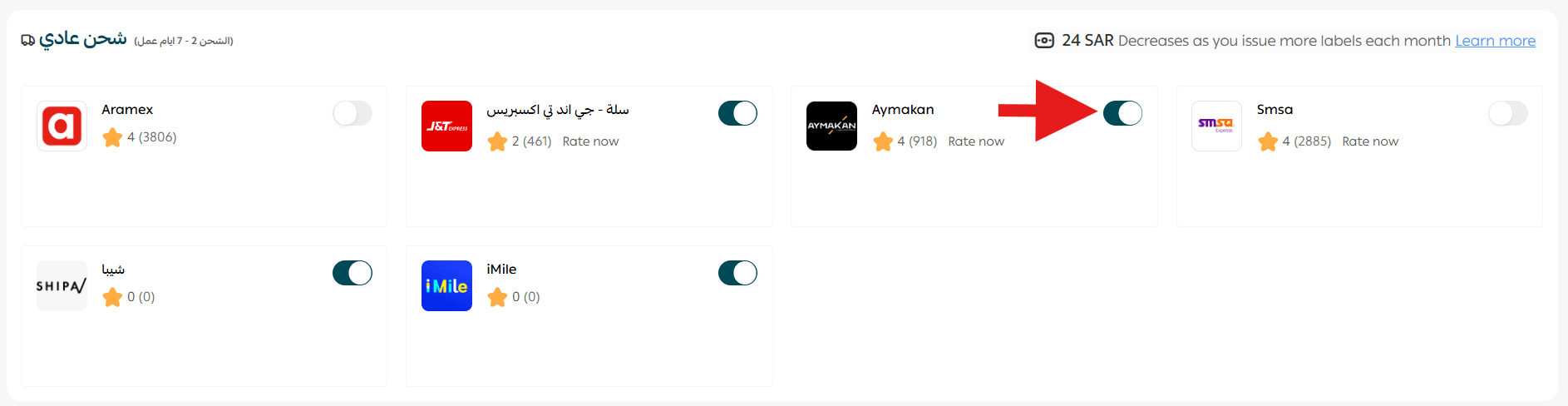
In this example, we’ll enable COD for AyMakan. The same steps apply to all other supported shipping companies.
- From the main menu in your Salla dashboard, click All, then select Shipping.
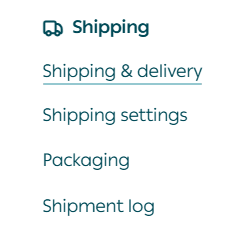
2. Open the Shipping & Delivery tab.

3. From the shipping providers list, enable AyMakan.
4. Open the Shipping Rates tab.
5. From here, you can enable or disable cash on delivery.

Cash on delivery fees
The shipping company’s COD fee per order is: SAR 8.00 + VAT
You can modify the COD fee charged to customers, then click Save.
Important scenarios:
- If you charge customers more than the company’s COD fee, the extra amount will be added to your wallet as profit.
- If you charge customers less than the company’s COD fee to encourage purchases, the difference will be deducted from your balance.
2. Customizing COD settings
To further control how cash on delivery works in your store:
- From the Shipping & Delivery page, open the More tab.
- Select Settings, then click cash on delivery.
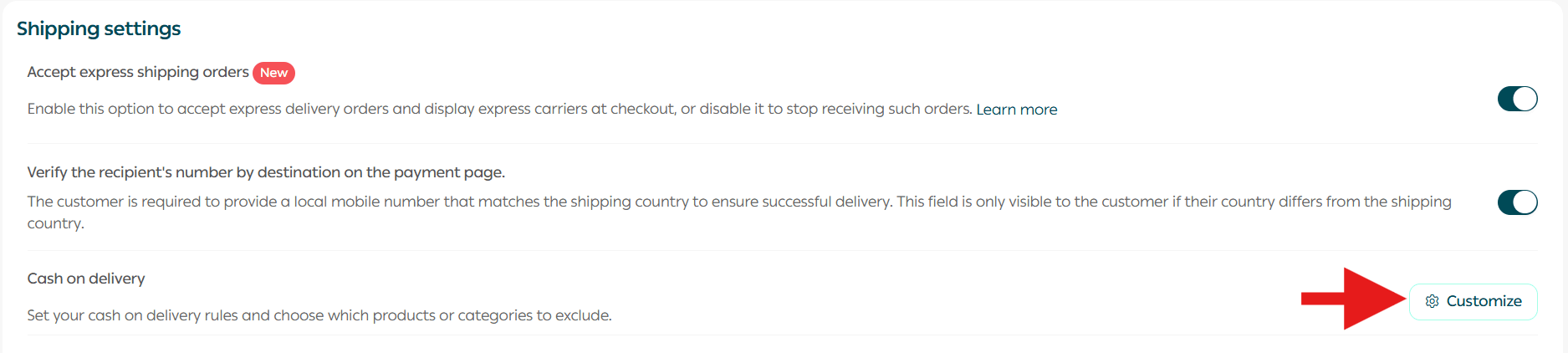
You can easily customize COD conditions using the following options:
COD conditions
- Minimum and maximum order value:
Set the purchase amount range that allows COD (optional).
- Maximum product weight:
Define the maximum weight allowed for orders eligible for COD (optional).
- Hide COD for blocked customers:
Prevent customers who are blocked in other Salla stores from using this payment method.
Excluded from cash on delivery
- Exclude specific products or categories:
Select products or categories for which Cash on Delivery should not be available.
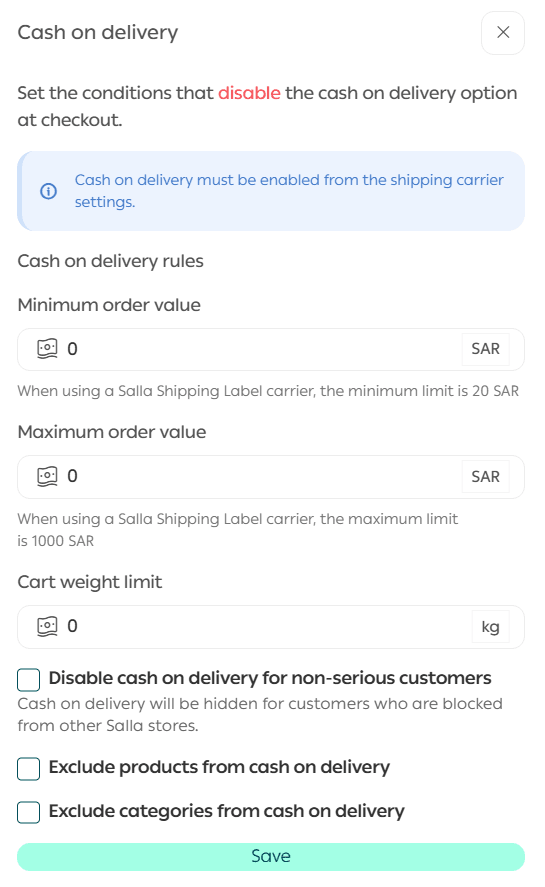
Note: If the selected shipping company is part of Salla shipping labels, the maximum COD order value is capped at SAR 1,000.
3. COD balance transfer schedule
The transfer days for cash on delivery balances from shipping companies that support COD via Salla shipping labels are:
- Sunday
- Wednesday
These days apply to all shipping companies available through Salla shipping labels.
Notes:
- Invoices are issued for orders that have been successfully delivered or shipped.
- The invoice includes orders completed during the previous week.
- The time it takes for the amount to reach your bank account may vary depending on your bank’s policies.
How customers use cash on delivery
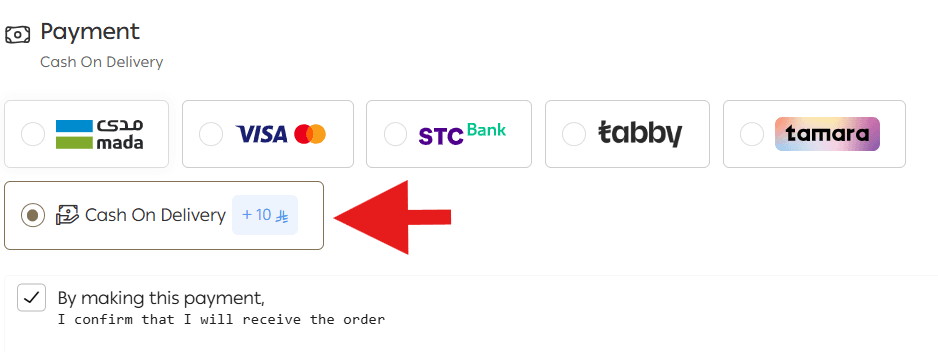
At checkout
When a customer reaches the checkout page and selects a shipping company that supports COD through Salla shipping labels, the Cash on Delivery option will appear as a payment method.
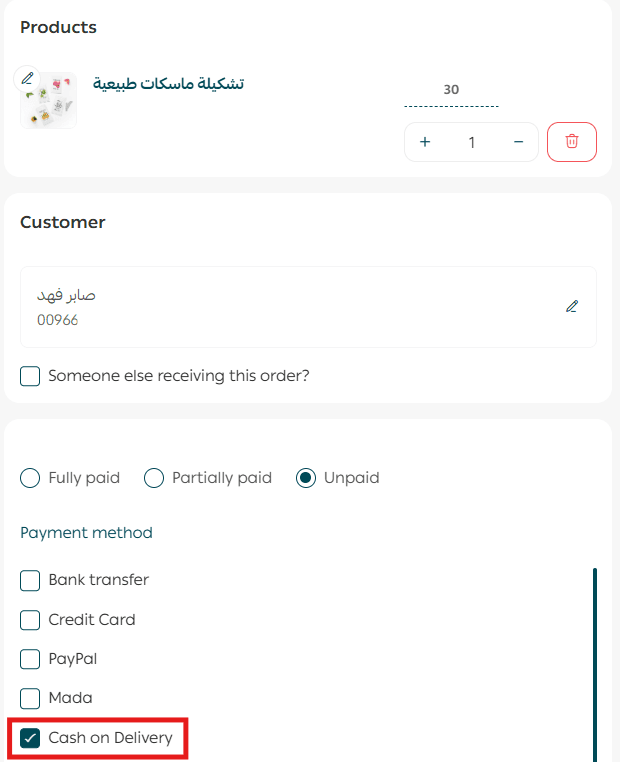
Manual orders
When creating a manual order, you can also select COD as the payment method.
Viewing the current COD balance
To view your COD balance and transaction history:
- From the main menu, click All, then select Payment Methods.
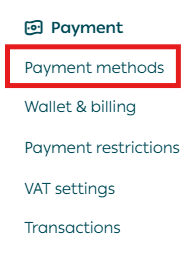
2. Open the Wallet & Invoices tab.
Under Cash on Delivery Payments Balance, click Transaction History.
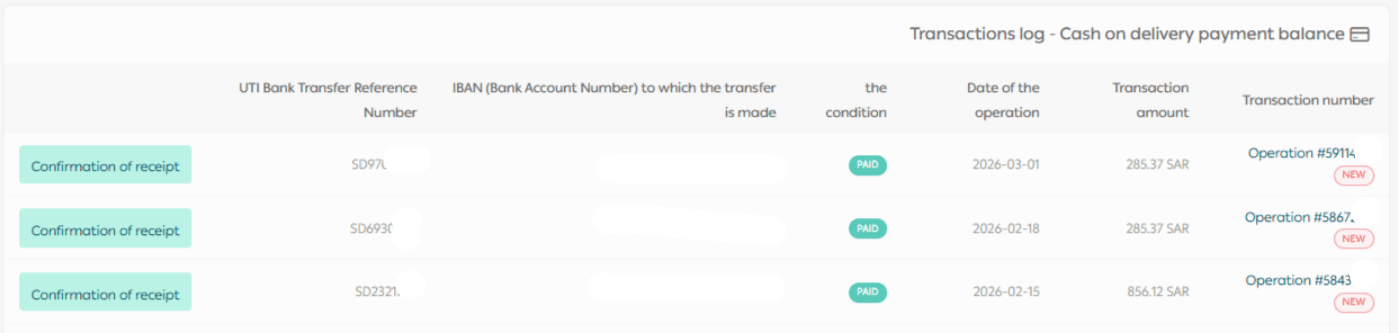
The balance history shows your current confirmed COD balance, amounts that have already been collected from customers.
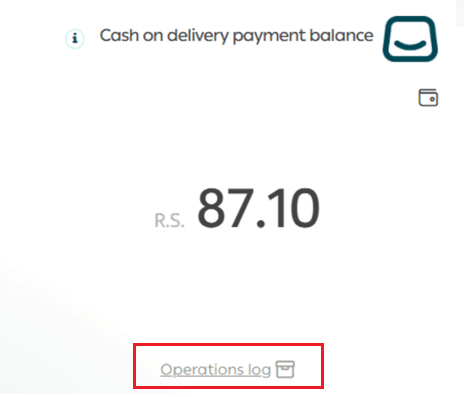
The transaction record includes:
- Transaction number
- Transaction amount
- Transaction date and status
- IBAN of the receiving bank account
- UTI (bank transfer reference number)
Viewing transaction details
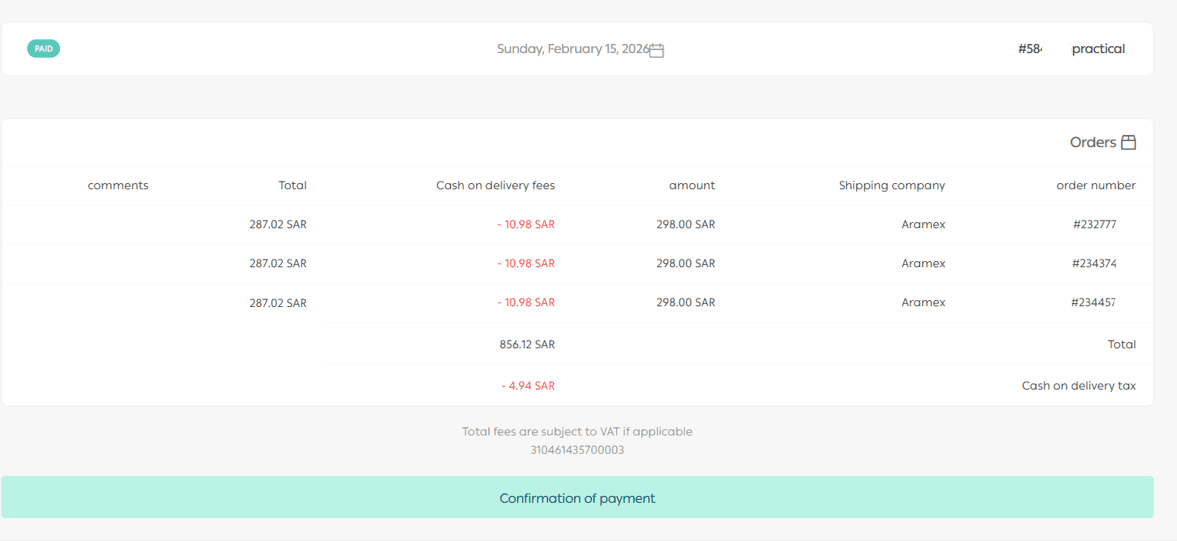
Click on any transaction number to view full details, including:
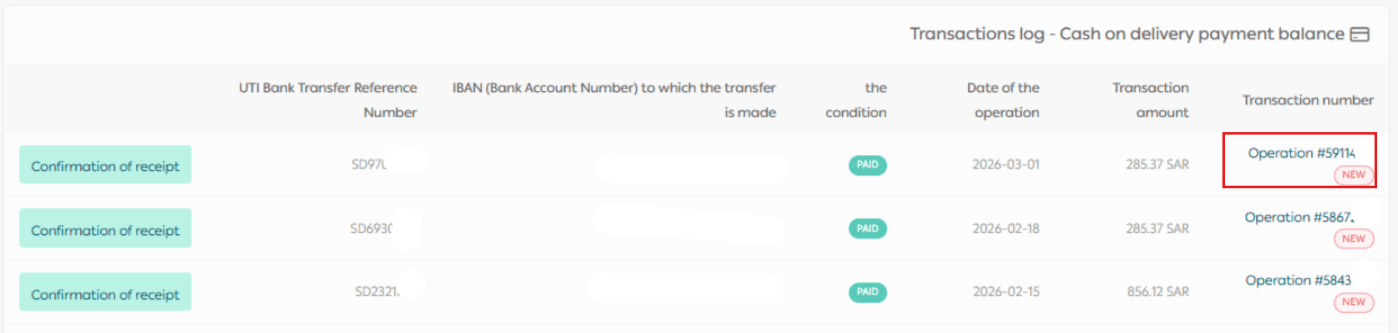
- Order number
- Shipping company
- Amount
- Cash on Delivery fee
- Total amount
Managing COD transaction history
1. Viewing specific transactions
To filter and view specific COD transactions:
- From the side menu, click Wallet.
- Go to Cash on Delivery Payments Balance, then click Transaction History.
3. Click Filter.

You can filter by:
- Transaction number
- Transaction status
- Transaction date
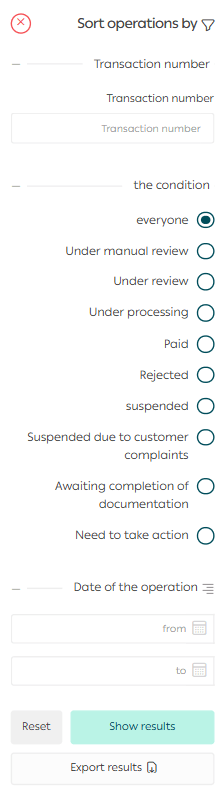
To export filtered results, click Export Results.
The data will be downloaded as an Excel file.

2. Exporting COD transactions
To export a single transaction:
- Open the transaction details page.
- Click Export.
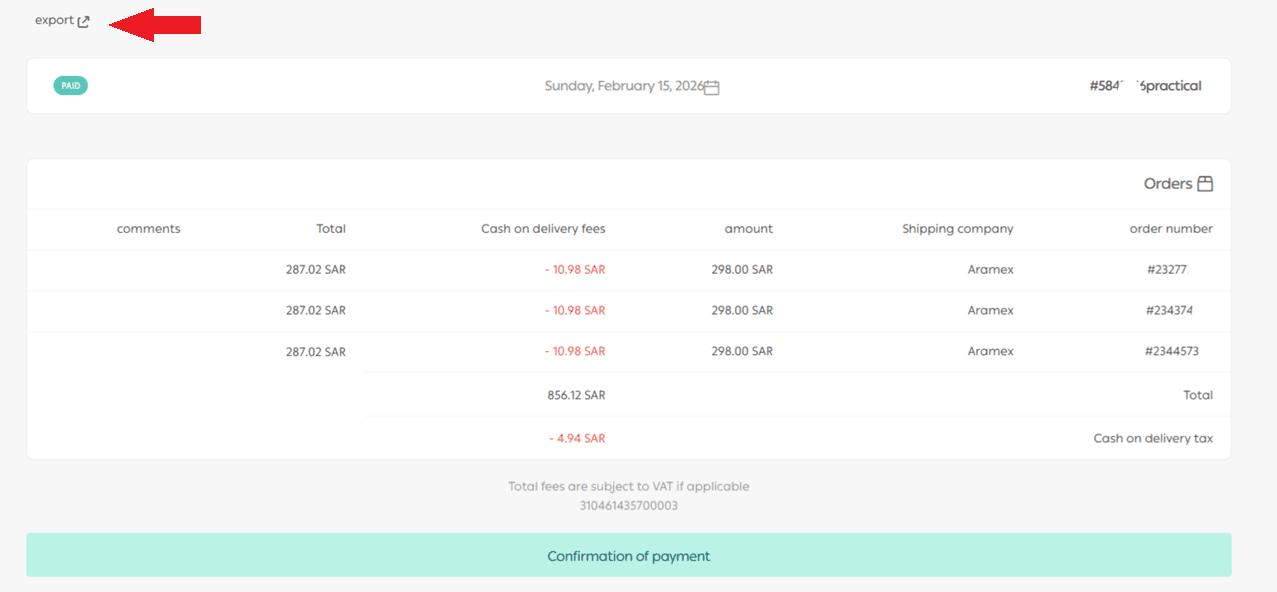
The transaction data will be exported to an Excel file containing all relevant details.

Frequently asked questions
Is Cash on Delivery available regardless of cart value?
No. If the cart value is less than SAR 20, the Cash on Delivery option will not appear at checkout—even if it is enabled.
Can I modify the Cash on Delivery fee charged by the shipping company?
Yes. You can increase or decrease the Cash on Delivery fee compared to the fee set by the shipping company.
Example: SMSA COD fees
- SMSA’s COD fee: SAR 8.00 + 2% of the transaction value (VAT excluded)
You can adjust the fee charged to customers and then click Save.

- If you charge more than the company’s fee, the extra amount is added to your wallet as profit.
- If you charge less, the difference is deducted from your balance.