Do your customers spend too much time manually entering their delivery address?
With map-based location selection, you can now offer a faster, more accurate checkout experience. This feature allows customers to pinpoint their location directly on the map, saving time, simplifying delivery for couriers, reducing back-and-forth communication, and increasing overall customer satisfaction.
Use this feature to enhance the checkout experience, speed up deliveries, and even calculate shipping costs more accurately based on distance.
📌 Article overview
- Why use geolocation at checkout?
- How to enable location selection
- Ways customers can set their delivery address on the checkout page
Why use geolocation?
Geolocation is a modern checkout feature that allows customers to choose their delivery address directly from a map instead of typing it manually. This helps you:
- Reduce time and effort when entering addresses
- Speed up delivery without the need for calls between couriers and customers
- Calculate shipping costs accurately based on distance (with providers such as Barq)
How to enable location selection
From the main menu, click All, then under Customers select Customer Settings.
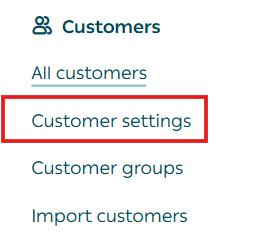
You’ll see a list of customer-related settings where you can enable the options that suit your store.
2. Under Customer address selection method, click Customize.
This allows you to choose how customers set their delivery address during checkout.

3. Configure the following settings:
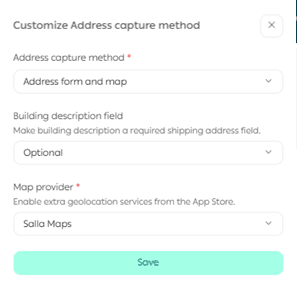
- Address type: Choose between
- National address
- Geographic location (Map)
- Or both
- Location service provider: Select the provider already activated for your store
Ways customers can set their address at checkout
When customers reach the delivery or pickup address step during checkout, they can use a saved address or add a new one using one of the following methods:
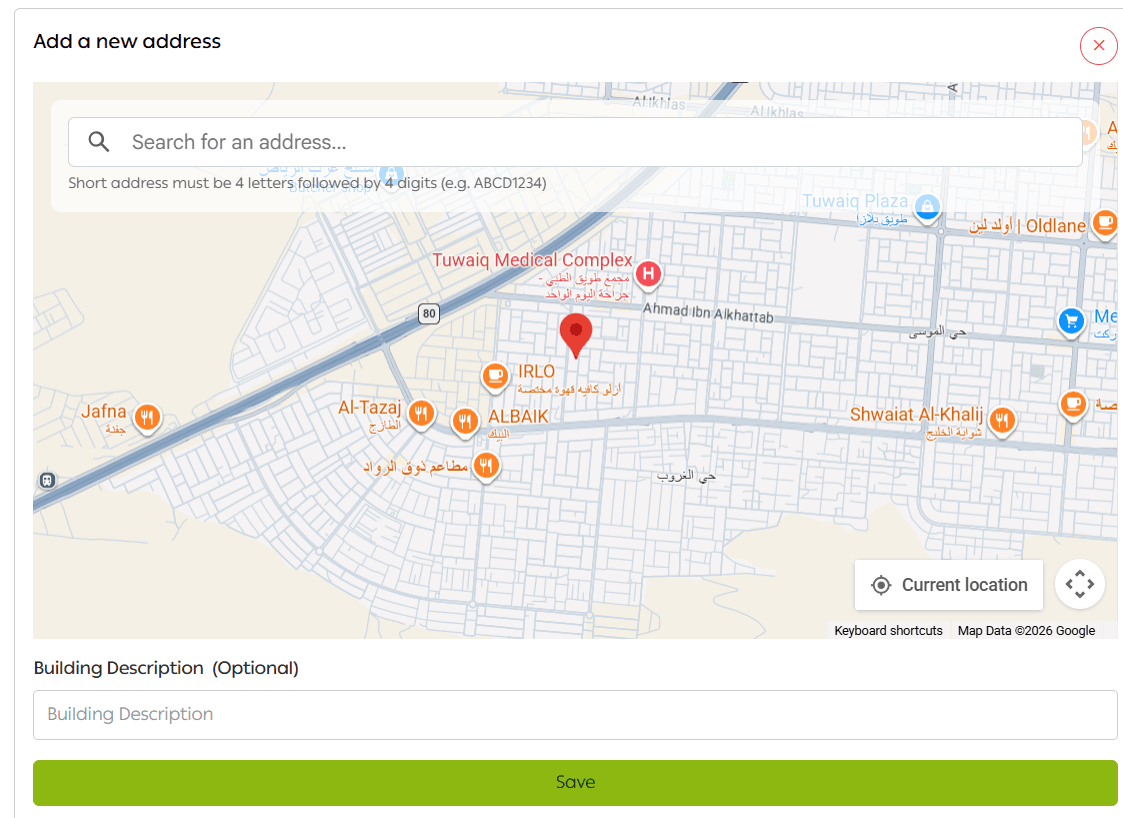
1️⃣ Select address from the map
By clicking Select address from map, customers can pinpoint their location directly on the map.
The system automatically fills in the full address details, including:
- Country
- City
- District
- Street
- Building number
- Postal code
- Short address code
2️⃣ Enter national address manually
When customers click Enter address manually, they can type their National Address.

Once entered, a list of matching addresses will appear. Selecting one automatically populates all address fields based on official national data.
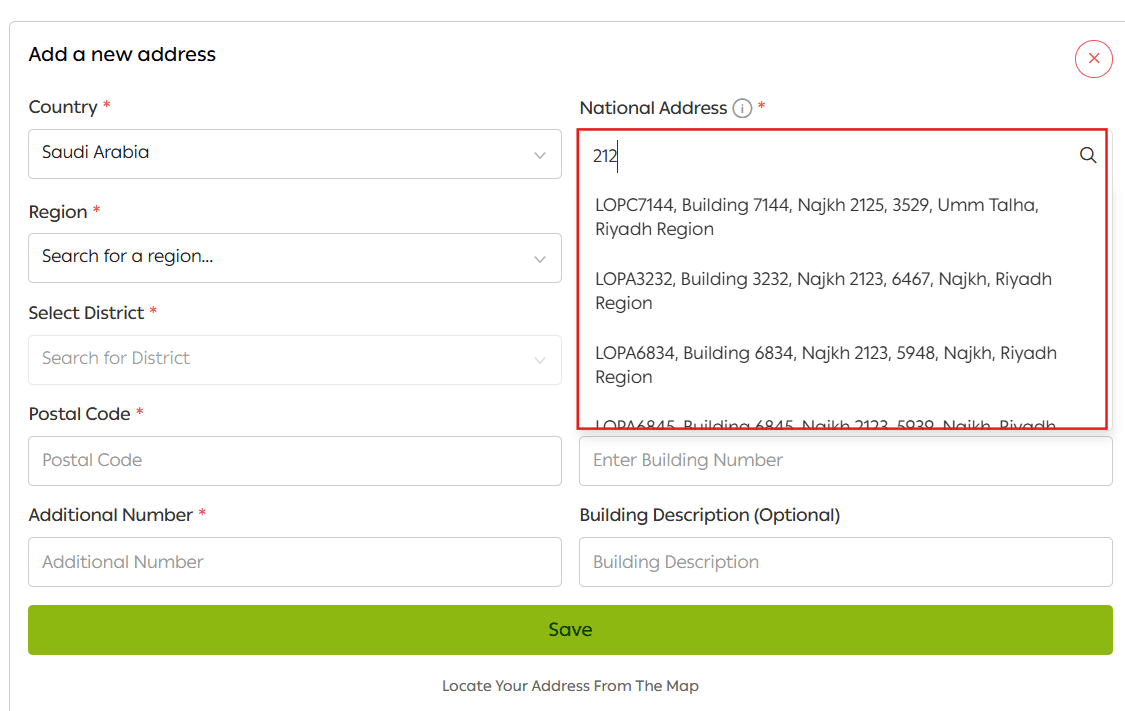
📝 Note: Customers can search using their national address or the short address code.
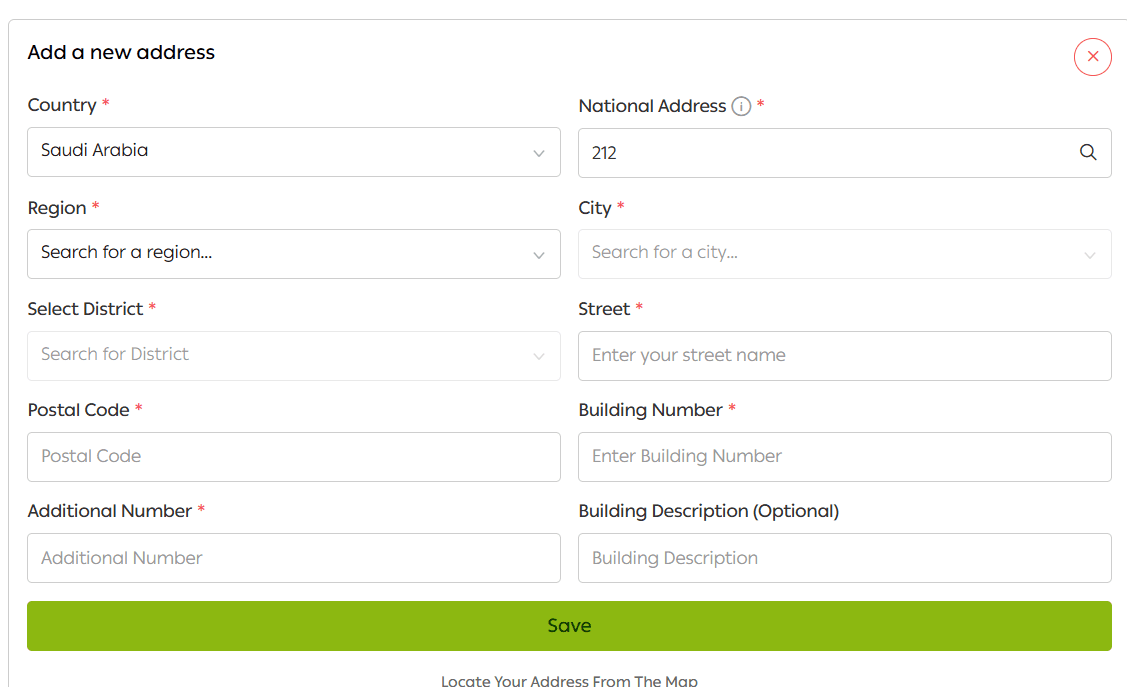
3️⃣ Enter address details manually
Customers can also choose to enter all address details manually by filling in each field themselves, such as:
- City
- District
- Street
- Building number
- Postal code
Frequently asked questions
Is the customer’s location saved for future purchases?
Yes. The customer’s selected location is saved automatically to make future checkouts faster and easier.
What’s the difference between Google Maps, LocationIQ, and other providers?
The difference lies mainly in location accuracy and service cost. Each provider offers different coverage levels and pricing models.
Which plans support this feature?
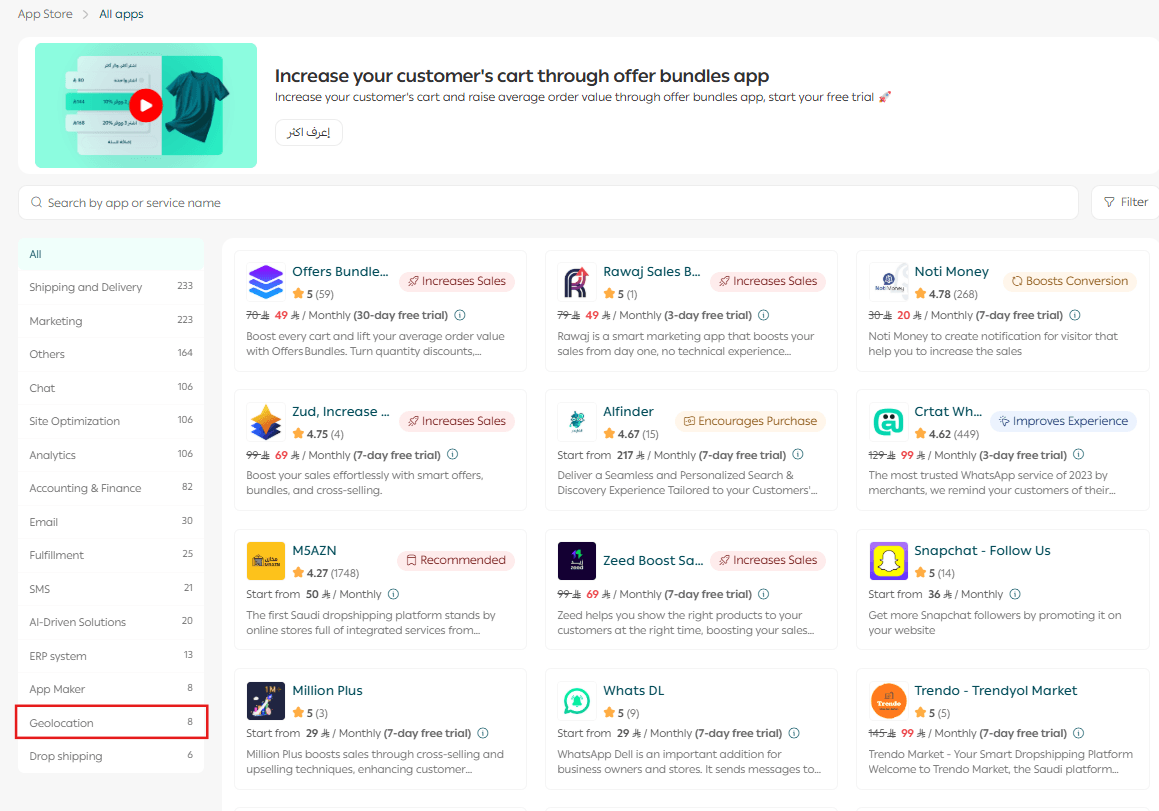
This feature is available on the Plus and Pro plans.
🎯 A faster checkout means fewer abandoned carts and happier customers.
By enabling map-based location selection, you simplify address entry, reduce delivery issues, and elevate the overall shopping experience.