.Salla Shipping Labels allow merchants to generate shipping labels at exclusive rates through selected shipping partners, making it easier to manage shipping operations and fulfill orders efficiently
📌 In this article
- Requirements for using shipping labels
- Generate a shipping label
- View shipping labels
- Print shipping labels
- Cancel a shipping label
- Create a return label
🎯 Requirements for using shipping labels
Before you can issue shipping labels, make sure the following requirements are met
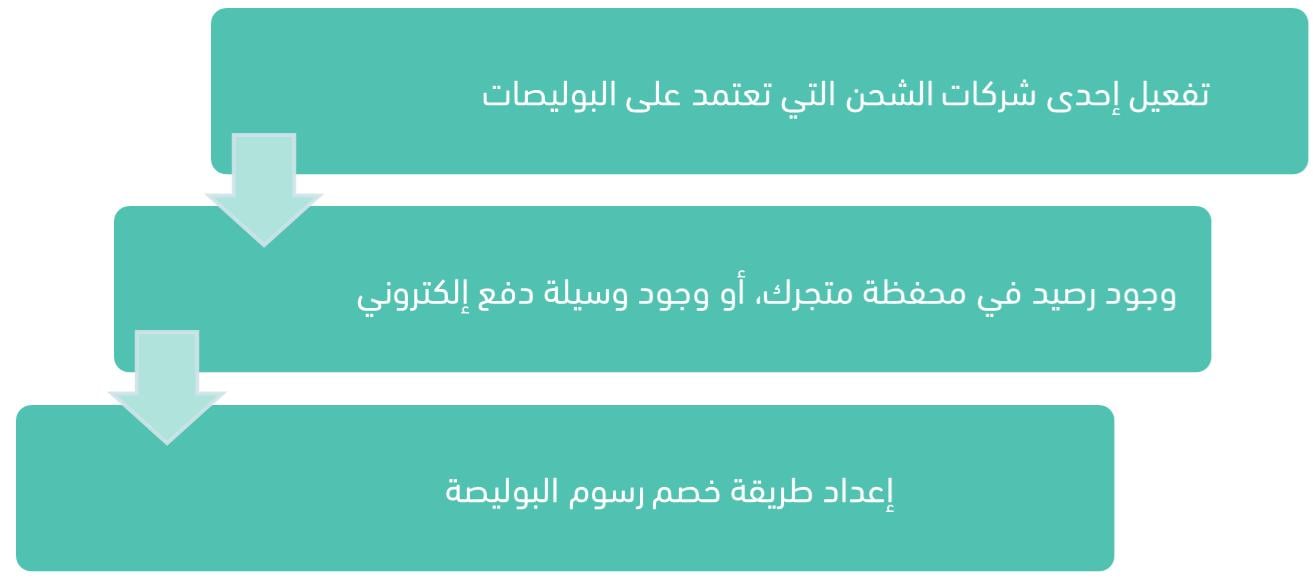
Requirement 1: Activate a Supported Shipping Provider
Shipping labels are currently available through:
- DHL Domestic
- Aramex
- DHL
- SMSA
- Aymakan
- RedBox
- Adwar
- Careem
J&T
For more information, see:
- Connect Aramex
- Connect SMSA
- Connect DHL International Shipping
- Connect DHL Domestic Shipping
- Connect Aymakan
- Connect RedBox
- Connect J&T
- Connect Adwar Refrigerated Shipping
- Connect Careem
Requirement 2: Have Available Wallet Balance or an Electronic Payment Method
To add funds to your store wallet
From the main menu, click All, then select Wallet and billing
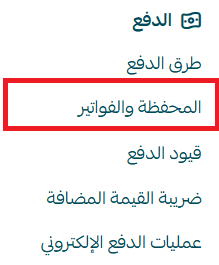
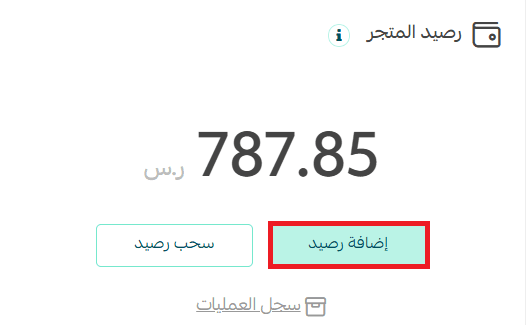
On the Wallet and Billing page, under Store wallet balance, click Add balance
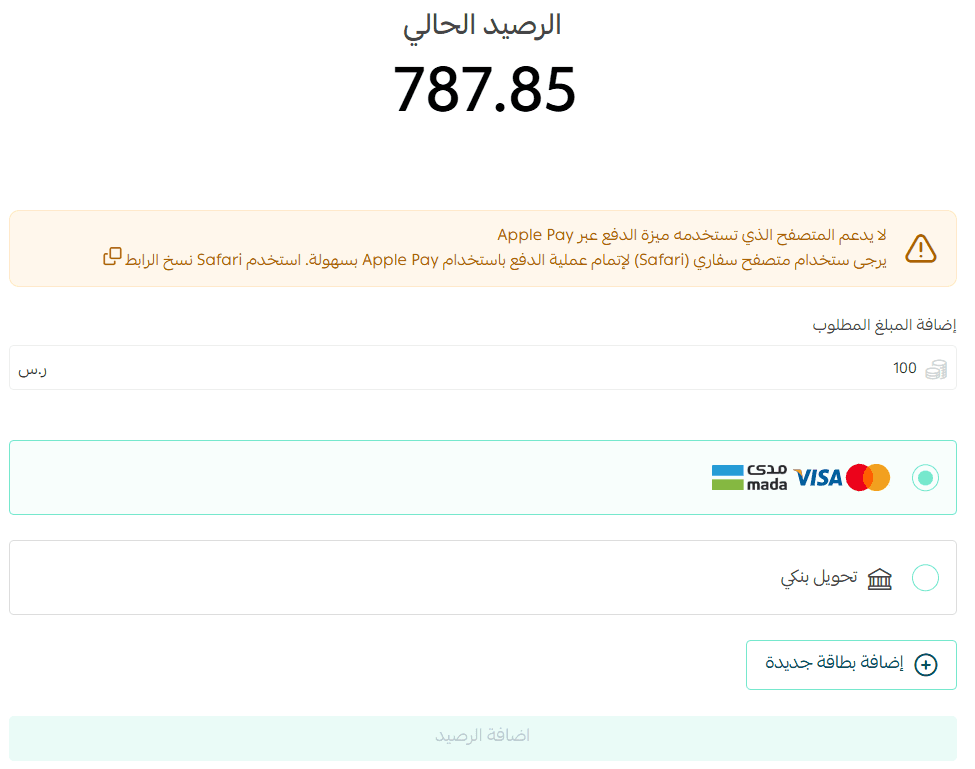
Enter the amount you want to add, select the payment card, then click Add balance
For more information, see Wallet and Billing
Requirement 3: Configure Shipping Label Fee Deduction Settings
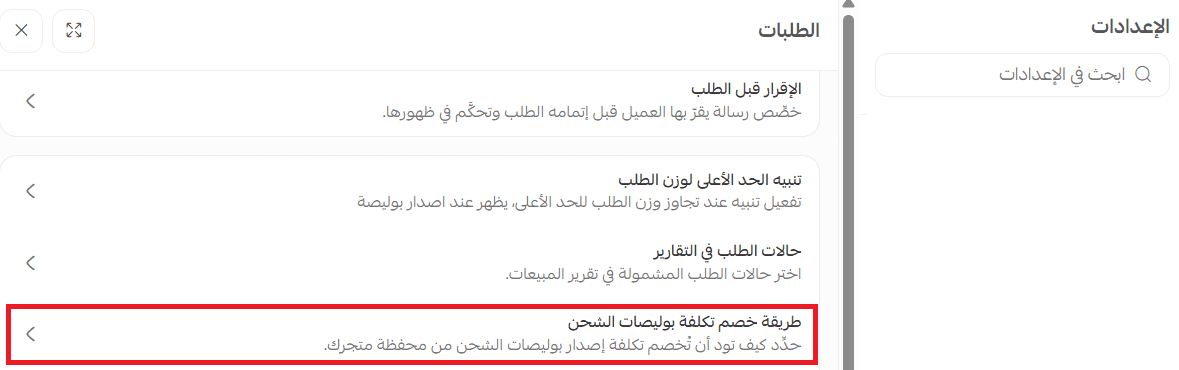
From the main menu, click Orders, then select Order settings

Under the Orders section, click Shipping label fee deduction method
Choose how shipping label fees will be charged
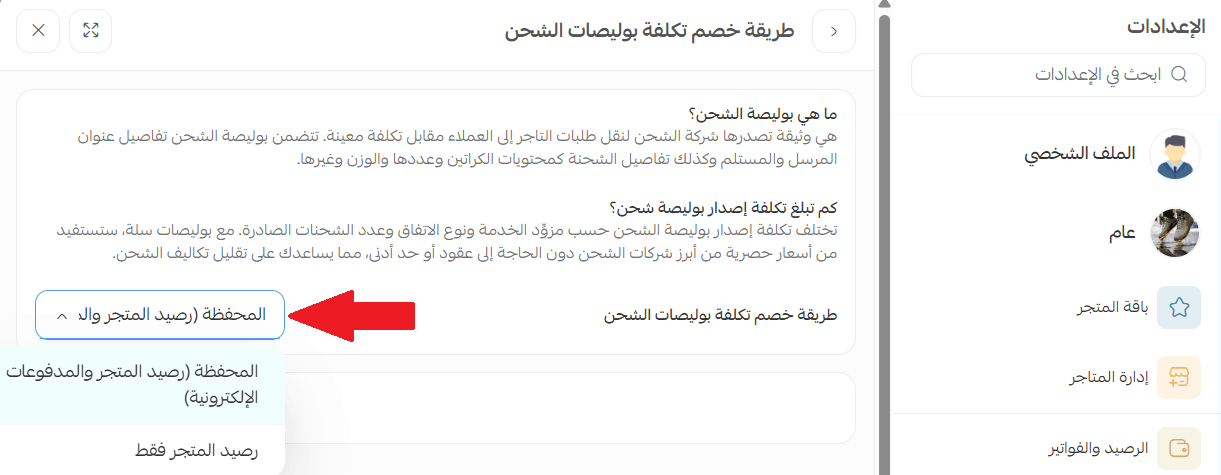
- Wallet and electronic payments
Wallet balance only
Then click Save.
For more information, see Order Settings.
🎯 Generate a Shipping Label
To issue a shipping label for an order:
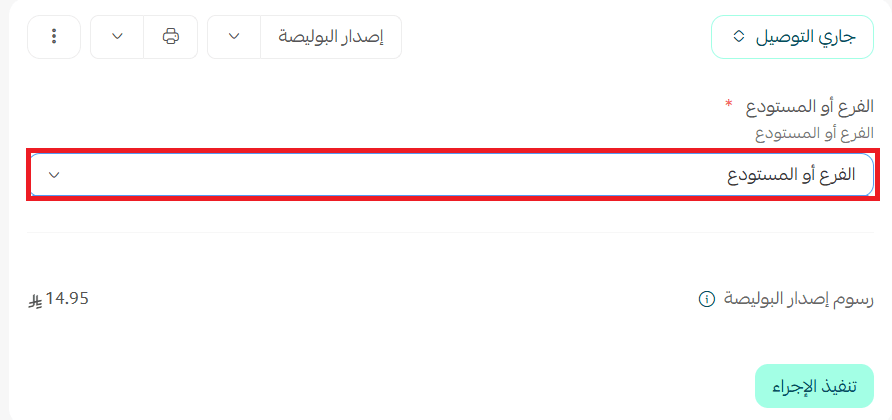
1. Open the order and click Issue shipping label.

2. Select the branch or warehouse, then click Run action.
🎯 View Shipping Labels
Shipping label activity appears in both your wallet and shipping label records
Wallet transactions
Shipping label charges appear as financial transactions
To view them:
From Store Settings, open Wallet and Billing.
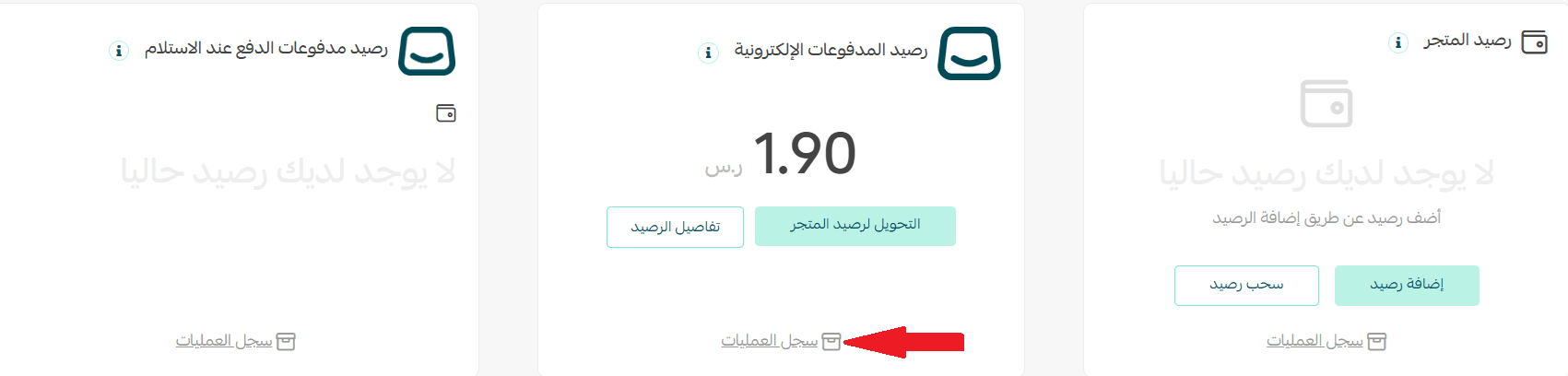
Under Wallet balance, click Transaction history
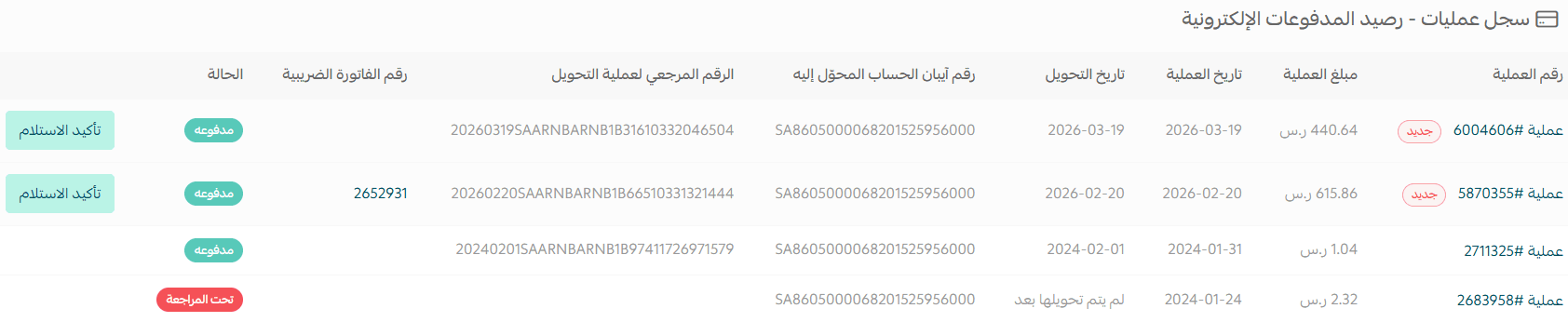
To view the details of any transaction, click the transaction number.
🎯 Print Shipping Labels
From the Orders page, open the order you want to print, then click Print shipping label.
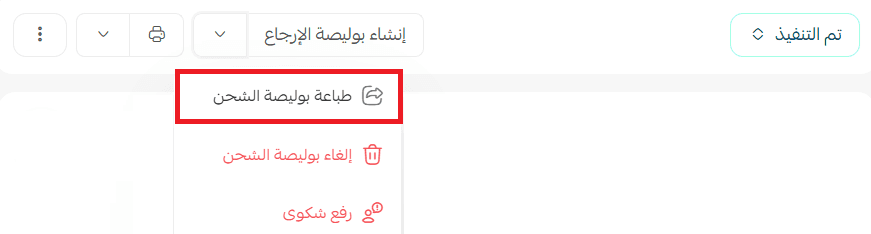
Once generated, the shipping label will be available for printing
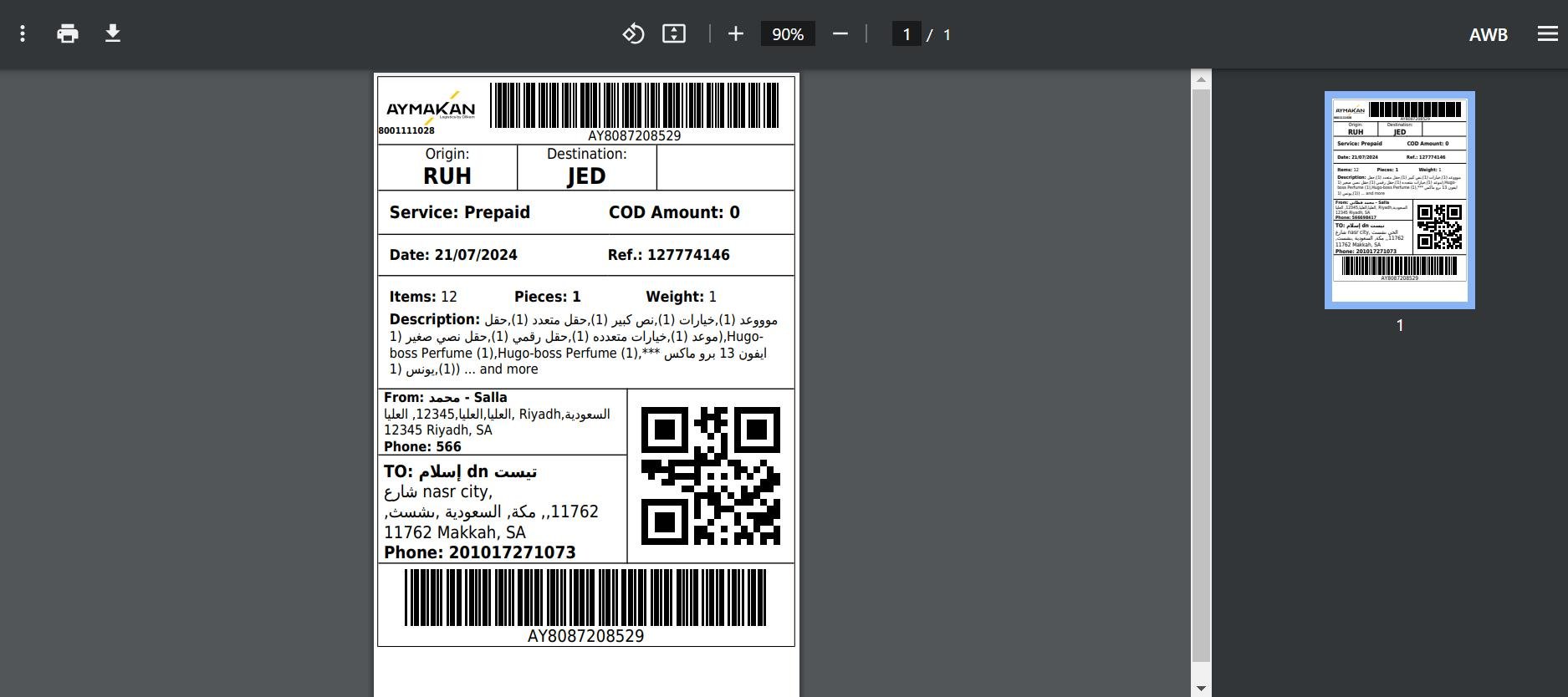
Note: Only products that require shipping are included on the shipping label.
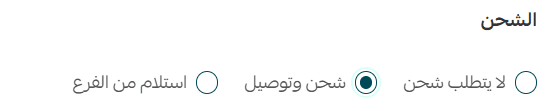
For more information, see Print Shipping Labels.
🎯 Cancel a Shipping Label
✅ Conditions for Shipping Label Cancellation
To be eligible for cancellation approval, all of the following conditions must be met:
- The shipment has not been collected by the shipping company.
- This is the first cancellation request for the order.
- The order was paid electronically and not through cash on delivery.
- The order value is at least SAR 50.
- The store has not exceeded the monthly cancellation limit of 100 labels.
- No more than 14 days have passed since the shipping label was issued.
Steps
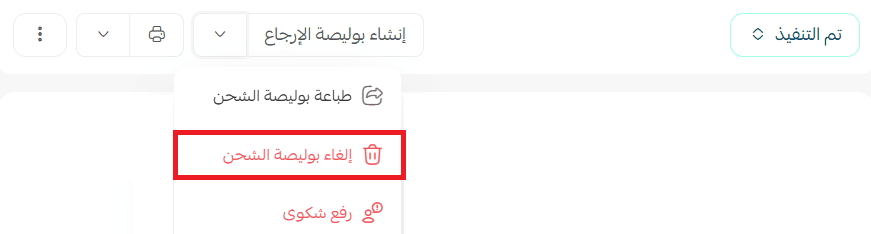
From the Orders page, open the order and click Cancel shipping label
🎯 Create a Return Label
From the Orders page, open the order, then click Create return label

The return label will be generated and linked to the order, allowing the customer to return the shipment through the supported shipping provider.