Efficient inventory management is the backbone of any successful store. It ensures the right products are available at the right time without overstocking or shortages. Through the Inventory Management page, you can easily update quantities, track stock movement, and perform accurate stocktaking with full control.
This feature is available on all paid plans and can be used by the store owner, general manager, or any user with permission to edit quantities. Inventory management applies to ready products, made to order services, and food products.
📌 Article overview
- Understanding inventory movement sections
- Available actions in Inventory Management
- Inventory operations
- Editing quantities for multiple products at once
- Filtering inventory
- Updating and adjusting inventory
- Stocktaking
- Viewing inventory history
Understanding inventory movement sections in your store
From the main menu, click Products, then select Inventory Management.

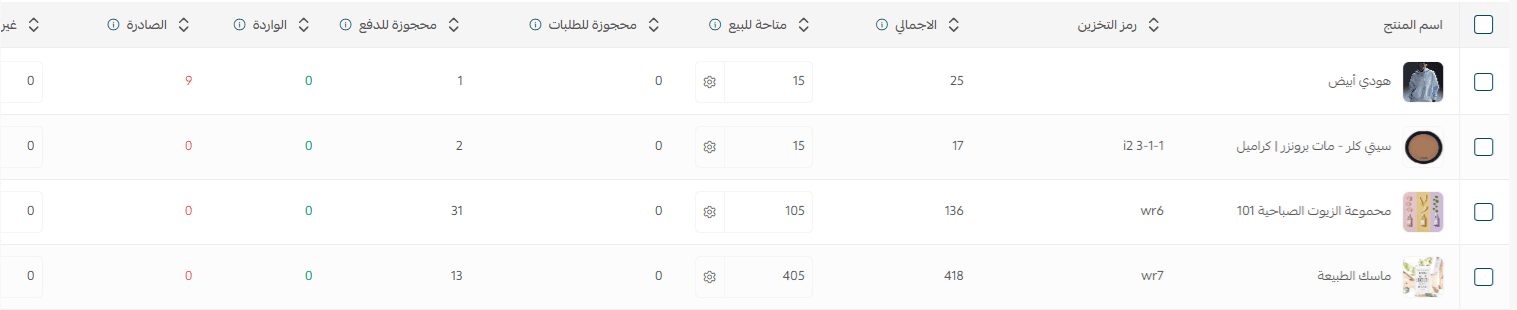
The inventory page will display all products along with detailed quantity columns that help you track product movement from purchase to payment, shipping, and delivery.
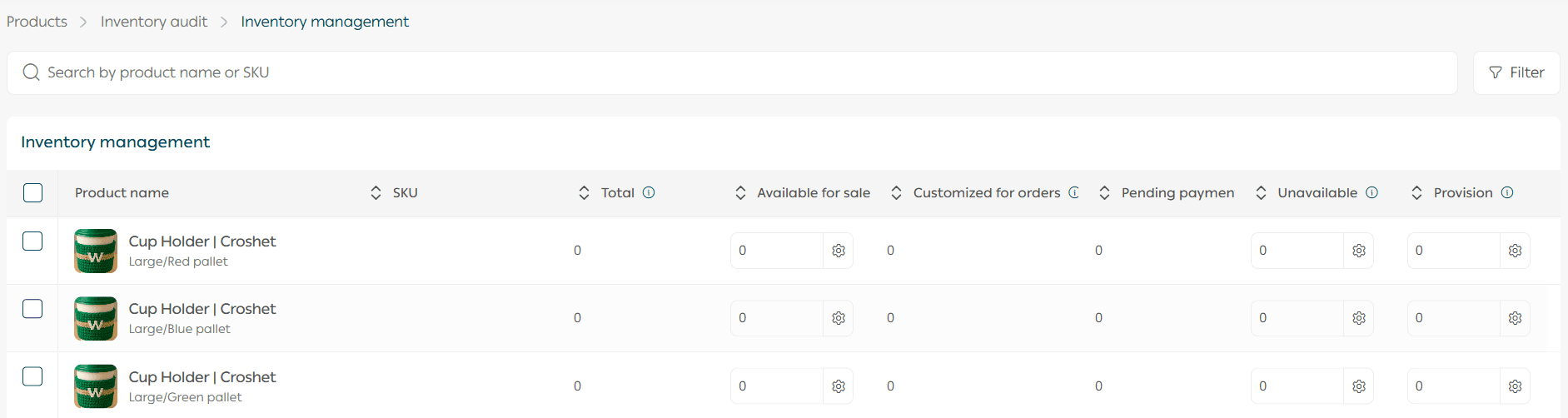
Below is a clear explanation of each inventory section.
Total quantity
This represents the total quantity in inventory, excluding incoming quantities that have not yet physically arrived.
Available for sale
These are the quantities ready for sale and visible to customers in your store. This number updates automatically based on order activity.
Example:
If you have 100 units of a product and a customer completes payment for 3 units, the available for sale quantity immediately becomes 97.
Reserved for orders
This includes quantities that customers have paid for but are still being processed or awaiting shipment. These are orders with statuses such as pending review or in progress until delivery is confirmed.
Example:
If a customer purchases 3 units and completes payment, but the order has not yet been prepared or shipped, those units are counted under reserved for orders.
Reserved for payment
These are quantities temporarily reserved when a customer adds products to the cart and proceeds to the payment page but does not complete payment.
Example:
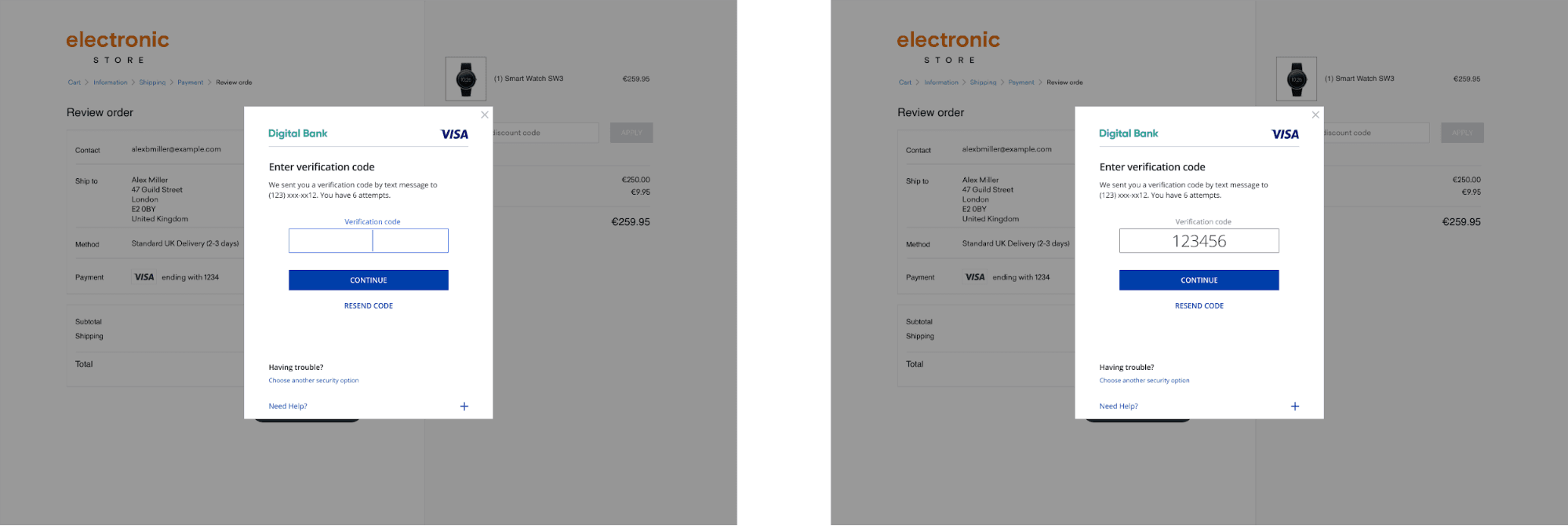
If a customer reaches the payment page but does not enter the verification code or complete checkout, the quantities remain temporarily reserved under reserved for payment.
Incoming
Incoming quantities are products ordered from a supplier that have not yet arrived at your physical inventory.
Once received, they can be added to available for sale. If receipt is rejected, they are automatically moved to not available for sale.
The following sections explain how to handle incoming quantities step by step.
Outgoing
These are quantities removed from inventory for any reason, such as transferring products to another branch.
Once the receiving branch confirms receipt, these quantities are deducted from the outgoing column and reset to zero.
Not available for sale
These quantities cannot currently be sold or displayed in the store. Common reasons include damaged items, returned products, or items that require review before resale.
Reserved stock
Reserved stock is inventory held as a backup and not visible to customers.
You can manually move these quantities to available for sale whenever needed.
These sections give you a complete and accurate view of your inventory and help you manage sales, fulfillment, and delivery with confidence.
Available actions in Inventory Management
Available for sale
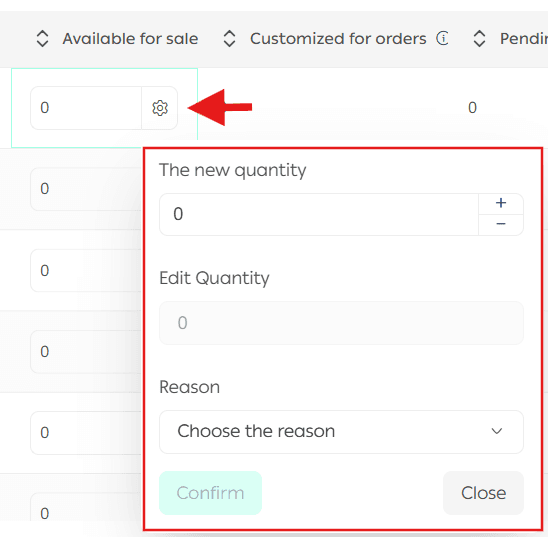
This is the quantity currently displayed and sold in the store. You can increase or decrease it as needed.
Important note: When decreasing the quantity, you must enter a reason. This is mandatory to ensure accurate inventory tracking.
Not available for sale
These quantities cannot be sold at the moment, such as damaged or returned products.
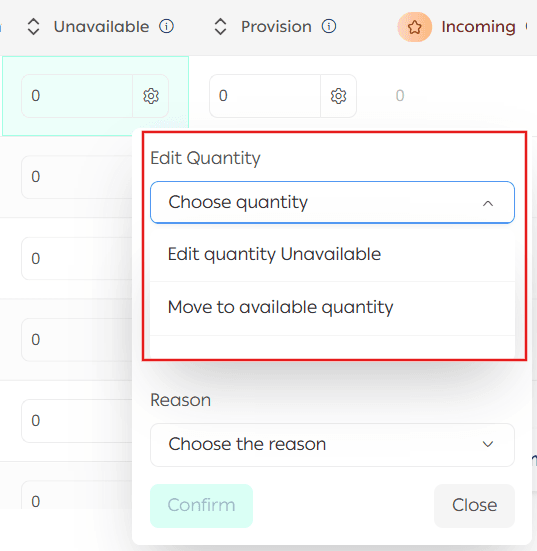
You can manage them using two options:
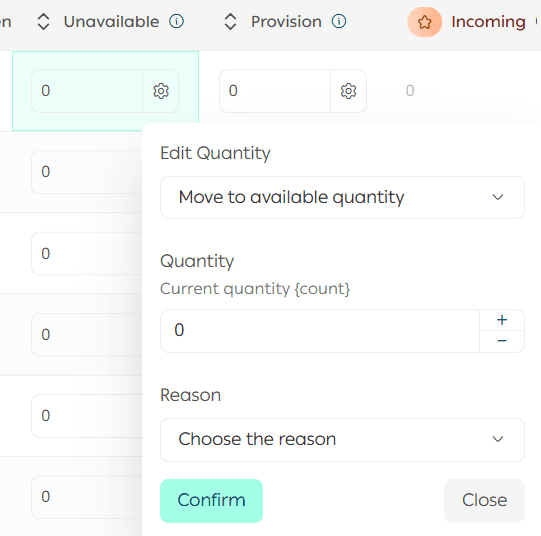
Move quantity to available for sale
Select a specific quantity and move it back to available for sale.
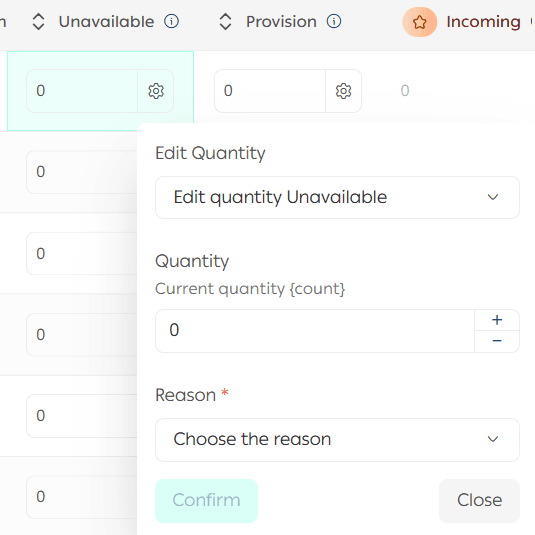
Adjust quantity
When increasing or decreasing this quantity, the system requires you to enter a reason. The quantity is then updated based on the value you enter.
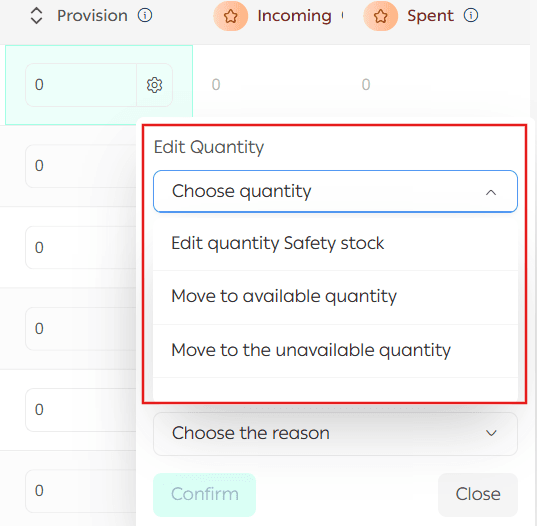
Reserved stock
You can perform three actions on reserved quantities:
- Edit the reserved quantity directly
- Move the quantity to available for sale
- Move the quantity to not available for sale if it needs review or is no longer sellable
Inventory operations
Edit quantities for multiple products at once
Select the products, then click Edit multiple products.
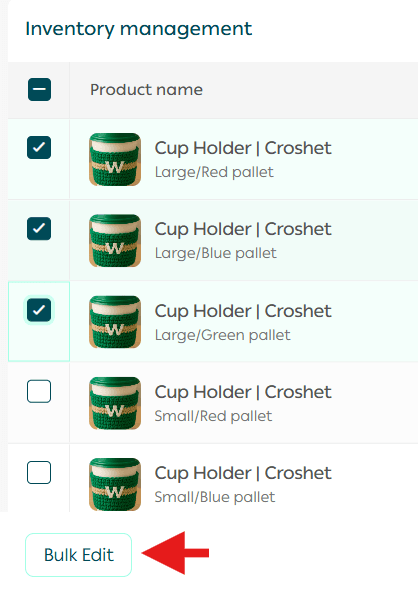
Choose the type of adjustment:
- Add to available for sale
- Deduct from available for sale
- Reset available for sale quantity
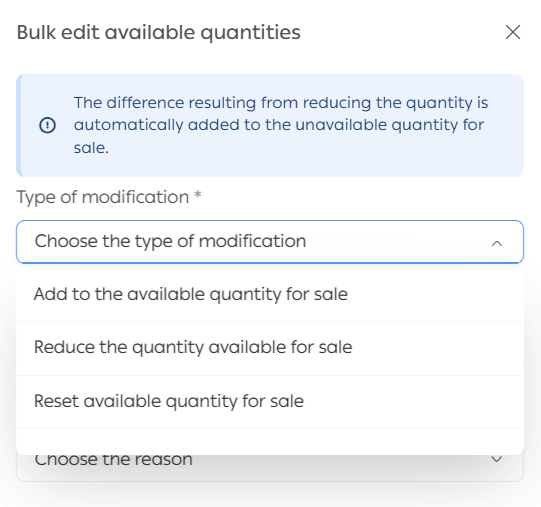
Important note: Resetting the available for sale quantity means assigning a new number, not increasing or decreasing the existing value.
Example:
If you reset the quantity to 200, the current quantity is replaced with 200.
If there is a shortage, the difference is automatically moved to not available for sale.
Filter inventory
From the Inventory Management page, use the search bar to find a specific product.

To apply advanced filters:
- Click Filter

2. Select the desired filter conditions
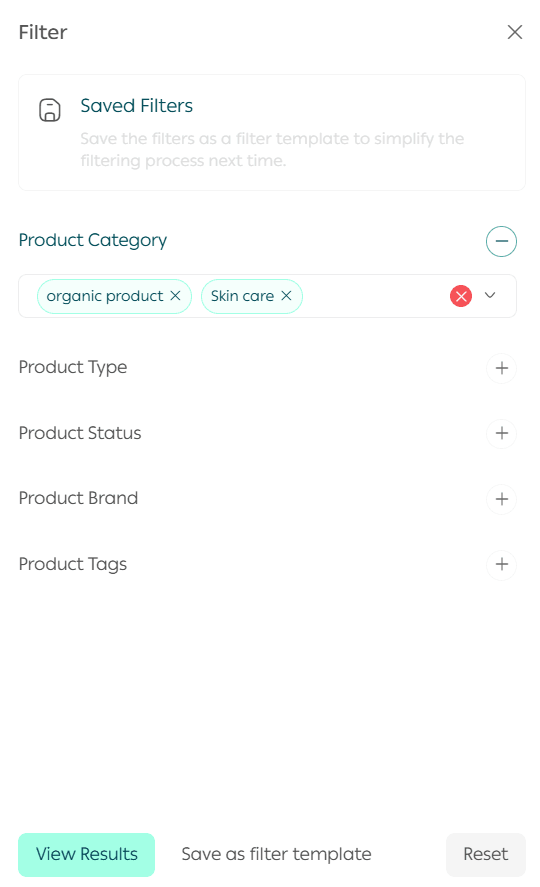
3. Click Show results
You can save filter conditions as a reusable filter template by clicking Save as filter template and entering a name.
To apply a saved filter later, simply click it from the saved filters bar.

To clear the current filter, click cancel.

Update and adjust inventory
- Select the warehouse or branch you want to edit

2. Increase or decrease quantities as needed, then click Save
Stocktaking
From the Product tab, click the more tab to begin inventory auditing.

View inventory history
To review all inventory changes:
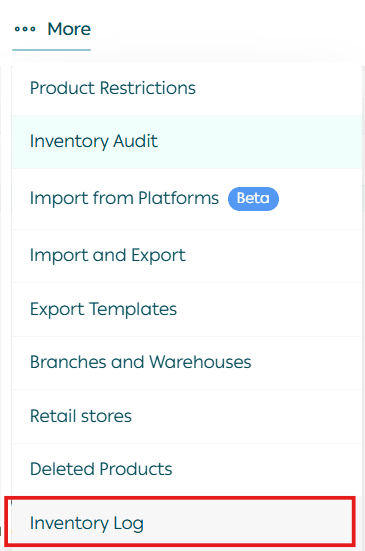
- Go to Products
- Click More
- Select Inventory Log
The inventory history shows essential details, including:
- Product name and SKU
- Quantity before and after adjustment
- Name of the employee who made the change
- Date of the update
- Reason for the adjustment
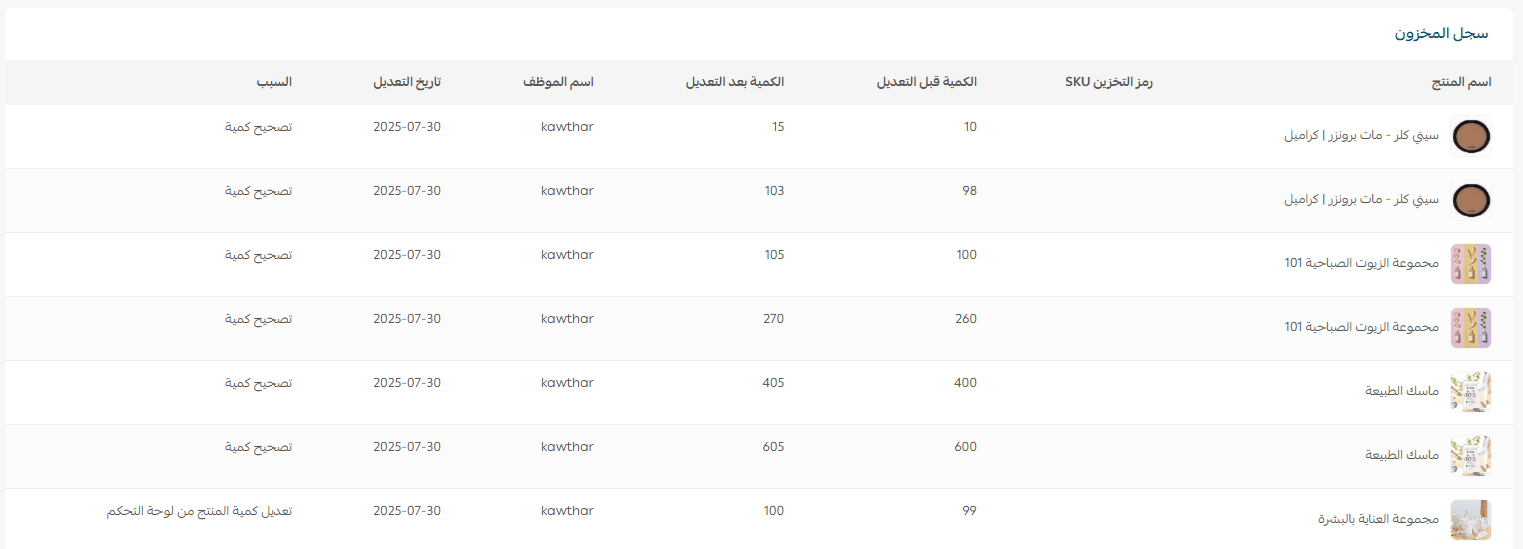
This ensures transparency, accountability, and accurate inventory tracking at all times.