Selling into more than one country, region, or city means dealing with different prices, currencies, and languages at the same time.
Multiple markets on Salla lets you run a tailored version of your store for every market you sell into, while inventory and orders stay under one roof. Instead of managing separate stores, you set up each market once and let Salla handle the local experience: the currency shoppers pay in, the language they browse in, the branch their order ships from, and the domain they land on. In this guide, you'll learn how to enable multiple markets, add a market step by step, and manage every market you run.
The multiple markets feature creates a localized copy of your Salla store for each country, region, or city you target. Every market gets its own currencies, languages, branches, shipping rules, domain, and theme, while stock and orders stay in one system. It is available to stores on the Special plan.
📌 Article overview
- What multiple markets does
- How to enable multiple markets
- The multiple markets page
- How to manage your markets
- Frequently asked questions
🚀 What multiple markets does
Multiple markets lets you create a dedicated version of your online store for every country, region, or city you sell into, so shoppers in that area see a store that matches what they expect locally. You can tailor a market for any country or region Salla supports across the Gulf, including:
- Design
- Prices
- Currency
- Store domain
- Shipping options
Each version is managed independently, but inventory and orders run on one connected system. That lets you fulfill an order from the branch closest to the customer, which cuts shipping costs, shortens delivery times, and keeps operations efficient.
✅ The feature is available to stores on the Special plan.
In short, multiple markets puts regional expansion within reach without multiplying the work behind it.
🚀 How to enable multiple markets
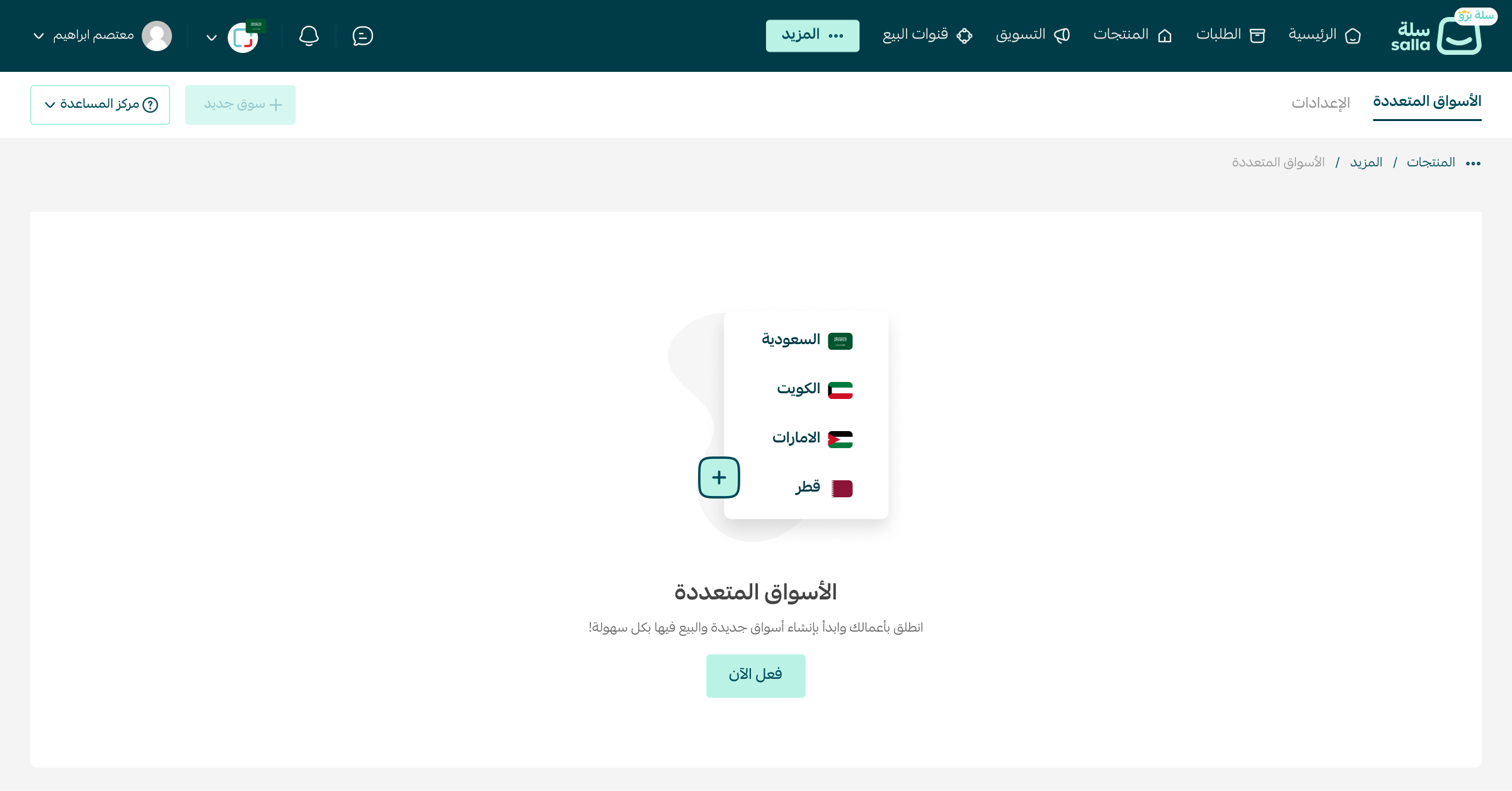
1. From the main dashboard menu, click (Products), then click (Multiple markets).

2. Click (Activate now).
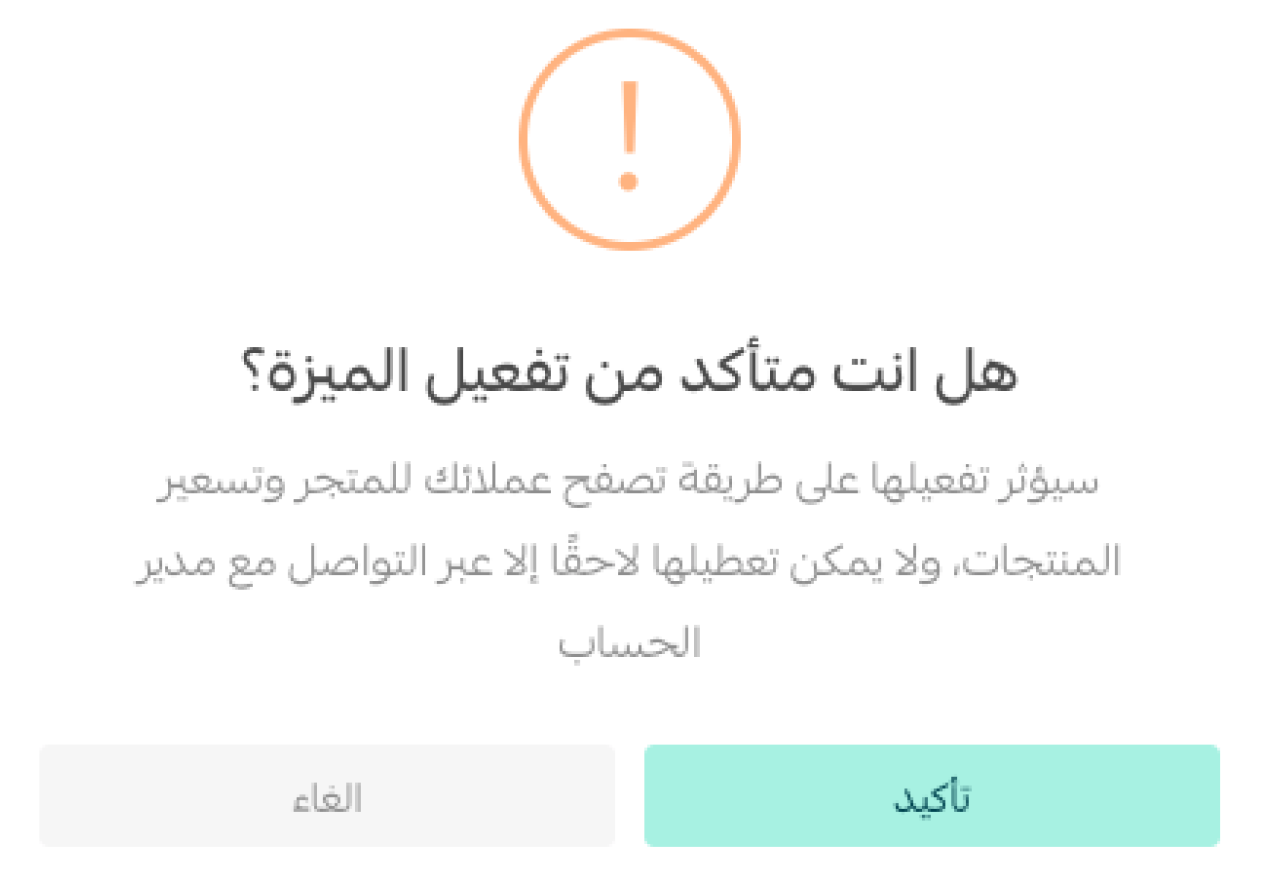
3. Click (Confirm) to complete the activation.
🚀 The multiple markets page
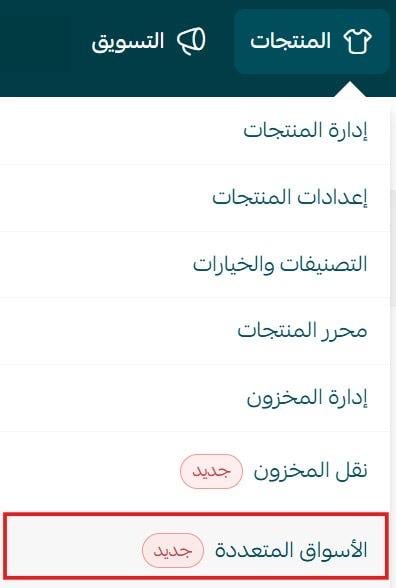
From the main menu, click (More), then click (Multiple markets).
The multiple markets page lists every market you have added, along with the key details of each one:
- Basic information about the market
- Currencies
- Branches and warehouses
- Shipping
- Contact information
- Domain
- Login and registration options
- Store design
A search field at the top helps you find a specific market.

🚀 How to manage your markets
Managing multiple markets covers five tasks:
1. Add a new market
2. Activate a market
3. Preview and visit a market
4. Search for a market
5. Delete a market
🌟 Add a new market
1. Click (+ New market).

2. Fill in the details across the eight sections below, then click (Save).
Section 1: Basic information
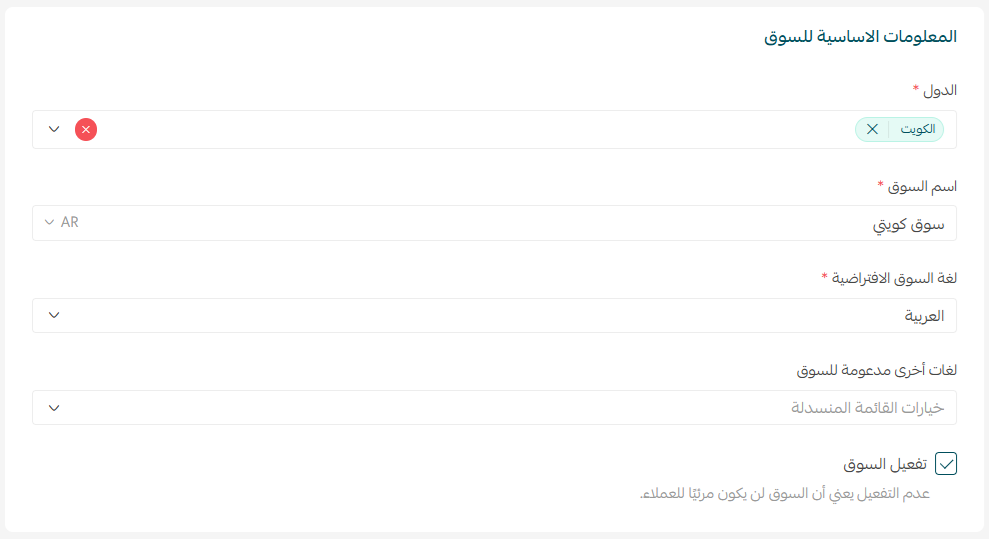
Choose the countries the market will serve, give the market a name that identifies it, then set the default language and any other languages it supports. You also decide here whether the market is visible to customers.
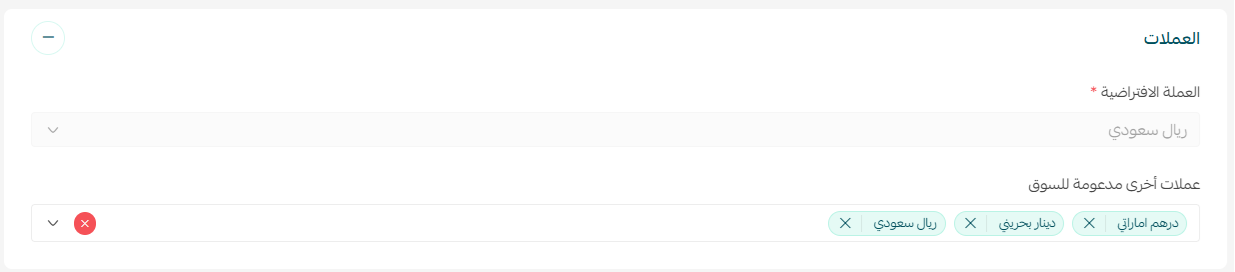
Section 2: Currencies
Choose the default currency for the market and any additional currencies it accepts.
Section 3: Branches and warehouses
1. Select the branches that serve this market, then set the remaining options.
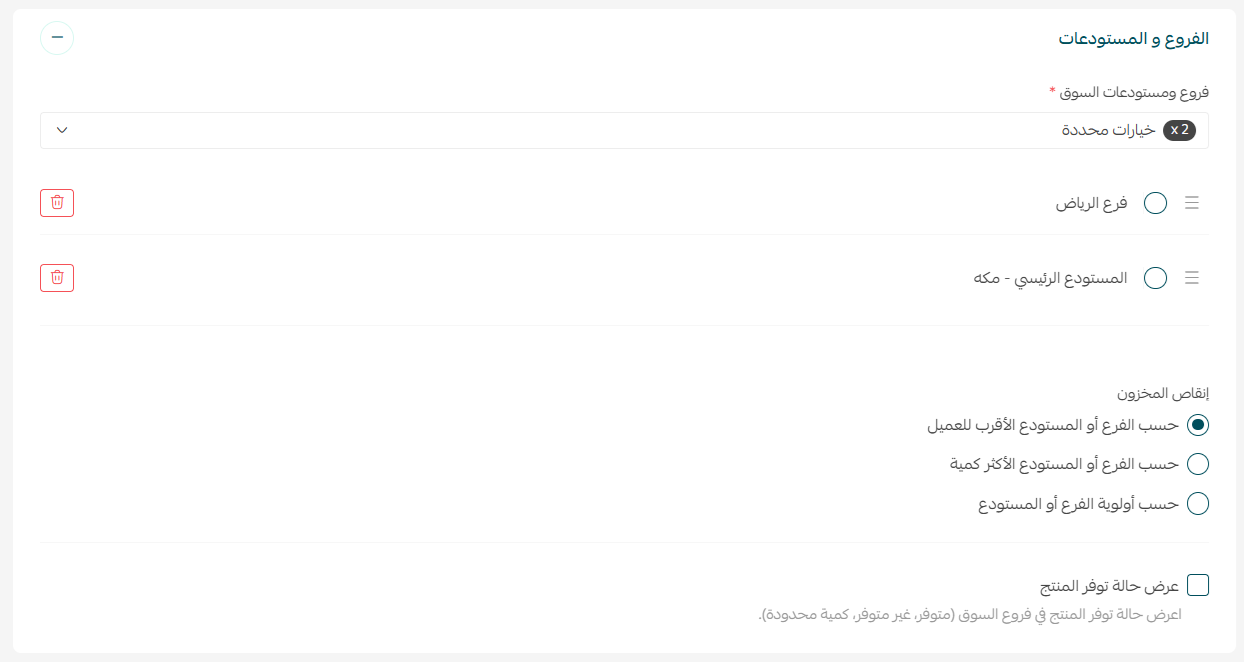
2. Choose a stock deduction strategy.
This controls which branch or warehouse a purchased item is deducted from. You have three options:
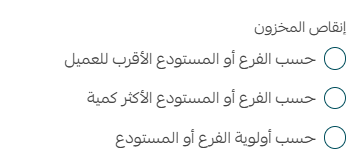
- Branch or warehouse with the most stock: the quantity comes out of whichever location holds the largest quantity of that product.
- Branch or warehouse closest to the customer: the quantity comes out of the location nearest the customer.
- Branch or warehouse priority: the quantity comes out in the order you have ranked your branches and warehouses.
📝 Important notes
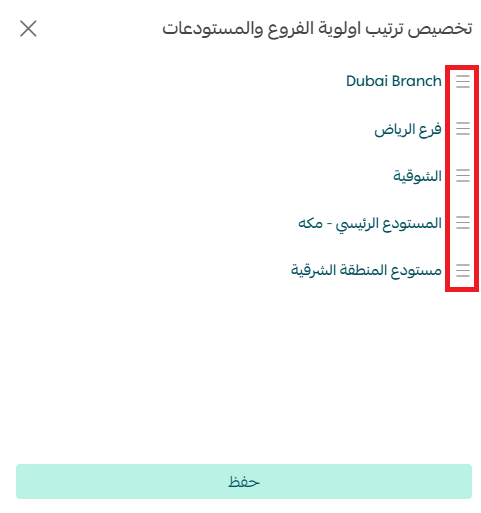
You set the deduction priority order from Product settings:

Drag and drop the branches to rank them.
3. Show product availability by branch.
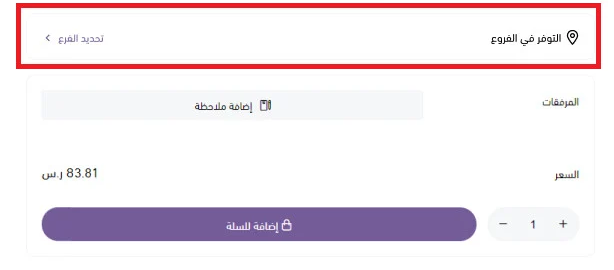
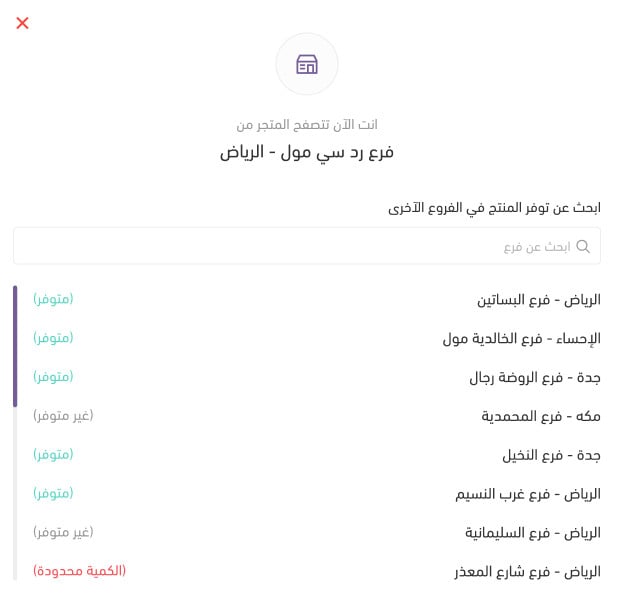
Turn this option on to show shoppers a branch list with the stock status of the product they are viewing: available, unavailable, or limited quantity. It helps a customer pick the right branch when they plan to pay and collect the item in store.

Once (Show product availability) is on, a button to check branch availability appears on the product details page.
Clicking it opens a window showing your branches and whether the product is available, unavailable, or in limited quantity at each one.
📝 Important notes
Limited quantity means fewer than 50 units of the product remain.
Section 4: Shipping
Shipping settings for a market are split into four parts:
1. Shipping one order from several branches
2. Shipping cost calculation
3. Automatic carrier assignment
4. Shipping unlimited-quantity products from the default branch
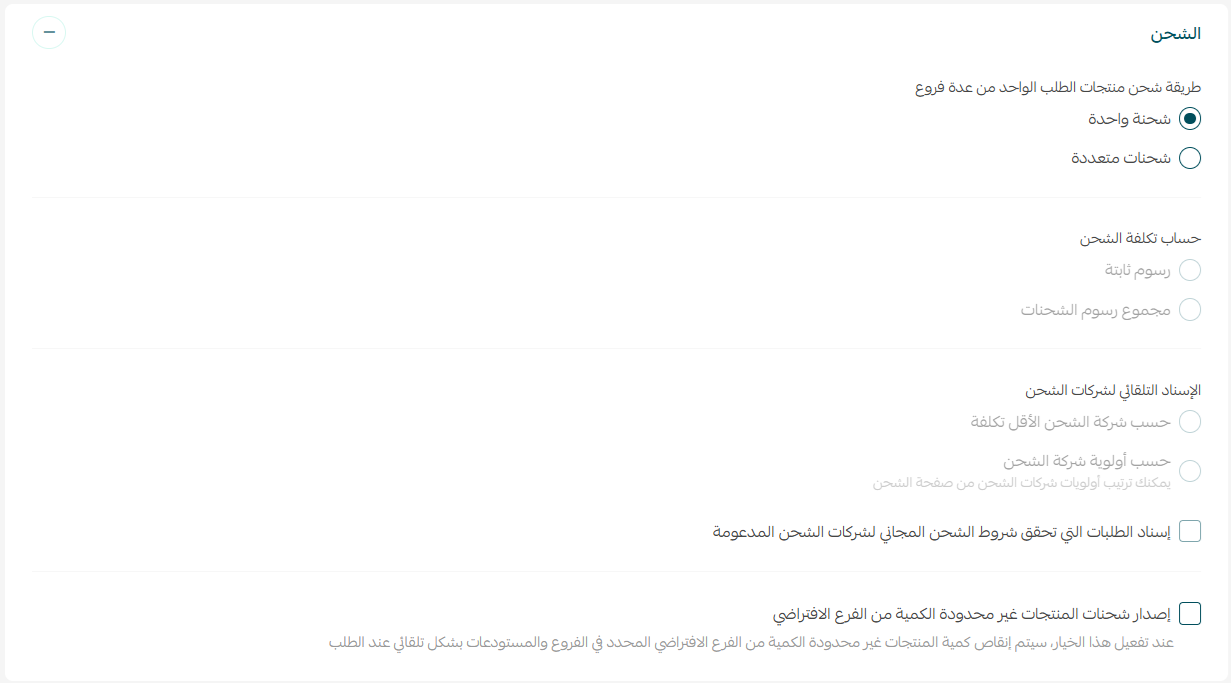
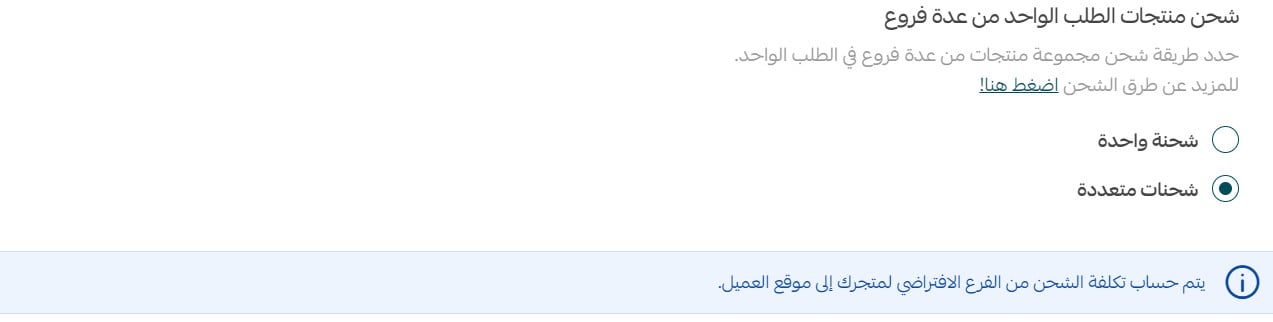
1. Shipping one order from several branches

When a customer orders products that sit in different branches, you can ship them in one of two ways:
Single shipment
All items travel together as one shipment with a single waybill, issued from the branch you choose to the customer's address. This applies in two cases:
- Every item in the order is held at one branch.
- The items sit in several branches, and you consolidate them yourself and export them as one shipment from the branch you select.
Multiple shipments
Several waybills are issued, one per branch, all going to the customer's address. In this case shipping options are hidden from the customer's checkout page.
2. Shipping cost calculation
For orders that ship as multiple shipments, choose how the shipping cost is worked out:
Option 1: flat fee
Charge one fixed shipping amount on any multi-shipment order.
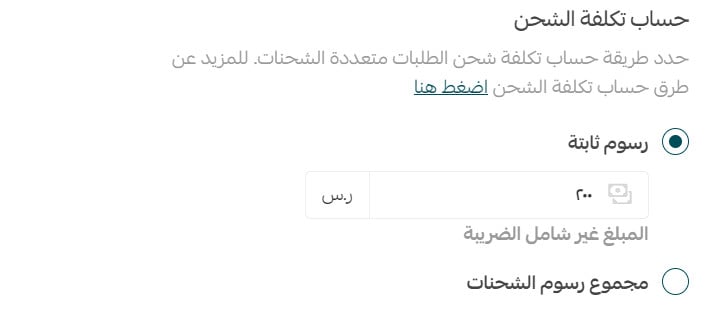
Option 2: total of all shipment fees
The fee for each shipment in the order is added together.
Either way, the customer sees the shipping fee at checkout without a list of carriers to choose from.
3. Automatic carrier assignment
You can have orders assigned to a shipping company automatically, based on one of two rules:
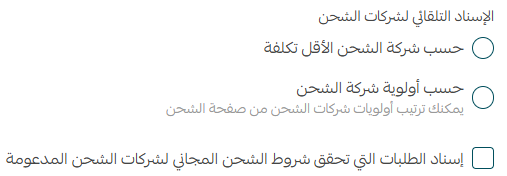
Option 1: cheapest carrier
The order goes to the lowest-cost carrier that covers the customer's area.
Option 2: carrier priority
The order follows the priority order you set for your carriers. Salla checks whether the first carrier delivers to the customer's area; if it does not, it moves to the next one, and so on.
Enable free shipping carriers
With this option on, whenever an order meets the free shipping conditions you set in your shipping and delivery settings:
- The shipping charge is waived.
- The free shipping carrier is used instead of the one automatic assignment would have picked.
For more details, see configuring free shipping settings.
4. Shipping unlimited-quantity products from the default branch

- Unlimited-quantity product with the option on: stock is deducted from the default branch.
- Unlimited-quantity product with the option off: stock is deducted according to the deduction strategy you selected.
The customer's country appears on the order under the customer options section, labeled with the market name:

Section 5: Contact information
E-commerce regulations require every store to publish customer service contact details, so add them for each market.

Adding your store's social media accounts is optional.

Section 6: Domain
Set the domain for the market in one of two ways:
Option 1: use a subdomain you have already added.

Option 2: create a new subdomain.

For more details, see:
- Connecting a domain bought outside Salla
- Buying a domain transfer service
- Frequently asked questions about domain management
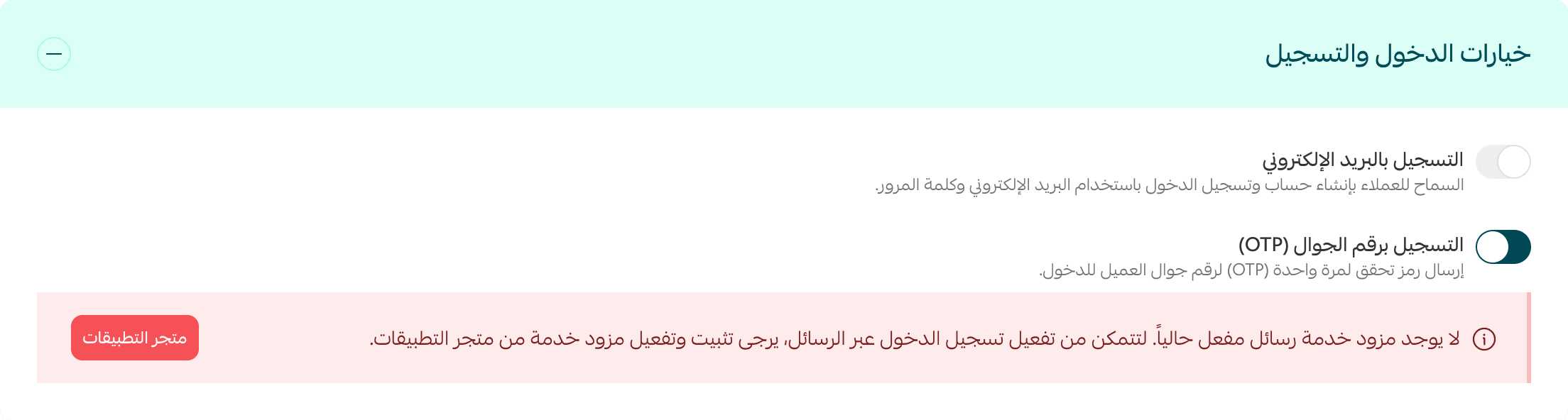
Section 7: Login and registration options
Here you choose how customers in this market sign up and log in.
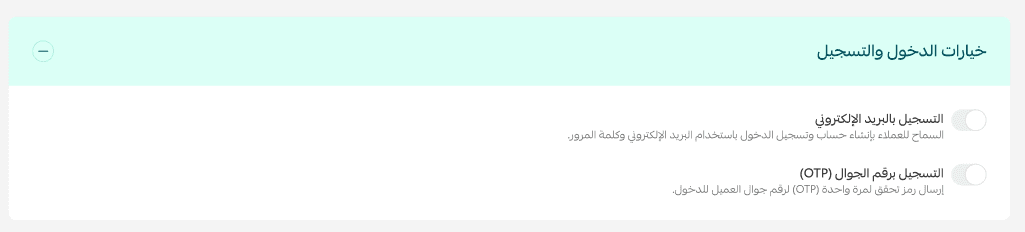
1. Registration by email: the customer enters an email address and a password.
2. Registration by mobile number (OTP): a verification code is sent to the mobile number the customer enters.
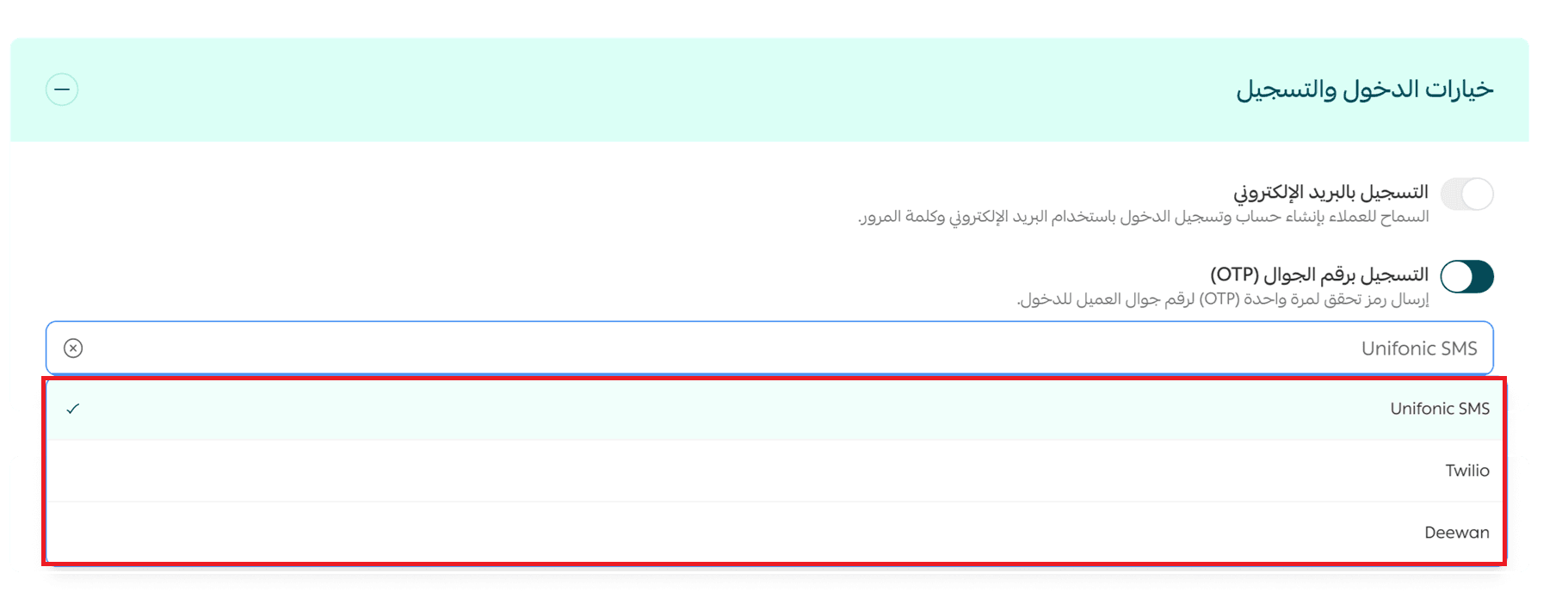
🔔 OTP login requires connecting one of the SMS service providers from the App Store. Until you connect one, you will see this alert:
Section 8: Store design
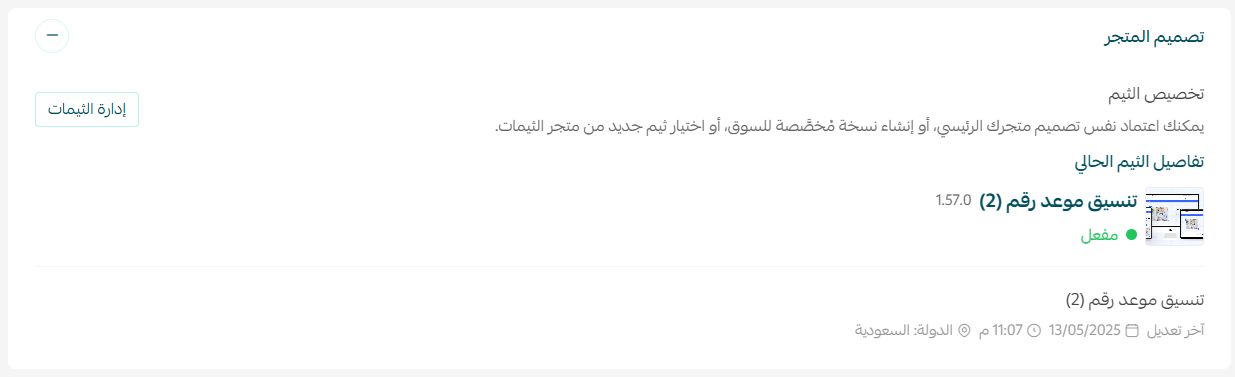
A new market uses your main store theme by default. You can create a custom copy of it for that market, or pick a different theme from the theme store by clicking (Manage themes).
📝 Important notes
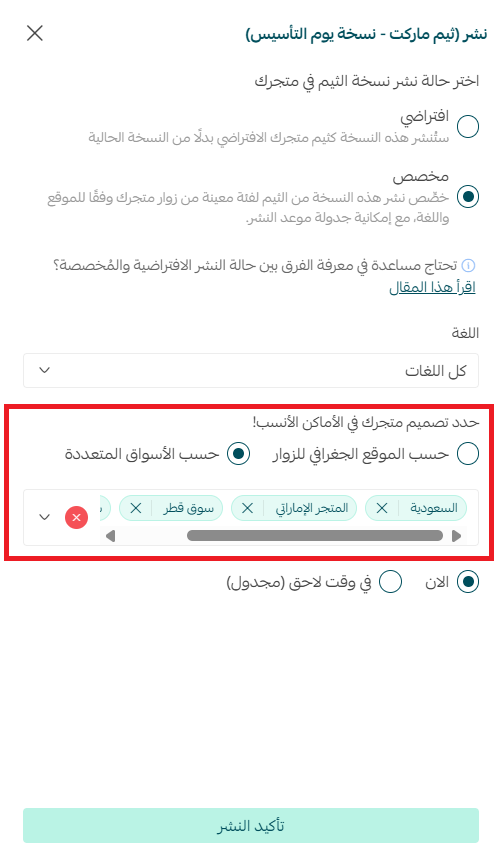
When you publish a theme, you can assign it to specific markets.
For more details, see managing and customizing your theme design.
🛠️ Activate a market
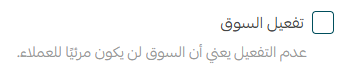
When a market is ready for shoppers to see, open it from the multiple markets page and turn on (Activate market) in the market details.
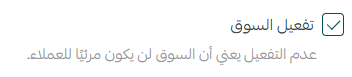
💡 Example: while you are still configuring a newly created market, leave it deactivated so customers cannot see it yet.
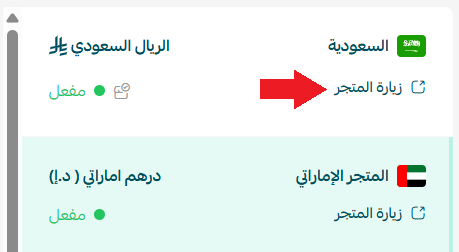
📍 Preview and visit a market
From the multiple markets page, click (Visit store) on the market you want to see.
📝 Important notes
The market opens on the subdomain assigned to it. If you have not assigned one, it opens on your store's main domain.
🔍 Search for a market
From the multiple markets page, search by market name or by country.

🗑️ Delete a market
From the multiple markets page, open the market you want to remove and click (Delete).

🛍️ Sort products by market
You can order the products inside a category differently in each market, so the storefront reflects what shoppers there actually care about. A bestseller in one country is not always the bestseller next door, and a market-specific order lets you lead with the products that fit local taste.
📖 To learn how to arrange products for each market, see managing product categories.
❓ Frequently asked questions
Which plan includes multiple markets?
Multiple markets is available to stores on the Special plan.
Does every market need its own domain?
No. You can assign a subdomain to a market, but it is optional. A market without its own subdomain opens on your store's main domain.
Can I set up a market without customers seeing it?
Yes. Leave (Activate market) turned off while you configure it, then turn it on when the market is ready to go live.
What does "limited quantity" mean on the product page?
It means fewer than 50 units of that product remain at the branch shown.
Which branch does an order ship from?
That depends on the stock deduction strategy you chose for the market: the branch with the most stock, the branch closest to the customer, or the branch highest in your priority order.
Expanding into a new market is rarely about the products themselves. It is about whether the store in front of a shopper feels like it was built for them, in their currency, their language, and their delivery reality. Multiple markets gives you that without running a separate store for every country you sell into.