Want your store's informational pages to be as flexible as the rest of your storefront, with full control over what goes on them?
You can now design informational pages end to end from the theme editor — add new components, manage what is on each page, and adjust the settings without leaving the editor.
An informational page is where you explain your business: who you are, how returns work, what your policies say. In this guide, you'll learn how to build a custom informational page from components, how to manage each page once it exists, and how to edit the other page types.
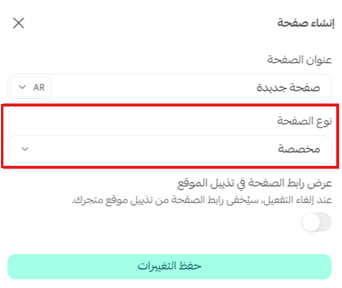
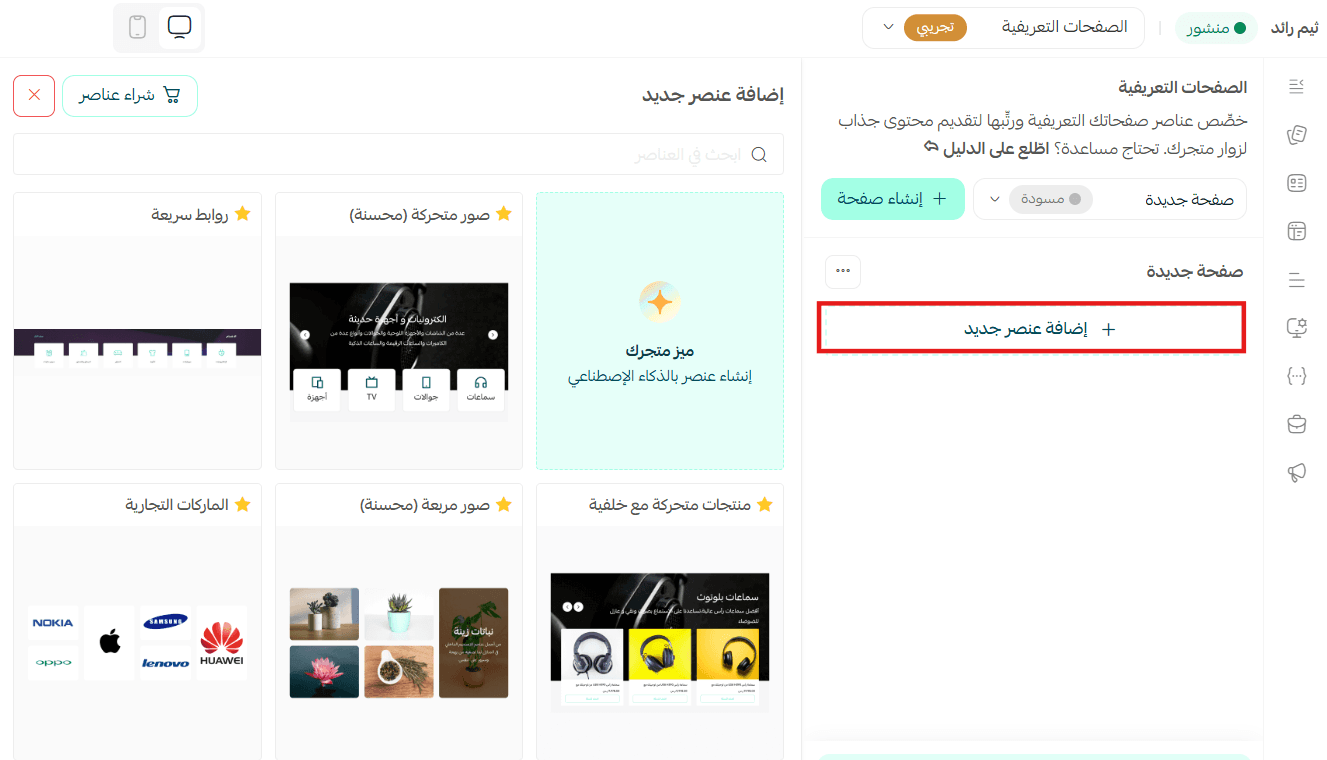
Open Store design, click (Customize), then go to the (Store pages) tab and choose (Informational pages). Click (+ Create page), name it, set its type to (Custom), and save. You can then click (+ Add new component) to build the page and (Save changes) when you are done.
📌 Article overview
- About informational page customization
- How to customize custom informational pages
- How to customize the other informational page types
- Frequently asked questions
About informational page customization
This feature lets you add and manage components on informational pages of the (Custom) type, so each page can be built around what your store actually needs. For the other page types, you can still edit the content and control the settings easily.
🛑 Note: Adding design components is available for informational pages of the (Custom) type only. You cannot add components to pages of the (General, Privacy policy, Return policy, HTML code) types.
🚀 How to customize custom informational pages
1. From the main menu, click (Store and sales channels), then choose (Store design).
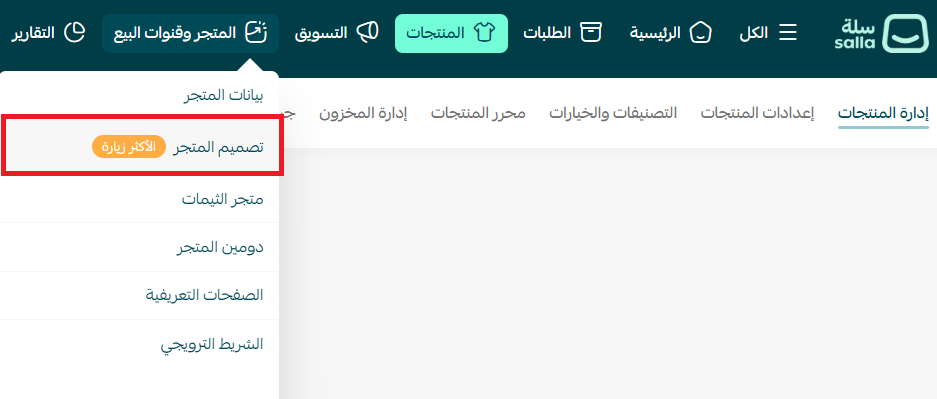
2. On the Store design page, click (Customize).
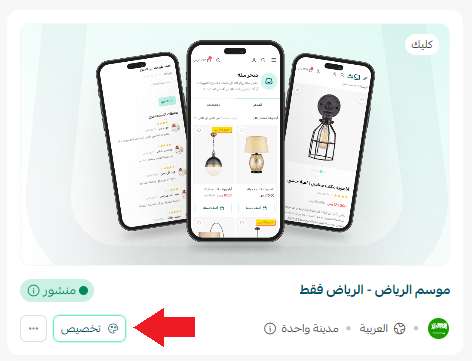
3. Open the (Store pages) tab, then choose (Informational pages).
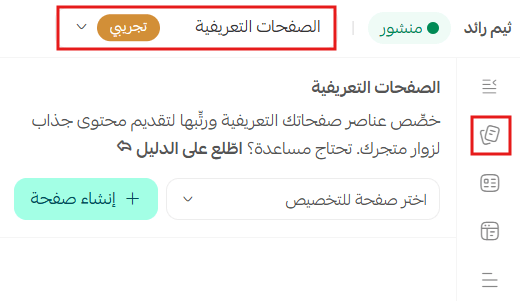
4. Click (+ Create page) to add a new informational page.
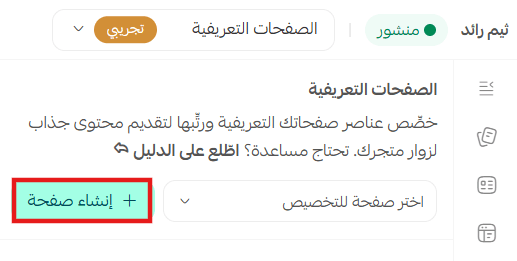
5. Enter the page title, set the page type to (Custom), then click (Save changes) to create the page.
6. Click (+ Add new component) and pick the component you want.
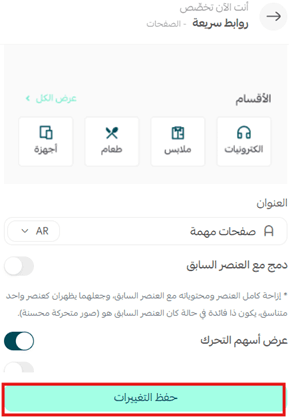
7. Customize the component, then click (Save changes).
8. To change a component you have already added, use the (edit button).
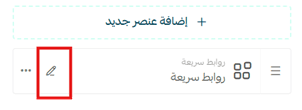
The three dots next to a component open the rest of its controls.
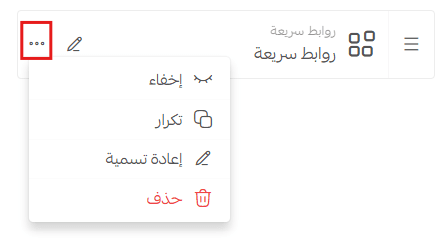
Manage custom informational pages
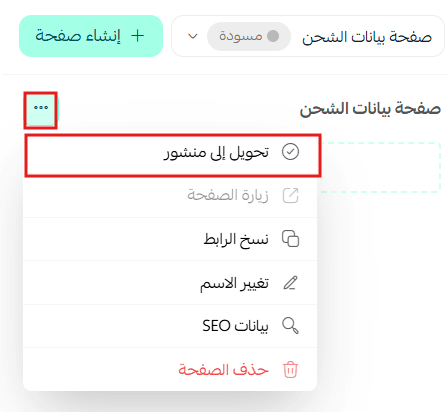
- Convert to published (for a draft page)
Publishes the page so visitors can reach it on your store.
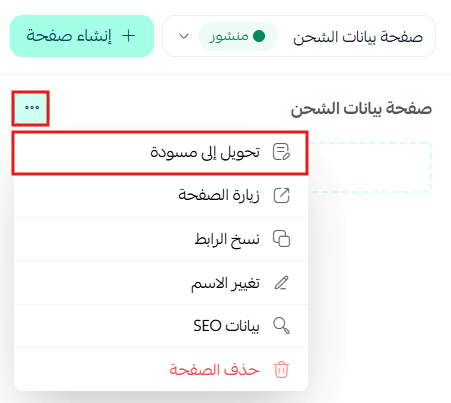
- Convert to draft (for a published page)
Turns a published page back into a draft and hides it from visitors until you publish it again.
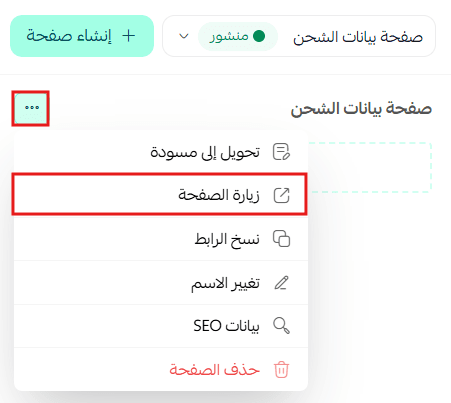
- Visit page
Opens the page exactly as visitors see it in your store.
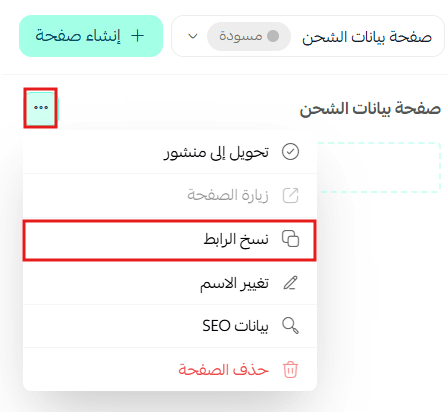
- Copy link
Copies the page URL so you can share it.
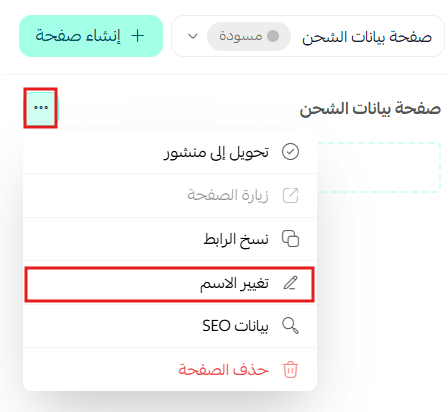
- Rename
Lets you change the page name.
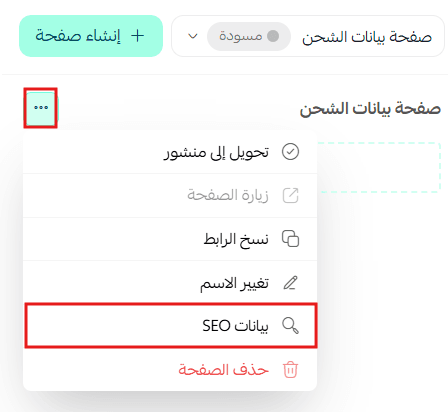
- SEO data
Lets you edit search engine data such as the page title and description, so the page ranks better in search results.
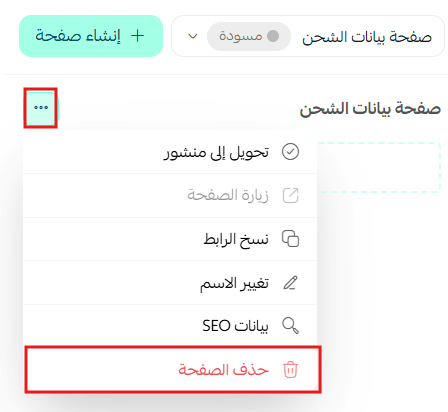
- Delete page
Removes the page from your store permanently.
How to customize the other informational page types
For pages of the (General, Privacy policy, Return policy, HTML code) types, you control the text content and the settings from the theme editor.
1. From the main menu, click (Store and sales channels), then choose (Store design).
2. On the Store design page, click (Customize).
3. Open the (Store pages) tab, then choose (Informational pages).
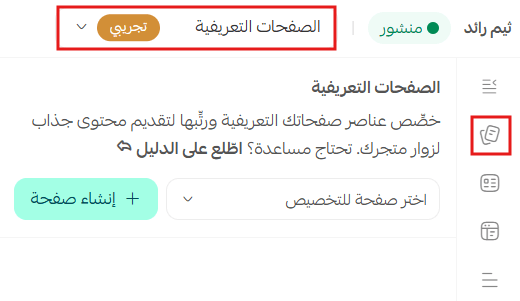
4. Choose the page you want to edit.
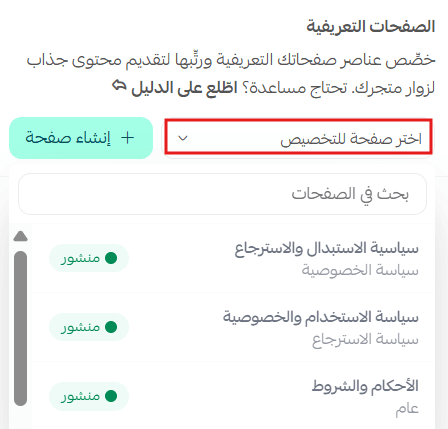
5. Edit the page content and settings according to its type:
- Text editor: use it to edit the content of the informational page.
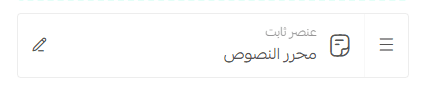
- HTML component: use it to edit the code you added to informational pages of the (HTML code) type.

- Customer questions: use it to allow or disable questions on informational pages.

📝 Important notes
A (Custom) page appears in the theme version you are working in, so create it in the version you intend to publish.
Deleting a page is permanent. Convert it to a draft instead if you only want to take it off the storefront for a while.
❓ Frequently asked questions
Are (Custom) informational page settings tied to the design version?
Yes. An informational page of the (Custom) type appears in the current version only.
Can I delete the fixed components on a page?
No. Fixed components cannot be deleted.
Which page types can I add components to?
Only pages of the (Custom) type. General, Privacy policy, Return policy, and HTML code pages let you edit their content and settings, but not add components.
How do I take a page off my store without losing it?
Use (Convert to draft). The page is hidden from visitors and stays in the editor until you publish it again.
Where do I set the page title and description for search engines?
Open the three dots on the page, then choose (SEO data).
Start designing your informational pages with more freedom, and give your customers a page that reads as clearly and professionally as the rest of your store. 🚀