Pop-ups are one of the most effective tools for capturing attention, growing email lists, and increasing conversions, when they’re done right.
Poptin is a dedicated pop-up builder designed to help merchants create high-performing pop-ups quickly and easily. With flexible templates, multiple trigger options, and advanced testing tools, Poptin lets you design pop-ups that match your goals and your brand.
This guide walks you through how to connect Poptin to your store step by step.
What is Poptin?
Poptin is a specialized tool for creating and managing pop-up campaigns. It’s known for its ease of use and wide range of design and targeting options that suit different marketing needs.
With Poptin, you can:
- Create promotional pop-ups
- Collect email leads
- Run surveys and feedback pop-ups
- Design campaigns using ready-made templates or custom layouts
Steps to connect Poptin
The integration process is completed in three stages:
- Create a new Poptin account
- Copy the tracking code from Poptin
- Install and activate the Poptin app on your store
Stage one: Create a new Poptin account
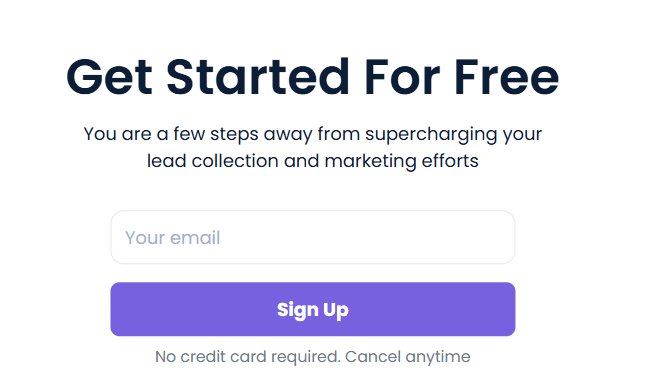
- From the Poptin sign-up page, enter your email address and click Sign up.
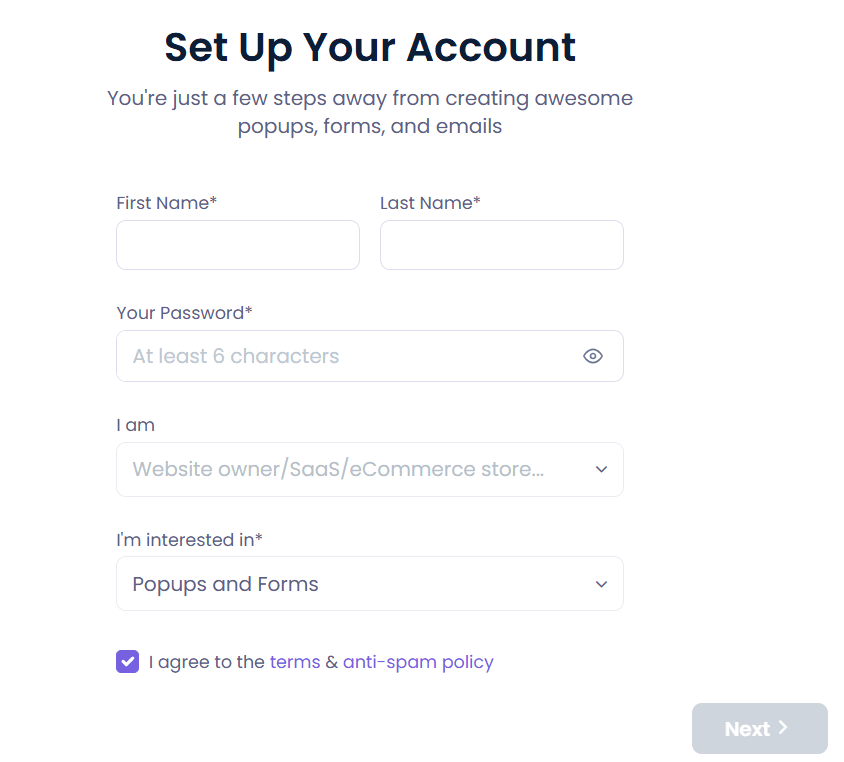
- Complete the required registration details, then click Next.
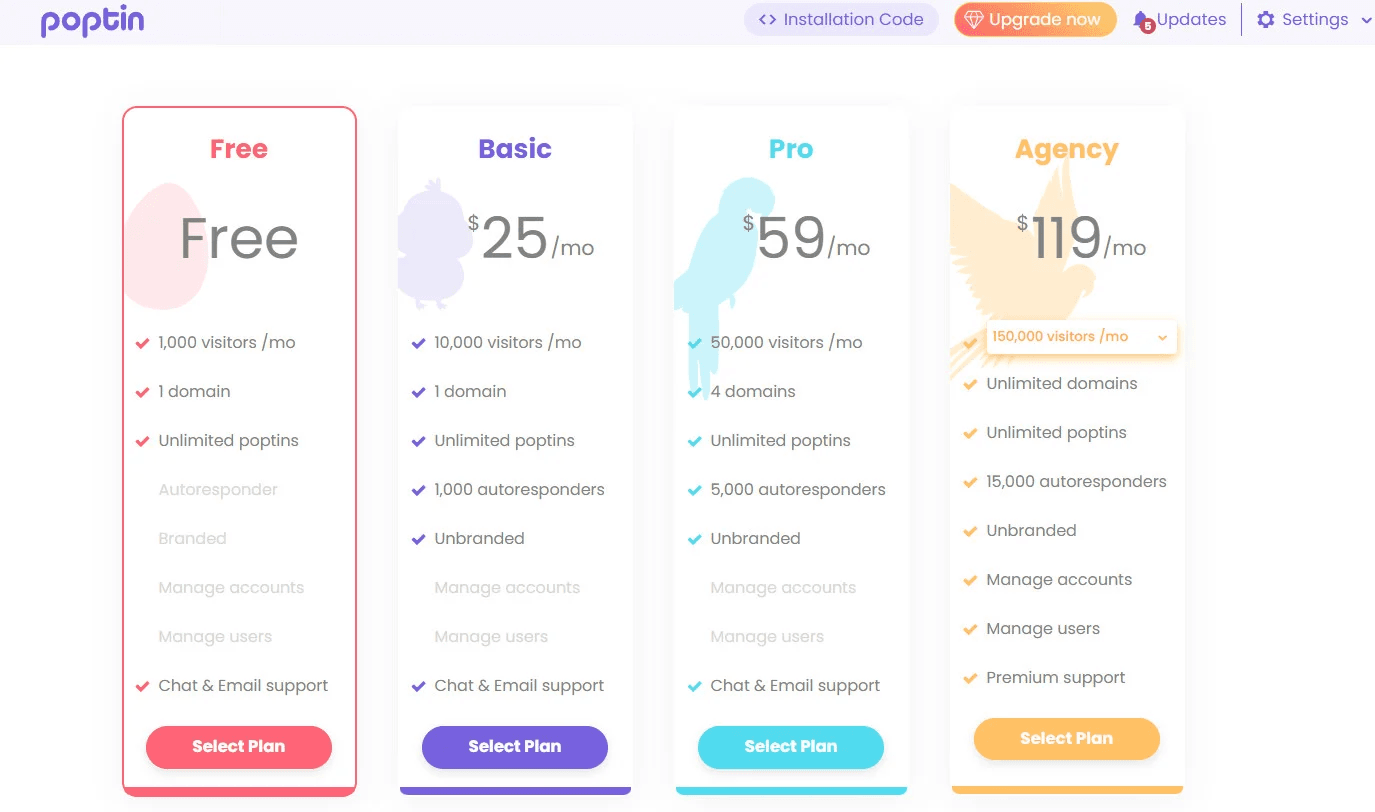
- Select the plan that best fits your store’s needs.
Once completed, you’ll be taken to the Poptin dashboard.
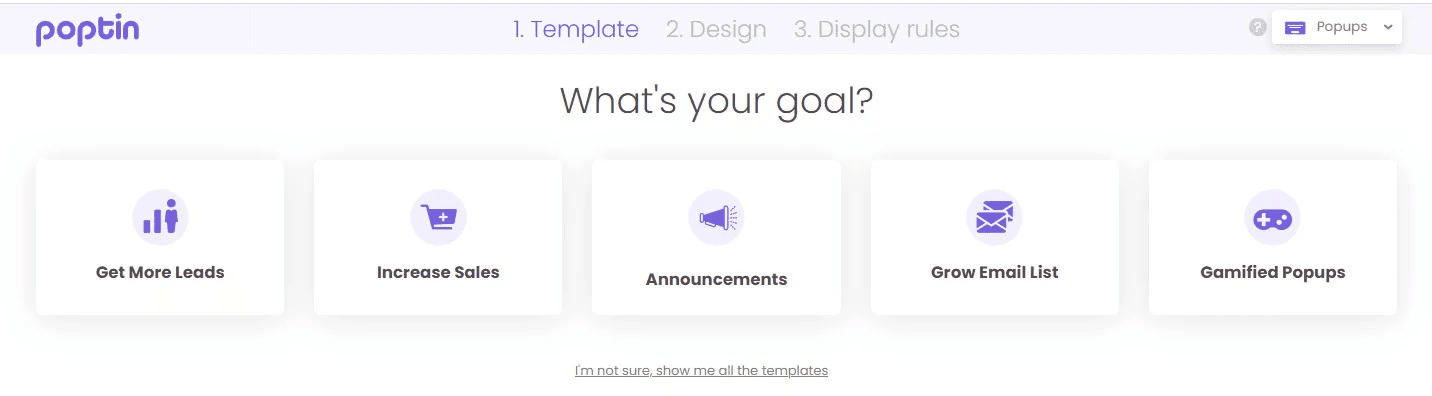
Stage two: Copy the Poptin tracking code
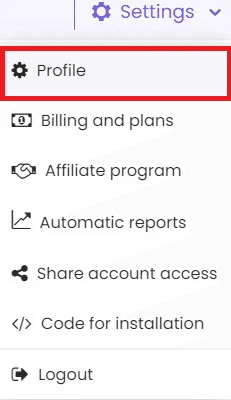
- From your Poptin account, click Settings, then select Profile.
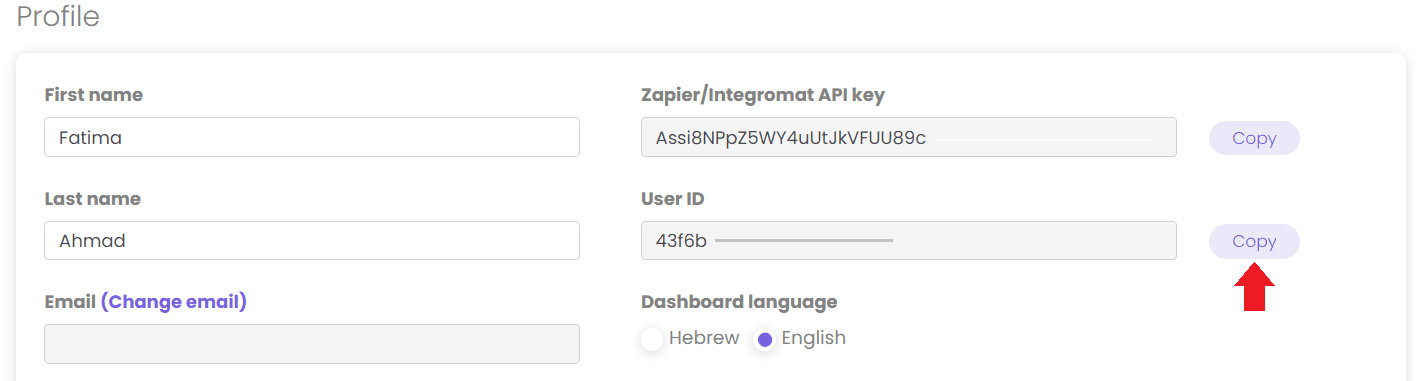
- On the Profile page, locate the User ID field and click Copy.
Stage three: Install and activate the Poptin app
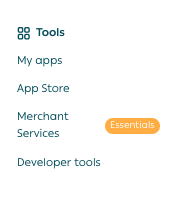
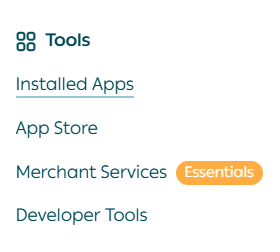
- From the main menu, click All, then under tools, select App Store.
- Search for Poptin using the search field.

- From the Poptin app page, click Install.
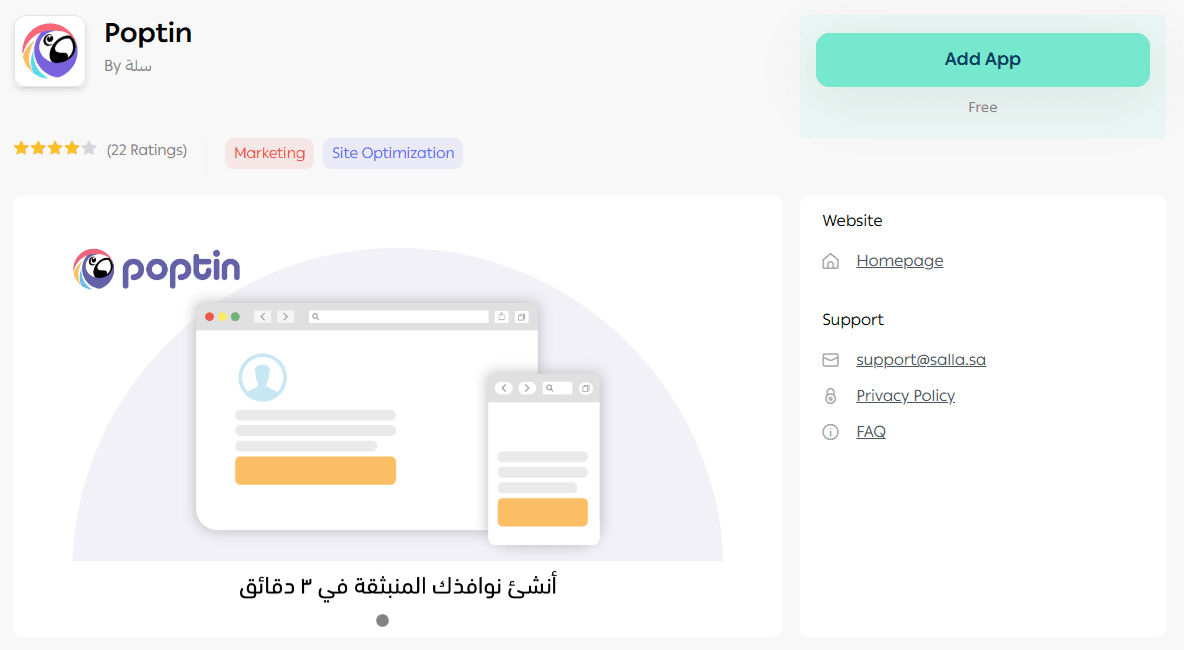
Once installation is complete, the Poptin app will appear in your list of installed apps.
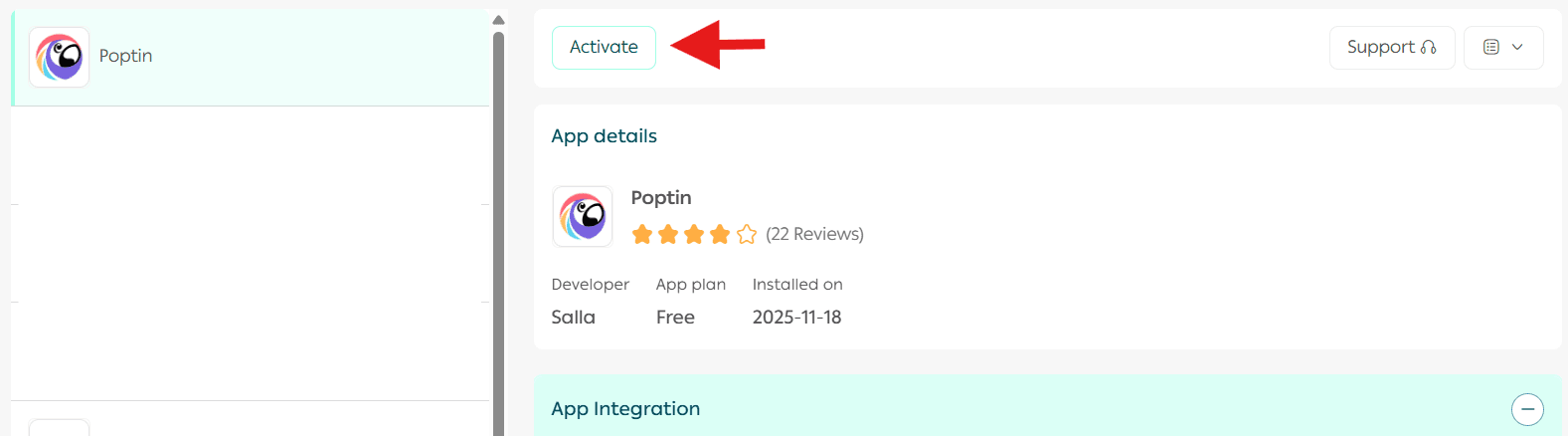
- From the installed apps page, locate Poptin and click Activate App.
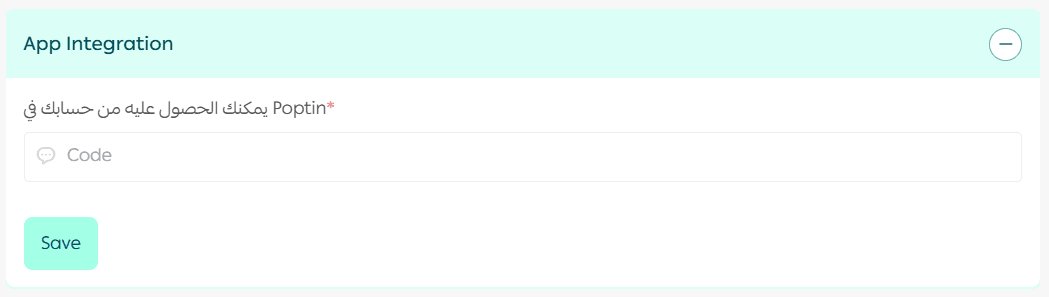
- Paste the tracking code you copied in Stage Two into the required field.
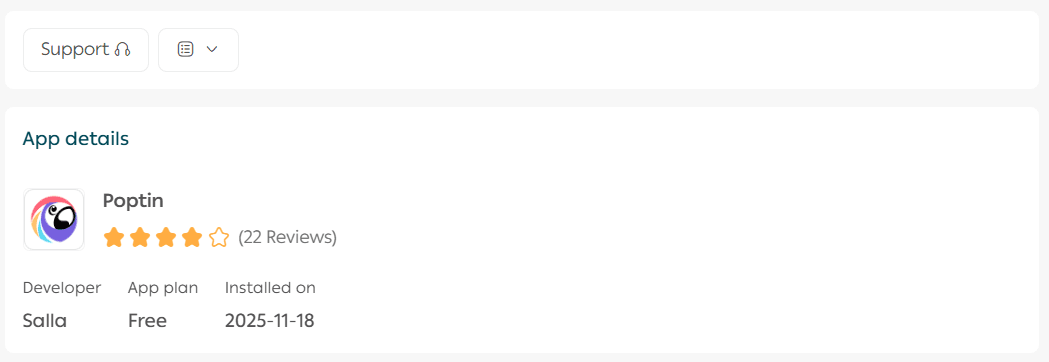
🎉 Congratulations! Poptin is now successfully activated and ready to use on your store.
Frequently asked questions
What are the main features of Poptin?
Poptin offers a wide range of features, including:
- Easy-to-use drag-and-drop editor to design pop-ups in minutes
- High-quality, professionally designed templates
- Multiple pop-up types for promotions, lead capture, surveys, and more
- Advanced and easy-to-use A/B testing to optimize performance
How can I create and customize a pop-up using Poptin?
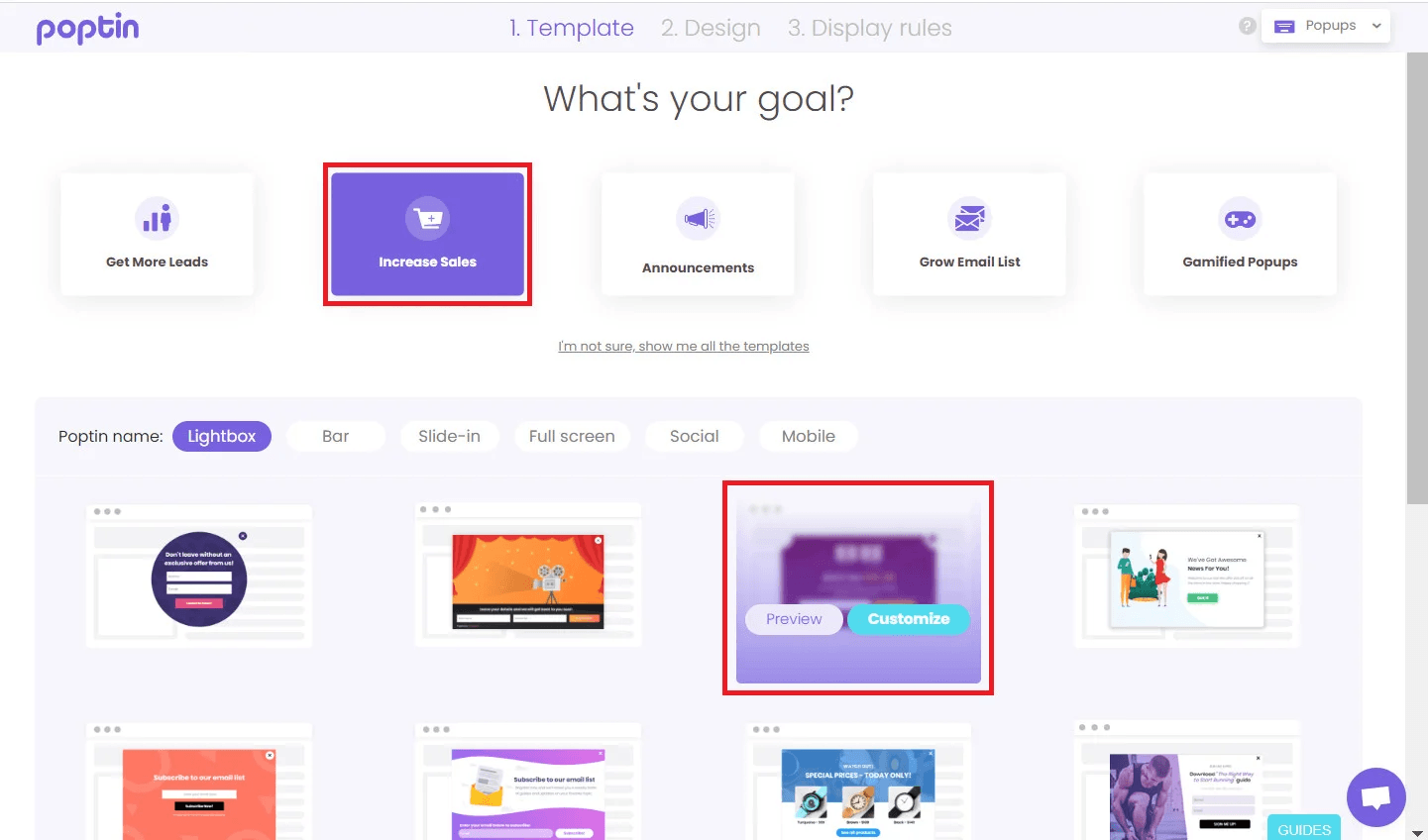
- From your Poptin account dashboard, choose your campaign goal (for example, Increase Sales), then select a template.
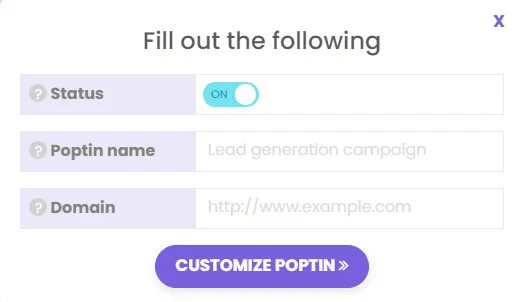
- Enter your store URL and assign a name to the pop-up.
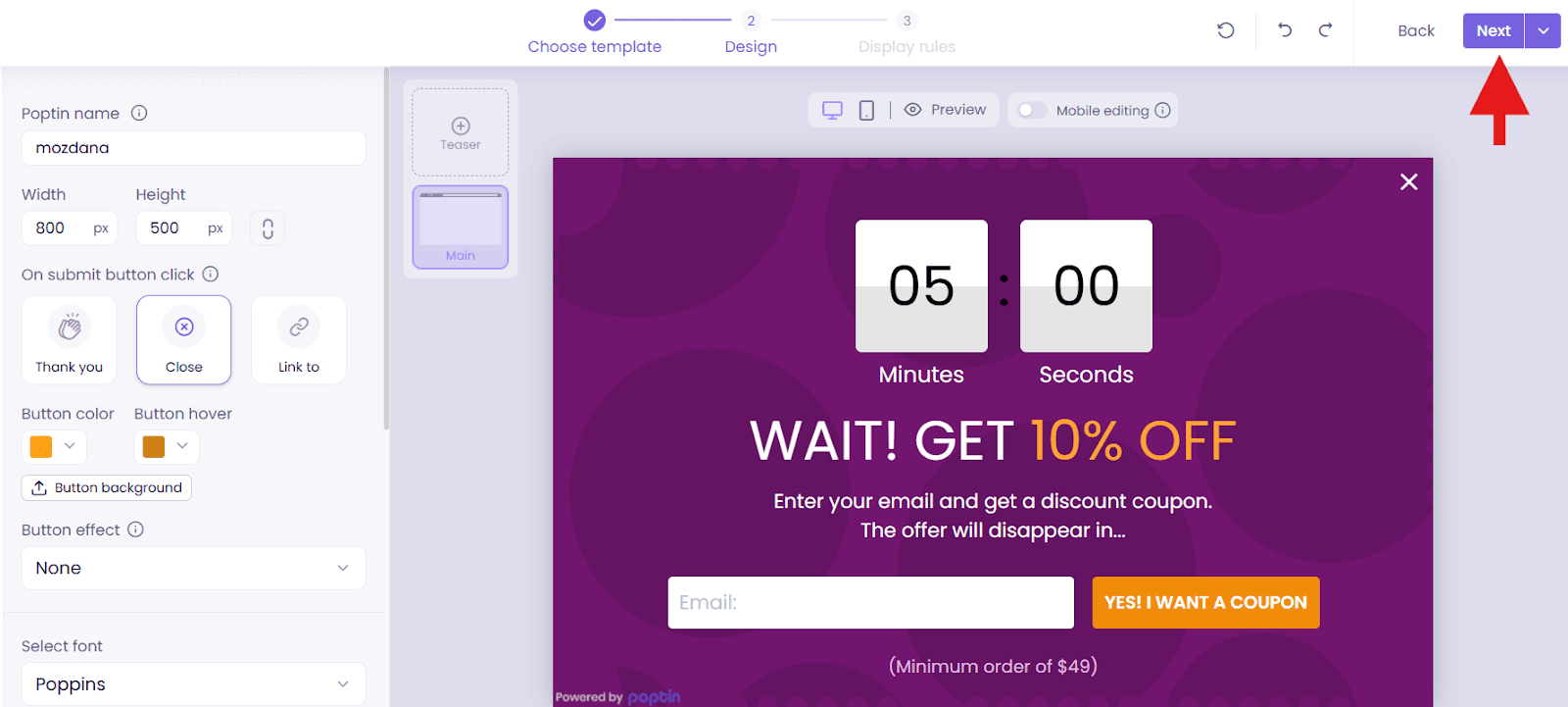
- Customize the template based on your goal, then click Next.
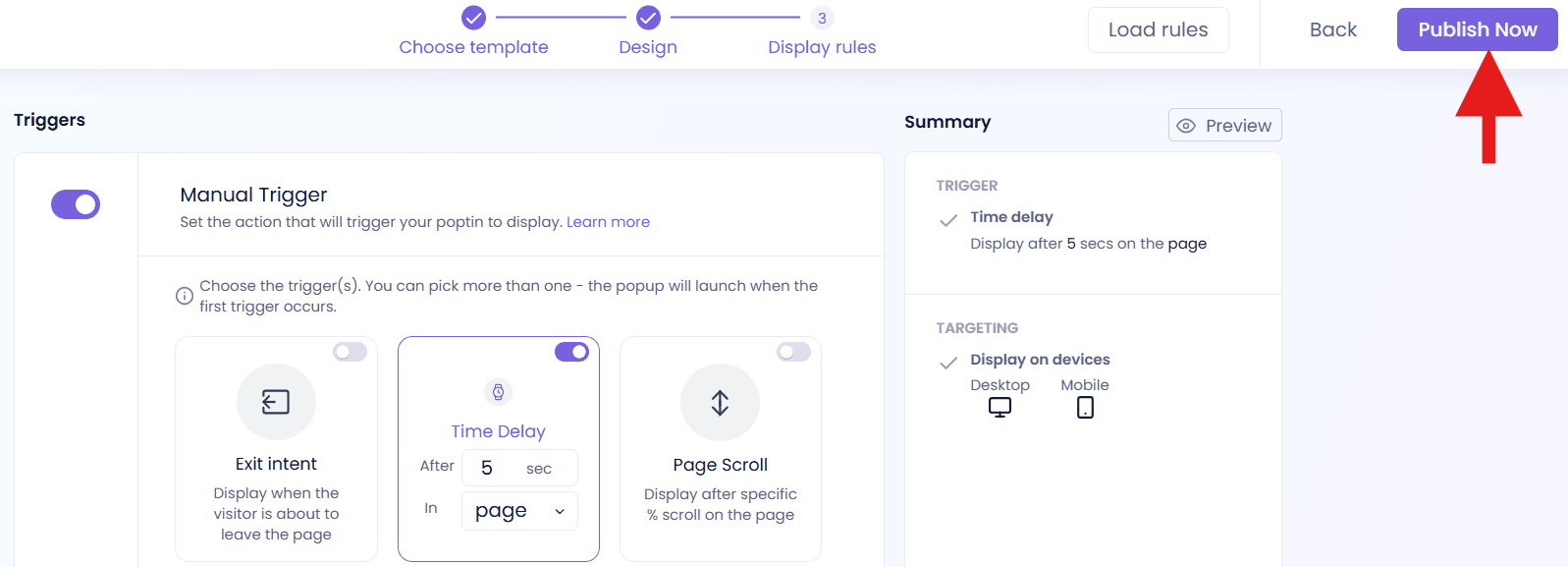
- Configure the triggers that control when the pop-up appears, then click Publish.
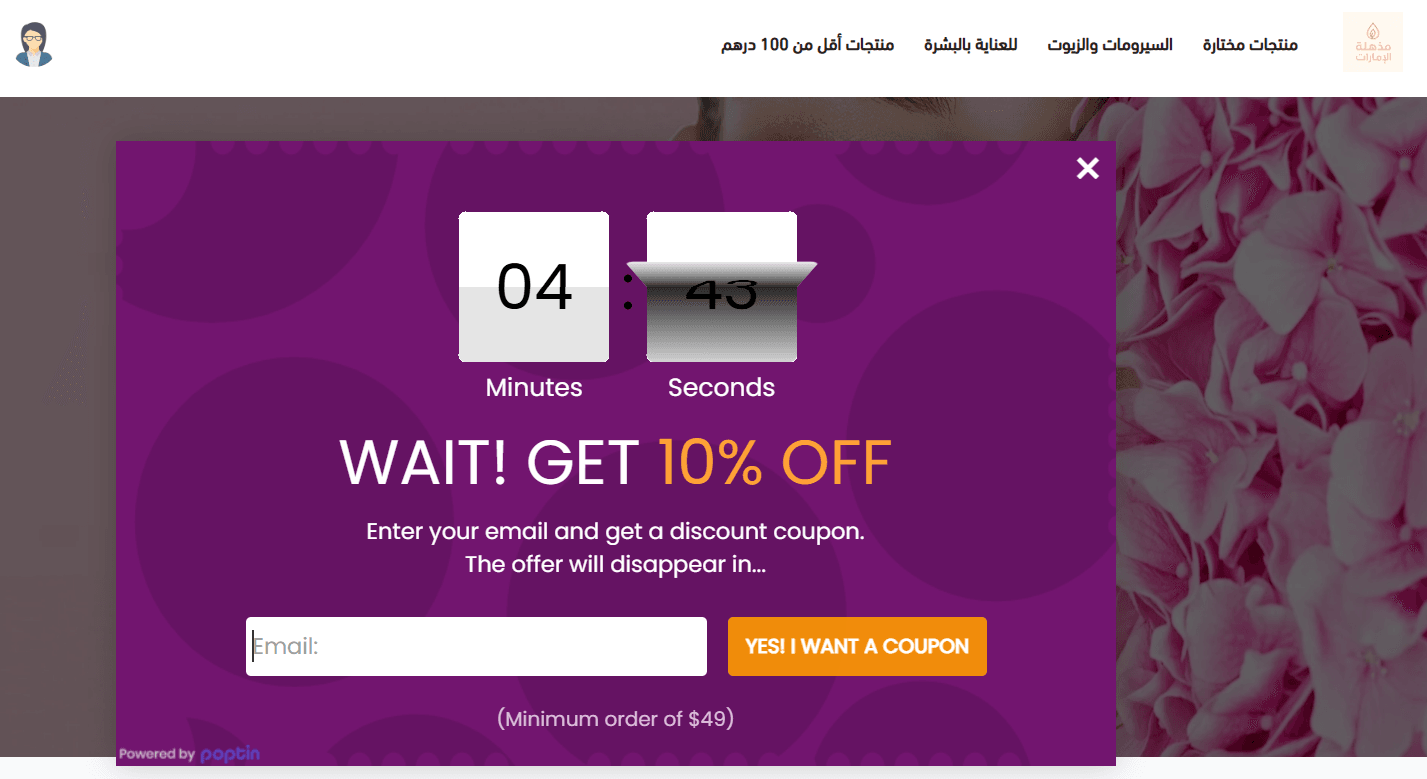
- To preview how the pop-up appears on your store, click Go to Store.
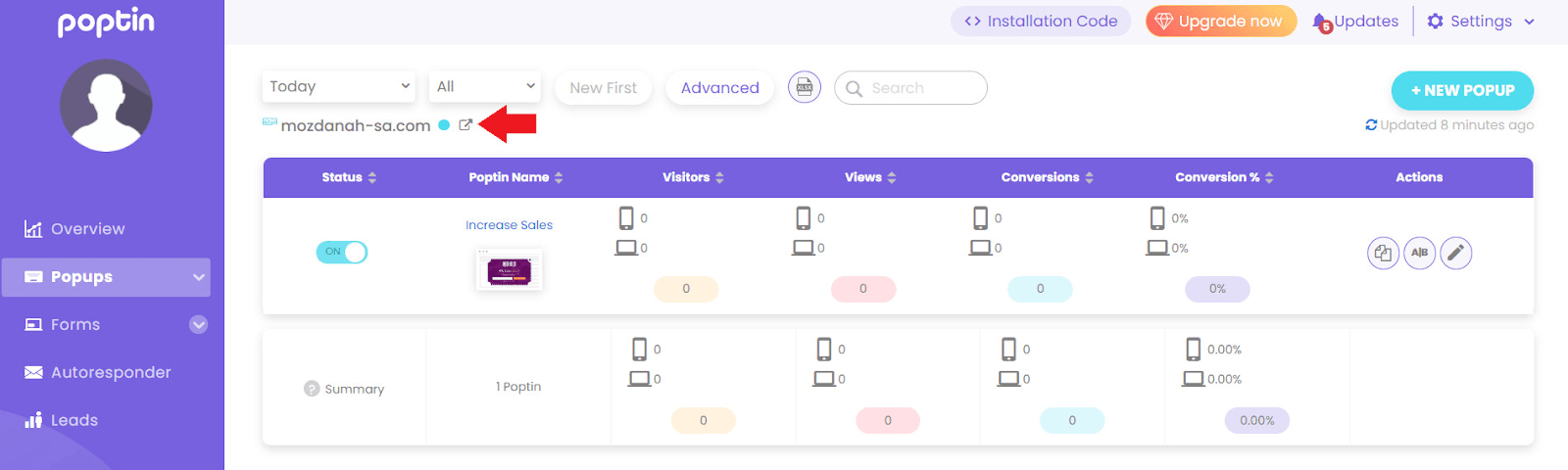
Your pop-up will appear on the store based on the settings you selected.
How can I track visitor interactions with my pop-ups?
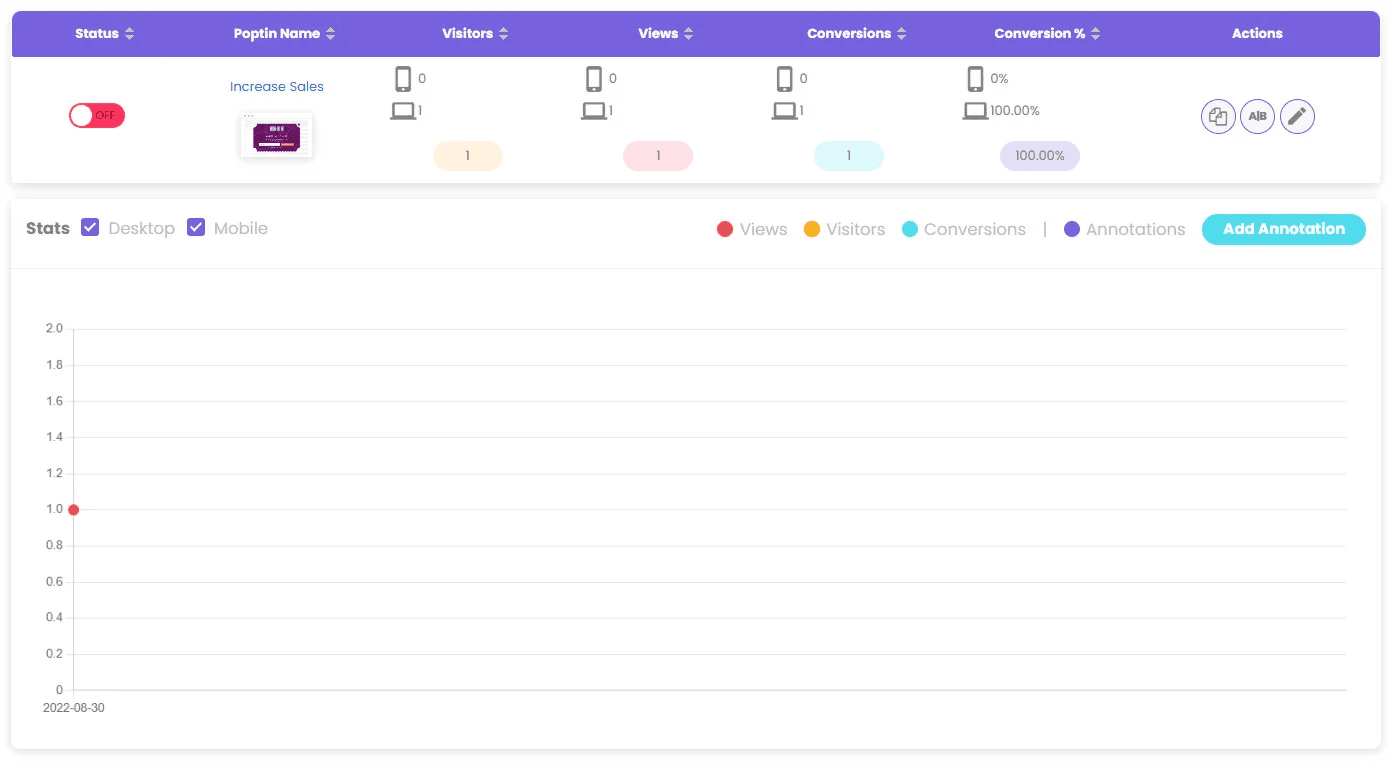
From your Poptin account, click on the pop-up you want to analyze.
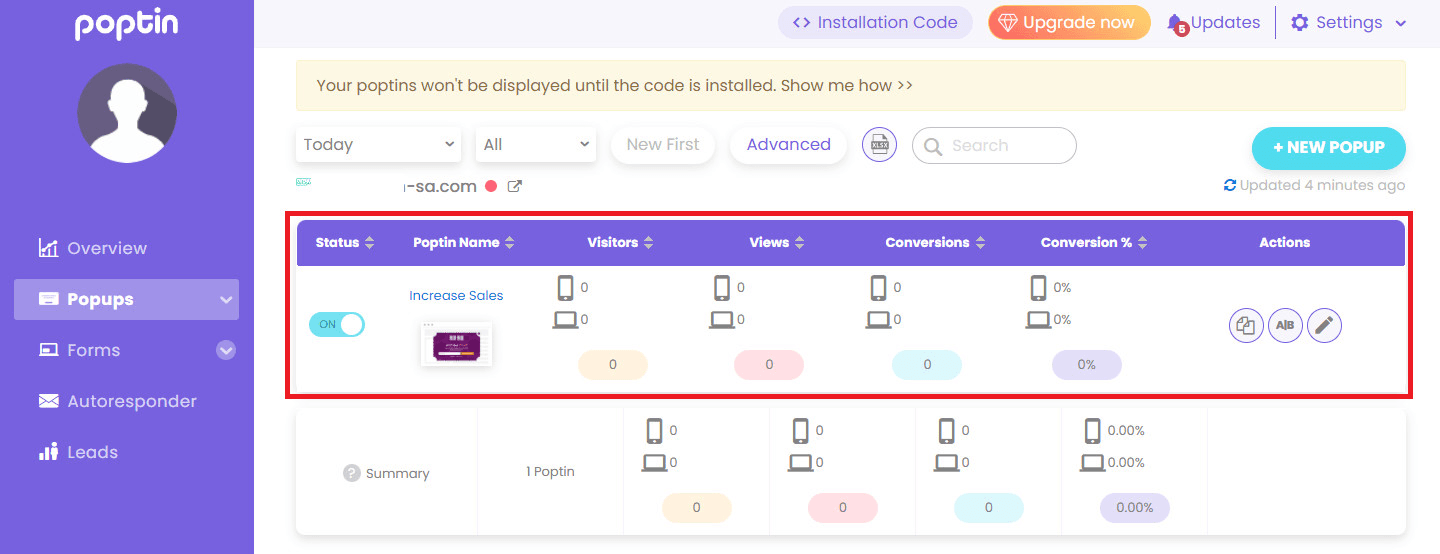
You’ll be able to view detailed interaction data, including impressions, clicks, and conversions.
How can I remove the Poptin app from my store?
- From the main menu, click More, then select Installed Apps.
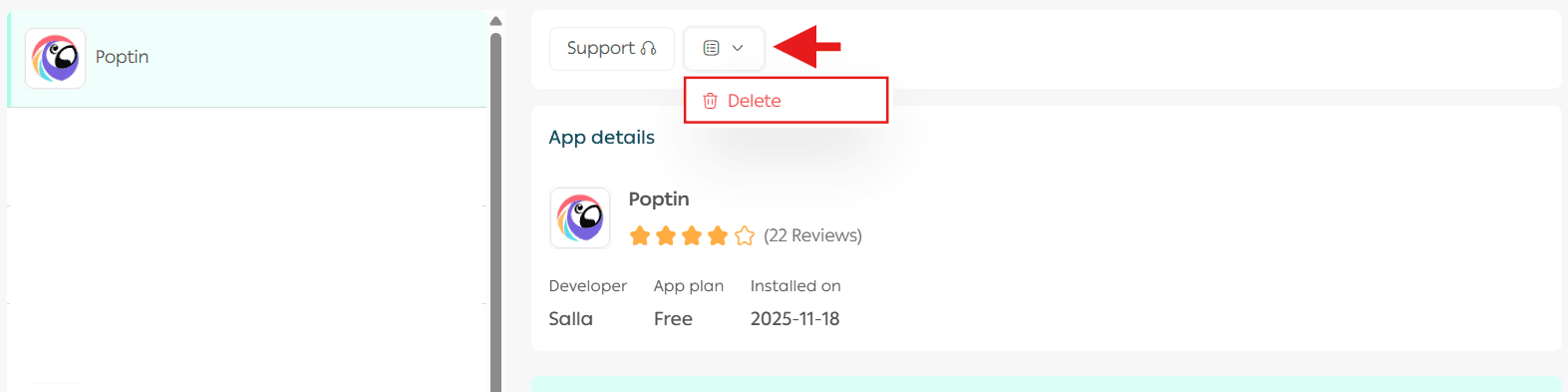
- Locate Poptin, click App Options, then select Delete App.