Do you know how much stock you will actually need next month?
Most merchants find out too late: a best-seller runs out mid-campaign, while slow items sit in the warehouse tying up cash. Foreseen is a platform built for Salla merchants that pairs an AI assistant with advanced demand planning, so you can read your sales, plan your inventory, and make purchasing decisions without wrestling with spreadsheets. In this guide, you'll learn how to install the Foreseen app on your store, choose a plan, set your password, reach the Foreseen dashboard, and delete the app if you decide to stop using it.
Foreseen is a Salla App Store app that combines an AI assistant with demand planning. Install it from the App Store, pick the plan that fits your business, complete payment, then set a password from the email you receive to open the Foreseen dashboard and start planning your inventory.
📌 Article overview
- How to install the Foreseen app
- How to manage the Foreseen app
- Frequently asked questions
🚀 How to install the Foreseen app
1. From the main menu, click (All), then under helper tools, click (App Store).

2. Search for the app using the search field.

3. On the Foreseen app page, click (Install).
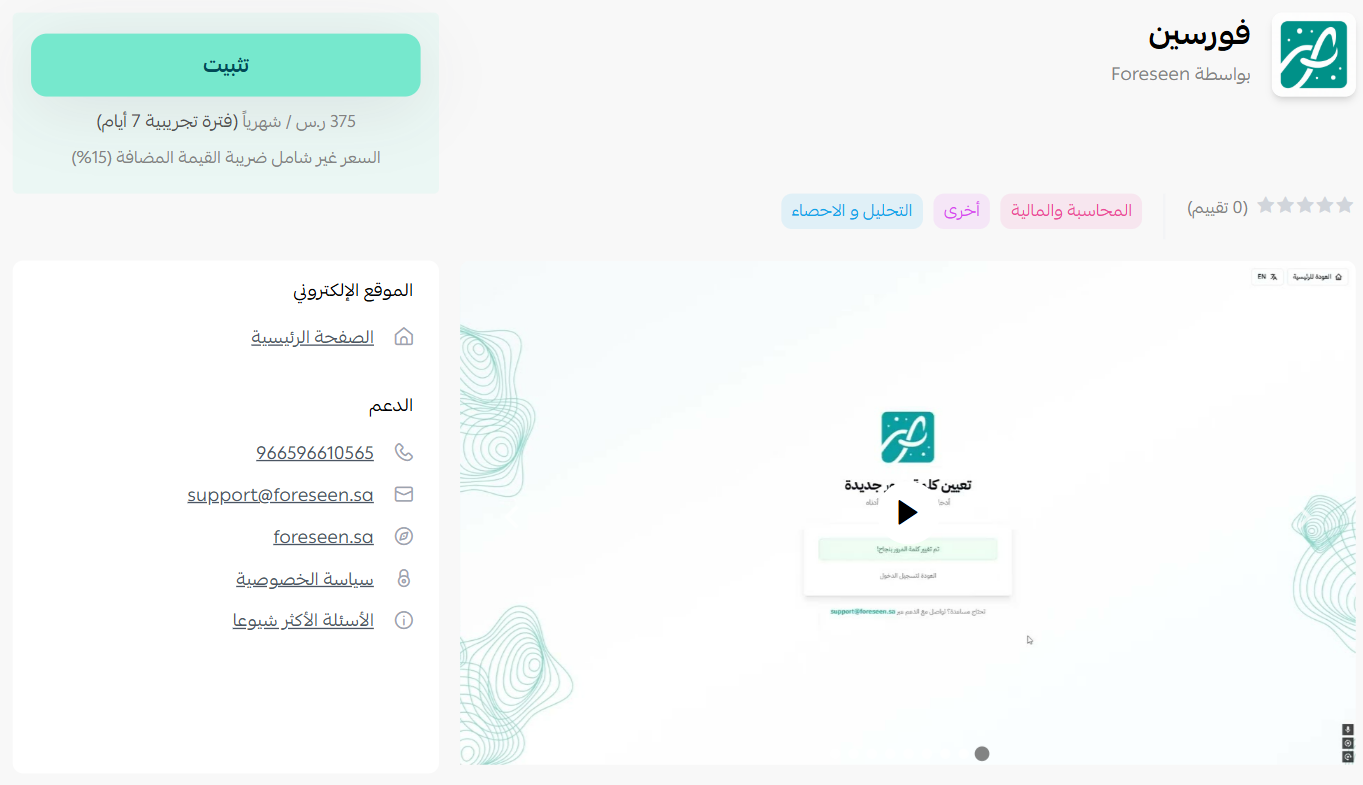
4. Choose the package that fits your business to continue with the installation.
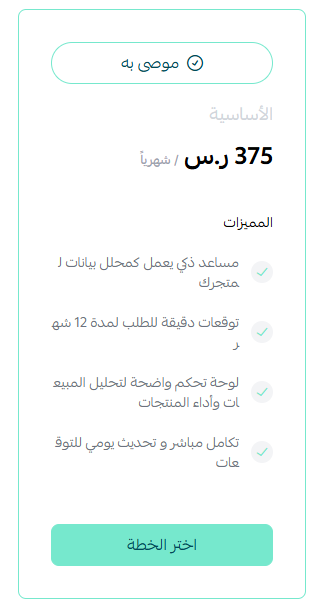
5. Complete the payment to unlock the app's features.
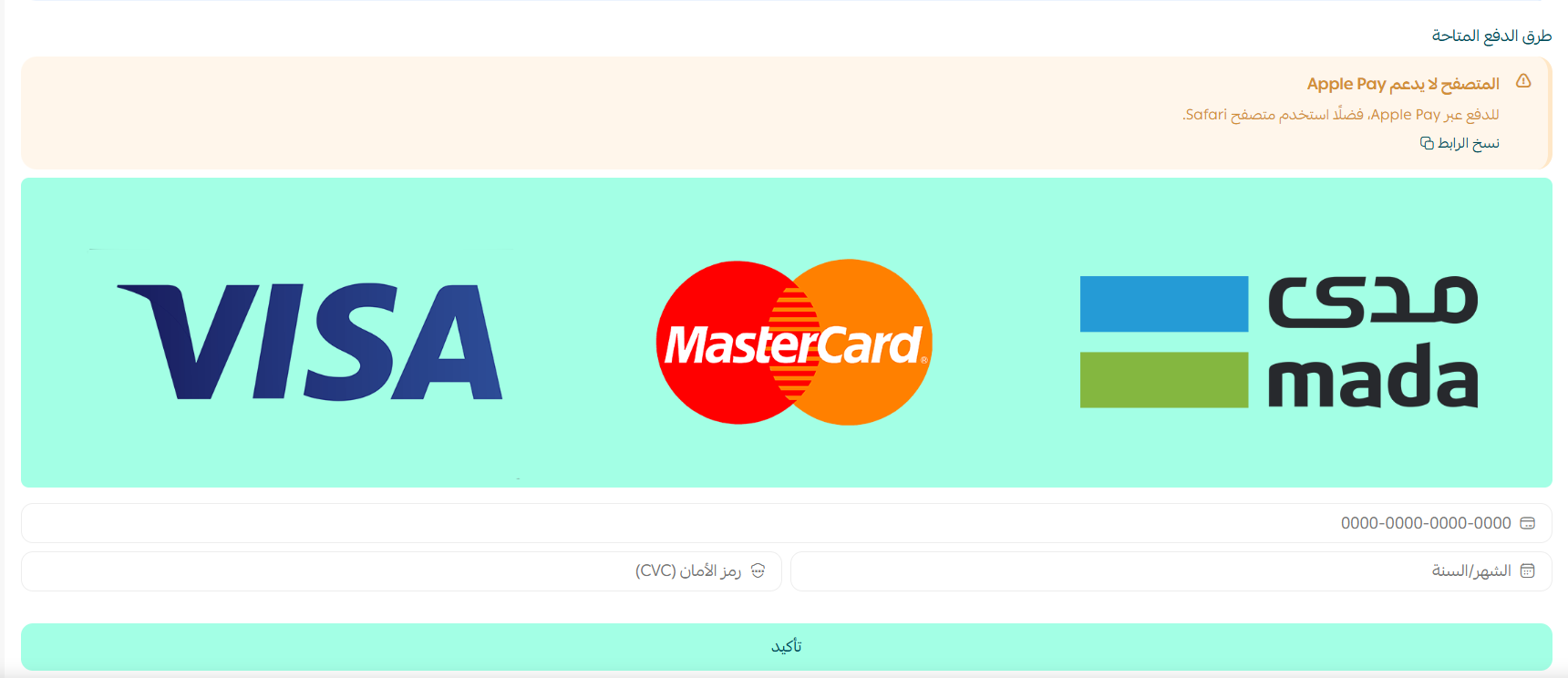
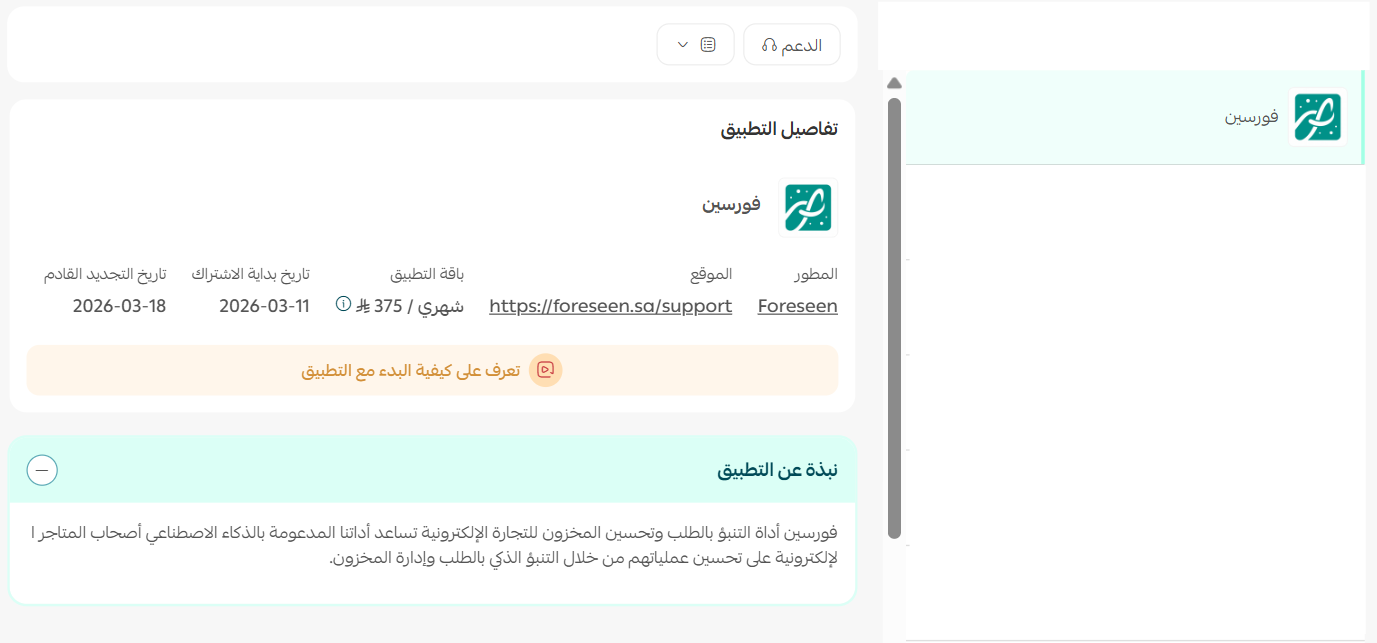
Foreseen is now installed on your store.
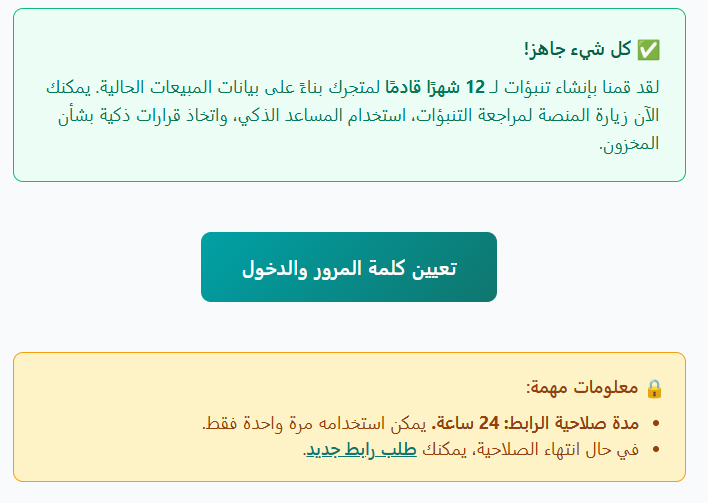
6. Open the email you receive after installation and click (Set password and sign in).
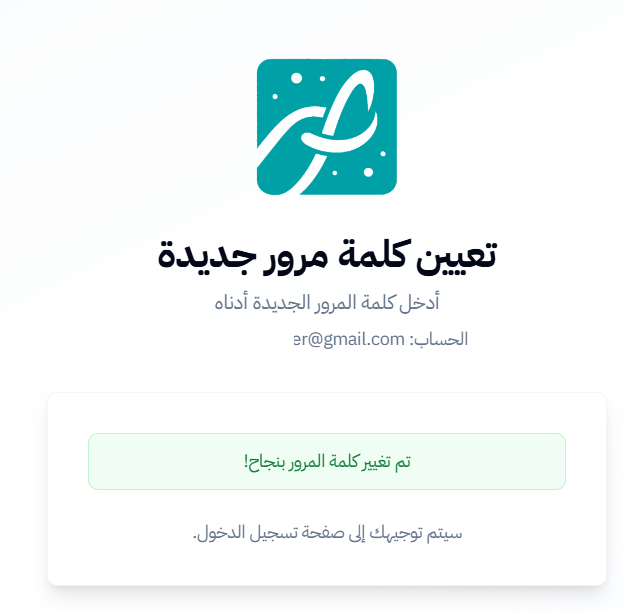
7. Set a new password for your Foreseen account.
You are taken straight to the Foreseen dashboard.
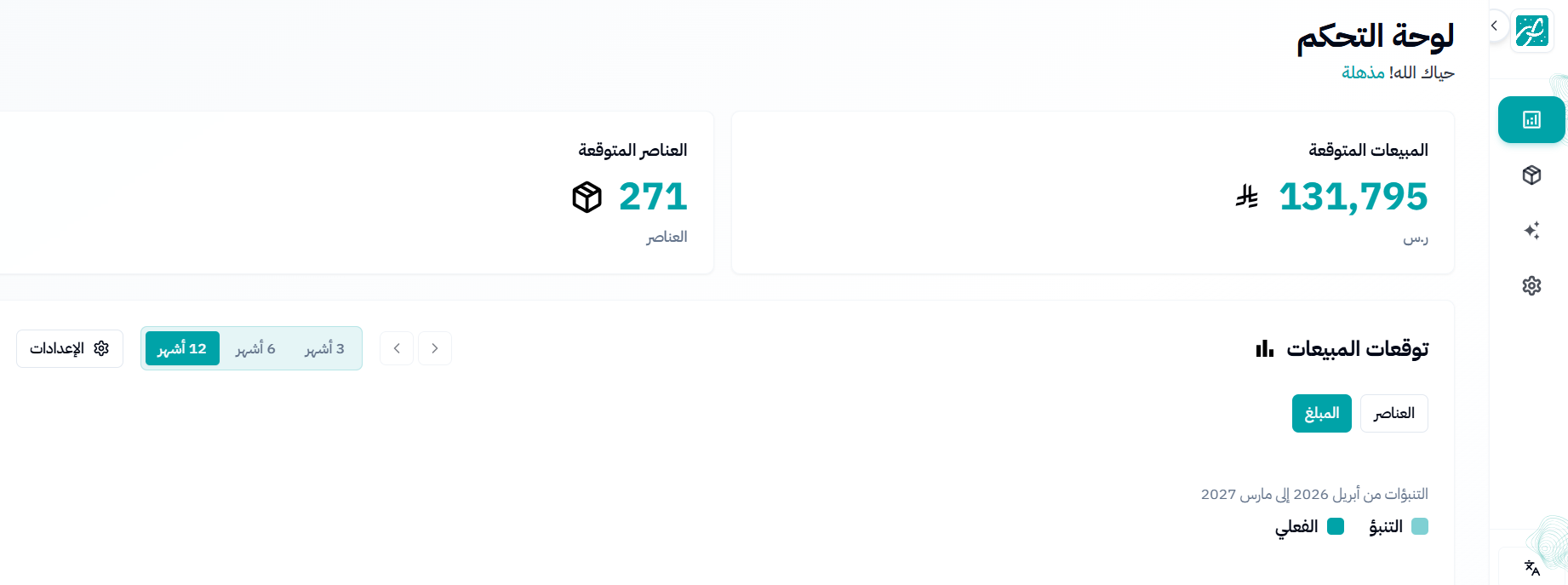
🎉 Congratulations! Foreseen is now active on your store.
🚀 How to manage the Foreseen app
Delete the app
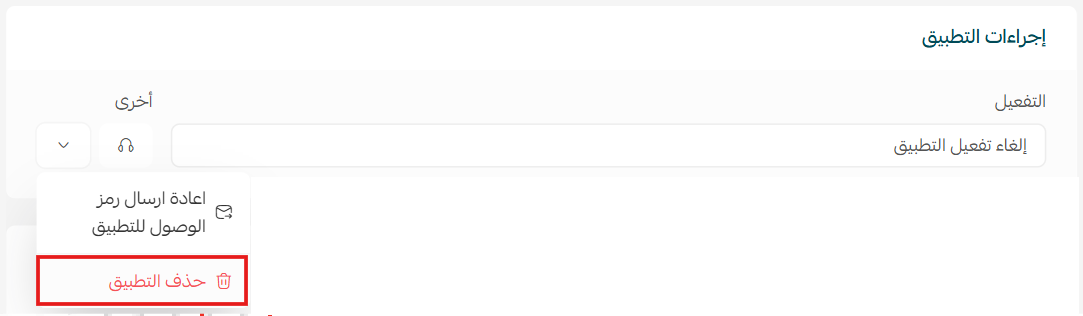
From the Foreseen app card, click ( ), then click (Delete app).
📝 Important notes
- Foreseen runs on its own dashboard outside your Salla dashboard, and you sign in there with the password you set from the welcome email.
- The app requires a paid package, so installation is only completed once payment goes through.
❓ Frequently asked questions
What does Foreseen do for my store?
It connects an AI assistant to your store data and adds demand planning on top, helping you understand your sales and decide what to stock.
Where do I use the app after installing it?
In the Foreseen dashboard. The welcome email takes you there once you set your password.
What if I never received the welcome email?
Check the inbox of the email address on your store account, including spam. The email is what carries the (Set password and sign in) link.
Is Foreseen free?
No. You choose a package during installation and complete payment before the app is activated.
How do I remove Foreseen?
Open the app options menu on the Foreseen app card and click (Delete app).
Planning stock on instinct works until the store grows. For more details about Foreseen, see the app's own FAQ.