Are you having trouble activating Apple Pay in your online store?
If Apple Pay isn’t enabled correctly, your customers may miss out on one of the fastest and most seamless checkout experiences available today.
In this guide, we’ll walk you through how to enable Apple Pay step by step — whether you run a retail store or a charity store; to ensure faster, safer payments for your customers.
📌 Article overview
- How to enable Apple Pay in your store
- Frequently asked questions
Note: For stores outside Saudi Arabia, Apple Pay will be activated automatically after completing the following:
- Store verification
- Enabling the Tap payment gateway

How to enable Apple Pay in your store
Apple Pay activation depends on the type of store you operate. Choose the correct case below:
Case 1: Charity store
Note: Charity stores are currently available only for stores in Saudi Arabia.
The activation process includes the following steps:
- Obtaining the required files from your payment gateway
- Setting up an Apple Developer Account to accept Apple Pay
- Uploading the required documents and information inside your Salla dashboard
- Activating Apple Pay successfully
For full details, please refer to: Enabling Apple Pay through external payment gateways for charity stores
Case 2: Retail Store (Non-Charity)
- From the main menu, open the All tab.
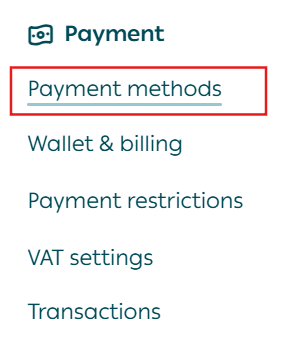
Under Settings & Tools, click Payment Methods.
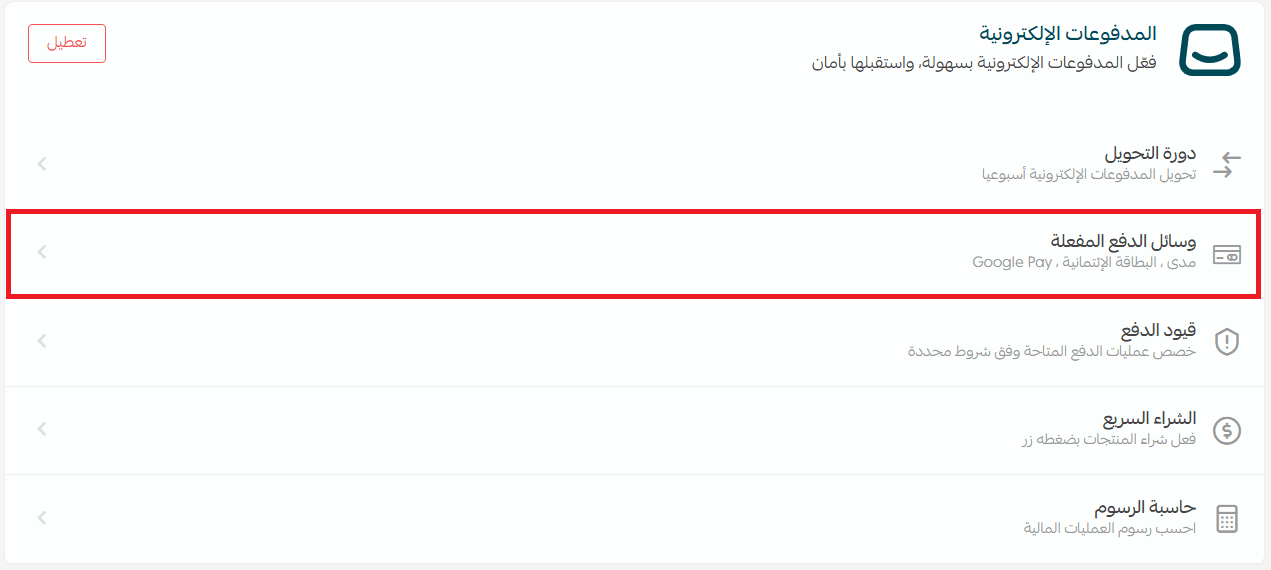
2. In the Electronic Payments section, click Enabled Payment Methods.
3. Turn on the payment options you want, then click Save.
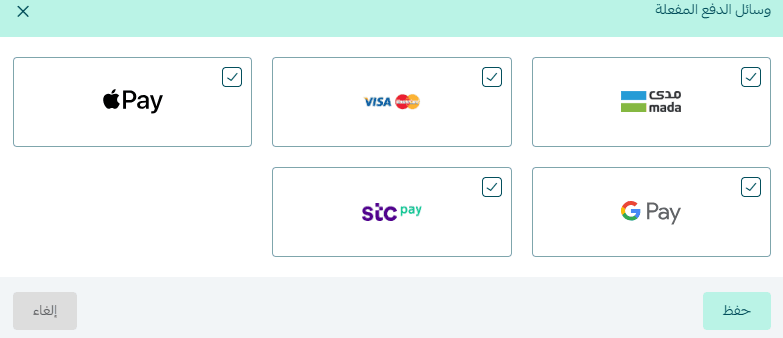
🚀 Once Mada and Visa are enabled, Apple Pay will be activated automatically.
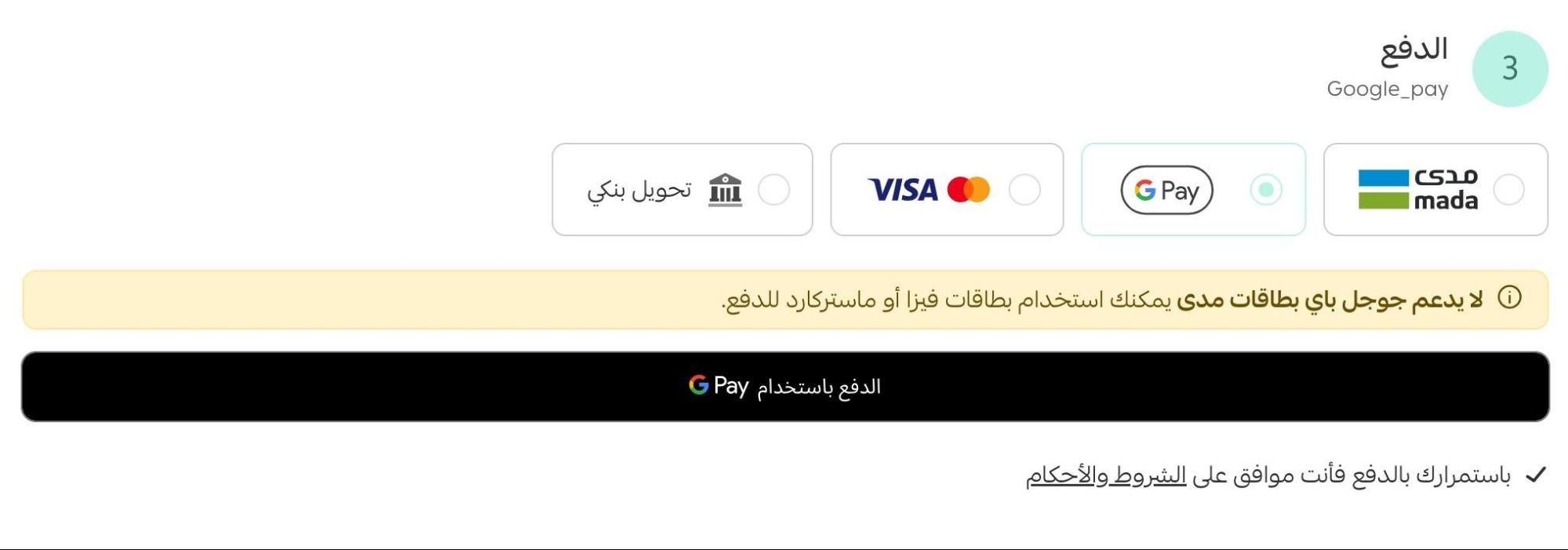
Apple Pay will then appear as an available payment option at checkout.
Frequently asked questions
How can I report an issue activating Apple Pay?
If you face any issues enabling Apple Pay, please contact Salla Customer Support.
For more details, see: How to communicate with the Salla Support Team effectively.
Why doesn’t Apple Pay appear for some customers?
For Apple Pay to show during checkout, customers must:
- Use the Safari browser
Shop using a supported Apple device, such as:
- iPhone
- iPad
- Mac
If the customer is using Chrome, Android, or an unsupported device, Apple Pay will not appear.
Does Apple Pay charge extra fees for international orders?
No. Apple Pay fees remain the same whether the order is inside or outside Saudi Arabia.
To calculate transaction fees, use the Fees Calculator:
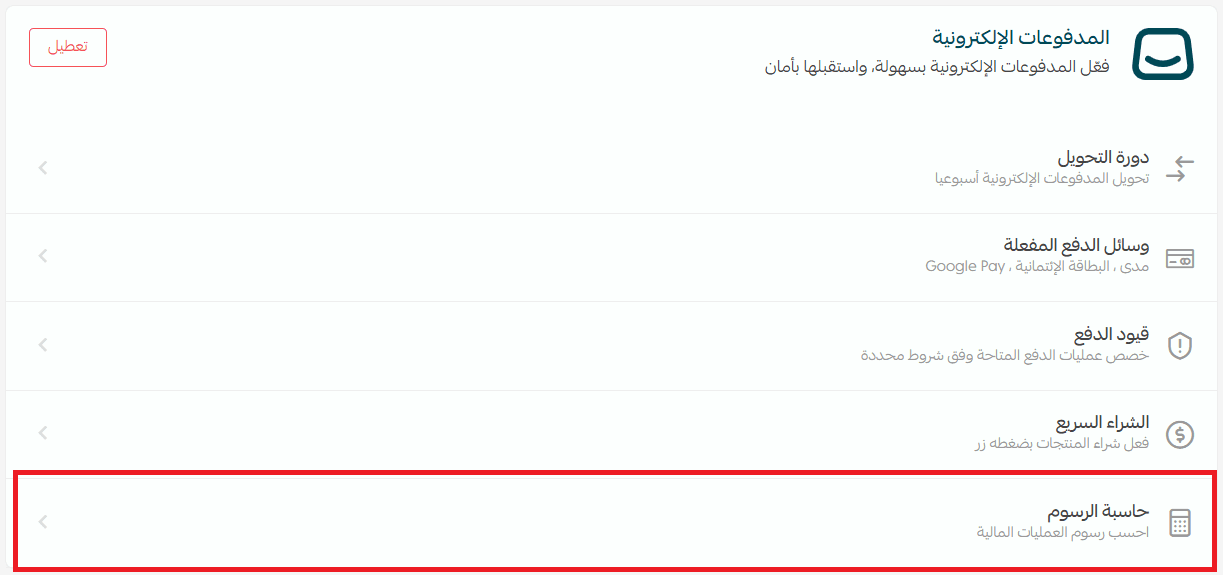
- Enter the order amount
- Select Apple Pay
The system will display the applicable fees
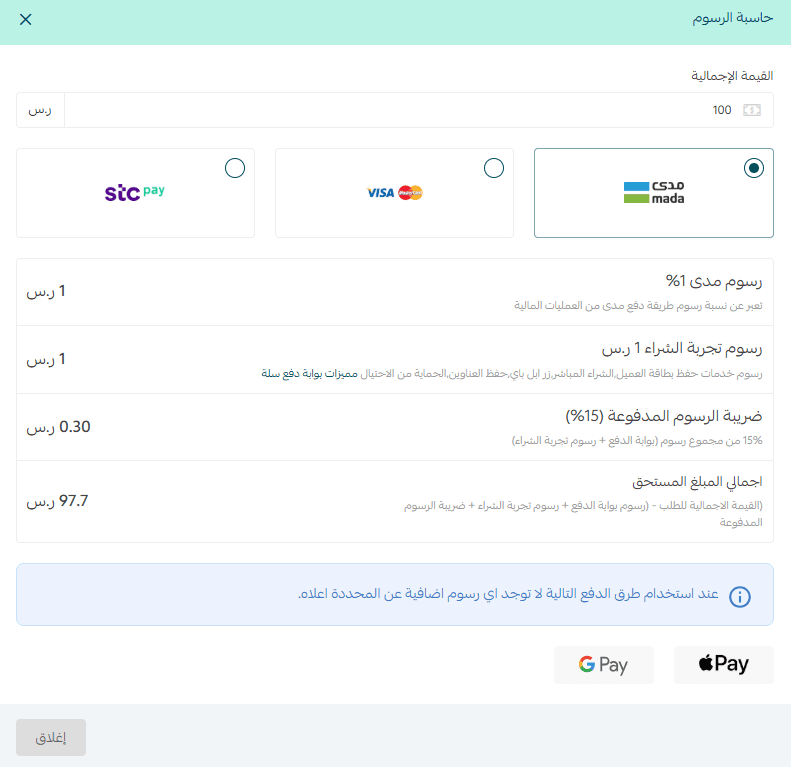
Apple Pay does not add extra charges beyond the standard payment fees.
How do customers set up Apple Pay?
To use Apple Pay, customers need to add a debit, credit, or prepaid card to the Wallet app on a compatible Apple device.
To complete setup, the customer must have:
- A compatible Apple device running the latest version of iOS, iPadOS, watchOS, or macOS
- A supported card issued by a participating bank
- An Apple ID signed in on the device
For more details, see: Apple Pay Setup Guide
For additional support, we recommend visiting Apple Support directly.