Imagine being able to customize your customers’ checkout experience down to the smallest detail.
By adding smart options to the shopping cart, you can handle special requests such as gift wrapping, custom notes, or selecting a preferred delivery or service date. This not only improves the buying experience, but also opens new opportunities to increase cart value and overall sales.
In this guide, you will learn how to create and manage order options, along with answers to common questions so you can get the most out of this feature.
📌 Article overview
- Order Options page
- Add a new order option
- Manage order options
- Edit
- Delete
Order Options Page
1. Open Orders
From the main menu, click Orders.

2. Open Cart Order Options
From the More tab on the Orders page, click Cart options.

Add a New Order Option
🔔 You can add up to five order options.
From the Order Options page, click Create cart option, then choose the field type you want to add.

1. Add a Text Order Option
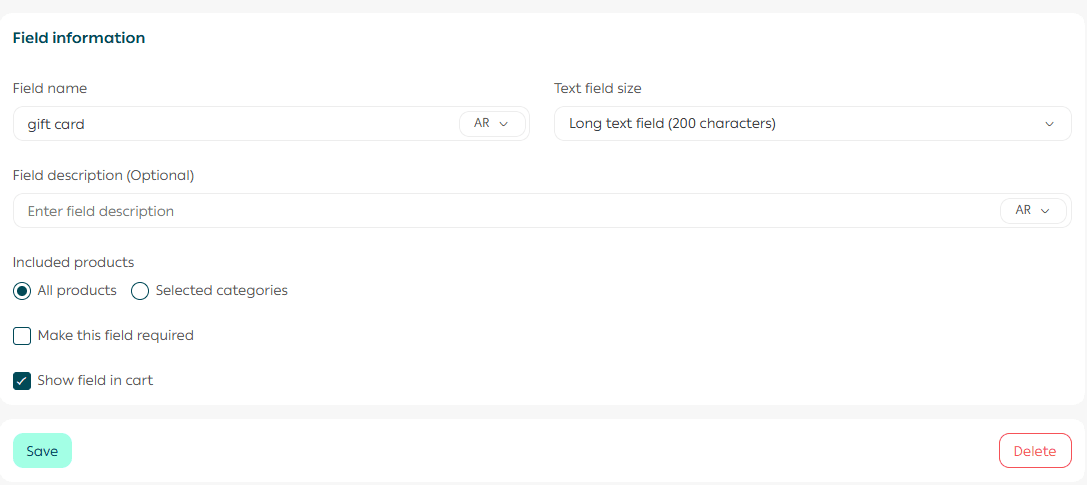
Enter the field name and a short description.
Choose the text field size:
- Small, up to 80 characters
- Large, up to 200 characters
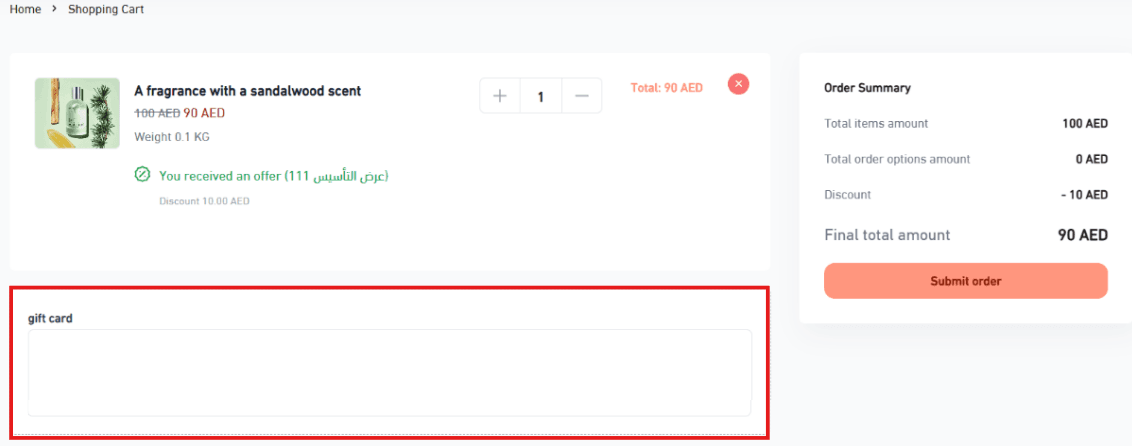
The text field will appear in your store during checkout.
2. Add a Numeric Order Option
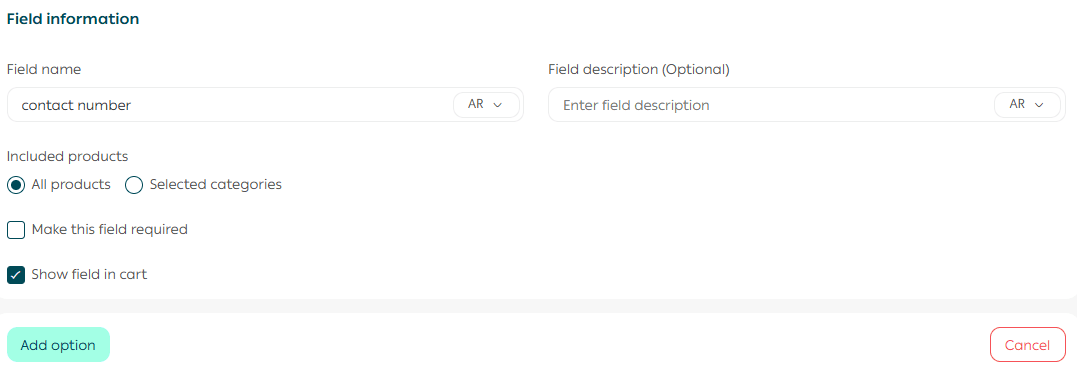
Enter the field name and description.
Choose whether the field applies to:
- All products
- Selected categories only
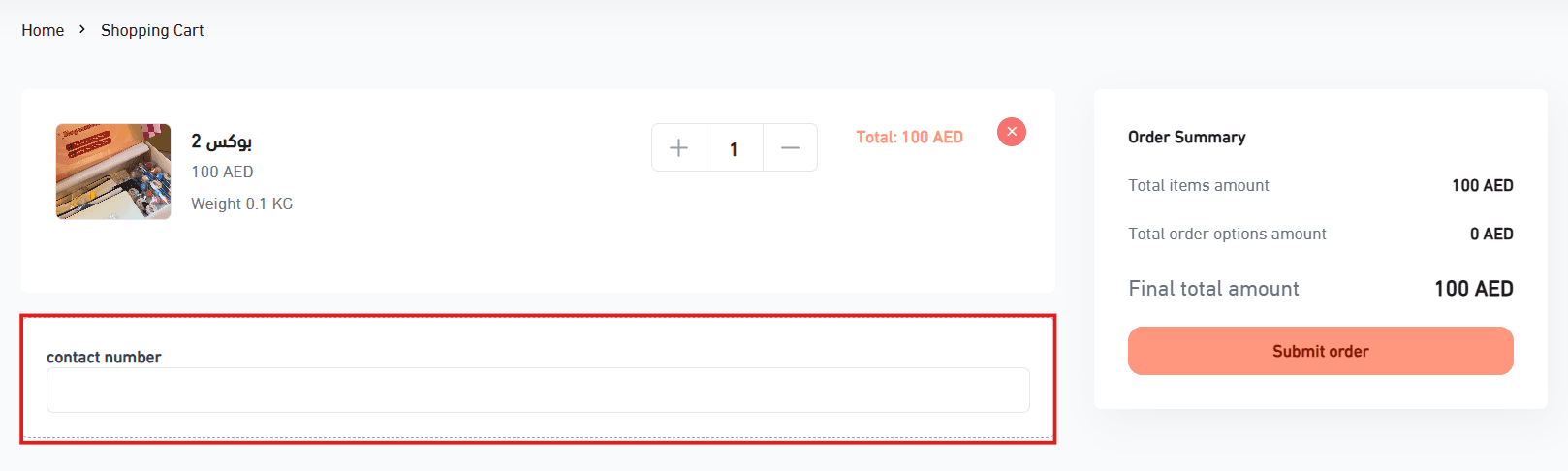
The numeric field will appear in your store during checkout.
3. Add a Multiple Choice Order Option
Enter the field name and description.
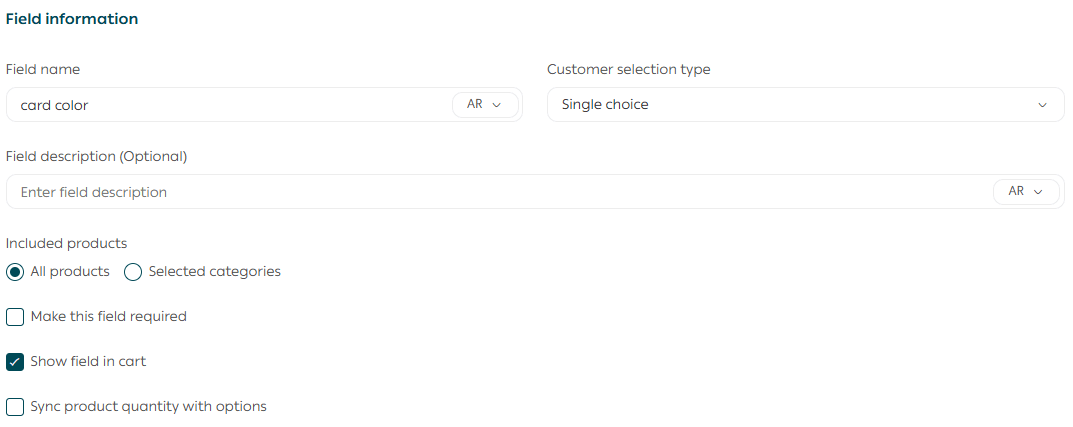
Choose whether the customer can select:
- One option only
- More than one option
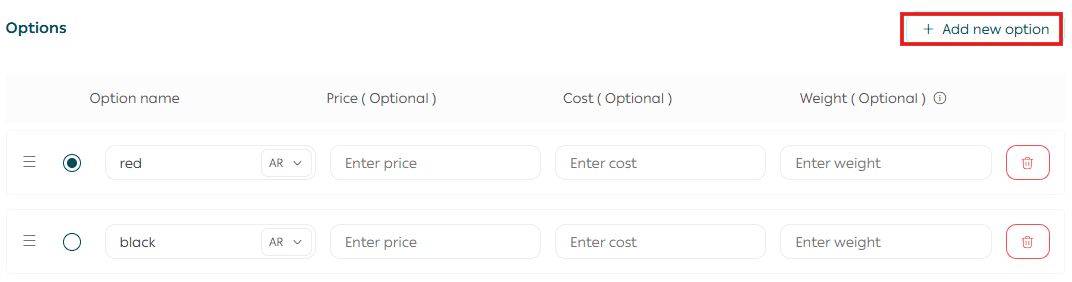
Add the available choices, then click Save.

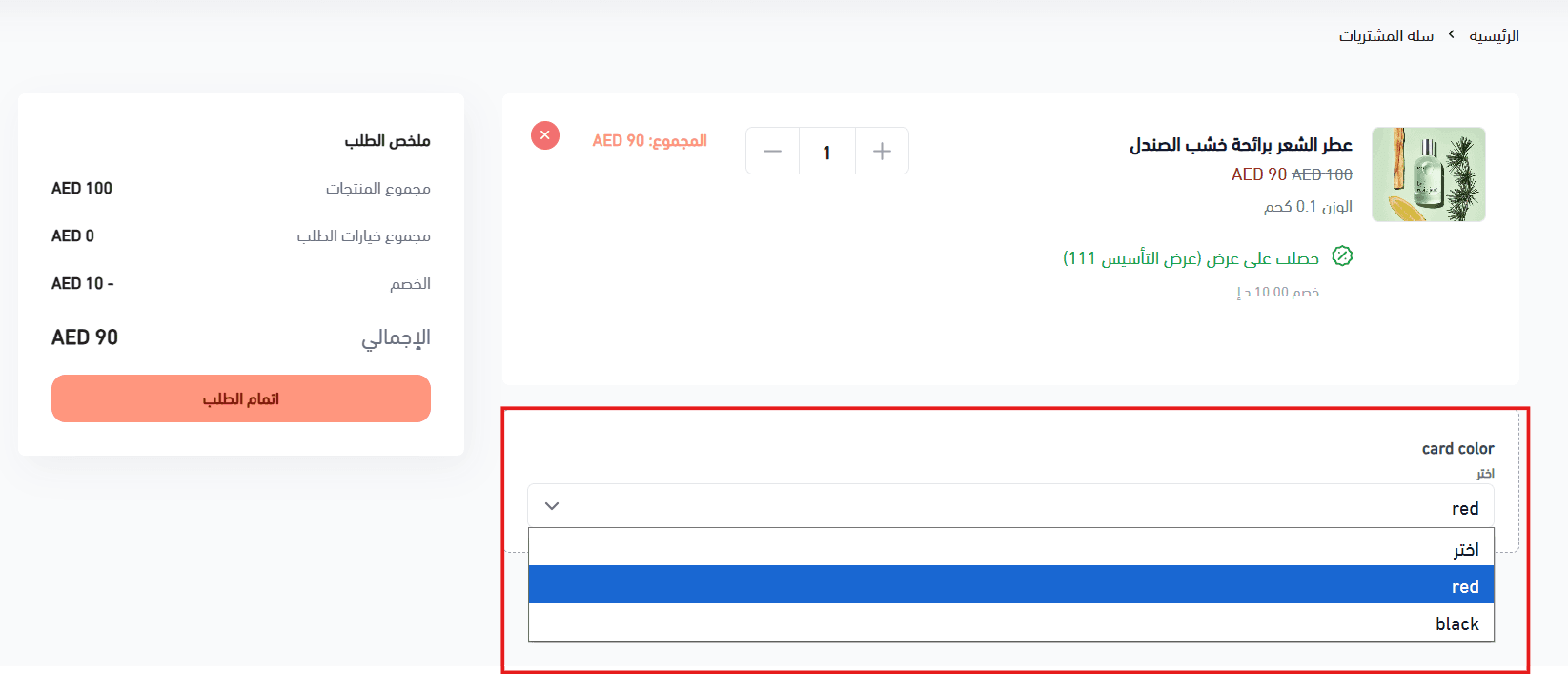
The options field will appear in your store during checkout.
4. Add a Date Order Option
You can add a date field that allows customers to select a preferred date for service or order fulfillment.
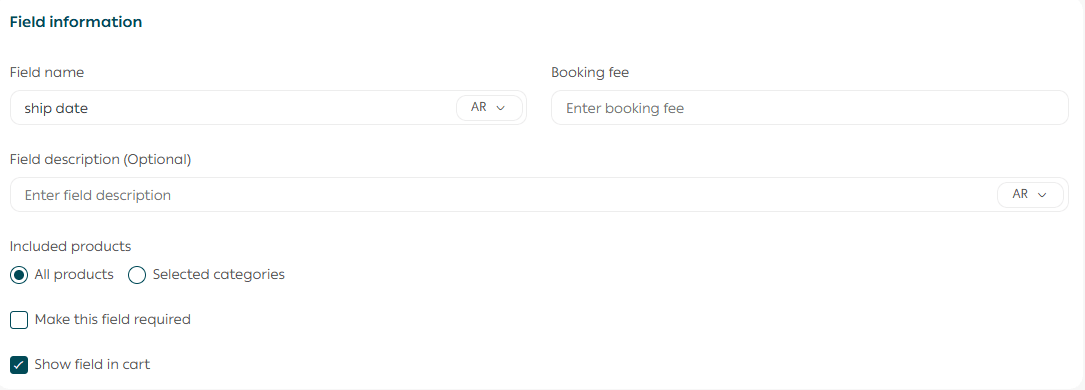
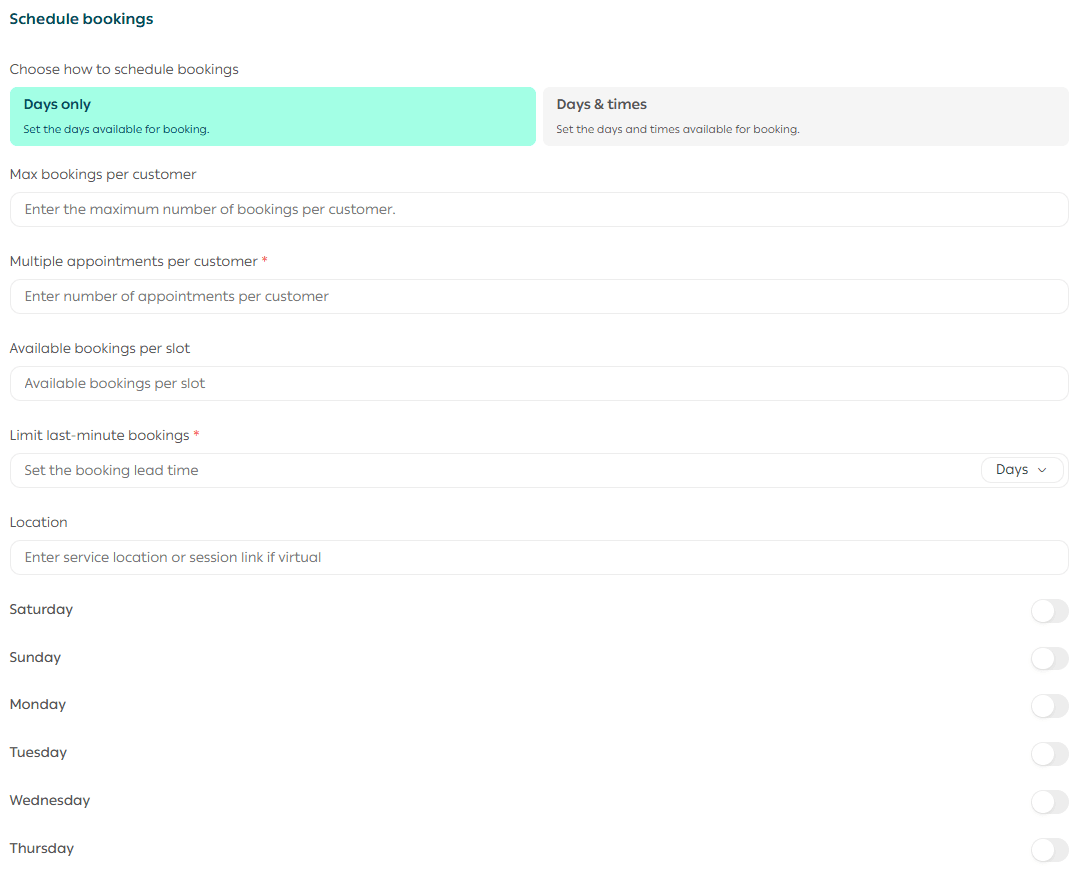
Choose the scheduling system:
- Days only
- Days and times
You can also configure:
- Allowing multiple bookings per customer
- Late booking limits
- Maximum bookings per customer
- Available booking days
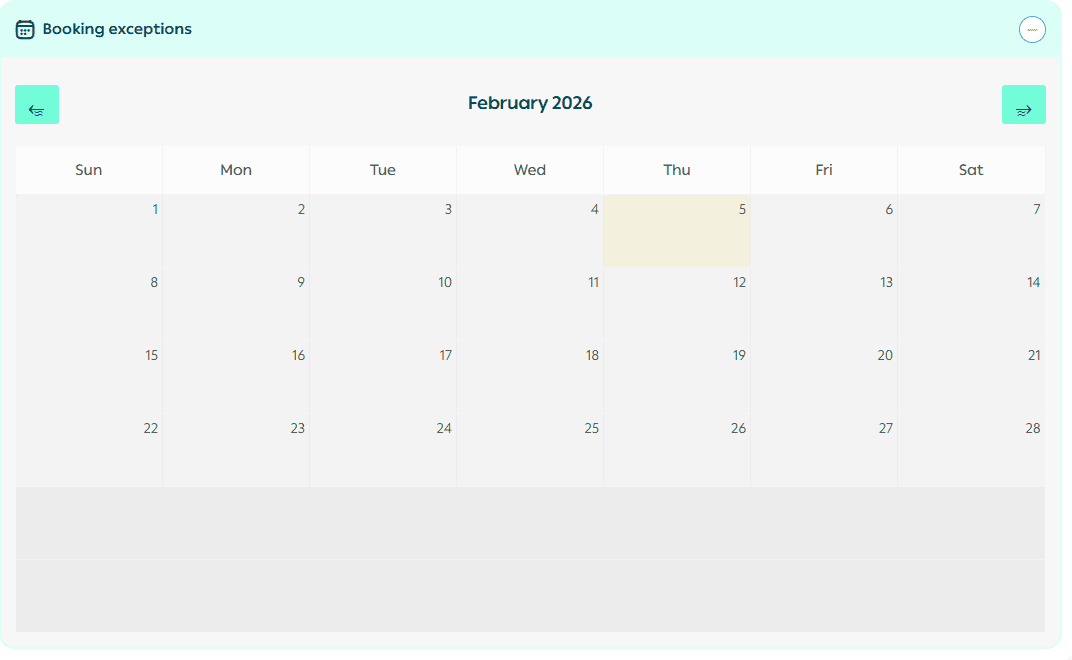
You can exclude specific dates from being available for booking if needed.
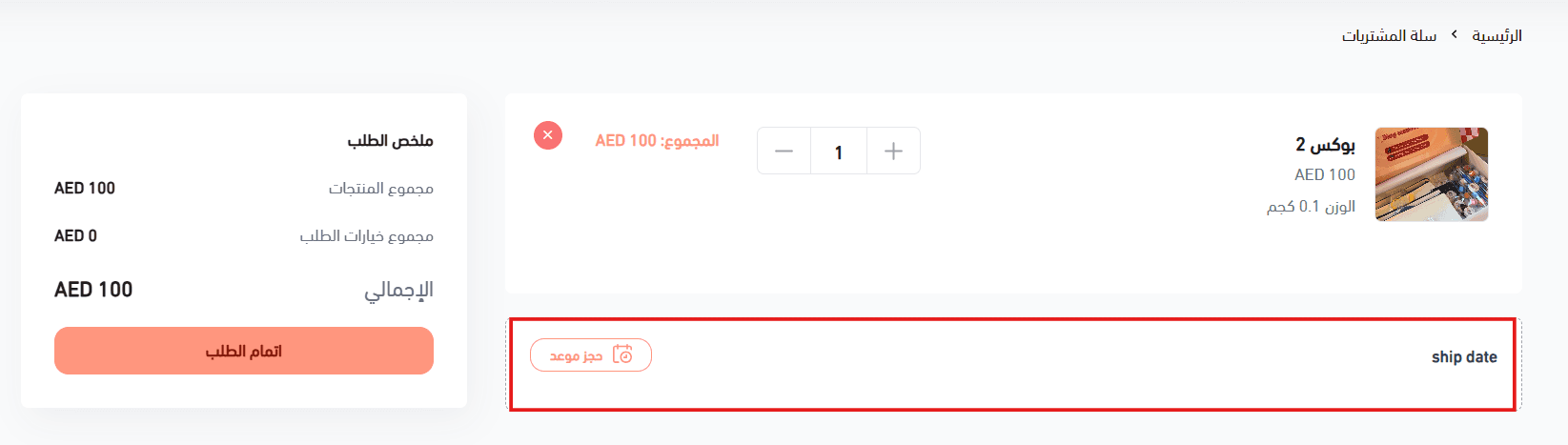
The date option will then appear in your store.
Manage Order Options
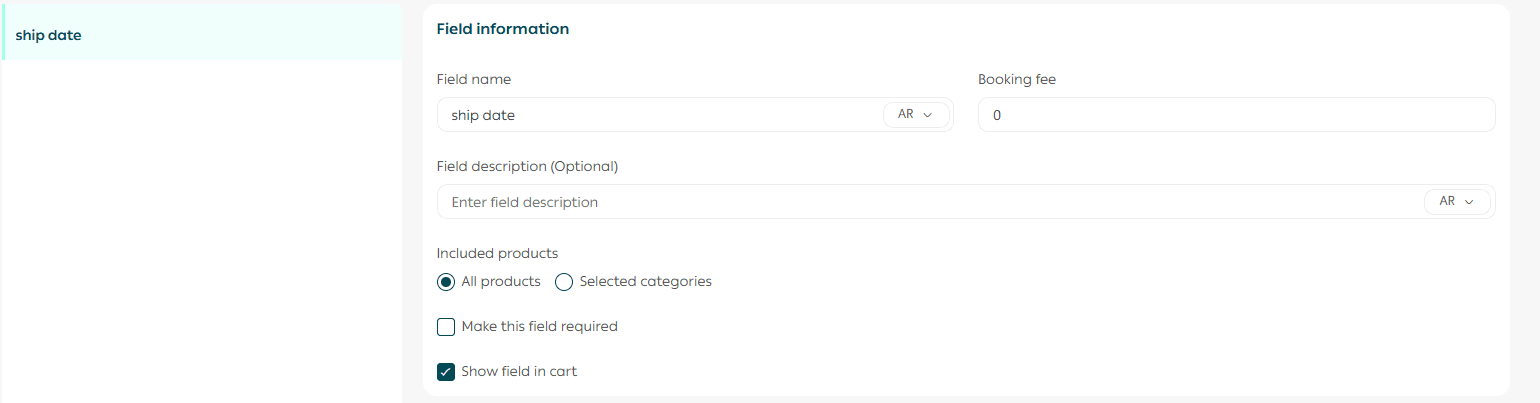
Edit an order option
Click the option you want to edit, update its details, then click Save.
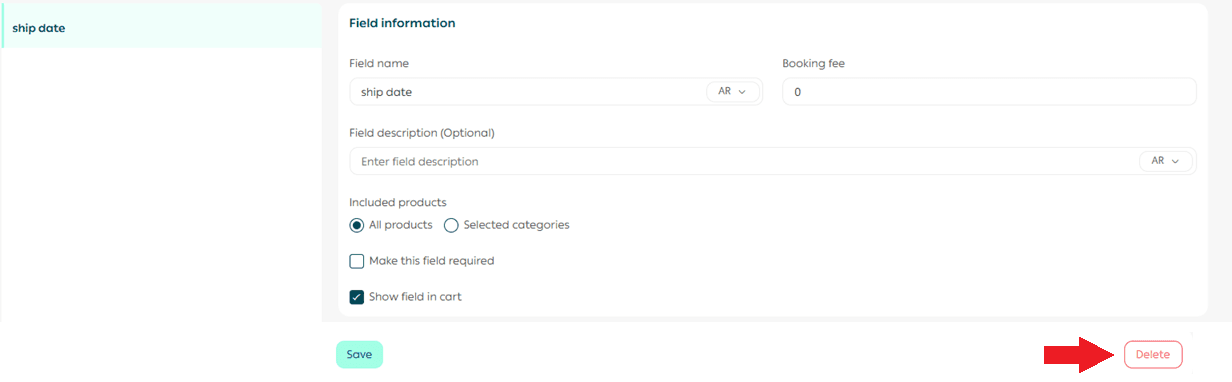
Delete an order option
Click the option you want to remove, then click Delete.
Frequently Asked Questions
Is this feature supported in all themes?
Yes, it is supported in all themes.
Is this feature supported in the App Maker?
Not currently. It will be supported soon.
Is this feature supported in Mahally?
No.
Can I add a date field when creating a manual order?
No. The date field can only be added by the customer during checkout.
Is this feature supported with Buy Now?
No.
Is this feature supported on product landing pages?
No.
What is the maximum number of order options I can add?
You can add up to five order options.
Which plans support the Order Options feature?
This feature is available on Salla Pro and Special plans only.
Final Takeaway
Cart Order Options allow you to tailor the checkout experience to your customers’ needs while creating new ways to increase value.
When checkout feels flexible and thoughtful, customers feel understood and are more likely to complete their purchase with confidence.