How many customers leave your product page because they still can't picture the item in their own room?
Photos only go so far. A shopper looking at a sofa, a lamp or a pair of sneakers wants to know how big it really is and how it looks in their own space. The augmented reality product viewer app lets you upload a 3D model of a product and show it inside the product page, so customers can spin it, zoom in, and place it in their room through their phone camera. In this guide, you'll learn how to install the app, sign in to its dashboard, upgrade your plan, and remove the app if you no longer need it.
The augmented reality product viewer is a Salla app that displays interactive 3D models on your product pages. Install it from the App Store, then sign in to the viewer dashboard using the login details emailed to you. Customers can rotate and zoom each model, or view the product in their own space using AR.
📌 Article overview
- What the augmented reality product viewer does
- How to install the augmented reality product viewer
- How to manage the app
- Frequently asked questions
✅ What the augmented reality product viewer does
The app gives your products a modern, interactive presentation that brings the buying experience closer to real life. Customers see more detail before they order, which builds confidence and cuts down on returns — and it needs no complicated setup on your side.
- Upload a 3D model for a product and display it directly on the product page.
- Support for the most common 3D formats: GLB, GLTF and USDZ.
- Let customers rotate, zoom in and zoom out on the model.
- Let customers preview the product in their own space using augmented reality (AR).
- Works smoothly on most modern smartphones.
- Helps increase sales and reduce return rates, because the detail is clear before purchase.
🚀 How to install the augmented reality product viewer
1. From the main menu, click (All), then under helper tools, click (App Store).

2. Search for the app using the search field.

3. On the augmented reality product viewer app page, click (Install).

The app is now installed on your store.

4. Check your inbox. Once installation finishes, you receive an email with your login details for the product viewer platform.

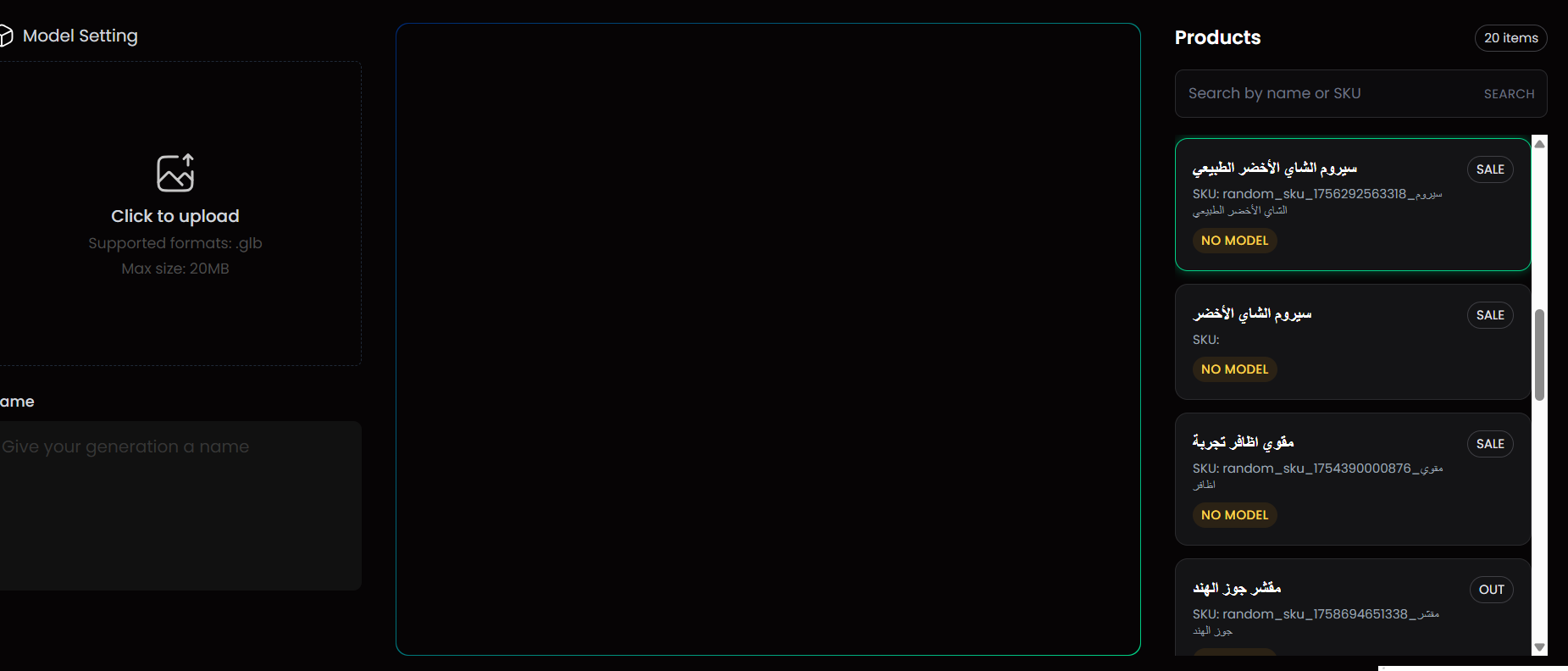
5. Sign in to the augmented reality product viewer using those details. You land on the dashboard home page, where you upload and manage your 3D models.
🚀 How to manage the app
Upgrade your plan
1. From the app actions menu, click (Upgrade plan).

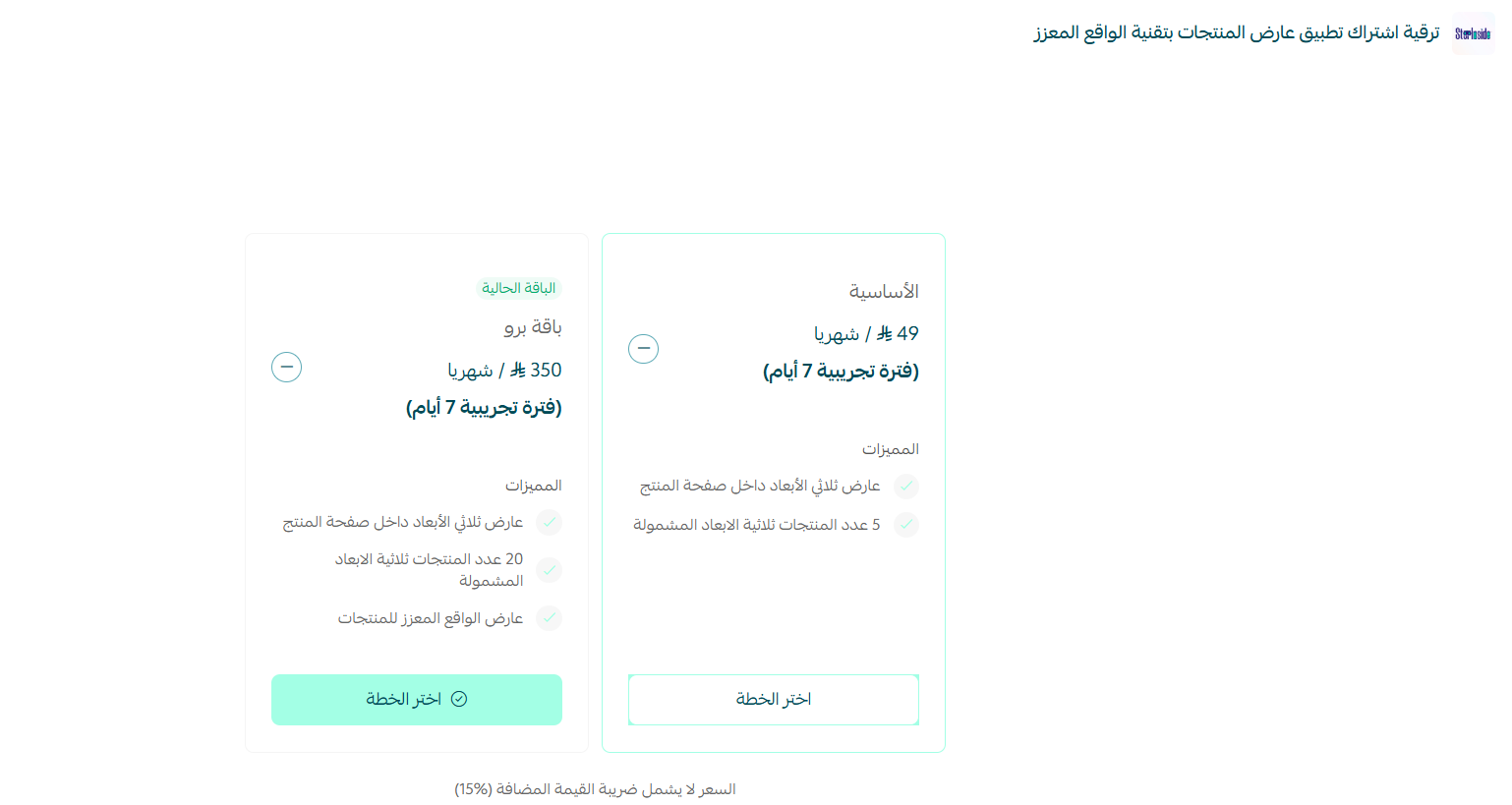
2. Choose the plan that fits your business, then click (Continue to payment).
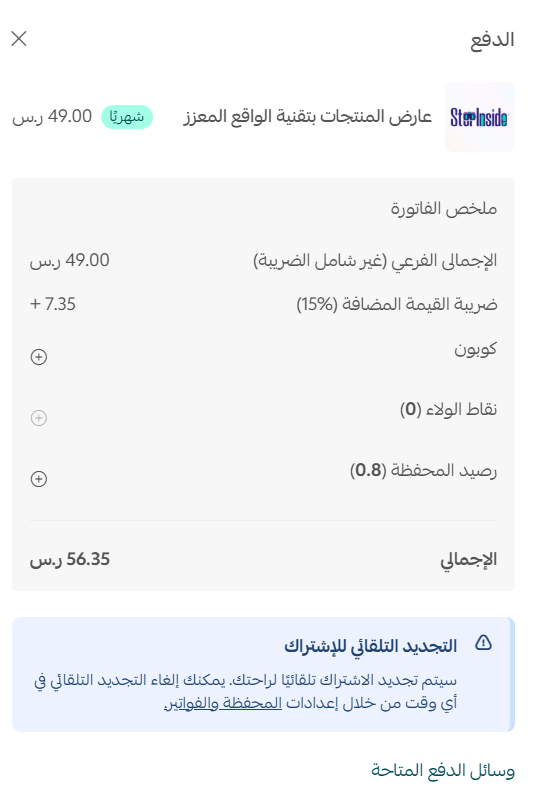
3. Complete the payment.
Delete the app
1. Open the app from your installed apps, click ( ), then click (Cancel subscription).

2. From the same menu, click (Delete app).

📝 Important notes
- Your login details for the viewer dashboard arrive by email after installation, not inside your Salla dashboard.
- Cancel the subscription first, then delete the app, so billing stops before the app is removed.
❓ Frequently asked questions
Which 3D file formats can I upload?
The app supports the most widely used 3D formats: GLB, GLTF and USDZ.
What can customers do with the 3D model?
They can rotate it, zoom in and zoom out on the product page, and preview the product in their own space through augmented reality on their phone.
Does it work on every phone?
It works smoothly on most modern smartphones. [Verify: the exact minimum device and OS requirements are not stated in the source article.]
Where do I upload my 3D models?
Not in your Salla dashboard. Sign in to the product viewer platform with the credentials sent to you by email, and manage your models from there.
Interactive 3D and AR turn a flat product page into something a customer can examine before they commit — and that is usually the difference between a saved item and a placed order.
For more details about the augmented reality product viewer.