Moving a Magento catalog to a new platform should not mean rebuilding every product by hand.
If you run your store on Magento, you can import products from Magento into Salla in a few steps, without recreating anything manually. You give Salla your store URL, your base image URL, your weight unit, and the products file exported from Magento, and the importer does the rest while you review the result. In this guide, you'll learn how to import products from Magento into your Salla store.
To import products from Magento, open the import from platforms page in your Salla dashboard and choose Magento. Enter your Magento store URL and base image URL, select the weight unit used in Magento, then upload the products file you exported from Magento. The imported products appear on your manage products page.
📌 Article overview
- Importing products from external platforms
- How to import products from Magento
- Frequently asked questions
Importing products from external platforms
If you are moving your products from another platform to Salla, you can import them without re-entering anything by hand. The feature transfers your product data and lets you follow the import status from one place, quickly and in an organized way.
🔗 Pick the import guide that matches your platform:
Importing products from WooCommerce
Importing products from Shopify
🚀 How to import products from Magento
1. From the main menu, click (Products).

2. Click (Import from platforms).

3. Choose Magento, then click (Next).
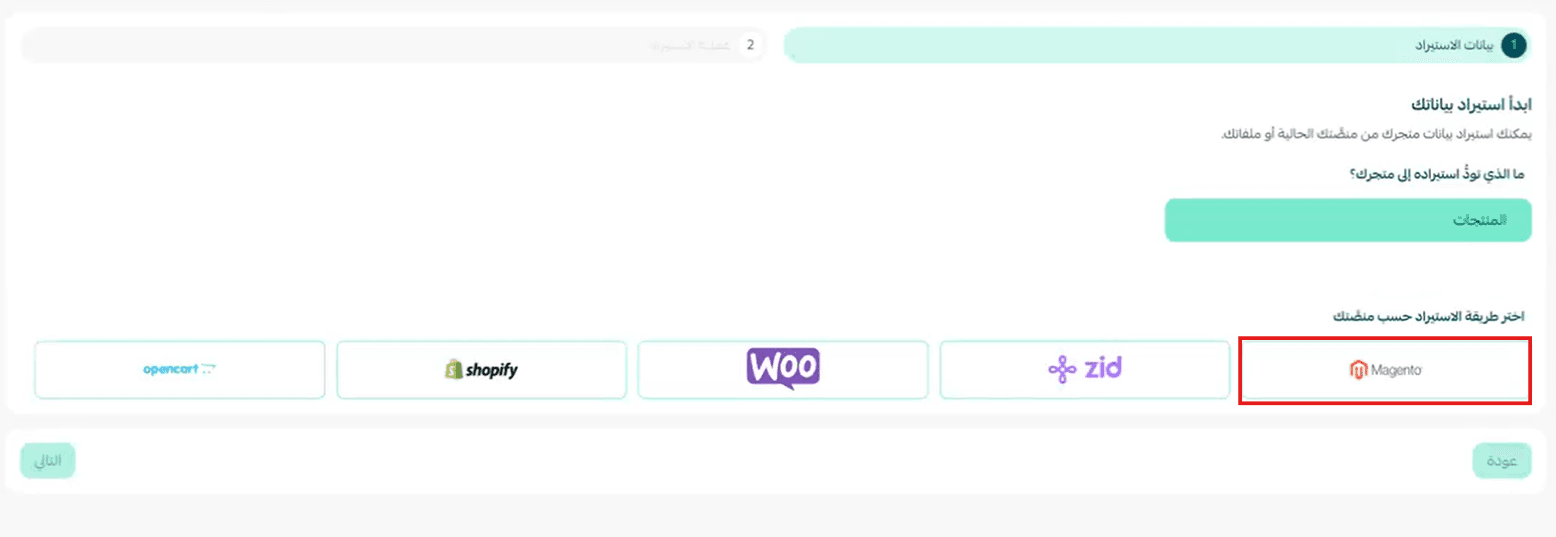
4. Enter your Magento store URL.

🔔 You can find your store URL in Magento from the side menu:
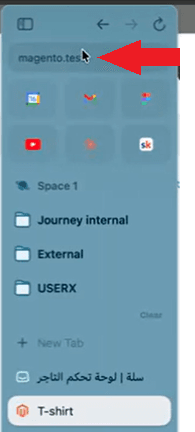
Make sure you copy only the first part of the URL:
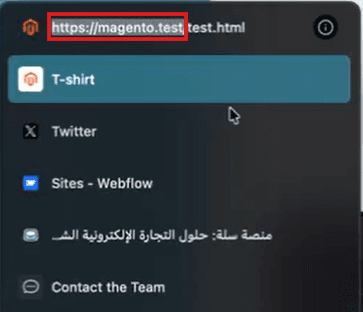
Then add it to the matching field in your store:

5. Enter the base image URL.
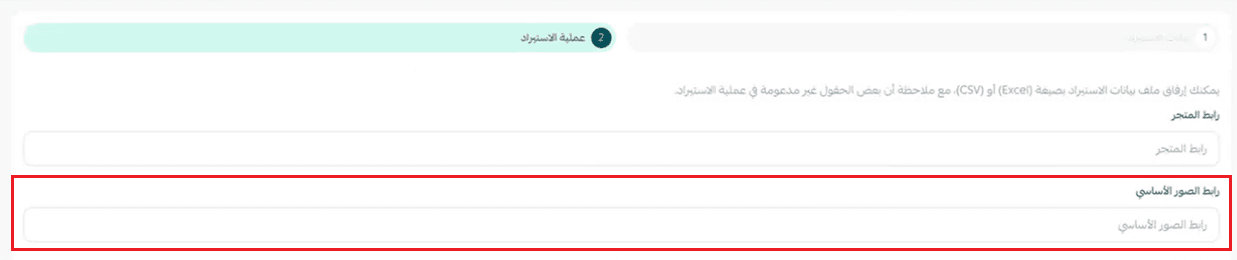
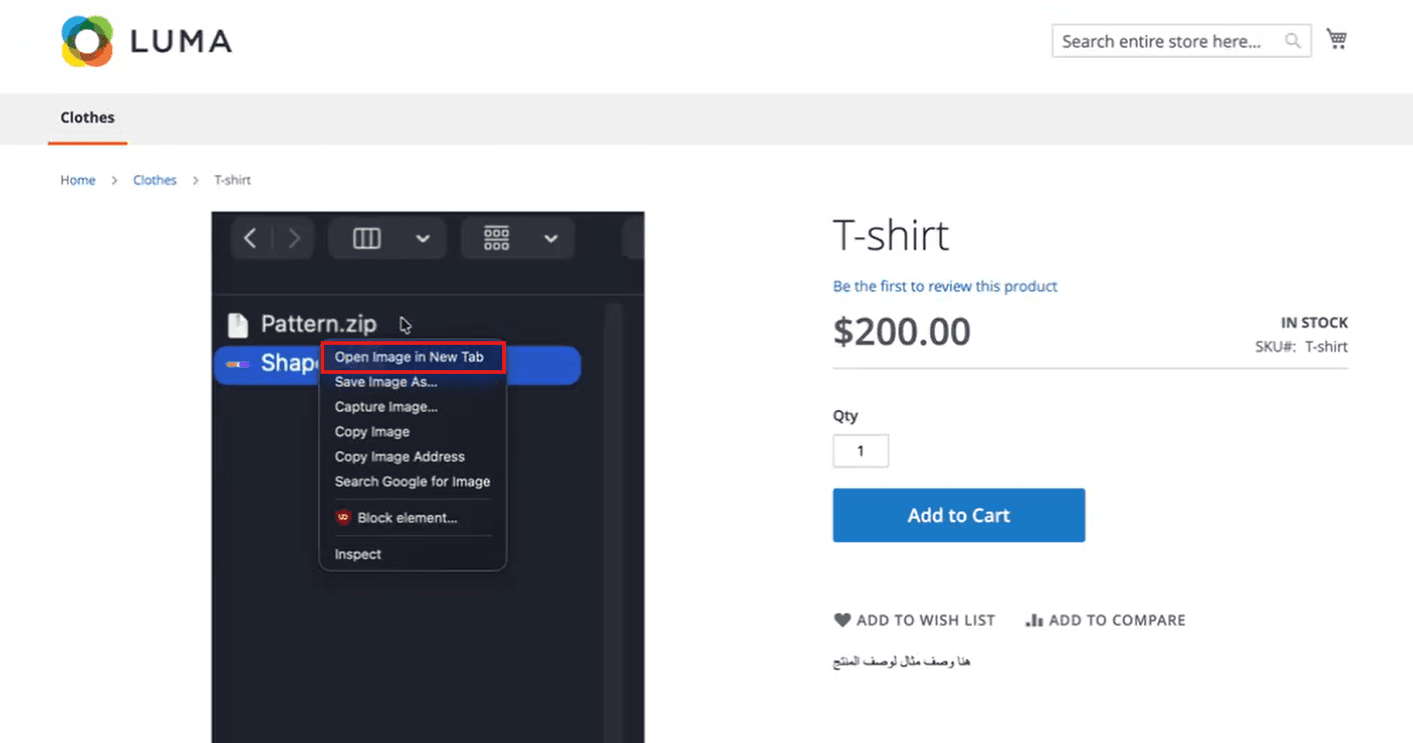
🔔 To find the base image URL, open any product in your Magento store, right-click the product image and choose (Open image in new tab).
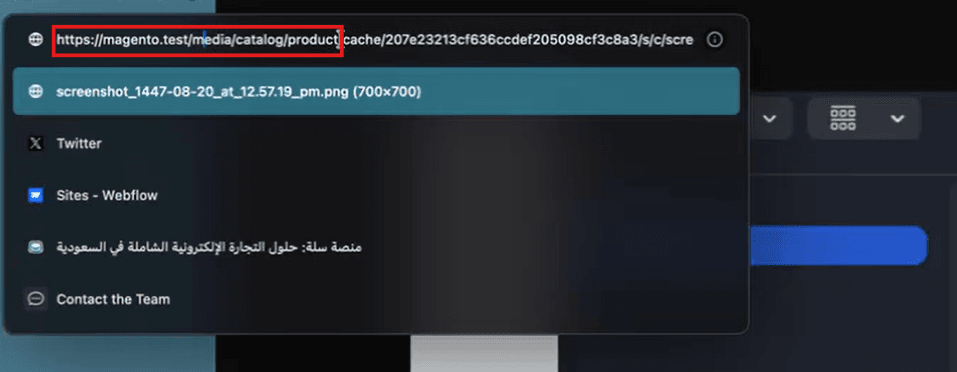
Then copy the first part of the page URL:
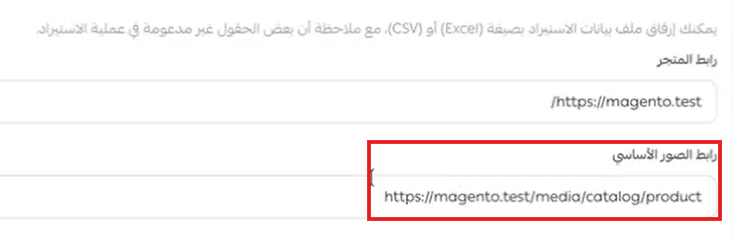
Then add it to the matching field in your store:
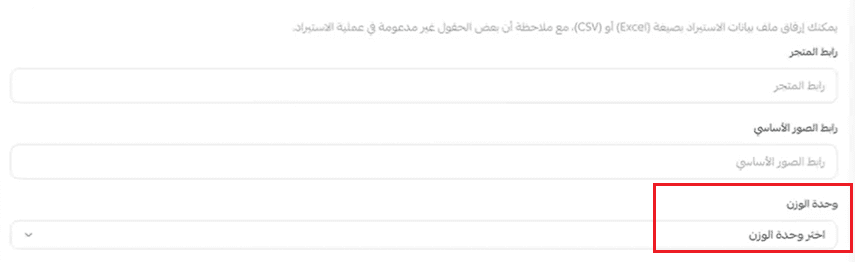
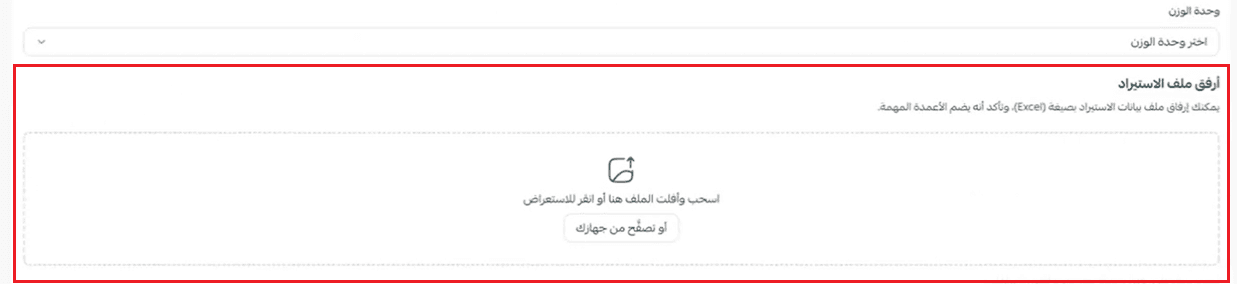
6. Choose the weight unit set in your Magento store.
7. Attach the products file from your Magento store.
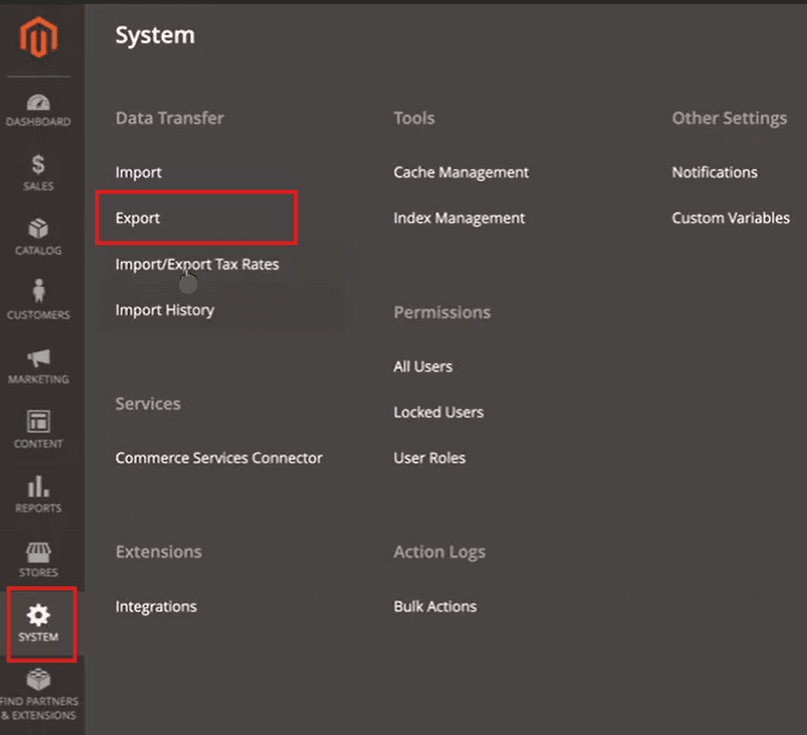
🔔 To export the products file from Magento, open the (System) tab in the side menu and choose (Export).
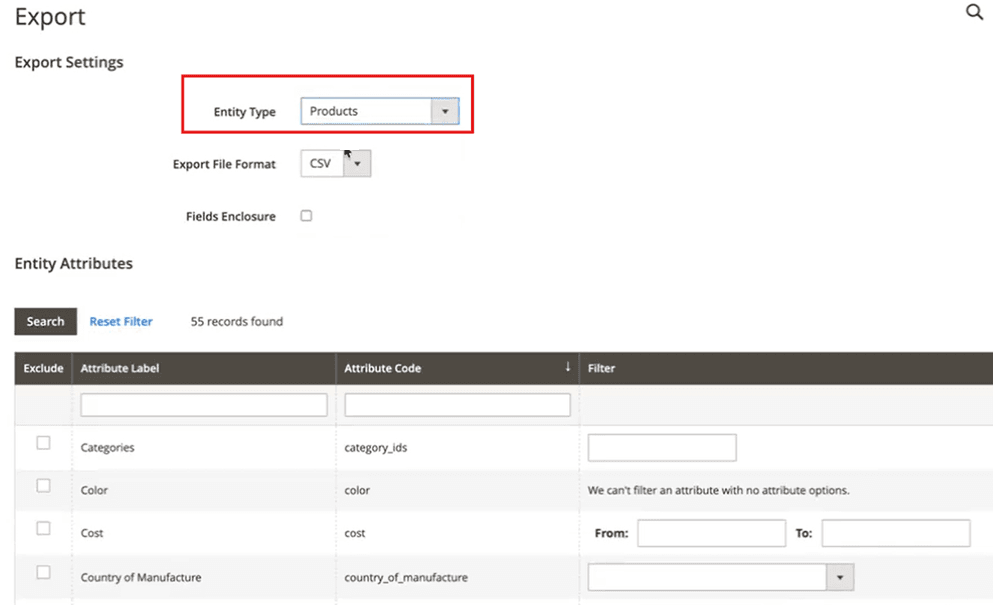
Set the entity type to (Products).
Then click (Continue) at the bottom of the page.
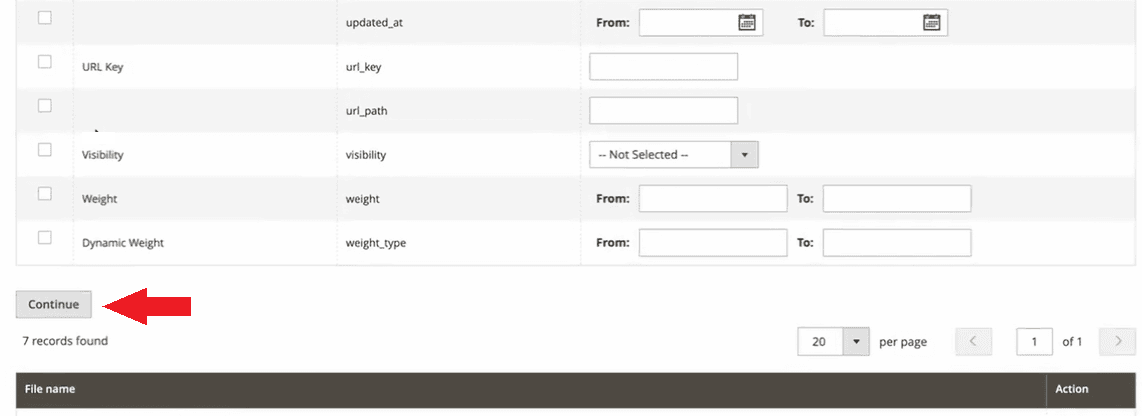
⚠️ Do not make any changes to the products table.
Every recently exported file is listed. Click (Select) next to the latest file, then click (Download) to save it to your device.

Upload the file to the matching field in your store, then click (Next).

8. Wait until the file finishes uploading. Once the import is complete, your products appear on the manage products page in your store.

📝 Important notes
⚠️ Make sure a default branch is active on the branches and warehouses page, so product quantities are imported and distributed correctly.
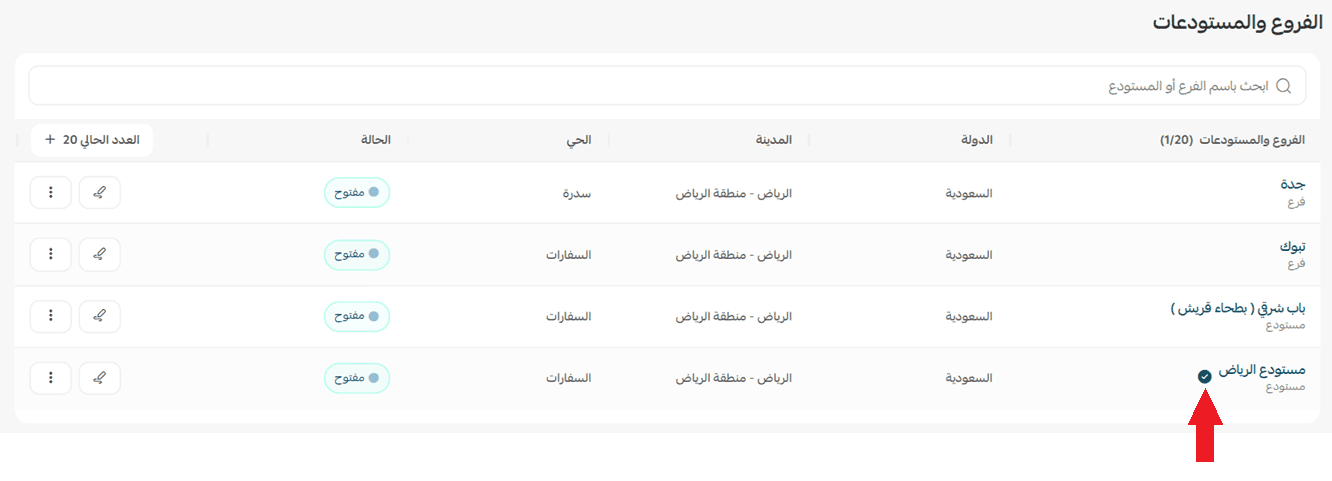
For more details, see adding and managing branches and warehouses.
❓ Frequently asked questions
❓ Are digital product contents such as codes and PDF files imported?
At the moment the importer supports physical products only from external platforms.
Digital products, and any other kind of non-physical product, are not supported by the import process.
❓ Which file does Salla need from Magento?
The products file exported from Magento through (System) then (Export), with the entity type set to (Products). Download the most recent export and upload it as it is.
❓ Can I edit the exported products file before uploading it?
No. Do not make any changes to the products table. Upload the file exactly as Magento exported it.
❓ Why does Salla ask for a base image URL?
The exported file references your product images by path rather than by full address. The base image URL tells Salla where those images live, so the pictures come across with the products.
❓ What happens if I have no default branch set?
Product quantities may not be imported or distributed correctly. Activate a default branch on the branches and warehouses page before you start the import.
💪 Move your products from Magento to Salla in one pass, and start running your store on Salla.