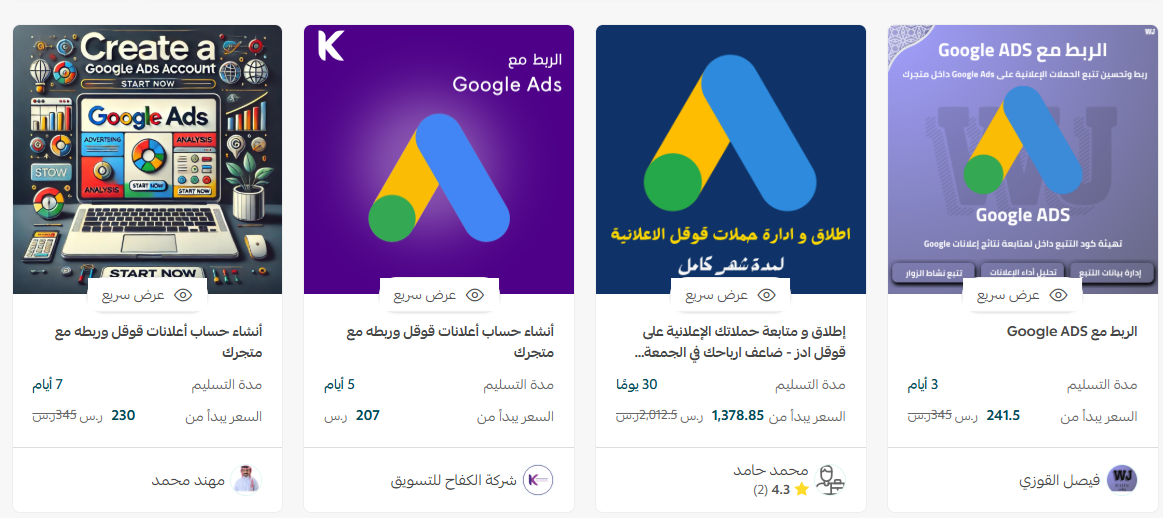
📊 What if your ad reached someone at the exact moment they searched Google for what you sell?
Most stores lose money on advertising for the same reason: the spend is easy to see, the results are not. Google Ads puts both in one place. Connect it to your Salla store and every campaign is measured against what actually happened in the store, purchases, add to cart, checkout starts and content views, so you can tell which keyword earned the sale and which one only spent your budget. In this guide, you'll learn how to create a Google Ads account, set up conversion tracking, and connect it to your store through the Google AdWords app.
Connecting Google Ads to Salla takes three stages. First, create a Google Ads account and complete your billing details. Second, create a conversion action in Google Ads and copy its Conversion ID and Purchase Label. Third, install the Google AdWords app on your store, paste both values into the app settings and save.
📌 Article overview
- About Google Ads
- How to connect Google Ads to your Salla store
- Tips for advertising on Google
- Frequently asked questions
- Additional support services
🎯 About Google Ads
Google Ads, previously known as Google AdWords, is Google's advertising network. It puts your business in front of people at the moment they search for the products or services you sell.
Google Ads runs on a pay-per-click (PPC) model, which means you only pay when someone clicks your ad and visits your store or calls you.
Connecting Google Ads to your Salla store lets you:
✅ Build precise, effective ad campaigns.
✅ Track every key conversion that happens in your store.
✅ Improve your return on investment using real data you can analyze.
What this looks like for you and your customers
For you: one dashboard for campaign performance and accurate conversion tracking.
For your customers: a more relevant experience, with ads and offers that match what they are interested in.
⚠️ Note: this connection is available on the Pro plan only. Check your subscription before you start.
🚀 How to connect Google Ads to your Salla store
The connection runs in three stages:
Stage one: create a Google Ads account.
Stage two: copy the conversion tracking code from your Google Ads account.
Stage three: install the Google AdWords app and activate it.
For a walkthrough, watch the video.
📖 Note: skip stage one if you already have a Google Ads account.
Stage one: create a Google Ads account
1. Go to the Google Ads home page and click (Start now) to create your account.
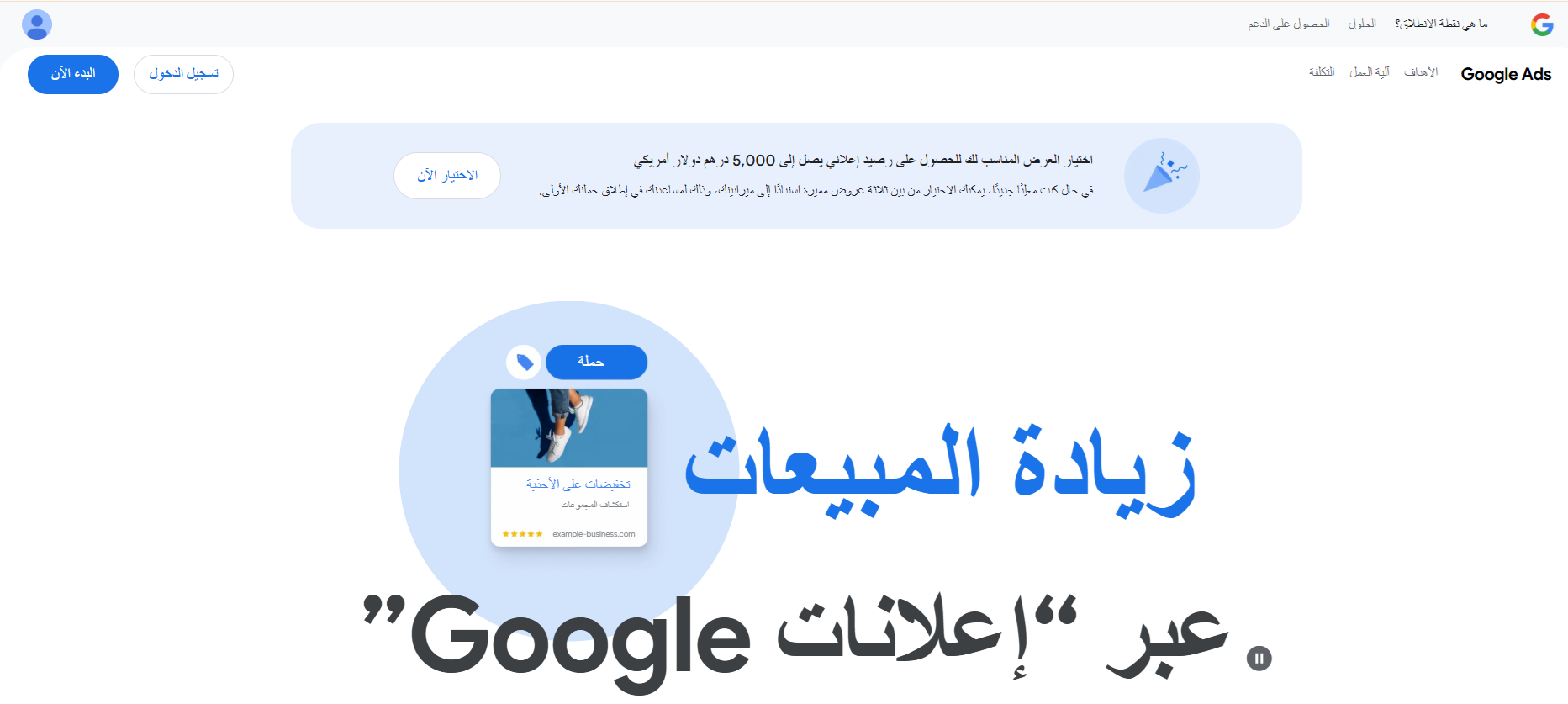
2. Click (Create your first campaign).

3. Enter your business name and your store URL, then click (Next).

4. Skip the campaign setup pages: linked accounts, campaign goals, and campaign type.
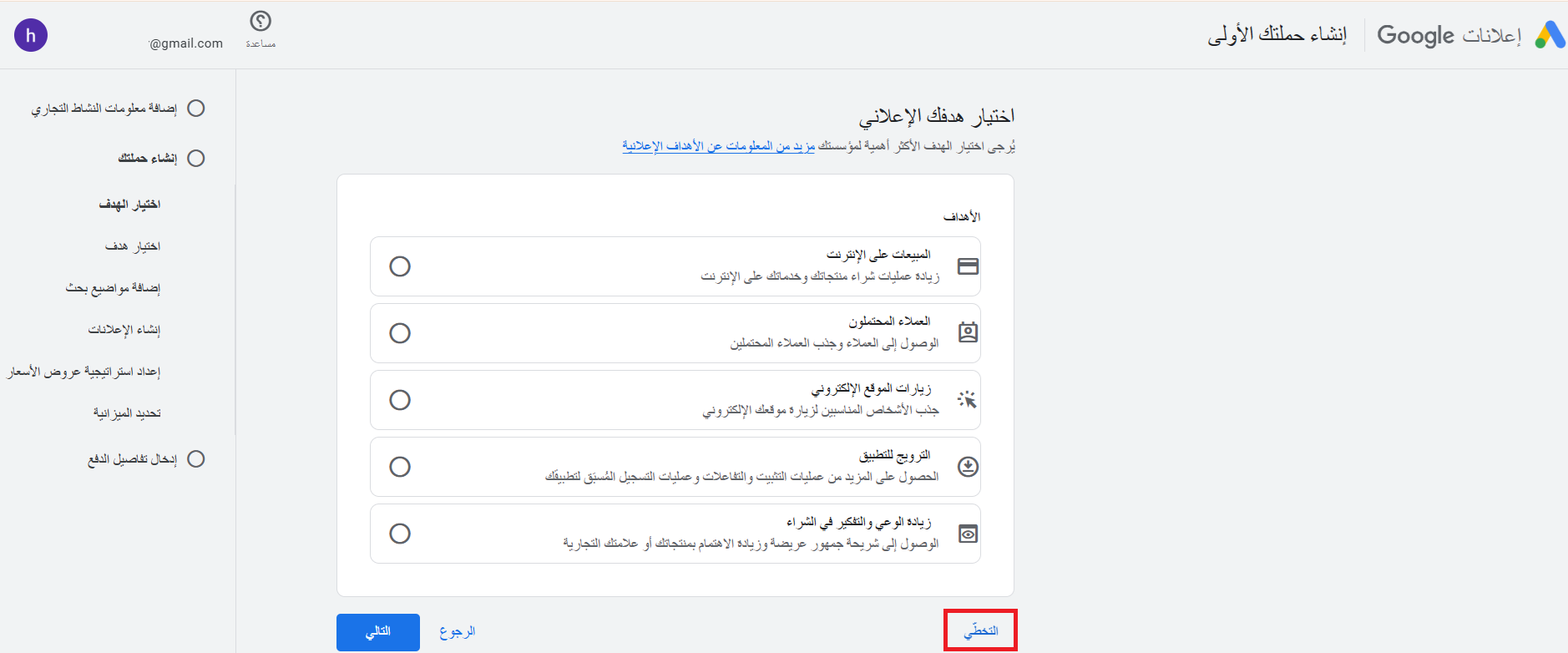
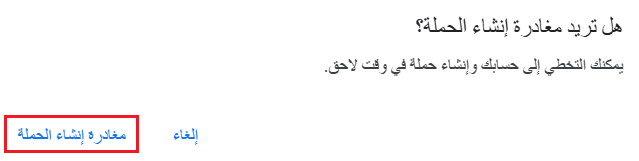
Keep going until you reach the page that lets you leave campaign creation.
5. Review your account settings, then click (Continue).
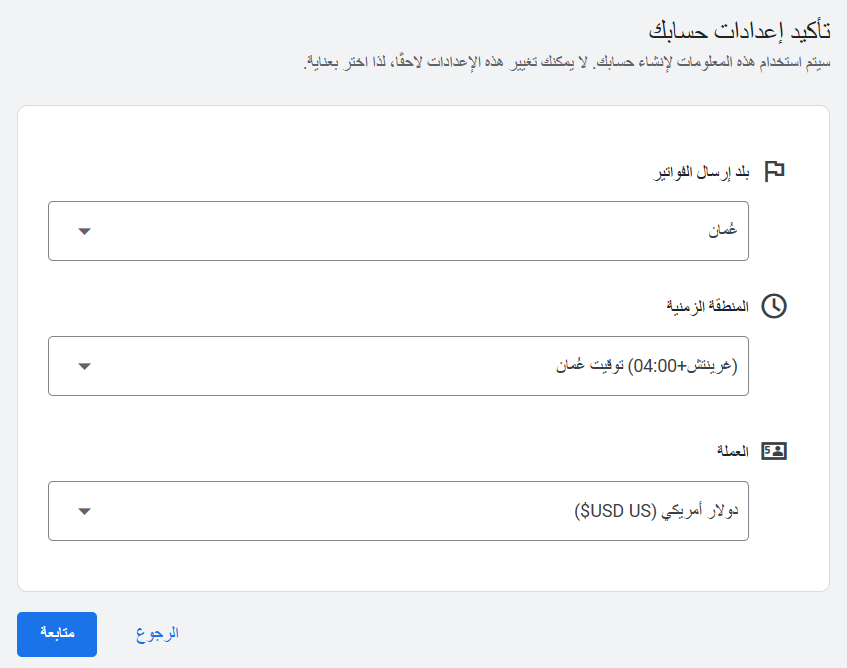
6. Review your billing settings.
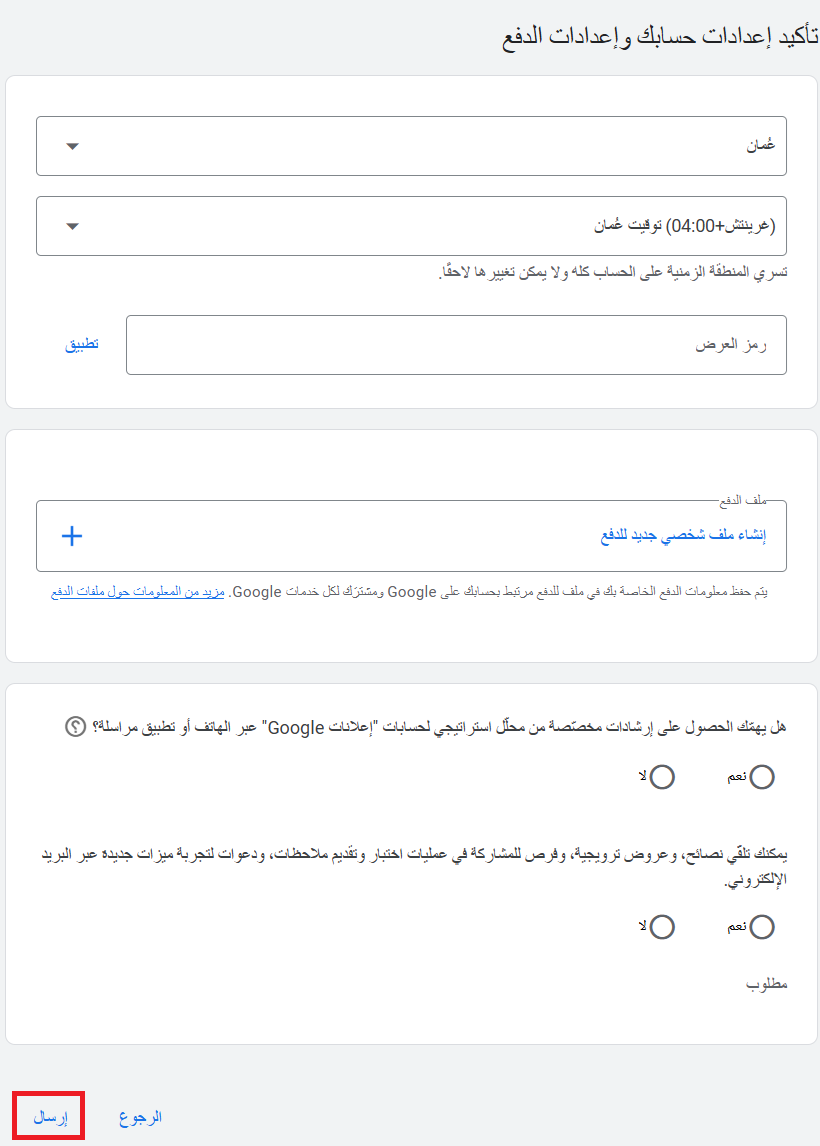
Add both a payments profile and a payment method, and accept the Google Ads terms.
When you add your card details, Google places a temporary charge of USD 10 on the card. You pay it and it is returned to you later, usually within a week.

7. Once your payment method is set, click (Submit).

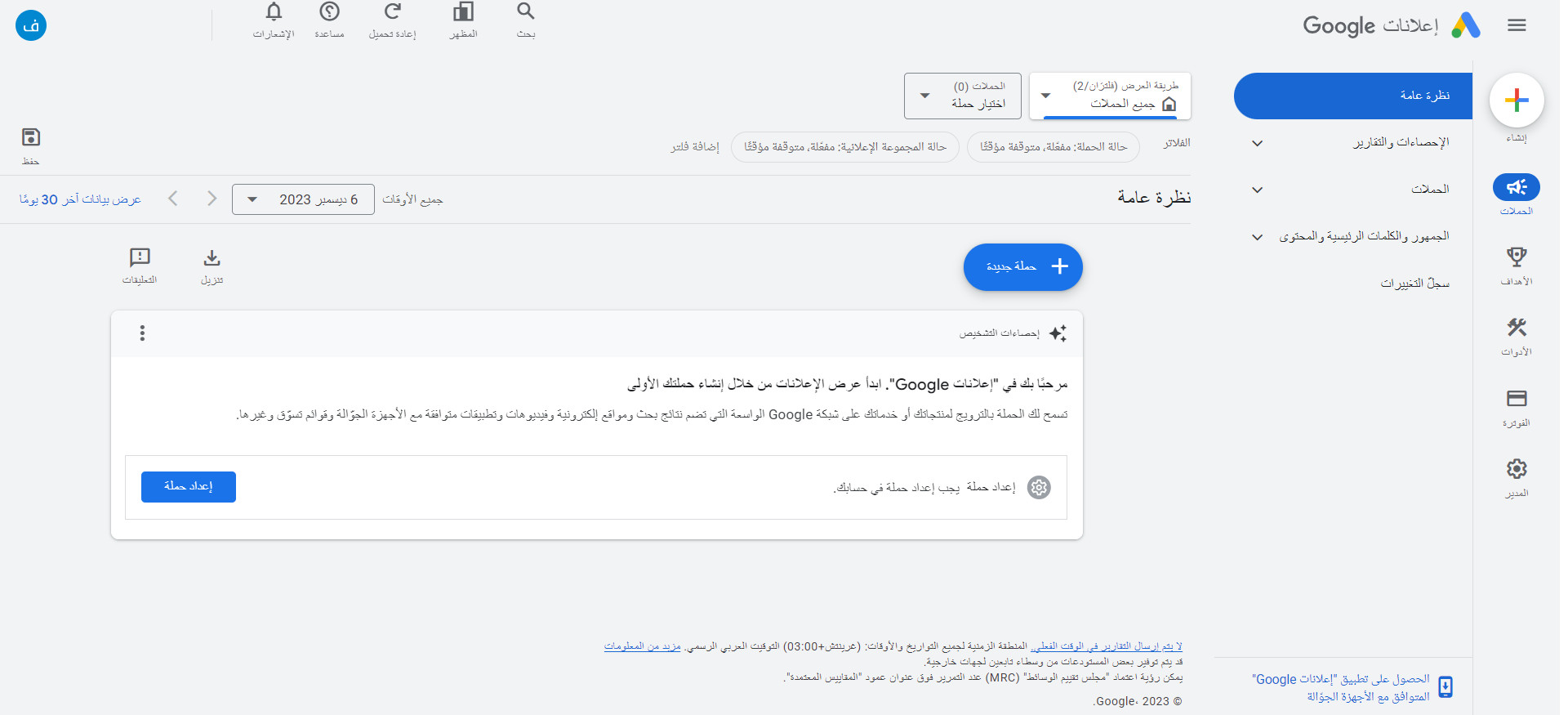
A confirmation screen tells you that your Google Ads account has been created.

To open your account home page, click (Explore your account).
Stage two: copy the conversion tracking code from your Google Ads account
1. In your Google Ads account, open (Goals) in the side menu, then under (Conversions), click (Create new conversion).
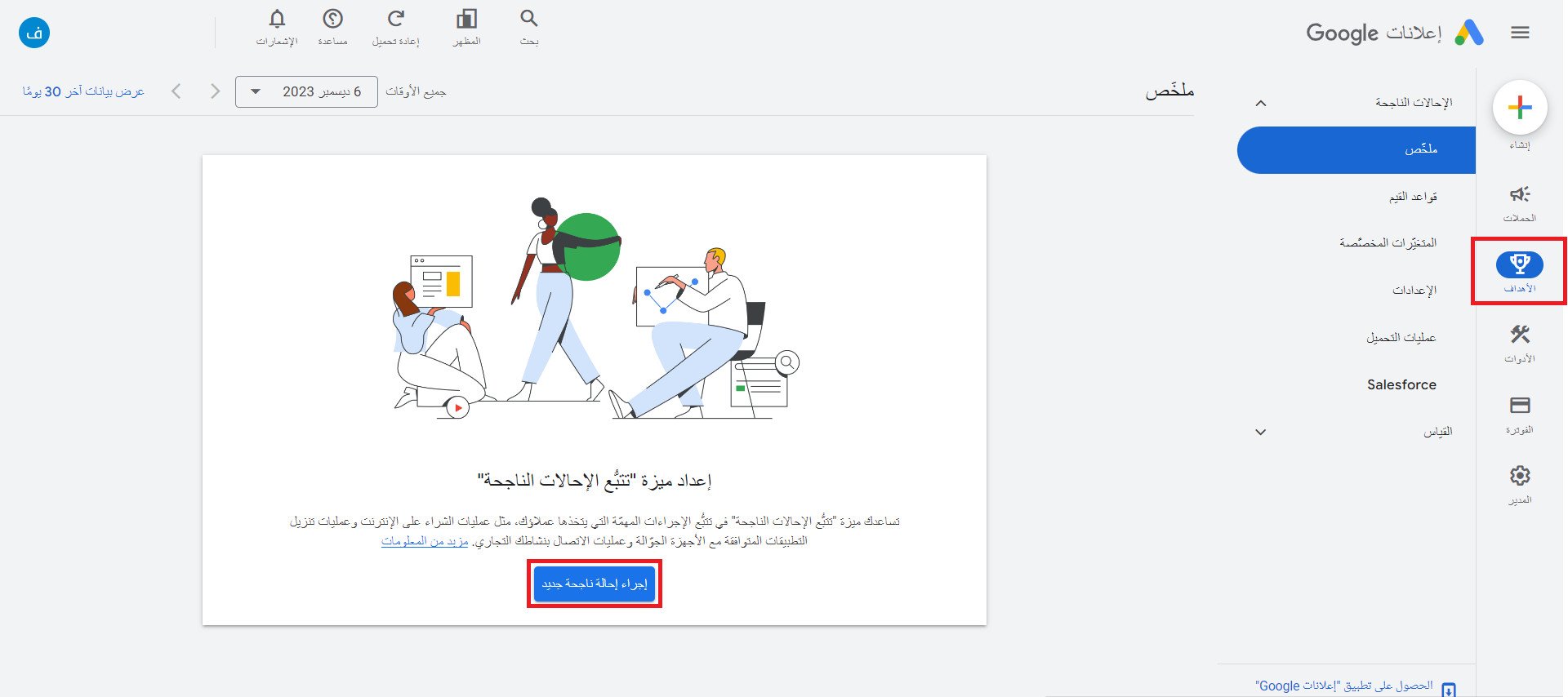
2. To track actions that happen in your store, click (Website).

3. Paste your store URL into the field, then click (Scan). Make sure the option to use Google Ads only is selected.
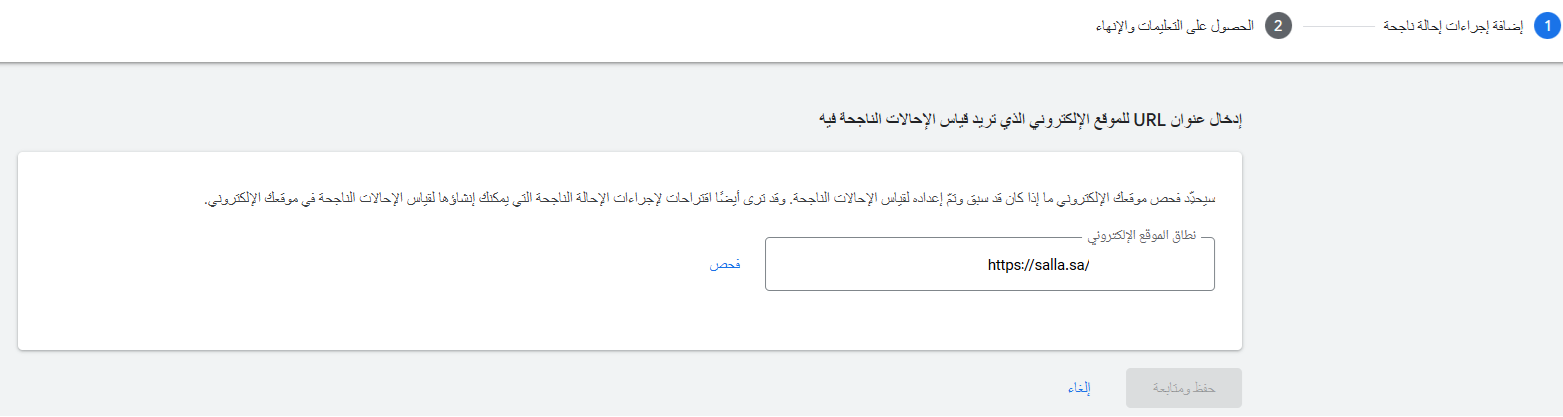
The result looks like this:

4. At the bottom of the page, under the section for creating conversion actions manually with code, click (+ Add a conversion action manually).
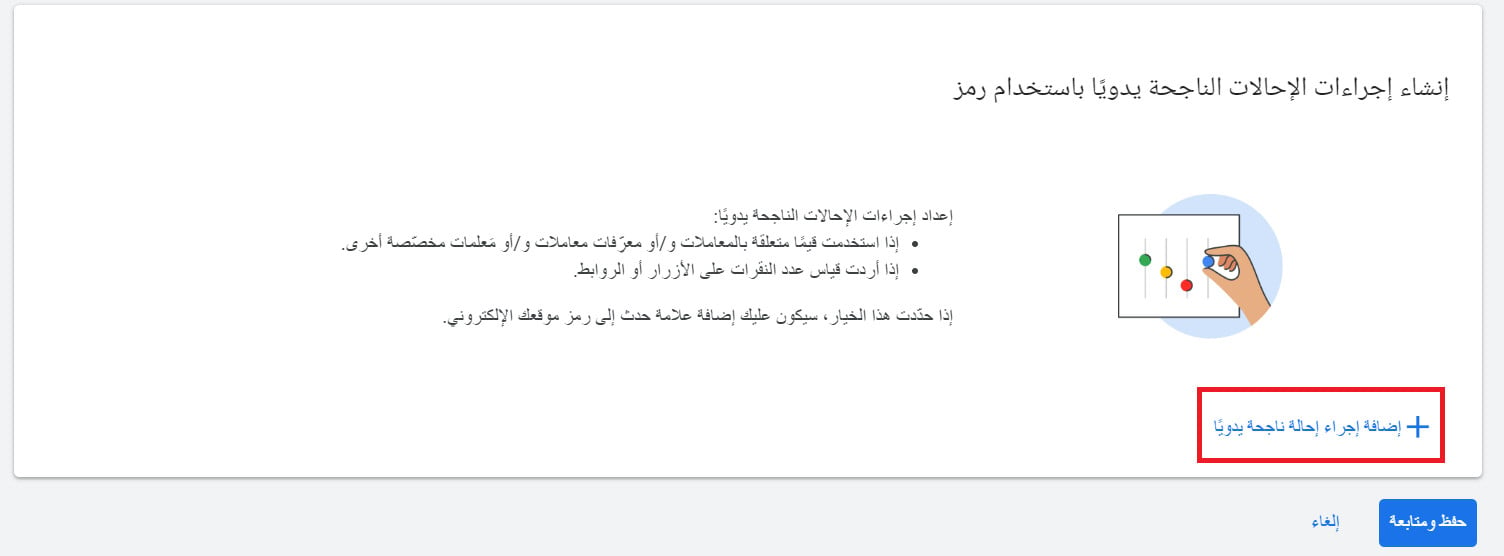
5. Enter the details of the conversion action, such as its category, name and value, then click (Done).
You can track up to four conversions through Google Ads: purchase, add to cart, begin checkout, and view content.

For the conversion value, choose (Use different values for each conversion).

6. Check that the conversion has been set up, then click (Save and continue).
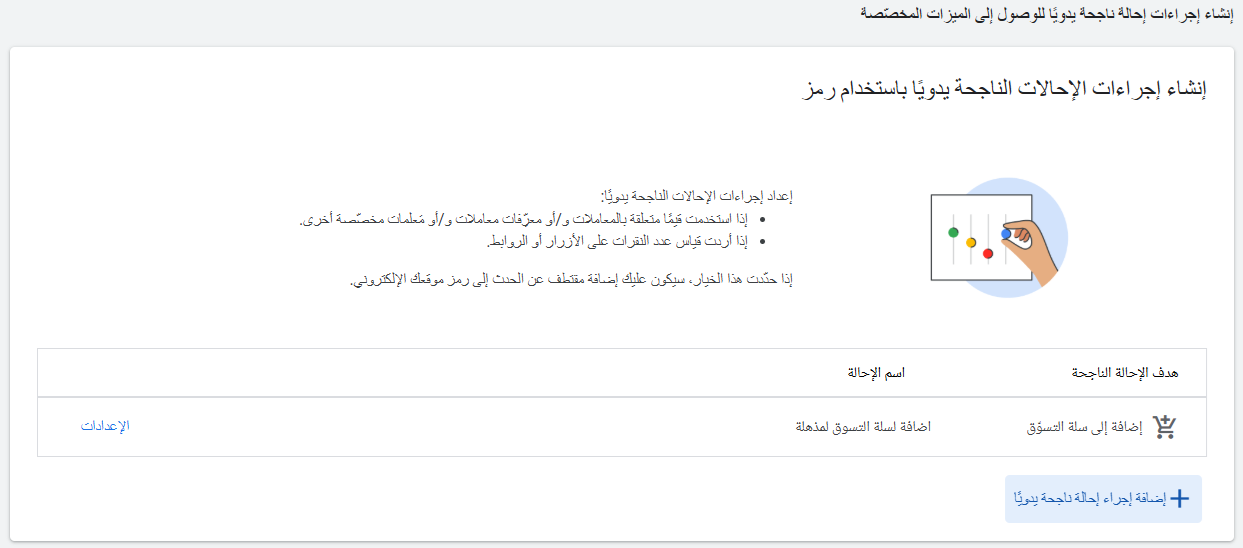
7. Under (Tag your conversion event on your website), find the conversion you just added and click (View event snippet).
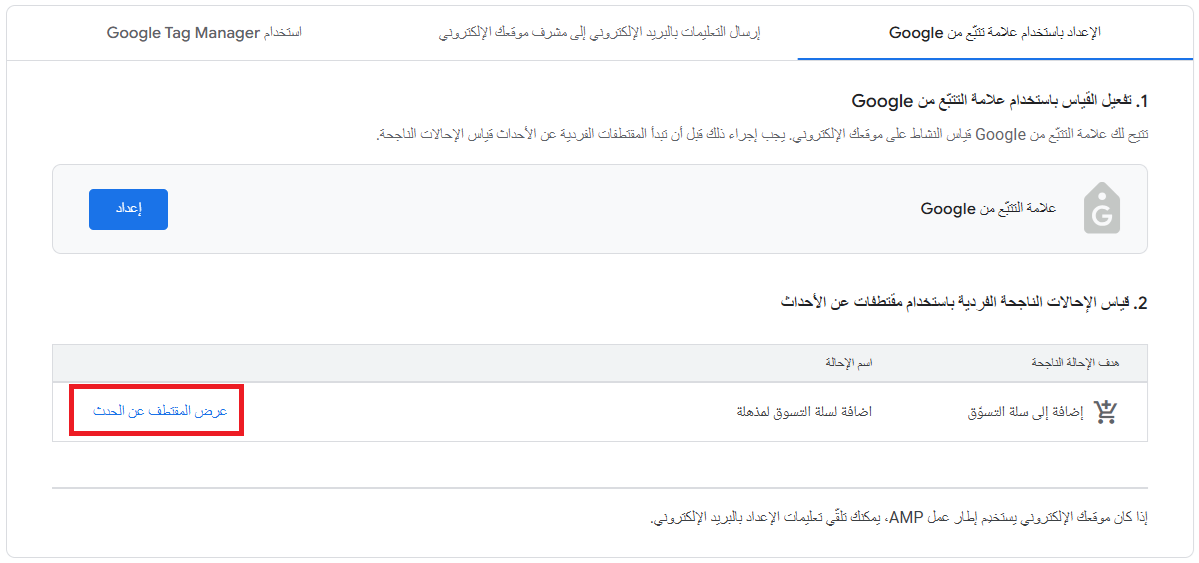
8. On the event tag you need, click (Copy) to copy the conversion tracking code.
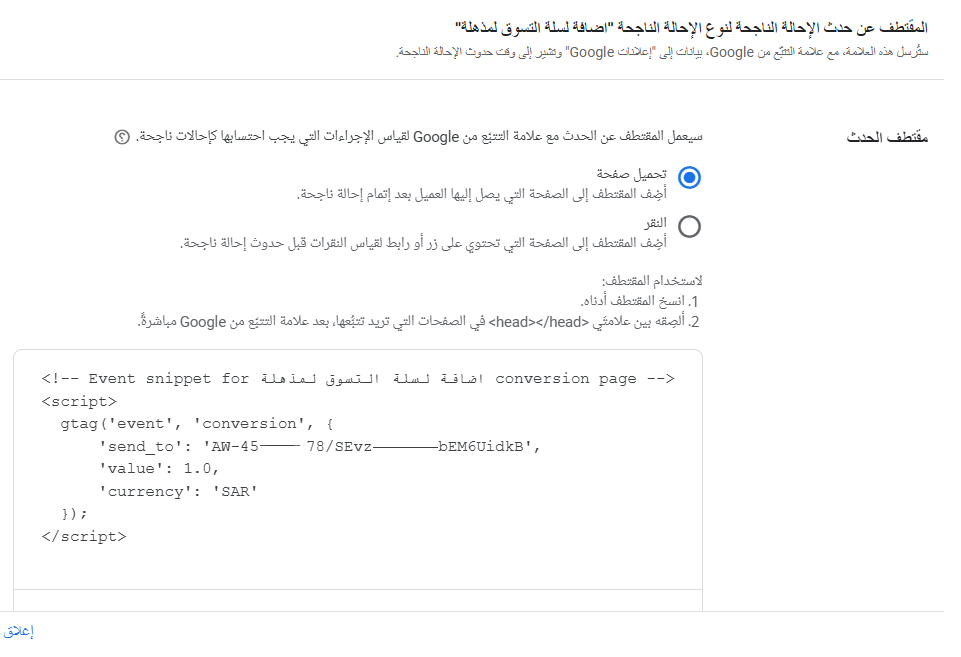
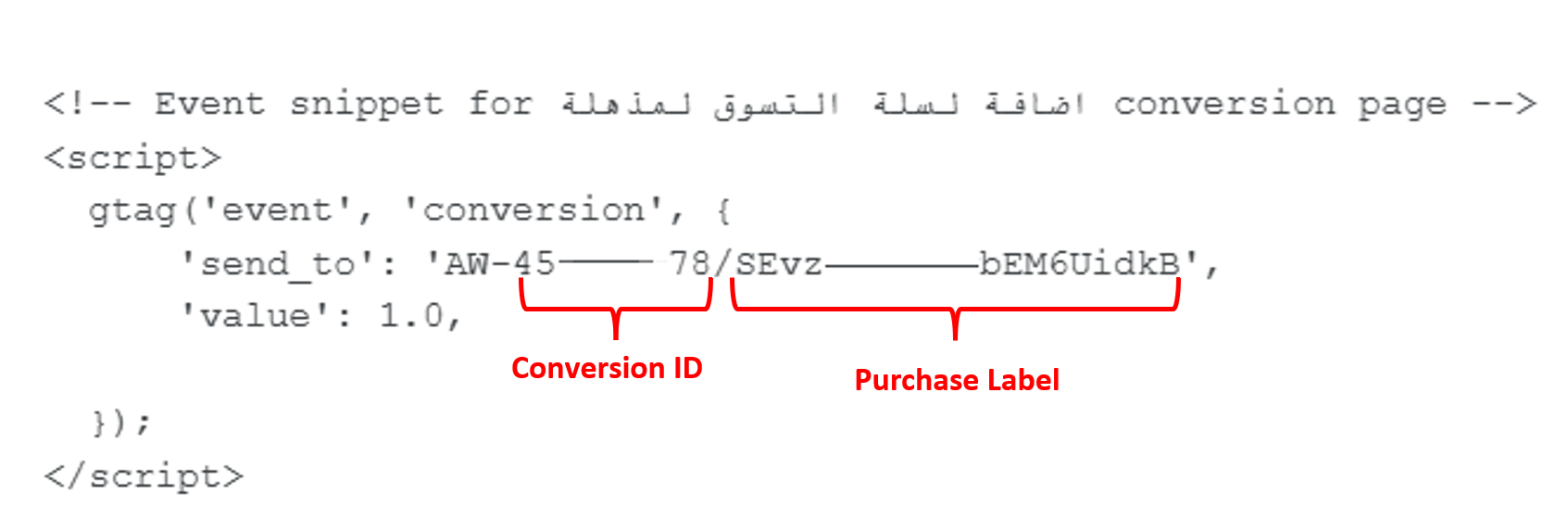
9. Paste the snippet into any text editor and copy these two values:
- Conversion ID
- Purchase Label
You will paste them into the app settings in your store.
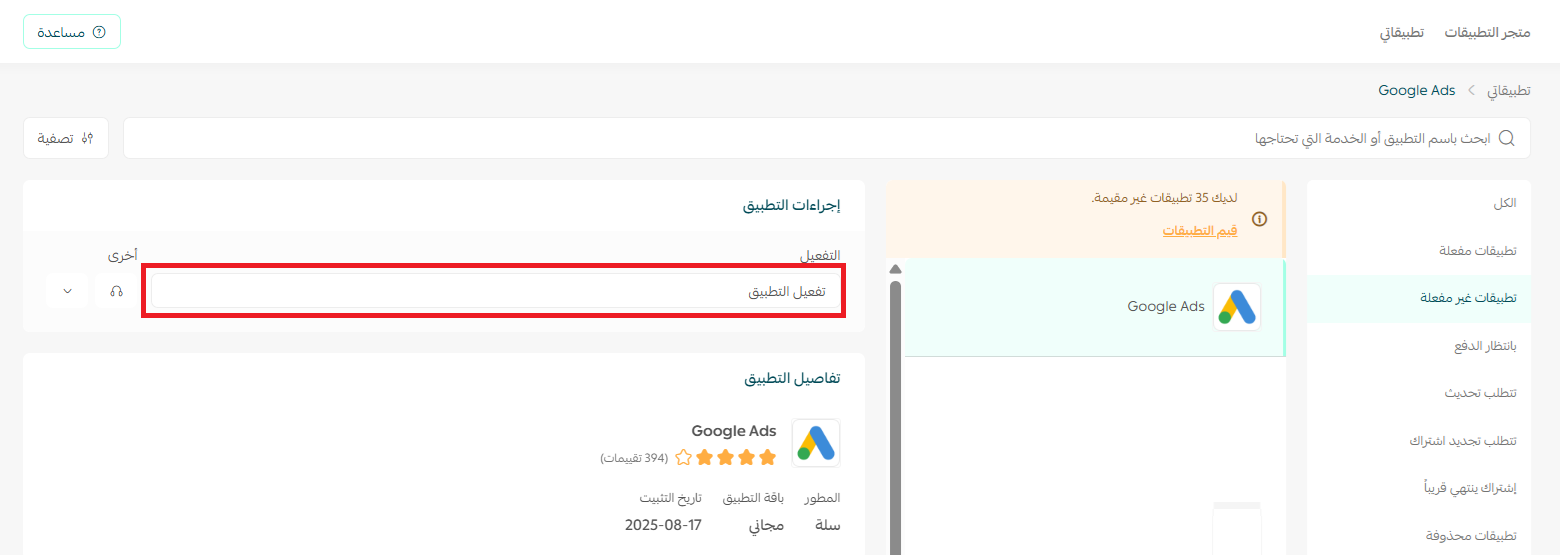
Stage three: install and activate the Google AdWords app
1. From the main menu, click (All), then under helper tools, click (App Store).

2. Search for the app using the search field.

3. On the Google AdWords app page, click (Install app).

4. From the app options menu, click (Activate app).
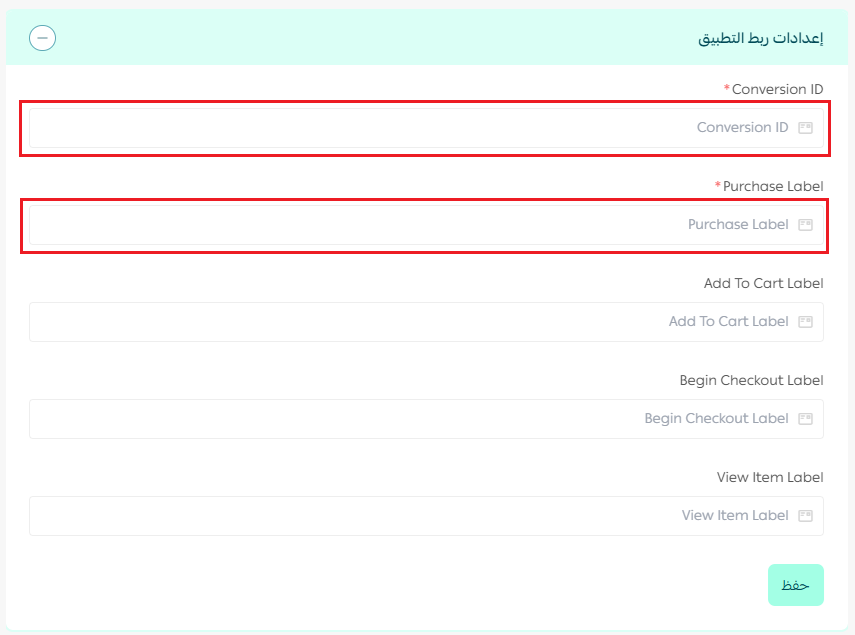
5. Open the (App connection settings) tab and click (Extract the ID from the code).
6. In the app settings, paste the Conversion ID and the Purchase Label you copied in the last step, then click (Save).
✅ Your store is now connected to Google Ads.

🎯 Tips for advertising on Google
✅ Set a daily budget, and pause or resume campaigns at any time with no contract.
✅ Adjust the cost per click for each campaign to match your strategy.
✅ Follow your return on investment (ROI) as it happens.
✅ Pay by credit card, debit card or invoice, depending on your country.
❓ Frequently asked questions
Do I have to fill in every conversion when I activate the connection?
No. Fill in only the conversions your campaign needs. That may be one, or several.
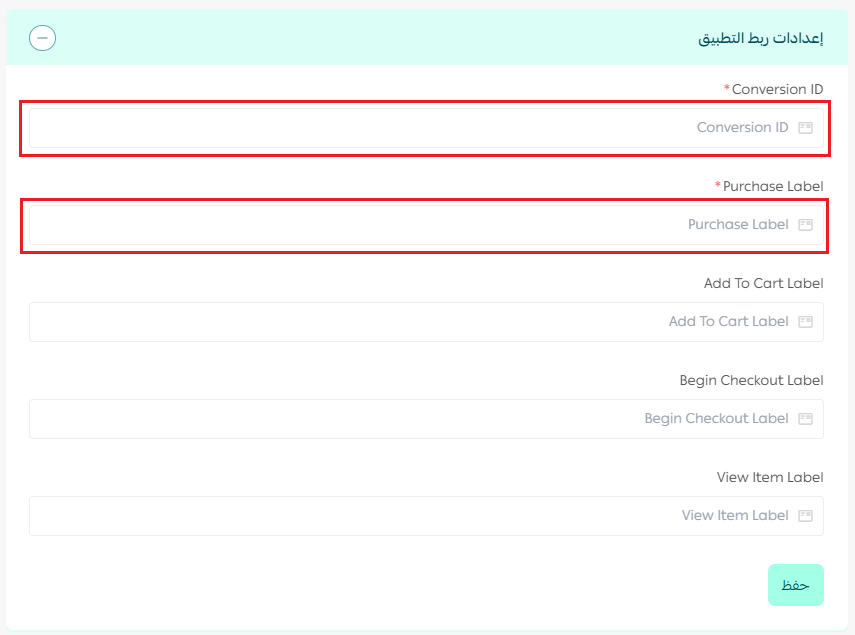
To add another conversion later, repeat the stage two steps for any of the four: purchase, add to cart, begin checkout, or view content.
Is there a minimum advertising budget?
Yes. When you set the budget you want to start with, Google applies a minimum amount that you cannot go below, and it differs from one country to another.
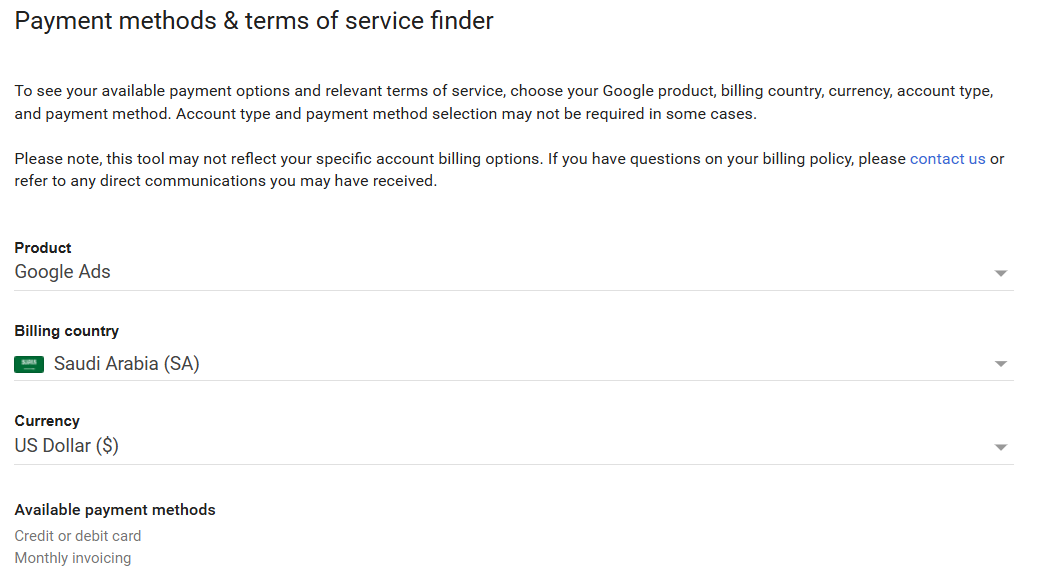
For more detail, see payment methods and terms of service.
What is pay-per-click?
Pay-per-click is an online advertising model used to drive traffic to websites. The advertiser pays the publisher, usually a search engine or a website owner, each time the ad is clicked. Advertisers bid on the search terms tied to their target market and pay only when someone clicks.
Do I need a website to advertise on Google?
Not always, though some ad formats require one. A website or a real storefront helps: a florist, for example, can run a Google ad with a phone number and collect customers by phone.
I don't know Google Ads and I don't want to learn on my own budget. What should I do?
Work with a Google Ads specialist. Someone who runs campaigns professionally limits early losses, gets to results faster, and builds toward a stronger return over time.
🚀 Start getting the most out of your campaigns.
Reaching the right customer at the moment they search for what you sell is the whole point of Google Ads. With the connection active on your store, you get full control of your campaigns, accurate measurement of what they produce, and targeting that turns ad spend into sales.
Additional support services
If you need help launching ad campaigns on Google AdWords, the merchant services section brings together specialist providers who can run this work for you.