Need an app signing key certificate to finish an integration, and you're not sure where Google keeps it?
Some external services and platforms ask for your app signing key certificate before they will connect to your Android app, and finding it in Google Play Console can feel like a maze the first time. It isn't. The certificate lives in one place in the console, and copying it takes a couple of minutes once you know the path. In this guide, you'll learn what the certificate is, who can access it, and how to copy the SHA-256 certificate fingerprint step by step.
Your app signing key certificate is the certificate Google Play generates for the key it uses to sign your app. To get it, open Google Play Console, choose your app, go to Setup, open App integrity, then open the App signing tab and copy the SHA-256 certificate fingerprint from the app signing key certificate section.
📌 Article overview
- What an app signing key certificate is
- How to get your app signing key certificate
- Frequently asked questions
What is an app signing key certificate?
Google uses the app signing key to sign the optimized, distribution-ready APKs generated from your app bundles. Play App Signing stores that key on Google's secure infrastructure and offers upgrade options that raise the security of your app.
To use the key, you need to be the account owner or a user with the permission to release to production, exclude devices, and use Play App Signing — and you need to have accepted the Play App Signing terms of service.
How to get your app signing key certificate
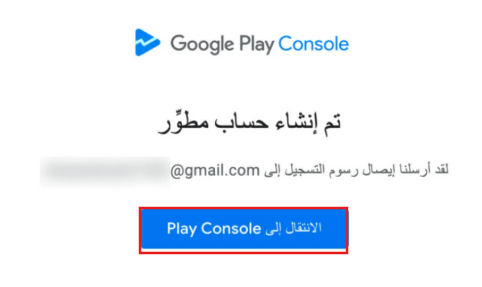
1. Open Google Play Console, then click (Go to Play Console).
2. Click the account registered in Google Play Console, then enter your password.
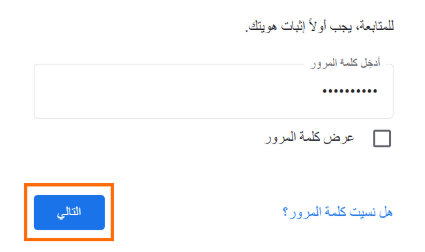
🔔 To change the display language, pick the language you want from the language list.
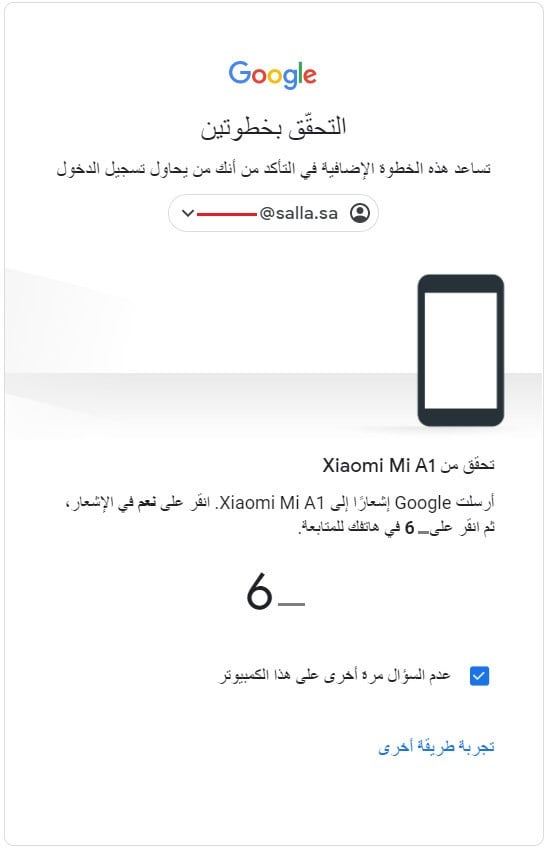
3. Complete the verification step on the phone linked to the account: tap (Yes), then enter the number shown for the account, as in this example:
4. In the Google Play Console side menu, click (All apps) to see the apps linked to your account, then click the app you want.
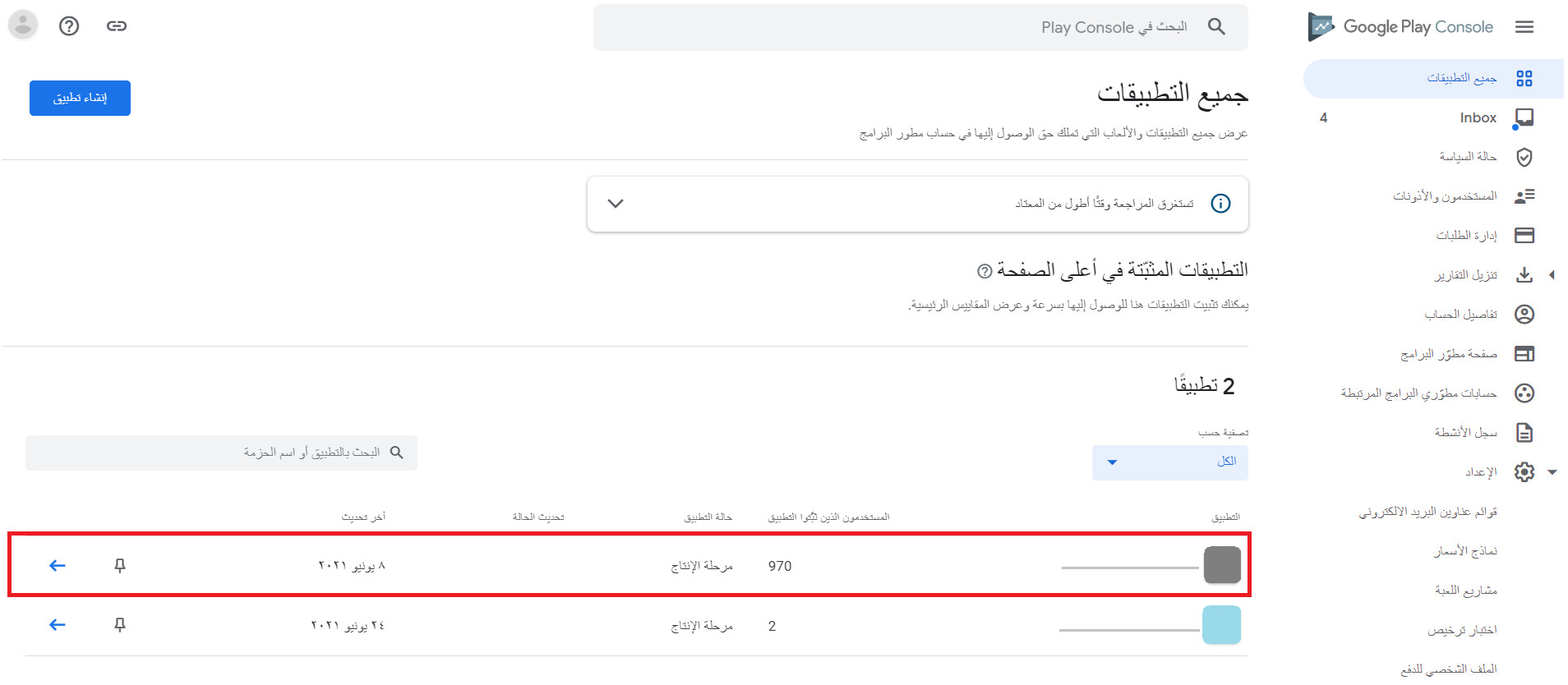
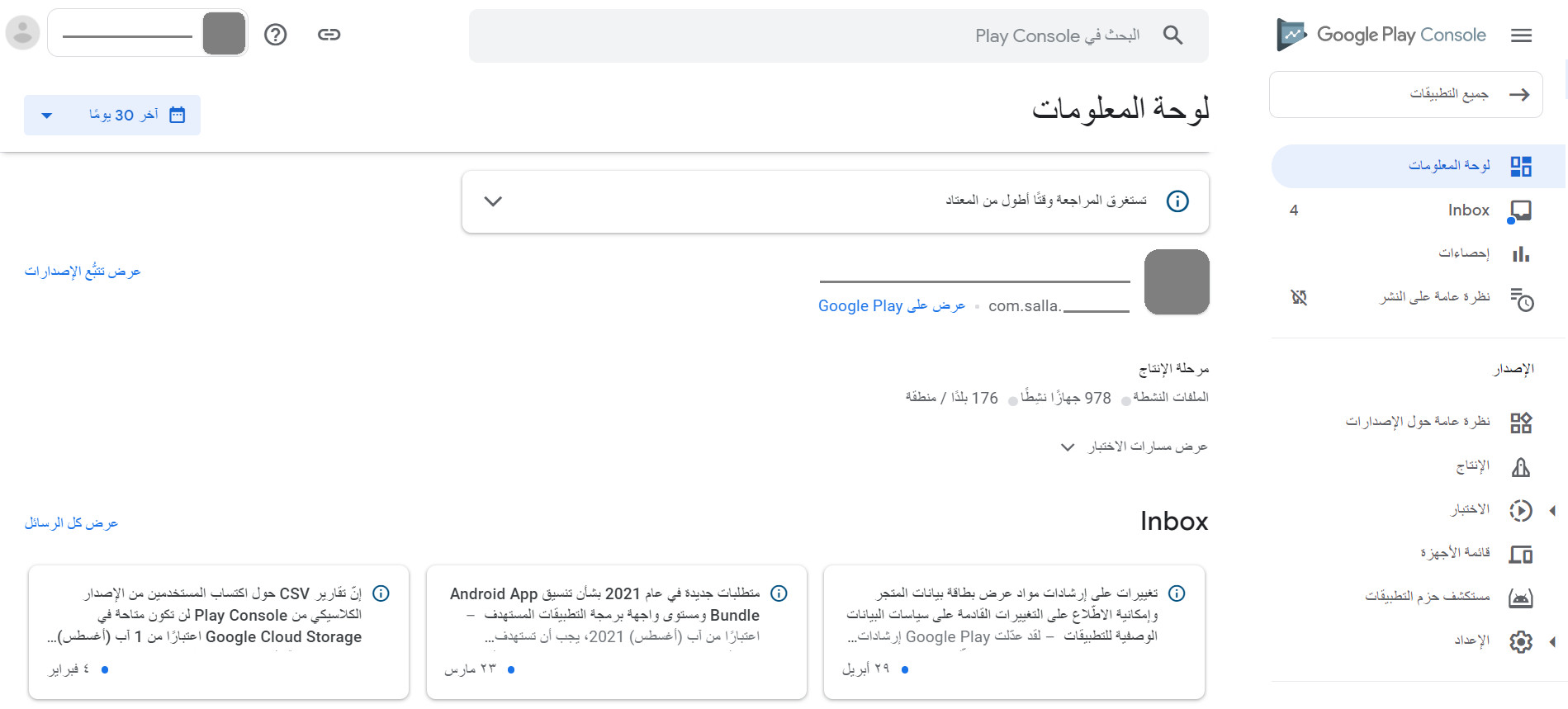
5. The app's page opens in Google Play Console, as shown below:
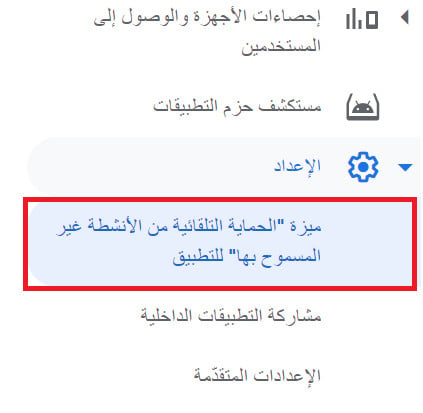
6. From the app dashboard, click (Setup), then click (App integrity).
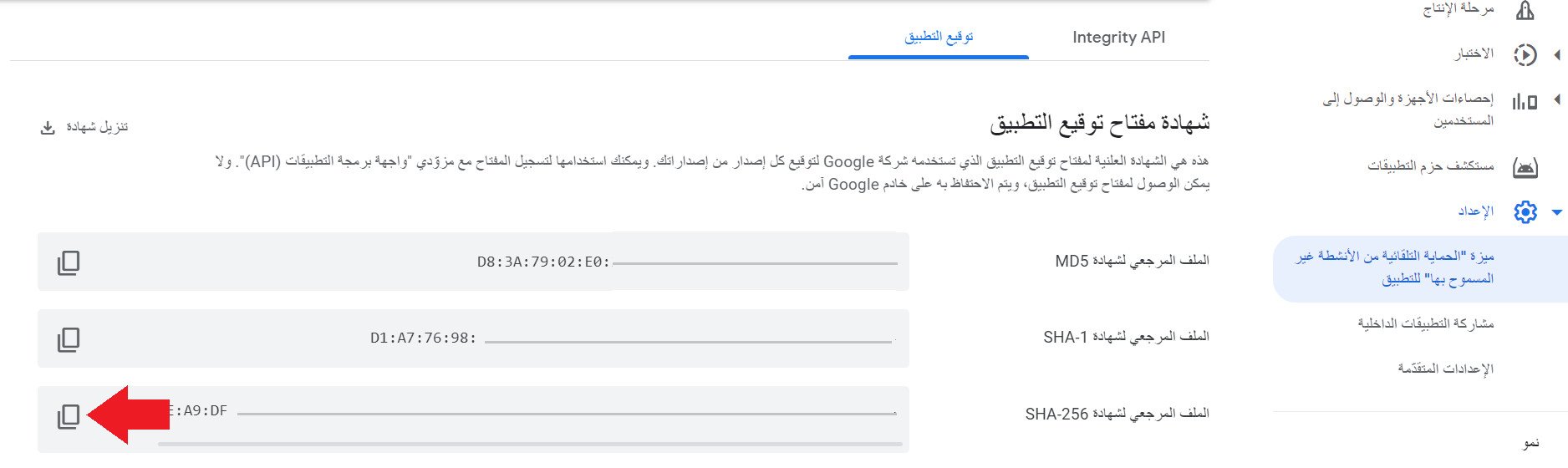
7. Open the (App signing) tab, then copy the (SHA-256 certificate fingerprint) from the (App signing key certificate) section.
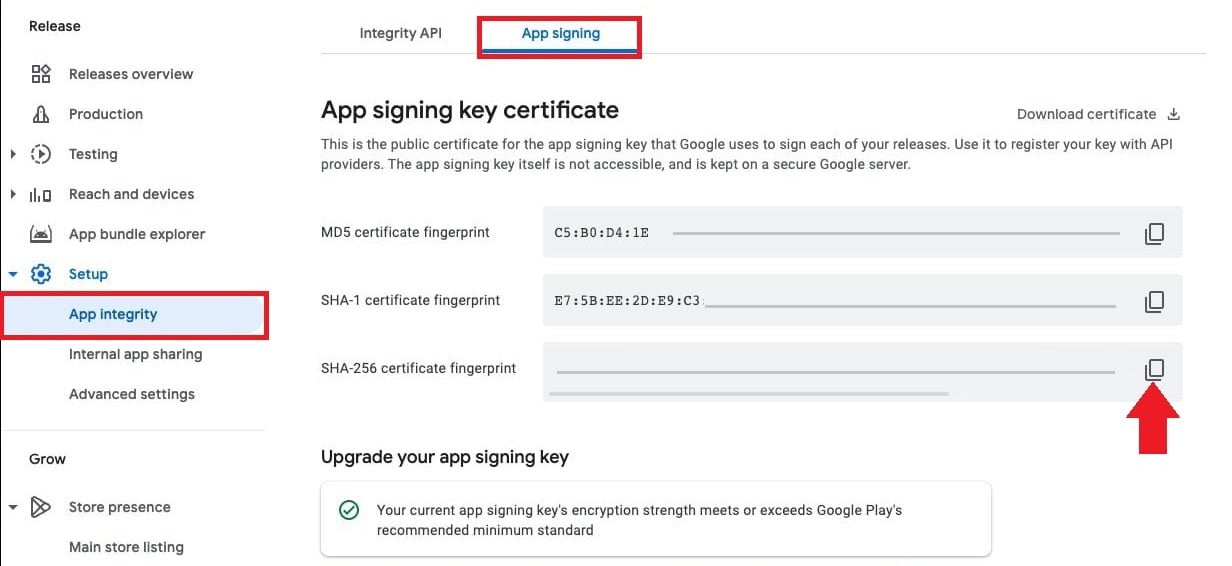
⚠️ If your Play Console is displayed in English, you can copy the key from here:
Frequently asked questions
Which apps and features need an app signing key certificate?
Several apps ask for this key. The most common one to start with is connecting AppsFlyer to measure the return on your ad campaigns.
Who can view the app signing key certificate?
The account owner, or a user who has the permission to release to production, exclude devices, and use Play App Signing. That user also has to accept the Play App Signing terms of service first.
Where exactly is the SHA-256 certificate fingerprint?
In Google Play Console, open your app, then go to Setup, click App integrity, and open the App signing tab. The fingerprint sits in the app signing key certificate section.
What if the menu names in my console look different?
Play Console shows the menu in whichever language your account is set to, so the labels change but the path does not. Switch the language from the language list, then follow the same route: Setup, App integrity, App signing.
💪 Grab your signing certificate now, so your integrations go through smoothly and your app stays secure 🚀