Launching a new online store quickly can feel overwhelming, especially when you’re unsure where to begin with design and branding.
That’s why Salla provides a guided Store Design Wizard, helping you build a professional storefront in just a few clear, structured steps.
Store design steps to launch your store
1. Access the store design wizard
To complete your store design setup, click Store Design.
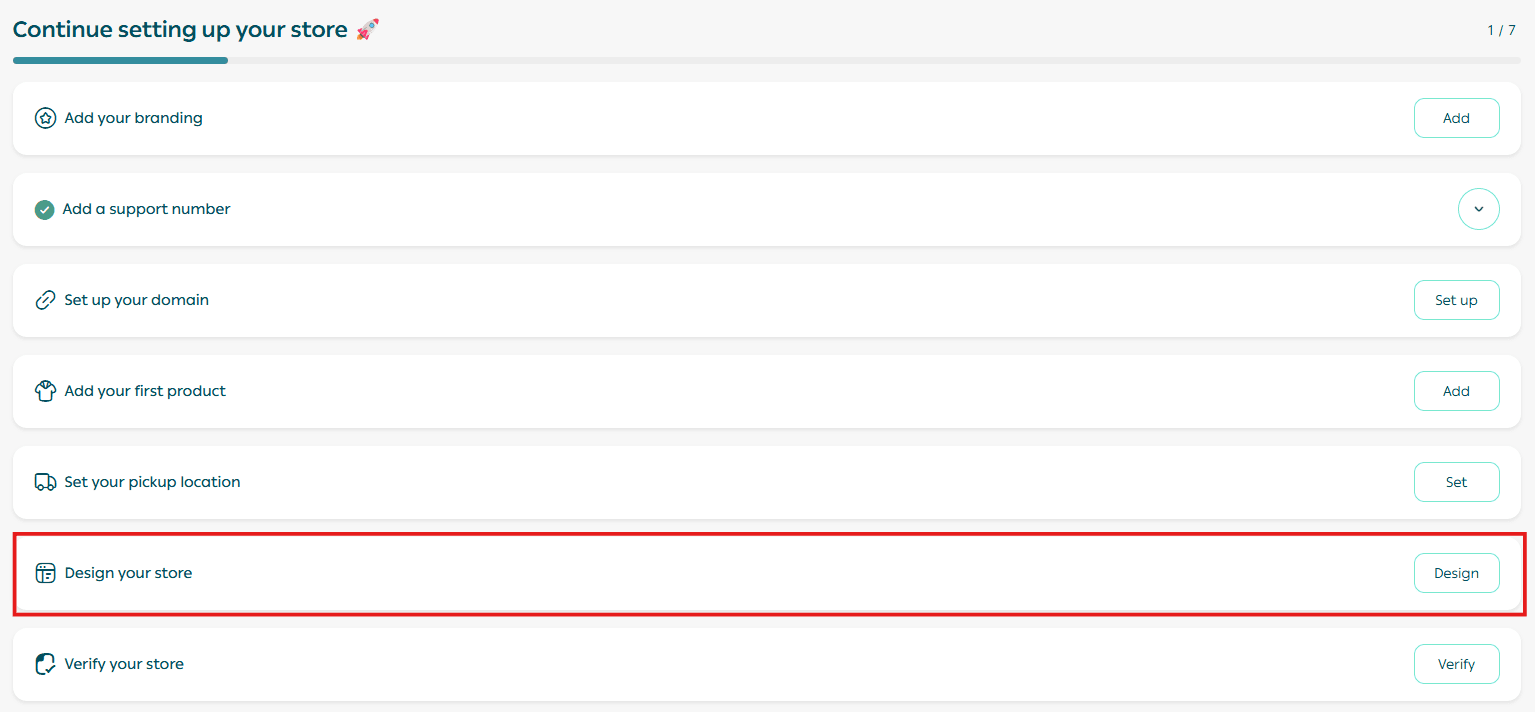
You’ll be redirected to the Store Design page.
Storefront layout
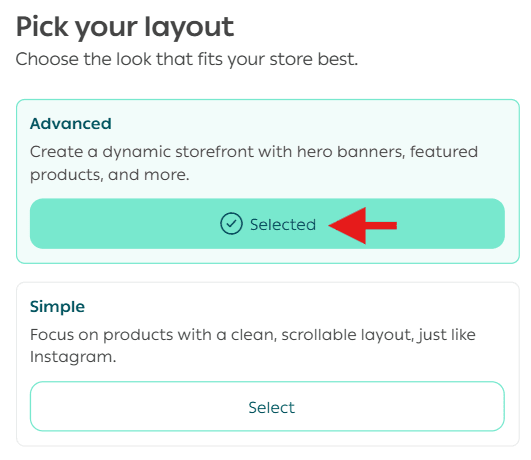
Salla offers two design experiences depending on how much control you want:
Advanced design
Gives you full control over your theme and storefront customization, including:
- Colors
- Fonts
- Content layout
- Detailed template adjustments
Perfect for merchants who want maximum flexibility.
Simple design
To continue with the fast setup experience, select Simple Interface.
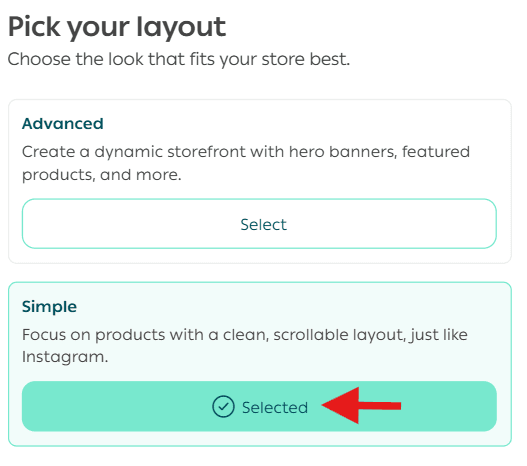
This option provides an easy, guided design flow that automatically builds a complete storefront, without requiring manual edits.
Store identity
Enter your store branding details, including:
- Store logo
- Store description
- Store color palette
- Font style
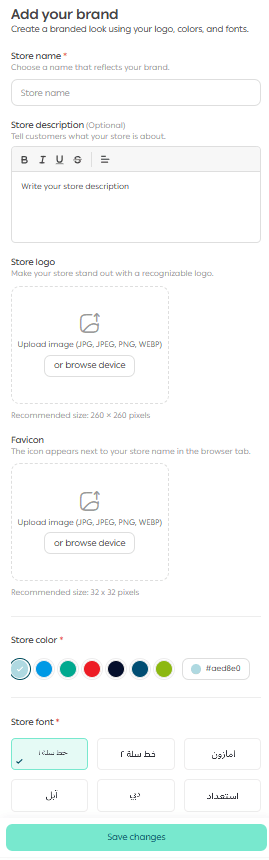
These elements help create a consistent and professional brand presence.
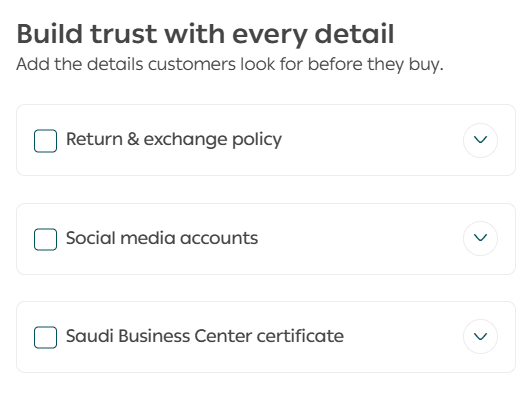
Trust & credibility
Boost customer confidence by adding key trust-building information, such as:
- Return and exchange policy
- Social media account links
- Business Platform verification certificate
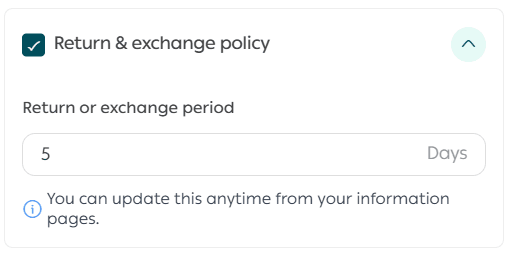
Add return & exchange policy
Enter the return/exchange period you want to display to customers, then click Save.
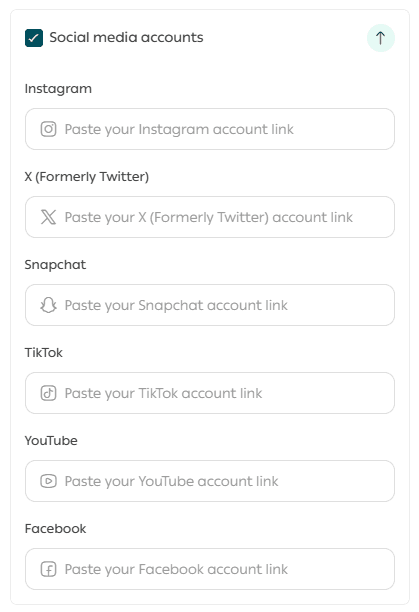
Add social media links
Insert the social platform URLs you want to share with customers, then click Save.
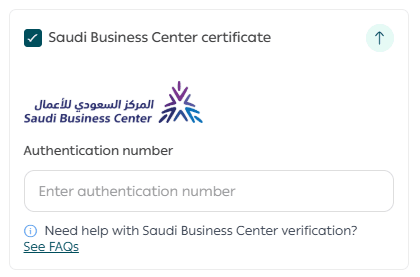
Add your business platform document number
Enter your Business Platform verification document number, then click Save.
Note: The feature is currently limited to stores in the Kingdom of Saudi Arabia only.
Homepage setup
Choose the key sections that appear on your store homepage, such as:
- Promotional banners
- Customer reviews
- Store advantages and highlights
Advanced design
Provides wide customization options and full freedom in arranging homepage elements.
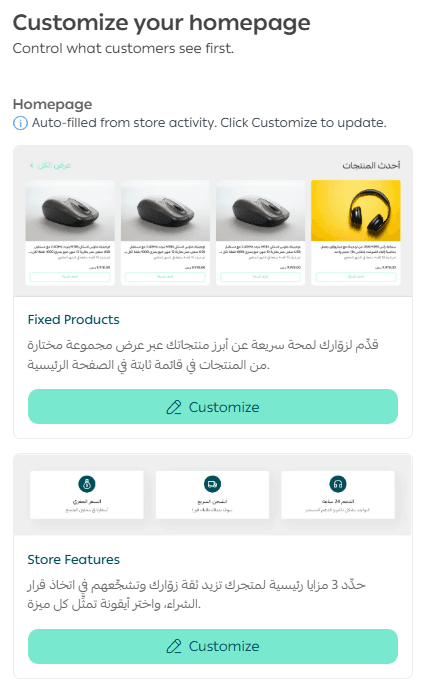
Simple design
Allows you to configure the most important homepage sections in a clean, professional way — without complexity.
Edit or customize homepage elements

To update any section, return to Store Design Wizard, adjust the element you want, then click Save.
Exiting the design wizard
You can exit the design page at any time, or switch to Advanced Design from the far left side of the page.
Your saved steps will then appear under the Design section in your store setup settings.
Frequently asked questions
Can I switch to Advanced Design at any time?
Yes. Simply click Switch to Advanced Customization.
Is Simple Design suitable for all store types?
Simple Design is ideal for merchants who want a fast launch with a ready-to-use professional layout.
However, if you need detailed control and precise customization, Advanced Design is the better option.