• Salla - E-commerce Platform
  • Create your store for free
  • Home
    • Help Center

      A comprehensive library for everything you need to start your business with Salla

    • Salla Community

      Share experiences and get inspired by unique ways to succeed

    • Salla Blog

      Expand your knowledge with many interesting topics

    • Developer Platform

      Join the Salla developer community

    • Salla Academy

      Professional courses to help you succeed in business

    • App Store

      Many tools for your store's success

    • App Maker

      Build a custom app for your store

    • Salla Special

      Advanced tech solutions for large merchants

    • Payments

      Diverse and secure payment methods for your customers

    • Marketing Tools

      Multiple marketing solutions to increase your sales

    • Mahally

      A platform connecting local merchants with local consumers

    • Abayas & Fashion

      Elegant commerce without complexity

    • Digital Products

      Digital products without technical difficulties

    • Health & Fitness

      Present your products convincingly to your customers

    • Electronics

      The easiest experience for selling electronics

    • Jewelry

      Multiple features to showcase your jewelry

    • Beauty & Care

      With Salla, understand your beauty-seeking customers

    • Restaurants & Cafes

      Endless solutions for consumer products

    • Home Supplies

      A comfortable experience for you and your customers

    • Design Services

      Instant delivery for your products

    • Salla Stores in Sectors
  • Pricing
  • Sign In
  • Create your store for free
Salla
Download Salla app from Google PlayDownload Salla app from App Store

About Salla

  • Join the Salla team
  • Terms of Service
  • Affiliate Marketing Agreement
  • Privacy Policy
  • Complaints Platform

Salla Partners

  • Join as a partner
  • Partner Programs
  • Partners Community
  • Partner Resources
  • Join as an affiliate marketer

Resources

  • Help Center
  • Salla Academy
  • Salla Community
  • Salla Blog
  • Updates Center

Solutions

  • App Store
  • App Maker
  • Ready Stores
  • Marketing Tools
  • Mahally
  • Payments
  • Salla Special
  • Salla 4.0
  • Themes Store

Sectors

  • Abayas & Fashion
  • Digital Products
  • Health & Fitness
  • Electronics
  • Jewelry
  • Beauty & Care
  • Restaurants & Cafes
  • Home Supplies
  • Design Services
All rights reserved by Salla Holding © 2026
920031659
Mecca, Kingdom of Saudi Arabia
info@salla.sa
VAT Certificate
ع
  • Home
    • Help Center

      A comprehensive library for everything you need to start your business with Salla

    • Salla Community

      Share experiences and get inspired by unique ways to succeed

    • Salla Blog

      Expand your knowledge with many interesting topics

    • Developer Platform

      Join the Salla developer community

    • Salla Academy

      Professional courses to help you succeed in business

    • App Store

      Many tools for your store's success

    • App Maker

      Build a custom app for your store

    • Salla Special

      Advanced tech solutions for large merchants

    • Payments

      Diverse and secure payment methods for your customers

    • Marketing Tools

      Multiple marketing solutions to increase your sales

    • Mahally

      A platform connecting local merchants with local consumers

    • Abayas & Fashion

      Elegant commerce without complexity

    • Digital Products

      Digital products without technical difficulties

    • Health & Fitness

      Present your products convincingly to your customers

    • Electronics

      The easiest experience for selling electronics

    • Jewelry

      Multiple features to showcase your jewelry

    • Beauty & Care

      With Salla, understand your beauty-seeking customers

    • Restaurants & Cafes

      Endless solutions for consumer products

    • Home Supplies

      A comfortable experience for you and your customers

    • Design Services

      Instant delivery for your products

    • Salla Stores in Sectors
  • Pricing
Sign In

Help Center

Adding and managing branches and warehouses

Adding and managing branches and warehouses

Last updated: Friday 17 April 2026.

Expanding your business starts with adding branches and warehouses that support your store’s growth and improve the customer experience. With the Salla dashboard, you can manage all your locations flexibly and professionally through simple and clear steps.

In this guide, we explain how to add and manage branches and warehouses, along with answers to the most common questions.

📌 Article overview

  • Accessing the branches and warehouses page
  • Adding a branch or warehouse
  • Managing a branch or warehouse
  • Editing branch or warehouse details

Accessing the branches and warehouses page

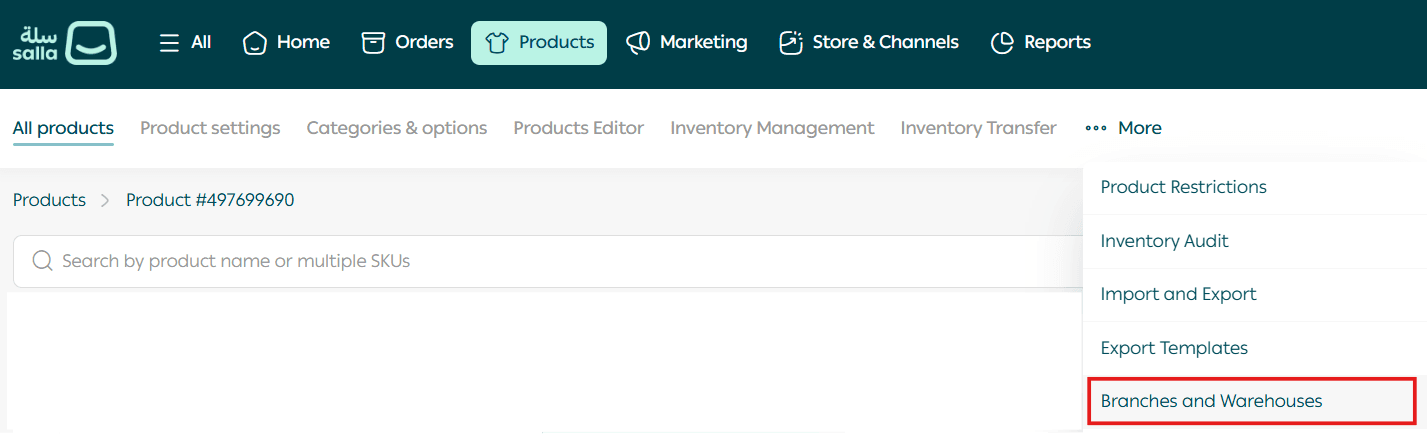
  1. From the main menu, click Products, then select Branches and Warehouses.
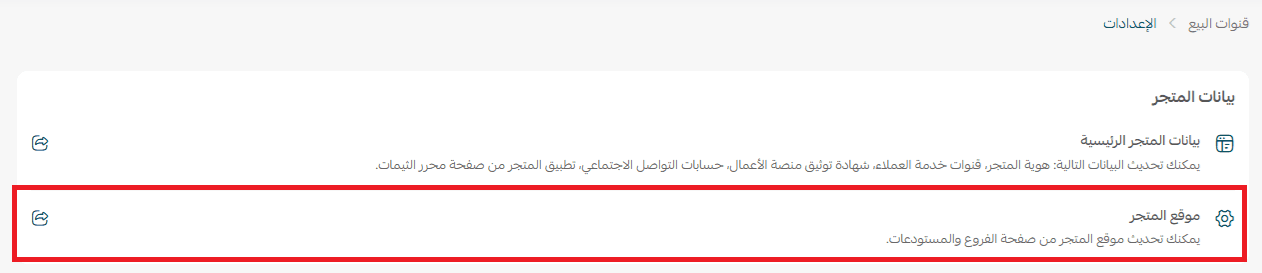
Or from the Store & channels tab select store details

 Then click store location
Adding a branch or warehouse

  1. From the Branches and Warehouses page, click + Add New Branch or Warehouse.

2. Select the type of location you want to add, either a branch or a warehouse.
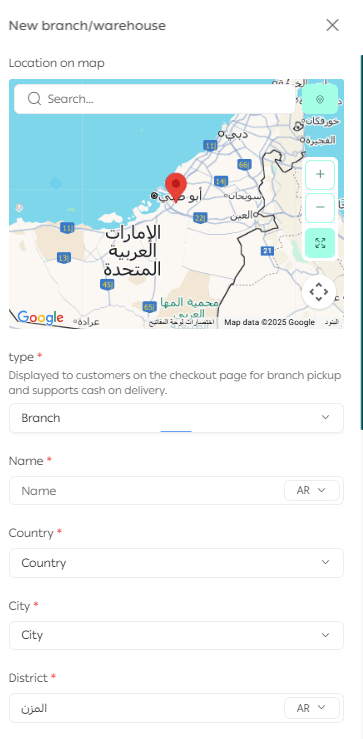
Enter branch or warehouse details as follows:

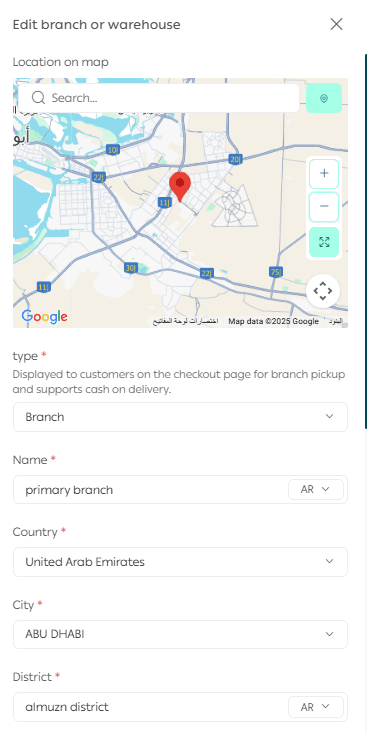
  1. Select the branch or warehouse location on the map.
  2. Enter the branch or warehouse name.
  3. Choose the country, address, postal code, street, and district.
  4. Enter the unit number and building number.
  5. Add contact details such as phone number, mobile number, and WhatsApp number.
  6. Set the order preparation time after the order status changes to In Progress.
  7. Specify whether the branch supports cash on delivery.
  8. Enter the cash on delivery fee if this payment method is supported.

Important note

You can define the branch or warehouse location using more than one method:

  • By selecting the address directly on the map
  • By entering the National Address Short Code
  • By manually entering the location details such as city, district, street, and postal code

The final step when adding a branch or warehouse is setting Working Hours. Enable or disable the working hours as needed, then click Save.
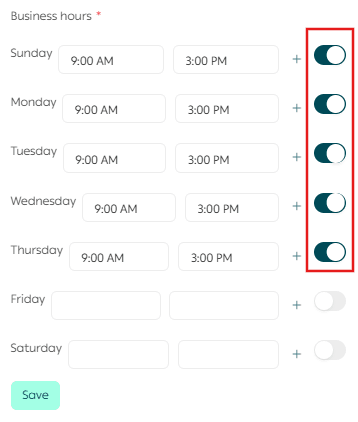
Once saved, the new branch or warehouse will appear in the list.

Managing a branch or warehouse

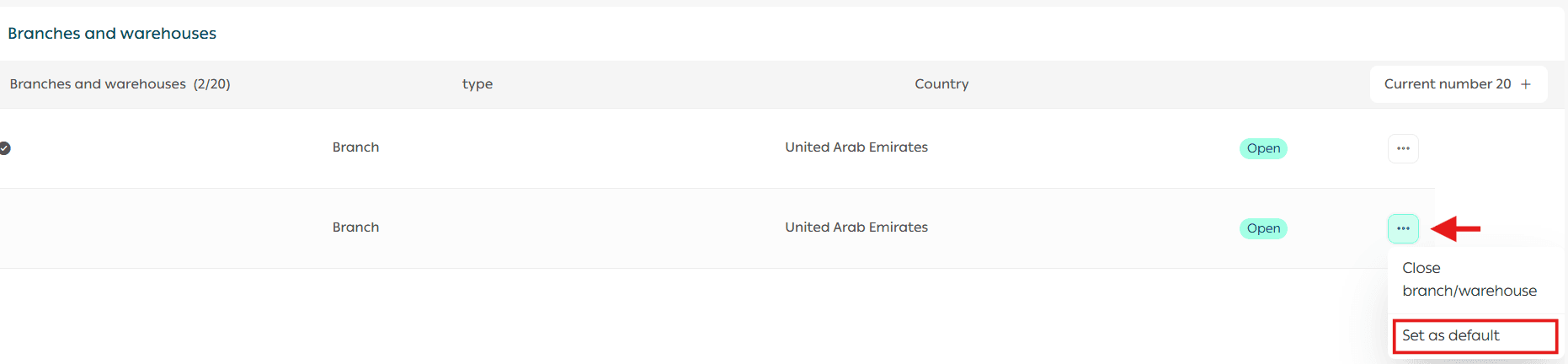
From the Branches and Warehouses page, you can manage any branch or warehouse by clicking the More icon.

Available actions include:

  1. Closing the branch or warehouse to hide it from the store
  2. Setting the branch or warehouse as the default location
Editing branch or warehouse details

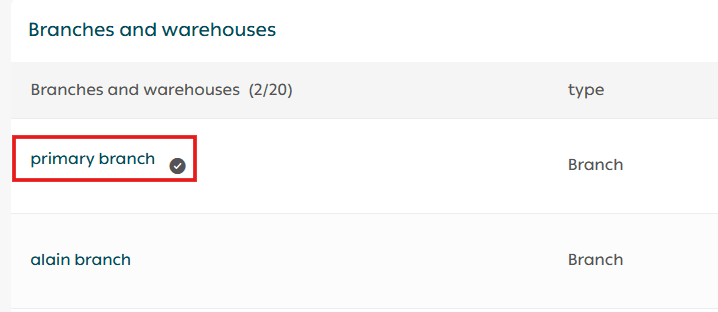
  1. Click on the branch or warehouse name to edit its details.
2. Update the information as needed, then click Save.
You can also delete a branch or warehouse by clicking Delete.
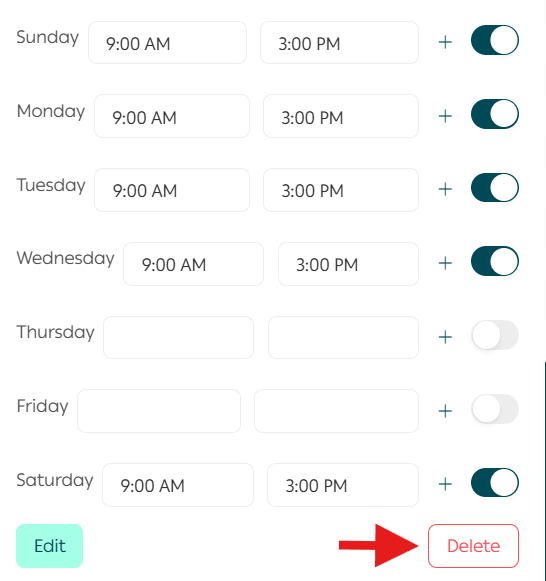
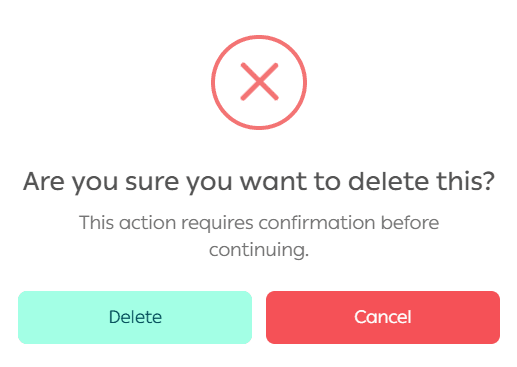
A confirmation message will appear. Click Confirm to complete the deletion.
Frequently asked questions

How many branches and warehouses can I add with paid plans?

With Salla Plus or Salla Pro plans, you can add up to five branches or warehouses at no additional cost, making it easier to manage operations across multiple locations.

What is the difference between branches and warehouses and retail stores?

Branches and warehouses

These are used to define working hours, display store locations, and ship orders to customers.

Branches and warehouses within retail stores

Available for Salla Special plan merchants, allowing full control over product quantities at each branch.

For more details, refer to retail sales customization in your store.

How can I choose which branch or warehouse an order ships from?

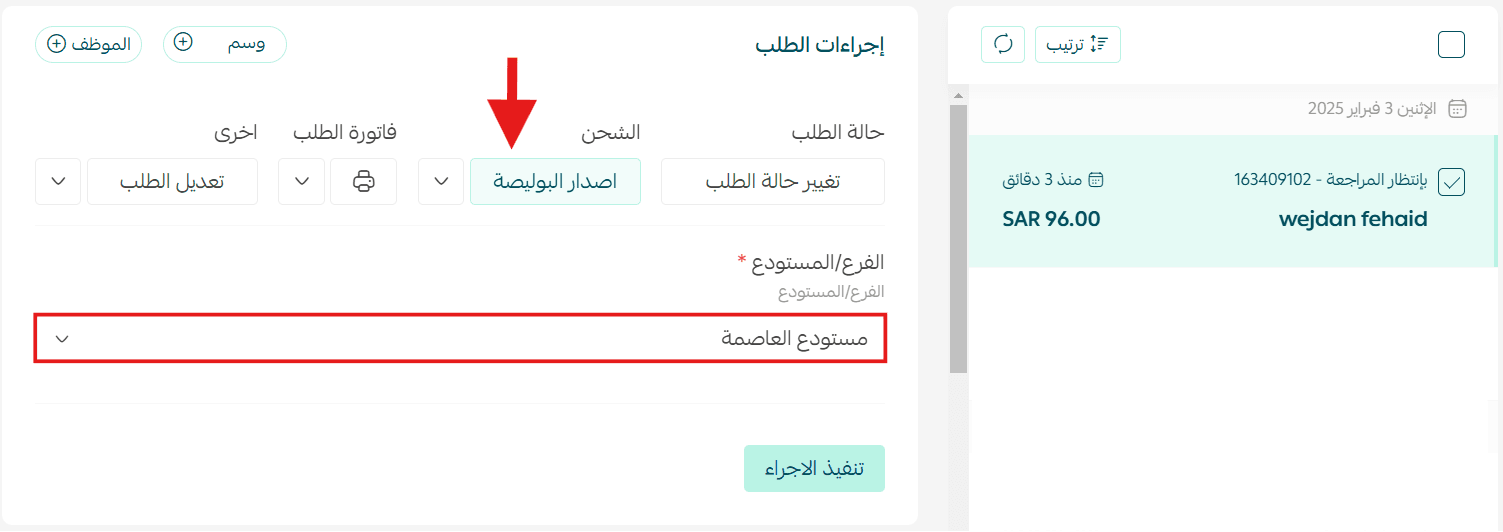
From the order details page, click Issue Shipping Label, select the branch or warehouse, then click Execute Action.
Can I increase the number of branches and warehouses in my store?

Yes.

  1. From the side menu in the dashboard, click Store Plan.
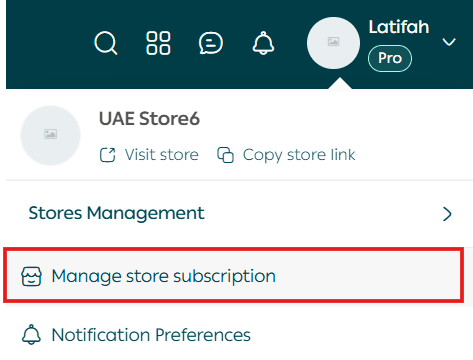
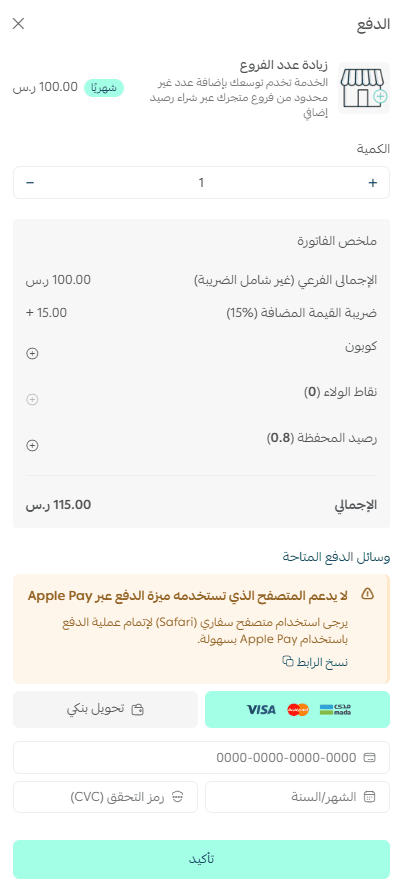
2. On the plan page, go to the Add-ons section and click the plus icon next to Increase Branches.

3. Enter the number of branches you want to add, choose your payment method, then click Confirm Payment.
Can I set working hours in multiple shifts such as morning and evening?

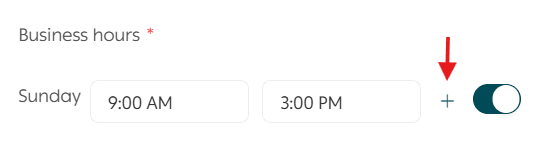
Yes. Click the plus icon to add a new working period, then enter the start and end times.
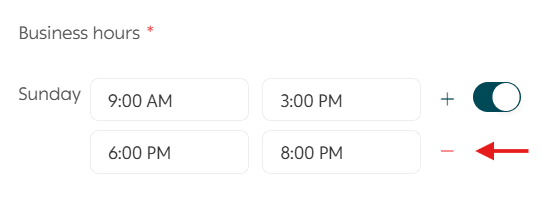
You can also delete a working period by clicking the minus icon next to the period you want to remove.
Managing branches and warehouses effectively gives you better control over fulfillment, logistics, and customer satisfaction. With the right setup, your store becomes more scalable, organized, and ready for growth.

Ask and request support from merchants and the Salla team.

Avatars
Previous
Next

Own a professional store on Salla

Create your store now with flexible tools and integrated solutions to help you at every step towards growing your sales

Create your store for free