When your store experiences temporary downtime, activating a professional “Under maintenance” or “Coming soon” page helps maintain customer trust and keeps them informed.
In this article, you will learn how to customize and publish a maintenance page using themes that enhance your store’s visitor experience and keep you connected with your customers.
📌 Article overview:
- Steps to customize a theme on your store
- Adding elements to customize the store interface
- Publishing and activating the maintenance page
- Examples of maintenance page designs using different themes
Steps to customize a theme on your store
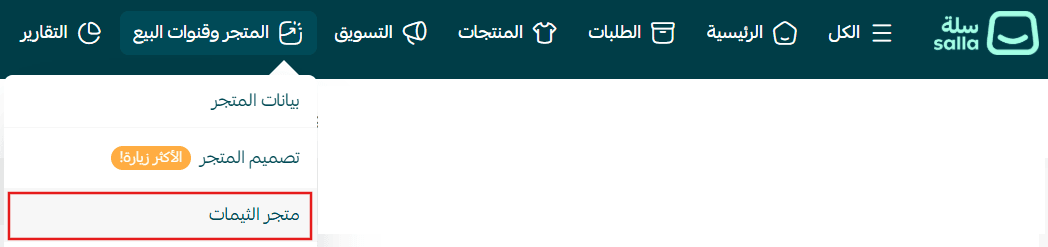
- From the main menu, click Store & channels, then select Theme store.
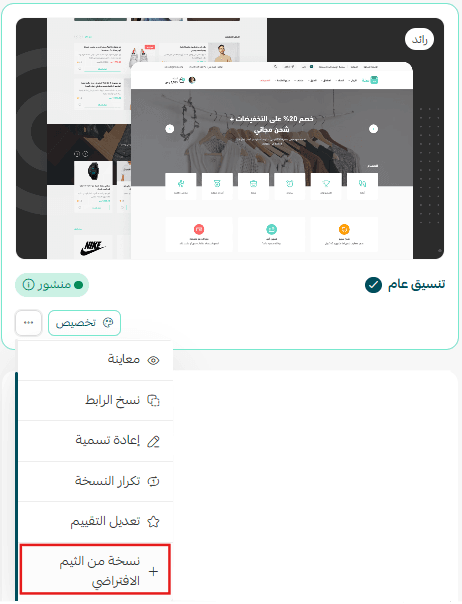
- From the store design page, click , then choose + Copy from default theme.

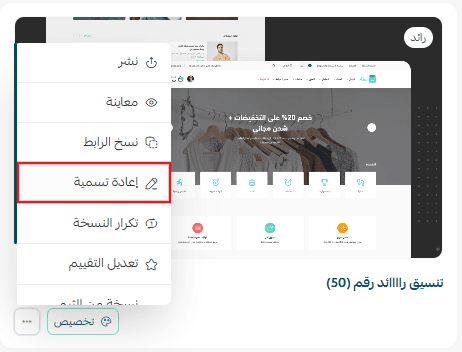
From the theme card, rename the copy by clicking Rename, and change its name to “Store under maintenance.”
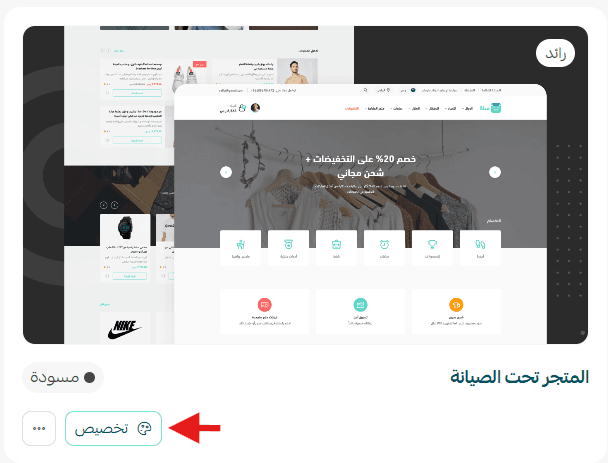
Then click Create maintenance page and customize the theme as desired.
3. From the Homepage Customization menu, ensure there are no elements added, or remove any existing elements.
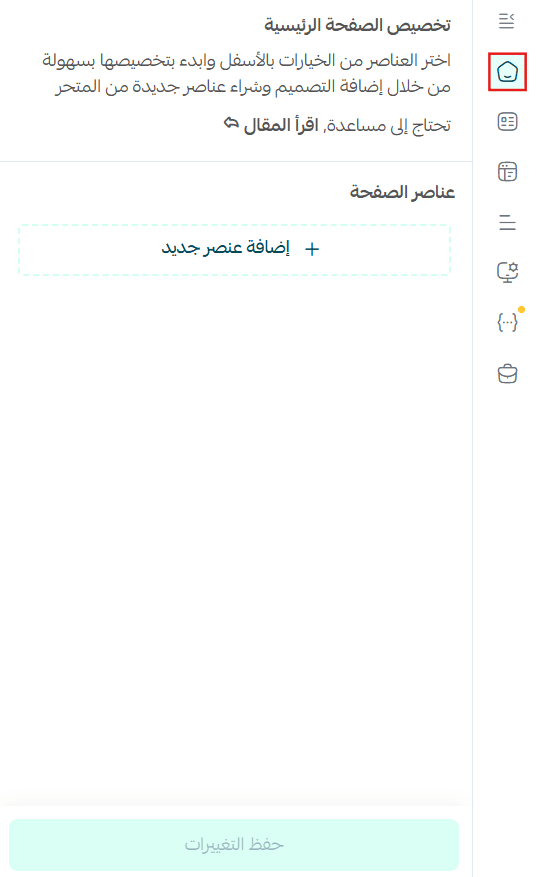
Adding elements to customize the store interface
Raed Theme
Add a wide banner
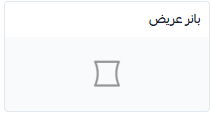
- When customizing the element, add a design that clearly communicates the store status with a direct and clear message, such as:
- “Store under maintenance, we’ll be back soon”
- “The store is temporarily closed for maintenance”
- “Coming soon… stay tuned!”
- “The countdown to launch has begun”
2. Add a link to the banner image.
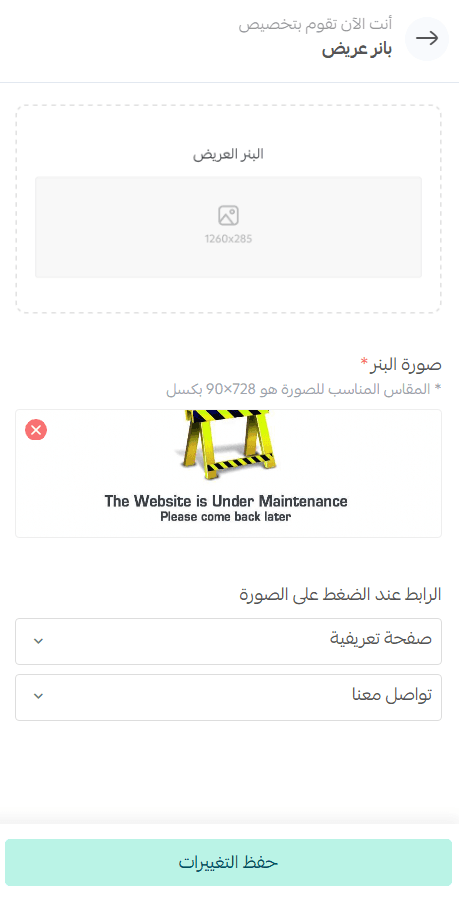
You can direct customers to:
- An “About us” page
- Product pages
- A blog
- A booking page
- Social media pages
The banner will appear on your store accordingly.
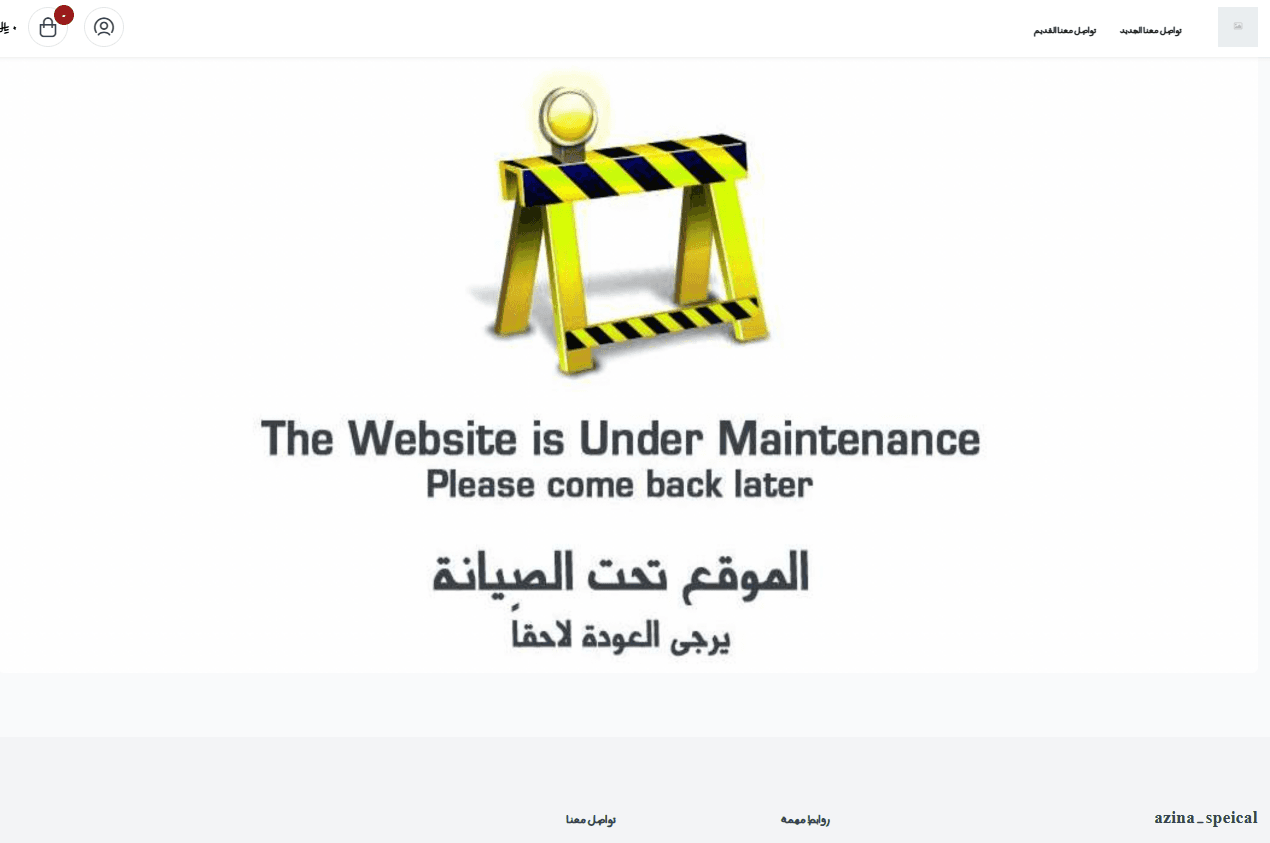
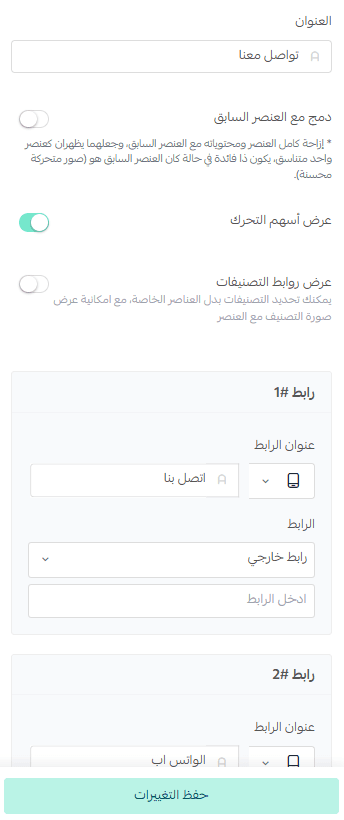
Add quick links
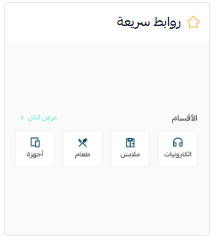
To stay connected with customers and keep them updated, you can add a “Contact us” section and link it to communication channels or social media platforms.
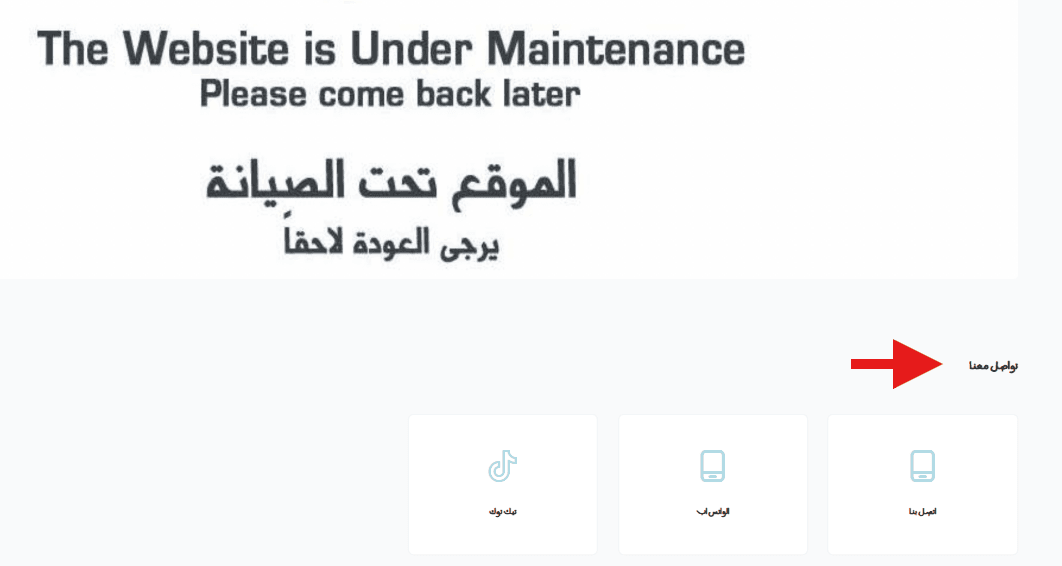
This will appear on your store accordingly.
Install the Raed Theme and give your customers an inspiring experience.
Discover its features and installation steps in the Help Center article.
Removing header and footer
- From the Design Customization menu, click Customize via CSS to hide the header and footer professionally.
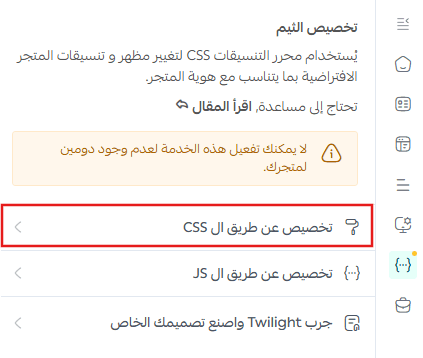
Add the following code and click Save
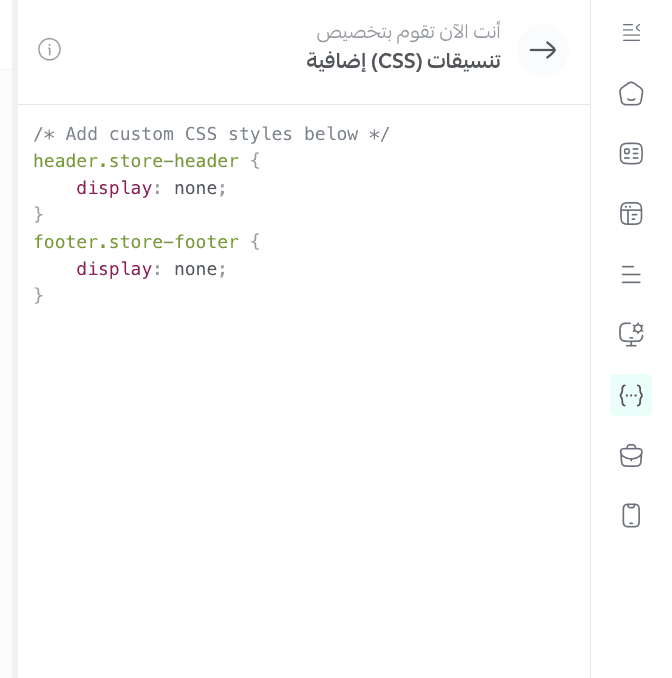
header.store-header {
display: none;
}
footer.store-footer {
display: none;
}
Your store page will then appear without header and footer.
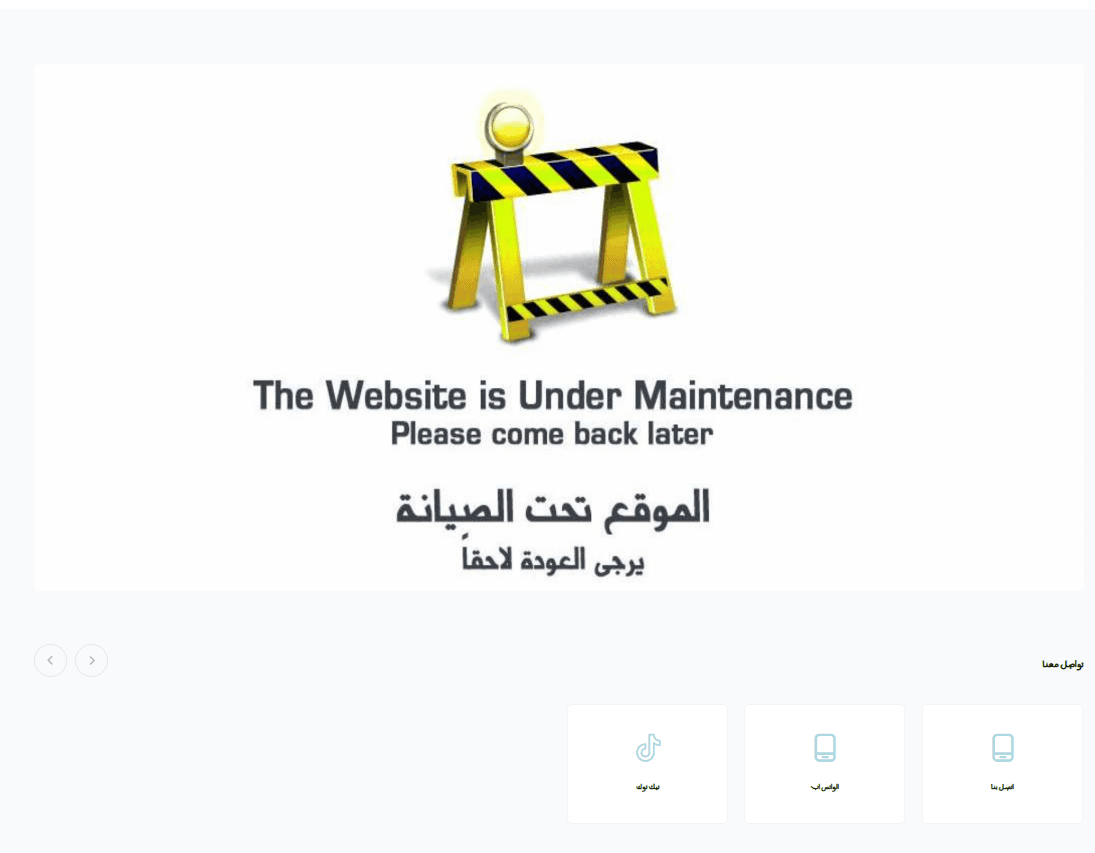
Publishing and activating the maintenance page
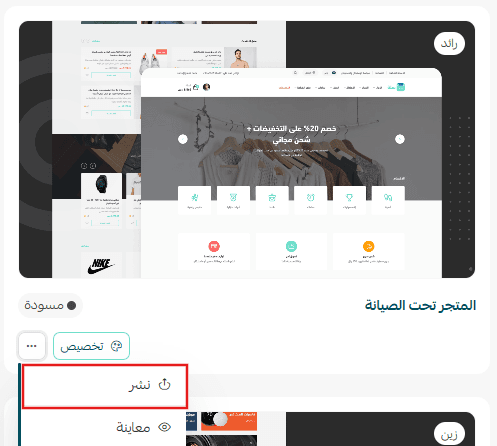
From the theme card you want to activate:
- Click Publish
- Select Default as the publishing status
- Click Confirm Publish
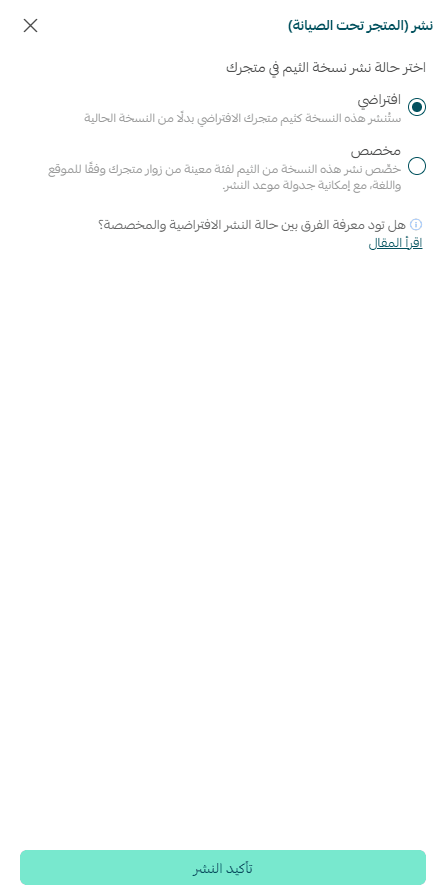
Your maintenance page is now successfully activated.
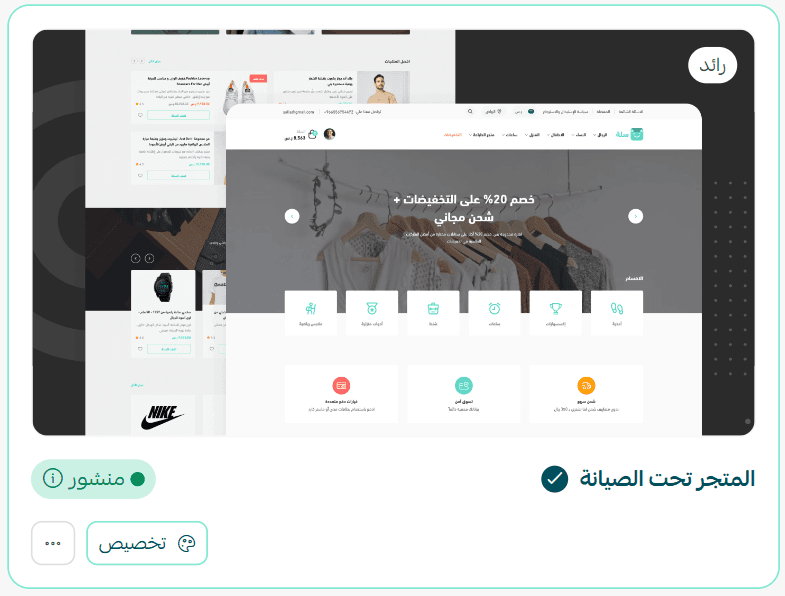
You can continue working on your store launch version in Draft mode. Once your store is ready, you can publish the new theme easily.
Examples of maintenance page designs with different themes
Digital Theme
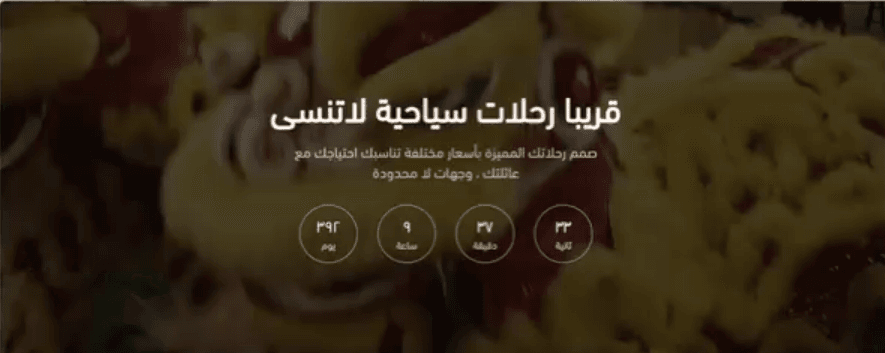
After installing the Digital theme, you can:
- Add an enhanced banner
- Add a video explaining your store or products
- Add a launch countdown
- Customize elements with flexible options
Pure Theme
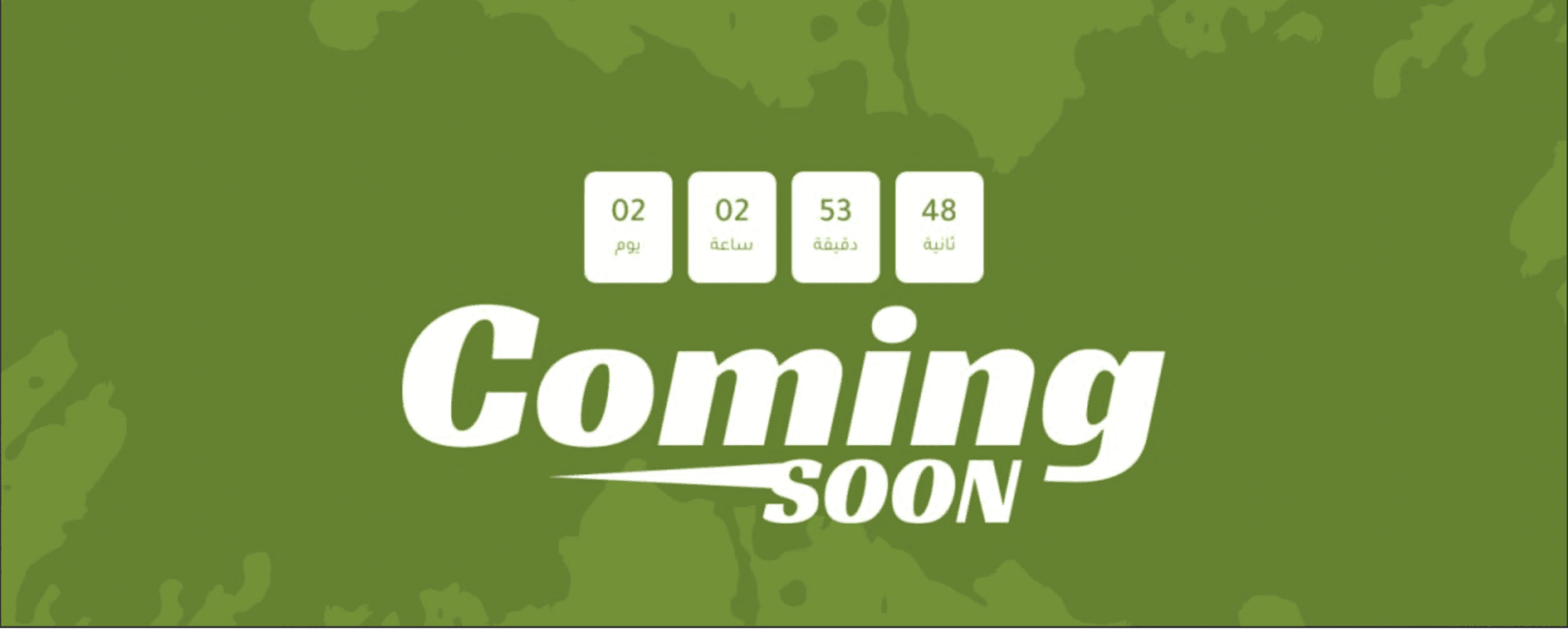
After installing the Pure theme, you can add a countdown timer for store launch or return.
Pink Theme
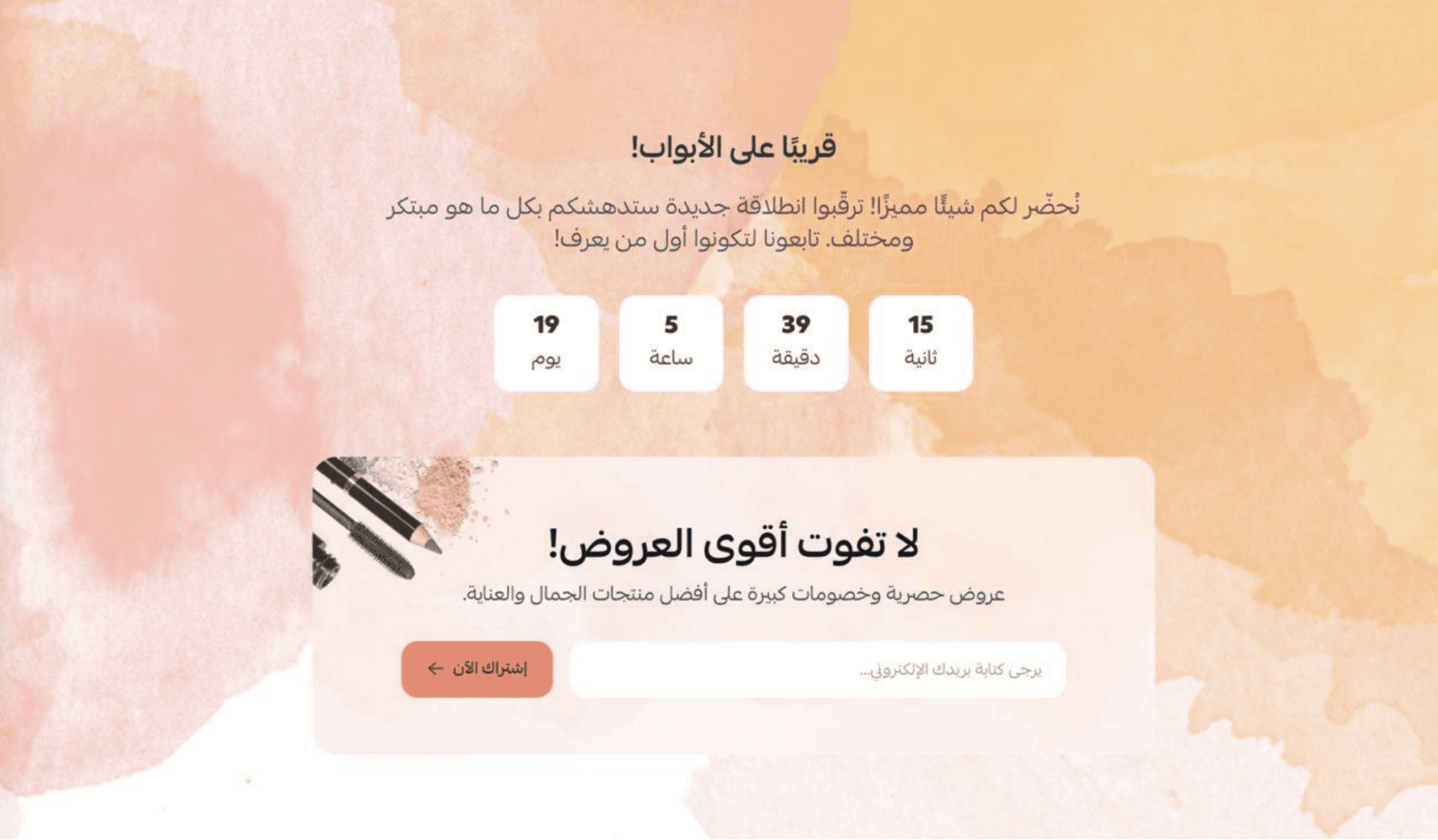
After installing the Pink theme, you can add:
- A countdown timer
- A newsletter subscription element
Other themes
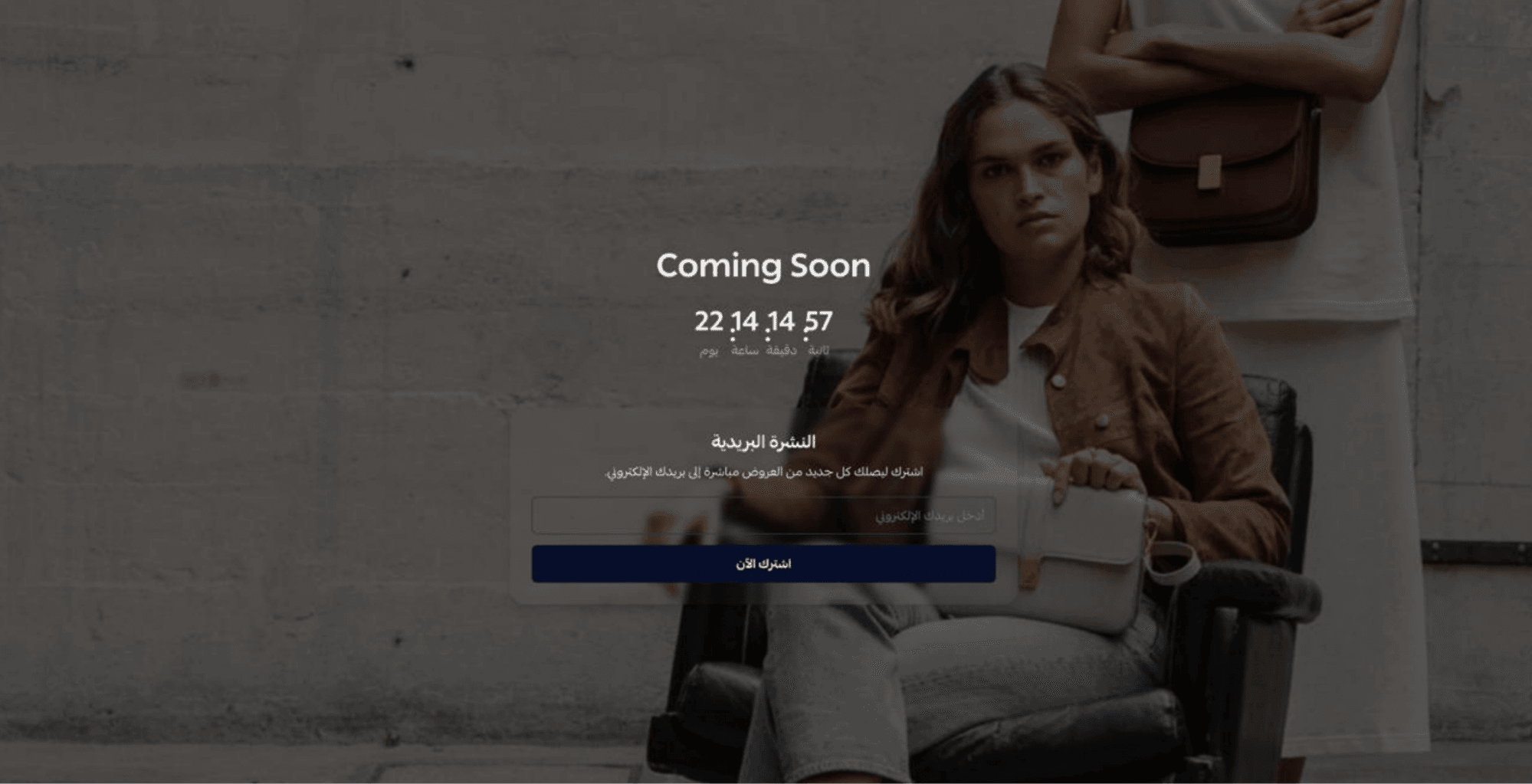
You can add an image element with a countdown timer using themes such as:
- Art Theme
- Ola Theme
- Kayan Theme
- Yasmin Theme
- Ronaq Theme
- Zeina Theme
By using these customization options, you can maintain a professional presence even during downtime and keep your customers engaged until your store is back online.