Shipping labels help streamline your fulfillment process by providing the information shipping carriers need to deliver orders to customers.
In this article, you'll learn how to print shipping labels, create return labels, print labels for individual orders, and troubleshoot common shipping label issues.
📌 Article overview:
- Print shipping labels
- Create a return label
- Print a label for a single order
- Resolve common shipping label issues
🔎 Print Shipping Labels
1. From the side menu, click on (Orders), then choose (Manage Orders).

2. From the order list, select the orders for which you want to print shipping labels, then click on (Print Shipping Label).
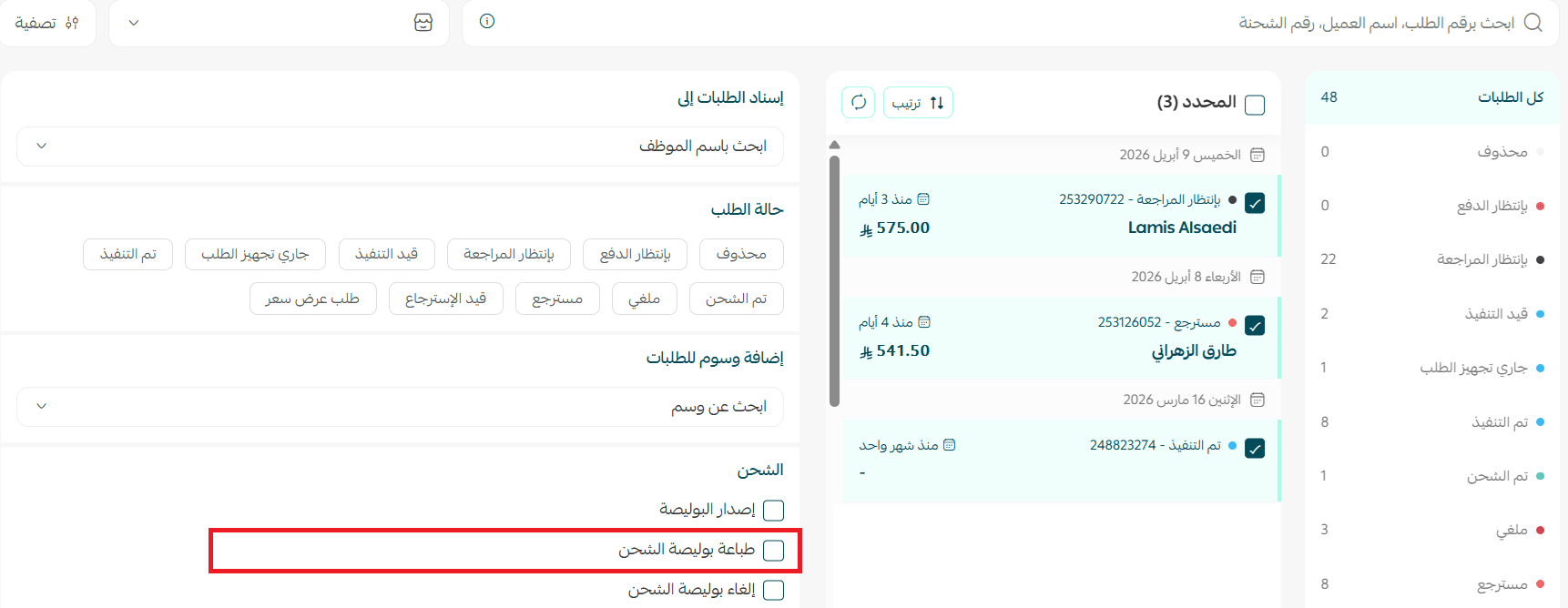
4. Click on (Execute Actions) to print the shipping labels, after confirming the number of orders and their numbers.

A progress bar will appear to track the stages of the label printing process starting from preparation.
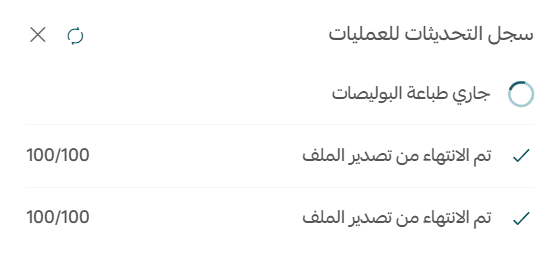
Once the preparation is complete, you will be notified to download the file.

Frequently Asked Questions
?How can I issue a return label
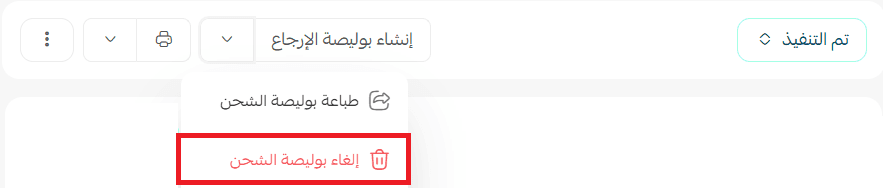
1. Enter the order you wish to return, click on the order, then choose (Create Return Label).

2. The shipping label has been successfully issued, and the address will be automatically added by transferring the label data from the client's site to the shipping company. You can also choose to cancel the label by clicking on (Cancel Shipping Label)
?Does the return label price differ
No, the return label price is the same as a new order label.
?Can I issue a return label immediately
Yes, you can issue a return label directly.
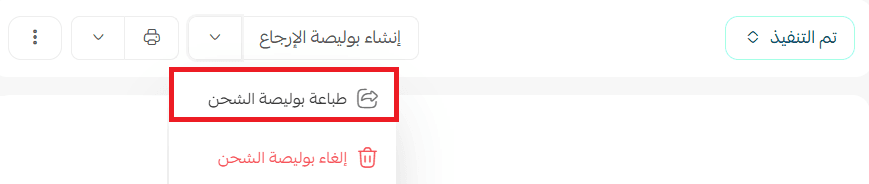
?How can I print a shipping label for just one order
Yes, by opening the order and clicking on (Print Label)
When issuing and printing a label, the product types may appear inaccurately. How can I correct this?
The product type on the label is based on one of the following options:
If you manually fill in the (Product Type) field when issuing the label, the text you entered will be used as is.
If you leave the field empty, the system will automatically use the store's activity as the product type.
Since the store's activity is currently not editable, a general type like (Documents) may appear even if your products are different.
✅ Solution: When issuing the label, make sure to manually write the product type in the designated field and do not leave it empty. Provide an accurate description of the products, such as (Clothes, Perfumes, Electronics, Food Items…), to ensure the correct type appears on the label.
?When I try to print shipping labels, I see a message (No message to print), why
The order must be marked as executed to print shipping labels for it.
?Are all product names in the order printed on the label
No, only the names of products "that require shipping" are printed.
