What is the blog in your Salla store?
A feature that enables merchants to create a dedicated blog for their online store and write articles related to their products, services, and business activity, with the ability to categorize content and manage it by editing, deleting, or hiding posts. A store blog also helps increase store visits, improve visibility on search engines, and build trust in your brand, ultimately leading to higher sales.
📌 Article overview
- Steps to install the store blog app
- How to access blog management
- Blog management
Steps to install the store blog app
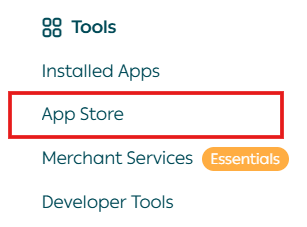
- From the main menu, click All, then under Tools, click App Store.
2. Search for the app using the search field.

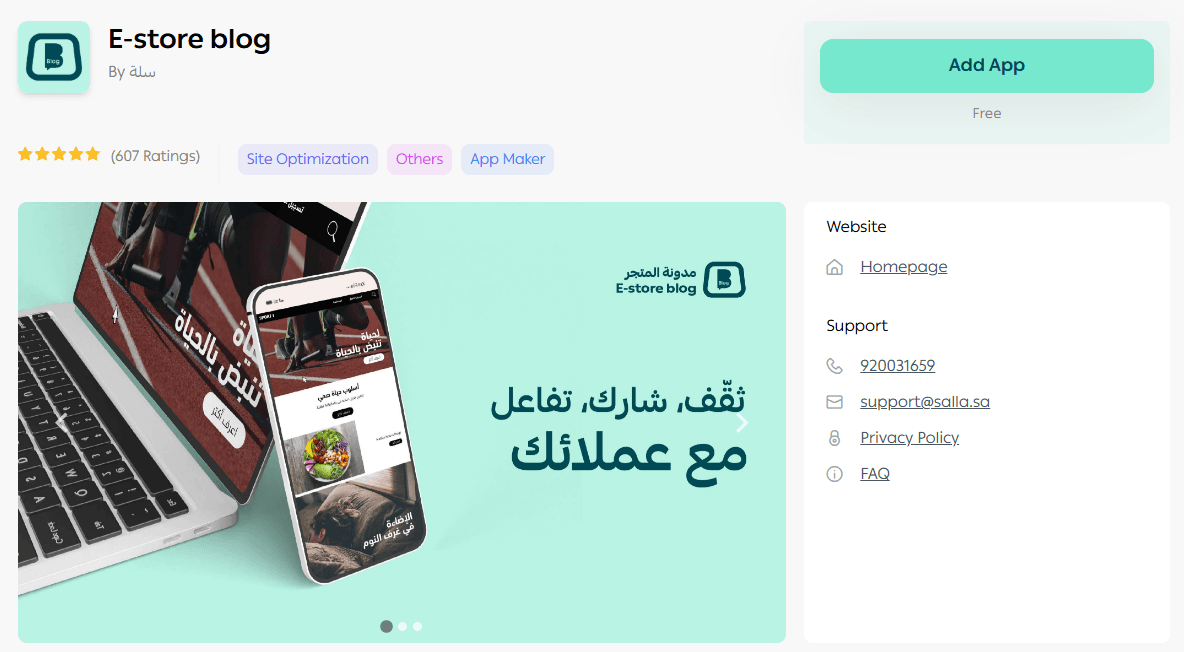
3. From the Store Blog app page, click Install.
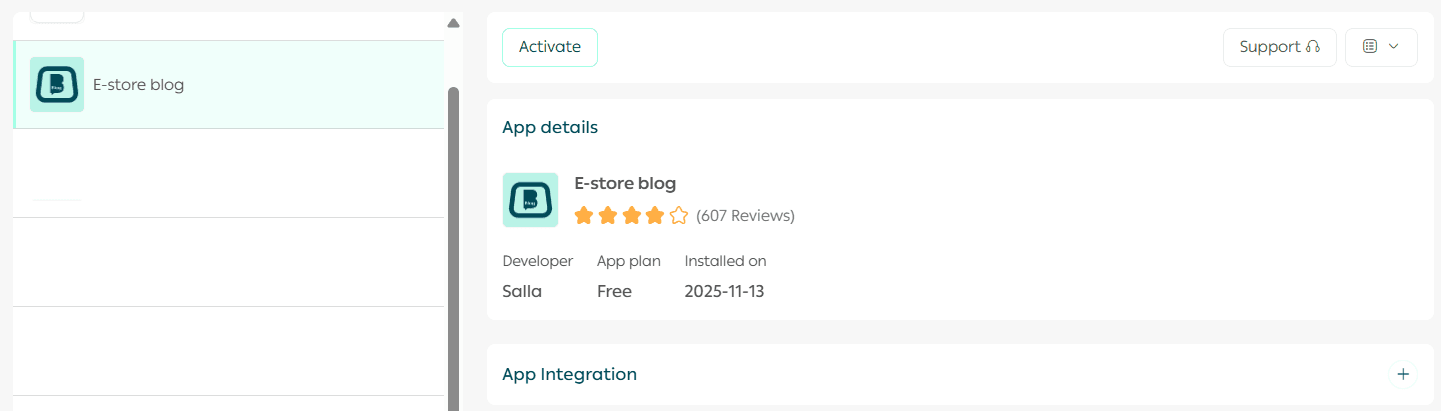
The Store Blog app has now been installed successfully.
How to access blog management
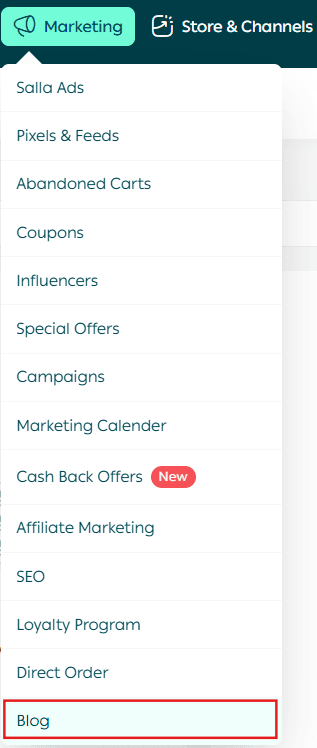
- From the Marketing tab, click Blog.
The blog homepage will appear as follows:
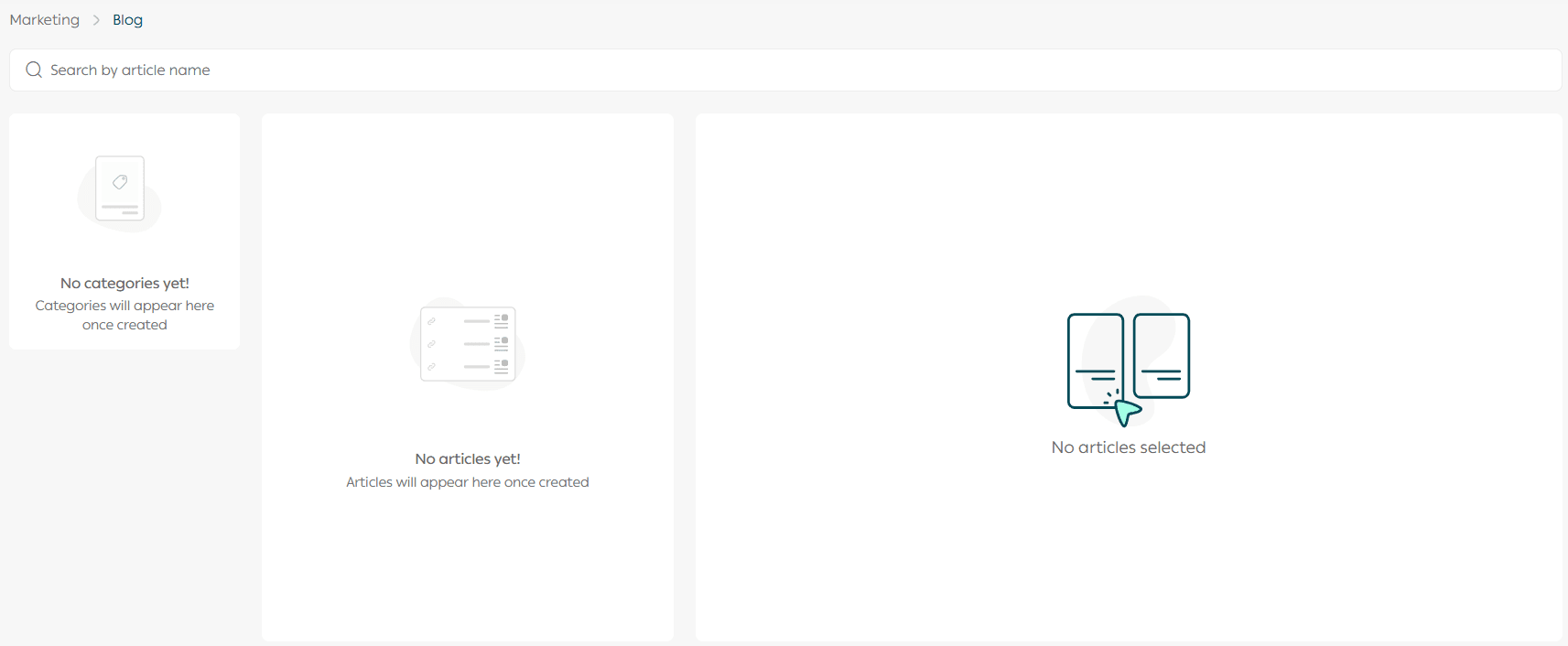
Blog Management
Create a new blog post

For more details, see: Writing a new blog post on your store blog
2. Delete the Post or View Post Comments
Select the post you want to edit.
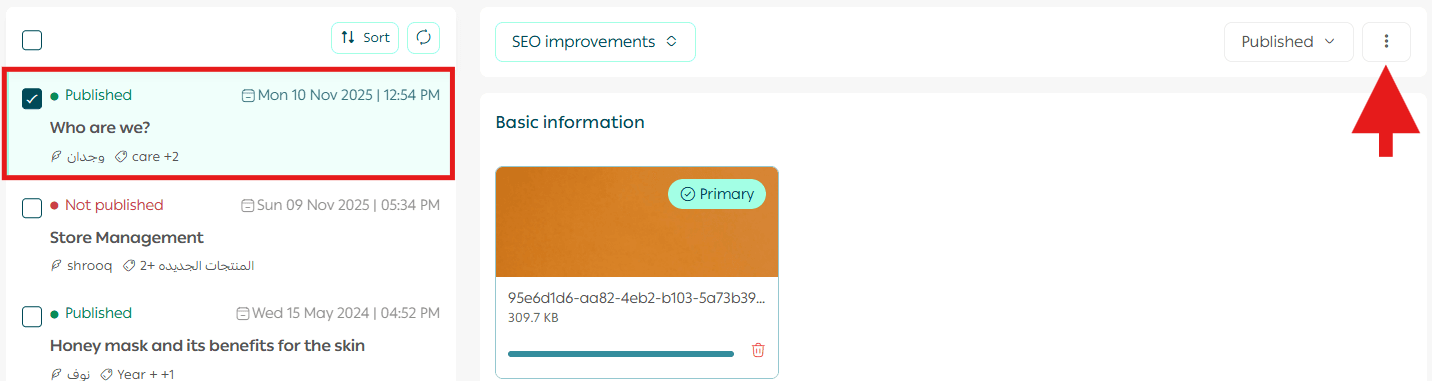
You will see the post editing options as follows:
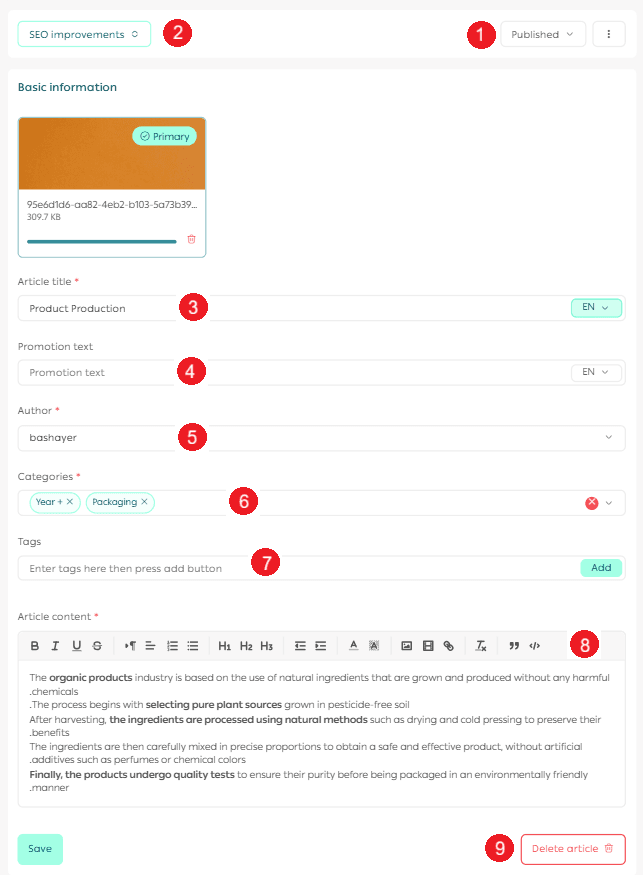
- Post Status: You can switch the post status between (Published) or (Unpublished) depending on whether you want it visible to the public.
- More: Includes options such as copying the post link to share it, viewing comments linked to the post, or deleting it.
- Post Title: Add or edit the main post title.
- Promotional Title: Allows you to add a custom title that may appear differently in search results or across different platforms.
- Author: Enter the author name responsible for writing the post.
- Categories: Choose or add a category to organize the post under specific topics.
- Tags: Add tags that make the post easier to find through search engines or related topics.
- Post Content: Write or edit the main text of the post.
- Delete Post: Permanently delete the post from the system.
3. Manage one or multiple blog posts
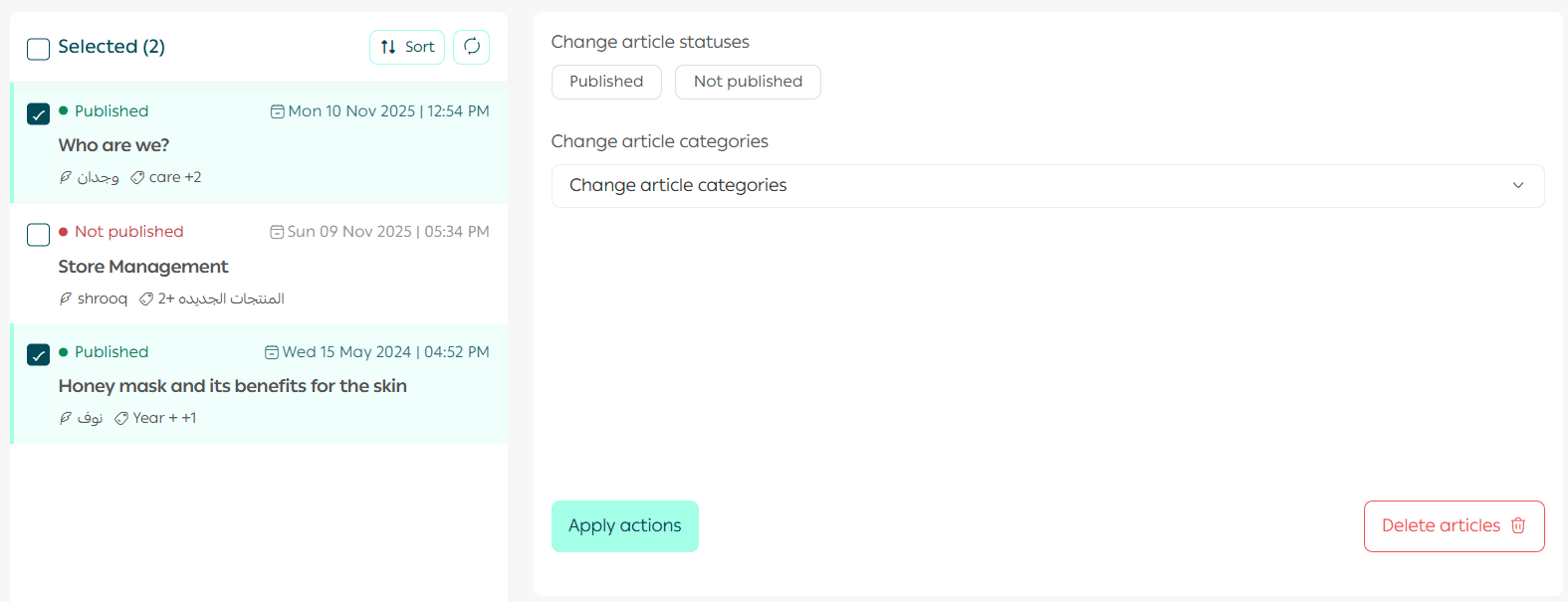
To apply actions to one or more posts:
- Select the posts you want to edit.
- From (Change Post Status), you can perform the following actions:
- Change status: Published or Unpublished
- Change category: Update the category based on the content
- Delete posts: Remove posts permanently
3. After selecting the desired actions, click (Apply Actions) to apply the changes.
4. Manage blog categories
From the tabs at the top of the page, click Blog Categories.
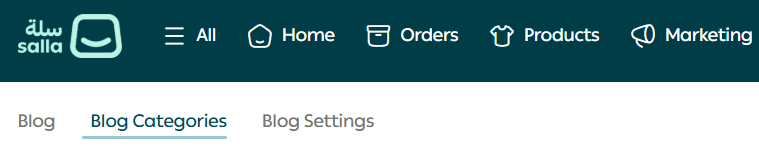
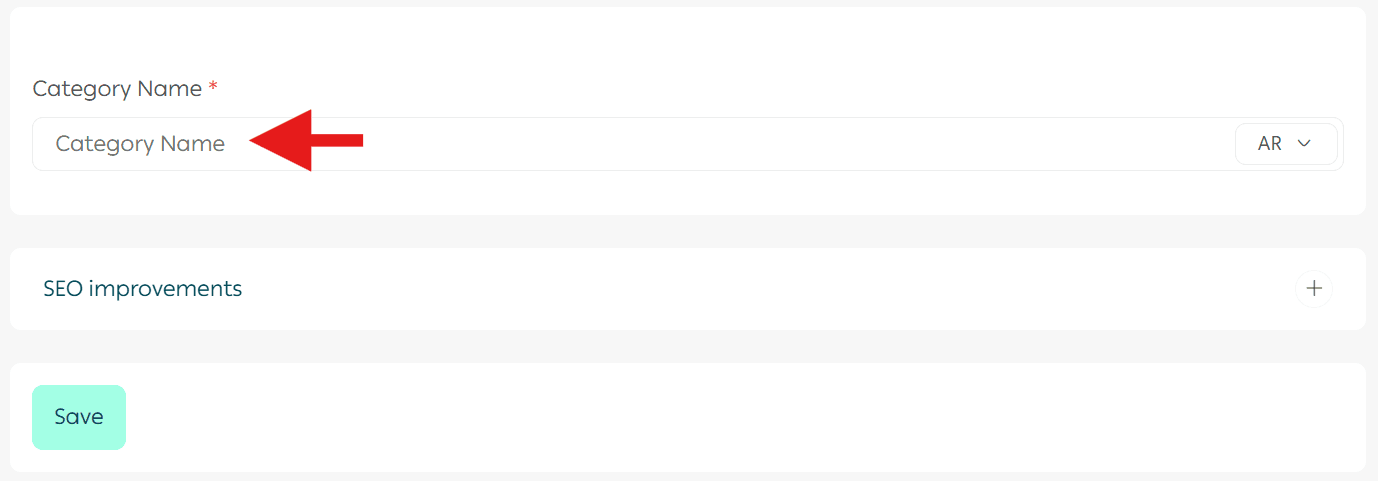
Click Add New Category, then enter the category title.

Add the category name, then click Save.
5. Manage blog settings
From the tabs at the top of the page, click Blog settings.
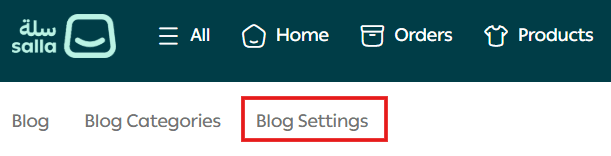
The Blog Settings page includes:
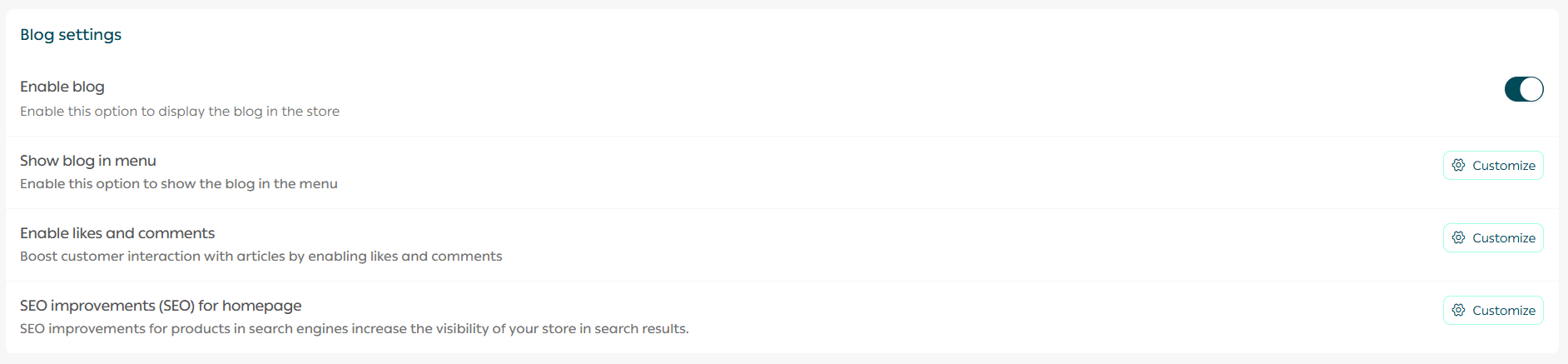
- Enable Blog: Show or hide the blog in the store
- Add Blog Link to Site Menu: Display the blog in the top navigation menu
- SEO Enhancements for the Homepage: Improving product pages for search engines increases the visibility of your store articles in search results
- Enable Likes & Comments: Allows customers to interact with posts by showing the Like button and enabling comments on articles
6. Show the blog on the store homepage
When the blog is enabled, the blog link will appear at the bottom of the store page.

Frequently asked questions
What is the importance of having a blog for my online store?
- A blog improves your store’s visibility in search engines by creating fresh and active content that drives traffic to your online store.
- It helps educate your customers, provide value, and answer their questions.
- It reassures customers that you understand their problems, know their needs, and put effort into researching and finding solutions.
- A free platform to speak to your audience and engage with them.
- It demonstrates your expertise in your field and encourages customers to shop from your store.
- A suitable place to publish your store news and new product updates.
- A powerful way to build influence and gain free marketing for your store.
How can I manage blog categories?
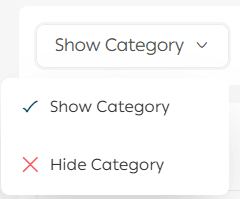
First: Show or hide a category
From the Category Status section in Categories, click the arrow, then click Show Category or Hide Category.
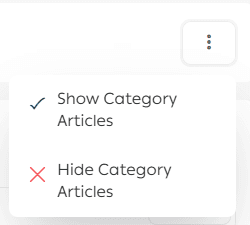
Second: Show or hide category posts
From the Category Posts Status section in Categories, click the arrow, then click Show Category Posts or Hide Category Posts.
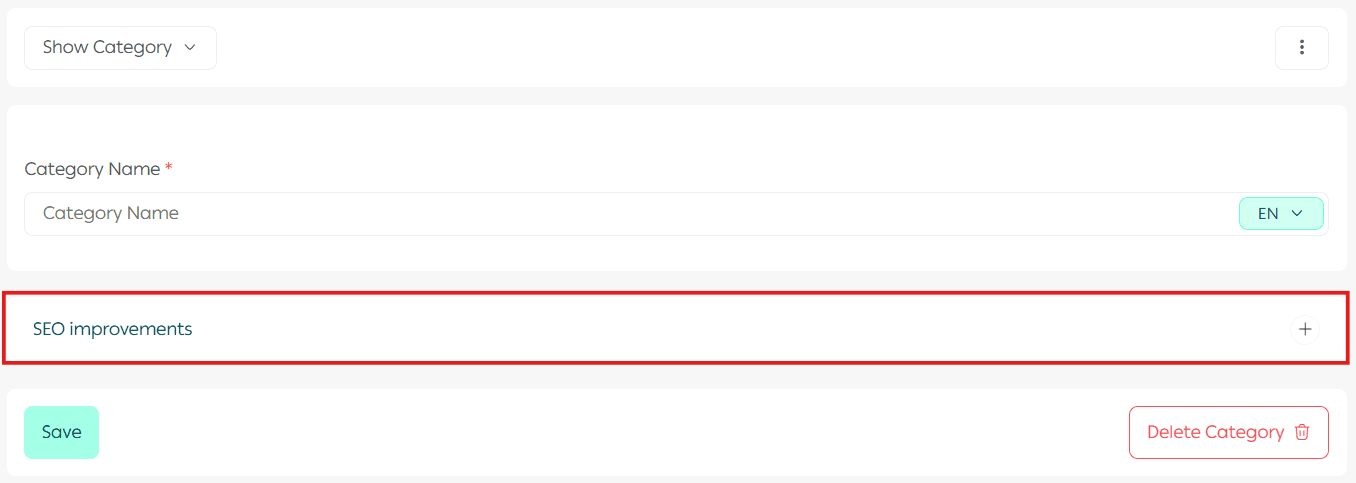
Third: Add SEO enhancements to categories
From the Categories page, select the category, then click the (+) icon next to SEO Enhancements.
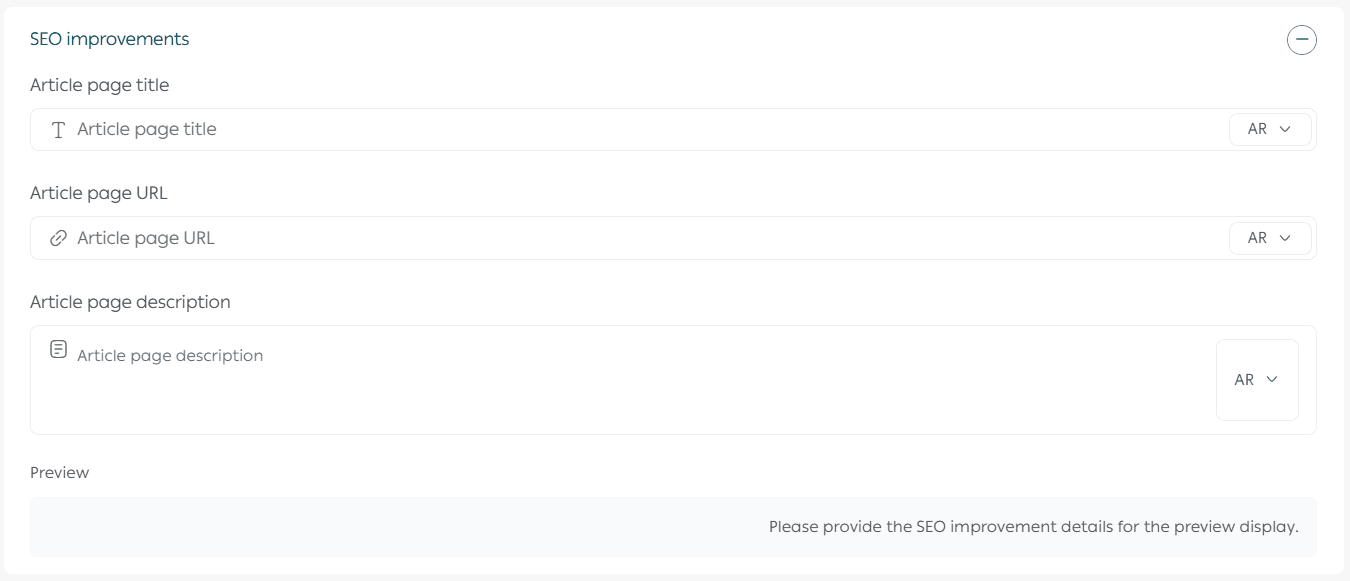
Then enter the category SEO enhancements.
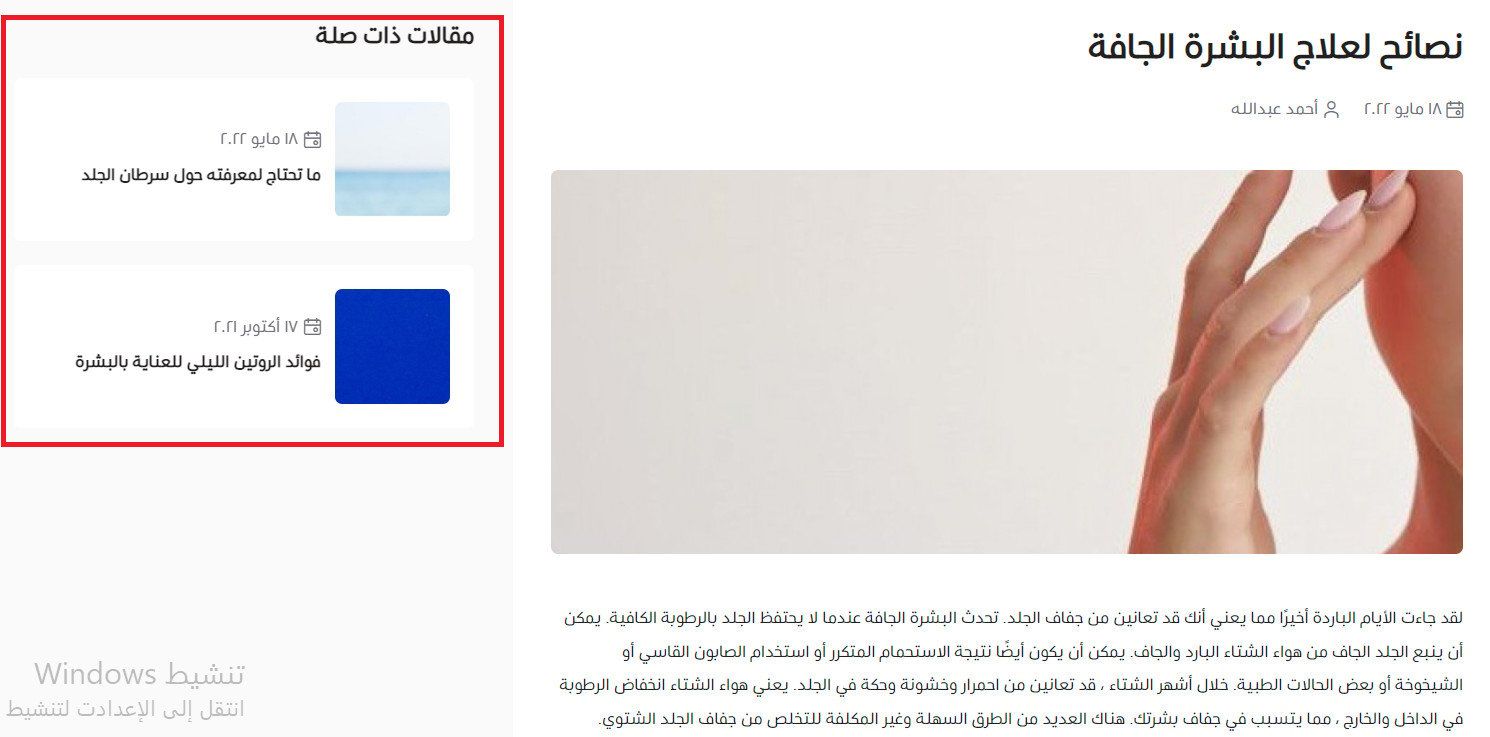
When does the “Related Articles” section appear?
It appears only when there are other articles with the same category or the same tags.
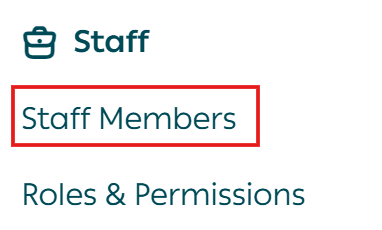
How can I add an author to the blog writers list?
From the top tab, choose More, then click Staff members.
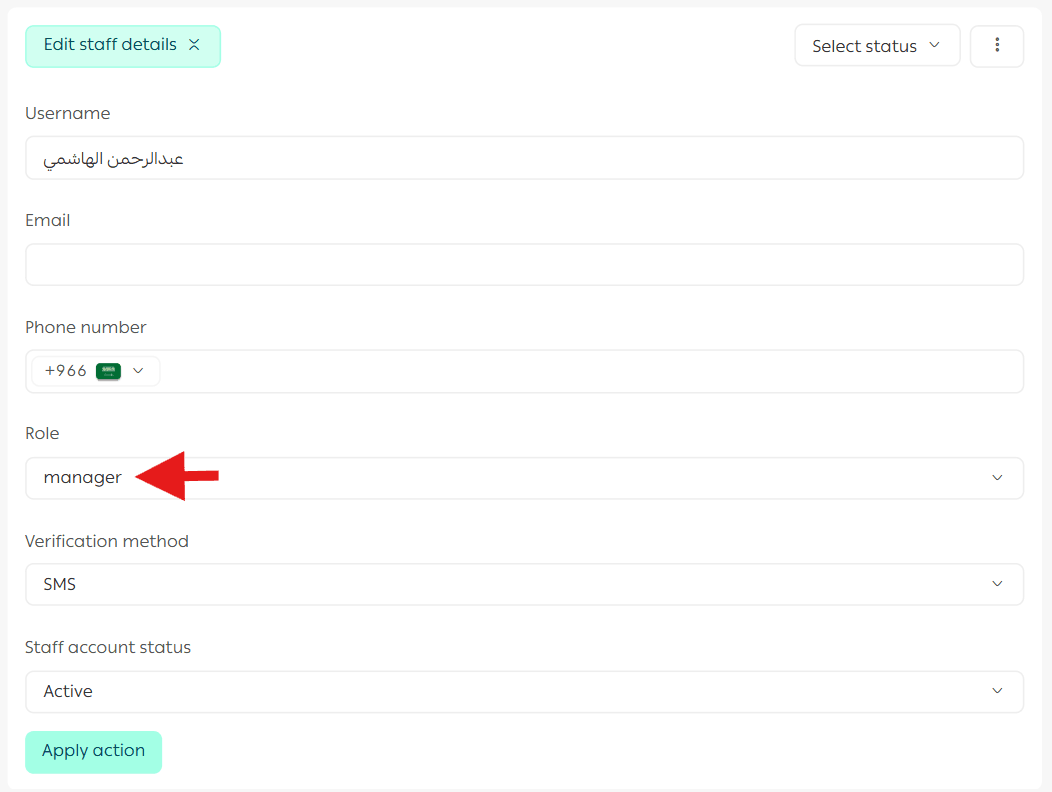
After selecting the employee, choose the job role from Job Role, then click Save.
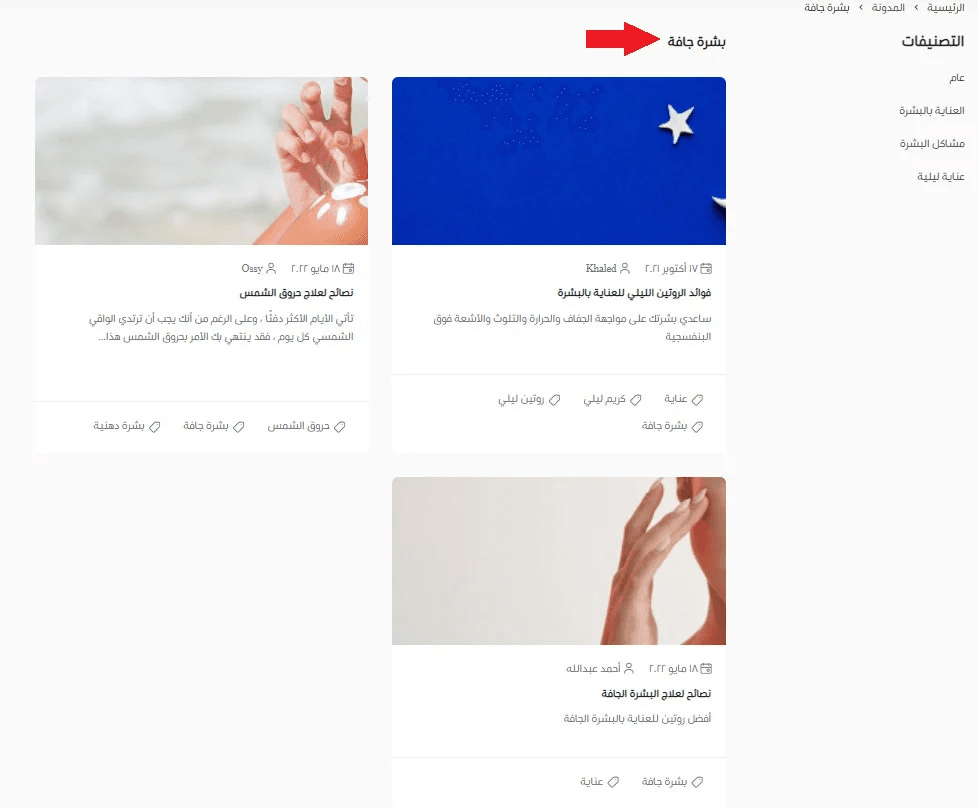
How can a reader view articles under a specific tag?
A reader can view articles for a specific tag by clicking it from the blog page.
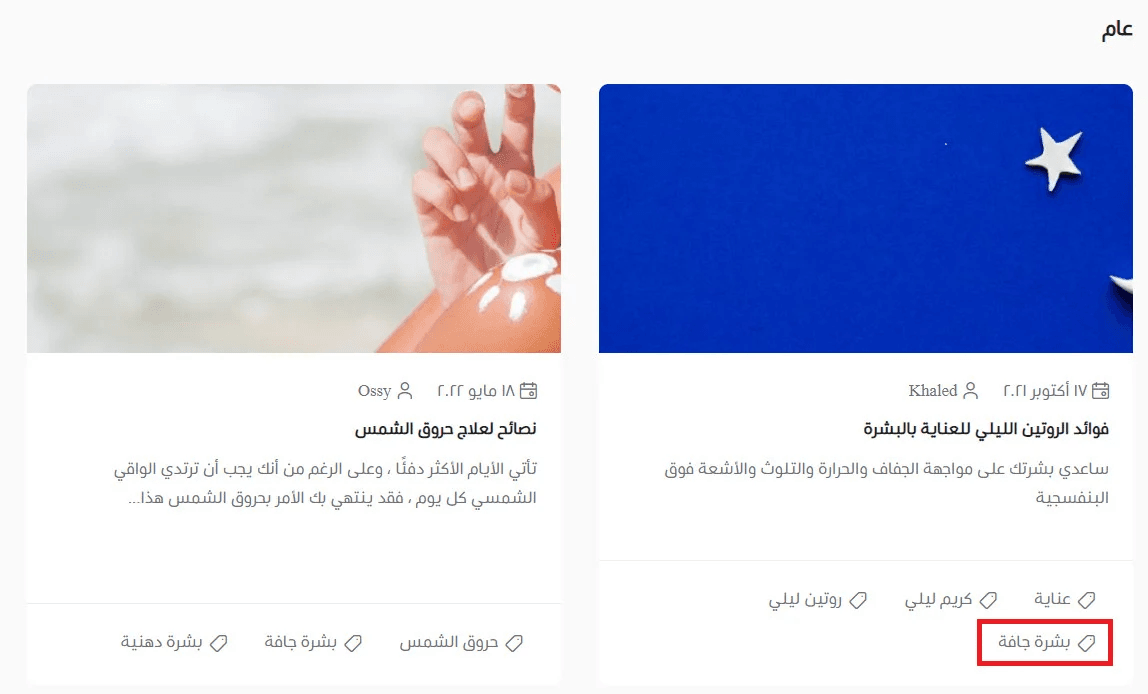
A page will appear showing the articles that include that tag.
Is the Blog app supported in all plans?
The Blog app is free and supported on Plus, Pro, and Special plans.