Many merchants struggle to track and organize the performance of their marketing campaigns effectively, which directly impacts their ability to achieve measurable results.
In this article, we explain how to search for campaigns, analyze their statistics, manage their settings, and create a successful marketing campaign using app notifications.
Get ready to use practical tools that help you increase engagement and reach your target audience with ease.
What is a marketing campaign?
A marketing campaign is a set of activities designed to promote and sell a product or service. Campaigns rely on multiple channels and media to reach their target audience, including visual, audio, print, and digital platforms.
📌Article overview
- Marketing campaigns page
- Creating a new marketing campaign via app notifications
- Managing marketing campaigns
Marketing campaigns page
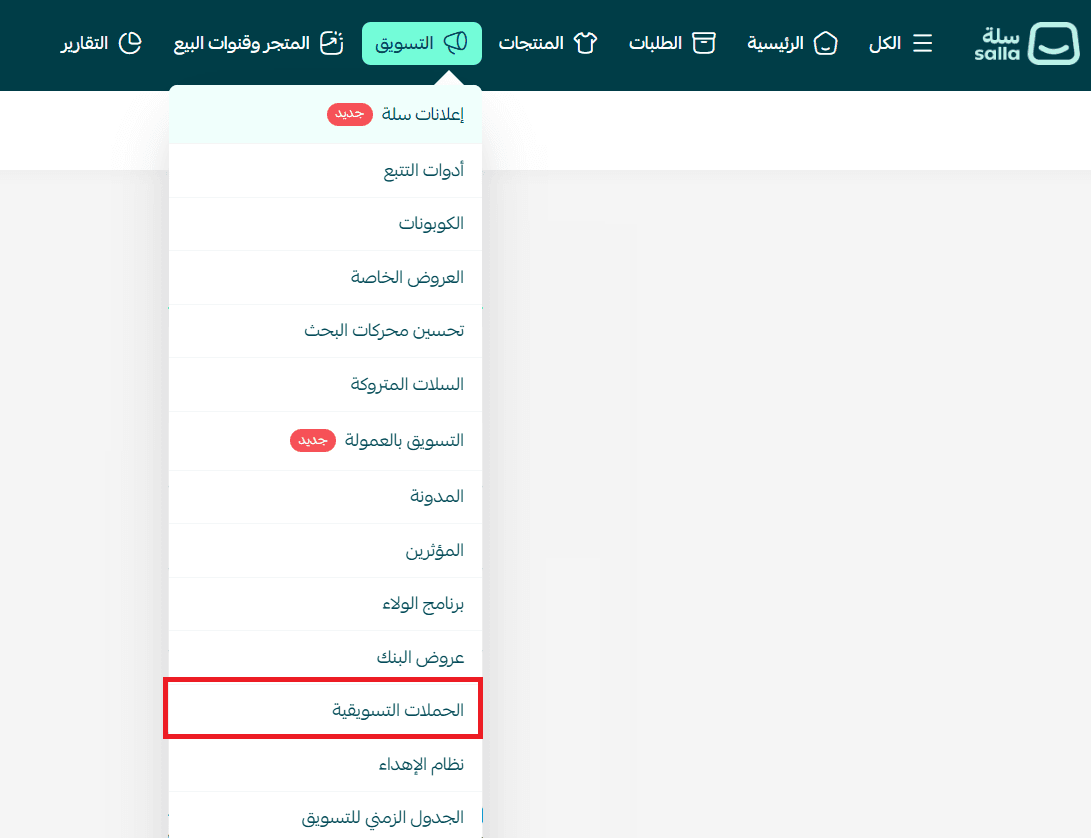
- From the main menu, click Marketing, then select Marketing Campaigns.
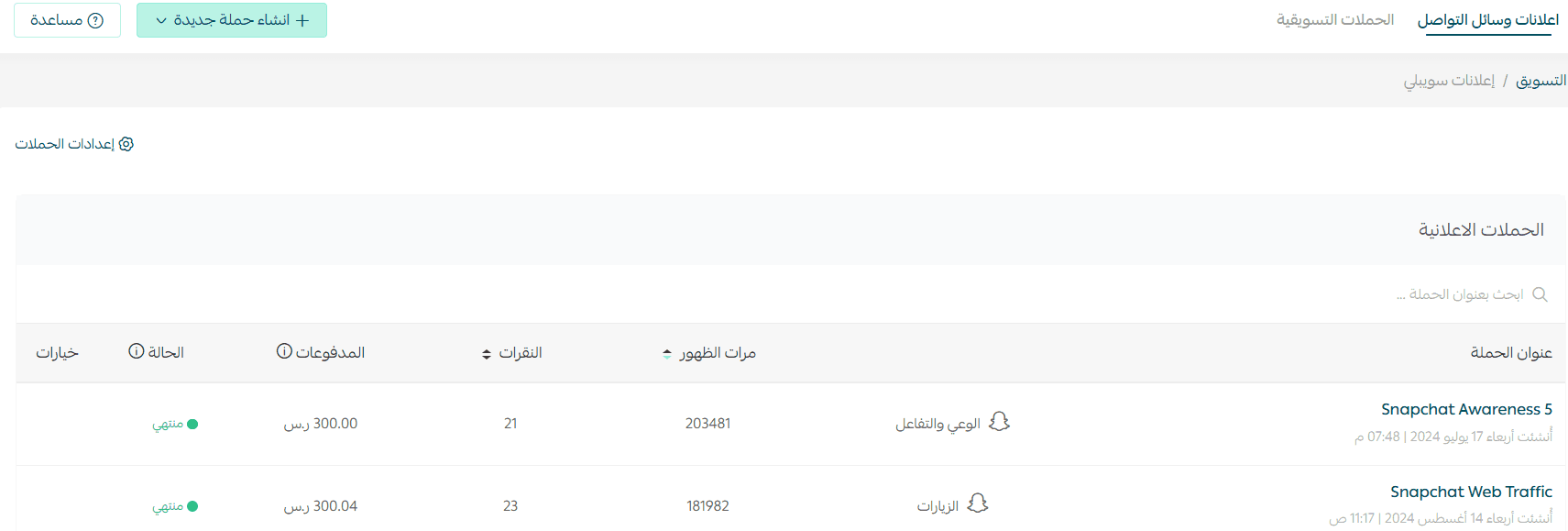
The campaigns page will appear as follows:
Creating a new marketing campaign via app notifications
Campaign information
- From the Marketing Campaigns page, click Add campaign.

- Select the campaign type: App notifications.

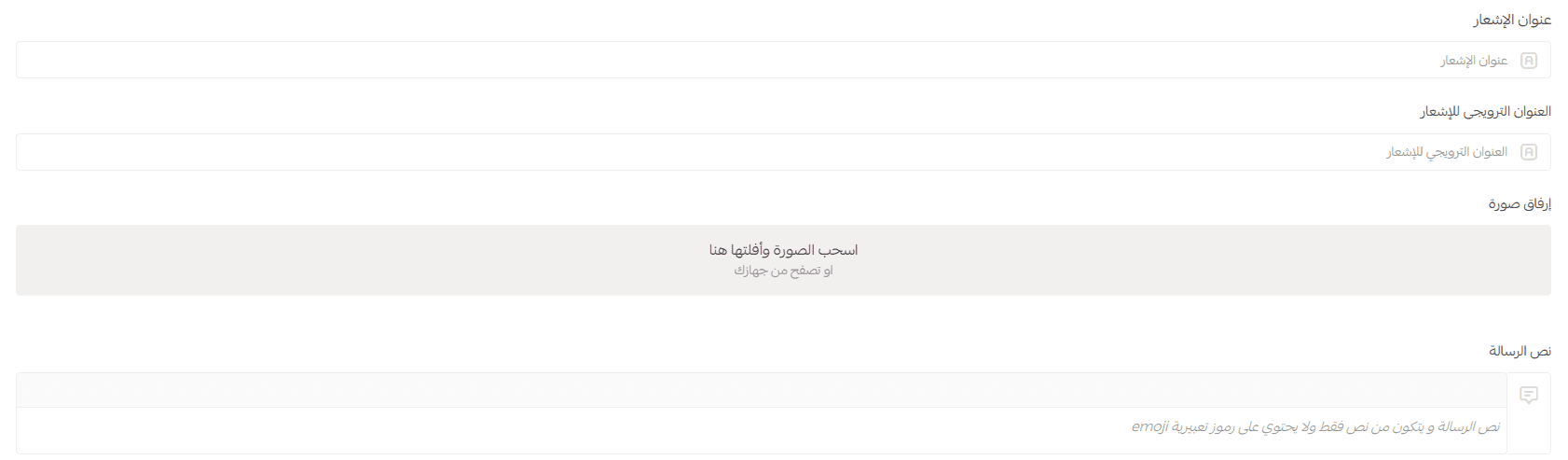
3. Enter the campaign titles:
- Notification title
Should be short, clear, and descriptive.
- Promotional notification title
Some mobile operating systems support displaying a promotional title, while others do not. Android devices support promotional titles.
- Notification icon and message text
Upload the icon image you want to appear in the notification, and write the message text as plain text only, without emojis.
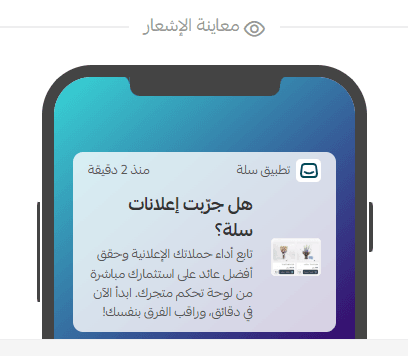
You can preview how the notification will appear to customers using the preview section.
Defining the target audience
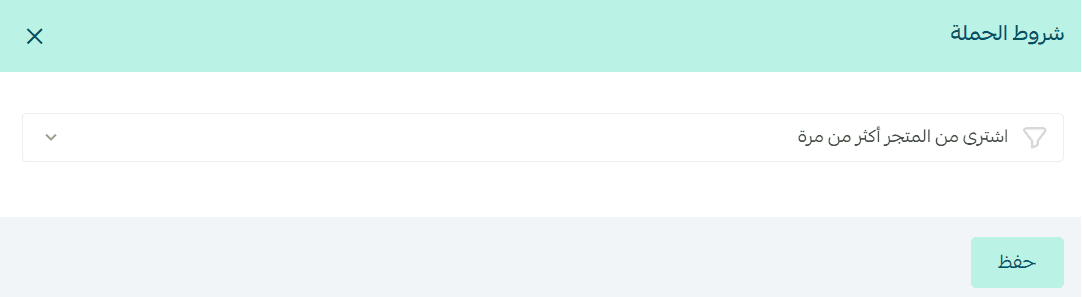
You can add conditions to precisely define your target audience using one or more of the following criteria:
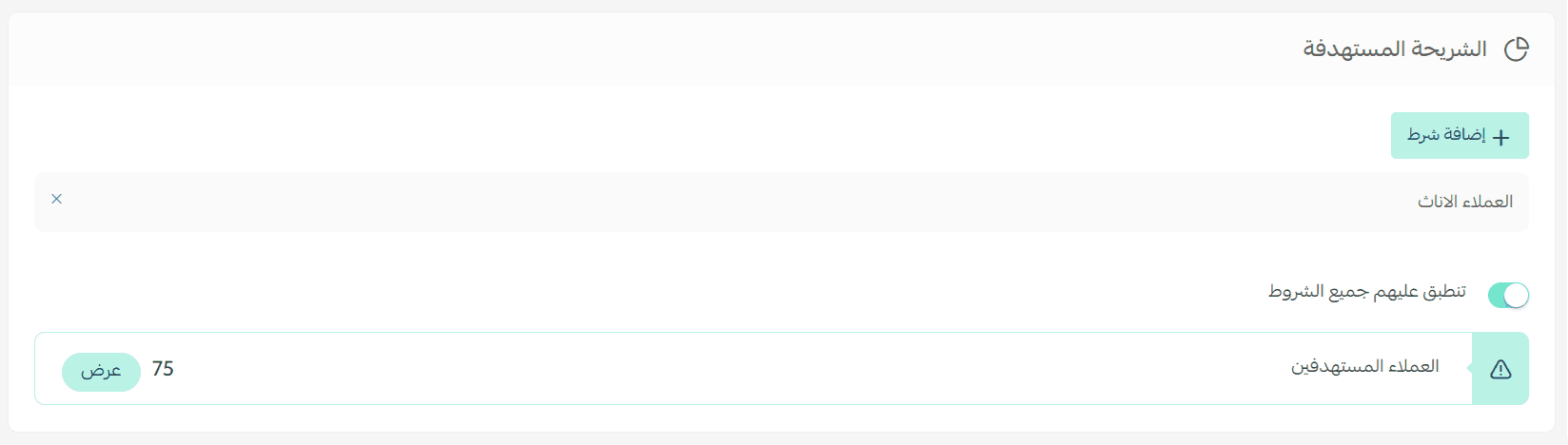
- Gender
- Country
- City
- Purchased from the store
- Purchased from the store more than once
- Interested in a specific category
- Purchased a specific product
- Added a product to the cart but did not complete the purchase
- Added a product to the wishlist
- Has not purchased from the store
Defining the campaign goal
Select the goal of the campaign:
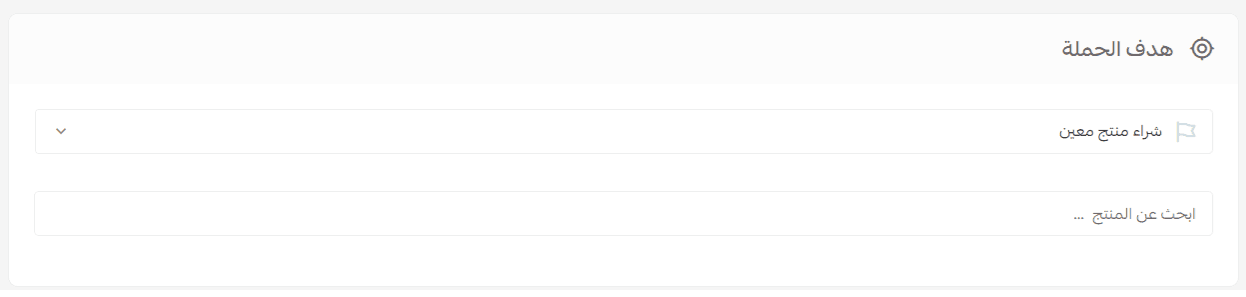
- Purchasing from the store, or
- Purchasing a specific product
Scheduling the campaign
Schedule the campaign by selecting the publishing date and time.
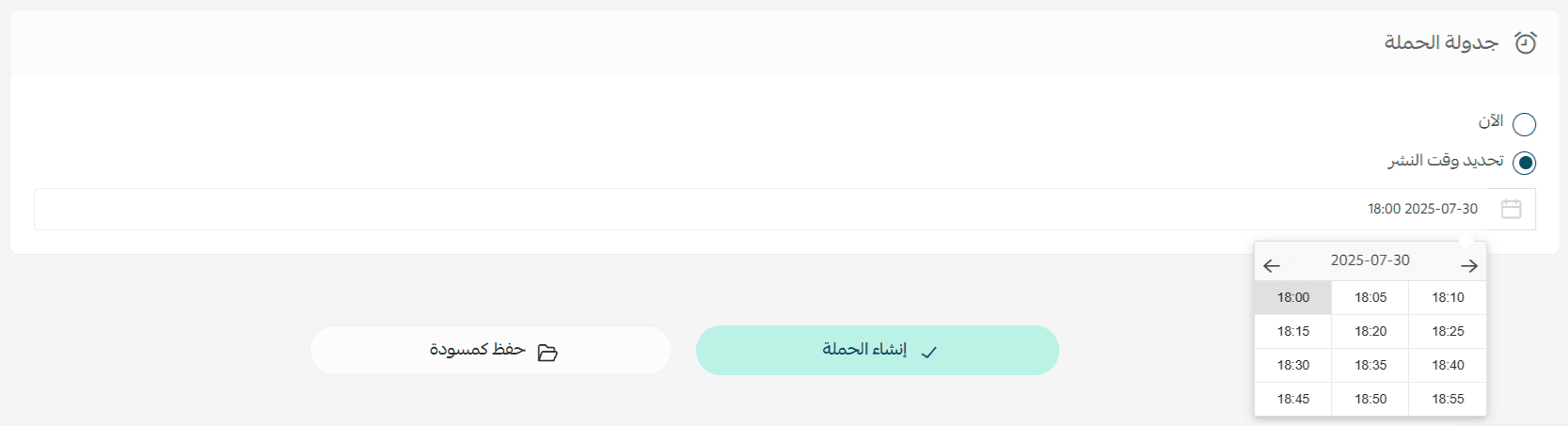
Finally, click Create campaign, or Save as draft to complete the setup later.
Managing marketing campaigns
The Marketing Campaigns page includes the following sections and features:
Filter button
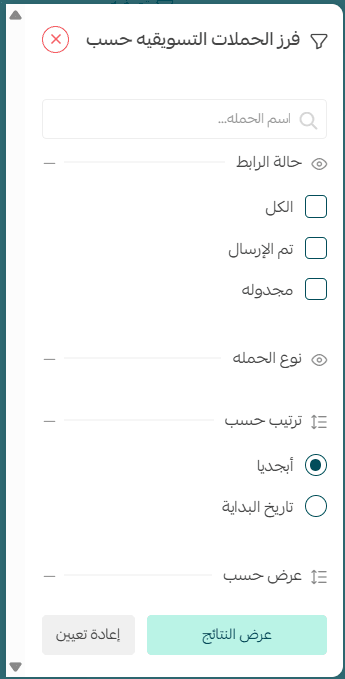
You can quickly access any campaign by entering the campaign name in the search field, or by filtering campaigns by status or campaign type, and sorting them accordingly. This feature allows fast and efficient access to specific campaigns.
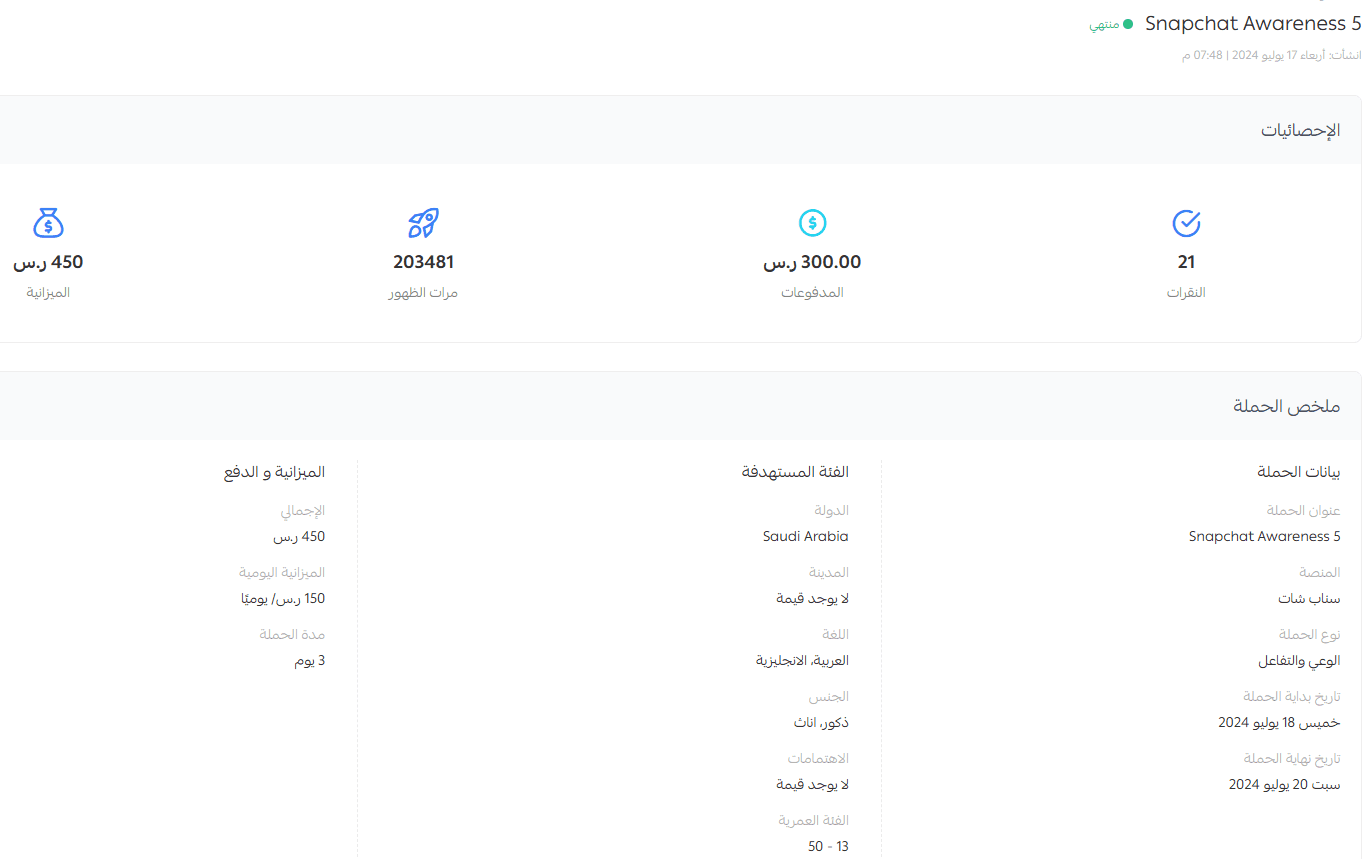
Campaign statistics
When you click on a campaign name, a detailed summary and performance statistics are displayed. This allows you to closely monitor campaign performance by reviewing engagement, reach, conversions, and other key metrics.
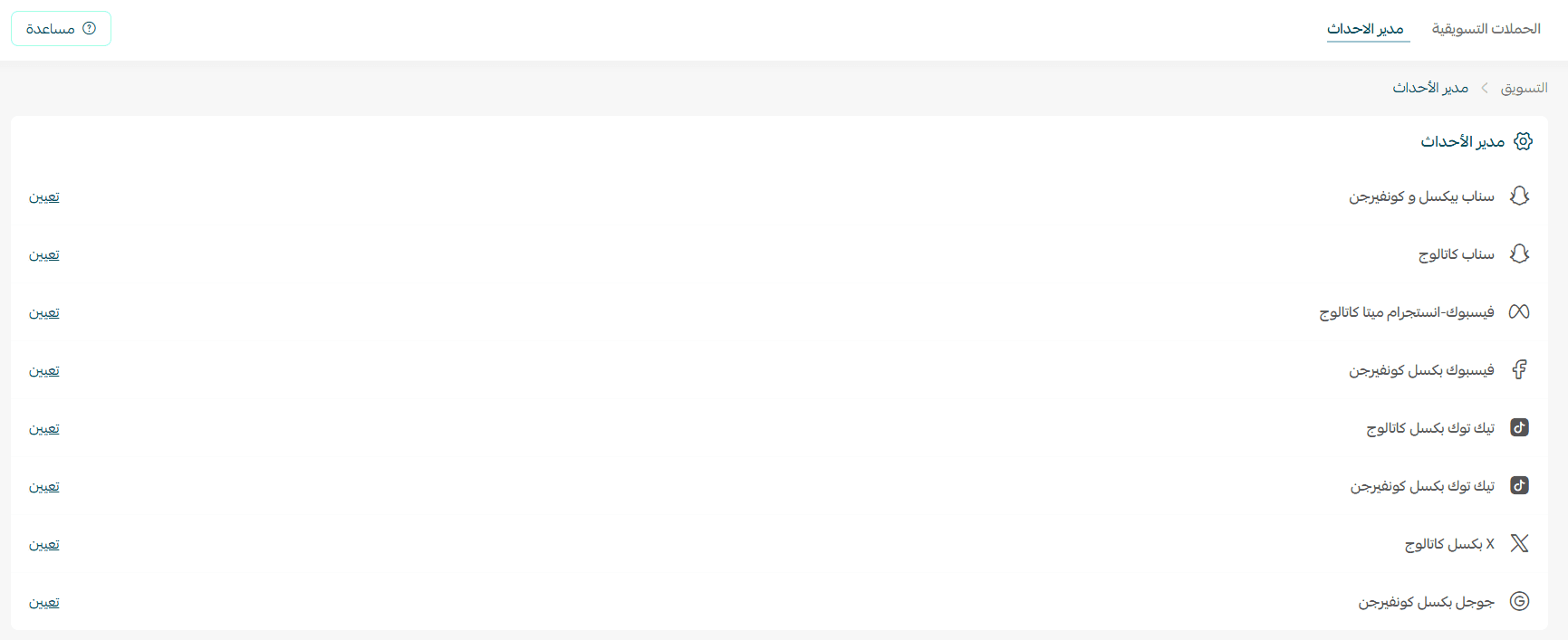
Campaign settings
You can manage campaign settings through the Event Manager tab.
Are your ad campaigns consuming budget without real returns?
Your ads are visible, but sales are not moving?
Many merchants face this challenge due to weak analytics tools or difficulty configuring targeting and campaign settings.
With Salla Ads, the solution is now simpler and closer than ever.
Full control from your store dashboard, accurate tracking tools, and direct integrations with major advertising platforms help you create smarter campaigns and achieve real results.
Your practical guide to using Salla Ads effectively
No advanced marketing experience required.
In this guide, you will learn step by step how to create campaigns, analyze performance, connect Pixel and Conversion API, and build highly targeted audiences with precision.