Creating multiple theme versions allows you to design your store around seasons, campaigns, and special events without rebuilding your store from scratch each time. With advanced theme management, you can duplicate themes, schedule their activation, customize them freely, and protect your store content from unauthorized copying. This flexibility helps improve customer experience and maximize sales during high impact periods.
📌Article overview
- Try a theme before purchasing
- Theme version management options
- Activating store content protection
- Frequently asked questions
Try a Theme Before Purchase
The try before purchase feature allows you to test up to five themes on any paid plan before making a final buying decision.
Why this feature matters
- Helps you choose the most suitable theme for your store type
- Provides a real preview experience before investing
- Saves time and reduces design mistakes
- Lets you choose confidently and efficiently
How to try a theme
- Visit the Theme Store
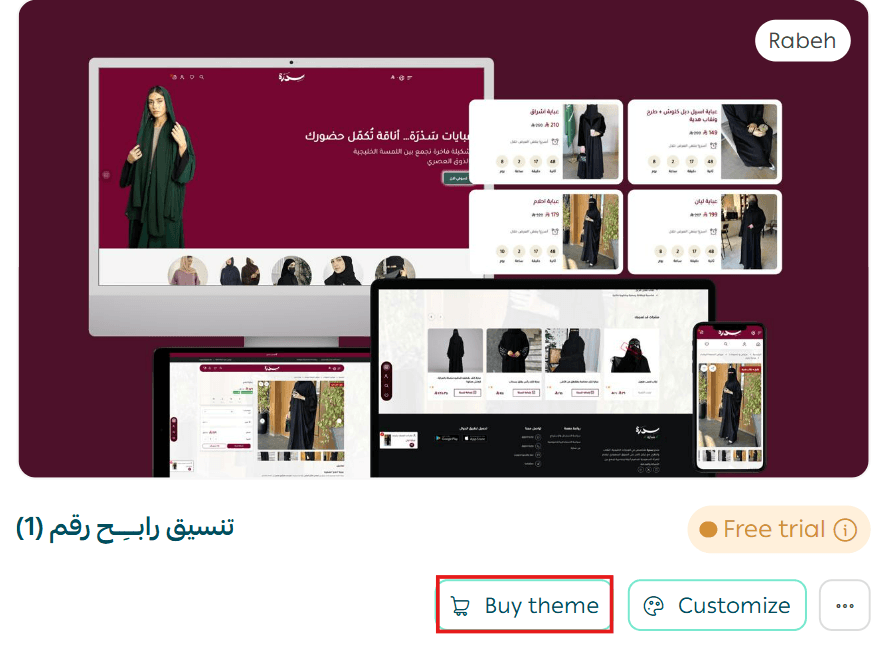
- Select any paid theme and click Try theme
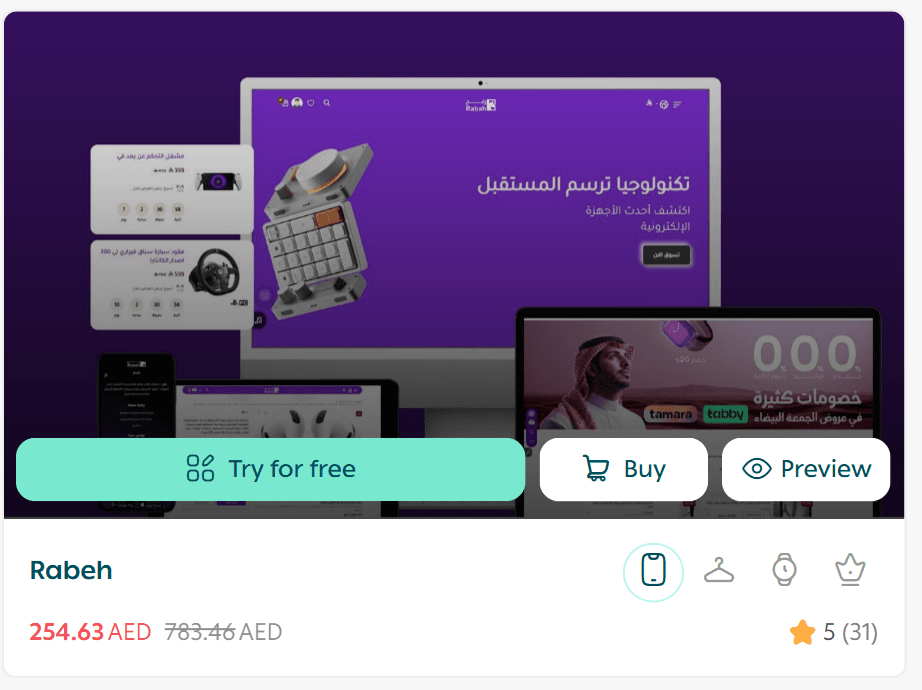
You can activate and test up to five themes at the same time.
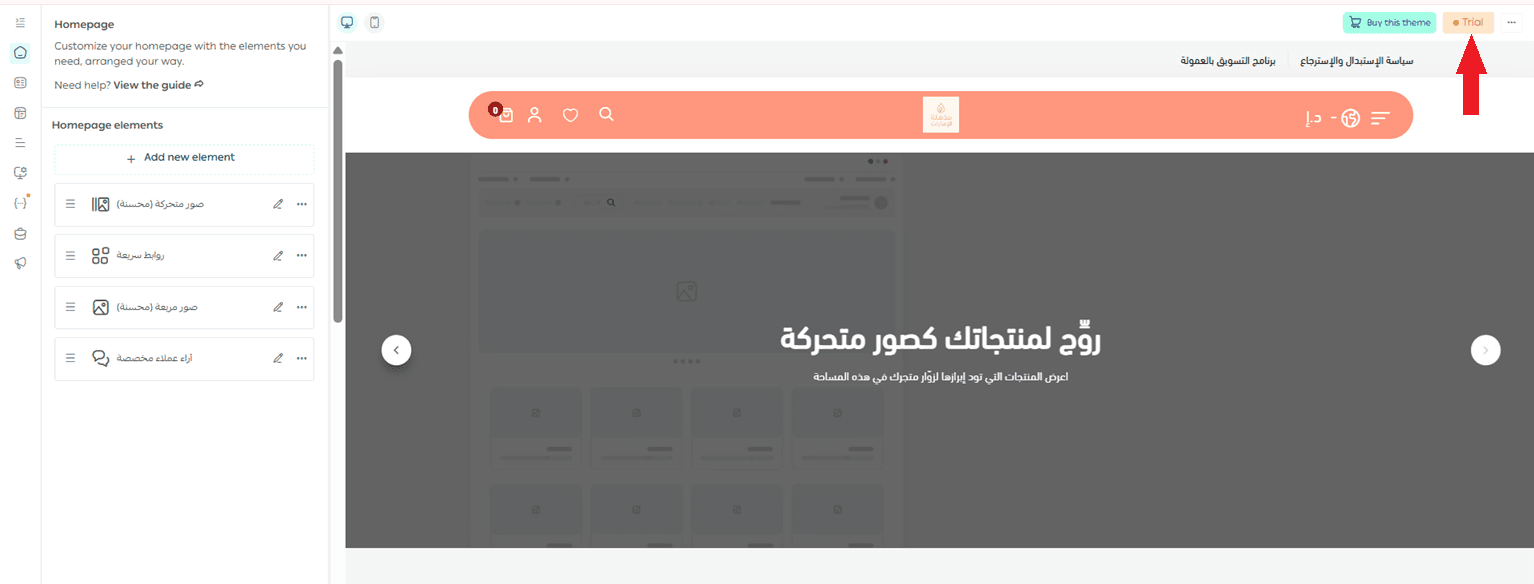
A trial version of the theme will be created and marked as Trial.
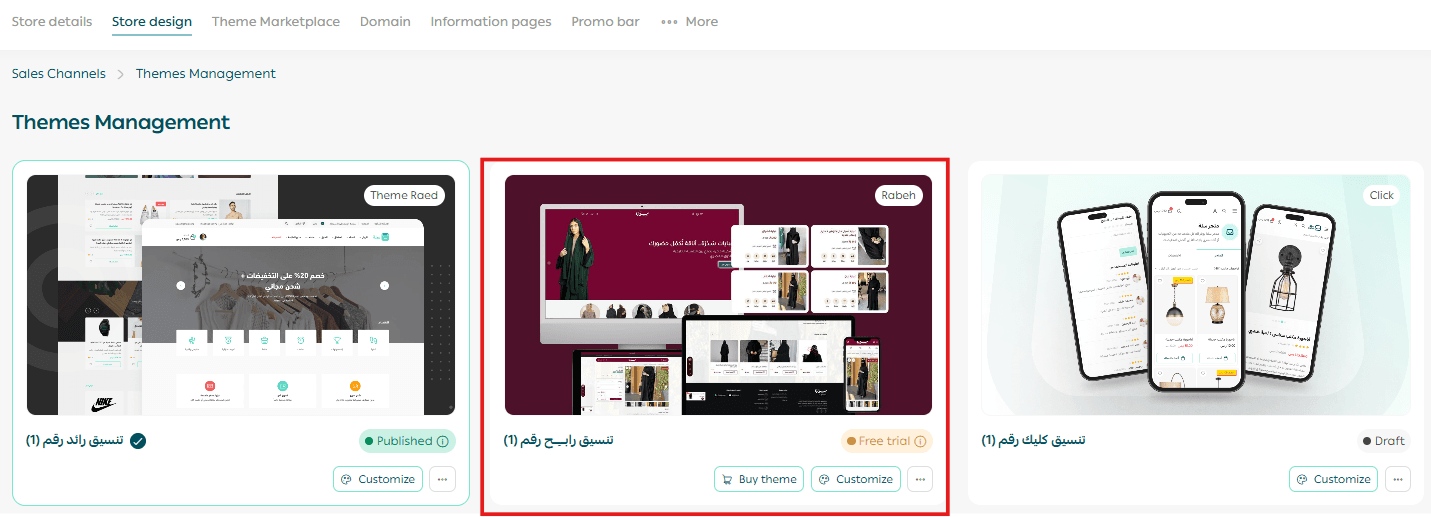
The theme will appear under the Store Design section.
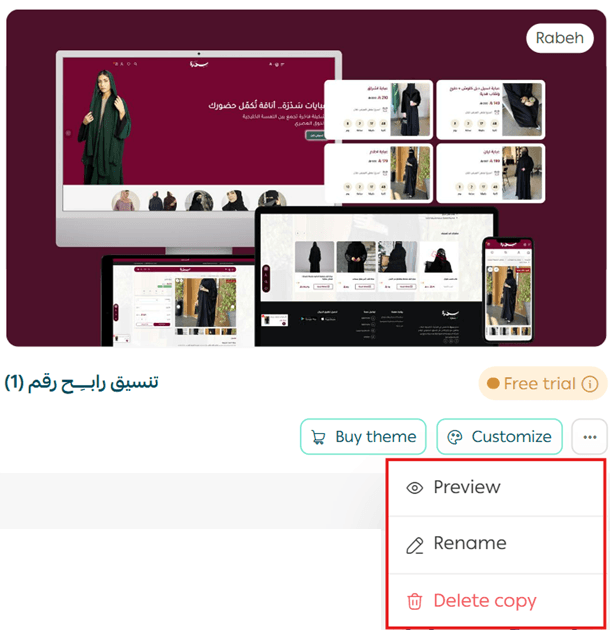
You can manage the trial version by customizing it, previewing it, renaming it, or deleting it.
Once you finish testing, you can purchase your preferred theme and activate it immediately.
Theme Version Management Options
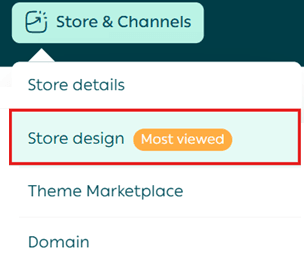
From the main menu, go to Store and Channels, then click Store Design.
1. Create a theme version
From the theme card, click Duplicate.
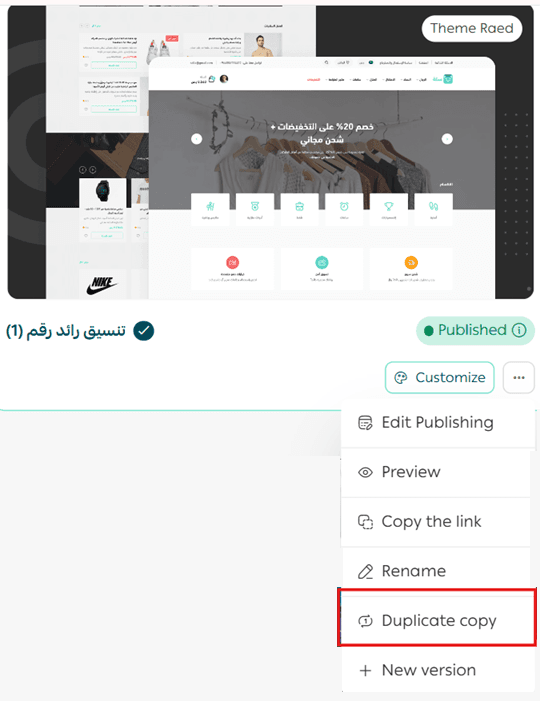
A new theme version will be created successfully. You can customize and manage it independently.
2. Rename a theme version
From the theme control menu, click Rename.
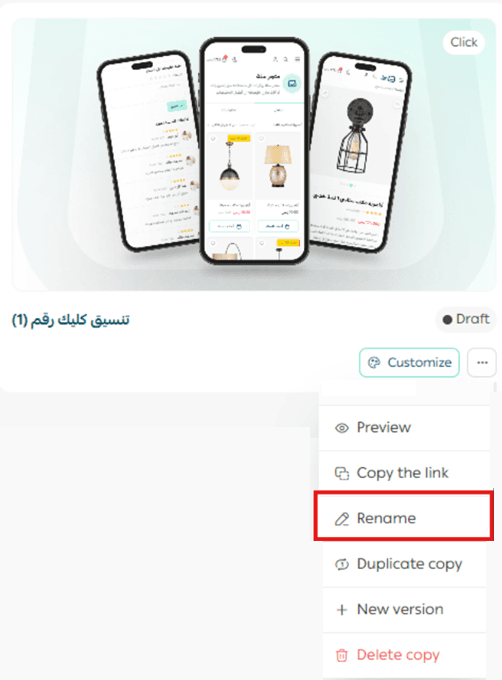
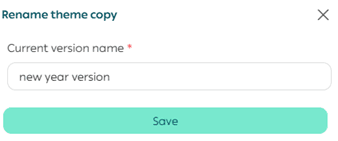
Enter the new name and save.
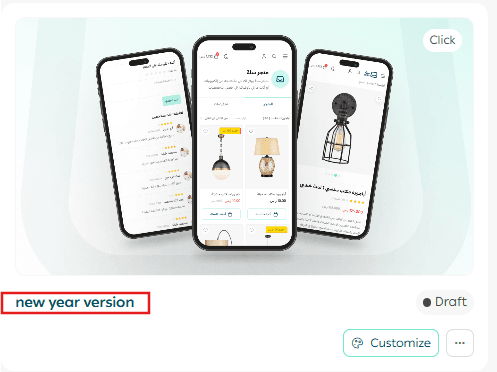
The updated name will appear in the Store Design page.
3. Customize a theme version
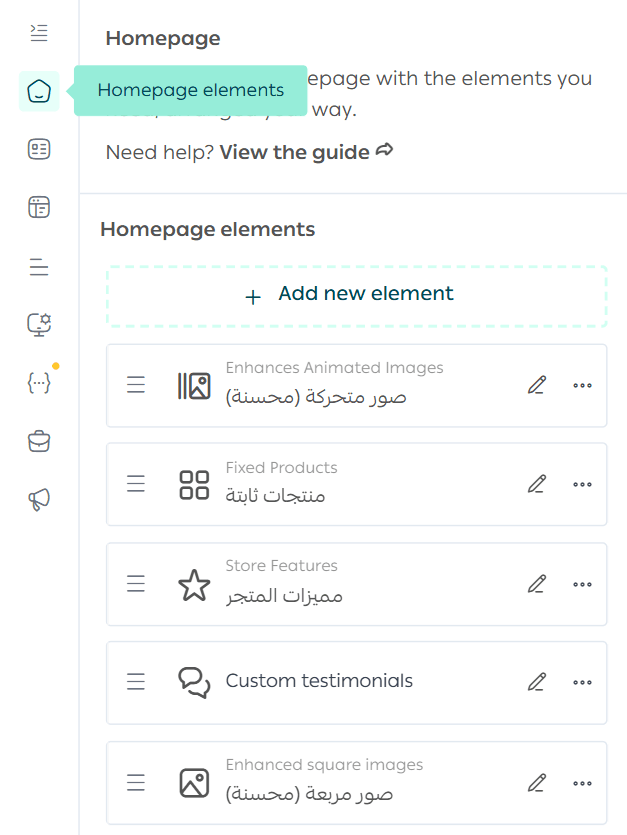
To customize a version’s layout and appearance, click Customize from the Store Design page.
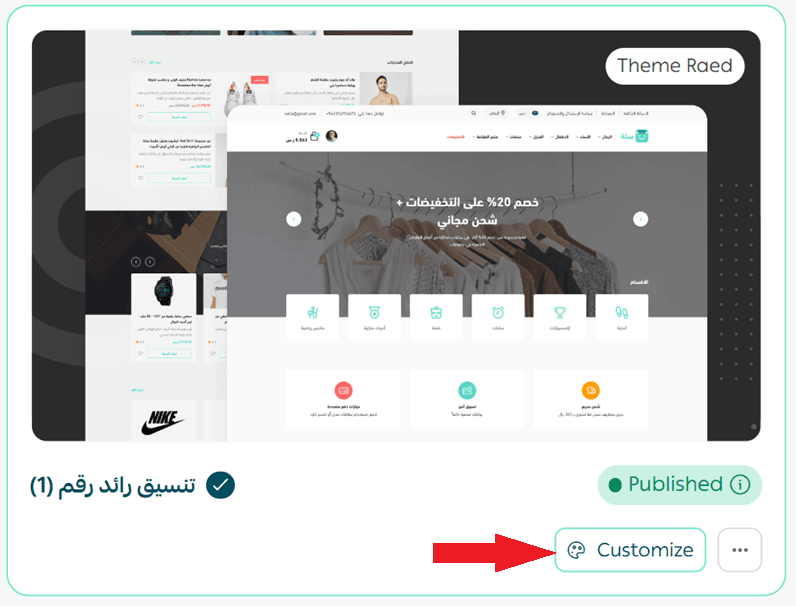
You can fully tailor the theme to match your store’s branding and needs.
4. Preview a theme version
To see how your store will look when the version is activated, click Preview from the theme menu.
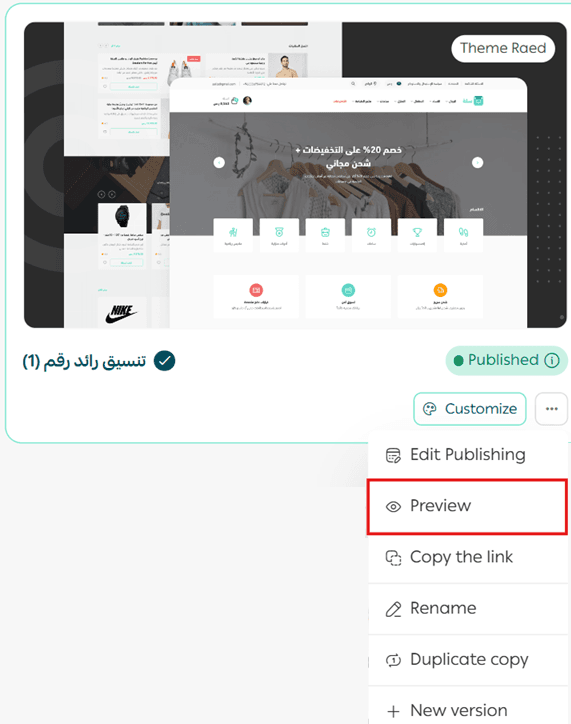
The preview will open in a separate page.

5. Schedule theme publishing
From the theme card, click Publish.
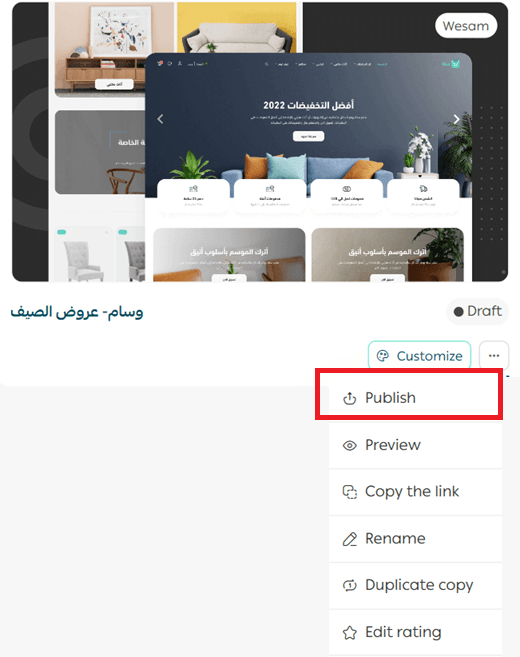
You can choose between two publishing modes:
Default publishing
The theme version becomes the main theme for all visitors.
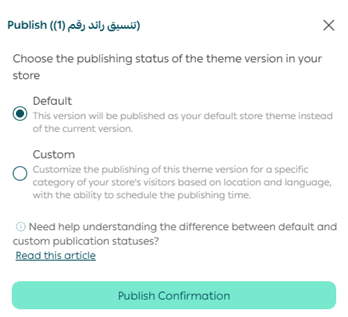
Custom publishing
You can assign the theme version to specific countries, cities, or languages.
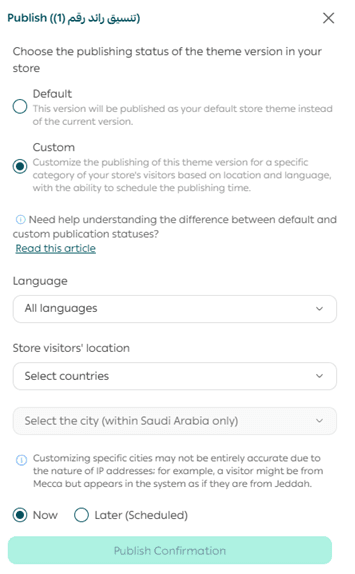
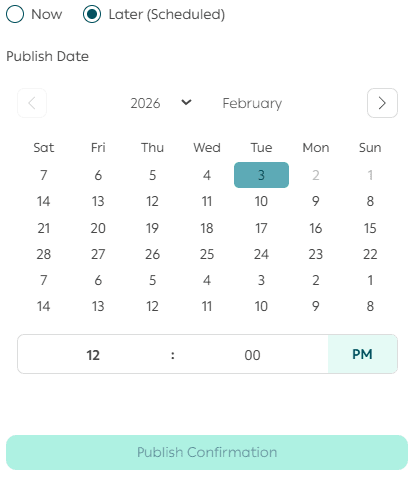
You can also schedule it to activate at a specific date and time.
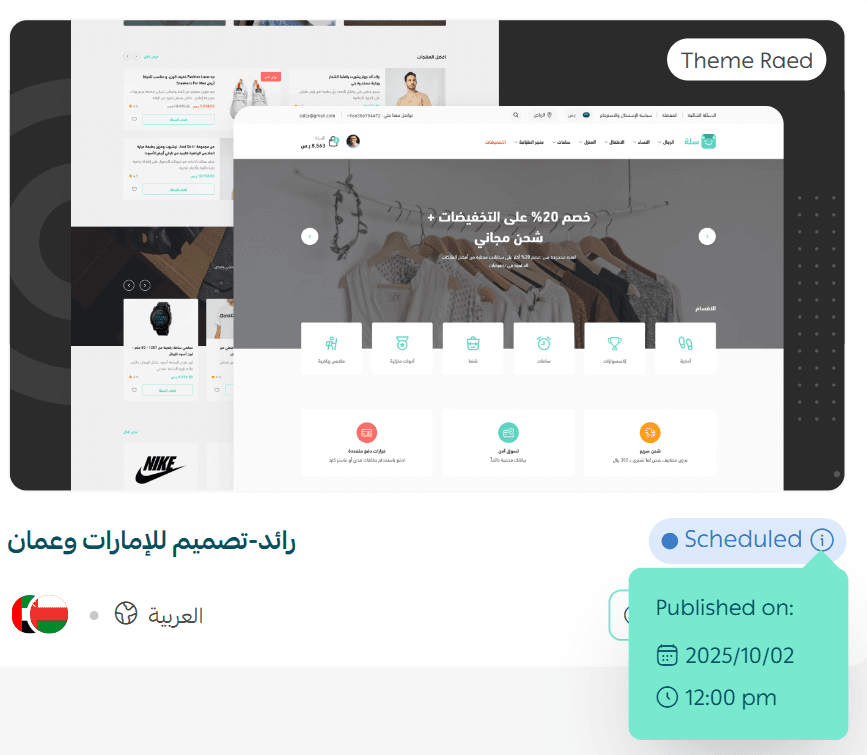
Once scheduled, the activation date will appear next to the version name.
6. Edit or cancel a published version
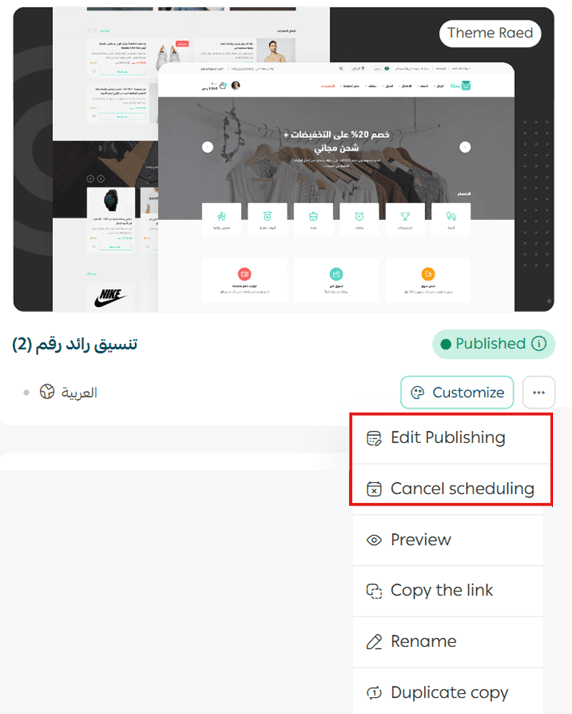
After publishing a theme version, you can edit its publishing settings or cancel its activation from the theme control menu.
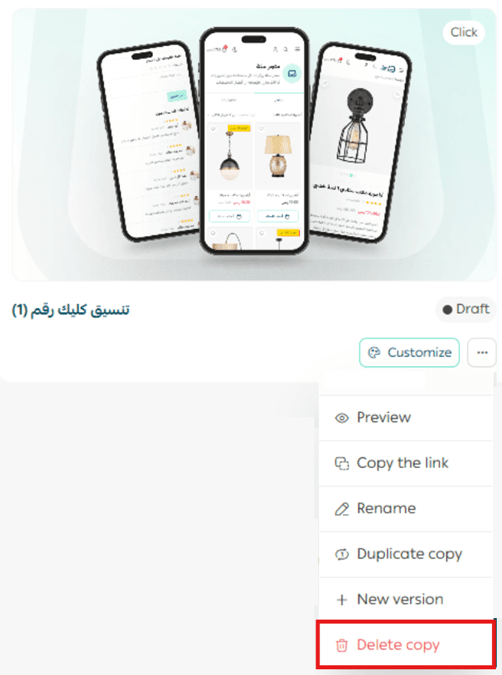
7. Delete a theme version
From the theme menu, click Delete.
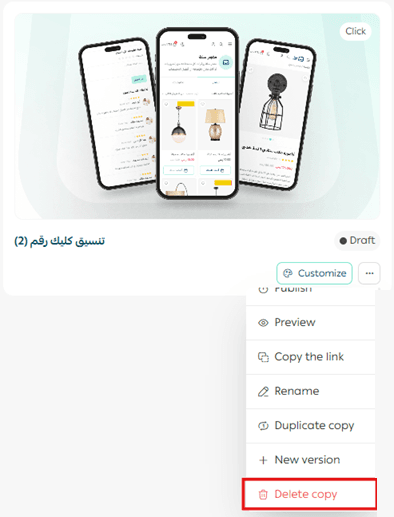
Important note: You cannot delete an active published version. Activate another version first before deleting the unwanted one.
8. Rate a theme
After 14 days from installation, you can rate a theme.
From the theme menu, click Rating.
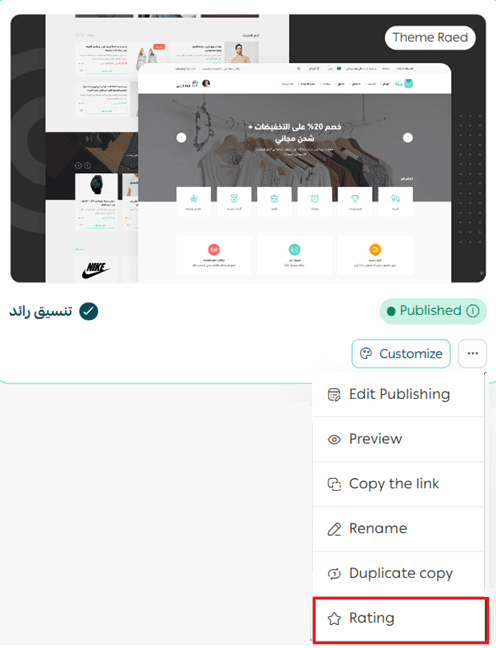
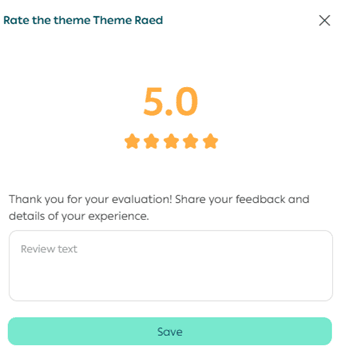
Select your satisfaction level and write a fair, helpful review so other merchants can benefit.
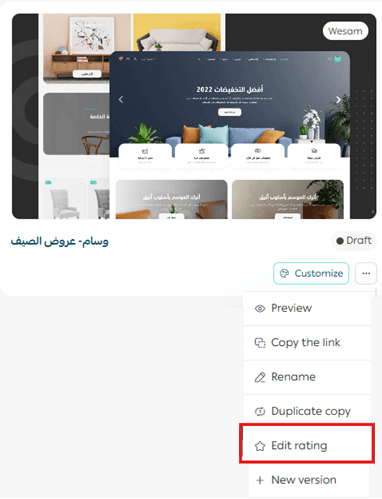
To edit a previous rating, click Edit rating from the same menu.
Activate Store Content Protection
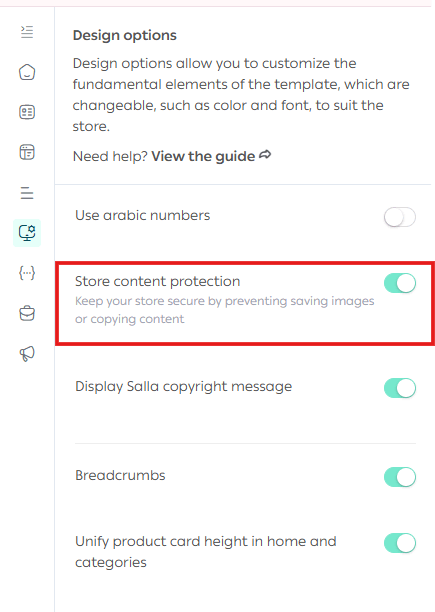
Store content protection helps safeguard your texts and images from copying or unauthorized use. Your creativity deserves protection.
How to enable content protection
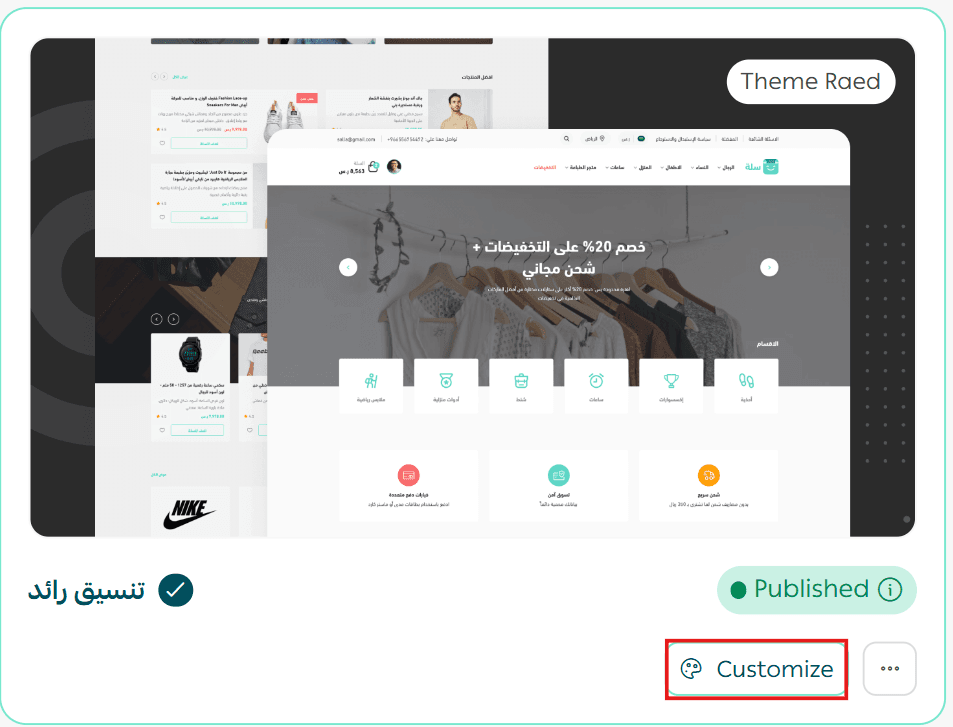
- From the Store Design page, click Customize on the selected theme
2. Under Design Options, enable Store Content Protection
3. Click Save changes
🎉 Congratulations. Your store content is now protected from copying text or saving images.
Frequently Asked Questions
How many theme versions are available per plan?
- Special plan: Up to 50 versions per theme
- Pro plan: Up to 2 versions per theme
- Plus plan: 1 version per theme
- Basic plan: 1 main theme or any previously purchased theme
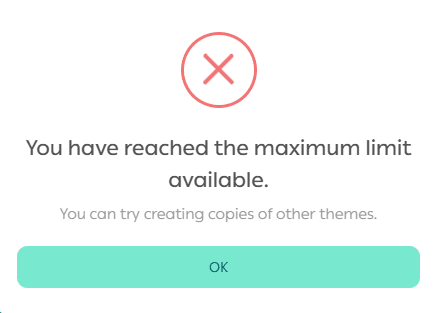
What should I do if I reach the maximum number of versions?
If you reach the allowed limit, you can upgrade your plan or create versions from other themes.
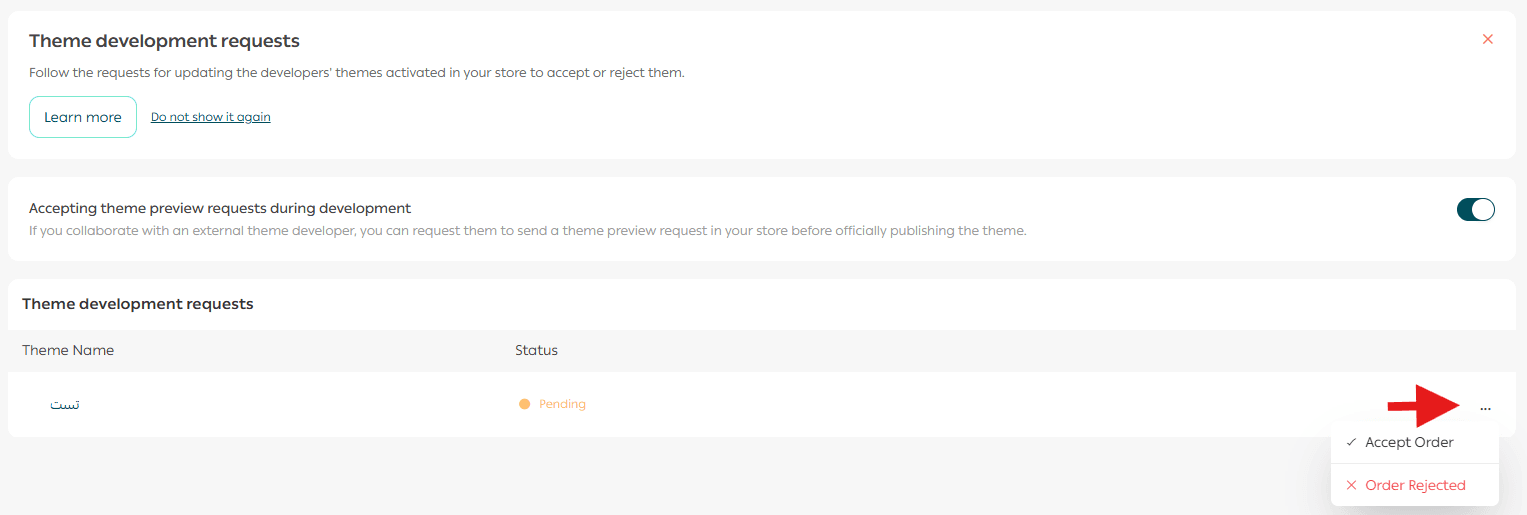
How can I view theme development requests?
From the Store Design page, the Theme Development Requests section appears at the top.

Click View requests, enable Accept theme preview requests during development, then click Save.
You will receive a notification when a preview invitation arrives.
Supporting Services
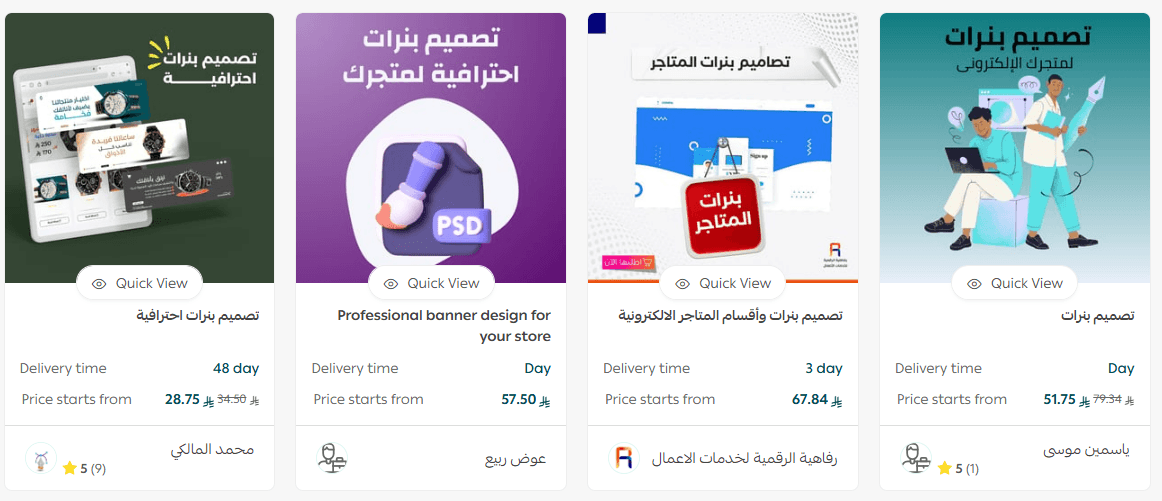
If you need professional assistance in designing your store, you can benefit from Merchant Services, which provide access to expert service providers for:
- Logo design
- Banner and section design
- Color coordination
- Brand visual identity
These services help you build a polished, professional store that reflects your business vision with confidence.