Where does an order in your store actually go once the customer hits pay?
A smooth shopping experience depends on how well you handle every stage an order passes through: checkout and confirmation, packing, shipping, delivery, and the returns and exchanges that come afterwards. Good order management is what keeps those stages from turning into problems, and Salla gives you a tool for each one. In this guide, you'll learn the seven stages of selling a product professionally in your store, from the moment the order arrives to the report you read at the end of the month.
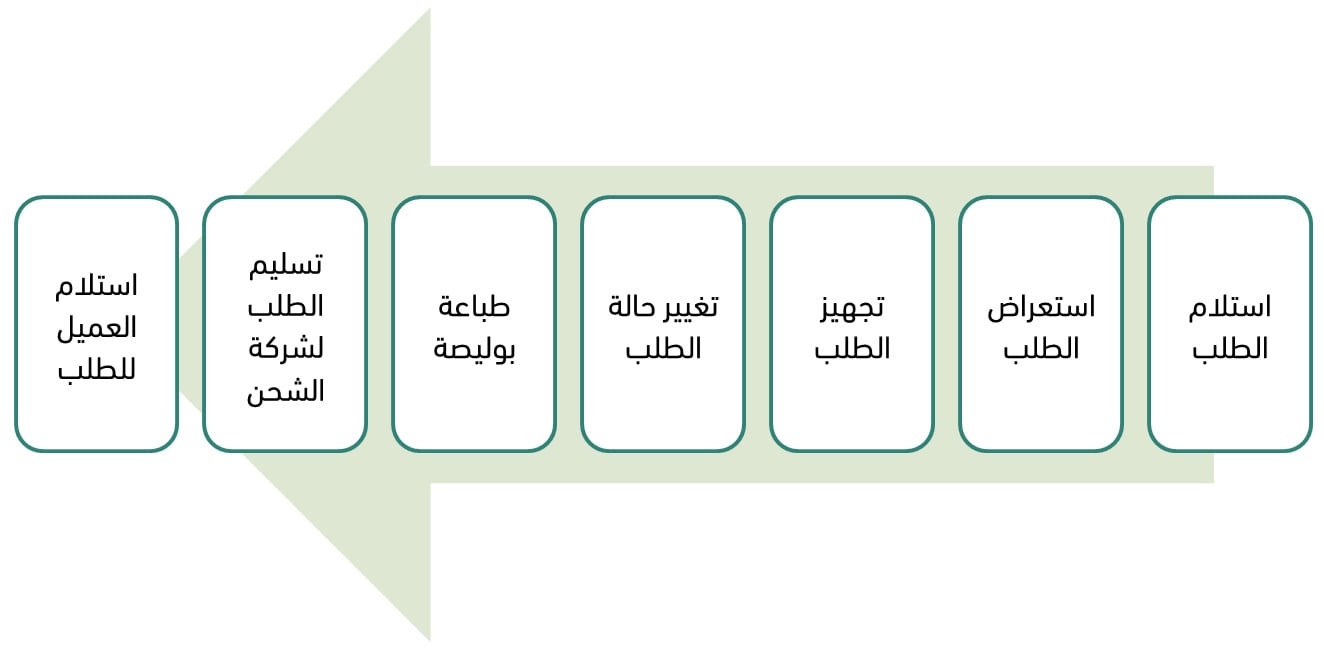
Order management in Salla runs through seven stages: receiving the order, reviewing it, preparing and packing it, updating its status, issuing and printing the waybill, handing the shipment to the carrier, and following up after delivery with reviews and reports. Each stage has its own tools in your dashboard.
📌 Article overview
- Receiving the order
- Reviewing the order
- Preparing the order
- Updating the order status
- Printing the waybill
- Handing the shipment to the carrier
- The customer receives the order
- Frequently asked questions
Here is the full sequence:
1. Receiving the order
Orders reach you through several channels. The main ones are your store, your store app, Mahally, and manual entry.
When a customer orders products from your store, you get a notification, and you can open the order from the orders page in your dashboard.

The orders page gives you complete control: every order is listed there along with the key details of each one.
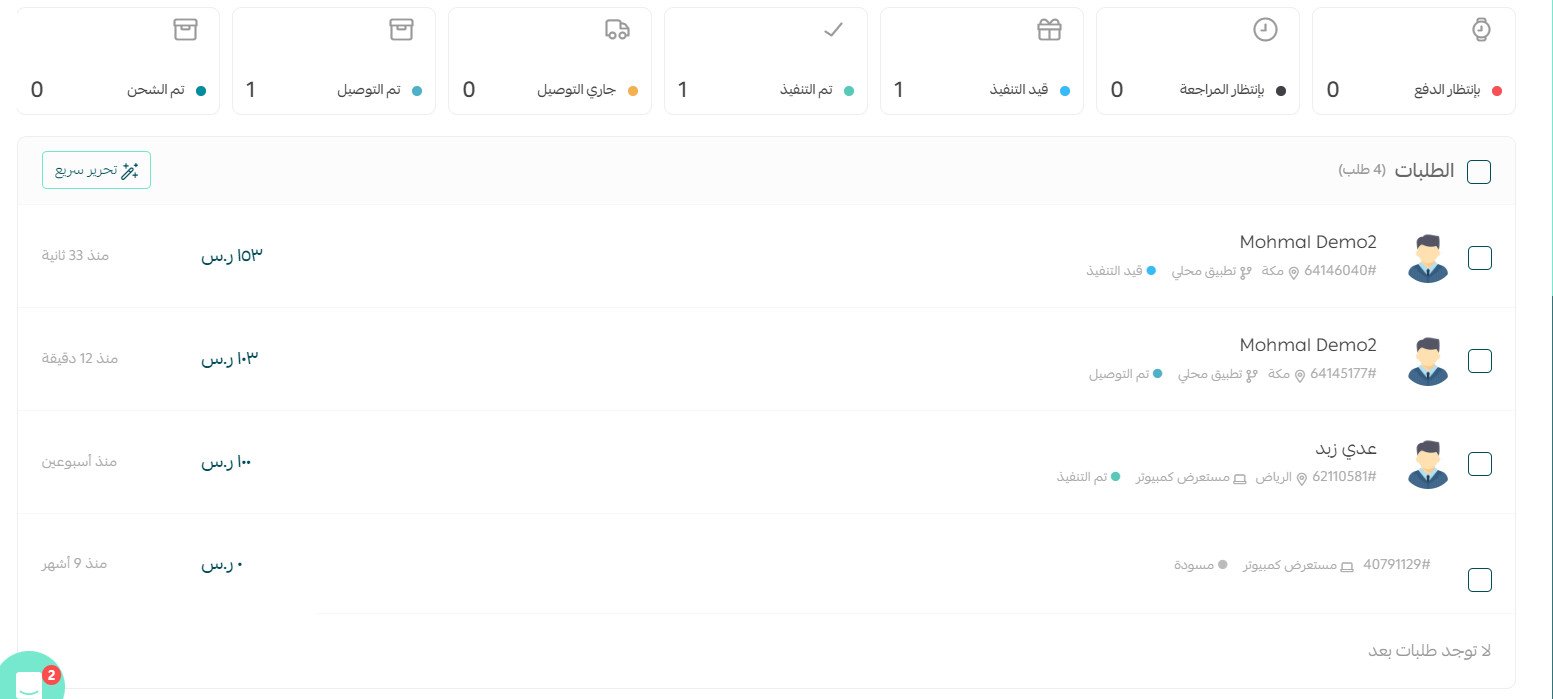
Click any order to see its details, edit it, and manage it.
For more detail, see adding a new order manually.
2. Reviewing the order
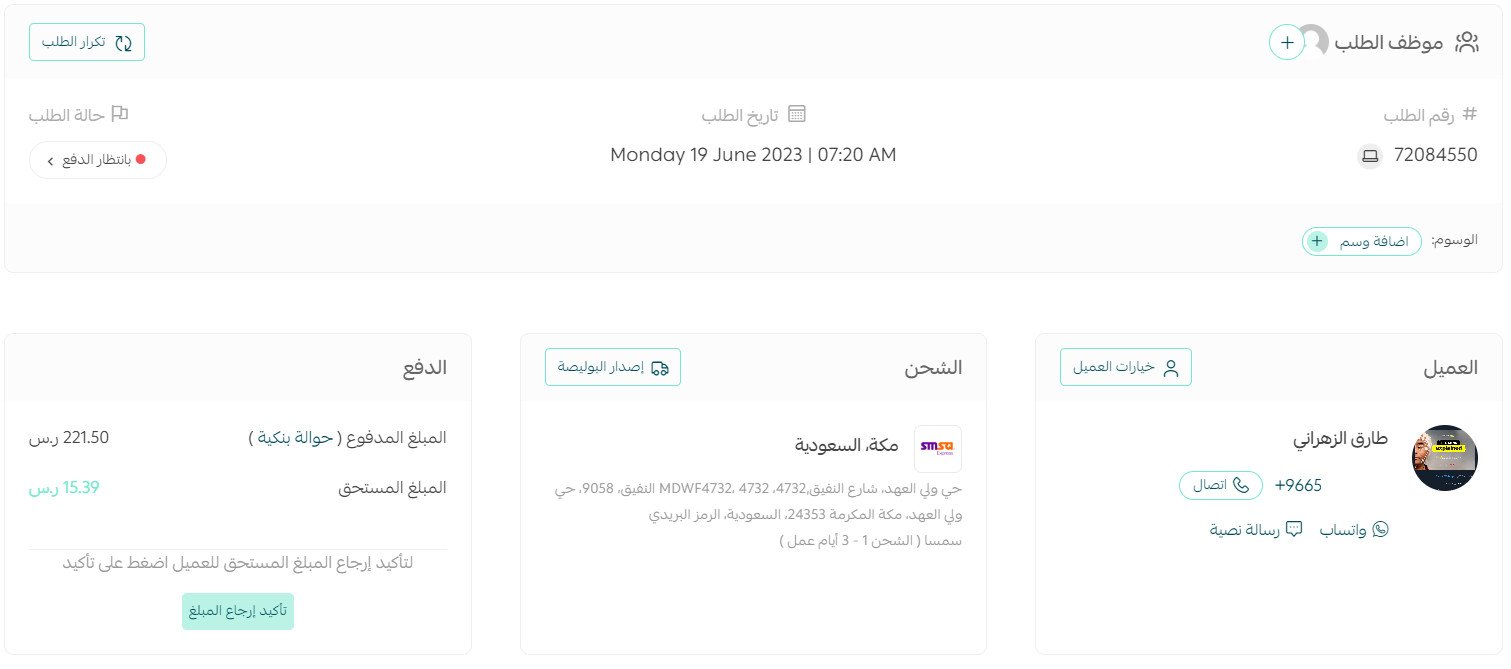
At this stage, check the customer, payment, and shipping details, and confirm that the products ordered are in stock.
3. Preparing the order
Start by picking the products and packing the order. Choose the packaging based on what the product is and how fragile it is, and take the quality of the packing seriously — it is what protects the order in transit and keeps it from coming back damaged. At the same time, keep the packed size as small as you can. Oversized packaging raises your shipping cost, especially with carriers that charge on volumetric weight.
For more detail, see volumetric weight in shipping and how it is calculated.
We recommend using Salla's discounted waybills. They let you issue a batch of prepaid waybills at competitive rates without committing to a set number of shipments.
Aramex provides packaging materials free of charge — their shipping boxes, bags, and envelopes — delivered to your premises.
To request them, contact the carrier by email, state the quantity of packaging materials you need, include the store number shown on the waybill under (Account), add your contact details, and include the Salla account number 165623.
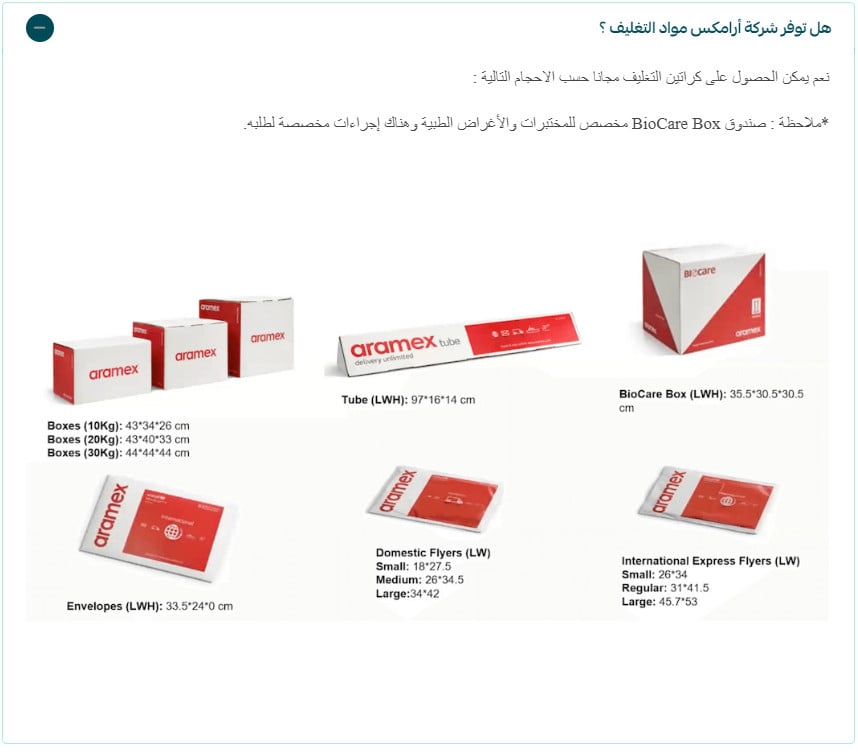
📝 Note: request packaging materials using the template shown here.
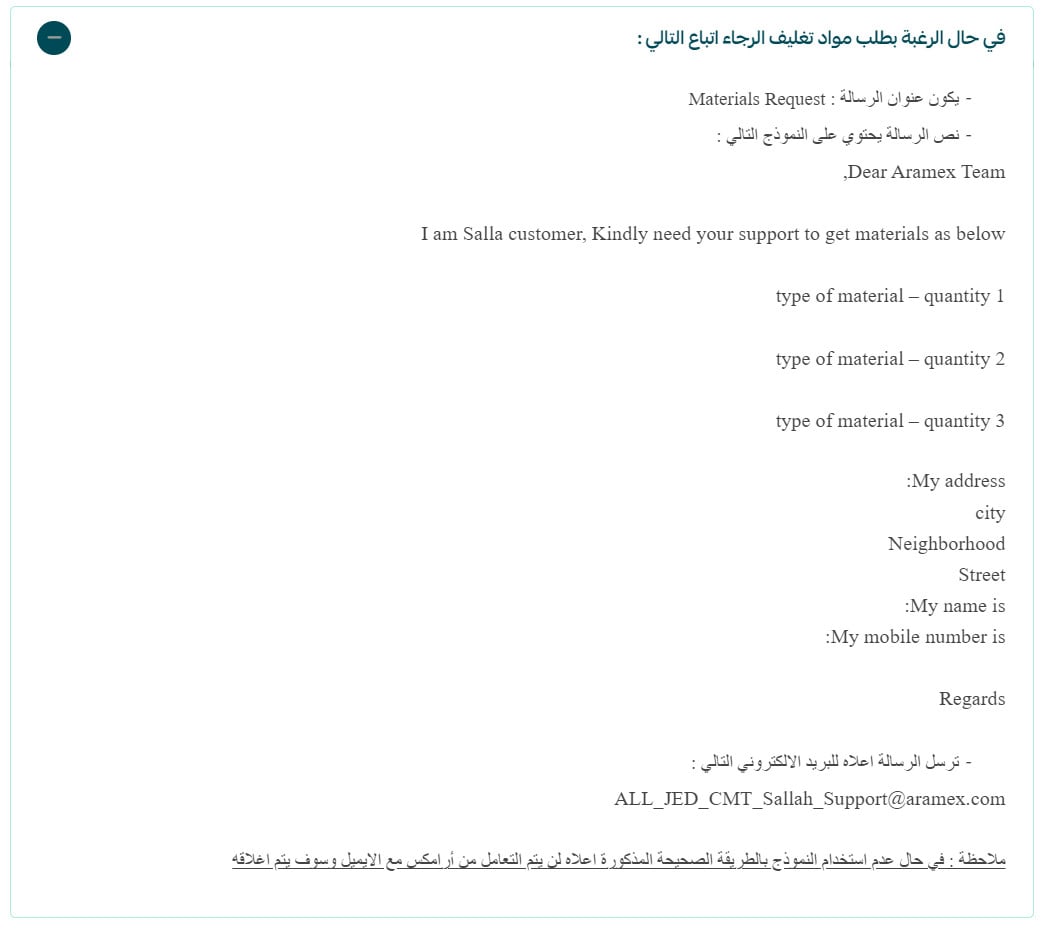
If the template is not used correctly, Aramex will not action the email and will close it.
For more detail, see how to make the most of Salla waybills.
It is also worth adding tags to the order. Order tags help you group and organize orders that have something in common.

For more detail, see adding tags to an order.
4. Updating the order status
From the orders page, click the order whose status you want to change, then click the order status — in this example, click (In progress).

Choose the new status. You can also write a note for the customer and send them an alert about the change, then click (Update order status).
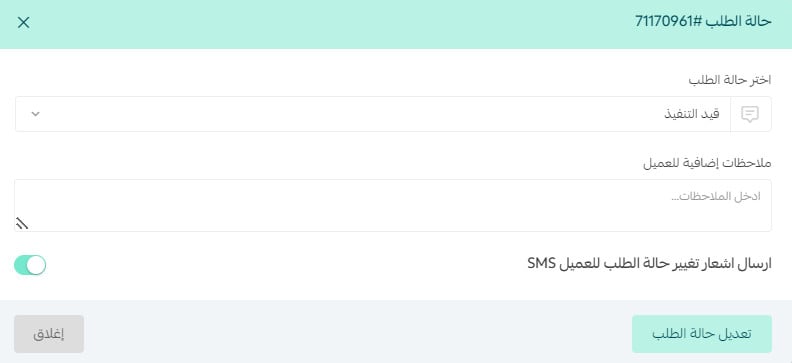
The customer gets a notification on every status change as long as you have turned on (Send SMS notification of order status change to the customer).
Anything you write in the (Additional notes for the customer) field is included in that text message. A note might tell the customer when to expect the shipment, or simply that their product is packed and on its way.
For more detail, see order control options.
5. Printing the waybill
To issue a waybill for an order, follow these steps.
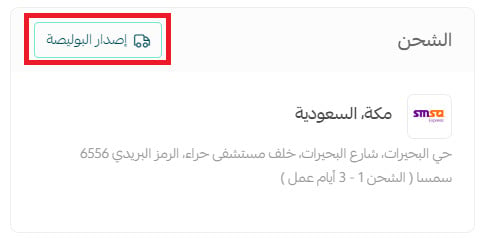
From the order page, click (Issue waybill).
Once you have chosen the branch and set the waybill details, the request goes to the carrier to issue it. Make sure your wallet has enough balance to cover it.
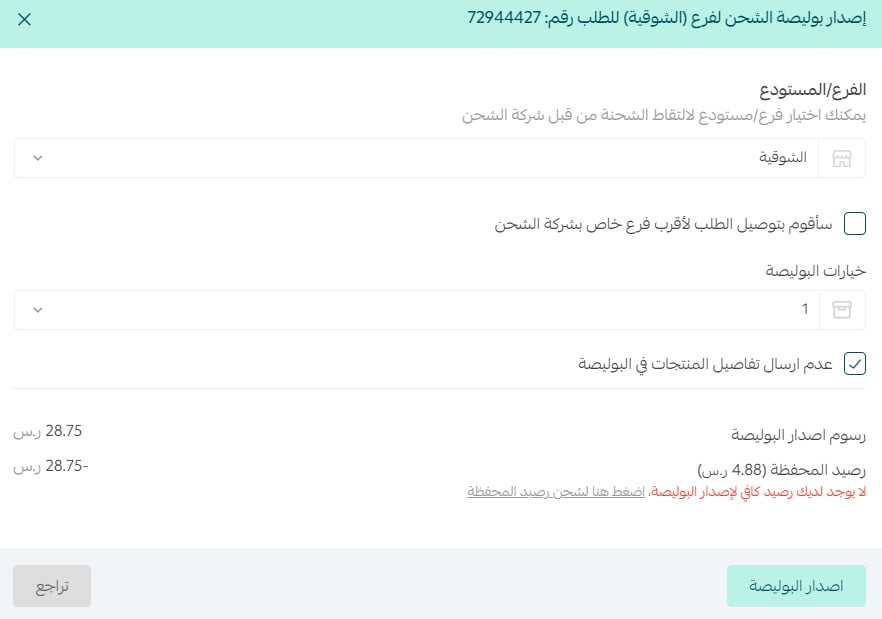
For more detail, see wallet and invoices.
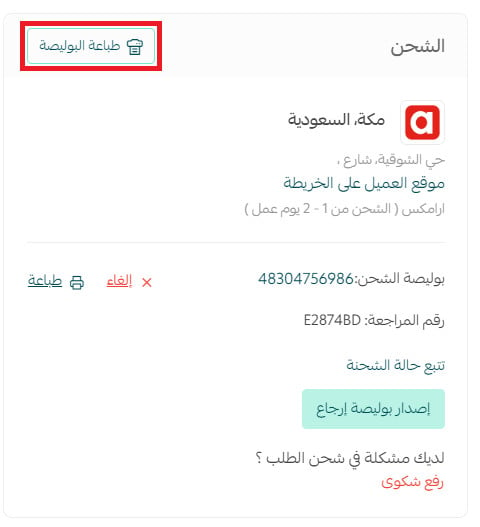
To print the waybill:
From the orders page, click the order you want to print the waybill for, then click (Print waybill).
The printed waybill looks something like this:
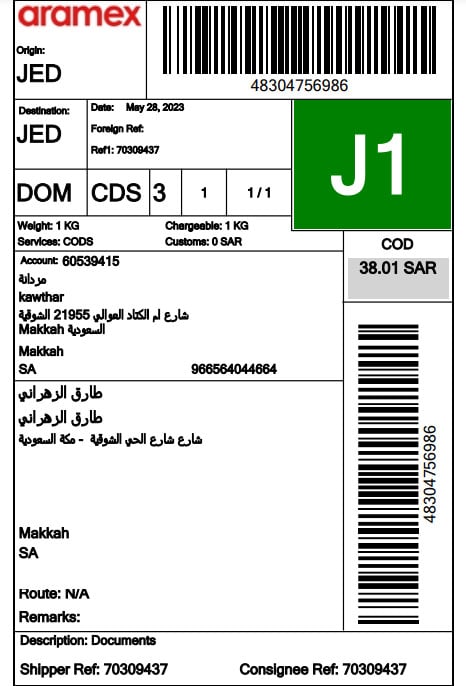
Once it is printed, stick it to the outside of the packaging.
📝 Note: a label printer is worth having at this stage. It works out cheaper than printing waybills on a regular printer.
For more detail, see:
- How to make the most of Salla waybills
- Shipping waybills step by step
6. Handing the shipment to the carrier
With the order packed and the waybill attached to the outer packaging, check whether the carrier covers your area. That decides whether they send a courier to collect the order or you drop it off at the nearest branch.
The carriers available through Salla waybills offer different collection options. For example:
- Aramex and AyMakan give you two options: drop off at a branch, or door to door.
- SMSA, SPL, and DHL offer drop off at a branch.
For more detail, see how to make the most of Salla waybills.
Following the delivery yourself
From the order details page, you can check whether the customer has received the order by clicking (Track shipment status).
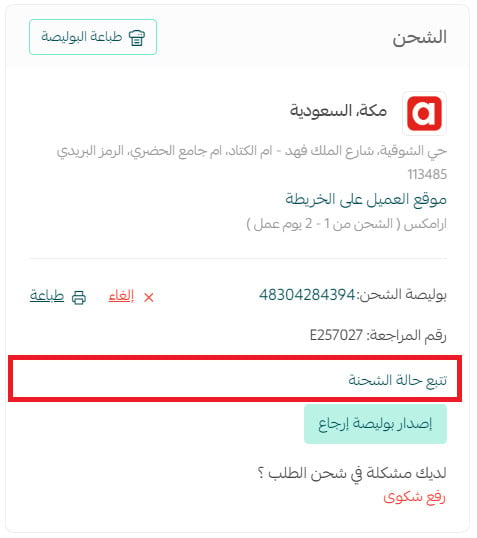
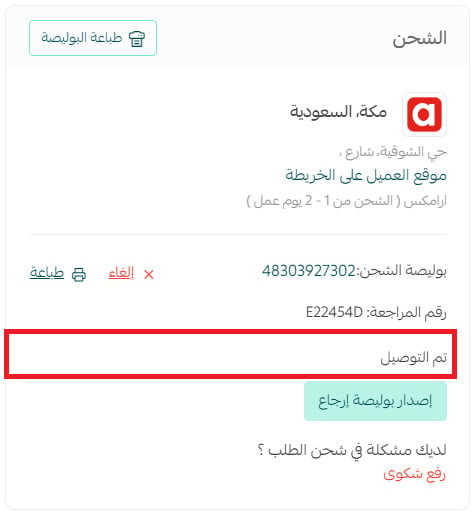
The delivery status then appears.
The customer can track the order too, either from the tracking message the carrier sends them, or from their account in the orders page.
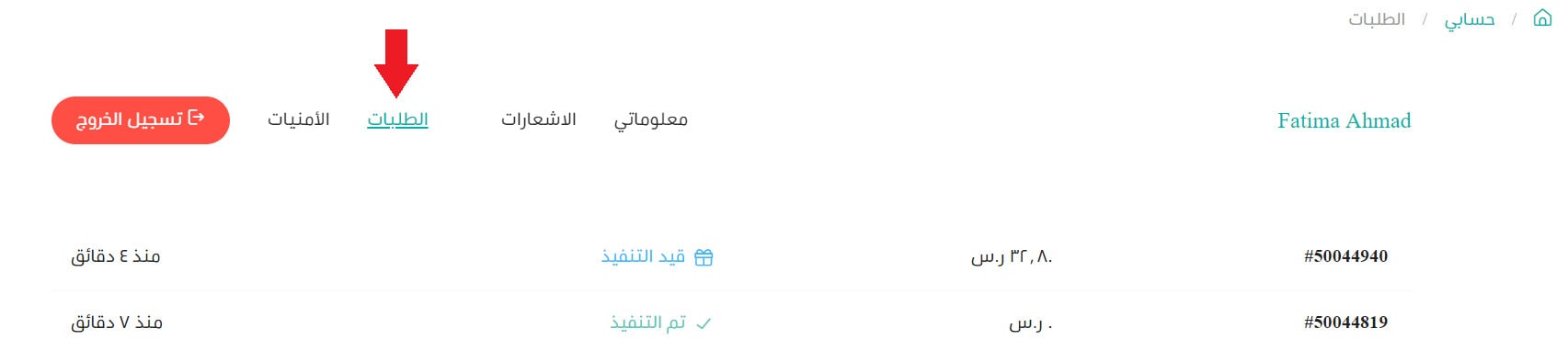
They then click (Track order) and are taken straight to the carrier to follow their shipment.

In the store app:
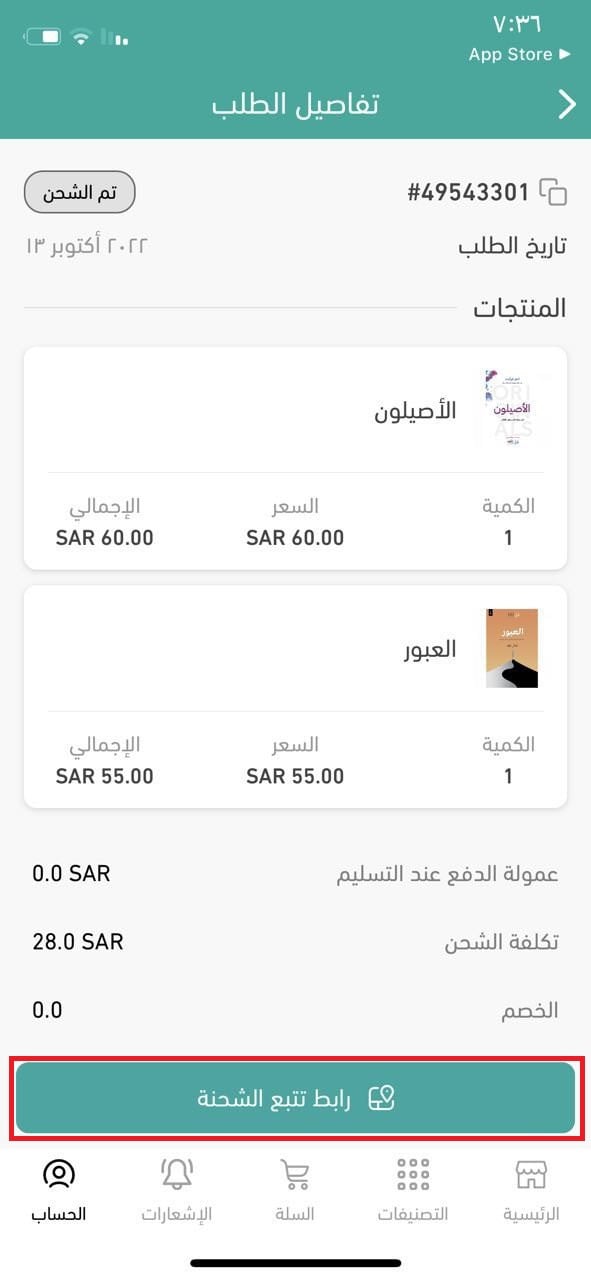
📝 Important notes
- Order tracking is not available in the older themes (Tayf, Lomar, Hemma, Baraah, Rafal, Tala).
- The tracking icon is not supported when the carrier or courier has been entered manually in the store.
- Shipment information appears on the customer's order page once the order status changes to shipped, out for delivery, or delivered.
7. The customer receives the order
To build trust in your store, strengthen your social proof, and give yourself something to improve on, encourage your existing customers to rate your store or product with short, simple reviews.
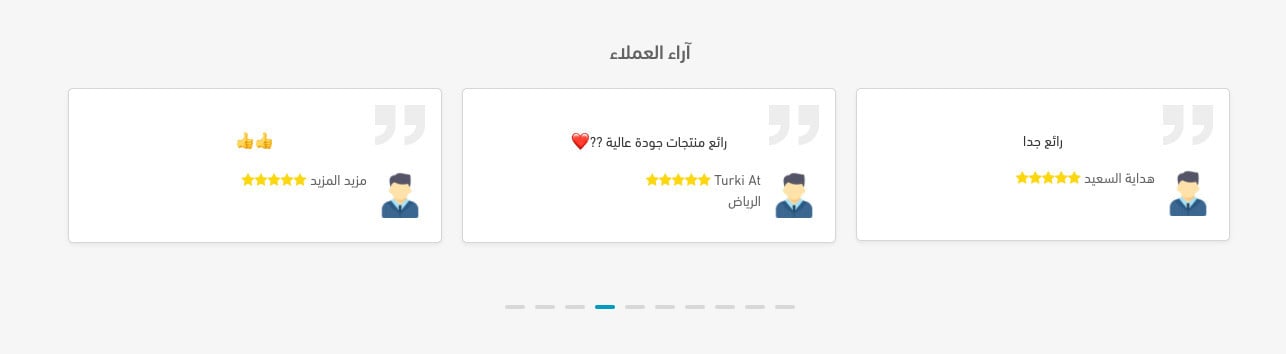
For more detail, see building trust in your online store with social proof.
You can ask customers to rate the store, the products, and the carrier, and customize the review request for each one so it matches your store's identity and the kind of business you run.
For more detail, see setting up reviews.
For reviews to appear on your store's home page, add the reviews component to the theme your store is using.

For more detail, see customizing the home page.
Finally, follow your store's performance in the reports
Open the reports page in your store dashboard.
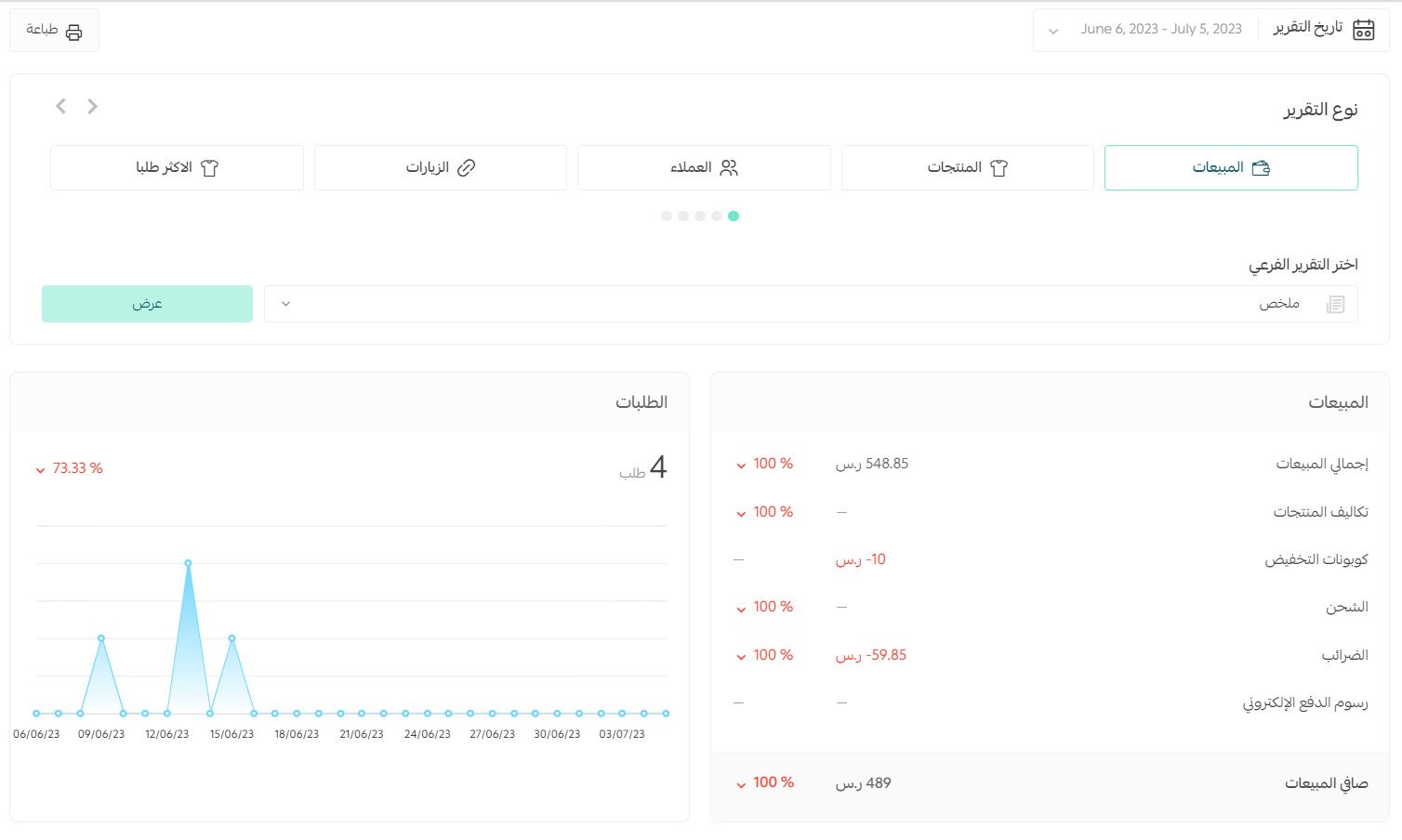
For more detail, see viewing and printing reports.
❓ Frequently asked questions
Which channels can orders come from?
Your store, your store app, Mahally, and orders you enter manually in the dashboard.
Does the customer know when I change the order status?
Yes, if you have turned on the SMS notification for order status changes. Anything you write in the additional notes field is sent with it.
Why can't I issue a waybill?
Check your wallet balance. A waybill can only be issued when the wallet has enough funds to cover it.
Will the carrier collect the order from me?
That depends on the carrier and whether it covers your area. Aramex and AyMakan offer both branch drop-off and door-to-door collection, while SMSA, SPL, and DHL are branch drop-off.
Why is order tracking missing from my store?
Tracking is not available in the older themes, and it is not supported when the carrier or courier was entered manually on the order.
Handled as a sequence rather than a pile of tasks, order management stops being firefighting. Each stage has one tool and one decision, and the reports at the end tell you which stage needs your attention next.