Many merchants face the issue of all shipping companies appearing to customers at checkout, even when some carriers are not suitable for certain products, order values, or delivery conditions. This can lead to unexpected costs, delivery issues, and a poor customer experience.
In this article, you’ll learn how to smartly configure shipping restrictions so that only the most suitable shipping companies appear to customers, helping you control costs and improve the checkout experience.
📌Article overview
- Steps to add shipping company restrictions
- Frequently asked questions
Steps to add shipping company restrictions
Follow these steps to create and manage shipping restrictions in your Salla store:
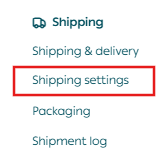
- From the All menu, go to Shipping, then click Shipping Settings.
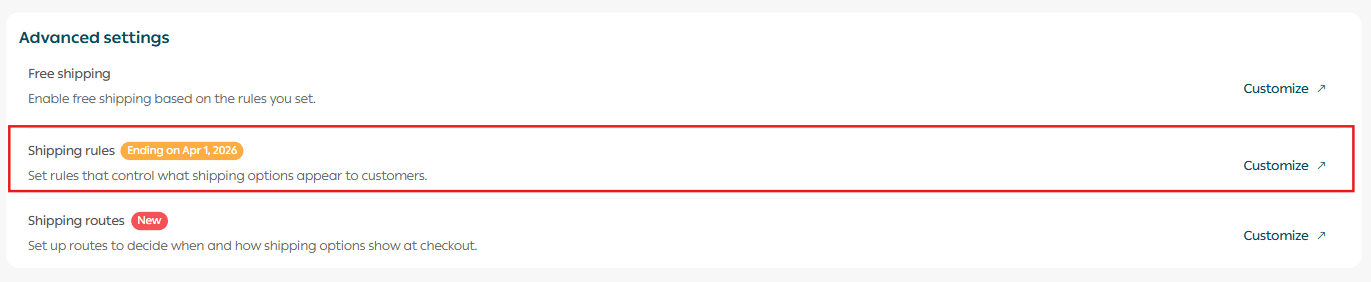
2. Open the Shipping Restrictions tab.
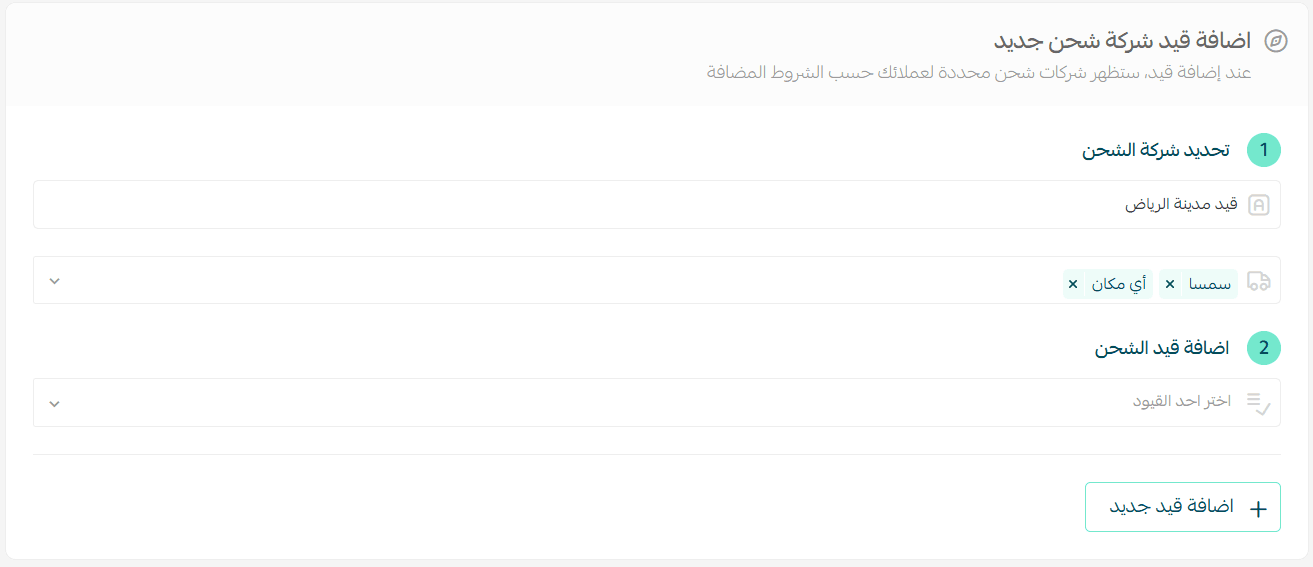
3. On the Shipping Restrictions page, click + Add New Restriction.

4. Enter the restriction details, then click Save.
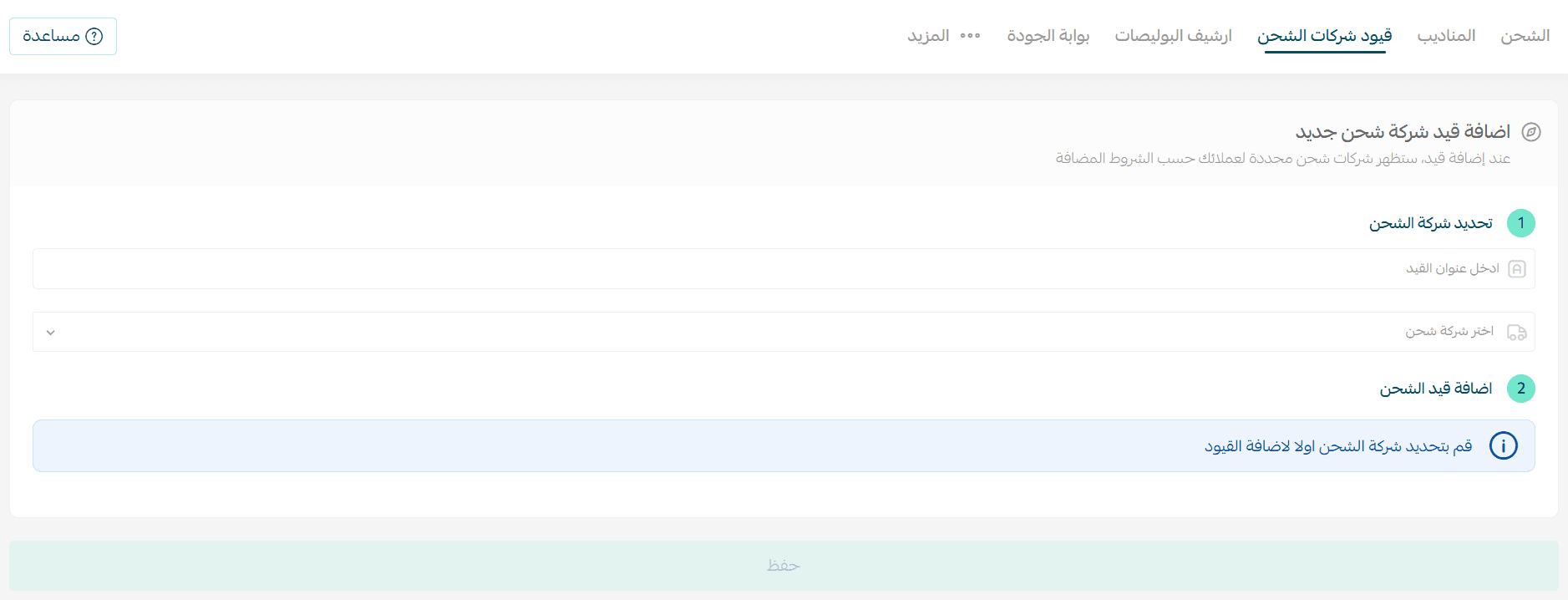
Step 1: Select the shipping company
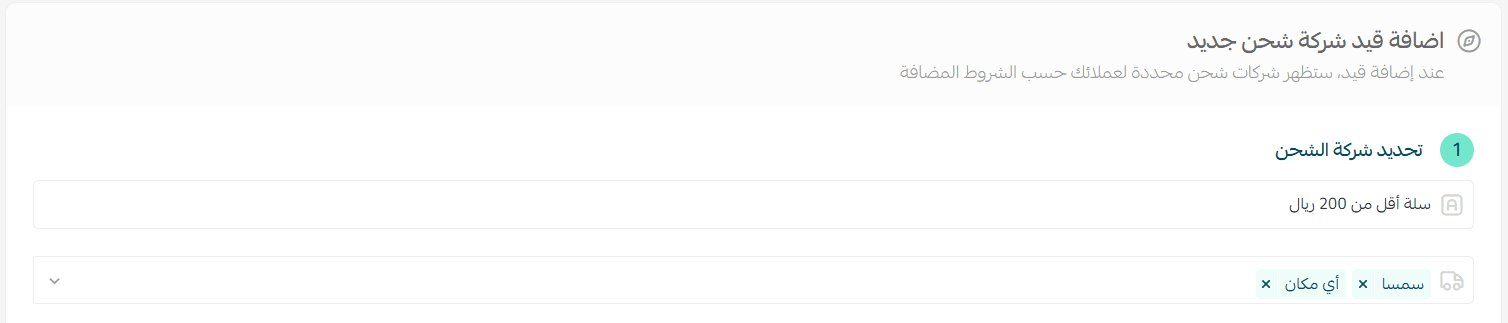
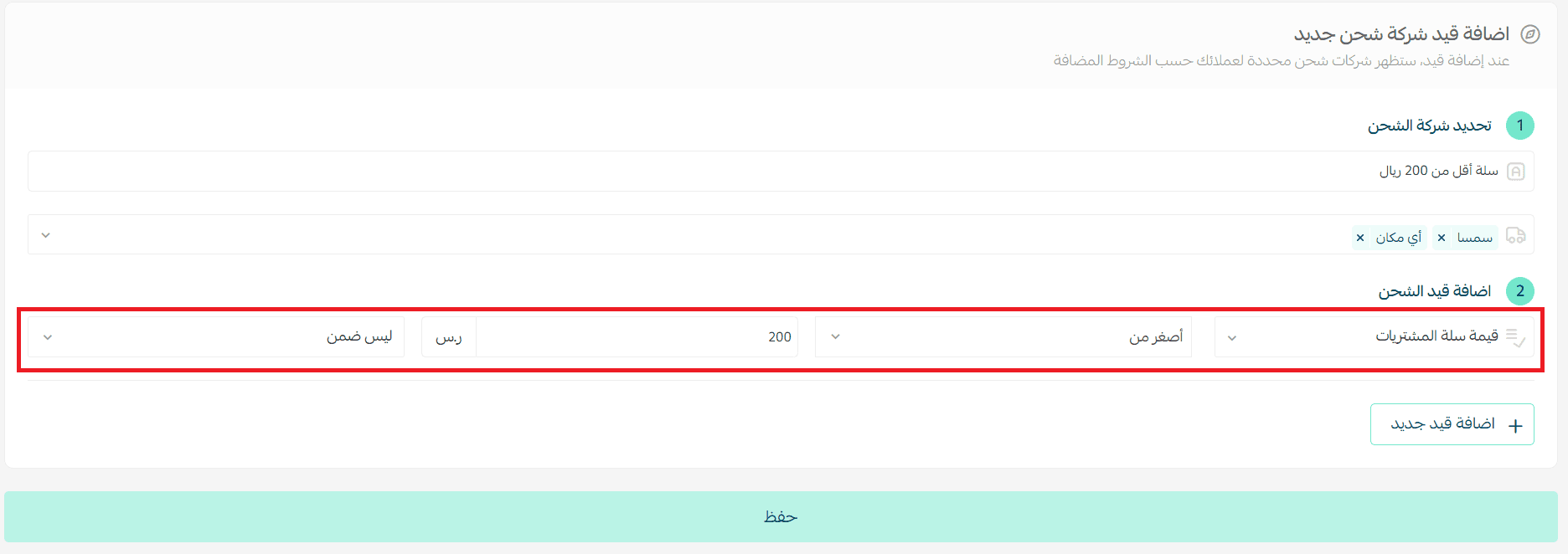
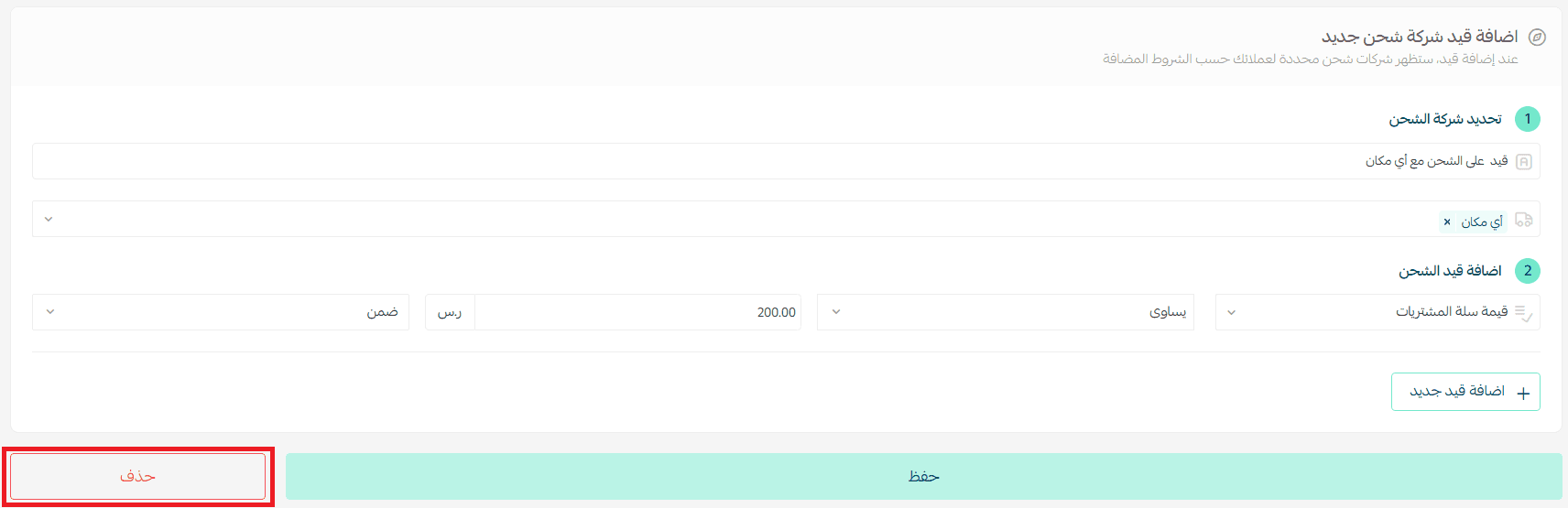
Example: You want to disable SMSA and AnyMakan when the cart value is less than SAR 200.
- Enter a restriction title.
Keep it short and clearly descriptive of the restriction condition.
2. Select the shipping companies that the restriction will apply to
(for example: AyMakan and SMSA).
Step 2: Add the restriction condition
Add the restriction by selecting:
- Restriction type
- Restriction condition
In our example, If the cart total reaches SAR 200, and one of the products is restricted with the condition Not Included for a specific shipping company, then those companies (AyMakan and SMSA) will be hidden from the shipping options, while other shipping companies will remain available.
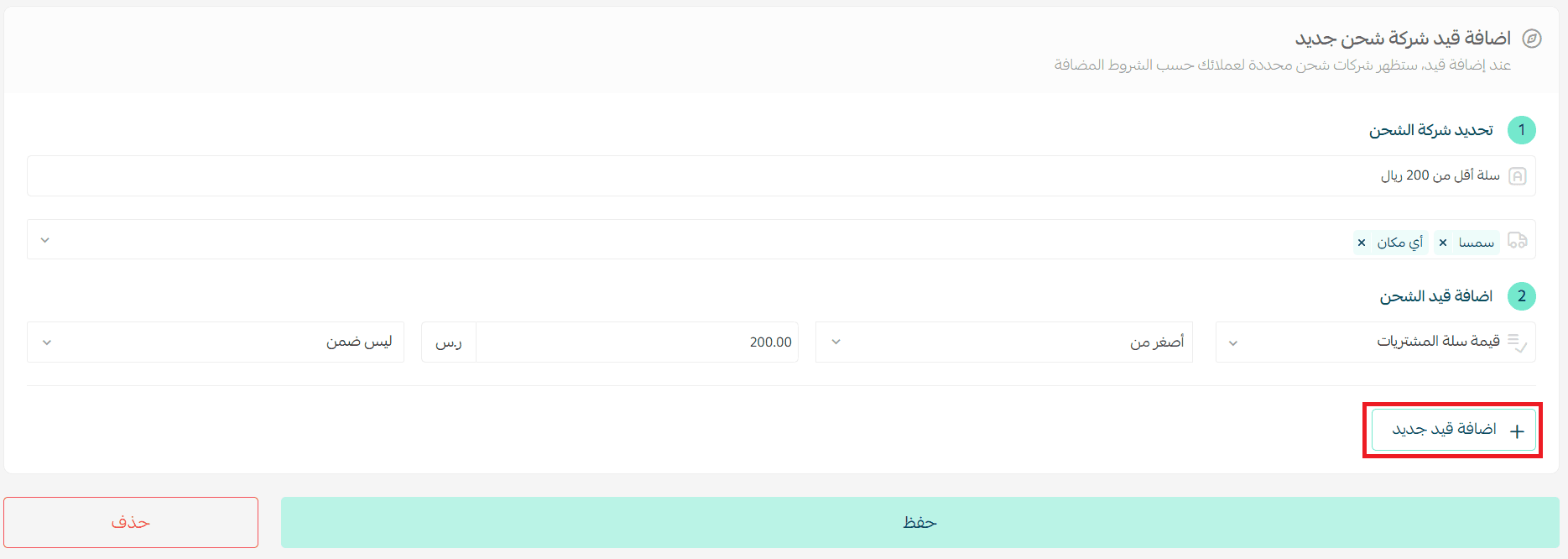
To add an additional condition to the same restriction, click + Add New Condition.
Available restriction types
You can choose from several restriction types, including (but not limited to):
- Cart value
- Cart weight
- Product category
- Specific products
- Delivery location (regions or areas)

These options allow you to build flexible and precise shipping rules tailored to your business needs.
Managing shipping restrictions
Edit a shipping restriction
From the restriction details page, edit the restriction settings and click Save.
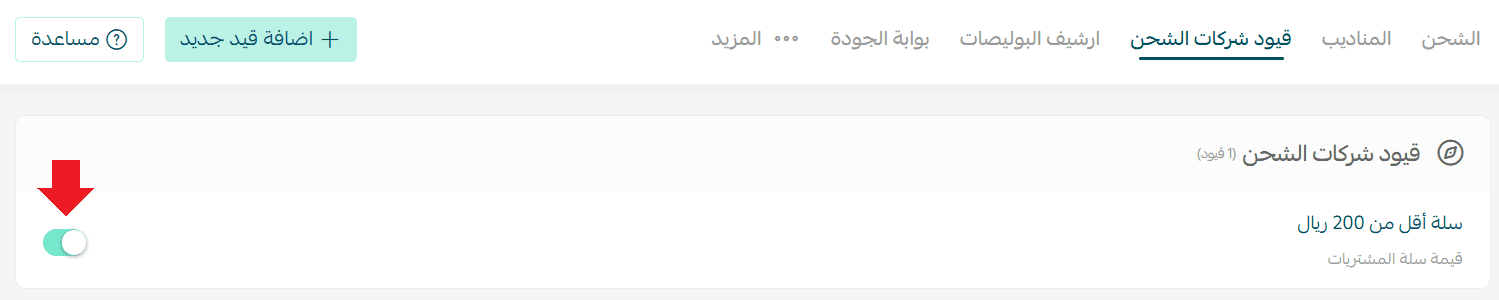
Disable a shipping restriction
From the Shipping Restrictions page, you can enable or disable a restriction without deleting it, allowing you to pause it temporarily.
Delete a shipping restriction
From the bottom of the restriction details page, click Delete.
Frequently asked questions
What is the difference between “Included” and “Not Included” when adding a restriction?
This mechanism acts as an additional condition on your shipping policy to provide more flexibility and customization.
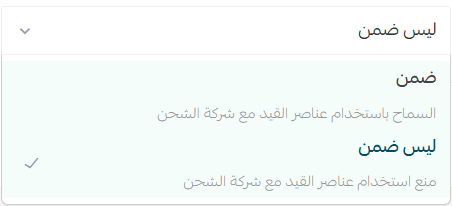
- Included: If the restriction condition is set to Included, the selected shipping company will be the only option shown to customers.
- Not Included: If the restriction condition is set to Not Included, the selected shipping company will be hidden, while all other shipping companies remain available.
In short:
- Included → show only the restricted company
- Not Included → hide the restricted company and show the others
How can I control which shipping companies appear in the cart?
You can control this using:
- Included conditions to limit checkout to specific shipping companies, or
- Not Included conditions to exclude certain companies from appearing.
You can modify these restrictions at any time.
How do I set a restriction based on cart weight?
Select the restriction type Cart Weight, then define the appropriate condition.

How do I restrict shipping companies based on product categories?
Product categories will only appear in restriction settings if categories already exist in your store.

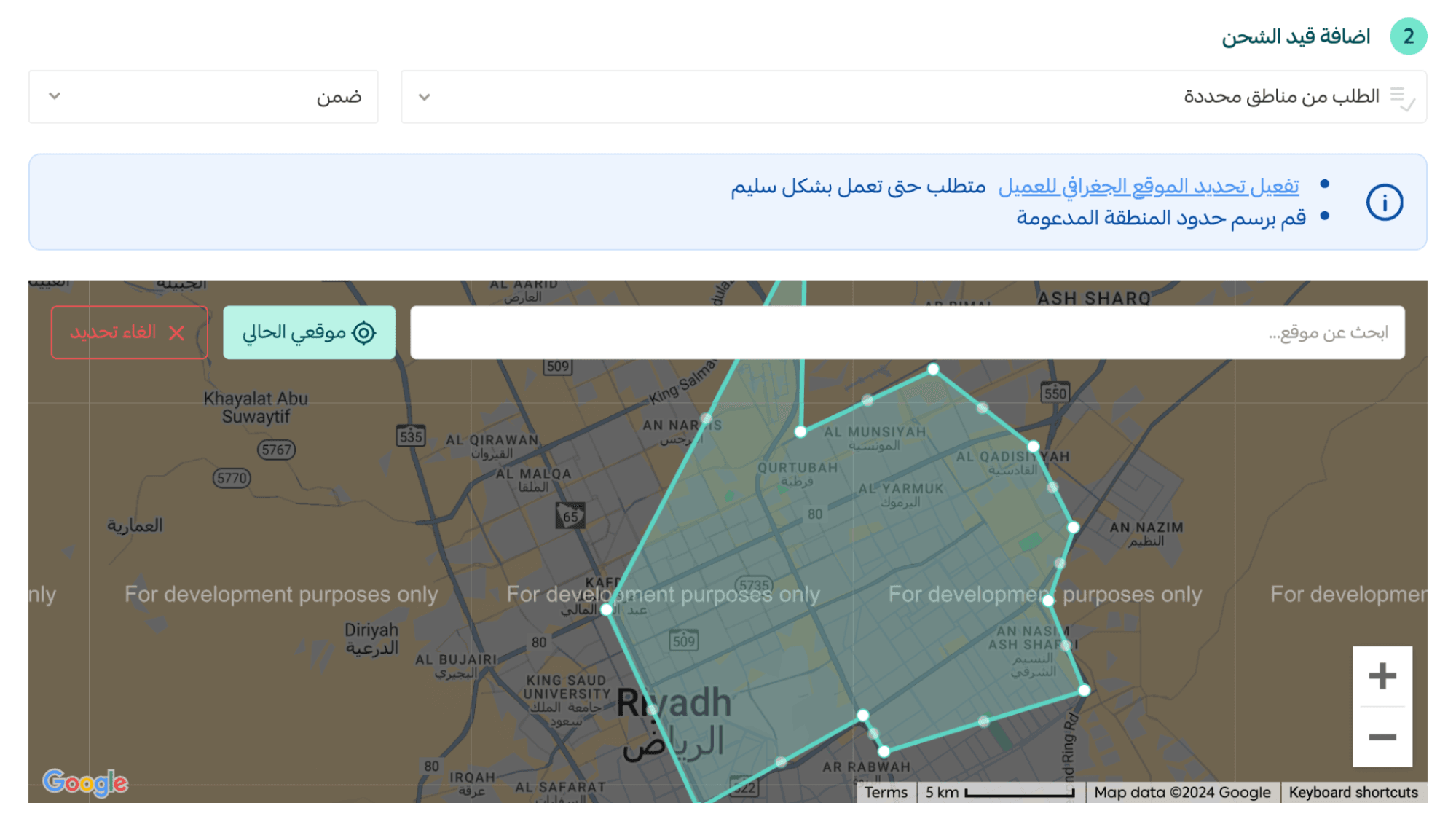
Can I define delivery areas using Google Maps?
Yes. This feature is available if customer location detection is enabled.
- Select the restriction type Orders from Specific Areas.
- Draw the target area directly on the map to define delivery boundaries.
Which plans support shipping restrictions?
Shipping restrictions are available on the Pro and Special plans.