Do you ship a single order from more than one branch?
When one order pulls stock from two or three branches, it stops being one shipment and becomes several. Salla handles multiple shipments per order by splitting the order into separate shipments, one for each branch, so labels, carriers, and delivery methods stay straight instead of tangled together. In this guide, you'll learn what changes on the order details page and how to view, issue, and edit each shipment on its own.
When an order's products ship from more than one branch, Salla creates a separate shipment for each. The order details page shows each shipment's products, the full order summary, and the shipping labels table. Use the (...) menu beside a shipment to issue its label or edit its shipping details.
📌 Article overview
- What changes when an order has multiple shipments
- The products in each shipment
- The full order summary
- The shipping labels table
- Issuing a shipping label for each shipment
- Editing a shipment's shipping details
- Frequently asked questions
🎯 What changes when an order has multiple shipments
As soon as you set an order's products to ship from several branches, Salla stops treating the order as one delivery and builds a shipment per branch.
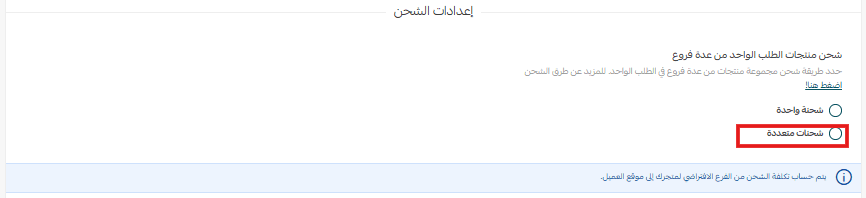
From that point on, the order details page gives you a set of views and controls for the order as a whole and for every shipment inside it.
🔍 View the products in each shipment
The products bought from each branch sit in their own table, separate from the rest of the order. You can print the order list for a single branch's products without printing the whole order.
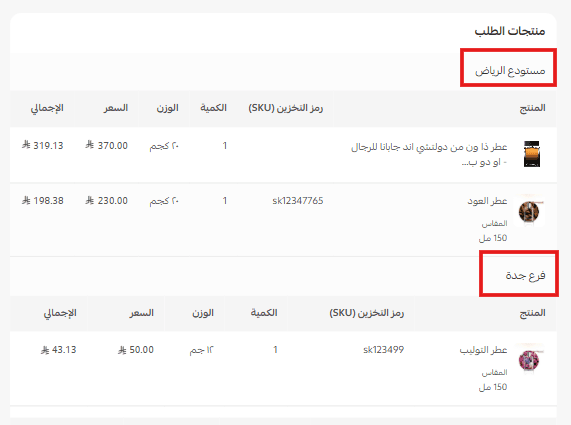
View the full order summary
Alongside the per-shipment tables, the page keeps a summary of the complete order, so you can still read it as one purchase rather than a set of parts.
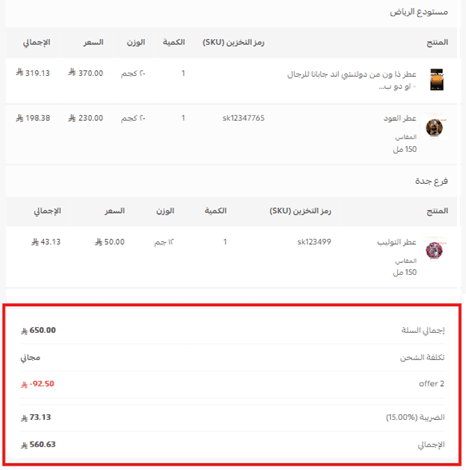
View the shipping labels table
Every label issued for the order is listed in one table, so you can see at a glance which shipments already have a label and which are still waiting.

👣 Issue a shipping label for each shipment
Each shipment travels from its own branch to the customer, so each one needs its own label.
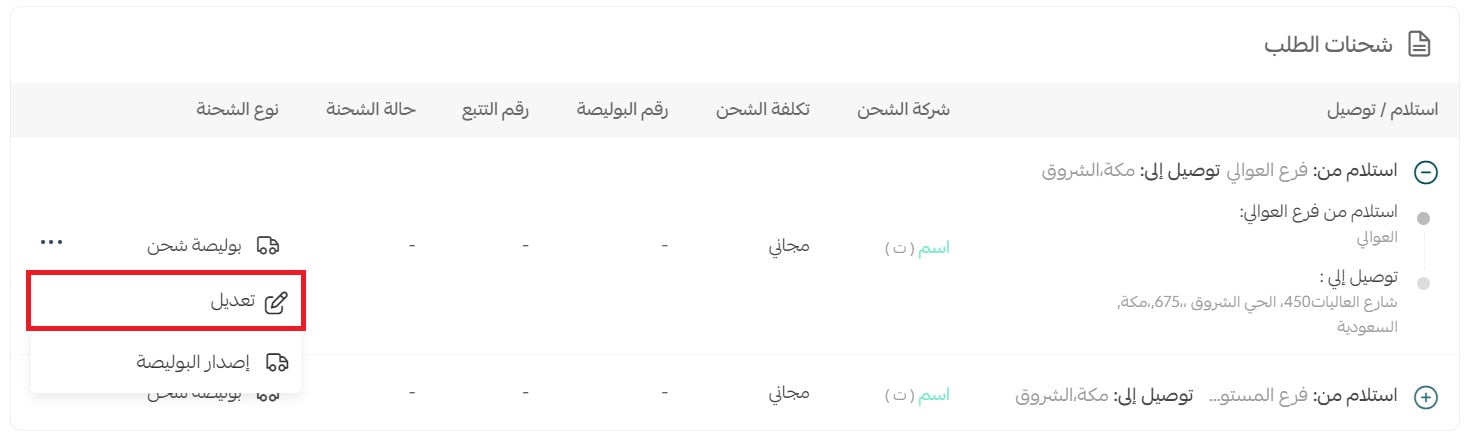
1. Click (...) next to the shipment you want to ship.
2. Click (Issue label).
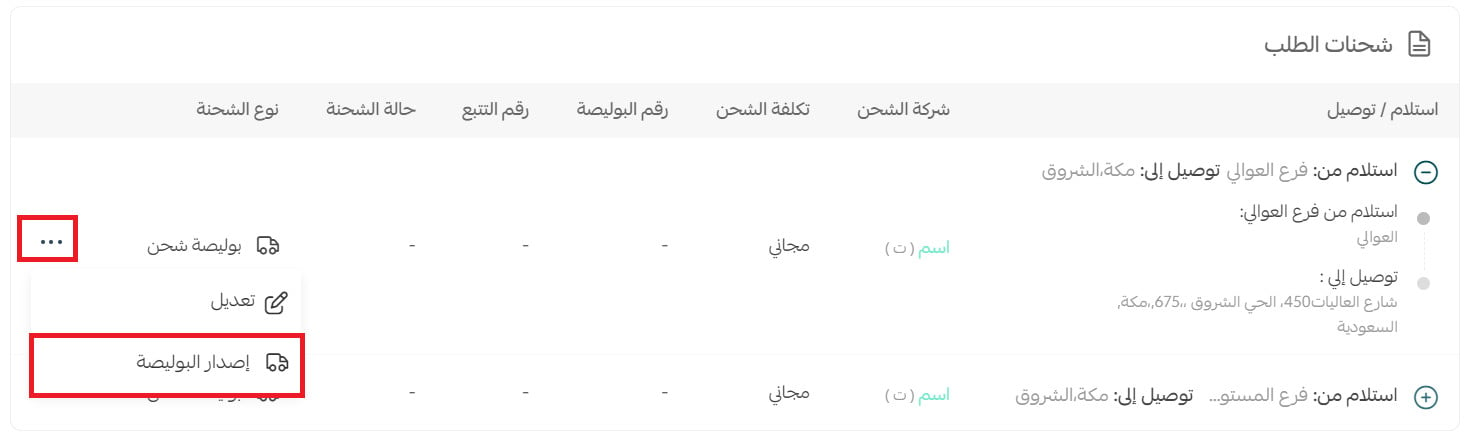
Repeat for the other shipments, and the order ends up with several labels, one per branch.
👣 Edit a shipment's shipping details
You can change how an individual shipment reaches the customer without touching the rest of the order.
1. Click (...) next to the shipment, then click (Edit).
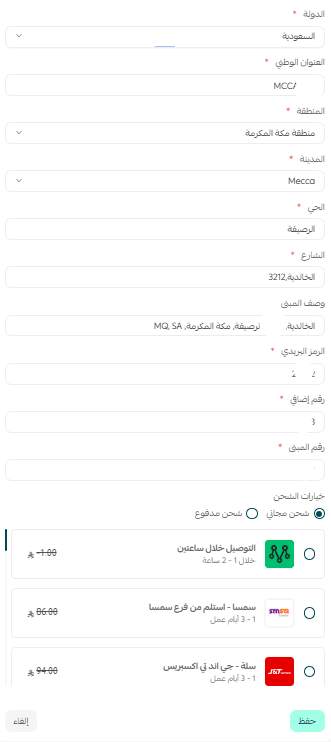
2. Change the shipping company or the shipping option, then click (Save).
📝 Important notes
An order does not mix delivery and pickup from branch on its own. The only way one order ends up holding both a delivery shipment and a pickup shipment is if you change a shipment's shipping option yourself from the (Edit) window.
Editing one shipment leaves the other shipments in the order as they are.
Frequently asked questions
❓ Why does one order show more than one shipment?
Because its products are being sent from more than one branch. Salla groups the products by branch and creates a shipment for each group.
❓ Can I print the product list for a single branch?
Yes. Each branch's products are shown in their own table, and you can print the order list for that branch's products separately.
❓ Do I issue one label for the whole order?
No. Labels are issued per shipment. Open the (...) menu beside each shipment and issue its label, and all of them appear together in the shipping labels table.
❓ Can one order contain both a delivery and a pickup from branch?
Not by default. It happens only when you edit a shipment and switch its shipping option yourself.
❓ Can I change the shipping company after the order is placed?
Yes. Click (...) next to the shipment, click (Edit), pick a different shipping company or shipping option, then click (Save).
Splitting an order across branches only pays off if you can act on each part separately. Handle every shipment on its own and the order moves as fast as your quickest branch, not as slowly as your busiest one.