Is the stock in each of your branches as accurate as it should be?
Setting product availability and quantities per branch is what keeps fulfillment smooth and deliveries on time, with less manual work behind the scenes. Managing product quantities across branches in Salla gives you precise control over your stock and makes sure every order is routed to the branch that can actually fulfill it — no manual intervention needed. In this guide, you'll learn how to set quantities for each branch and how to do the same for individual product options.
Branch quantity management lets you record how many units of a product each store branch holds. Open the product from your products list, click the Quantities tab, and enter a number for every active branch. If the product has options, you can set a separate quantity per option, per branch, from the Options tab.
📌 Article overview
- How to edit product quantities across your store branches
- How to set the quantity for each product option
- Frequently asked questions
👣 How to edit product quantities across your store branches
1. From the products page, click the product you want to update to open its details page.
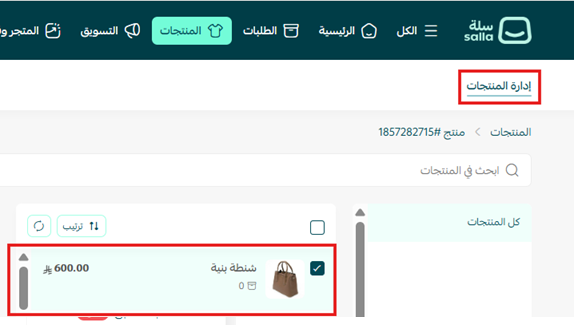
2. On the product details page, click (Quantities), then set the quantity for every branch that is active in your store.
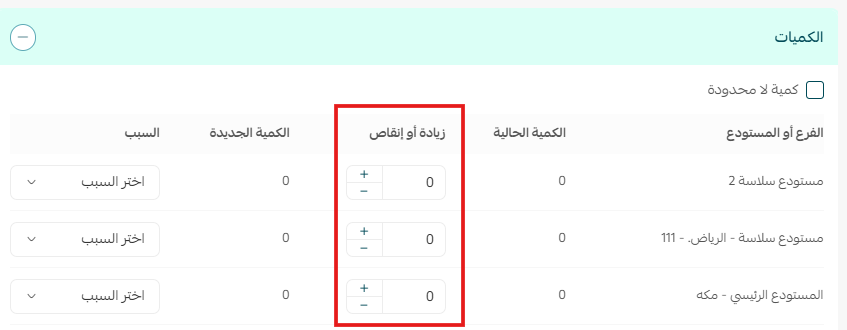
For more details, see setting up your store's branches and warehouses.
How to set the quantity for each product option
🎯 When a product has options, you can record the quantity of each option separately across your store's branches and warehouses.
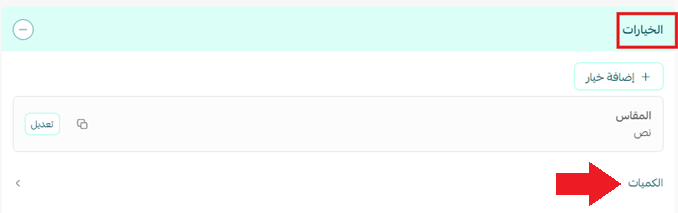
1. From the product details page, click (Options), then click (Quantities).
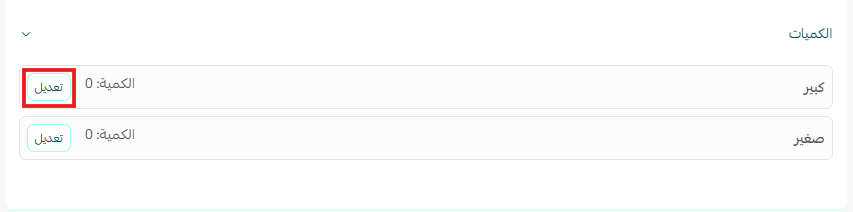
2. Click (Edit) next to each option, then set the quantity for each branch.
📝 Important notes
Only branches that are active in your store appear in the quantities list, so activate a branch before you try to assign stock to it.
Quantities set at the option level are what the store uses for products that have options, so keep them updated alongside the product itself.
Frequently asked questions
❓ Which plan includes managing product quantities by branch?
It is available free of charge to stores on the Special plan only.
❓ Where do I set the quantity for a branch?
Open the product from the products page, then use the Quantities tab on the product details page. Each active branch gets its own quantity field.
❓ Can I set different quantities for each product option?
Yes. From the product details page, open the Options tab, click Quantities, then click Edit next to an option to set its quantity for each branch.
❓ Do I have to assign orders to a branch manually?
No. Once branch quantities are set, orders are routed to the correct branch without manual intervention.
Accurate branch quantities are what turn several locations into one reliable fulfillment network. Keep them current and every order goes to the branch that can actually ship it.