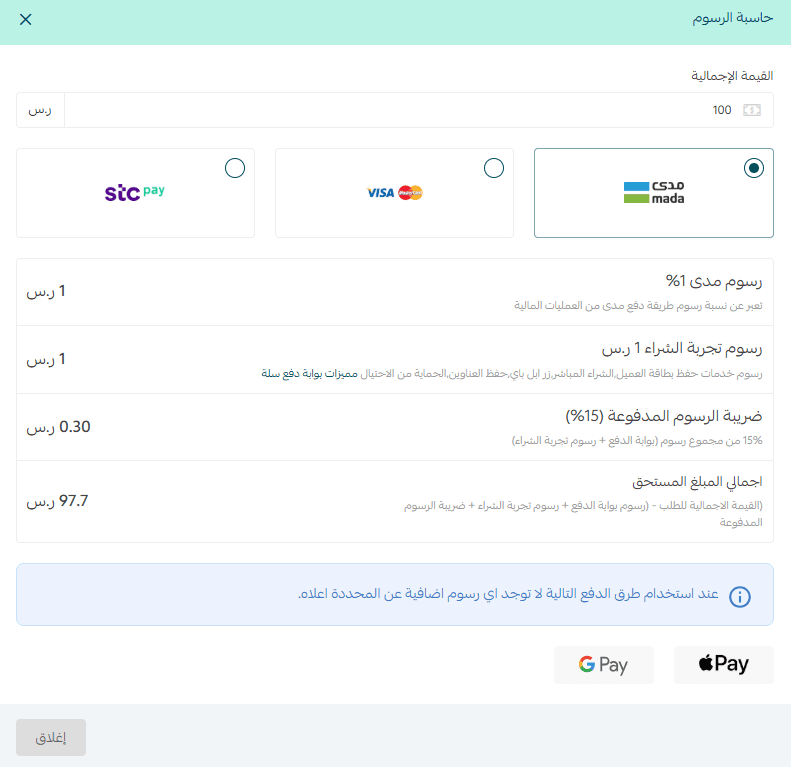
Are your customers finding it difficult to complete payments on Android devices?
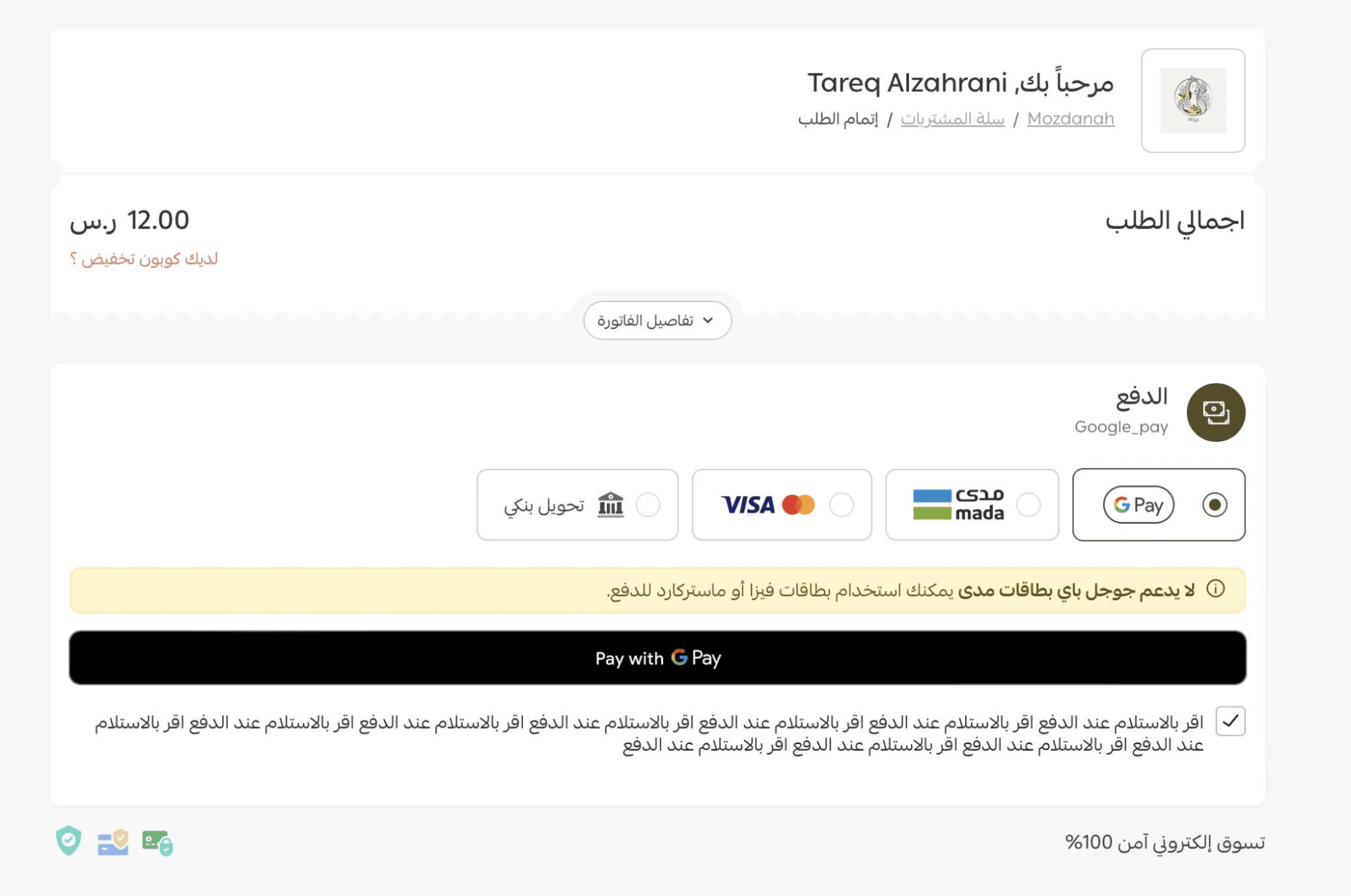
The solution is simple. By enabling Google Pay in your store, you can offer a faster, smoother checkout experience, allowing customers to pay instantly with just one tap.
In this guide, you’ll learn how to activate Google Pay step by step to simplify payments and boost customer satisfaction.
📌Article overview
- What is Google Pay?
- How to enable Google Pay in your store
- Frequently asked questions
Note: Google Pay is currently available only for stores in Saudi Arabia.
Google Pay
Google Pay is a digital payment method that allows customers using Android devices or supported desktop browsers to complete their purchase quickly with a single click.
It provides a secure and convenient checkout experience without requiring customers to manually enter card details every time.
How to enable Google Pay in your store
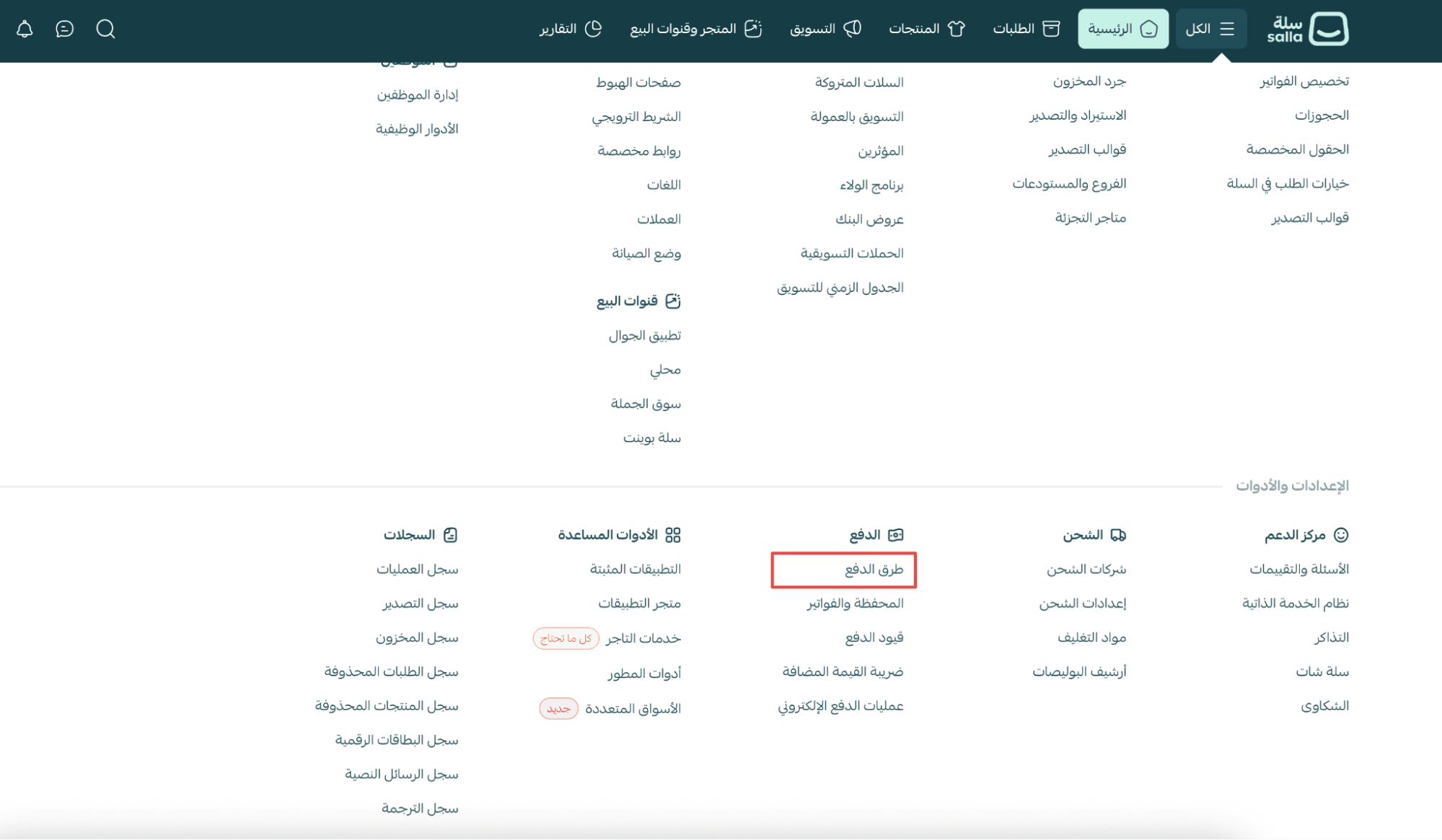
- From the main menu, open the All tab.
Under Settings & Tools, click Payment Methods.
2. In the Electronic Payments section, click Enabled Payment Methods.
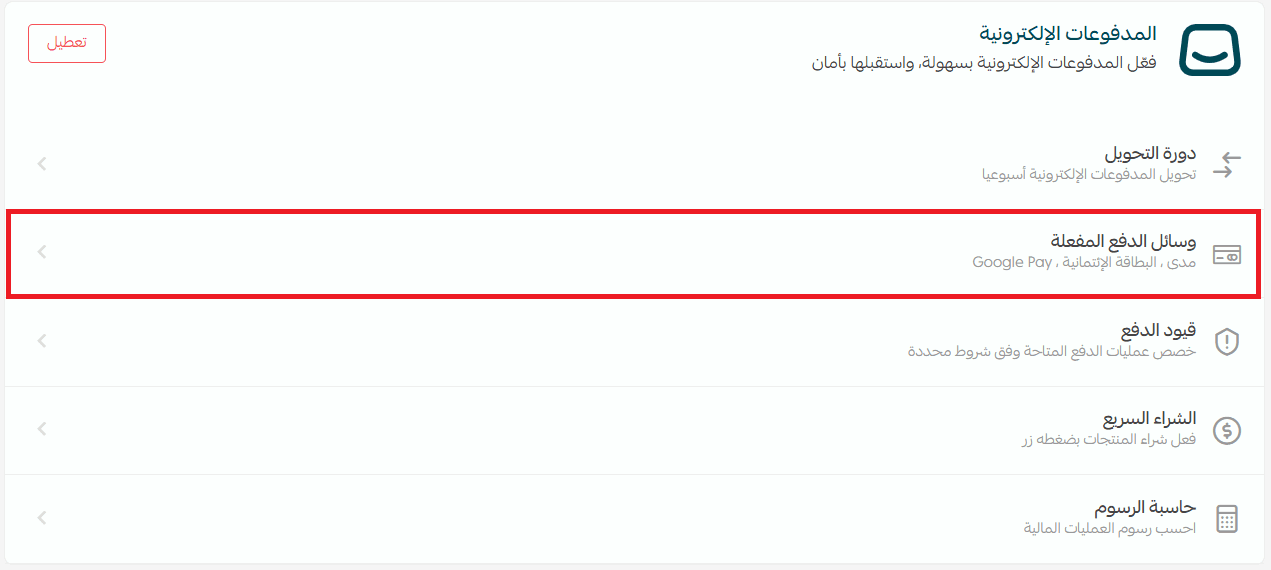
3. Turn on Google Pay from the available payment options.
4. Click Save.
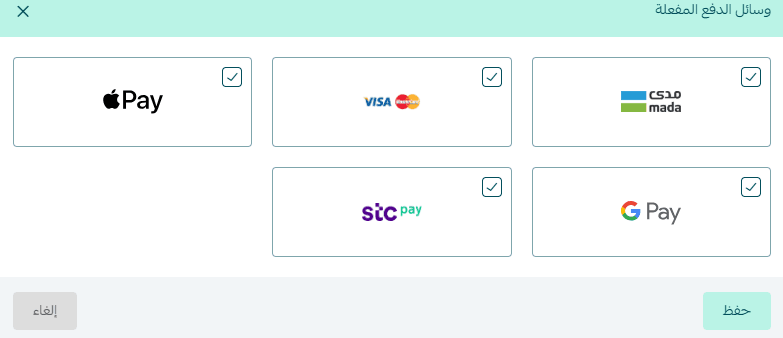
5. Once activated, Google Pay will appear as a payment option for eligible customers during checkout.
Frequently asked questions
What cards are supported by Google Pay?
At launch, Google Pay supports credit cards only and does not support Mada cards.
Is Google Pay available for all cart values?
Google Pay is available only for orders with a total value of SAR/AED 1,000 or less.
Example: If the cart total is SAR/AED 1,200, Google Pay will not appear as a payment option.
How can I report an issue enabling Google Pay?
If you experience any problems activating Google Pay, please contact Salla Customer Support.
For more details, see: How to communicate with the Salla Support Team effectively.
Is Google Pay supported on Apple devices?
No. Google Pay is not supported on Apple devices such as:
- iPhone
- iPad
- Mac
If a customer is shopping using an Apple device, Google Pay will not appear at checkout.
Do I need to create a Google Pay account?
No, merchants do not need to create a separate Google Pay account to enable this feature.
Does Google Pay charge extra fees for international orders?
No. Google Pay fees remain the same whether the order is inside or outside Saudi Arabia.
To calculate payment fees, you can use the Fees Calculator:
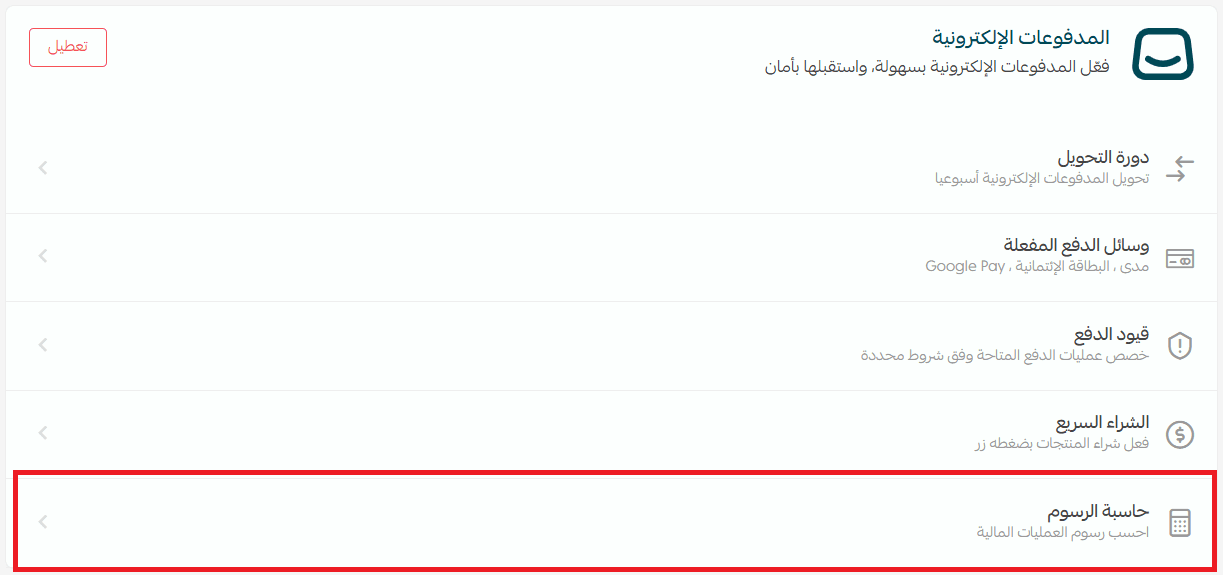
- Enter the order value
- Select Google Pay
The system will display the applicable transaction fees