Do your customers know which of your branches has the item they want?
A retail store works differently from a single-warehouse store: stock, pickup, and delivery all depend on which branch the customer is buying from. The retail store customer experience on Salla puts that choice in the shopper's hands, from the moment they land on the store to the moment they track the shipment. In this guide, you'll learn what your customers can see and control at every step of a retail purchase.
In a Salla retail store, the customer picks the country, city, or branch they're shopping from, chooses pickup from a branch at checkout, tracks each shipment separately in their order details, and checks whether a product is in stock at a specific branch before buying.
📌 Article overview
- Choosing a country, city, or branch
- Choosing pickup from a branch
- Seeing shipment details inside the order
- Checking whether a product is in stock
- Frequently asked questions
🎯 What shapes the retail store customer experience
Four things decide how smooth a retail purchase feels: where the customer is shopping from, how they want to receive the order, how clearly the order is broken down afterwards, and whether they can confirm stock before they commit. Salla covers all four.
👣 Choosing a country, city, or branch
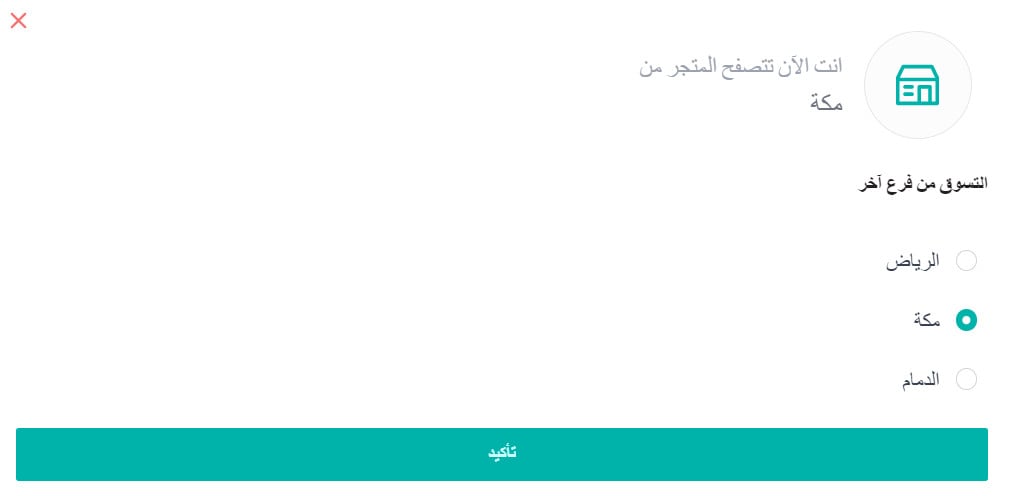
When a customer opens your store, they can set the country, city, or branch they want to buy from. Which of the three they're asked for depends on how you set up product display for the store.

They then pick the branch they want to shop from and click (Confirm).
👣 Choosing pickup from a branch
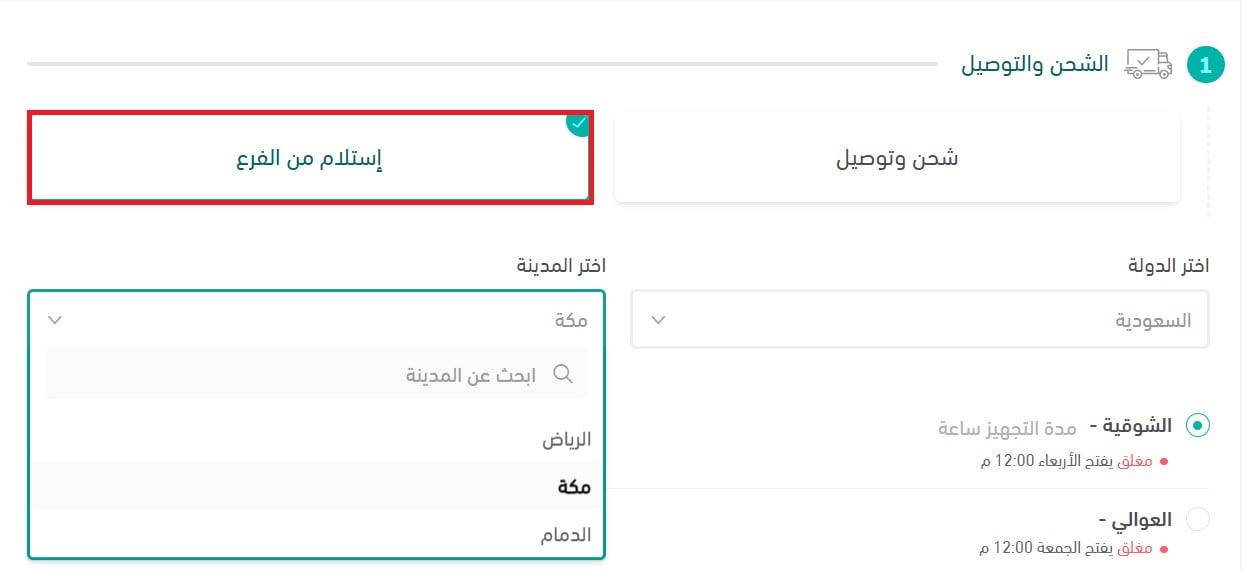
On the checkout page, the customer can choose pickup from branch instead of delivery, then select which branch to collect from. The choice is guided by two things: whether the products are in stock at that branch, and how close it is to them.
🎯 Seeing shipment details inside the order
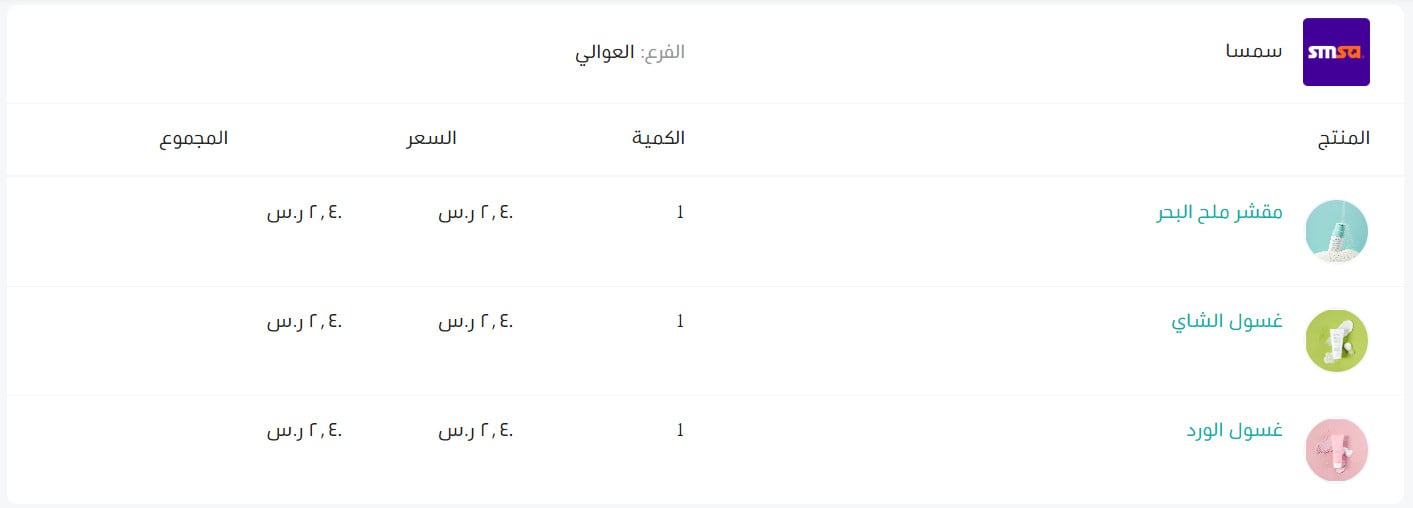
When an order is split across branches, the customer's order details page lists every shipment on its own. Each one shows:
- Shipping company
- Branch
- Products
- Quantities
- Price
- Total
Alongside those, the customer also sees:
- Waybill number
- Shipping status and shipment tracking
🔍 Checking whether a product is in stock
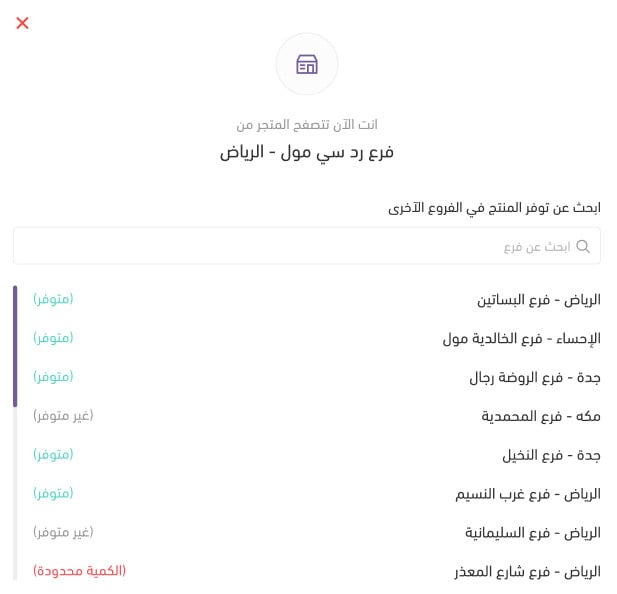
If you turn on the product availability check, an option to check stock appears on the product details page. The customer can look up the product across your branches, countries, or cities without leaving the page.
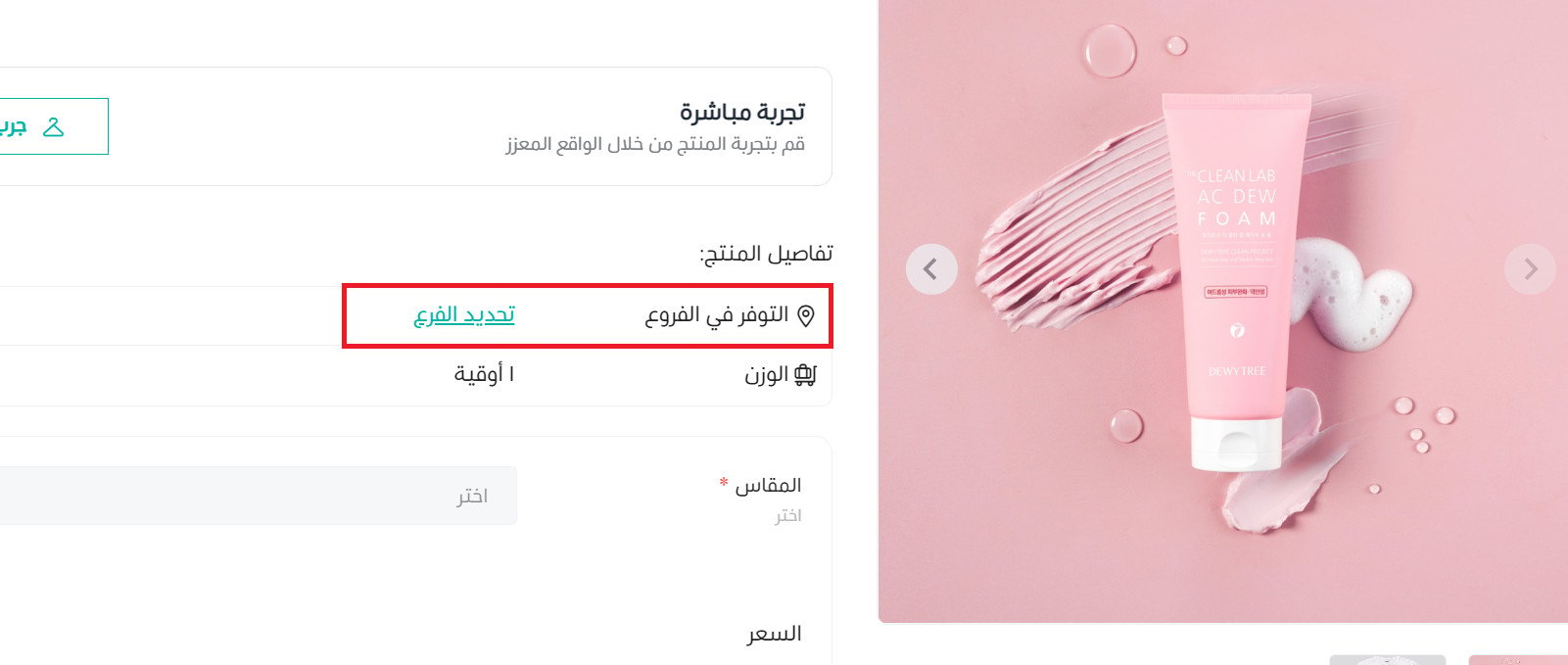
They then choose the branch where the product is available.
📝 Important notes
What the customer is asked to choose first, a country, a city, or a branch, follows the product display setup you chose for the store.
The stock check on the product page only appears if the product availability check is enabled.
Frequently asked questions
❓ How does a customer choose which branch they're shopping from?
They set it when they open the store, choosing a country, city, or branch and confirming it. What they're asked for depends on how product display is configured for the store.
❓ Can a customer collect an order from a branch instead of having it delivered?
Yes. On the checkout page they choose pickup from branch, then pick the branch that has the products and is closest to them.
❓ What does the customer see when an order ships from more than one branch?
Each shipment appears separately in their order details with the shipping company, the branch, the products, the quantities, the price, and the total, plus the waybill number and the shipping status.
❓ Can customers track their shipments themselves?
Yes. The order details page shows the waybill number and the shipping status, and the shipment can be tracked from there.
❓ Can a customer check stock at a specific branch before buying?
Yes, when the product availability check is enabled. The option sits on the product details page and covers your branches, countries, and cities.
Every one of these options removes a reason to abandon the purchase. The more your customer can see and decide for themselves, the less often they leave the store to go and ask.