What is Adjust?
Adjust is a mobile analytics and attribution platform that helps you track and measure the performance of your app marketing campaigns.
It allows you to understand where your users are coming from, how they behave inside your app, and connect your app with advertising platforms such as:
- Snapchat
- And more
📌 Article overview
- Benefits of integrating with Adjust
- Setup and configuration steps
- How to access integrations in Adjust
- How to connect a new partner
- Managing existing integrations
Benefits of using Adjust
When running app campaigns, you may face challenges like:
- Not knowing which campaign or platform brings the best users
- Difficulty tracking user behavior inside the app (visit → signup → purchase)
- Limited optimization due to not sharing data with advertising platforms
By integrating with Adjust, you can:
- Accurately measure campaign performance
- Identify top-performing traffic sources
- Share in-app user behavior with ad platforms to improve targeting
- Manage integrations, events, and data sharing easily from the Adjust dashboard.
Accessing Integrations in Adjust
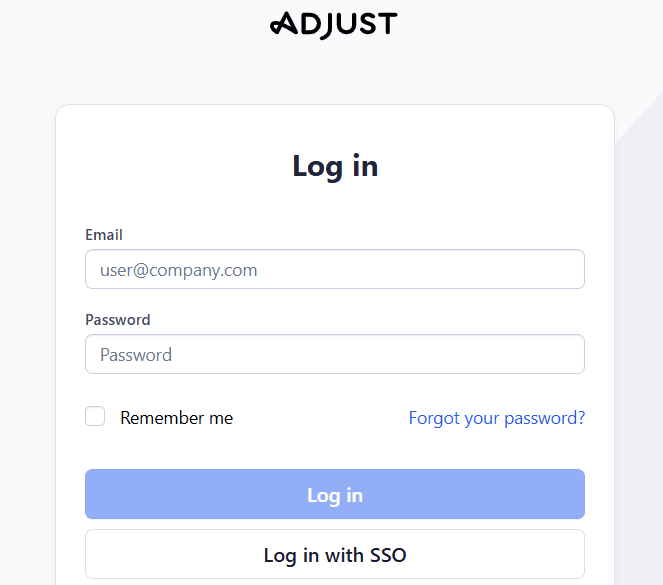
- Log in to your Adjust account
2. From the dashboard, go to Campaign Lab
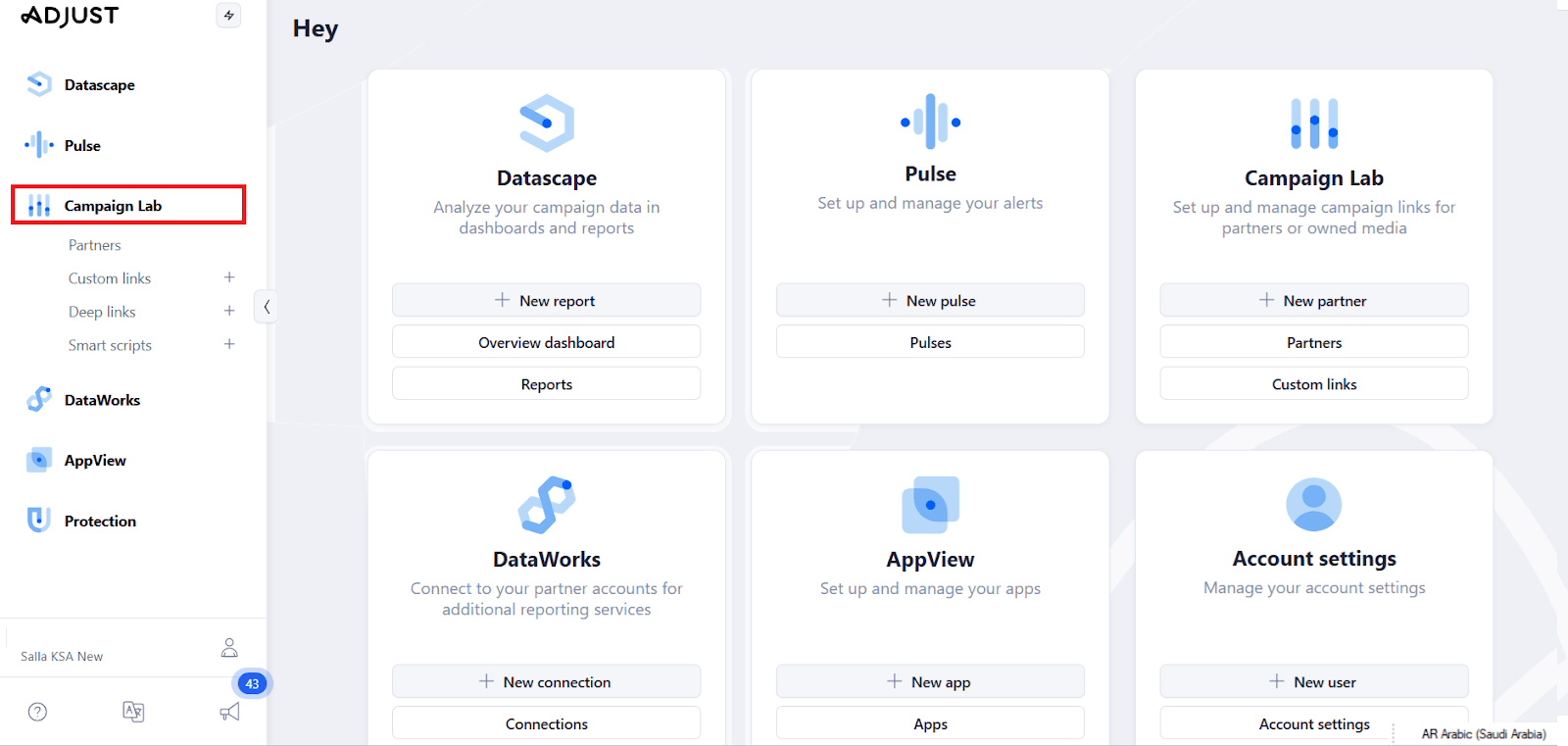
3. Click Partners
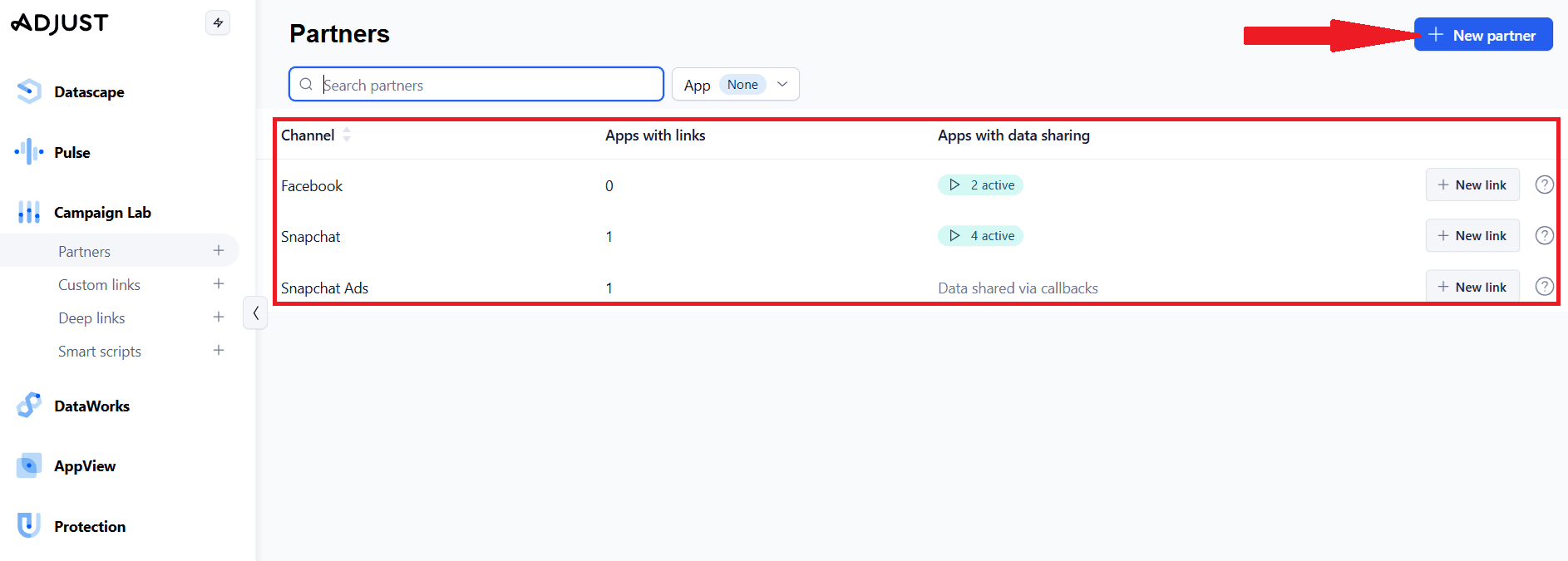
This page shows:
- Existing integrations
- Option to create new ones
Connect a new advertising partner
- Select a partner
- Click New Partner
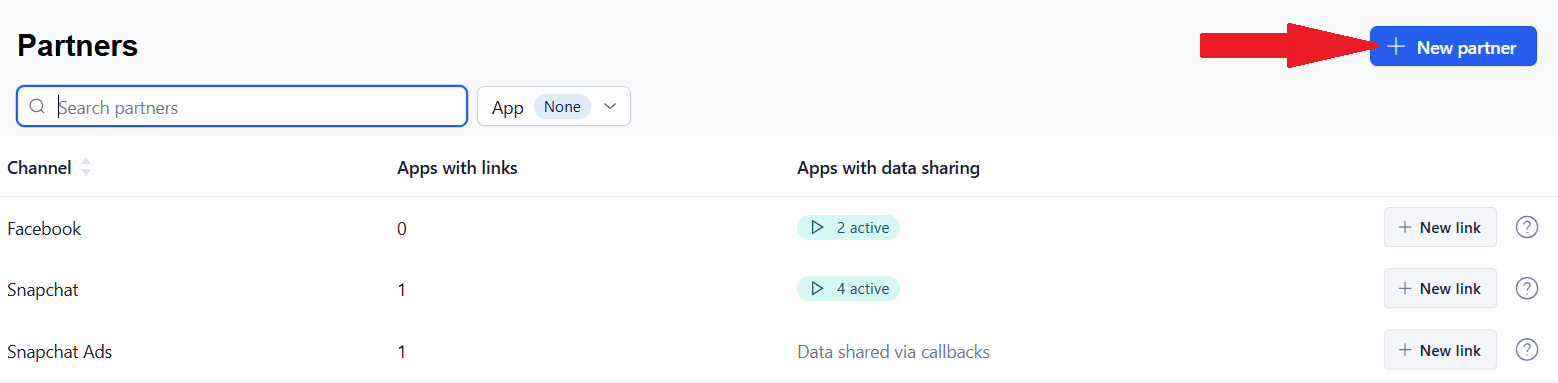
- Search for the platform (e.g., Facebook or Snapchat)
- Select it and click Next
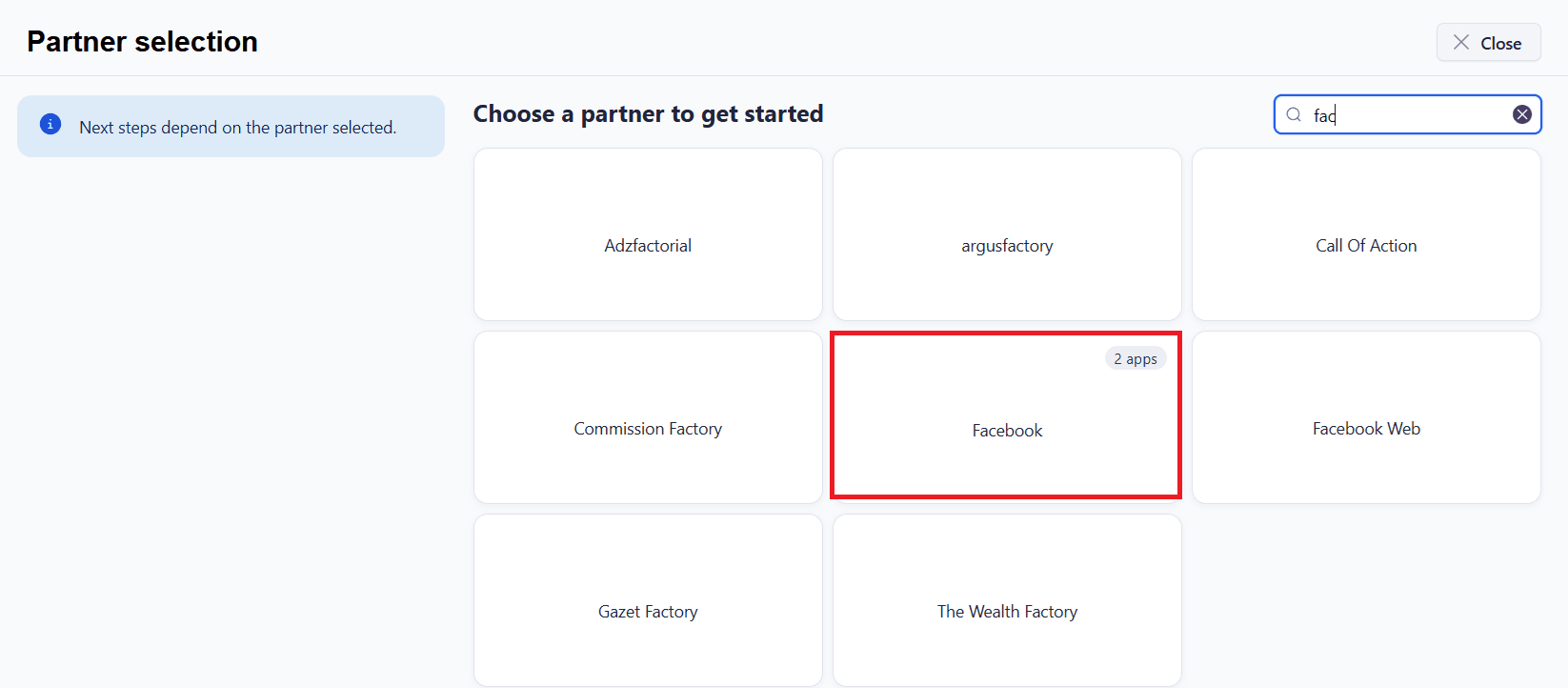
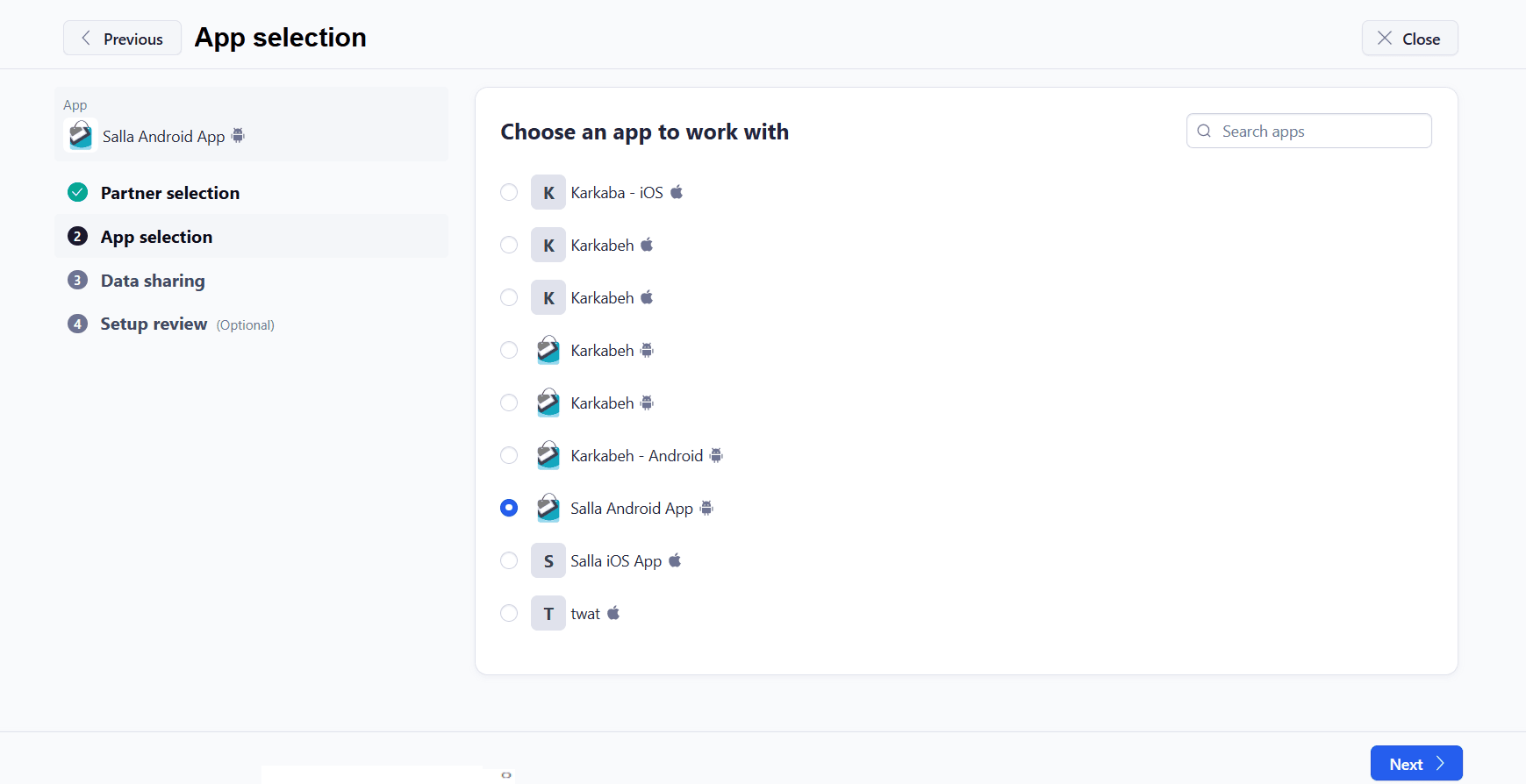
2. Select your app
- Choose the app (Android or iOS)
- Click Next
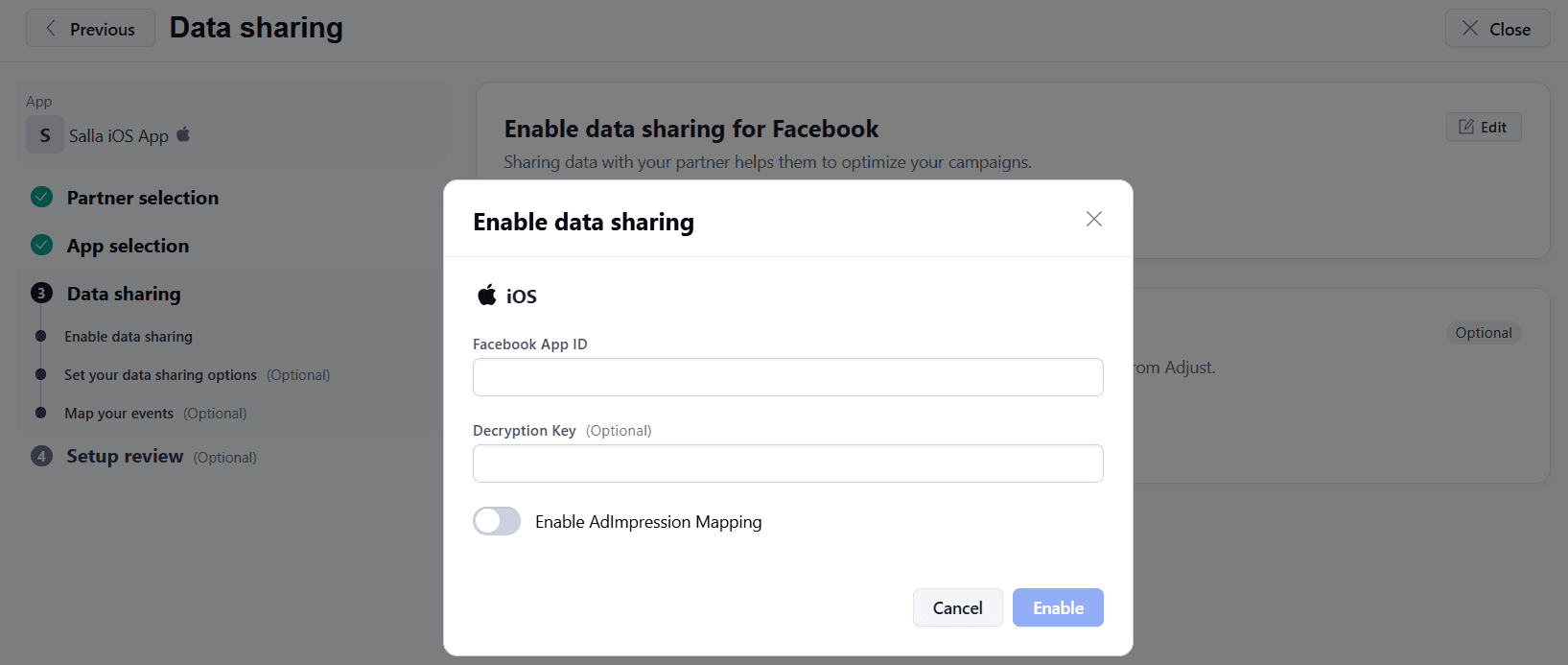
3. Enable Data Sharing
Some platforms (like Facebook) require access to app data to optimize campaigns.
You’ll need to enter:
- Facebook App ID
- (Optional) Decryption Key
Then click Enable to complete the connection.
📝 You can get the Facebook App ID from the Facebook Developers platform.
Manage an existing integration
After connecting a partner, you can manage settings anytime:
- Go to Partners
- Select the platform (e.g., Facebook)
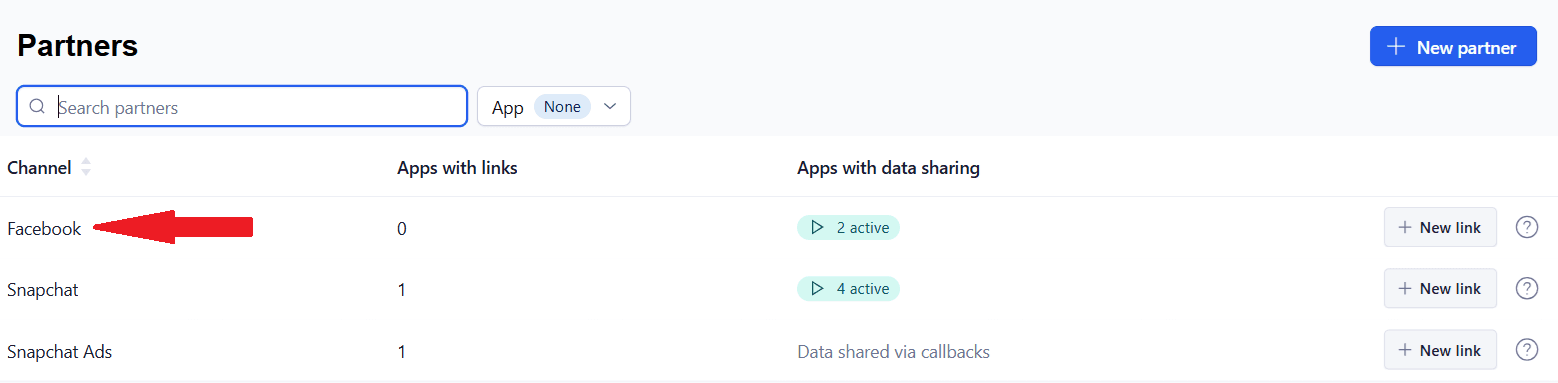
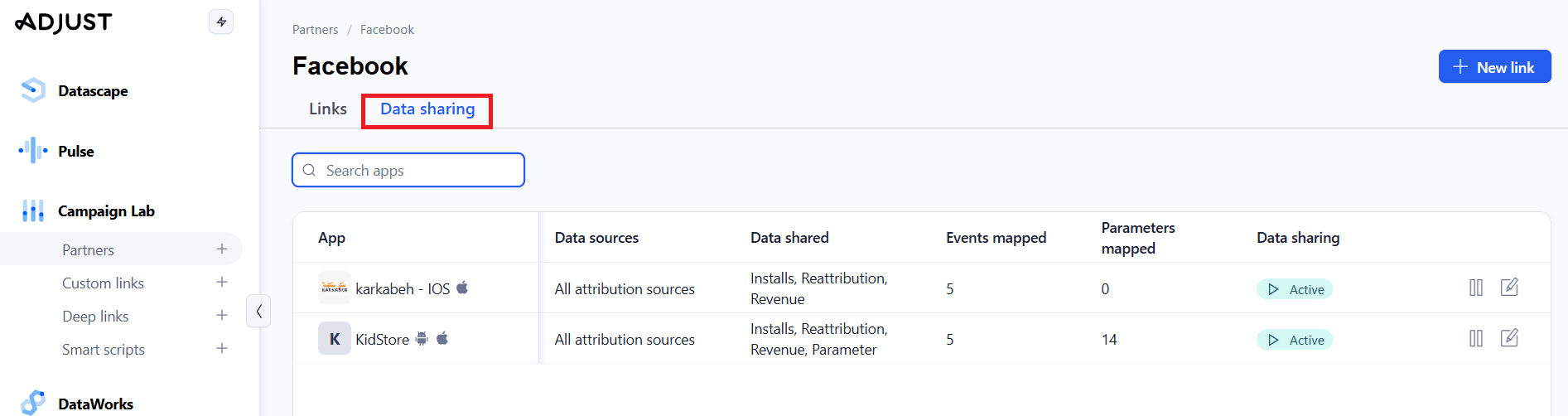
3. Open the Data Sharing tab
4. Choose the app (Android / iOS)
Section 1: Data sharing status
- Displays connection status
- Allows editing the Facebook App ID
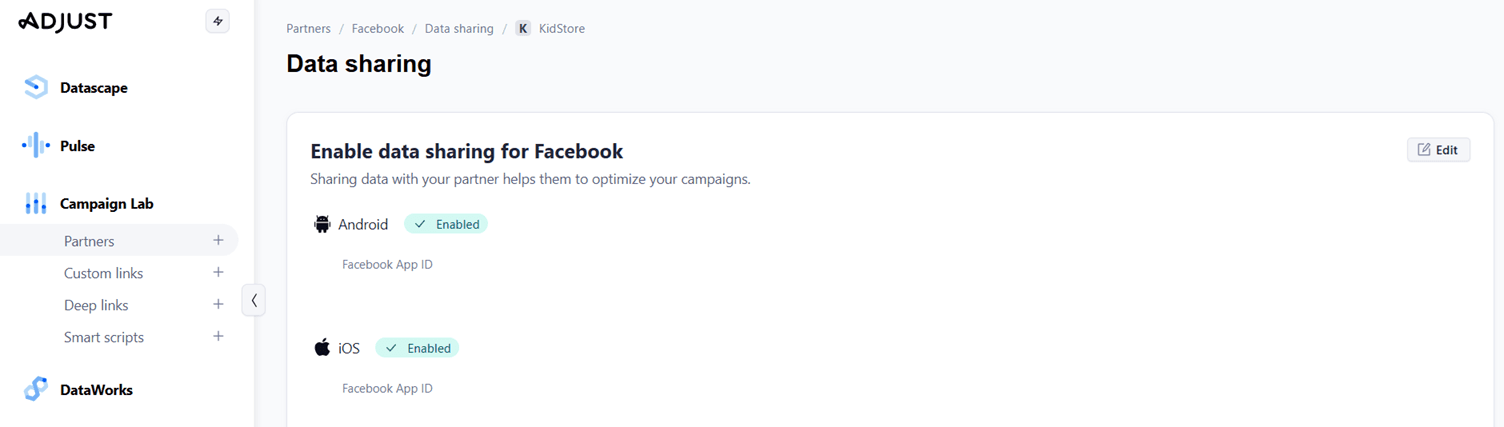
📝 Make sure status is Enabled to ensure data is being shared correctly
Section 2: Data sharing settings
This is one of the most important steps for campaign performance.
Enable parameters sharing
Without sending parameters, ad platforms cannot properly understand user behavior.
For both Android and iOS:
- Enable Parameters
- Select Send all parameters
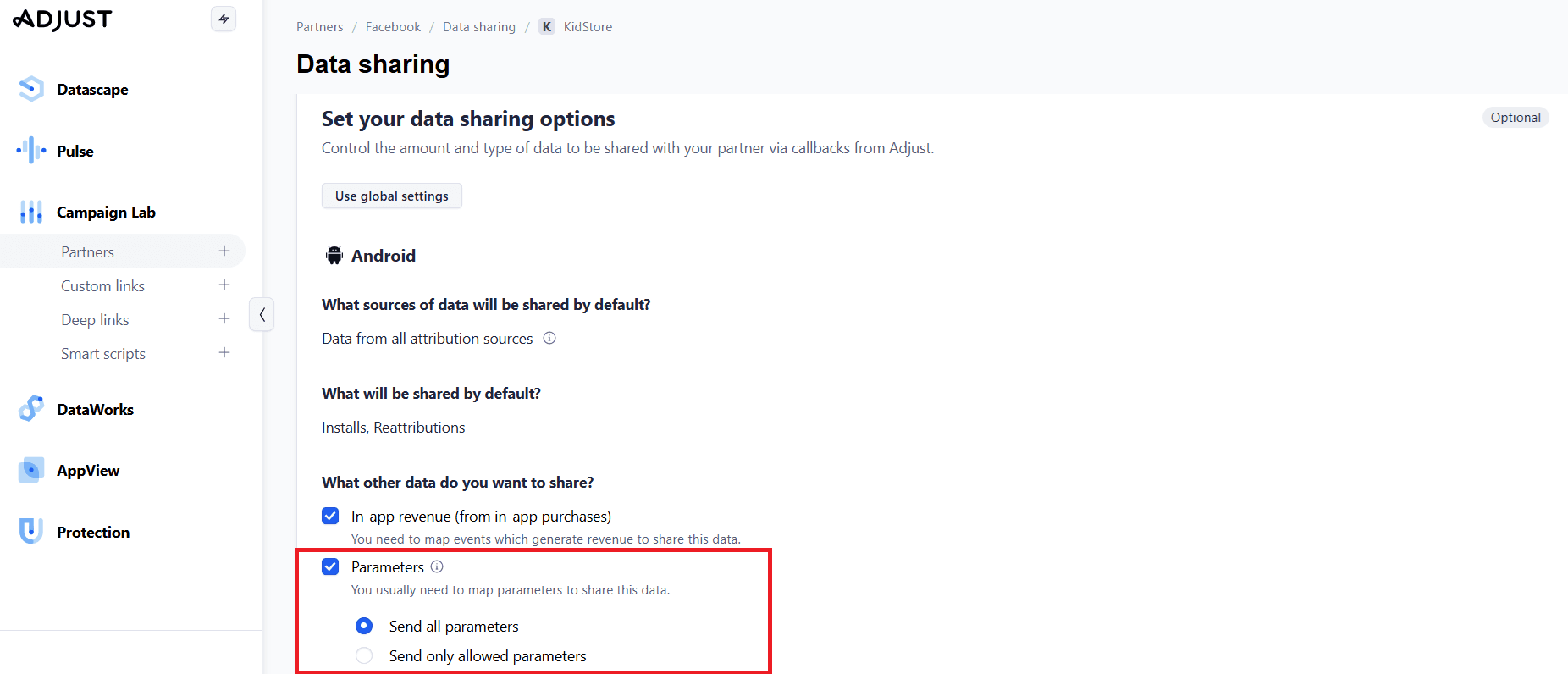
This improves:
- Conversion tracking accuracy
- Ad targeting performance
Section 3: Event mapping
Events represent user actions inside the app, such as:
- Add to cart
- Purchase
- Search
- Add to wishlist
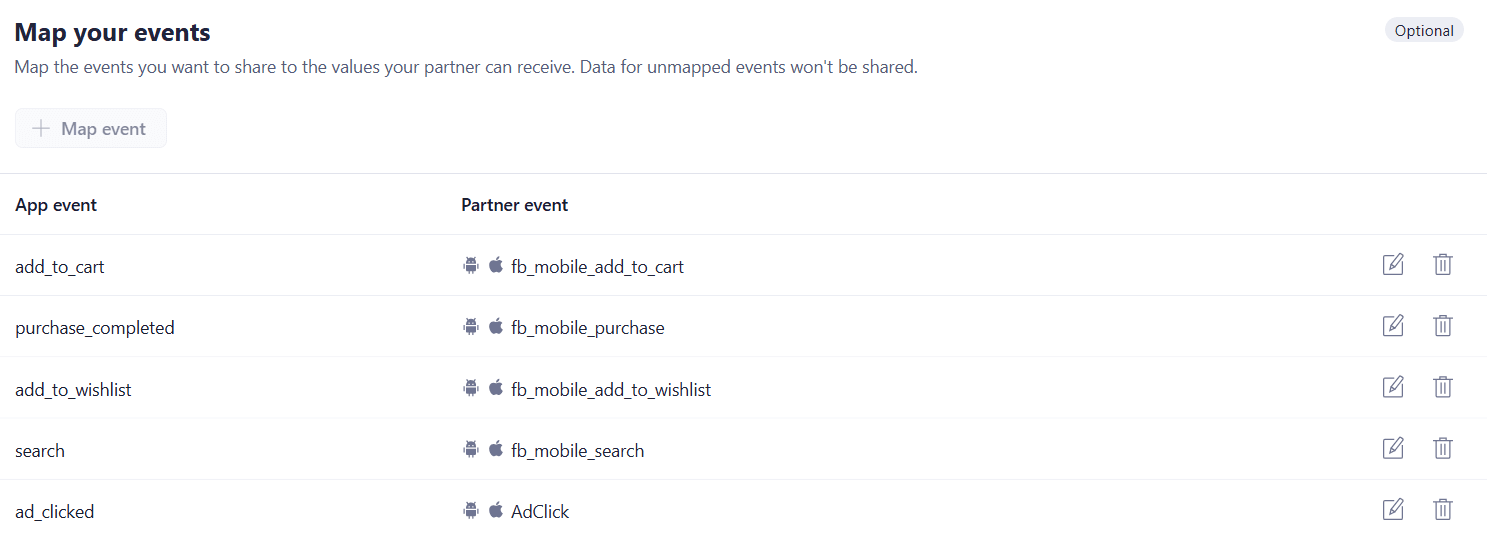
Mapping events allows ad platforms to:
- Understand user behavior
- Measure campaign performance accurately
- Optimize targeting
Example: Mapping an event
- Click Map Event
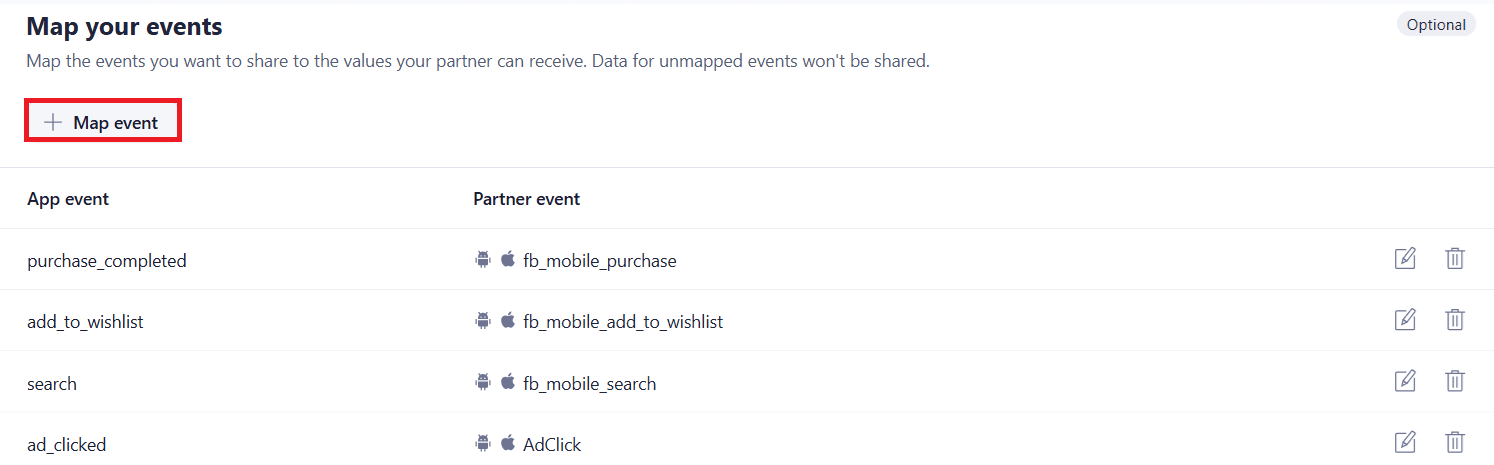
2. Select an event from Adjust (e.g., add_to_cart)
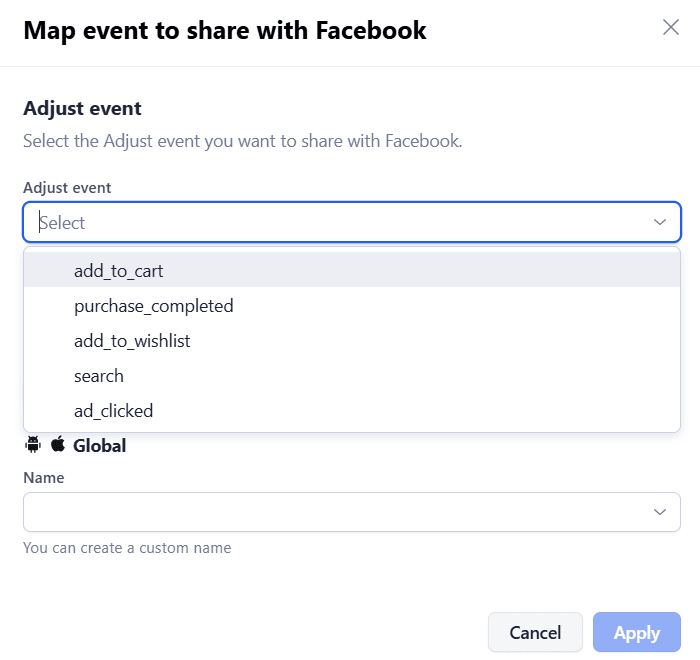
3. Select the corresponding partner event (e.g., Facebook event)
4. Click Apply
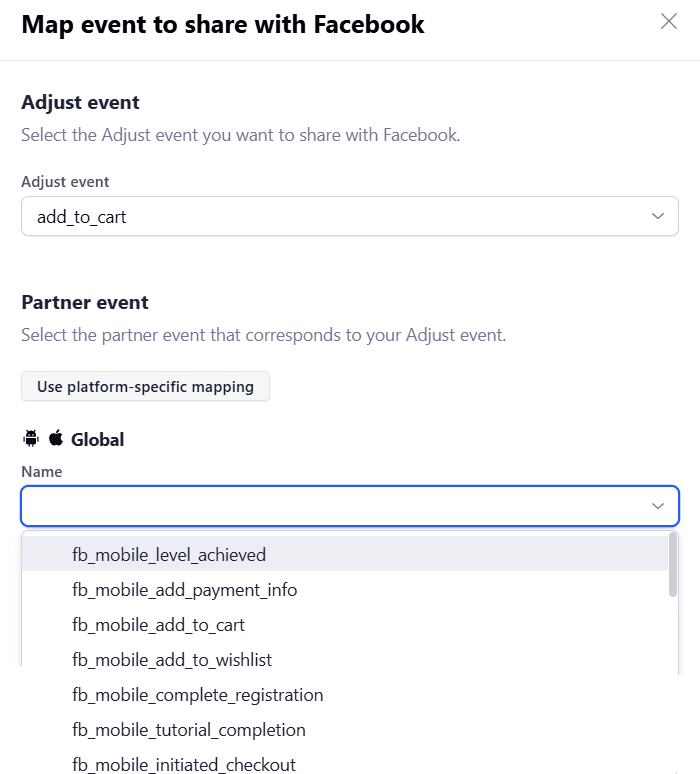
Example: add_to_cart → fb_mobile_add_to_cart
Now, when a user adds a product to the cart, Facebook receives this event correctly.

Section 4: Parameter mapping
If your app uses different parameter names than the ad platform, you need to map them.
Example:
- Click Map Parameter
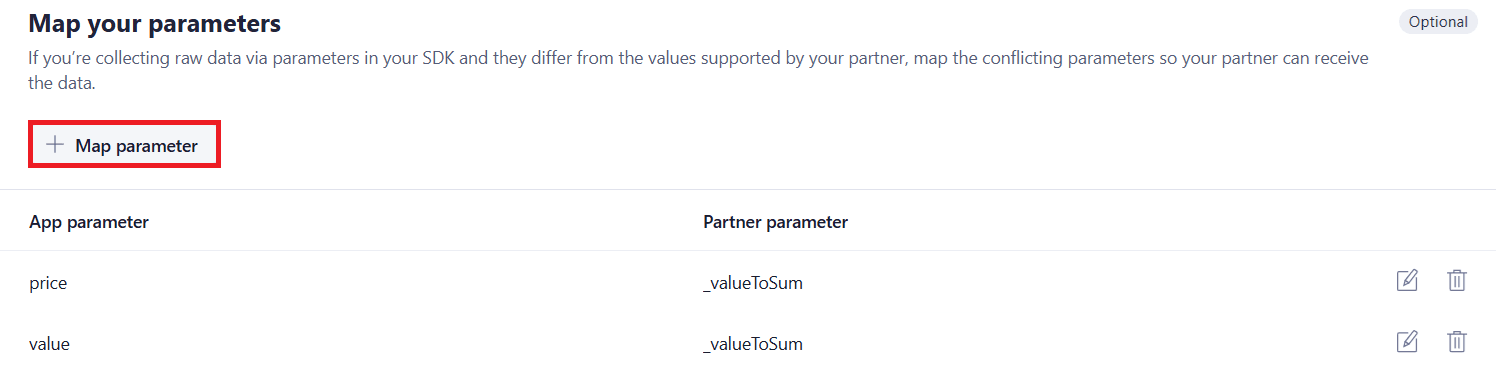
2. Enter SDK parameter (e.g., price)
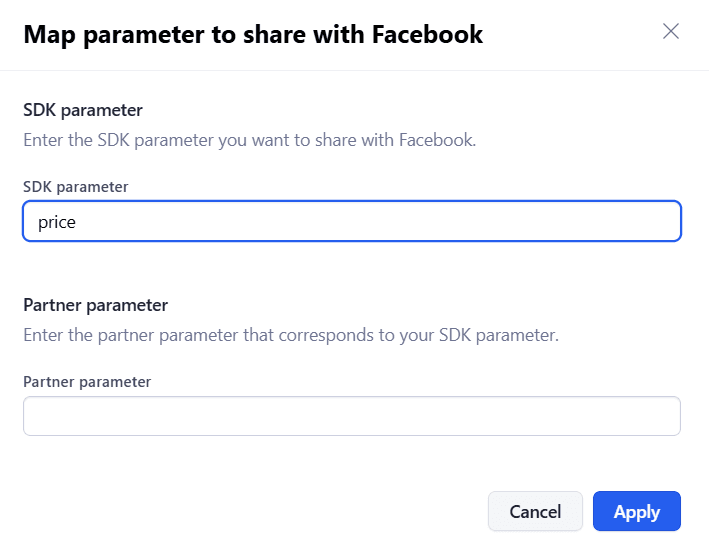
3. Enter partner parameter (e.g., fb_price)
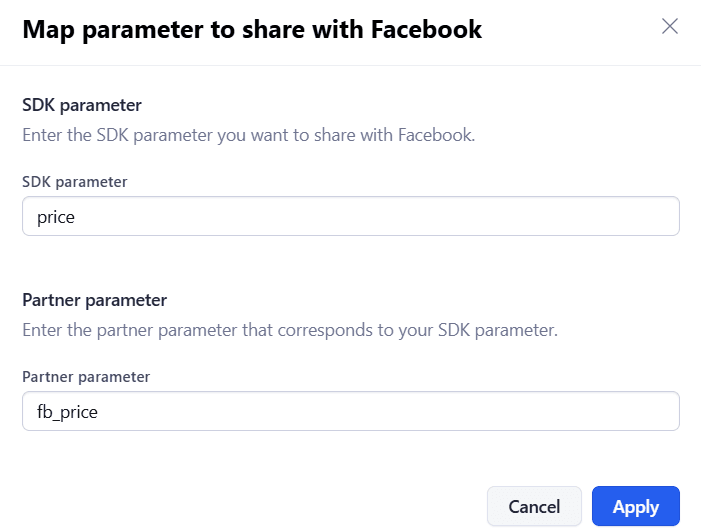
💡 Refer to platform documentation (e.g., Facebook Developers) for correct naming.
Summary
Adjust enables you to:
- Connect your app with ad platforms
- Track performance accurately
- Optimize campaigns based on real user behavior
Follow the steps above to:
- Connect partners
- Enable data sharing
- Map events and parameters
Frequently asked questions
Do I need to connect each ad platform separately?
Yes. Each platform (Facebook, Snapchat, TikTok, etc.) requires a separate integration.
Can I connect both Android and iOS apps?
Yes. Each platform can be connected separately, and both should show Enabled status.
Why should I enable “Send all parameters”?
Because ad platforms rely on these parameters to improve targeting and tracking accuracy. Disabling them may reduce campaign performance.
Why is the integration status showing “Disabled”?
Possible reasons:
- Incorrect App ID
- Expired connection
- Permissions disabled on the ad platform
- App settings changed without updating Adjust
What’s the difference between event mapping and parameter mapping?
- Event Mapping: Tracks actions (e.g., purchase, add to cart)
- Parameter Mapping: Tracks additional details (e.g., price, quantity)
Both are essential for accurate tracking.
Does this affect customer data privacy?
No. Adjust does not share sensitive personal data—only event and performance data for analytics and optimization.
When do I need a Decryption Key?
Only for certain advanced integrations. It’s optional in most cases.
Can I remove an integration?
Yes. You can disable data sharing or remove the partner from the Partners page.
Why don’t I see events in Adjust?
Possible reasons:
- Events not properly implemented in the app
- Delay in data processing
- Incorrect event naming
How long does activation take?
Usually immediate, but it may take 5–10 minutes for data to appear.
A proper Adjust setup is the foundation of successful app marketing.
Take the time to configure integrations, events, and parameters correctly, it directly impacts your campaign performance.