Need a faster way to access store data and get things done?
You can now connect your Salla store directly to AI tools like ChatGPT and Claude, giving you a new way to manage your business using simple conversations.
Instead of switching between dashboards, reports, and settings pages, you can ask questions, retrieve information, and perform tasks right from the AI tools you already use every day.
Whether you want to check recent orders, review inventory levels, analyze performance, or create marketing assets, your store is only a prompt away.
📌 In this article
- Why ChatGPT and Claude?
- Benefits of connecting your store
- Requirements
- Connect ChatGPT and Claude to your store
- Practical use cases
- Troubleshooting
- Frequently asked questions
Why ChatGPT and Claude?
AI assistants are becoming part of everyday workflows. Connecting them to your store gives you direct access to business information and actions without navigating through multiple screens.
🔒 Secure OAuth authentication with full permission control.
🚀 Quick setup that takes only a few minutes.
🧩 Direct integration with store operations and data.
💬 Manage tasks through natural conversations and simple prompts.
Benefits of connecting your store
Once connected, AI becomes a practical business tool rather than just a chatbot.
✅ Manage orders, products, inventory, and customers more efficiently.
✅ Access real-time store insights and reports.
✅ Make faster decisions using up-to-date data.
✅ Reduce time spent on repetitive daily tasks.
✅ Access store information without opening the dashboard.
✅ Put AI to work in your day-to-day store operations.
Requirements
Before connecting your store, make sure you have:
✅ A Salla merchant account with access to the store dashboard.
✅ An active paid Salla subscription.
✅ A Claude account (for Claude setup) or a ChatGPT Plus account (for ChatGPT setup).
Connect ChatGPT and Claude to Your Store
You can access the setup instructions directly from your store:
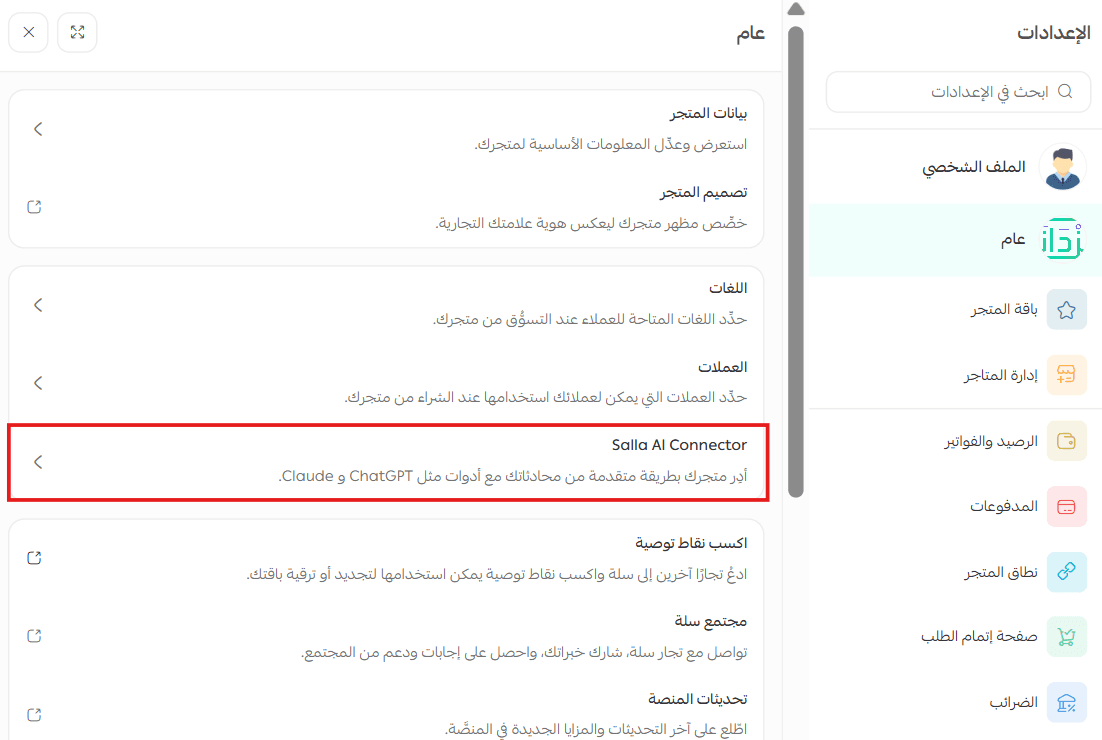
1. Open the Unified Settings Center from the main navigation bar.

2. Under the General tab, click Salla AI Connector.
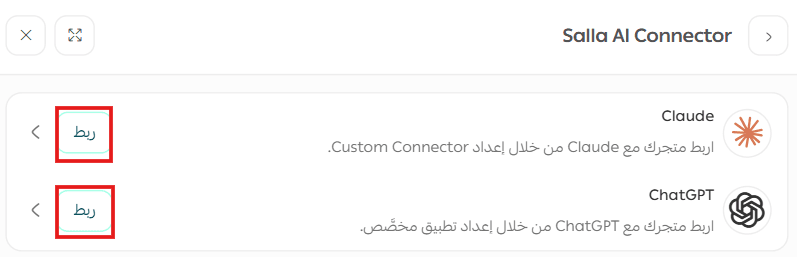
3. Select the AI platform you want to use, then click Connect to view the setup instructions.
Detailed ChatGPT setup
Step 1: Open settings
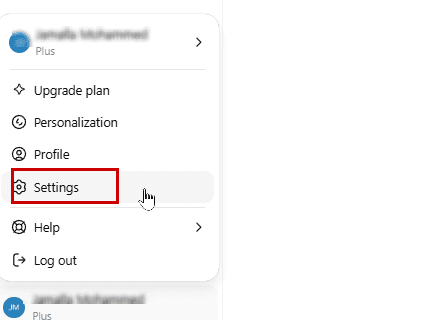
In ChatGPT on the web, click your profile picture in the lower-left corner, then select Settings.
Step 2: Open apps and enable developer mode
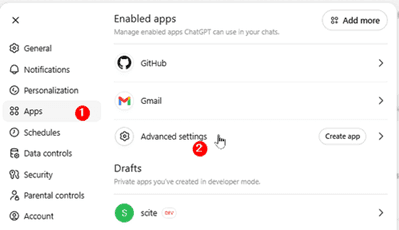
1. In Settings, click Apps from the left sidebar.
You will see your connected apps such as GitHub and Gmail. Then click Advanced settings.
2. Enable Developer mode to allow custom MCP servers.
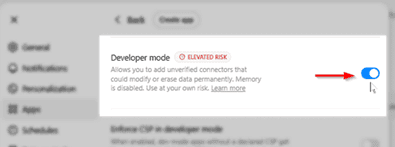
⚠️ MCP support in ChatGPT requires Developer Mode, which appears as Elevated Risk. This is expected when connecting custom MCP servers.
Step 3: Create a new app
Return to the Apps page and click Create app.
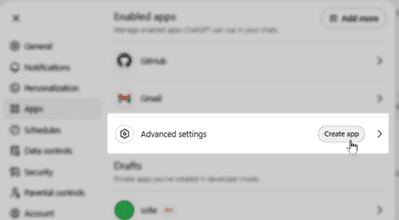
Step 4: Configure the Salla AI Connector
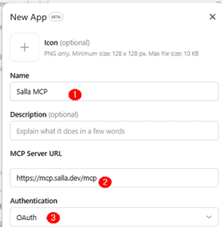
In the app creation form, enter the following details:
Name
Salla AI Connector
MCP Server URL
Authentication
OAuth (selected automatically)
Then:
1. Check the confirmation box stating that you understand and wish to continue.
2. Click Create.
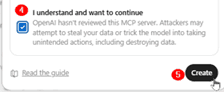
Step 5: Sign in to Salla
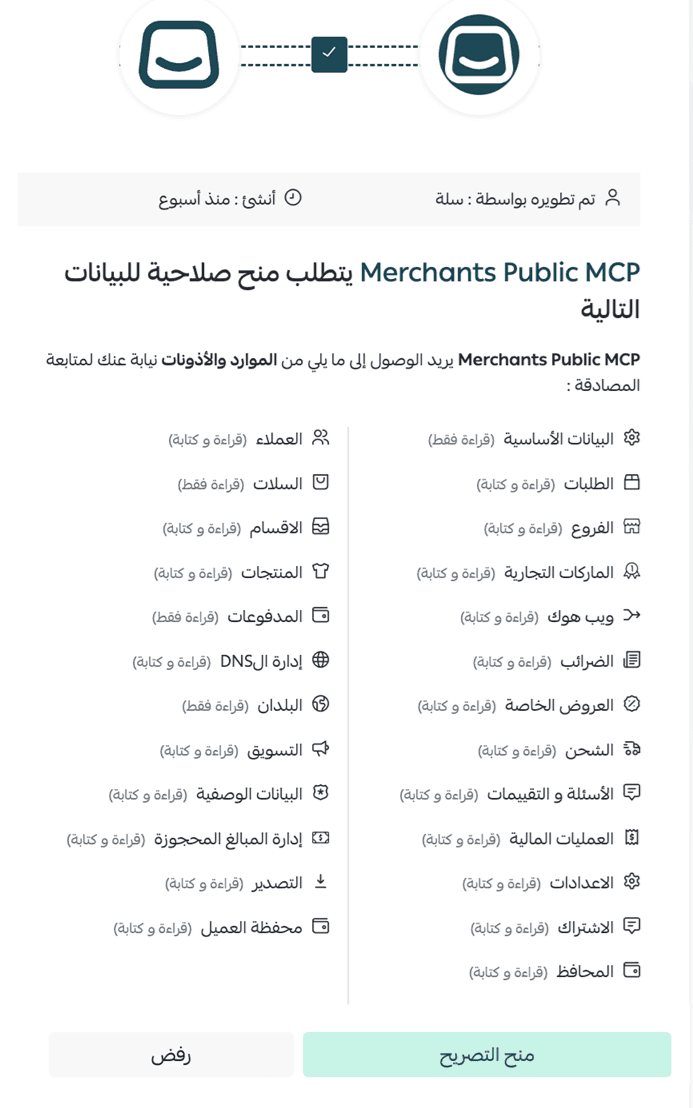
After creating the app, ChatGPT will redirect you to the Salla authorization page.
Sign in using your Salla account, then click Authorize to grant the required permissions.
Step 6: Start using tt
1. Once connected, the Salla MCP app will appear in your connected apps list.
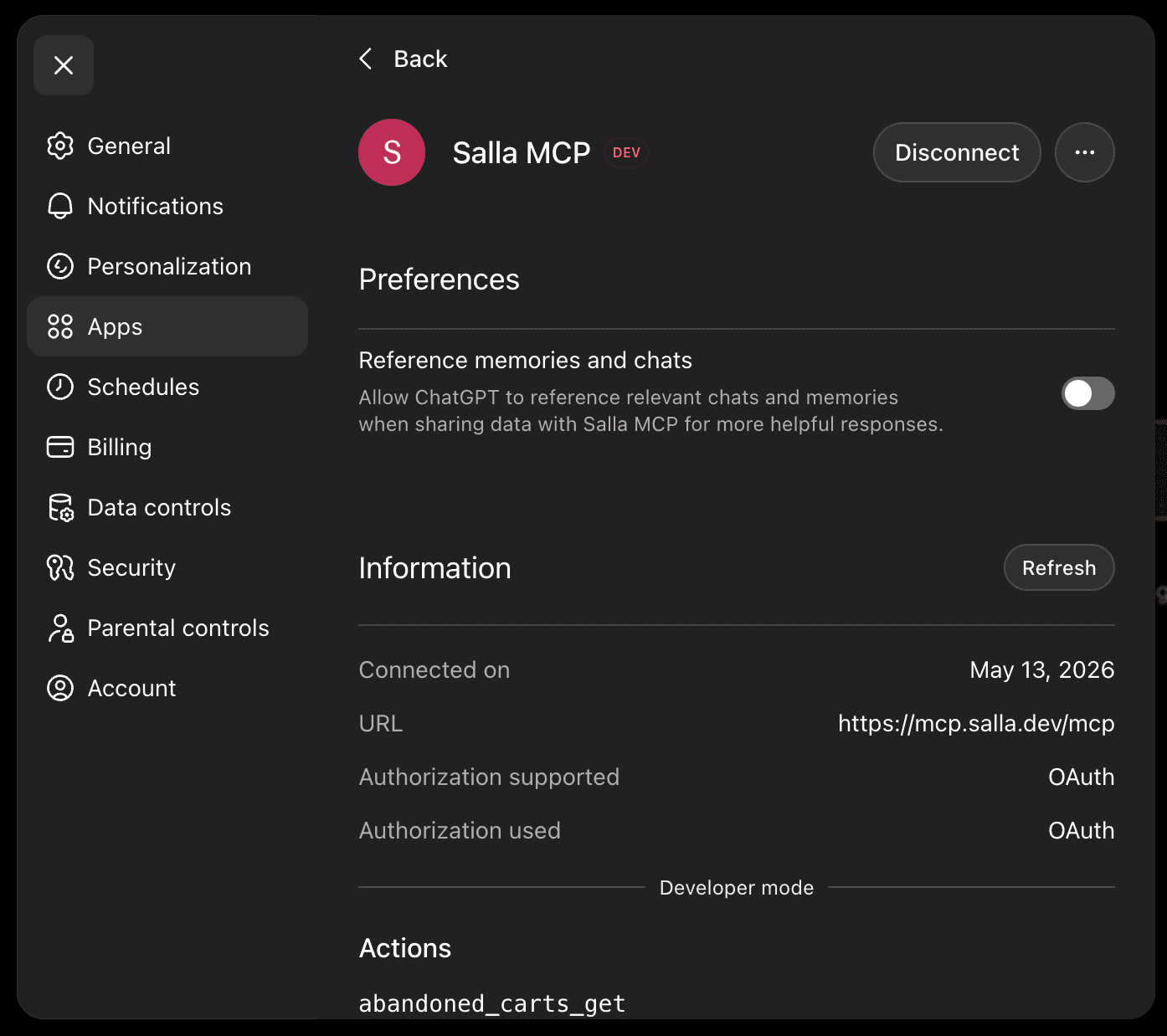
2. You can now use it in any ChatGPT conversation.
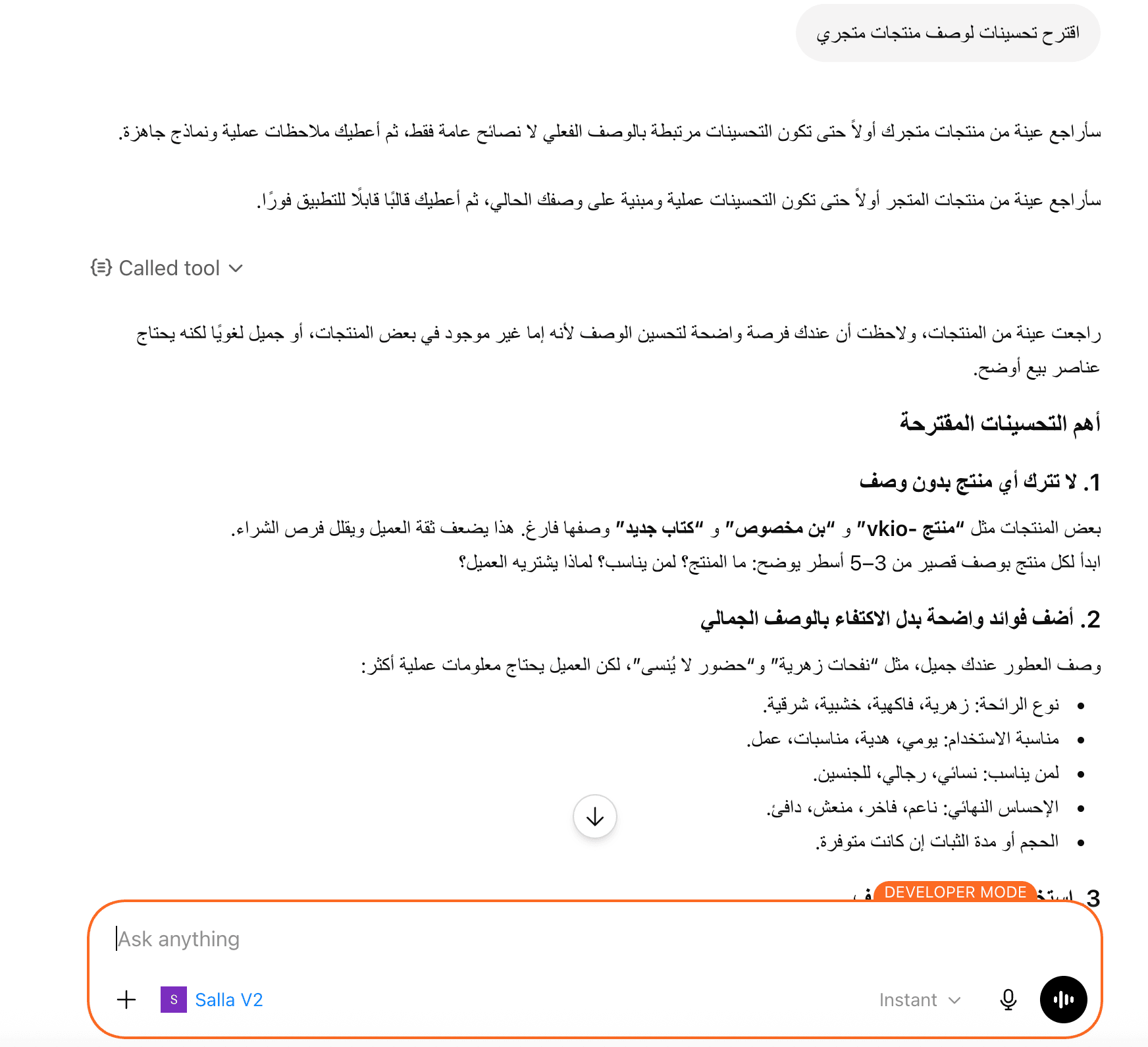
Simply ask about orders, products, customers, inventory, or store performance, and ChatGPT will automatically use your Salla tools when needed.
Detailed Claude setup
Step 1: Add a custom connector
1. Open Claude Desktop or the Claude website.
Go to Customize settings.
2. From the sidebar, select Connectors, then click + to add a new connector.
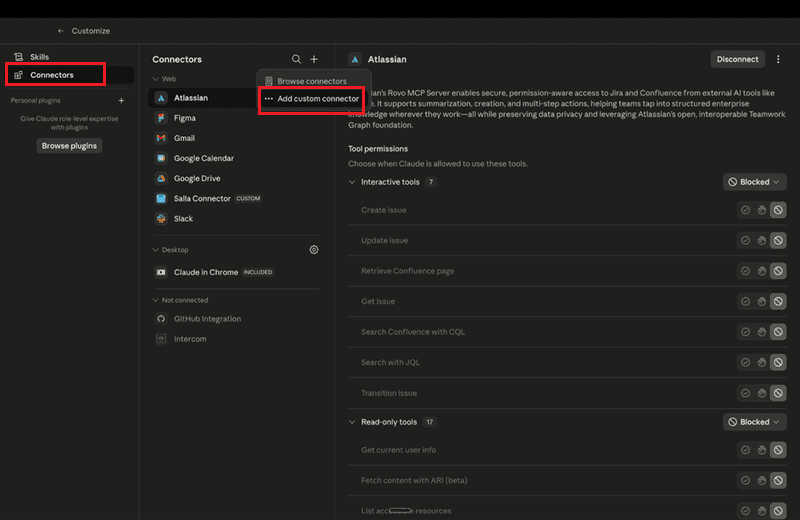
3. Enter the following details:
Name
salla
URL
4. Click Add.
Step 2: Start the connection
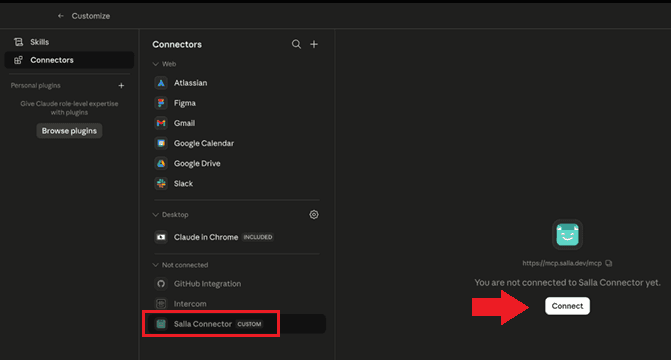
After creating the connector, it will appear under Not connected.
Click it, then select Connect.
Step 3: Sign in to Salla
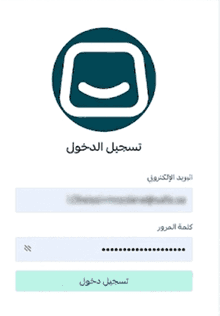
You will be redirected to the Salla sign-in page.
Log in using your Salla merchant credentials.
🔔 If you manage multiple stores, make sure you select the correct account.
Step 4: Grant permissions
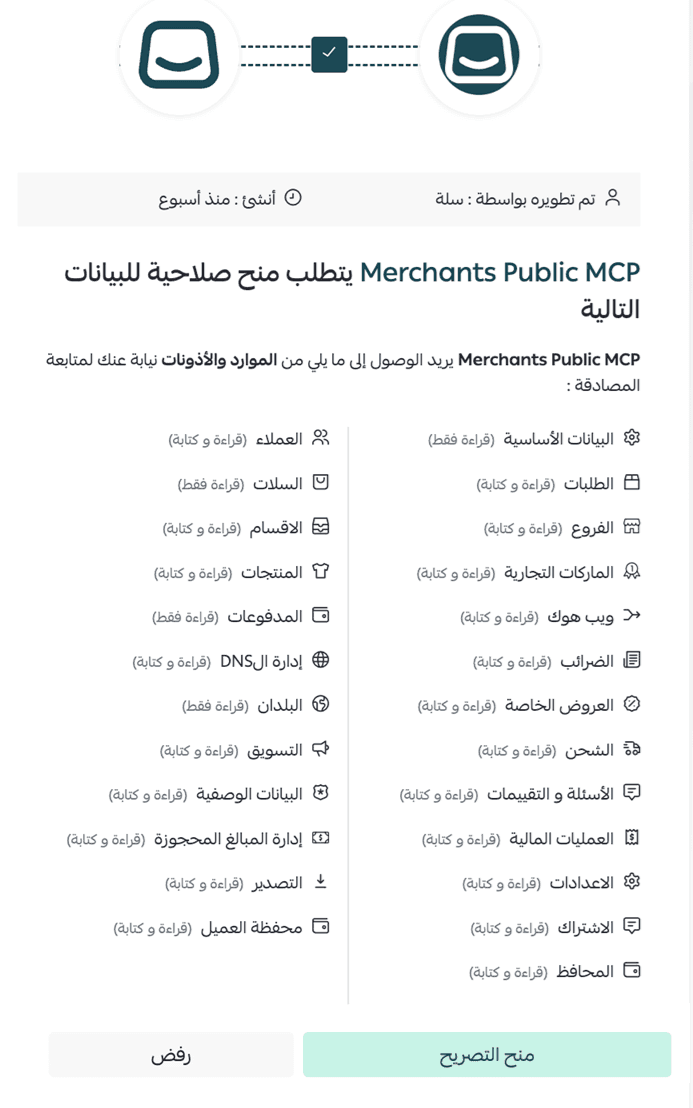
Claude will display the permissions it requires, including access to orders, products, customers, inventory, and related store data.
Review the permissions, then click Authorize.
Step 5: Return to Claude
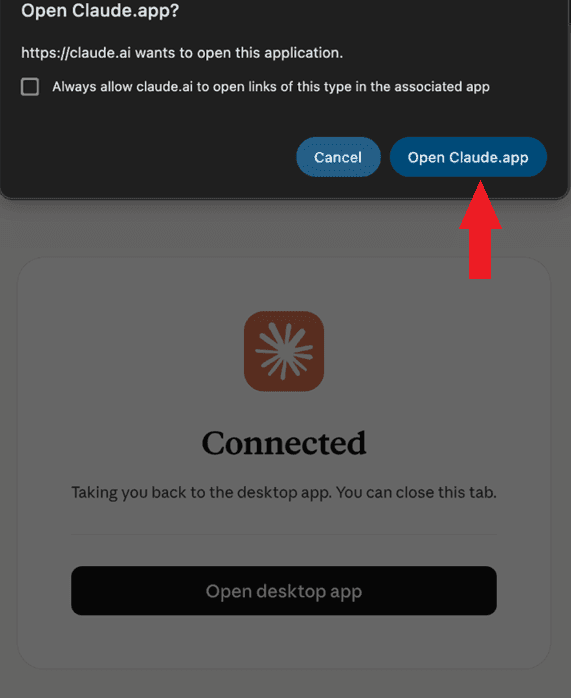
After the connection is successful, you will see a confirmation message.
Click Open Claude.app to return to Claude.
Step 6: Verify the Connection
The Salla connector will now appear under Web instead of Not connected.
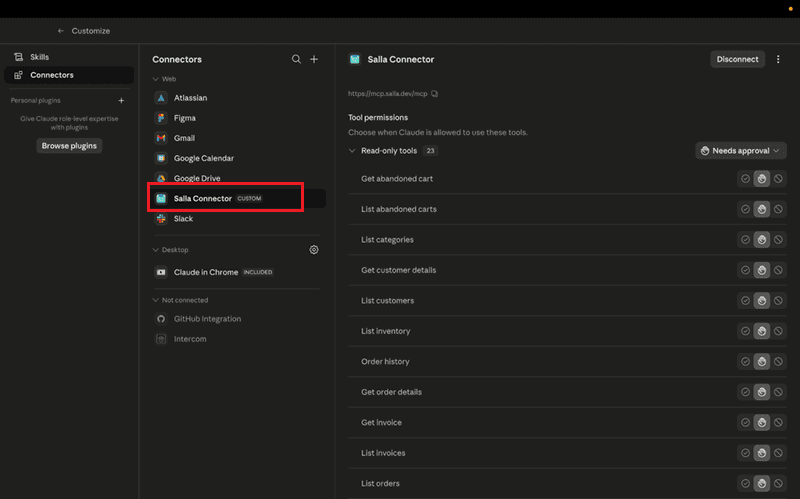
You can also review the available tools.
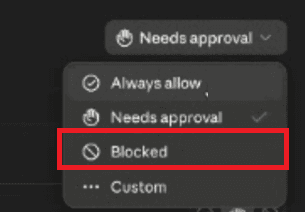
🔔 You can choose how Claude handles tool permissions:
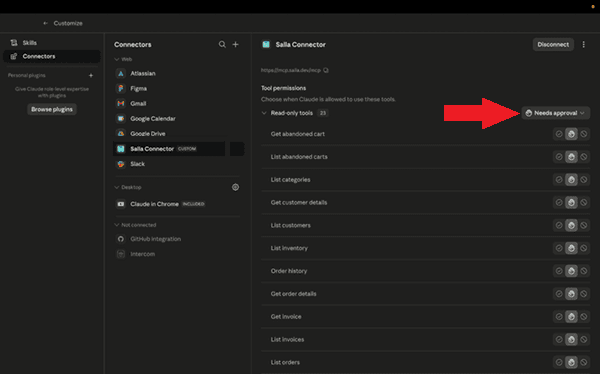
Needs approval
Claude asks for permission before performing actions.
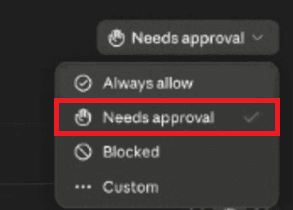
This is the recommended option.
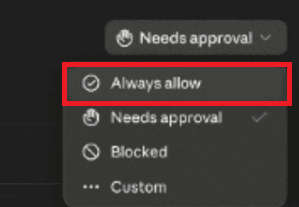
Always allow
Claude performs actions automatically without asking for approval.
Blocked
The connector is disabled and cannot access store data.
Step 7: Enable the connector in a conversation
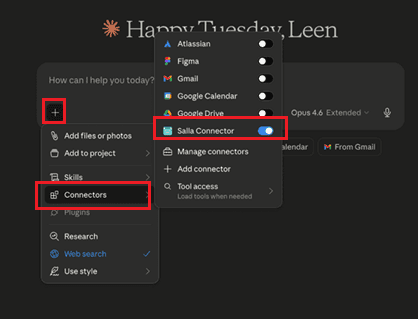
When starting a new chat:
1. Click the + button below the chat window.
2. Select Connectors.
3. Enable the Salla connector.
Step 8: Test the connection
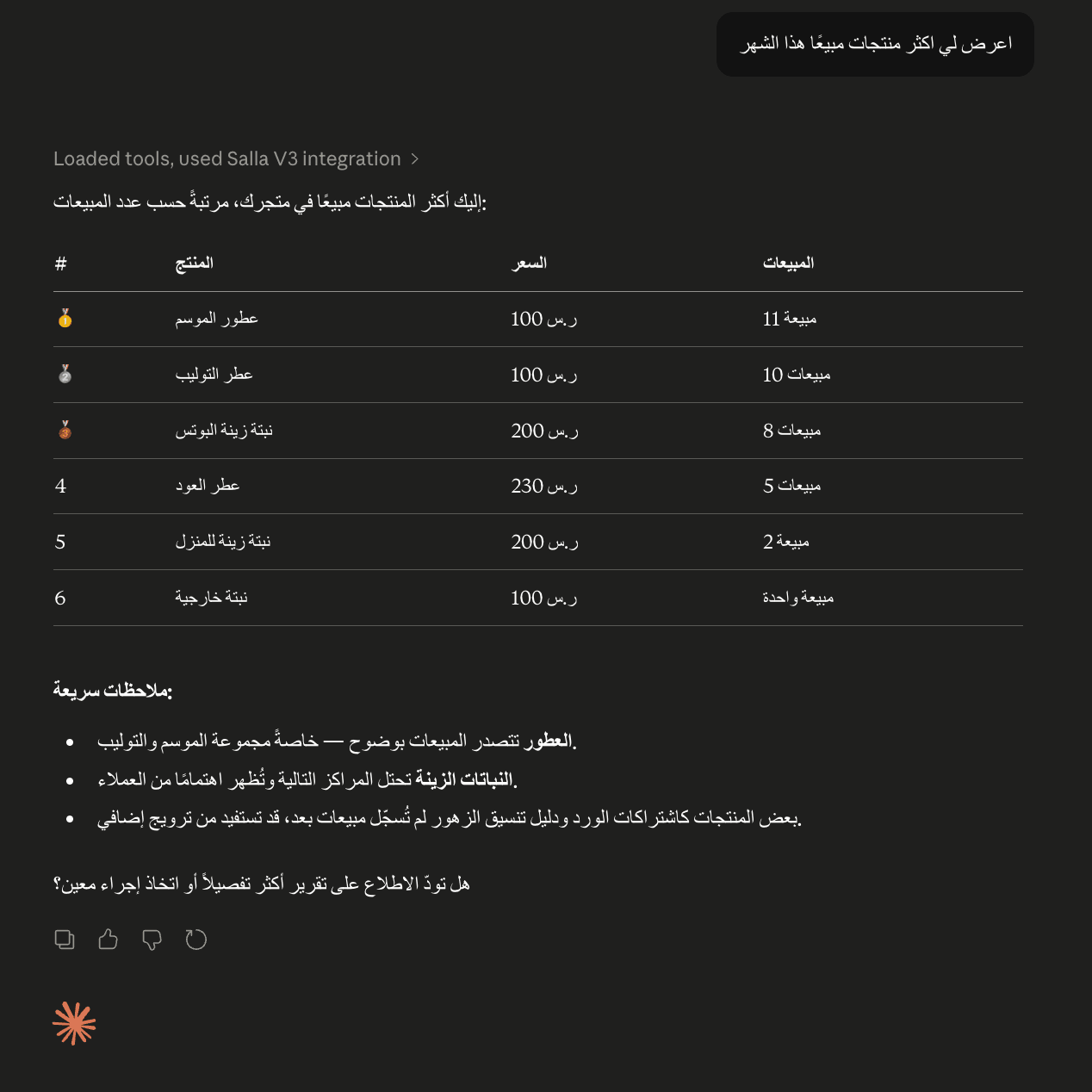
Try a simple prompt such as:
Show me the latest 10 orders in my store.
💡 Practical use cases
Once connected, you can use AI to handle common store tasks such as:
🛒 “Show me the latest 10 orders.”
📦 “Which products are running low on stock?”
📈 “What were my best-selling products this week?”
👥 “How many new customers did I acquire this month?”
📊 “Summarize store performance over the last 30 days.”
🏷️ “Create a discount code for summer products.”
✍️ “Improve product descriptions for SEO.”
Troubleshooting
ChatGPT issues
I can't find Advanced Settings
Use ChatGPT on the web instead of the mobile or desktop app.
The Create App button doesn't appear
Make sure Developer Mode is enabled:
Settings → Apps → Advanced Settings
OAuth login fails
Clear cookies for accounts.salla.sa and try again.
Claude issues
The connector doesn't appear after setup
Restart Claude and check the Connectors settings again.
Tools don't appear inside conversations
Make sure the Salla connector is enabled in the active conversation.
General issues
I can't log in to Salla
Verify that you're using the correct account credentials and that your account has merchant access.
Frequently asked questions
Is the connection secure?
Yes. Authentication is handled through OAuth, with clear permission scopes and full control over what data and actions can be accessed.
Do I need technical experience?
No. Setup only takes a few minutes and requires little more than connecting your account and approving access.
For more information, see Connect ChatGPT and Claude to Your Store.
Is this feature available on all plans?
The ChatGPT and Claude integration is available on paid Salla plans.
💪 Manage your store faster with ChatGPT and Claude, and put AI to work across your daily operations, reporting, and decision-making.