


Have you ever wondered what your customers see after they sign in to your store?
The customer account page is not just a screen full of personal details. It is a small control center where the shopper follows their orders, manages their wallet balance, saves the products they like, and decides what the store is allowed to send them. The easier that experience is, the more likely they are to come back and buy again. In this guide, you'll learn what each section of the customer account page does, what the customer can change there, and how to turn on wishlist notifications from your dashboard.
When a customer signs in to their account in your store, they get one page with everything tied to them: notifications, past orders, orders awaiting payment, their wishlist, their wallet transactions, their account details, and privacy settings. Everything there belongs to the customer. You manage the store-side settings behind it from your dashboard.
📌 Article overview
- What the customer finds inside their account
- Why this matters to you as a merchant
- How to turn on wishlist notifications
- Frequently asked questions
🎯 What the customer finds inside their account
Signing in opens several sections, each one built to let the customer manage their own shopping experience.
Notifications
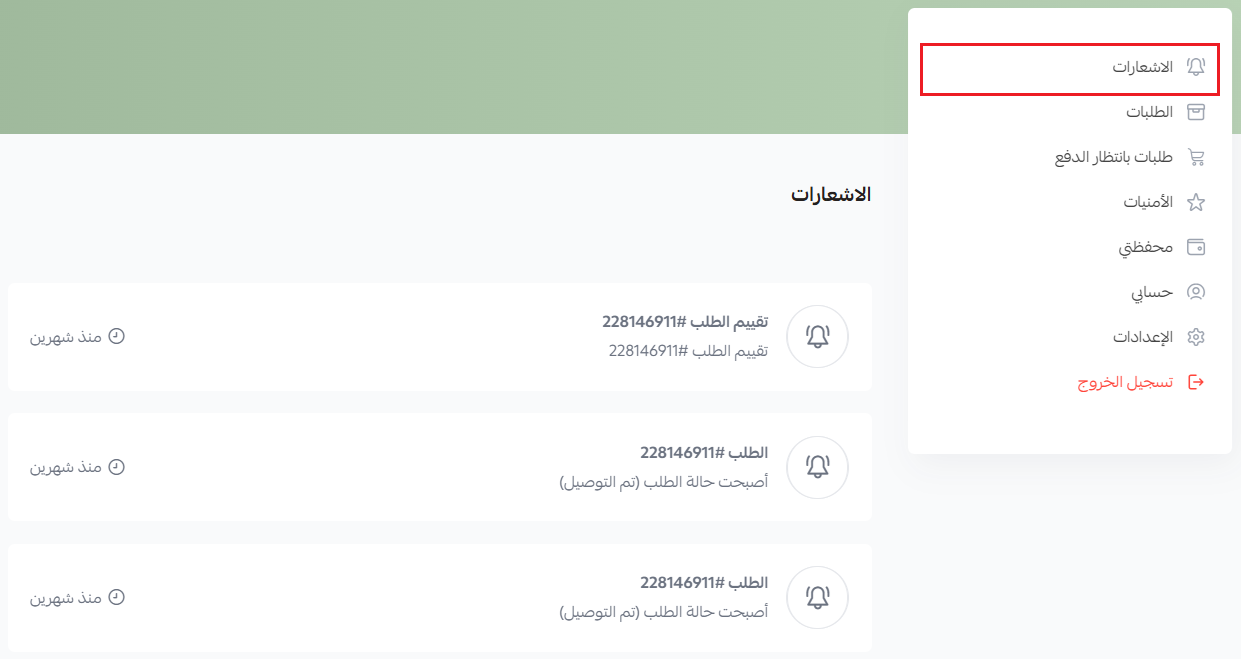
A notification log lets the customer keep track of everything happening to their orders without digging through messages or email. It lists every notification they have received — an order status change, a request to rate an order, and so on.
Orders
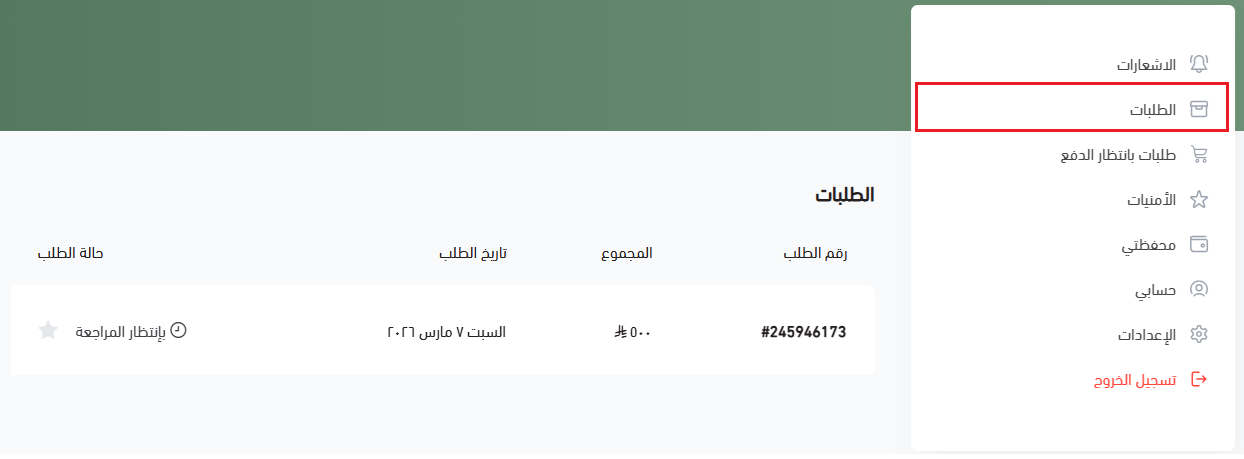
A list of the customer's orders with the order value, the order date and its current status.
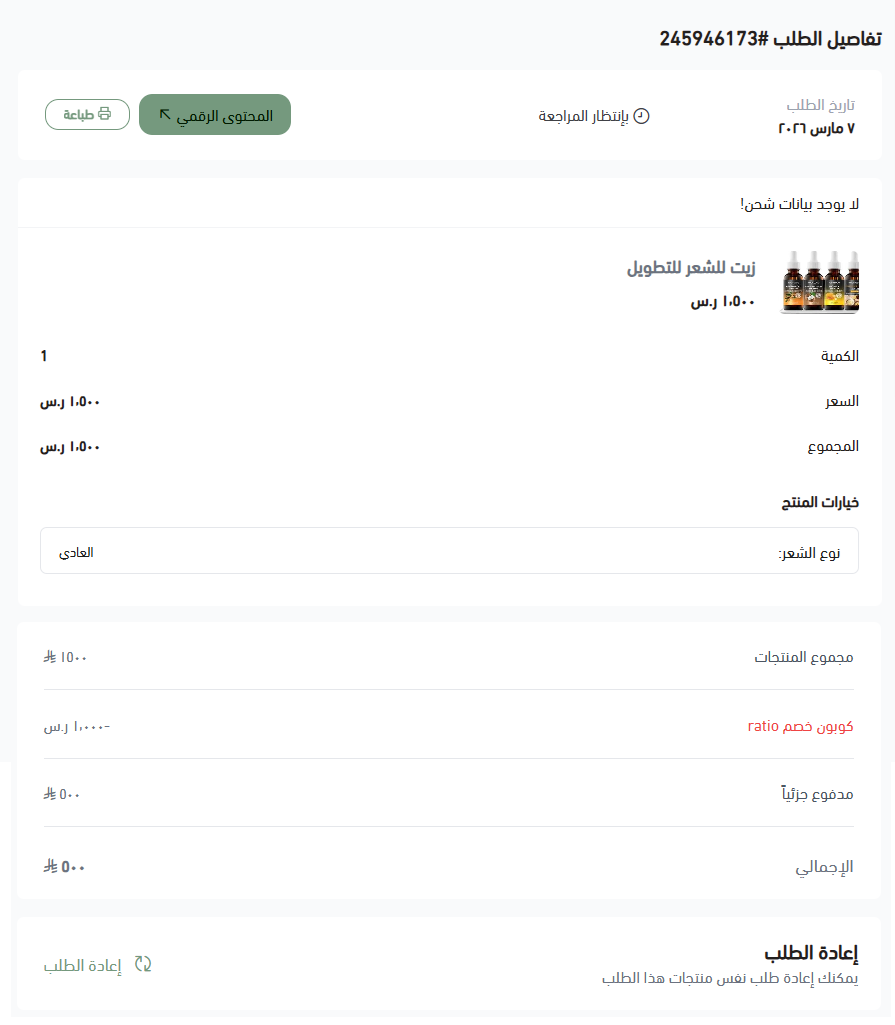
Clicking an order number opens the full order details, and the customer can repeat the same order without adding the products to the cart again. It is a quick way for regulars to reorder the products they already buy from you.
Orders awaiting payment
Orders the customer created but has not paid for yet appear here. It gives them a place to:
- Complete the payment later.
- Review the order before finishing the purchase.
Wishlist
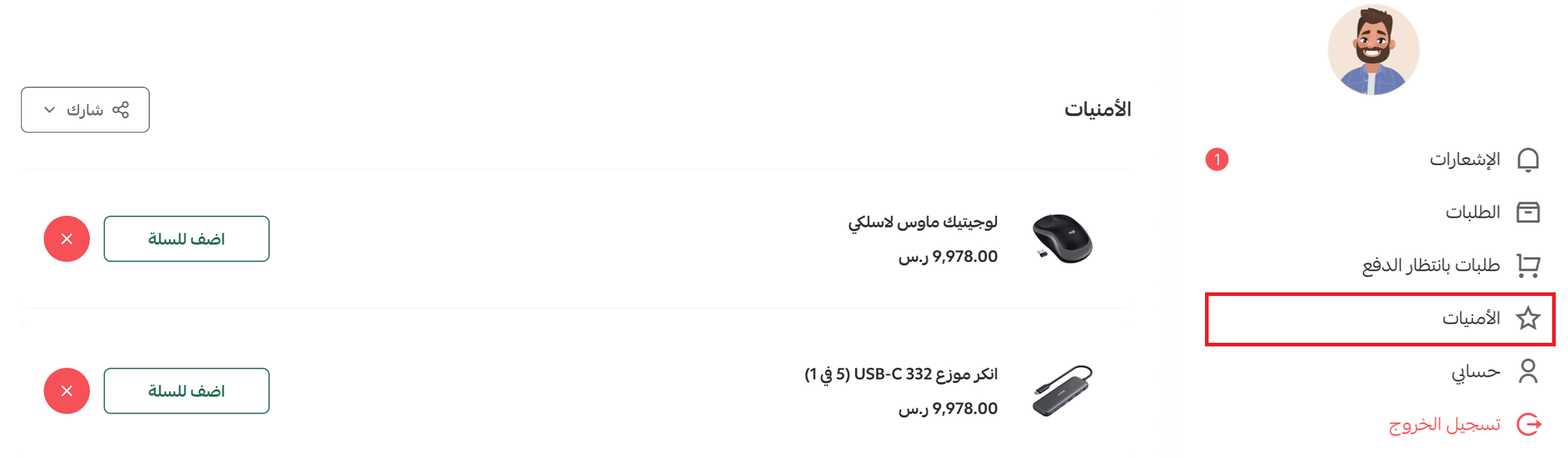
The customer can build a wishlist of products they liked while browsing your store. From inside the list they can:
- Add the product straight to the cart.
- Remove the product from the wishlist.
It is one of the strongest tools you have for a later sale, because the customer can come back to the products that caught their eye in one click.
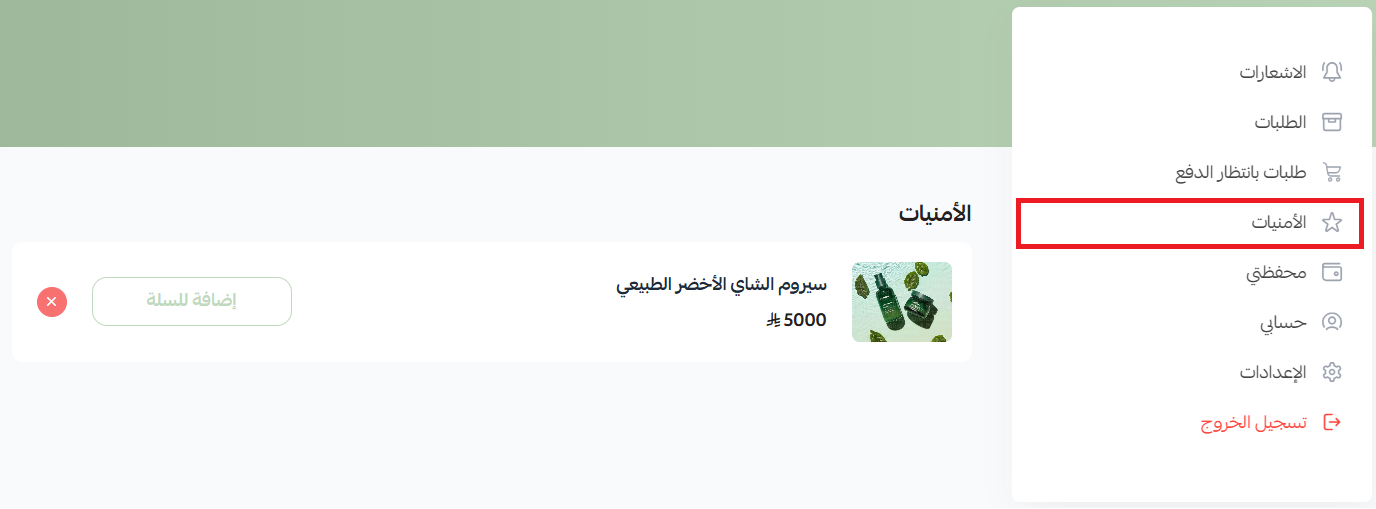
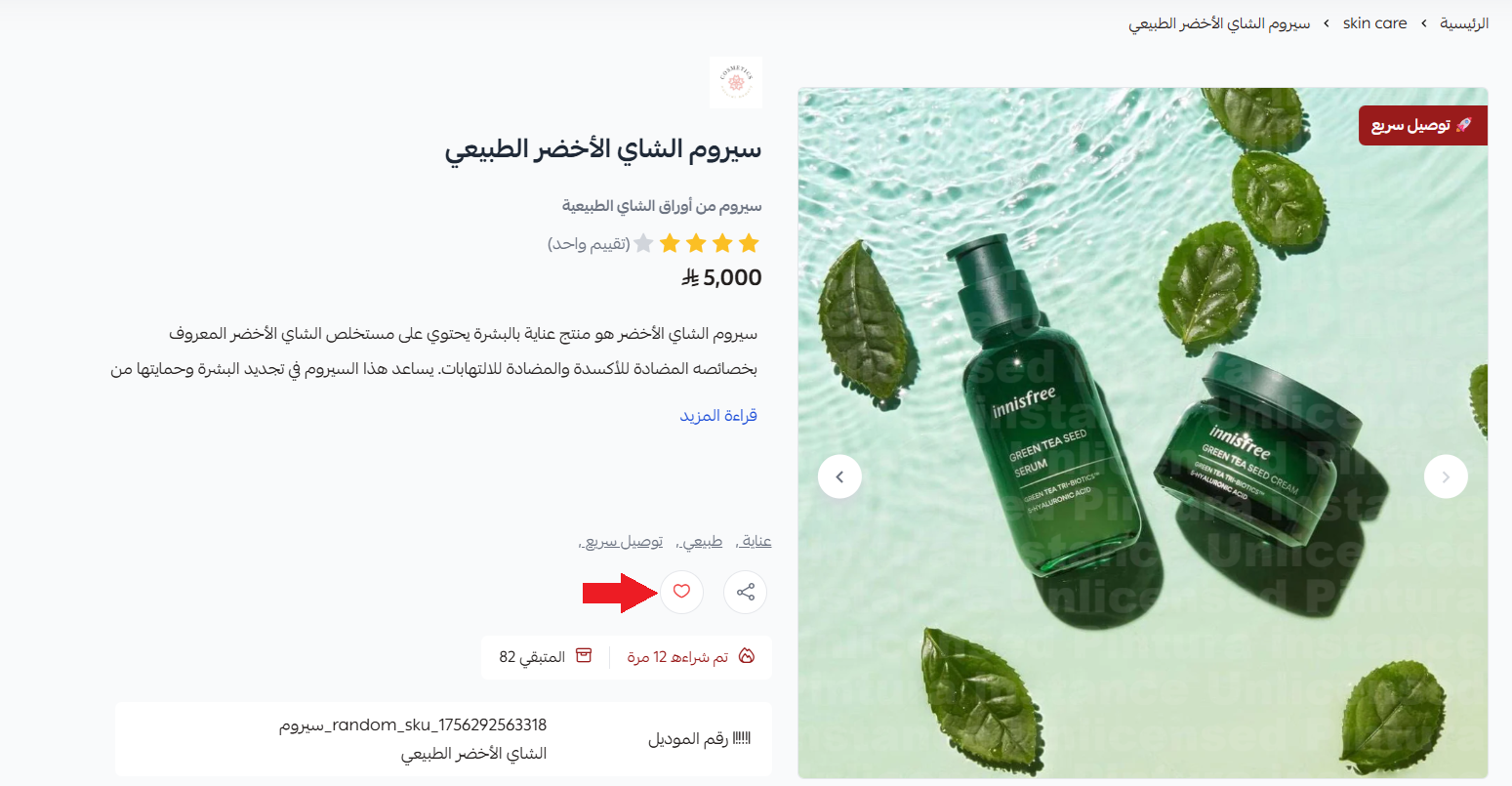
The list is built as the customer browses your products and adds any of them to their wishes.
🔗 Sharing the wishlist
Customers can share their favorite products with friends and family through a dedicated link, which makes it easy to pick the right gift for an occasion and to pass on the products they want.
1. From the customer account, go to (Wishlist).
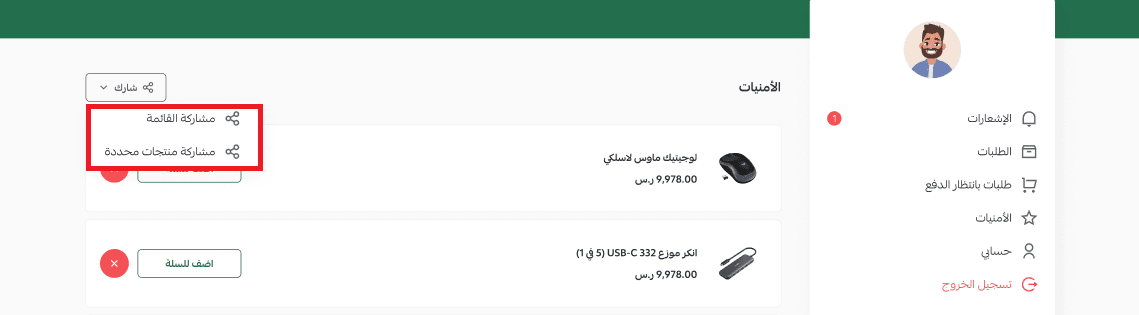
2. Click (Share), then choose (Create a shared list).
3. A dedicated wishlist link is created. Click (Copy link), or share it directly through social apps.
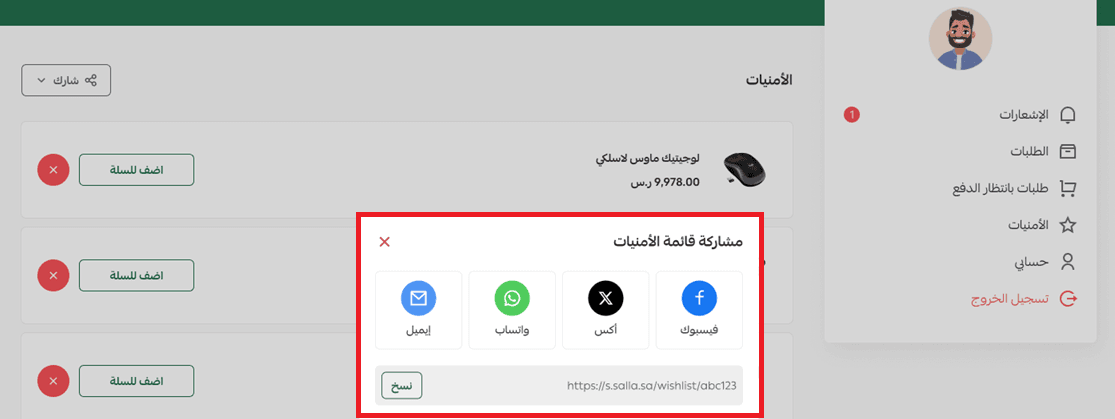
📝 Note: Whoever receives the link can browse the products on the wishlist and go straight to the product page to buy.
My wallet
This page shows the customer every transaction on their wallet in your store, including:
- The amount.
- The transaction date.
- The related order number.
- The expiry date.
- The transaction type.
💡 Tip: Use the customer wallet to reward customers with cashback credit in your store — it gives them a reason to come back and buy again.
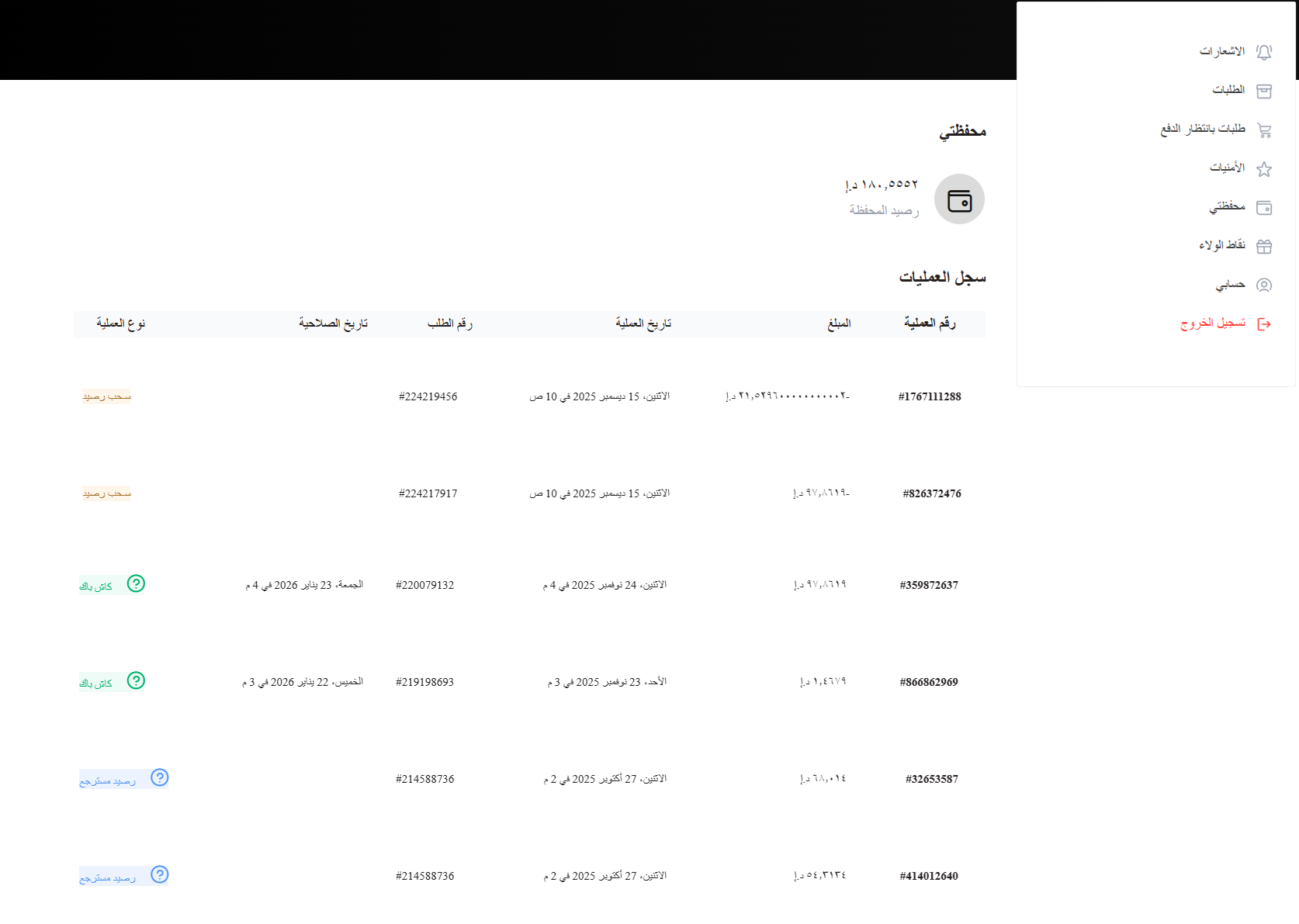
Read more about the customer wallet and how it lets you reward customers with cashback credit. That article covers enabling and managing the wallet, with practical examples for building loyalty and repeat purchases. 💰
My account
The customer can update their account details in your store, such as their email address and password, and sign out of every device to keep the account secure.
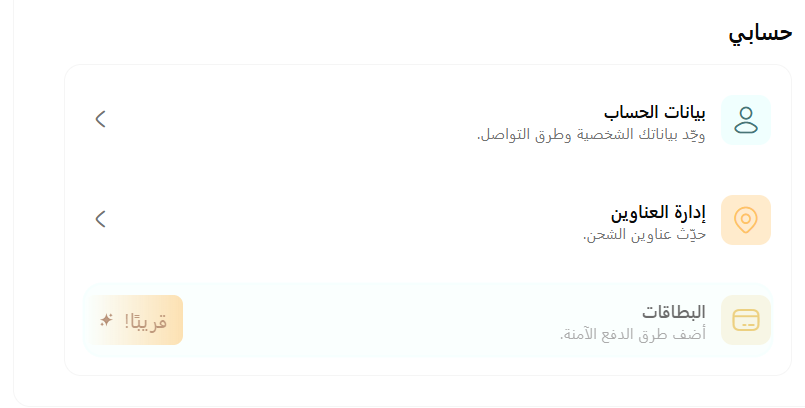
Learn the full steps for managing account details and protecting an account from unauthorized use. 🔐
Settings
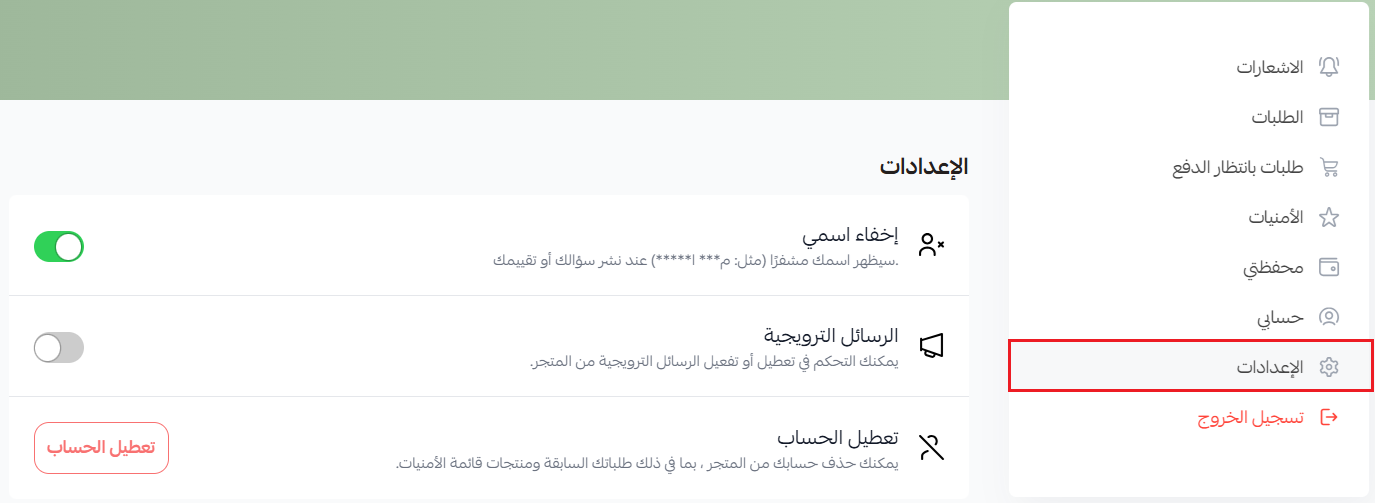
1. Hide my name
The customer's name appears masked (for example M*** A*****) when they post a question or a review.
2. Promotional messages
The customer can turn promotional messages from the store on or off, which gives them control over the kind of messages they receive.
3. Deactivate the account
The customer can delete their account from your store, including their past orders and the products on their wishlist. If they want to come back later, they will need to create a new account.
⚠️ Important note: If a customer creates a new account with the same details, only their new orders will show. None of the old orders are restored.
✅ Why this matters to you as a merchant
Knowing what the customer account page offers helps you:
- Improve the customer experience in your store.
- Cut down on support questions.
- Encourage customers to buy again.
- Build loyalty to your store.
The clearer and simpler the account experience is, the more your customers trust your store.
🚀 How to turn on wishlist notifications
Salla watches the products each customer adds to their wishlist and sends them the right notification at the right moment. You control this from your dashboard.
1. From the (Products) tab in the main menu, choose (Product settings).
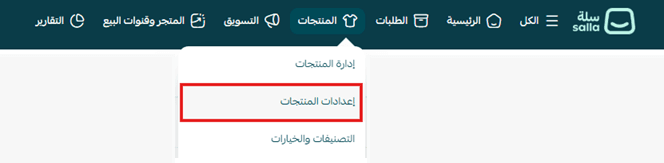
2. From the product settings page, choose (Wishlist notifications).
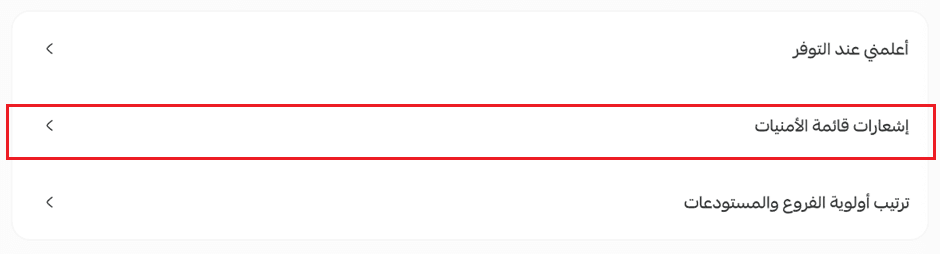
3. Choose the channels the notifications reach the customer through.
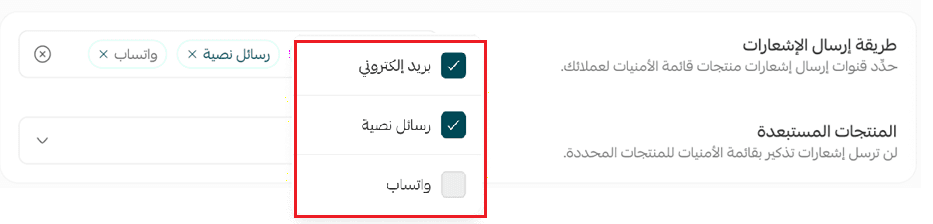
The notifications a customer can receive are:
1. A reminder about the product
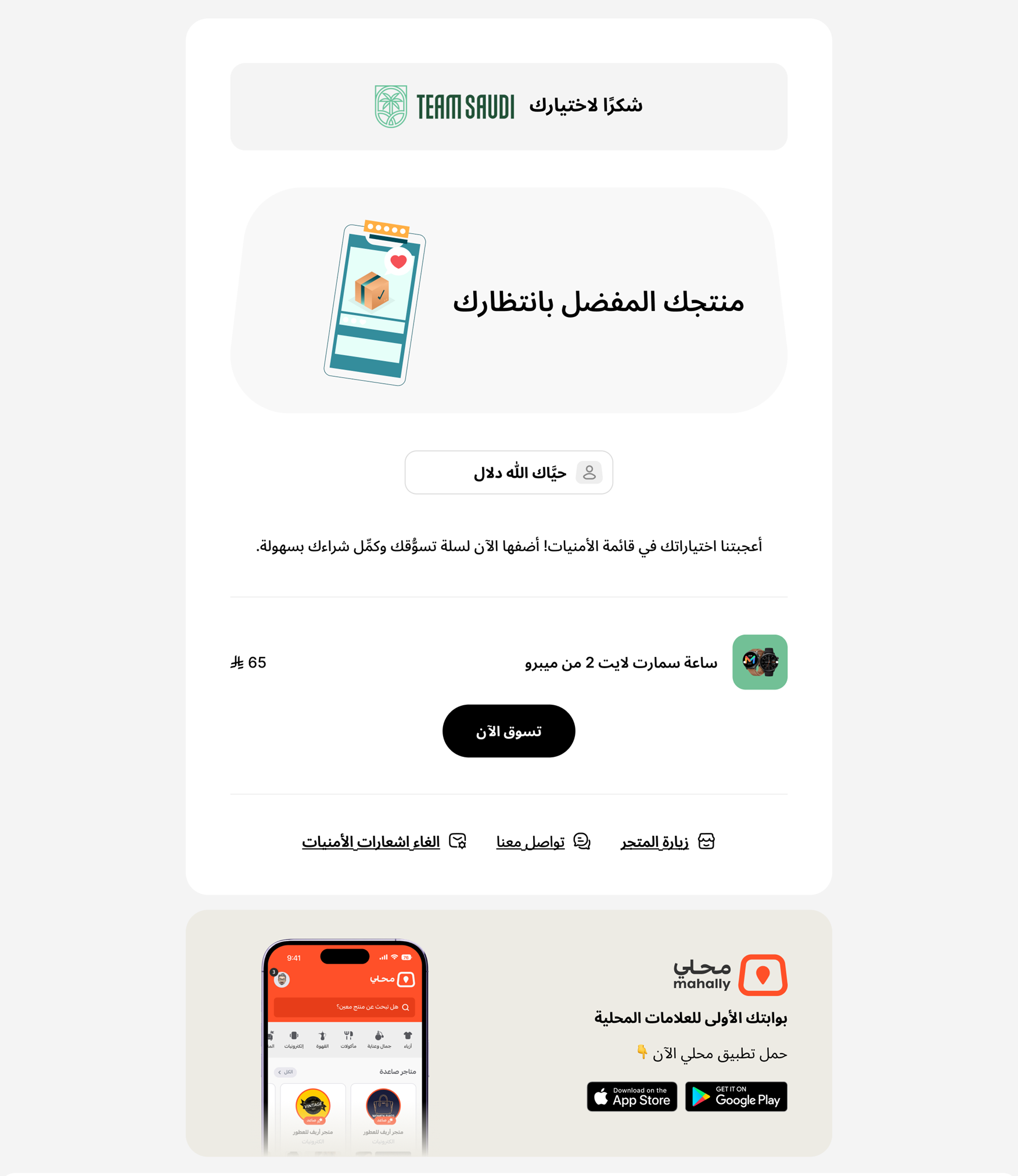
2. A heads-up that a product on their wishlist is running low on stock
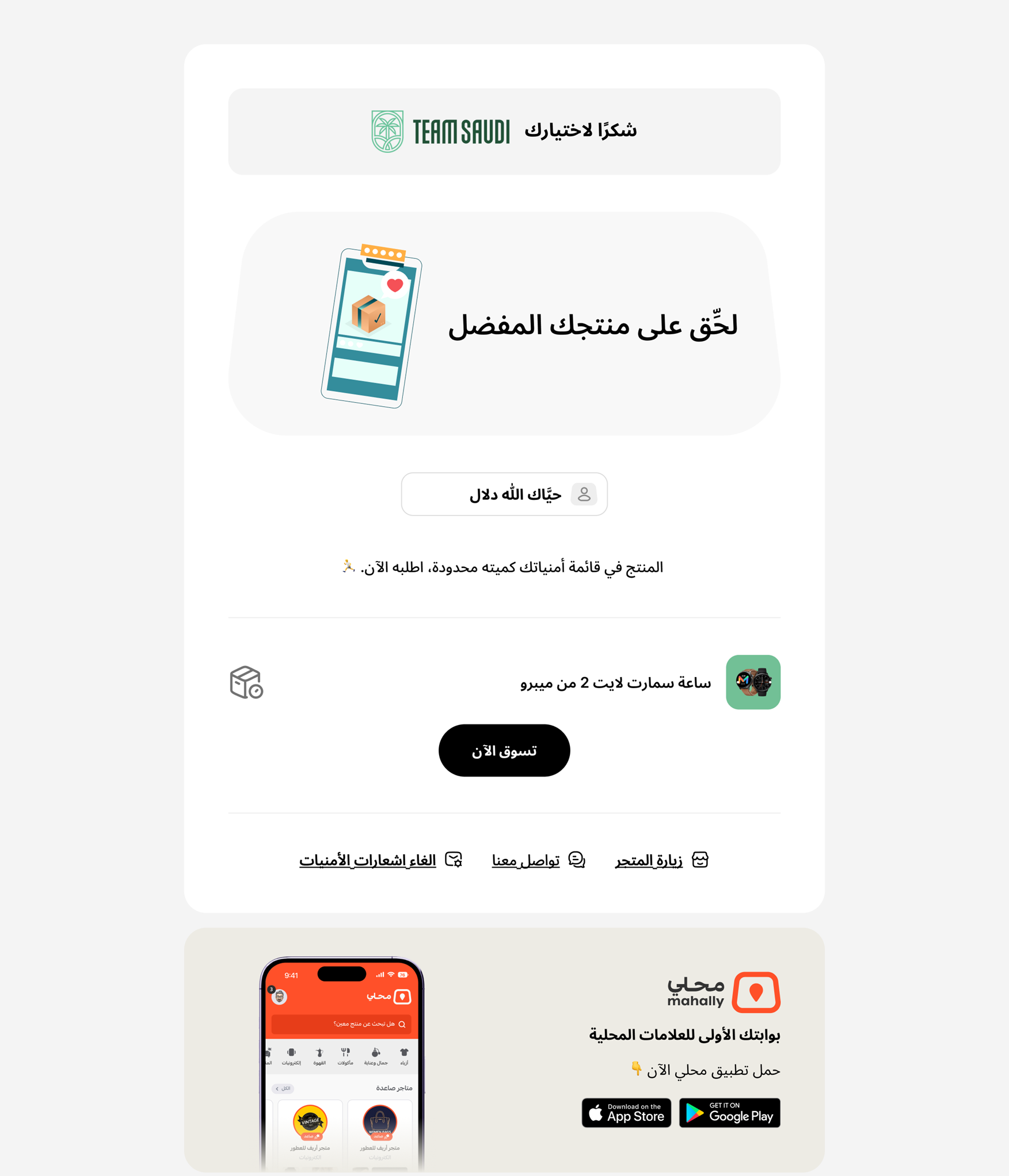
3. A heads-up that a product on their wishlist now has a discount
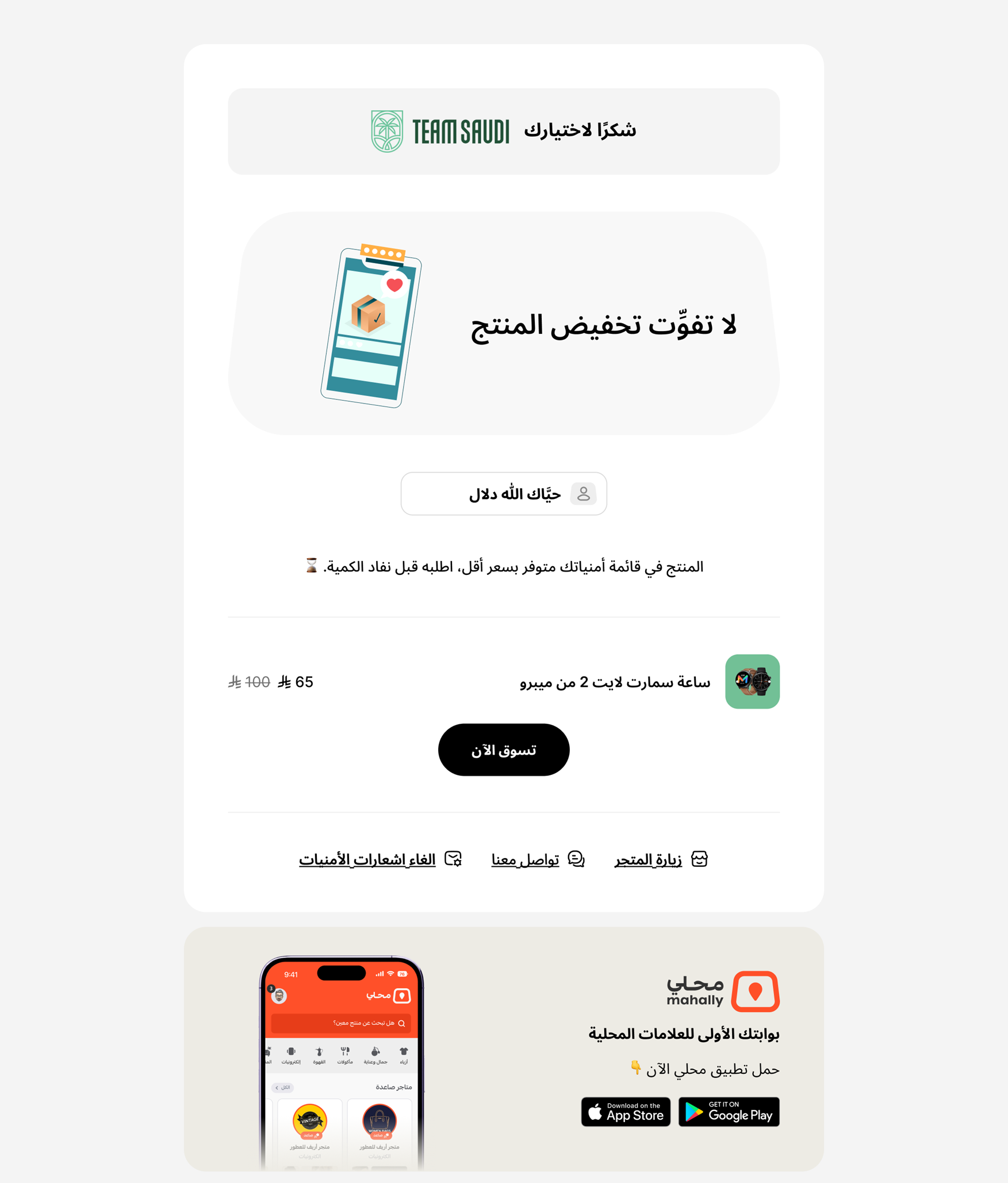
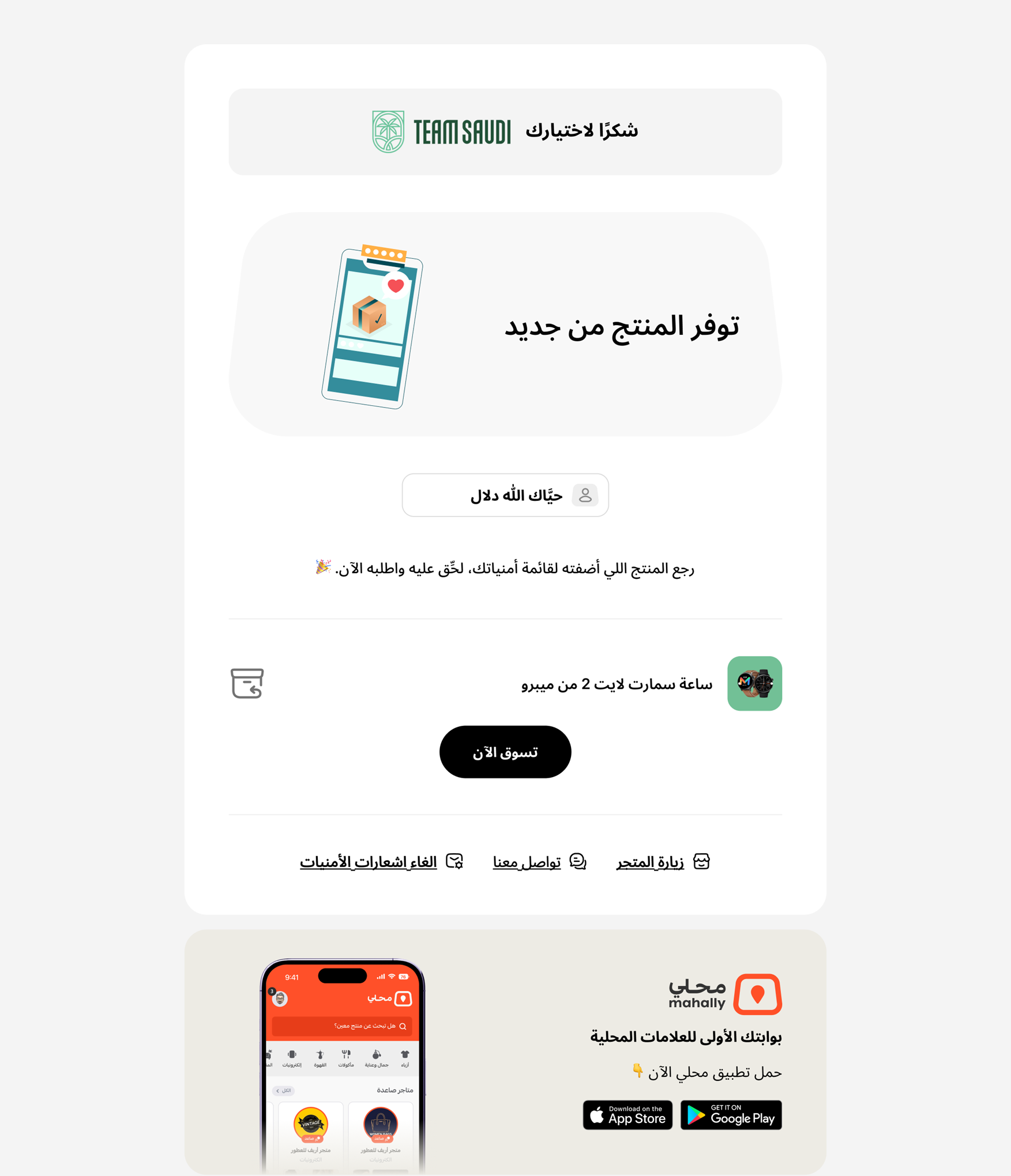
4. A heads-up that a product on their wishlist is back in stock
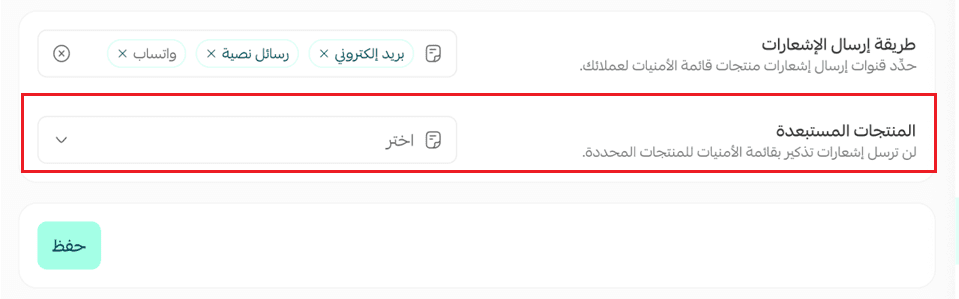
You can also exclude specific products from these notifications:
Frequently asked questions
❓ Can a customer reorder something they bought before?
Yes. From the order details page they can repeat the same order without adding the products to the cart again.
❓ Are customers notified about the products in their wishlist?
Yes, once you enable wishlist notifications in product settings. Customers can be reminded about a product, or told when it is low on stock, discounted, or back in stock.
❓ What happens if a customer deactivates their account?
The account is deleted from your store along with their past orders and wishlist products. If they create a new account later with the same details, only new orders appear — old orders are not restored.
❓ Can a customer post a review without showing their full name?
Yes. Turning on (Hide my name) in their account settings masks the name on questions and reviews, showing something like M*** A*****.
❓ Can a customer stop receiving promotional messages?
Yes. Promotional messages from the store can be turned off from the settings section of their account.
Get to know every feature attached to the customer account in your store and put it to work — to improve the shopping experience, to bring customers back for another purchase, and to build a long-term relationship with them.