Google will not hand over your site's data until it knows the site is actually yours.
Site verification is how you prove that. Google Site Verification confirms that you own the domain behind your store, and several Google services stay locked until it's done: viewing your site analytics, submitting your sitemap, and reaching your private Google Search data. Verification also affects how Google Search crawls your site. In this guide, you'll learn how to install the Google Site Verification app on your store and complete verification through a DNS TXT record.
Google Site Verification proves that you own your store's domain. Install the app from the Salla App Store, sign in with your Google account, then add the TXT record Google gives you to your domain's DNS settings. Once Google reads that record, your domain is verified and the app becomes active.
Verifying "your site" means verifying "your store's domain".
📌 Article overview
- What Google Site Verification is
- How to verify your domain with Google Site Verification
- Frequently asked questions
🎯 What Google Site Verification is
Google Site Verification is the process of proving that you own the site you are adding, because some Google services are only available to site owners.
Once your site is verified, you can control it: view its analytics, submit your sitemap, and access your private Google Search data. Verification also influences how Google Search crawls the site.
Google also offers a Site Verification API, so developers can build apps or services that run the verification process automatically. A verified owner can then grant other users full access or view-only permission.
👣 How to verify your domain with Google Site Verification
1. From the main menu, click (All), then under helper tools, click (App Store).

2. Search for the app using the search field.

3. On the Google Site Verification app page, click (Install).
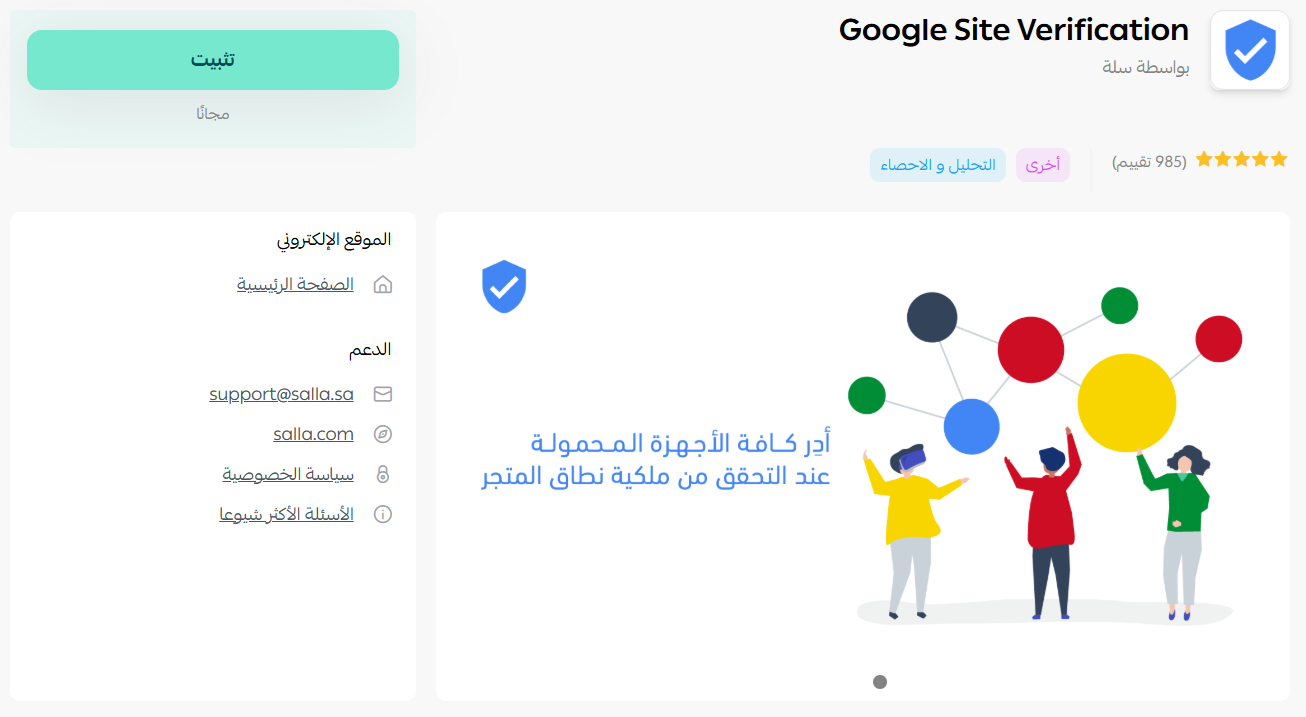
4. On the My apps page, open the site verification app.

5. Click (Go to complete activation).
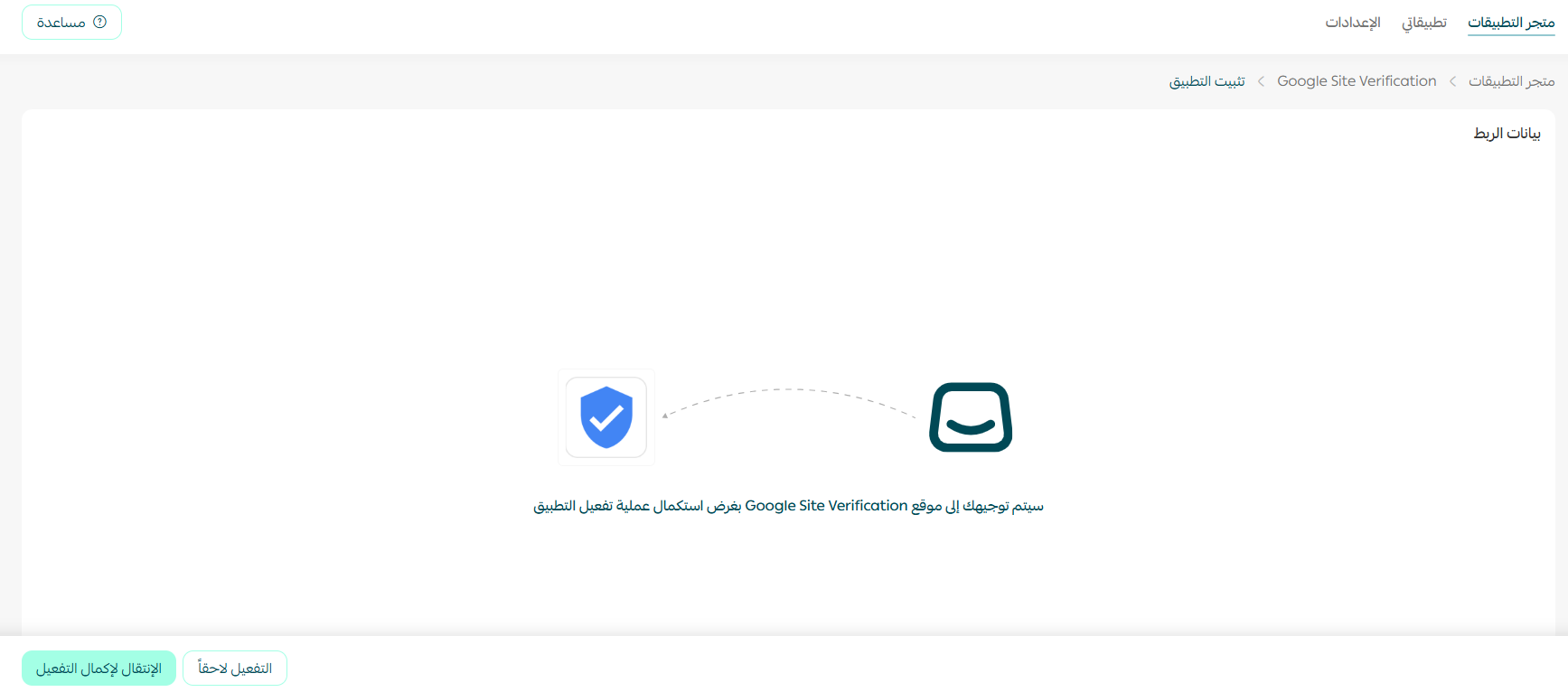
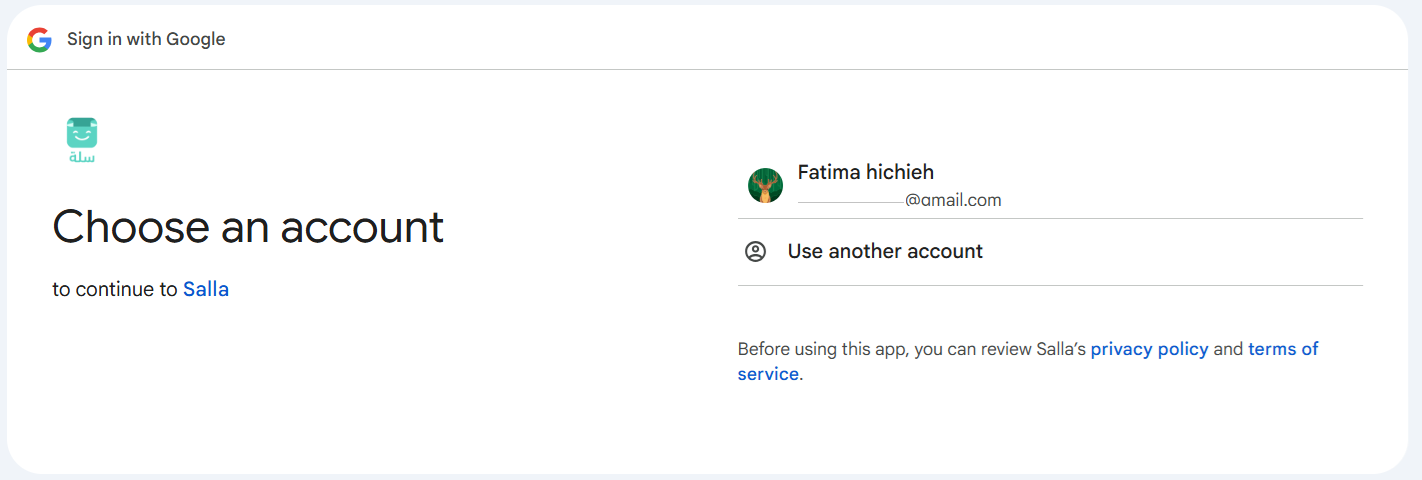
6. Sign in to your Google account.
7. To approve the access request, click (I understand).
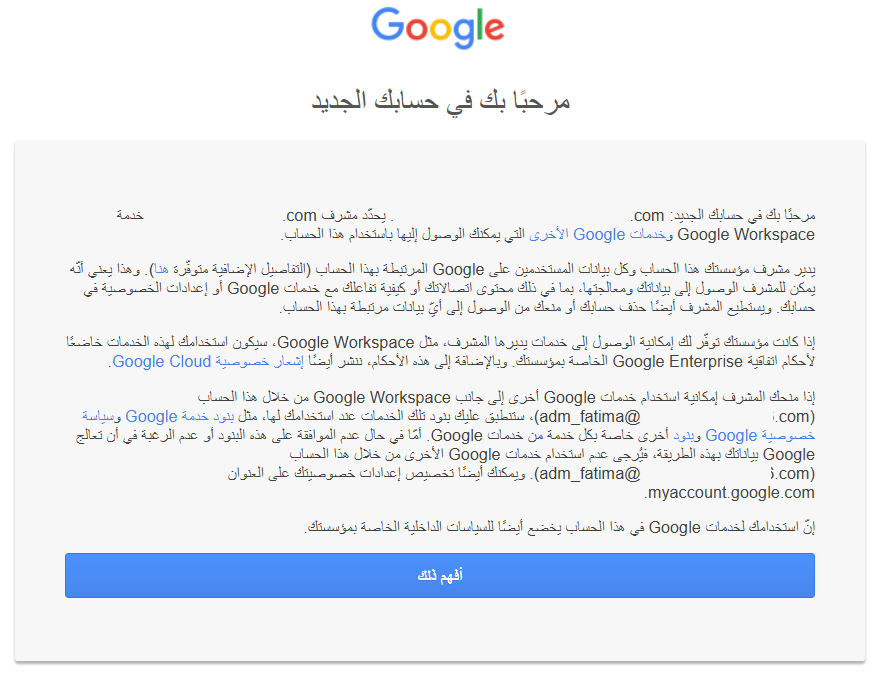
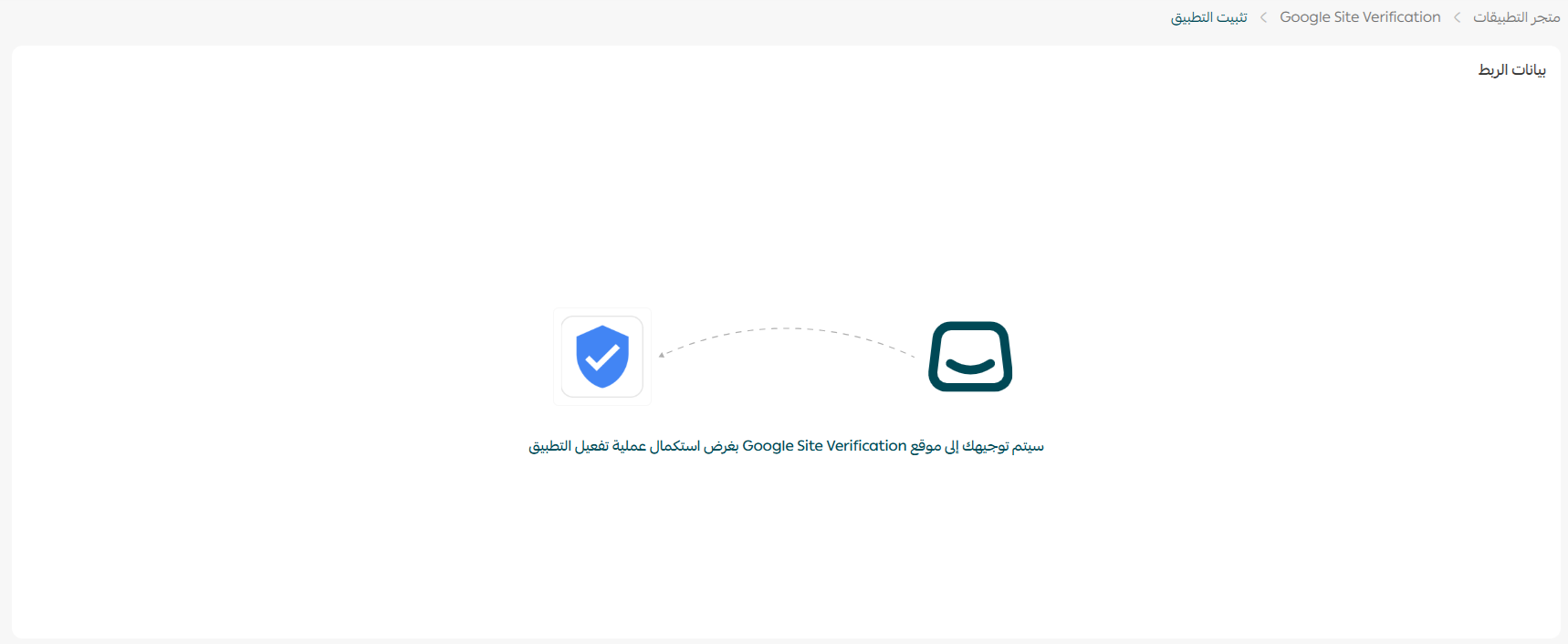
You are then redirected to Google Site Verification to finish activating the app.
The Google Admin page opens automatically.
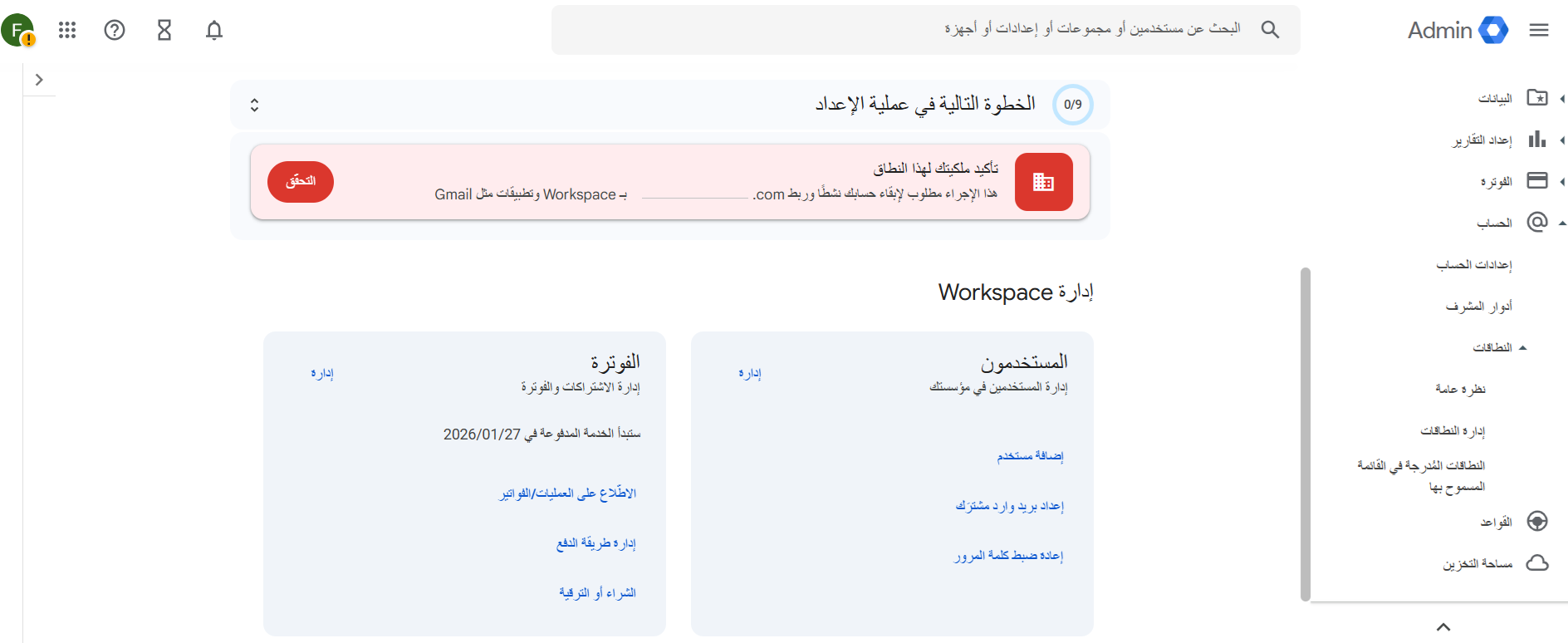
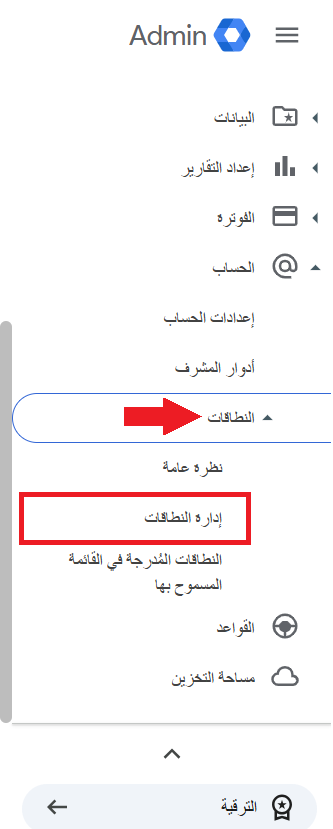
8. From the side menu, click (Domains), then click (Manage domains).
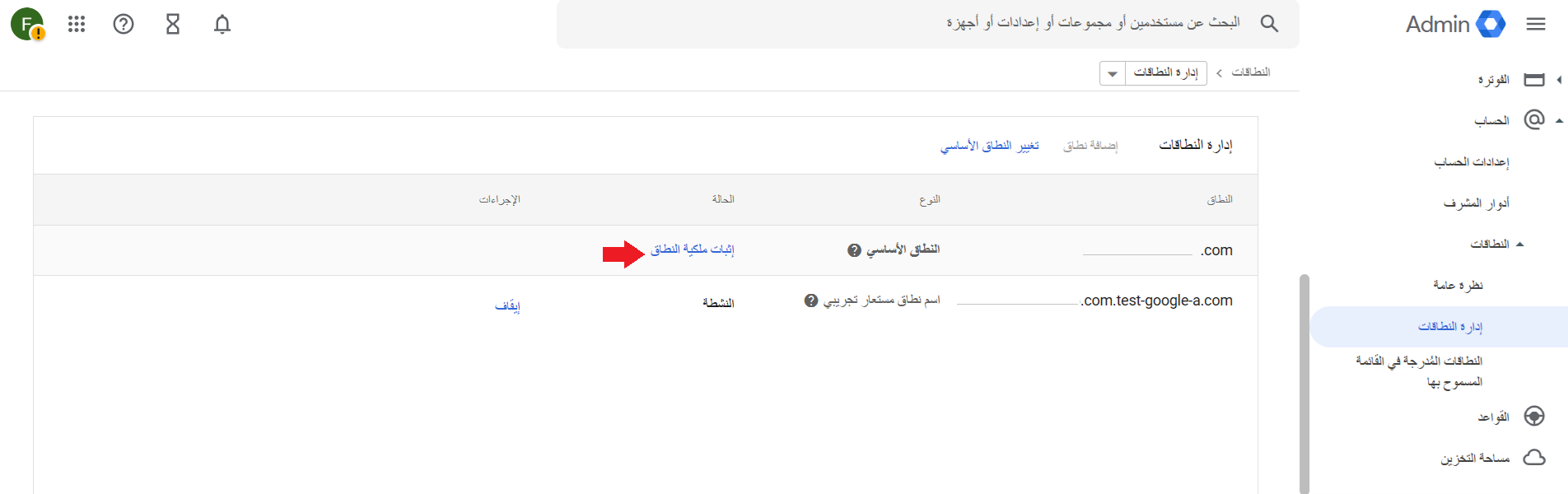
9. On the Manage domains page, a message tells you the primary domain is not verified. Click (Verify domain ownership).
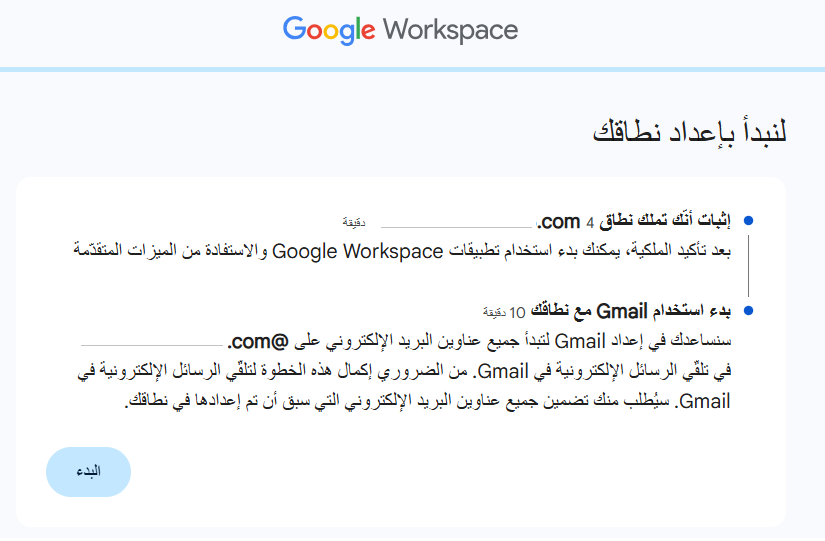
To begin setting up the domain, click (Get started).
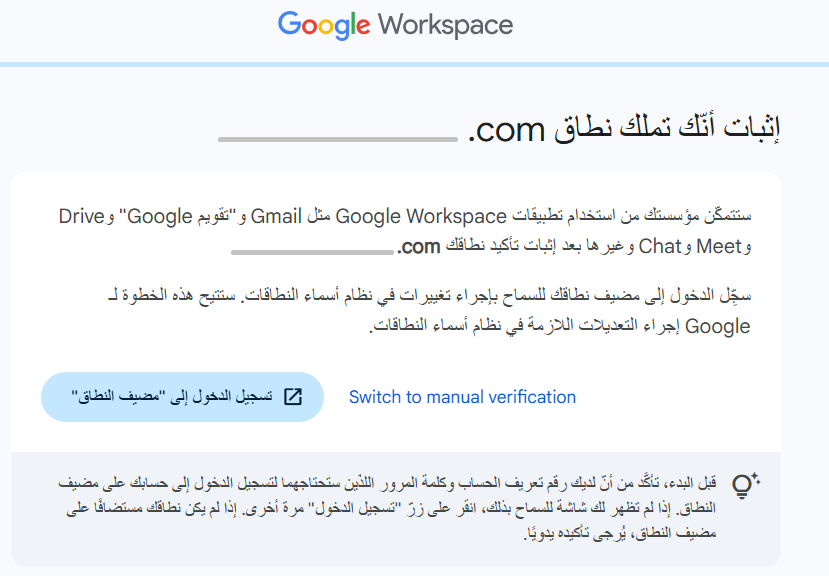
10. Click (Sign in to your domain host), and sign in to the host with your store's credentials.
11. Copy the verification code.
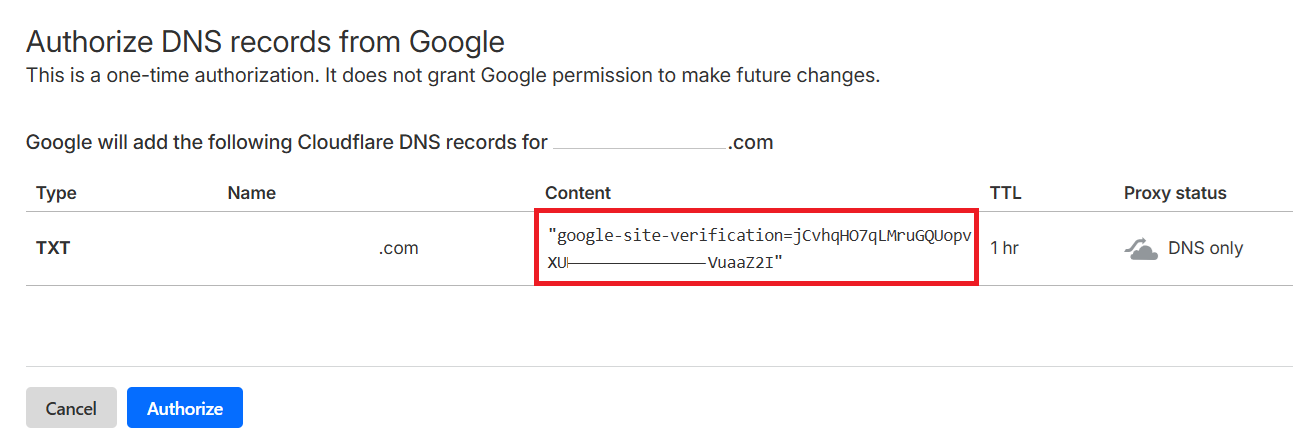
12. On your store's domain page, fill in the record fields, then click (add):
- Type: choose TXT from the list.
- Name: enter the name you want, for example @.
- Content (Value): paste the verification code you copied in the previous step.

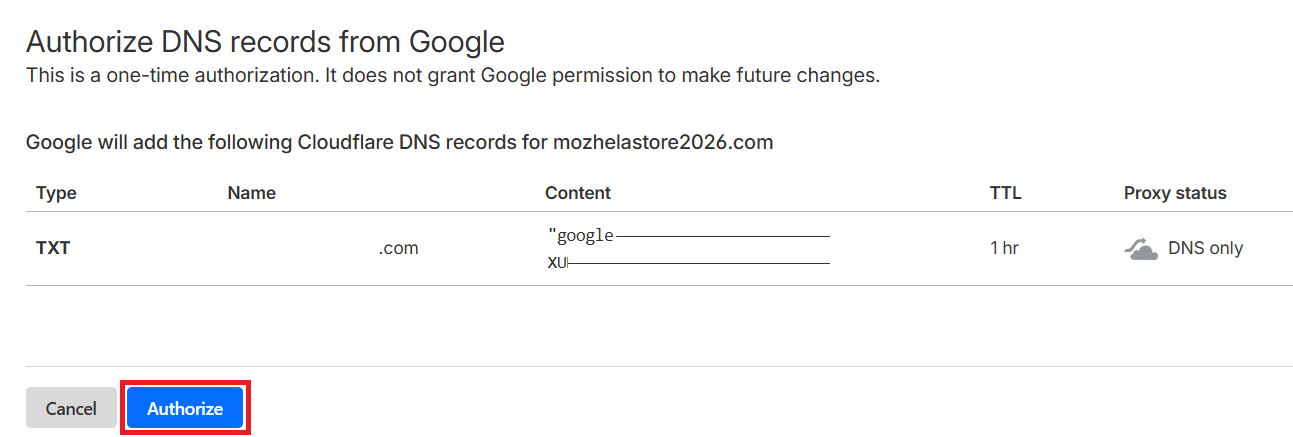
13. Go back to the Google Workspace domain verification page and click (Authorize).
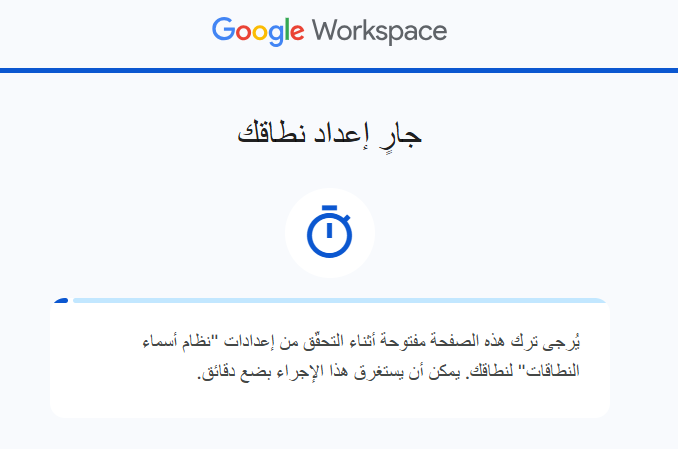
⌛ Give it a moment while Google finishes setting up your domain.
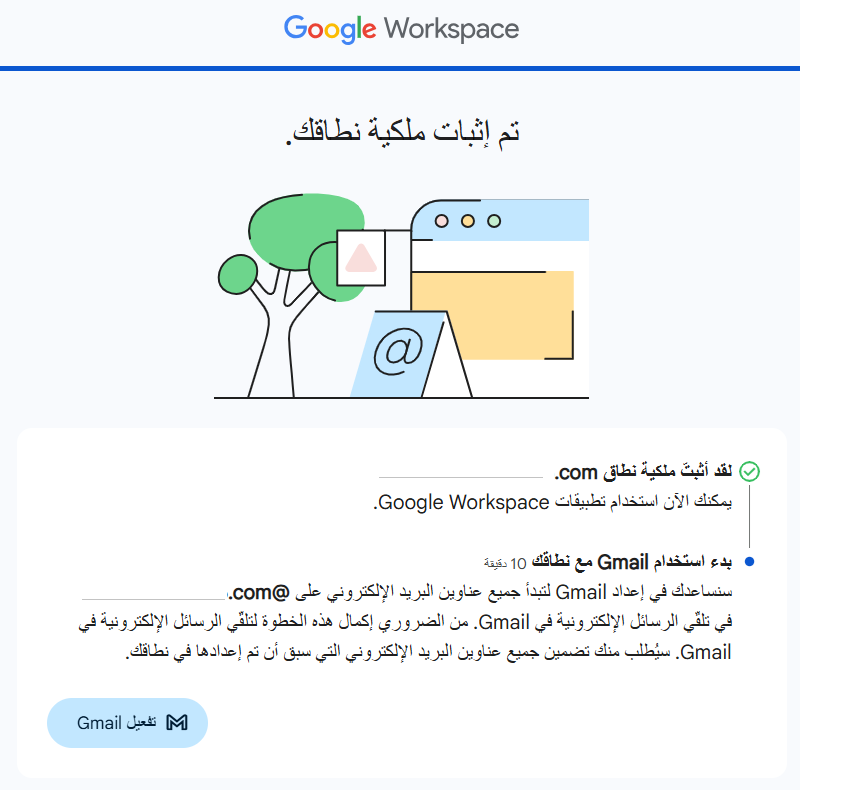
🌟 Your domain ownership is now verified.
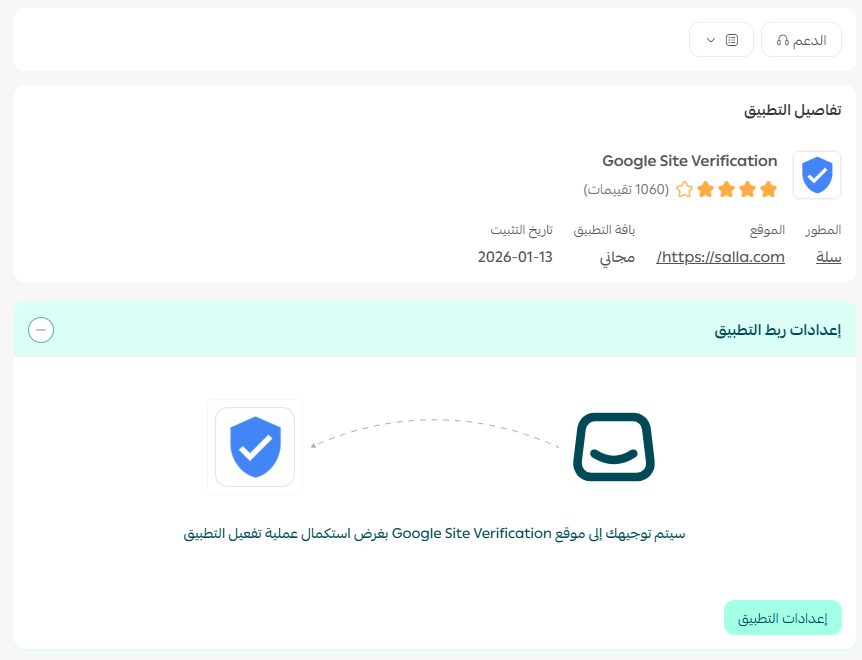
The app now shows as active on your My apps page.
📝 Important notes
- Verifying your site means verifying the domain your store runs on, so you need a custom domain before you start.
- The TXT record is added wherever your domain's DNS is managed. Leave the record in place — removing it later can un-verify the domain.
❓ Frequently asked questions
Why do I need to verify my site with Google?
Some Google services are only available to site owners. Verification unlocks your site analytics, sitemap submission, and access to your private Google Search data, and it affects how Google Search crawls your site.
Which verification method does this app use?
A DNS TXT record. Google generates a code, you add it as a TXT record on your domain, and Google reads it back to confirm ownership.
Can I give someone else access after verifying?
Yes. A verified owner can grant other users either full access or view-only permission.
How do I know verification worked?
Google confirms the domain is verified, and the Google Site Verification app appears as active on your My apps page.
📢 That completes the verification process.