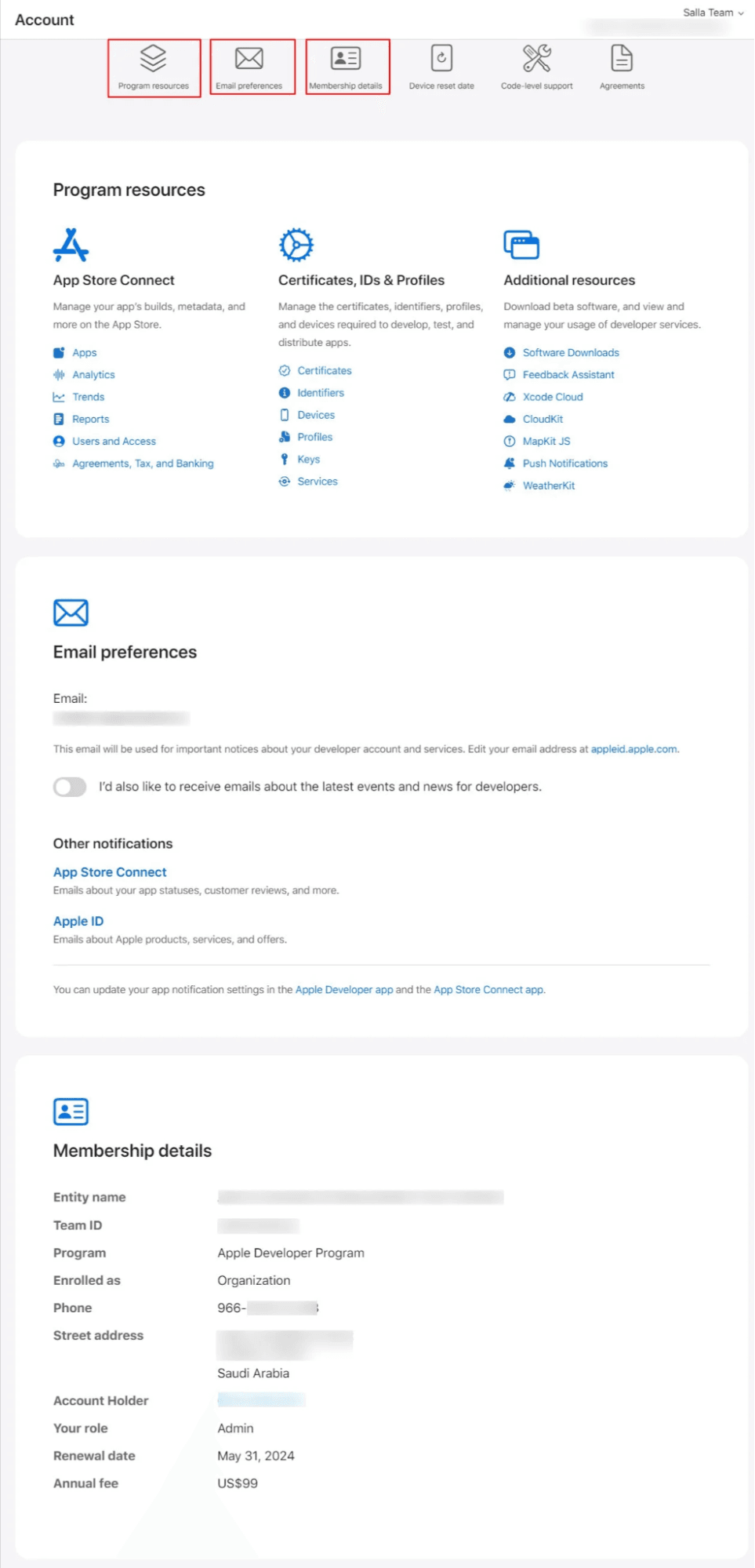
The Apple Developer Program is the official gateway for building and publishing applications on the App Store. It enables developers and businesses to distribute apps globally for an annual fee of $99 USD.
In this guide, you’ll learn how to create an Apple Developer account for a company or organization.
Note: A Company/Organization account is required to use the App Maker service on the Salla platform.
📌 Article overview
- Types of Apple Developer memberships
- Requirements for creating a Company/Organization developer account
- Step-by-step guide to creating an Apple Developer account
Types of Apple Developer memberships
1️⃣ Individual Apple Developer Program
This membership allows individuals to publish apps on the App Store under their personal name.
- No legally registered business entity
- No D-U-N-S Number from Dun & Bradstreet
- Only one primary login for the iOS Developer account
- Apps appear under the individual’s name on the App Store
2️⃣ Company/Organization Apple Developer Program
This option is designed for legally registered companies.
- Apps appear under the company name, increasing user trust
- Supports multiple users with different roles and permissions
- Requires a D-U-N-S Number issued by Dun & Bradstreet
- Ideal for teams, agencies, and businesses
3️⃣ Educational Institutions & Non-Profit Organizations
Available for qualified institutions, sometimes at reduced cost or free.
- Apps are published under the institution’s name
- Subject to Apple’s eligibility requirements
Requirements for creating a company/organization Apple Developer Account
To successfully register, you must have the following:
- A valid Apple ID
- A credit card to pay the annual $99 USD membership fee
- An official company domain (website)
- A business email address
- Format: email@yourdomain.com
- A legally registered company with an official commercial registration
- A D-U-N-S Number
- A unique nine-digit business identifier issued by Dun & Bradstreet
- Used by Apple to verify your company’s legal identity
- Free of charge
- Legal authority to enroll the organization
You must be one of the following:
- Owner or founder
- Executive team member
- Senior project lead
- Authorized employee with legal signing authority
Steps to create an Apple Developer Account
You can complete these steps via desktop browser or the Apple Developer mobile app.
Learn how to create an Apple Developer account via the mobile app
- Visit the Apple Developer website
Go to the official Apple Developer Program page and click Account.

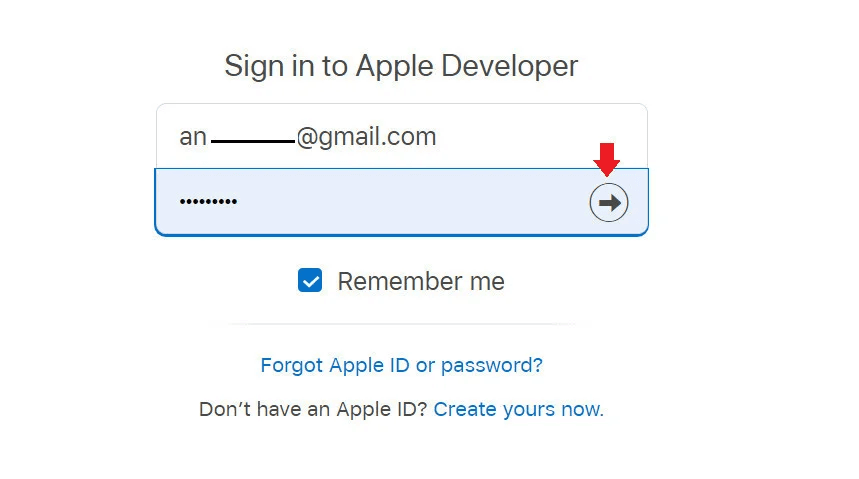
2. Sign in with your Apple ID
Enter your Apple ID credentials, then input the verification code sent to your registered phone number.
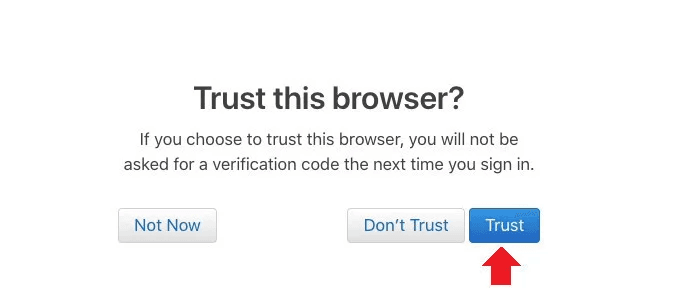
3. Trust the browser
When prompted, click Trust to continue.
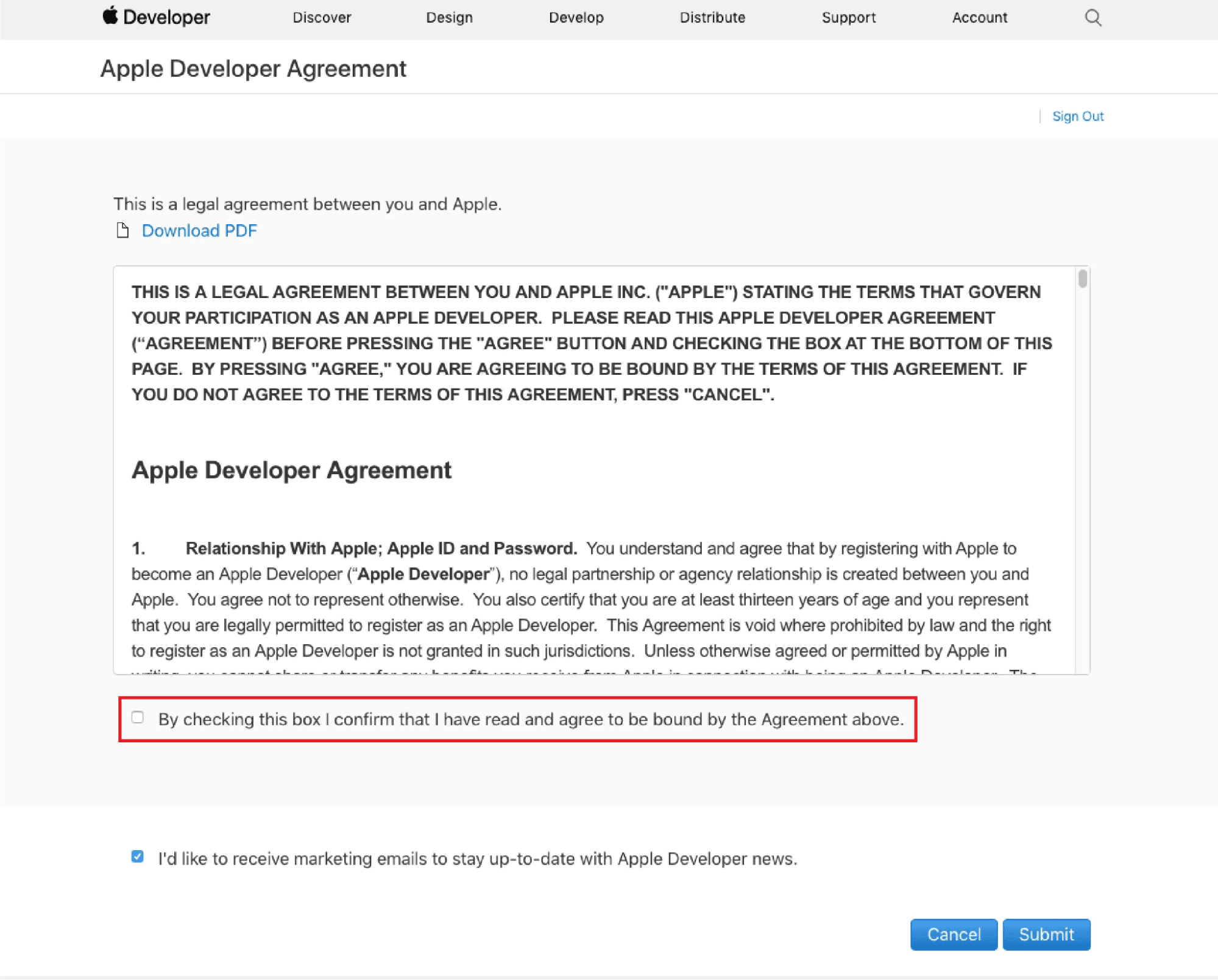
4. Accept the Apple Developer Agreement
Review the agreement, check the confirmation box, then click Submit.
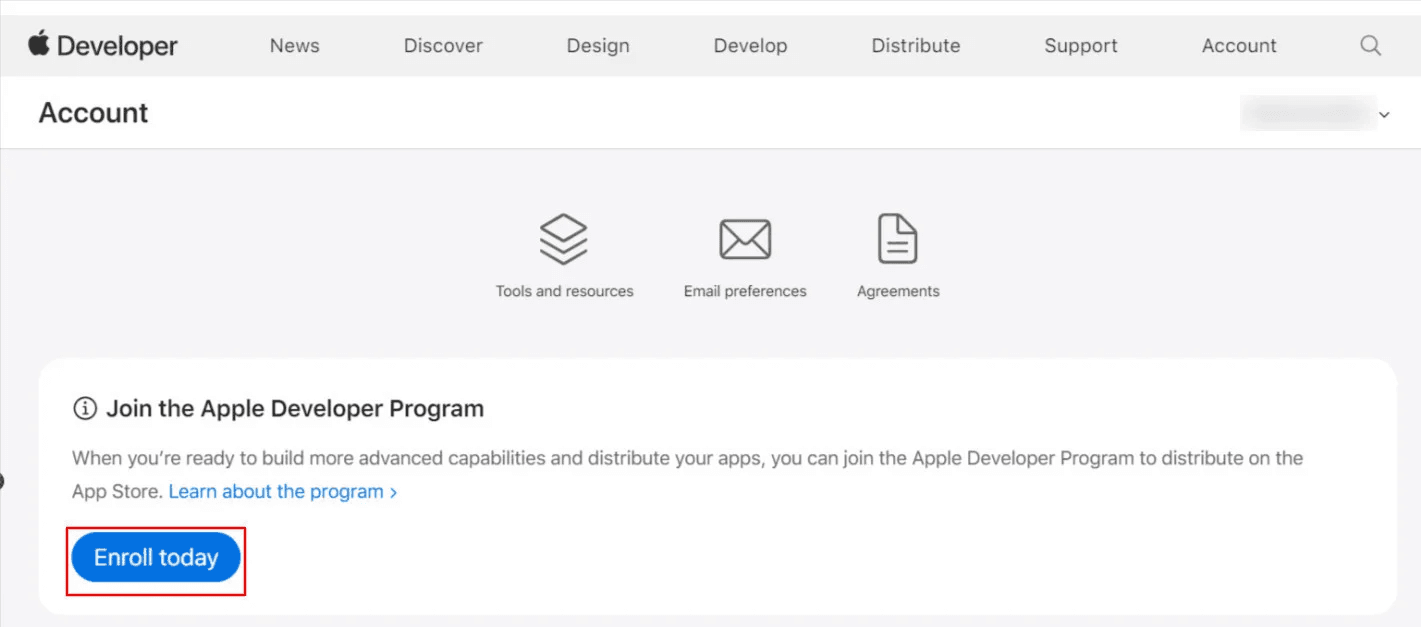
5. Join the Apple Developer Program
From your developer account dashboard, click Enroll Today.
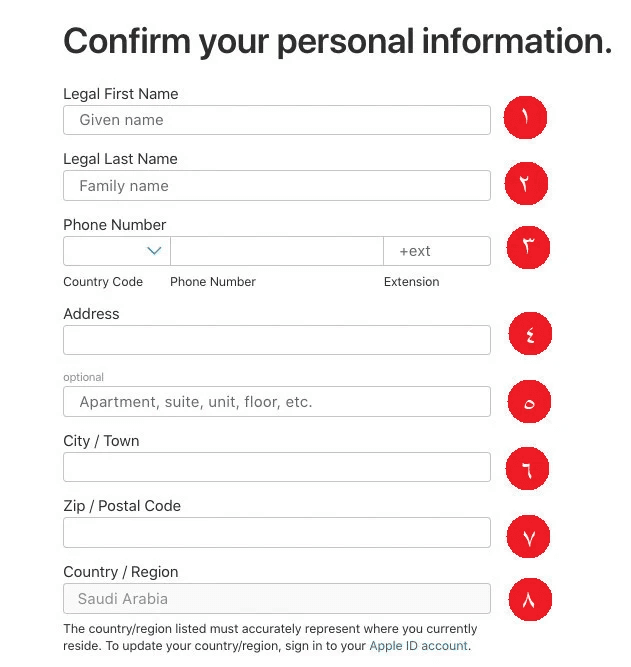
6. Enter your personal information
Fill in your details accurately, then click Continue:
- First name (must match official ID)
- Last name (must match official ID)
- Country calling code and phone number
- Personal address (apartment, unit, floor, etc.)
- City
- Postal code
- Country (auto-filled based on Apple ID settings)
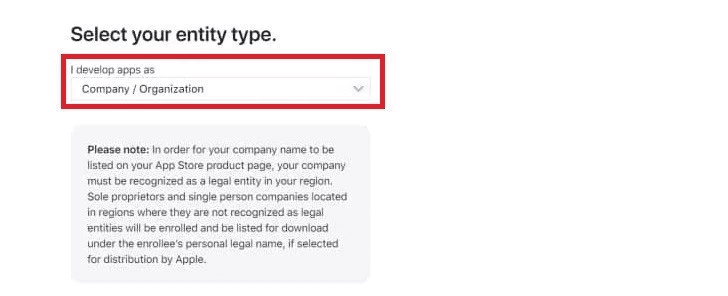
7. Select the account type
Choose Company Organization, then click Continue.
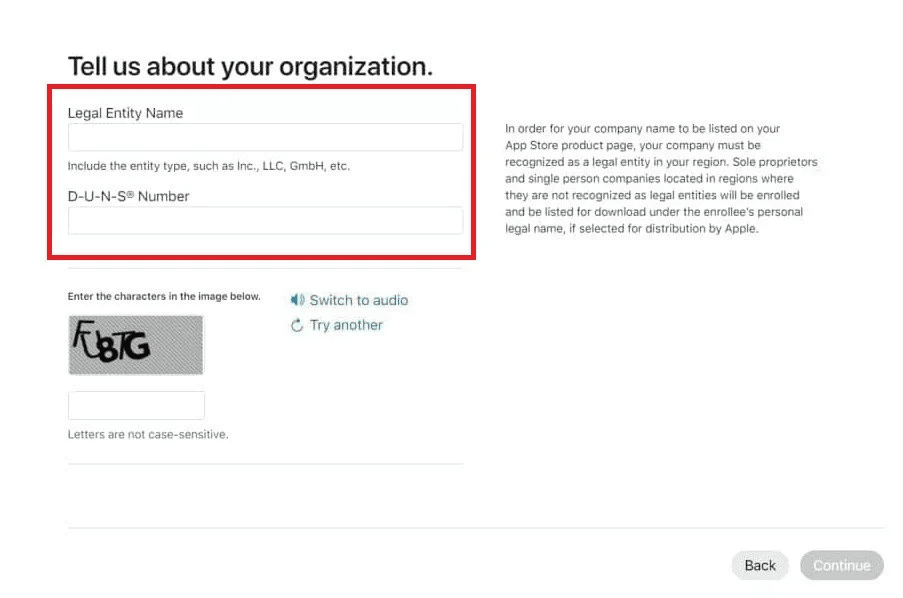
8. Enter company legal details
Provide the following exactly as registered with Dun & Bradstreet:
- Legal company name
- D-U-N-S Number
- CAPTCHA verification code
Click Continue.
⚠️ If an error appears (after confirming the data matches D&B records), contact Apple Support and provide:
- Company name
- D-U-N-S Number
- Legal entity type
👉 Apple Support via phone
👉 Apple Support via email
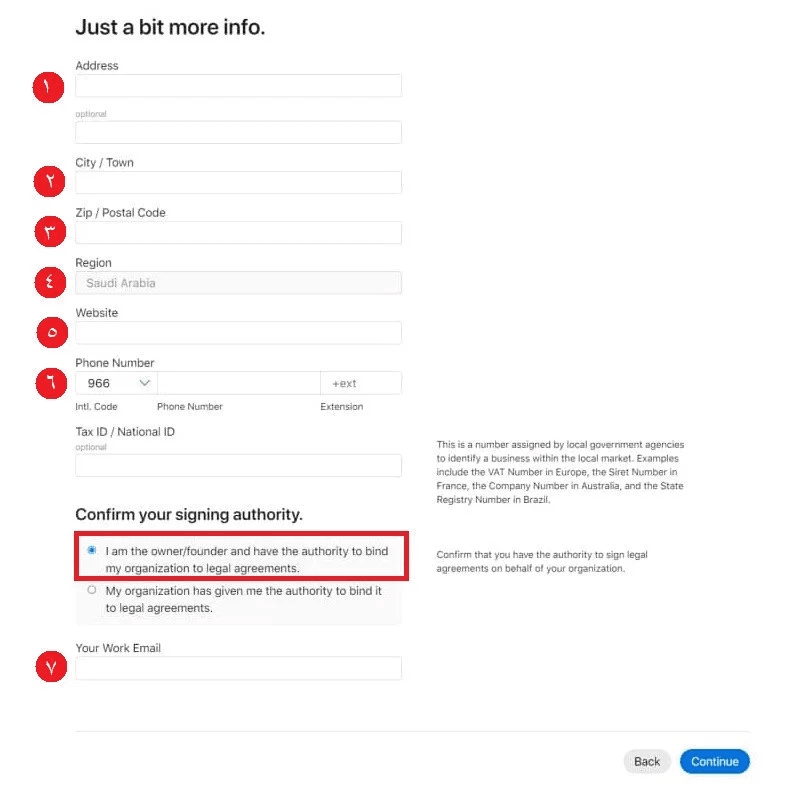
9. Enter company information
Ensure all details match D&B records exactly, then click Continue:
- Company address (street and district only — no special characters)
- City
- Postal code
- Country
- Website URL (must include http:// or https://)
- Phone number and confirmation that you are the owner/founder
- Business email address (linked to the domain)
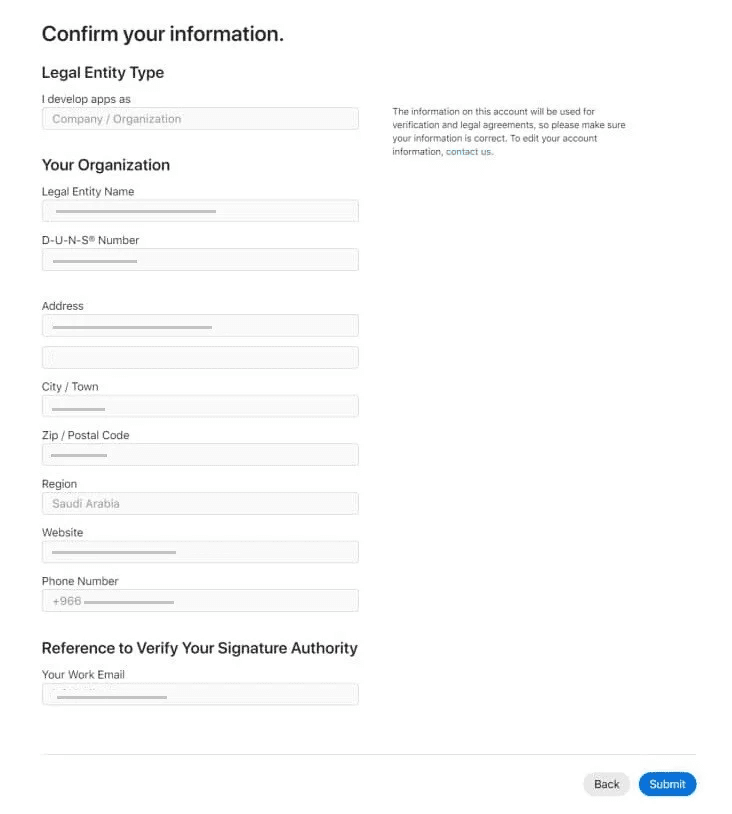
10. Confirm your information
Review all details carefully, then click Submit.
11. Membership under review
A confirmation page will appear indicating that your enrollment is under review by Apple.
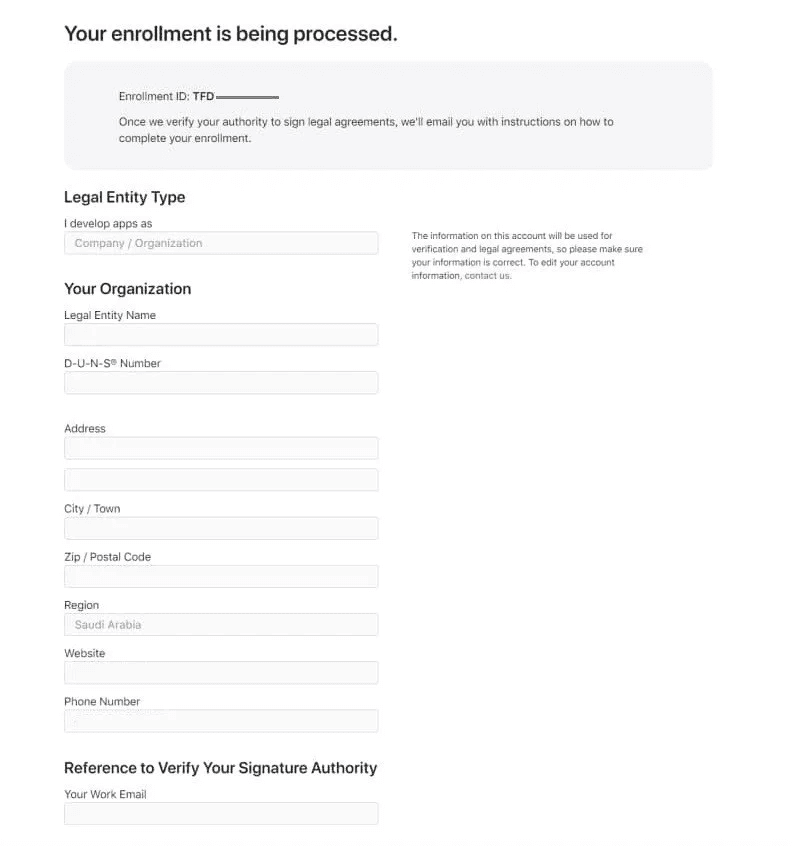
🚨 Important:
- Save your Enrollment ID shown at the top of the page and keep a screenshot. You’ll need it when communicating with Apple Support.
12. Apple verification process
Review typically takes several days. During this time, Apple may contact you via email or phone to request:
- Translated commercial registration
- Additional company details
- A verification phone call
Example verification questions Apple may ask:
- What is your first and last name?
- What is your Enrollment ID?
- What is your work email address?
- What is your company phone number?
- Are you the owner of the company?
- Do you have legal authority to sign Apple agreements?
- Will your apps be published on the App Store or outside it?
→ Answer: On the App Store
💬 If you didn’t understand a question, feel free to say:
“Sorry, could you repeat the question?”
13. Agreement approval & payment
Once Apple approves your membership:
- You’ll receive the Apple Developer agreement to approve
- After acceptance, you’ll be redirected to the payment step
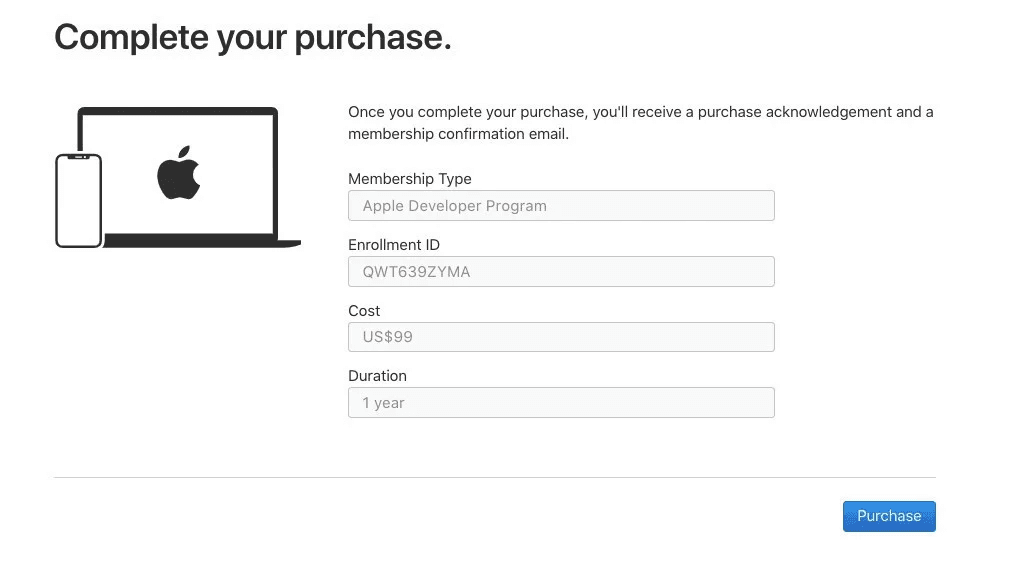
👉 Continue to: Creating an Apple Developer Account – Payment Stage
Frequently asked questions
How long does company account activation take?
Typically 1–2 weeks, depending on:
- Your responsiveness
- Apple’s verification timeline
- Once payment is successful, the account is activated immediately.
Will Apple contact me during the review period?
Yes. Apple may:
- Call you to verify details
- Email you requesting additional documents
Be prepared and monitor your inbox closely. If needed, have a translator available.
What is the cost of a Company Apple Developer account?
$99 USD per year (approximately SAR/AED 400), billed annually by Apple.
What happens if the membership expires?
You’ll lose access to developer features, and your apps may be temporarily removed from the App Store until renewal.
How can I confirm that my enrollment is complete?
Log in to the Apple Developer dashboard.
If developer management options are visible, your enrollment is complete.
If not, the account is still pending or inactive.