What would it take to turn a first-time visitor into an email address you can market to?
Discounts work, but a discount someone wins feels different from a discount you hand out. The Lucky Wheel from Smartarget adds a customizable spin-to-win wheel to your Salla store, so shoppers trade their email address, name, or phone number for a prize before they leave. You install it from the Salla App Store and control how it looks and where it appears. In this guide, you'll learn how to connect the Lucky Wheel to your store, create a Smartarget account, find your User ID, and remove the app.
To add a Lucky Wheel to your store, open (My installed apps), click (Browse Salla App Store), open the Lucky Wheel from Smartarget app page, and click (Install). Choose a plan, grant the permissions, activate the app, then paste your Smartarget User ID and click (Save).
📌 Article overview
- What is the Lucky Wheel from Smartarget?
- How to connect the Lucky Wheel to your Salla store
- Frequently asked questions
🎯 What is the Lucky Wheel from Smartarget?
The Lucky Wheel lets you add a customizable spinning wheel to your Salla store.
Can I customize the Lucky Wheel?
Yes. The wheel is fully editable and built to order. You choose the colors, the content, the position, and how the popup behaves, so it sits naturally inside your Salla store.
A few ways merchants use it:
- Offer prospects a discount on courses or other prizes in exchange for their email address, name, phone number, or any other detail you want to collect.
- Write your own congratulations messages to lift engagement and push the results you are aiming for.
- Build an email list you can keep marketing to through newsletters, upcoming sales, and new courses.
🚀 How to connect the Lucky Wheel to your Salla store
📝 Important notes
Step 7 asks for your Smartarget User ID. If you do not have a Smartarget account yet, create one first — the steps are in the frequently asked questions below.
1. From the side menu of your dashboard, click (My installed apps).

2. From the Salla App Store banner, click (Browse Salla App Store).

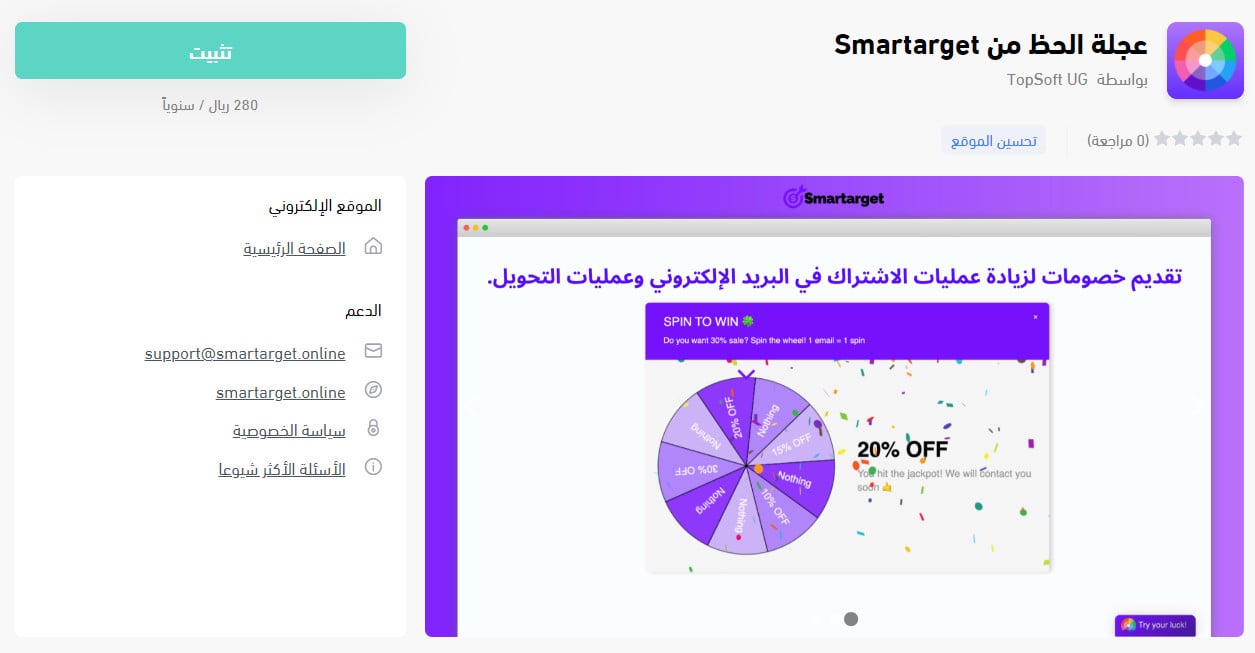
3. From the Lucky Wheel from Smartarget app page, click (Install).
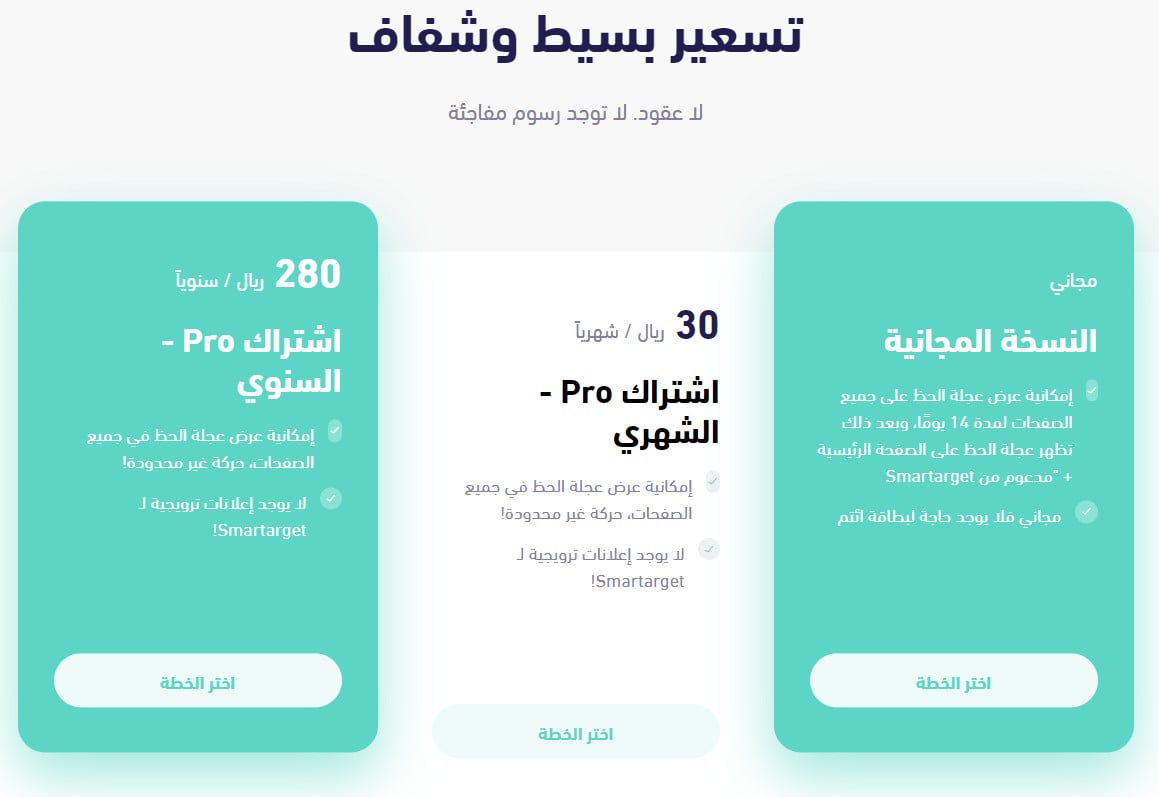
4. Choose the plan that fits what your store does, then click (Choose plan).
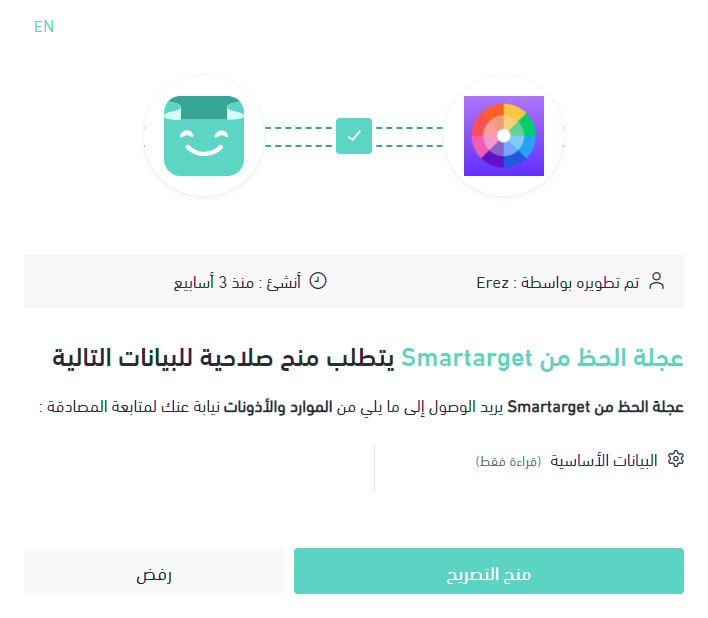
5. Review the permissions the app asks for, then click (Grant permission).
The Lucky Wheel app is now installed on your store.
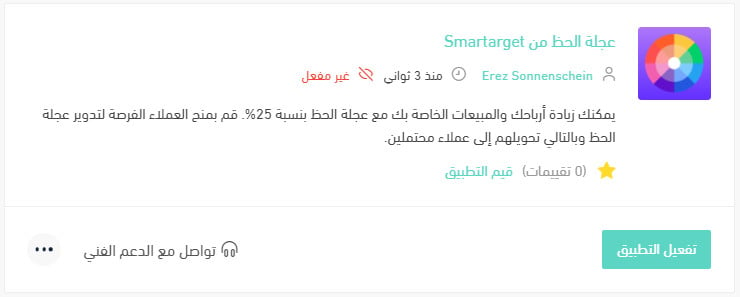
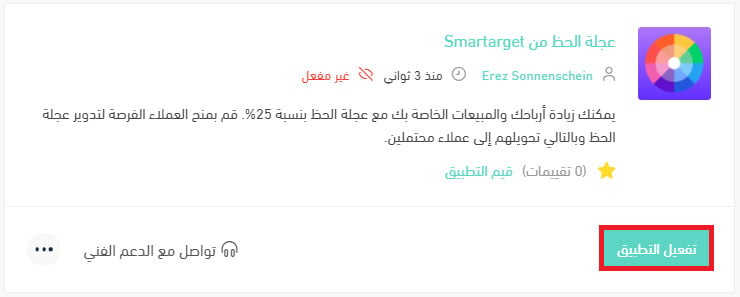
6. From the installed apps page, click (Activate app) on the Lucky Wheel.
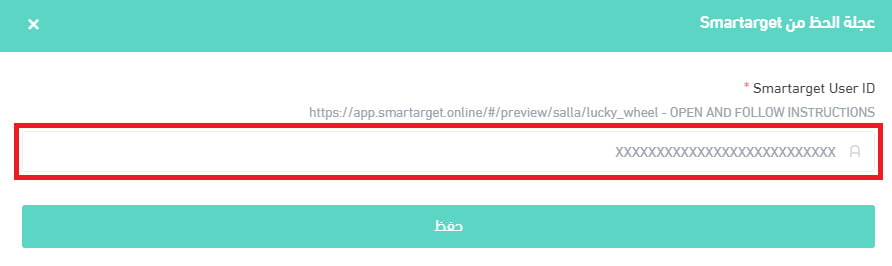
7. Paste your Smartarget User ID into the field provided, then click (Save).
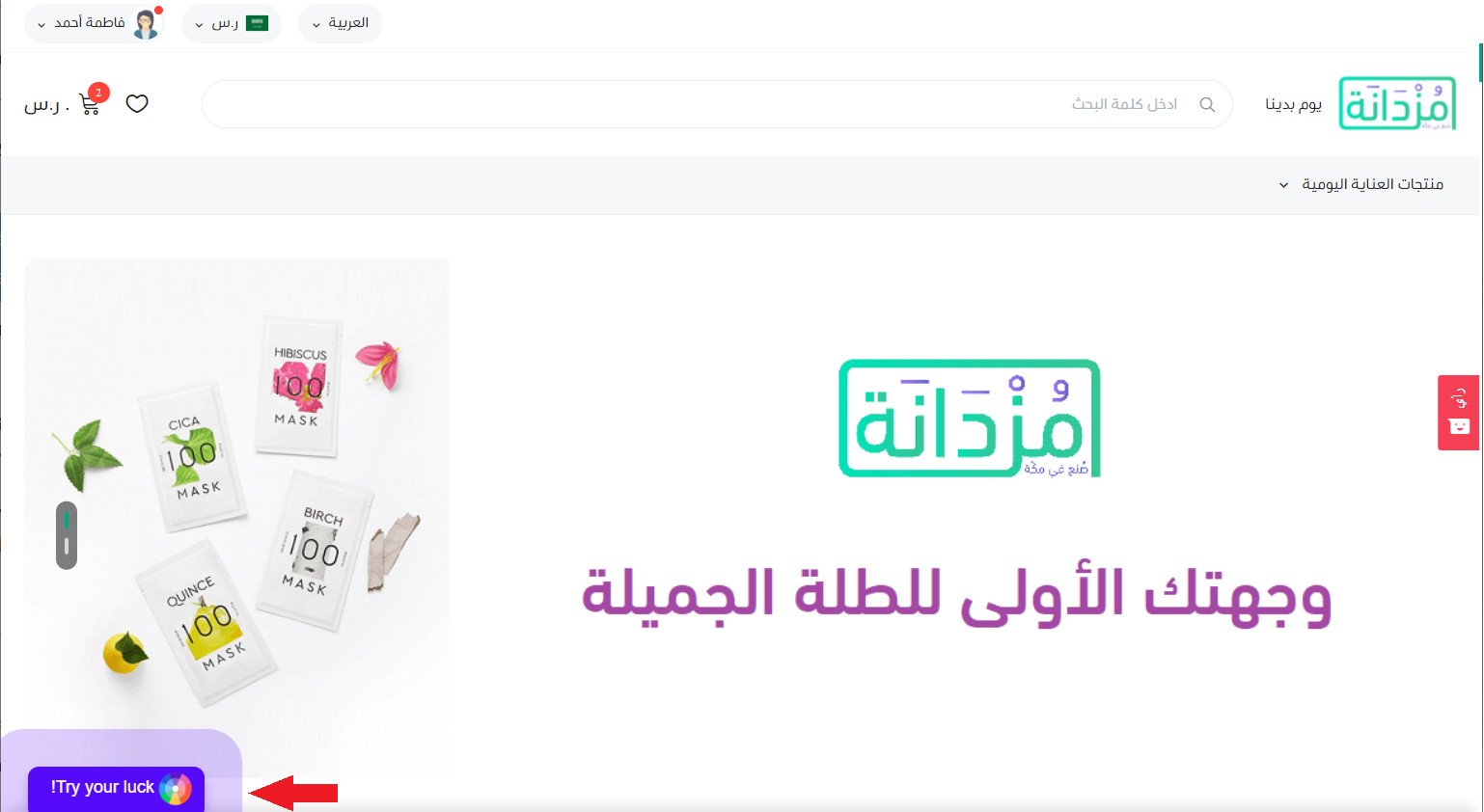
The Lucky Wheel is now live on your store. Depending on your wheel settings, it can look like this:
For more details, read managing my store's apps.
❓ Frequently asked questions
How do I create a Smartarget account?
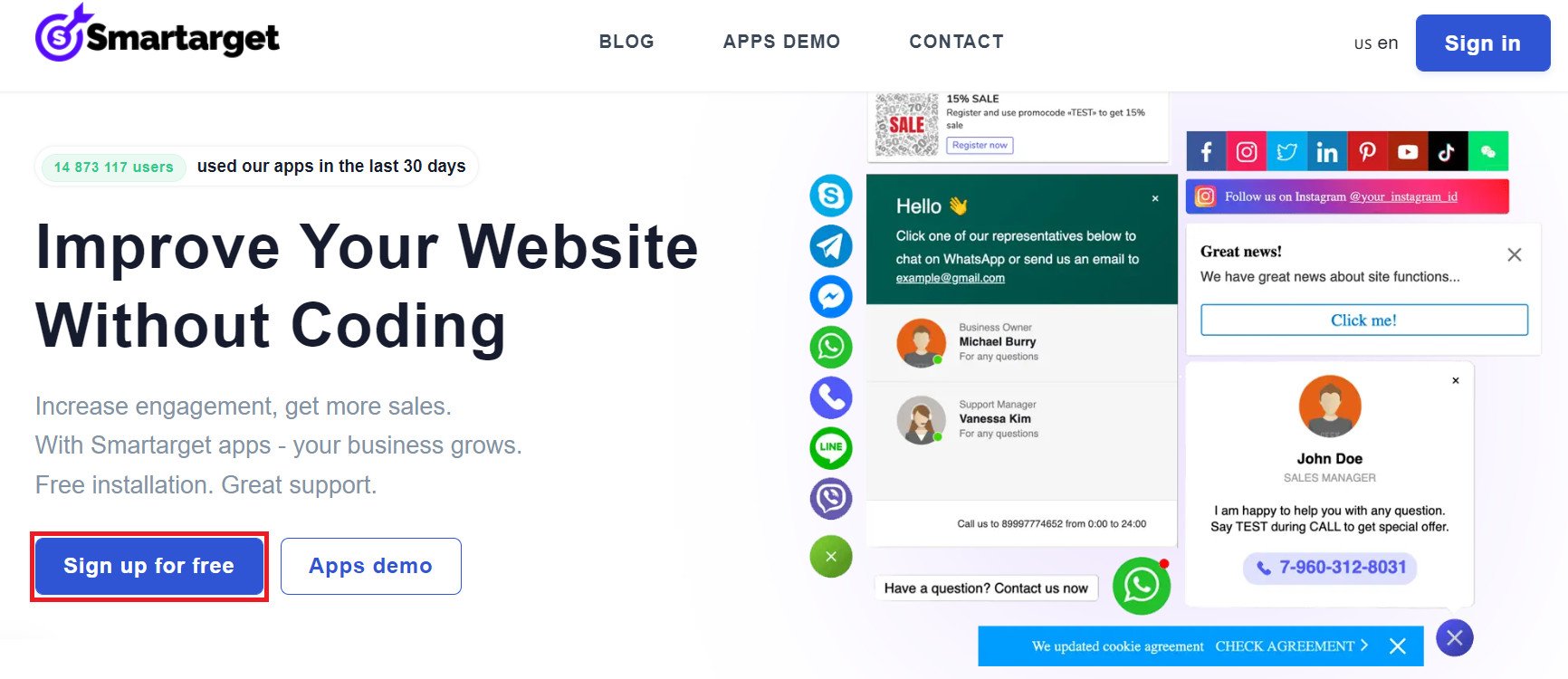
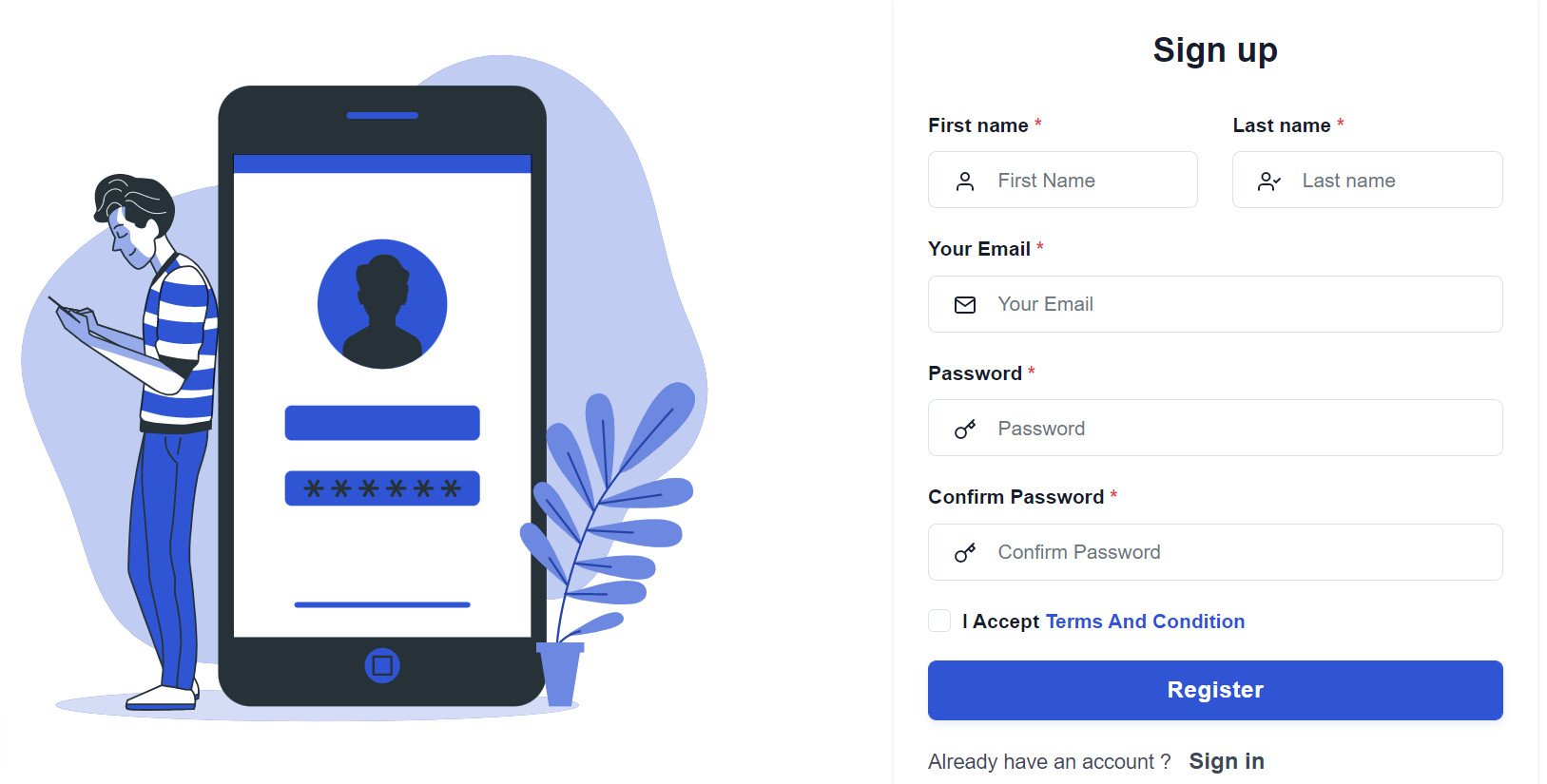
1. From the Smartarget home page, click (Sign up free).
2. Enter the details it asks for, then click (Register).
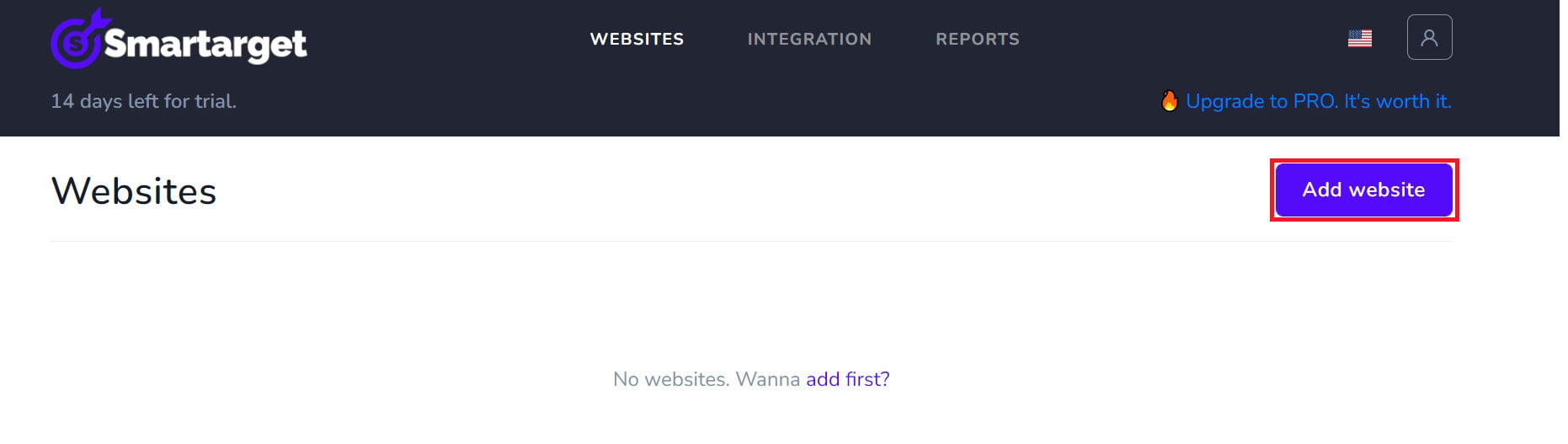
3. Confirm your account through the email you receive, sign in, then click (Add website).
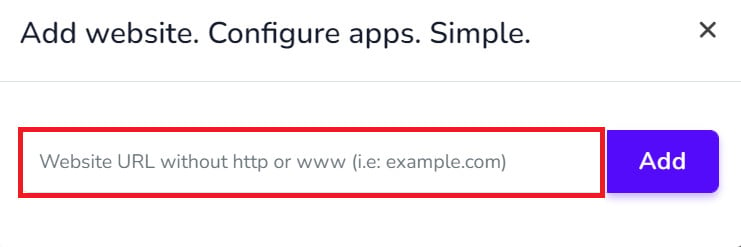
Then add your Salla store domain.
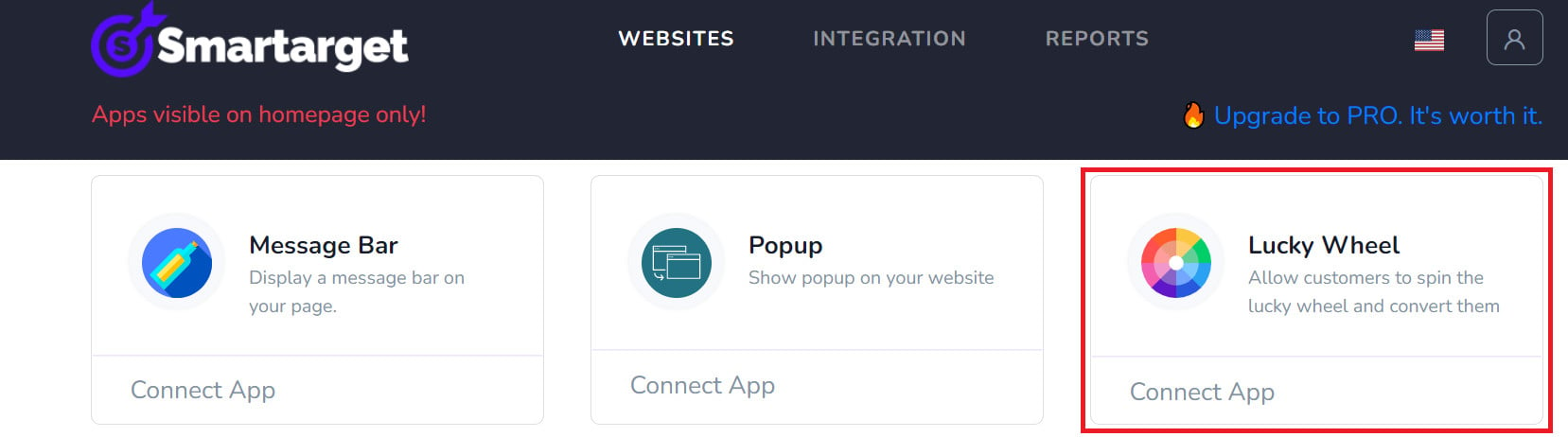
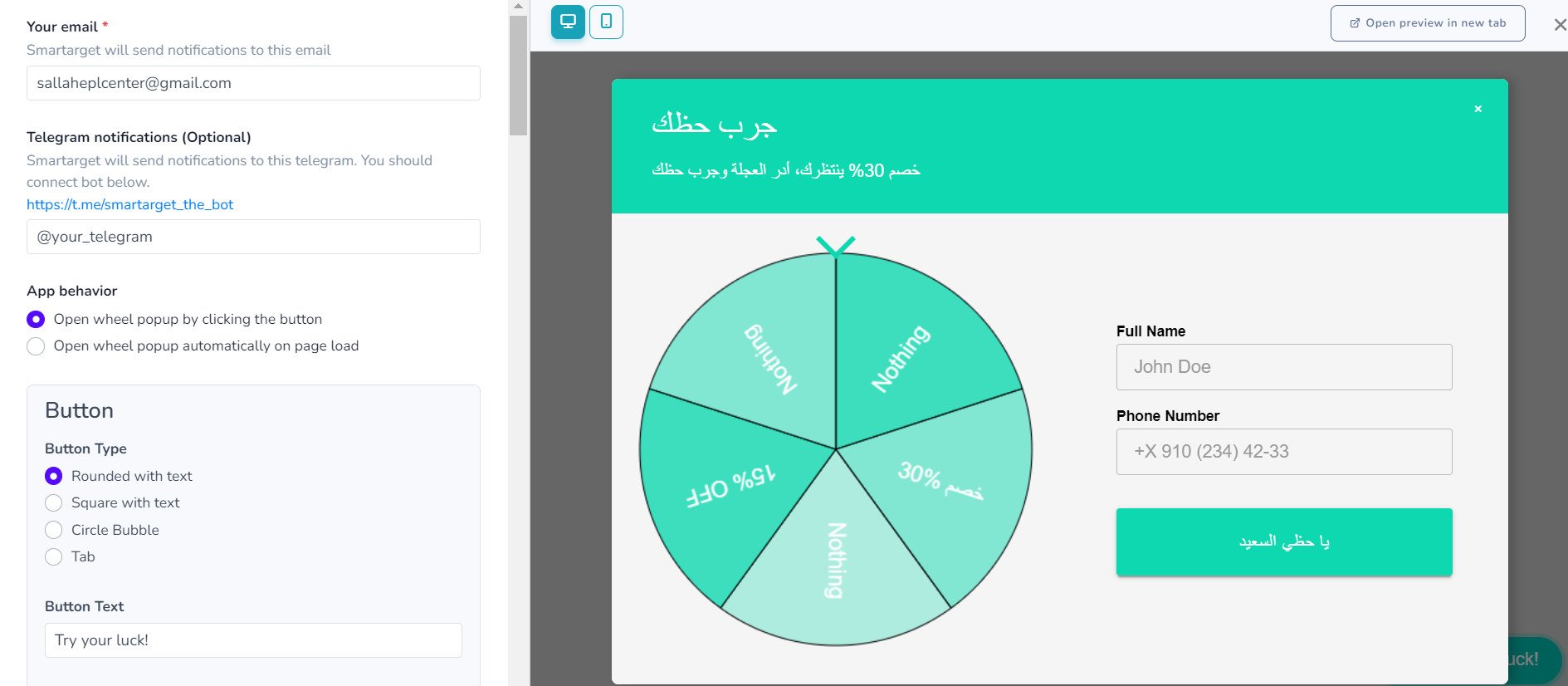
4. To install the wheel on your store, click (Lucky Wheel - Contact Us).
Set up your wheel the way you want it, then click (Save setting).
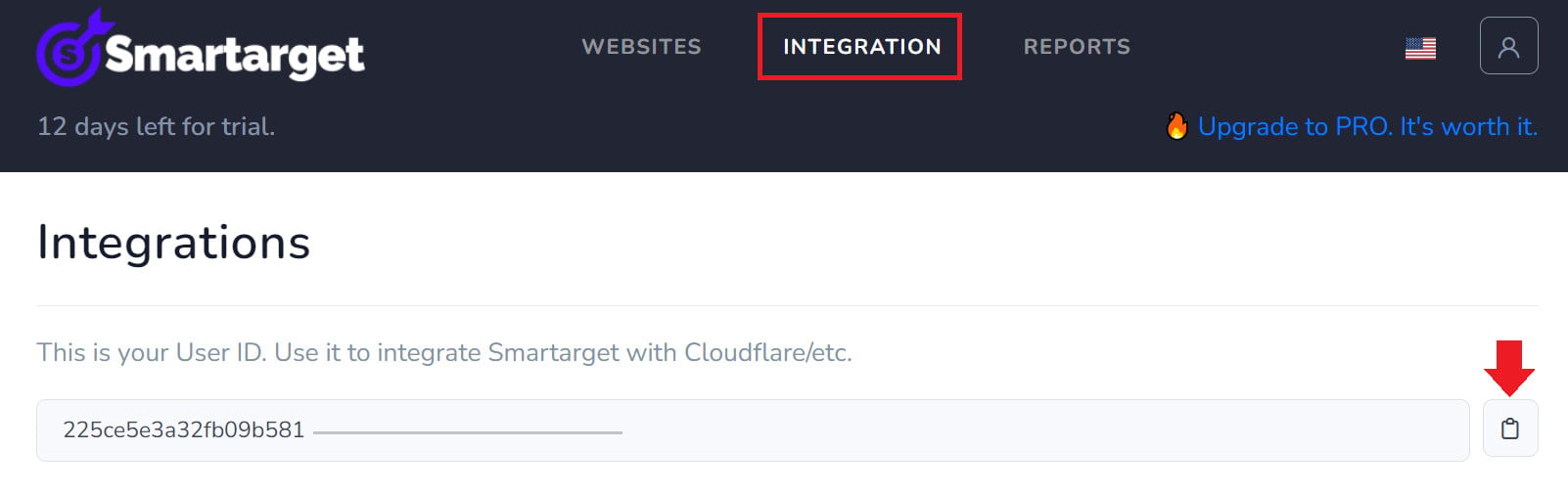
Where do I copy my Smartarget User ID from?
In your Smartarget account, go to the (INTEGRATION) page and click the (Copy) button to copy your User ID.
How do I remove the Lucky Wheel app from my store?
1. From the side menu of your dashboard, click (My installed apps).

2. On the all apps page, find the Lucky Wheel app, click the (...) icon, then click (Remove app), as shown below. 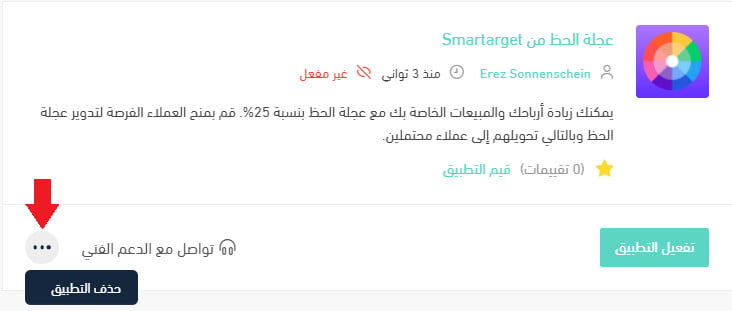
A wheel is only as good as the offer behind it. Decide what the prize is worth to you before you set it live, and the email list you build will pay for itself.