Where do your customers actually want to message you — WhatsApp, Instagram, Telegram, or plain old SMS?
Get Button lets you offer all of them at once. It's a service that adds buttons for different chat and social messaging apps to your Salla store, so shoppers reach you on the channel they already use. In this guide, you'll learn which buttons you can add, how to get your button code from GetButton, and how to activate the connection in your store.
To activate Get Button on Salla, go to the GetButton site, pick the messaging apps you want, enter each button's details, and copy the button code. Then open (Installed apps) in your Salla dashboard, click (App settings) on the Get Button app, paste the code, and click (Activate connection).
📌 Article overview
- What is Get Button?
- Which buttons you can add
- How to activate the connection with Get Button
- Frequently asked questions
🎯 What is Get Button?
Get Button is a service that adds buttons for a range of chat and social messaging apps to your store.
✅ Which buttons can I add with Get Button?
The list of available buttons keeps growing. Here are the main ones:

🚀 How to activate the connection with Get Button
The service is activated in two stages:
1. Get the code for the buttons you want from Get Button.
2. Paste the button code into your store's Get Button settings.
Let's get started.
Stage one: get the button code from Get Button
1. Go to the GetButton site to create a button, then click (Get button).

2. Choose the messaging app you want a button for in your store, then enter the details that button needs (a phone number, an account link, and so on). The details required for each app are listed in the frequently asked questions below.

3. Customize how the buttons look — the message, the color, the position, and so on.

You can also preview the buttons and see how they'll look on your site: paste your site link into the box provided, then click (Check).

4. Send the button code to your email address.

Or copy it straight from the window that opens after you click (Get Button code), like this:

Stage two: paste the button code into your store's Get Button settings
1. From the side menu of your dashboard, click (Installed apps).

2. On the Get Button app, click (App settings).
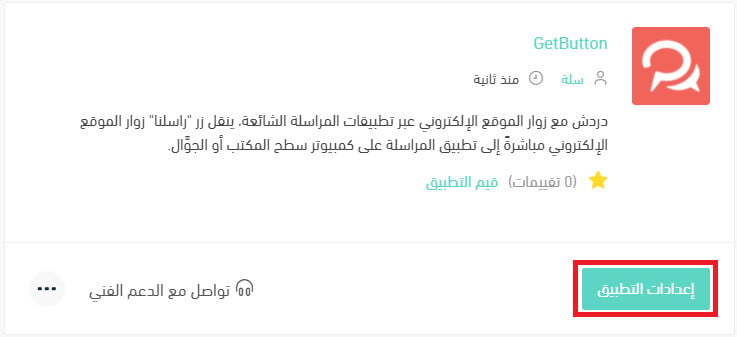
If the app isn't installed in your store yet, install it first. For more details, see installing an app from the Salla App Store.
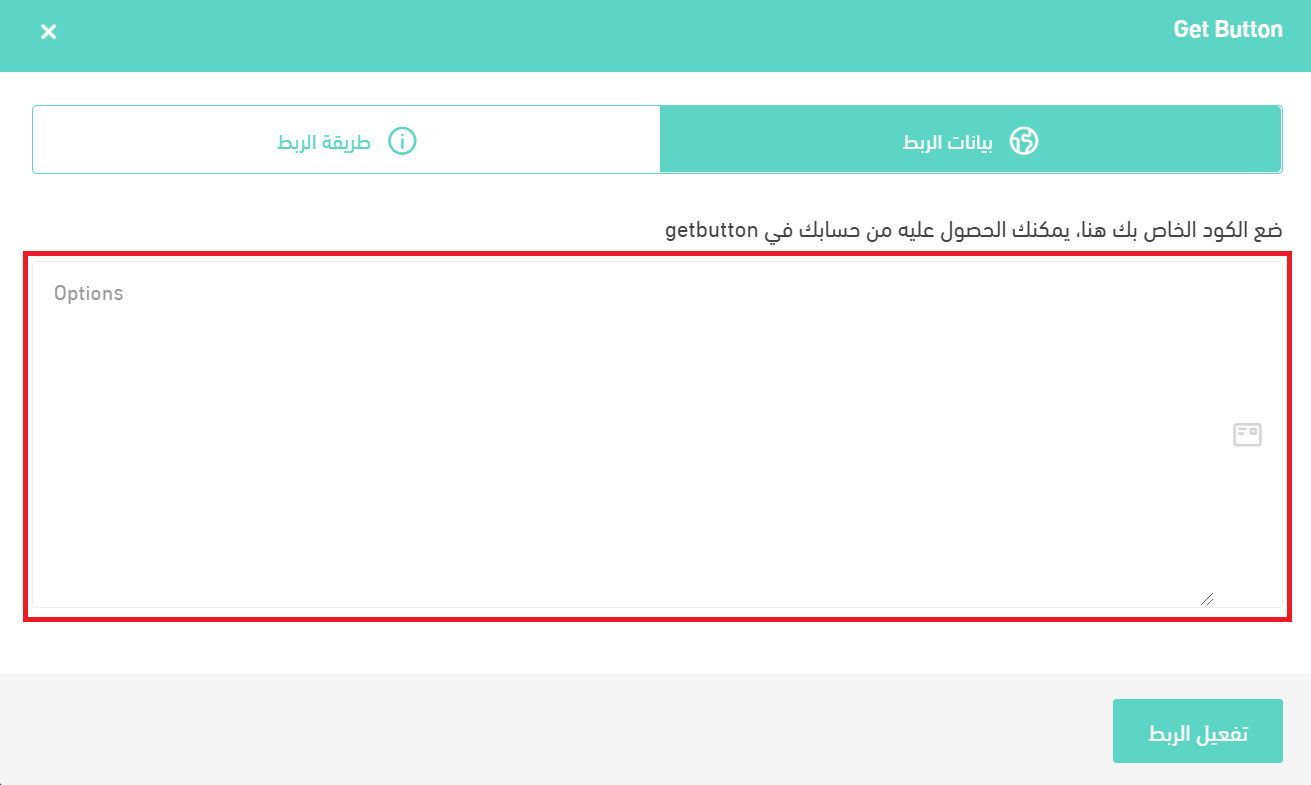
3. Paste the social messaging button code you got from your Get Button account into the box provided, then click (Activate connection).
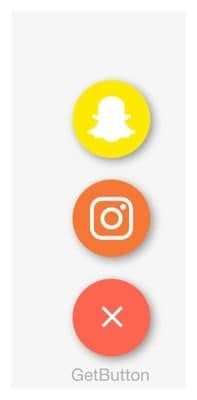
Once added, the buttons appear in your store like this:
📝 Important notes
The icons can look different depending on the theme your store uses.
❓ Frequently asked questions
Here are the questions we'll answer:
1. Can I support this feature another way in my store?
2. Can I get any button from GetButton for free?
3. What details do I need to connect Facebook?
4. What details do I need to connect WhatsApp?
5. What details do I need to connect Viber?
6. What details do I need to connect Snapchat?
7. What details do I need to connect LINE?
8. What details do I need to connect Telegram?
9. What details do I need to connect SMS?
10. What details do I need to connect a phone call?
11. What details do I need to connect email?
12. What details do I need to connect Instagram?
Can I support this feature another way in my store?
Yes — through the Google Tag Manager account connected to your store.
For more details, see adding social and chat apps to your store through Google Tag Manager.
See also adding a Twitter button to your store through Google Tag Manager.
Can I get any button from GetButton for free?
You get two buttons free. For more than that, you'll need to subscribe to a paid GetButton plan.
What details do I need to connect Facebook?
You need your Facebook page ID. To get it, click (Get my Facebook page ID).

Then paste your Facebook page link into the box provided and click (Get ID).

Your page ID is then filled in automatically once it's found.

What details do I need to connect WhatsApp?
You need the phone number registered with WhatsApp.

What details do I need to connect Viber?
You need the phone number registered with Viber.

What details do I need to connect Snapchat?
You need your Snapchat username.

What details do I need to connect LINE?
You need the link to your LINE page.

What details do I need to connect Telegram?
You need your Telegram username.

What details do I need to connect SMS?
You need a mobile number to connect text messaging.

What details do I need to connect a phone call?
You need a phone number to connect direct calling.

What details do I need to connect email?
You need an email address.

What details do I need to connect Instagram?
You only need your username to connect Instagram.
