Have you ever visited an online store with clashing colors or unreadable text and left immediately because it felt uncomfortable? Store design is not just about visuals. It plays a major role in usability, clarity, and overall customer experience. In this guide, you will learn how to customize your store’s colors, fonts, and layout options to improve product presentation and create a smoother shopping experience.
📌 Article overview
- How to customize theme design options
- Header and footer options
- Product page options
🚀 How to Customize Theme Design Options
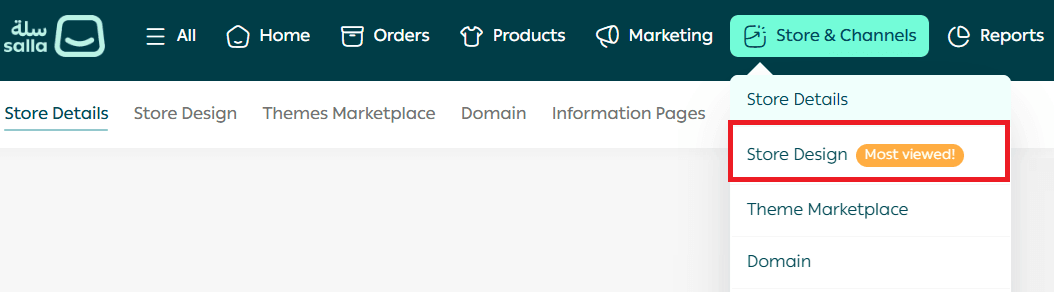
- From the main menu, go to Store & Channels, then click Store Design.
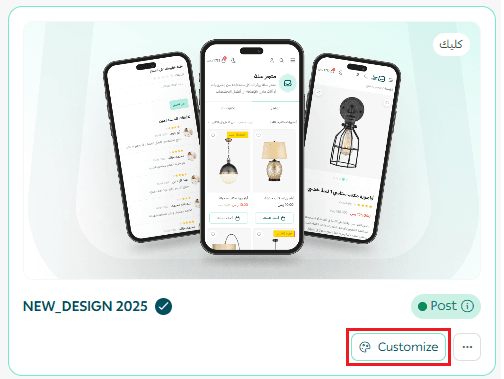
2. From the Store Design page, click Customize Version to edit a specific theme version.
3. On the customization page, open the Design Options tab.
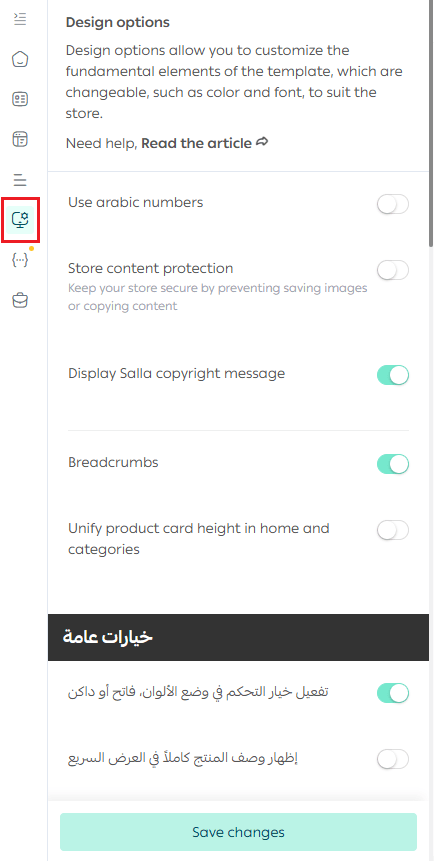
Theme settings allow you to control colors, typography, and shared visual elements across your store.
Use Arabic Numerals

When the Arabic numerals option is enabled, numbers appear in Arabic format across your store.
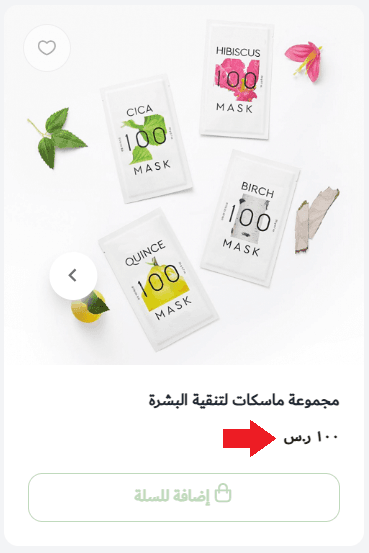
When disabled, numbers appear in the default Western format.
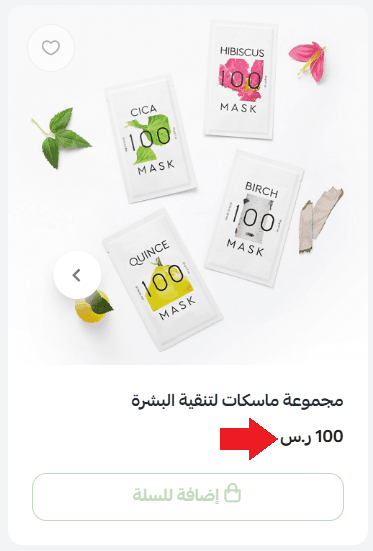
Display “Powered by Salla”

When enabled, the phrase “Powered by Salla” appears on your store pages, reinforcing platform credibility.

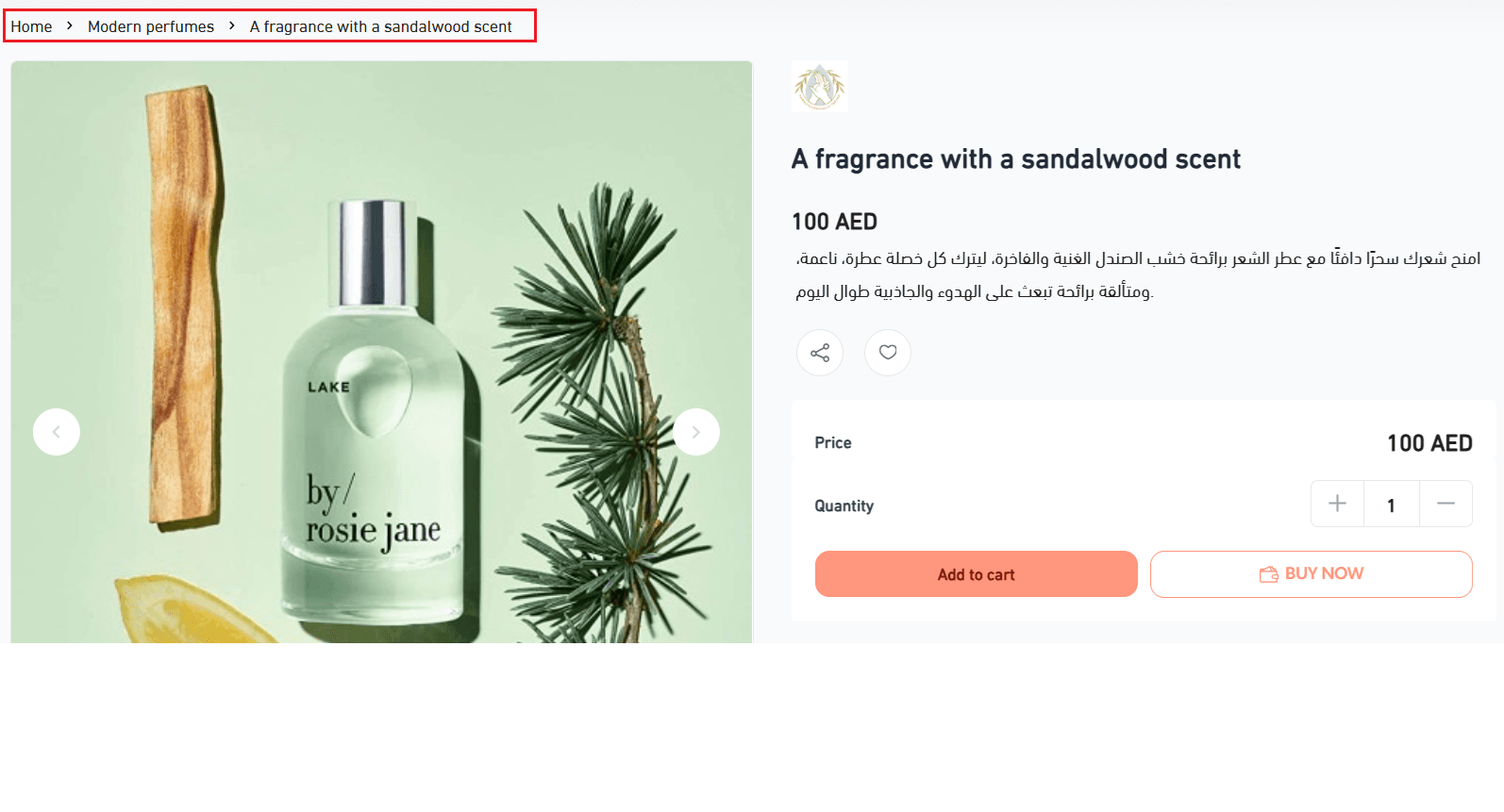
Enable Breadcrumb Navigation

Activating breadcrumb navigation shows the full navigation path to customers, helping them understand where they are and move between categories easily.
Unify Product Image Heights on Home and Category Pages

This option ensures consistent product card heights and offers two display styles:
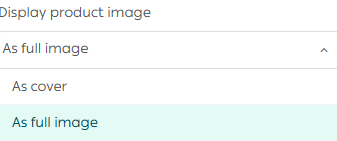
- Image as Cover
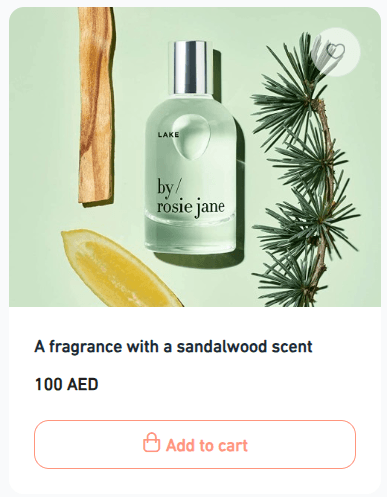
2. Show Full Image
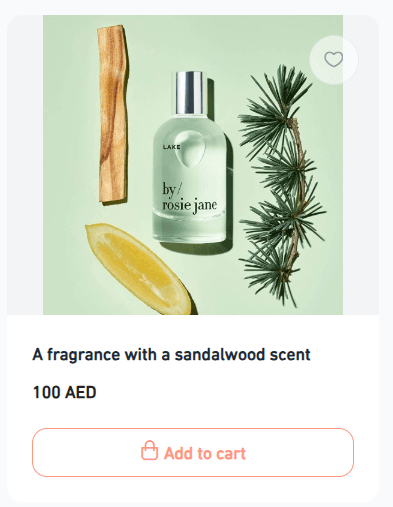
Both options help improve visual consistency and browsing comfort.
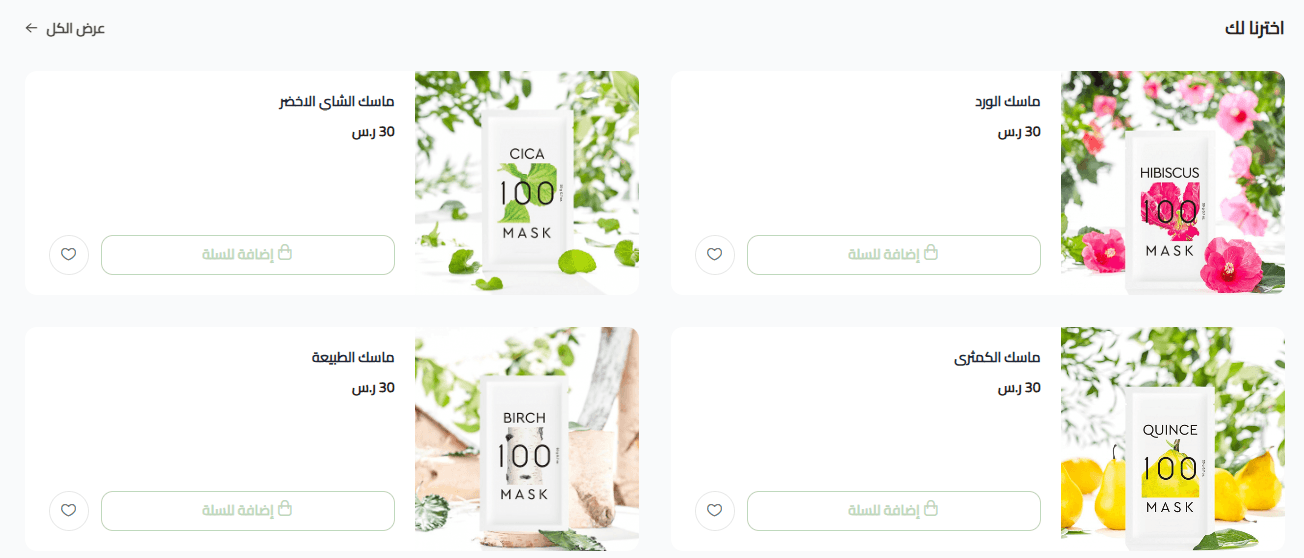
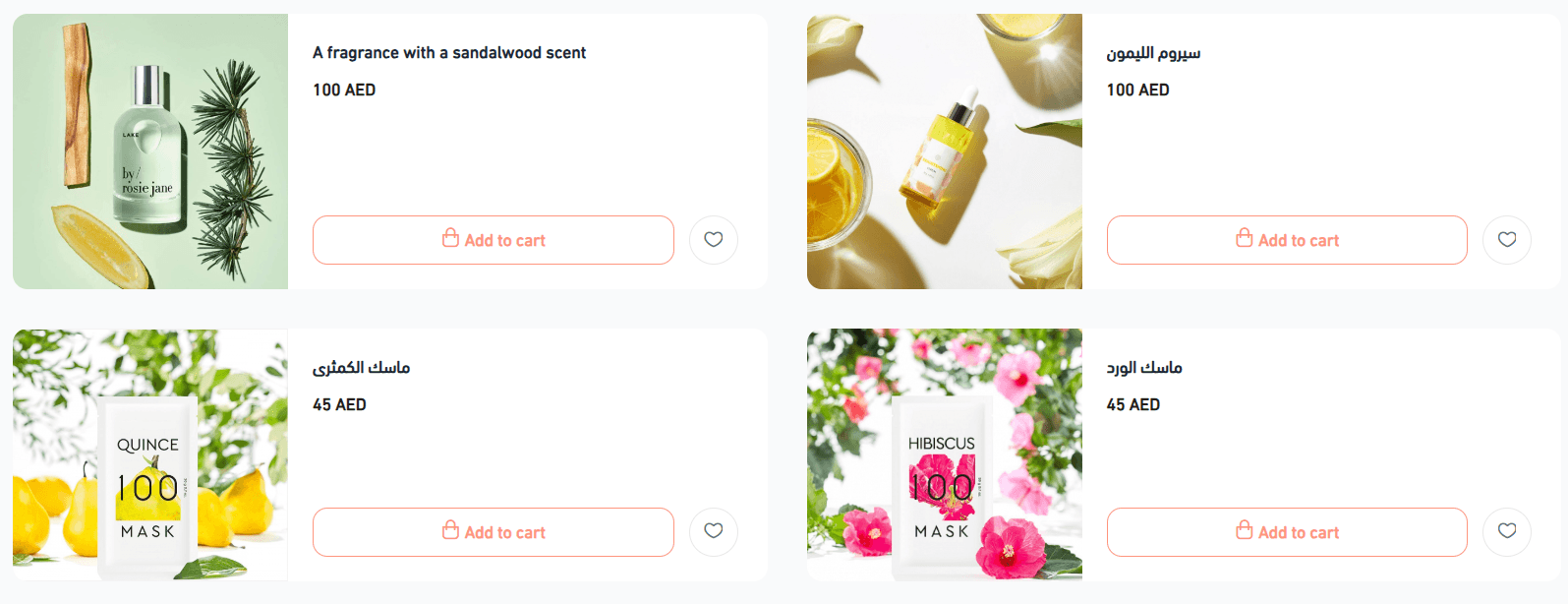
Vertical Product Layout in Fixed Home Sections

When enabled, products appear in a vertical layout inside fixed product sections on the home page.
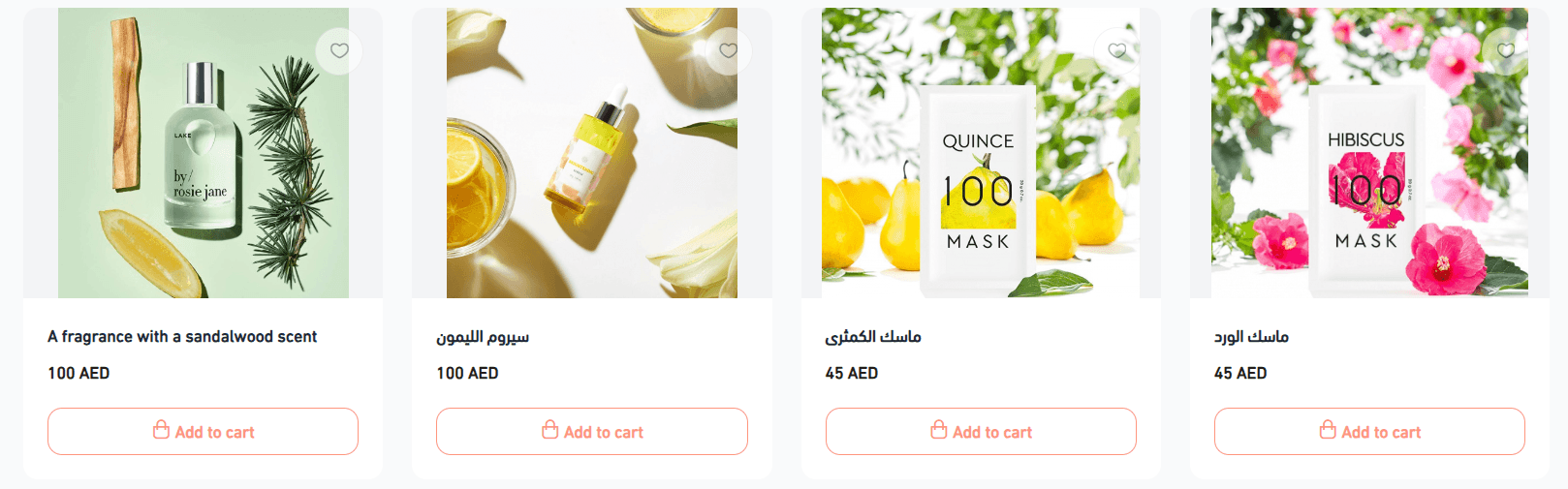
When disabled, products appear in the default layout.
Show “View All” Button on the Home Page

When enabled, only a limited number of products are shown initially, with a View All button to display the full list.
When disabled, all related products appear directly.
🚀 Header and Footer Options
You can customize the header and footer to enhance navigation and accessibility by:
- Fixing the main menu at the top while scrolling
- Displaying important page links
- Enabling dark mode for the top and bottom bars
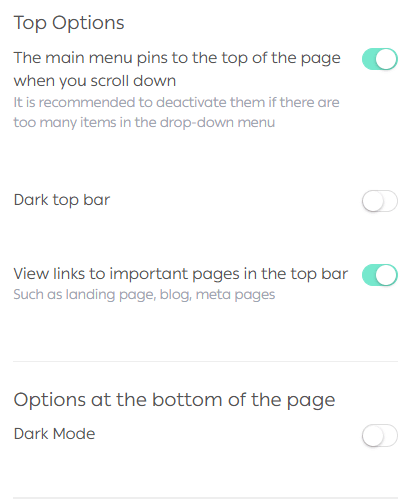
These options help improve usability and visual clarity across devices.
🚀 Product Page Options
You can control the visibility of product tags and several customer interaction tools on the product page.
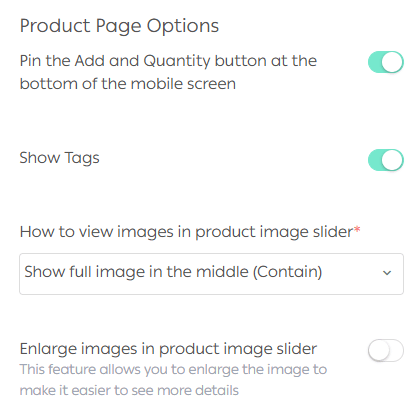
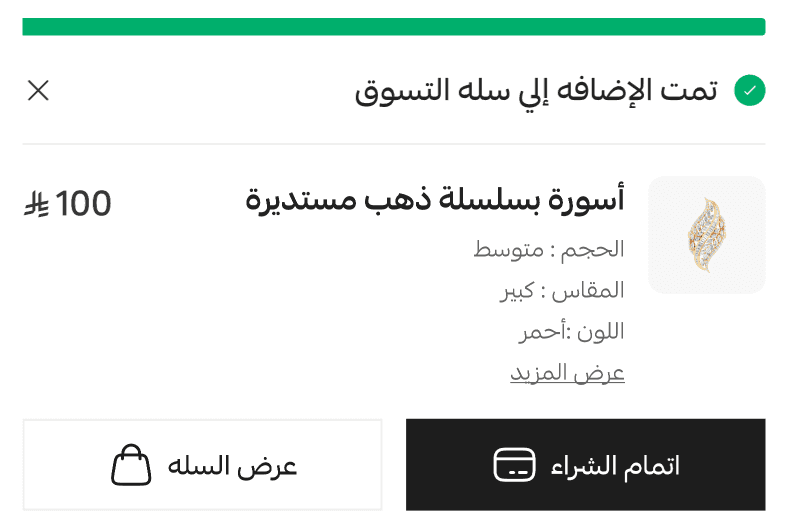
1. Confirmation Notification After Adding to Cart
This option displays a confirmation popup immediately after a product is added to the cart.
The notification includes:
- Product details such as name, price, and selected options like size or color
- A Checkout button that takes the customer directly to payment
- A View Cart button that shows all items in the cart
This feature encourages faster purchase completion and reduces friction.
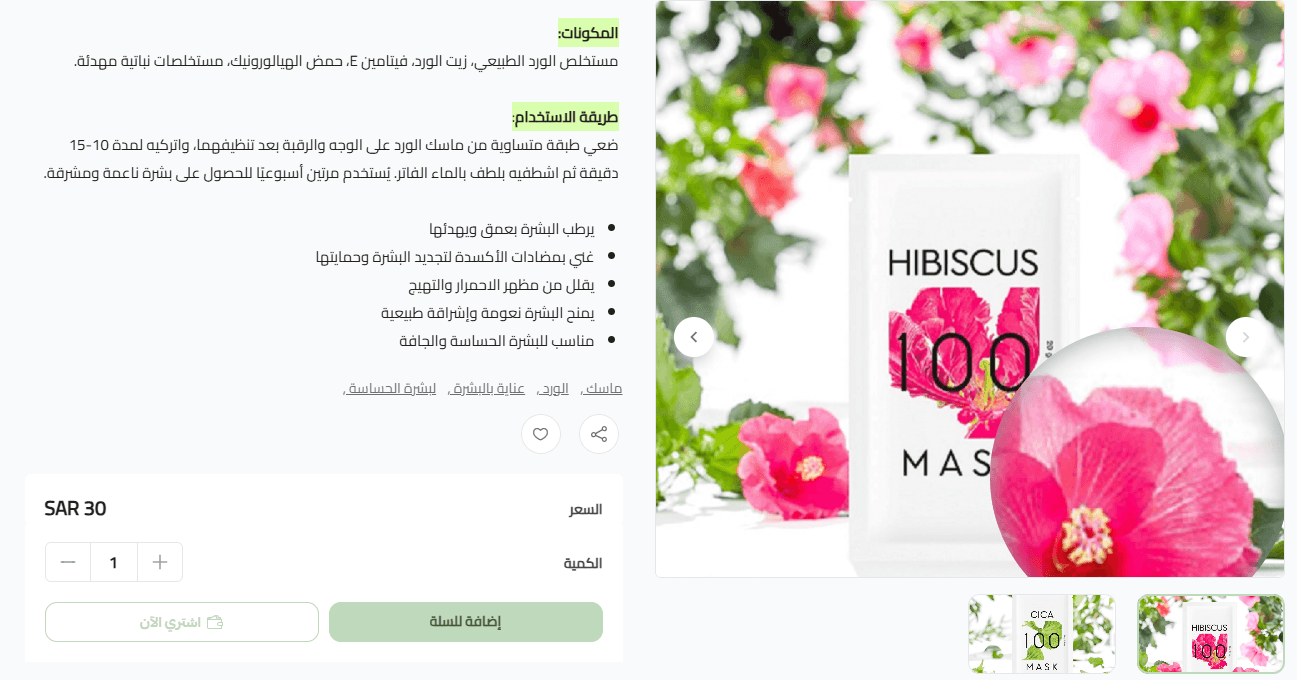
2. Image Zoom in Product Image Slider
This option allows customers to zoom into product images by hovering the mouse over them, making it easier to view fine details and build purchase confidence.
🚀 Merchant Services
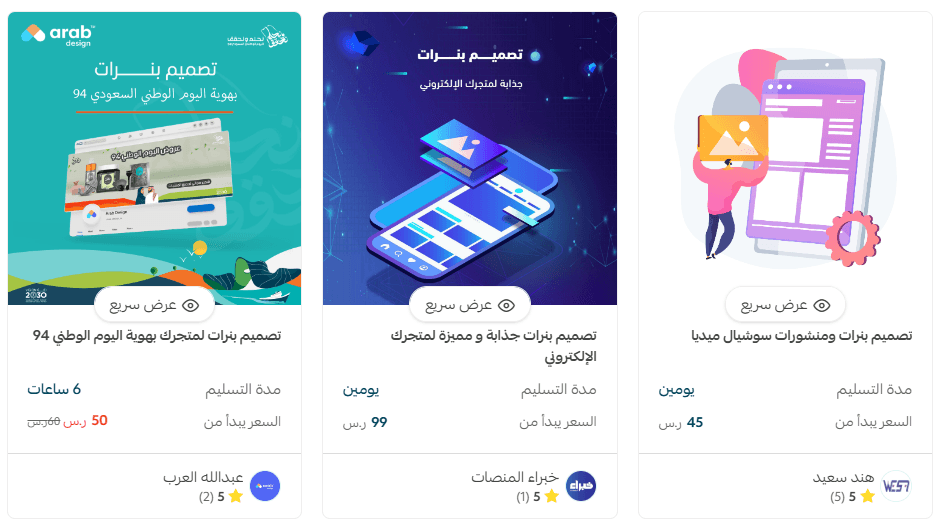
If you need professional help designing your store, you can use Merchant Services, which offer:
- Logo design
- Banner and section design
- Color coordination and visual branding
All services are provided by trusted Salla partners to help you present your brand professionally.