How long does it take you to write a product description you're actually happy with?
The Store Tools - AI product descriptions app writes professional AI product descriptions for your Salla store in seconds. Instead of drafting copy for every item yourself, the app uses AI to produce polished text that saves you time, improves how your products appear in search engines, and strengthens your store's presence online. In this guide, you'll learn how to install the app, sign in to its platform, and remove it when you no longer need it.
To use AI product descriptions on Salla, install the Store Tools - AI product descriptions app from the Salla App Store, choose a plan, and complete payment. The app then emails you your login credentials — sign in to its platform, import your products, and generate a ready-to-use description for any product you choose.
Salla also offers free tools that pair well with this app:
- A library of the best prompts for managing your store — AI prompts library
- A collection of tools for running your online store — store tools
- A ready-made prompt for writing product descriptions with AI — product description prompt
📌 Article overview
- How to install the Store Tools - AI product descriptions app
- How to sign in to the platform and generate descriptions
- How to delete the app
- Frequently asked questions
🚀 How to install the Store Tools - AI product descriptions app
1. From the main menu of your store dashboard, click (Installed apps).

2. From the Salla App Store banner, click (Browse Salla App Store).

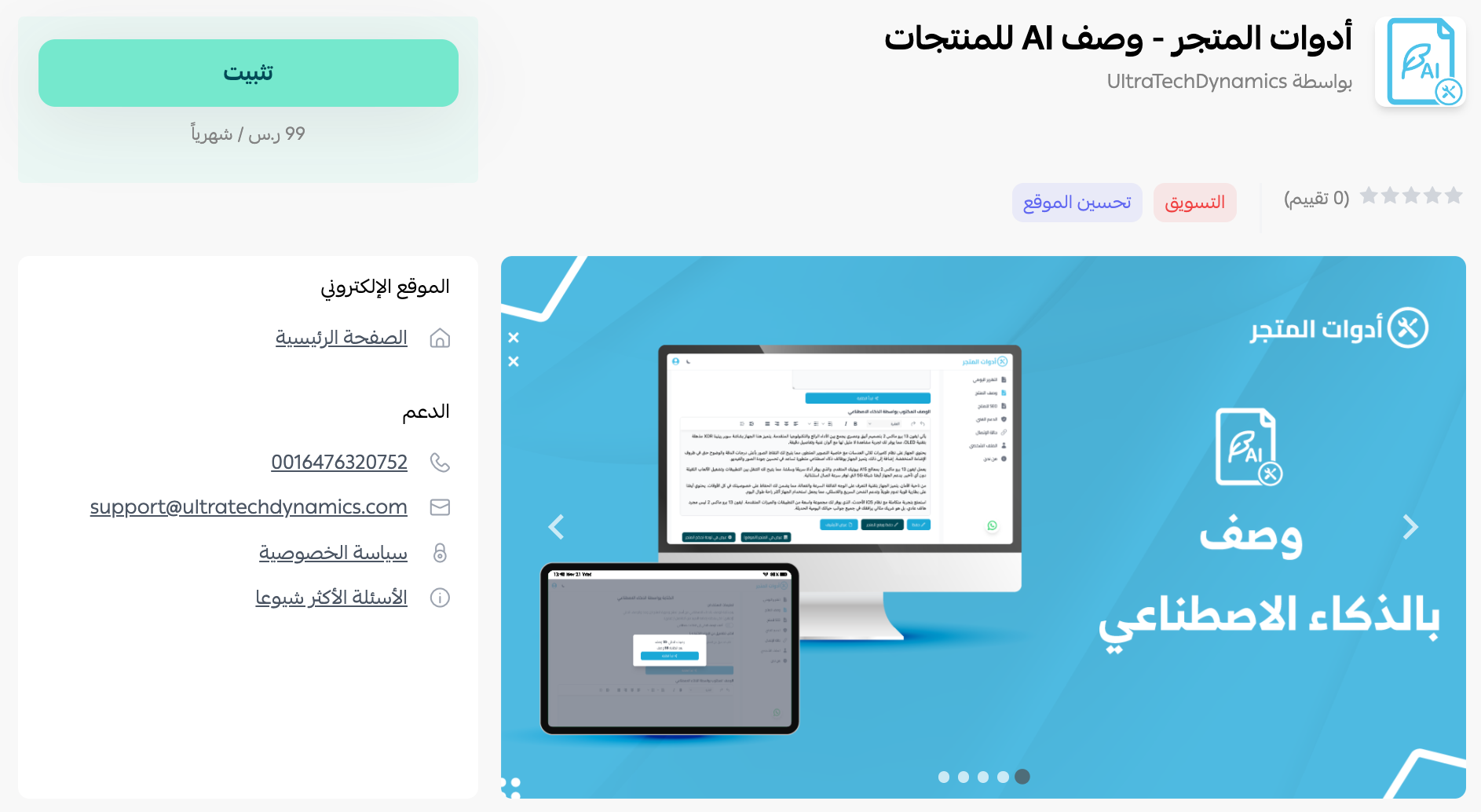
3. From the Store Tools - AI product descriptions app page, click (Install).
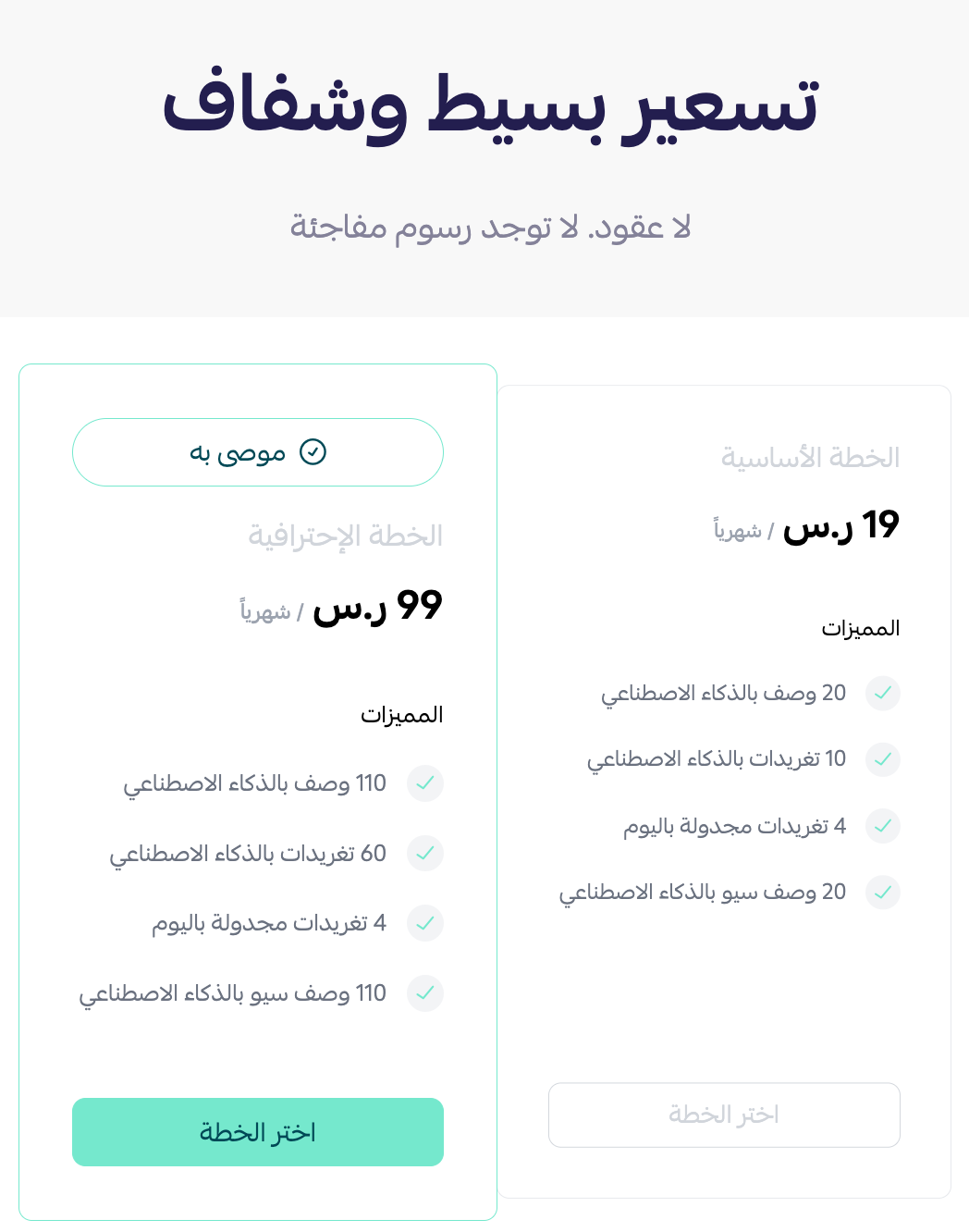
4. Choose the plan that fits your business to continue installing the app.
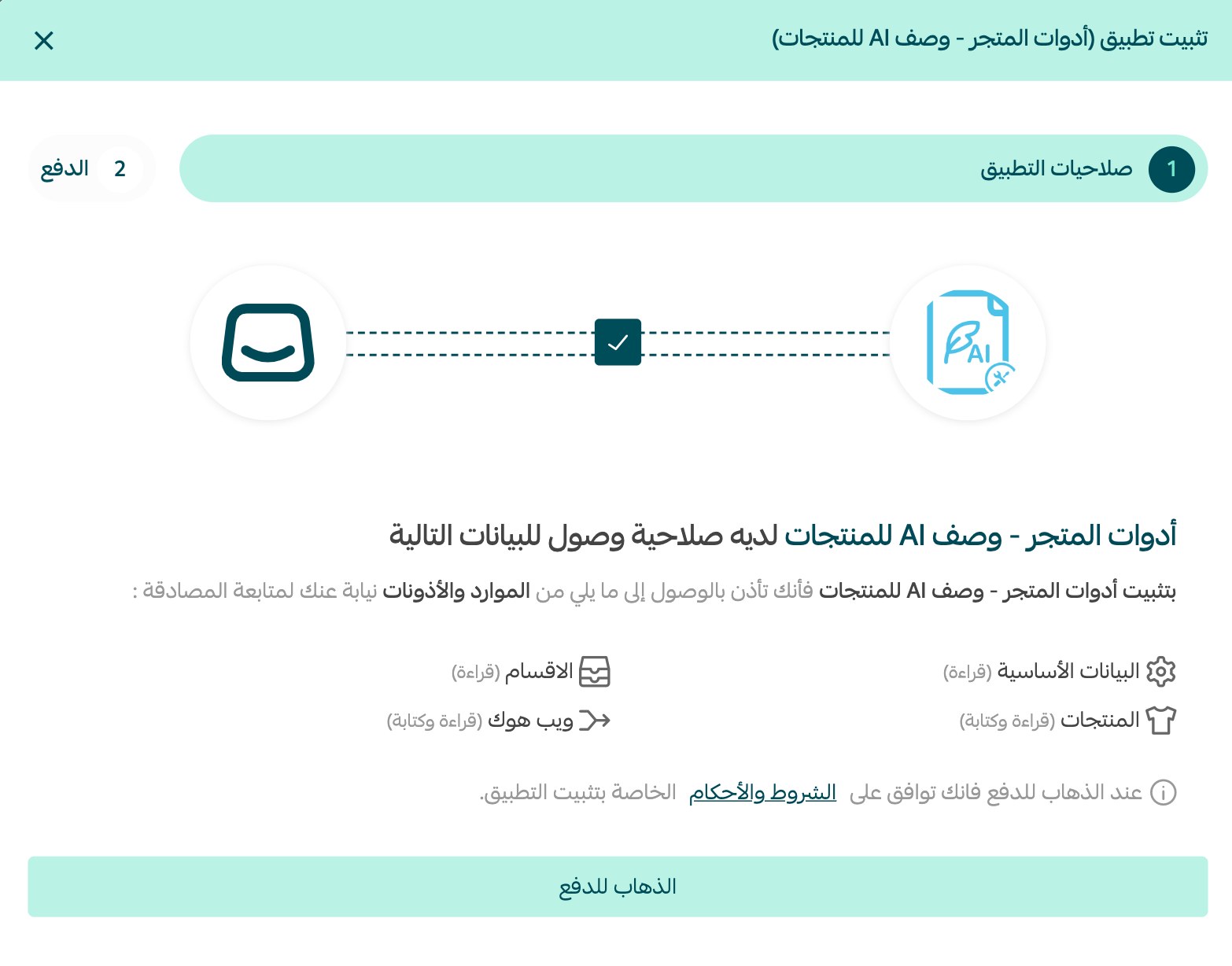
5. Review the requested permissions, then click (Go to payment).
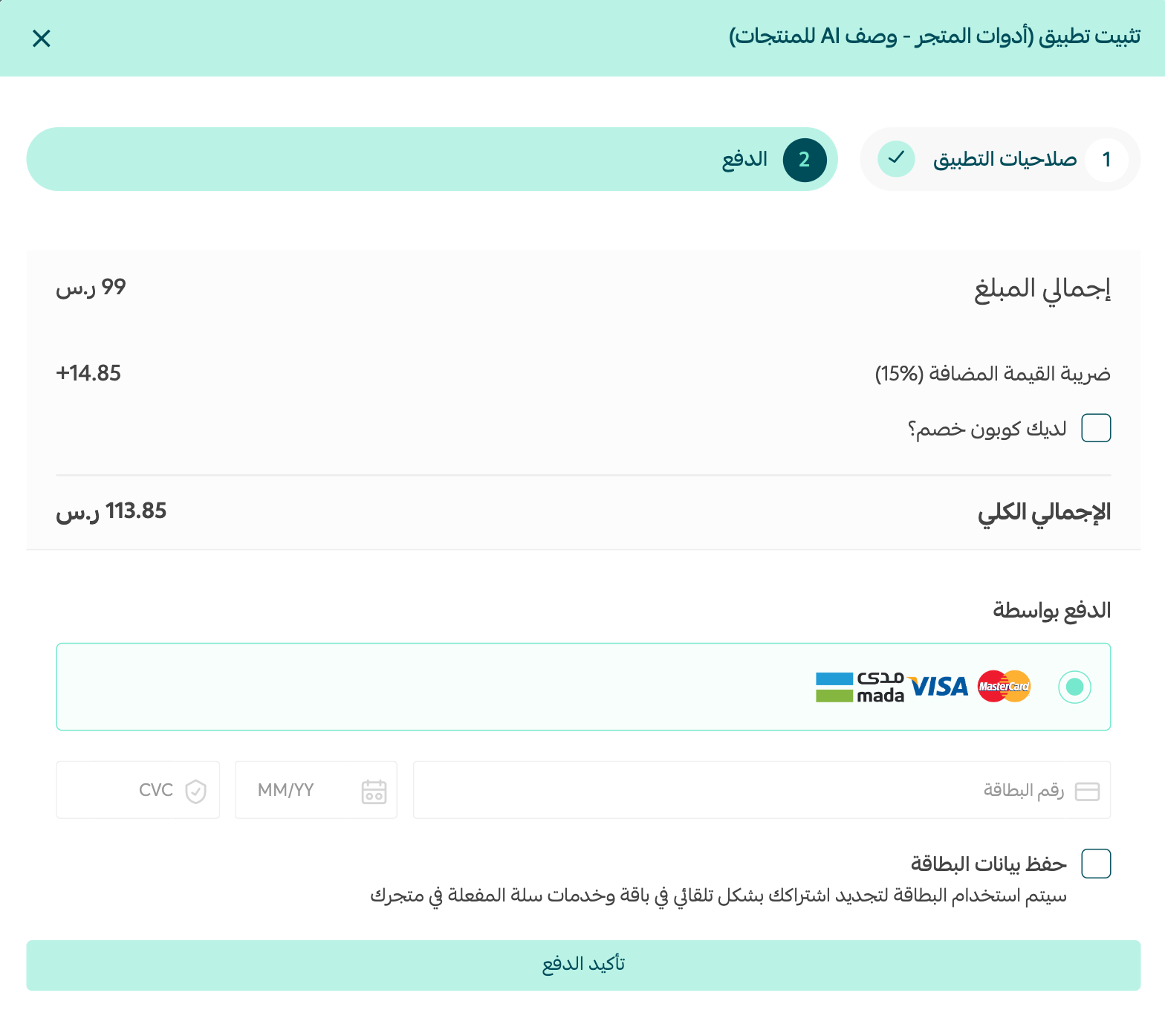
Complete the payment to unlock the app's features.
That's it — the Store Tools - AI product descriptions app is now installed on your store.
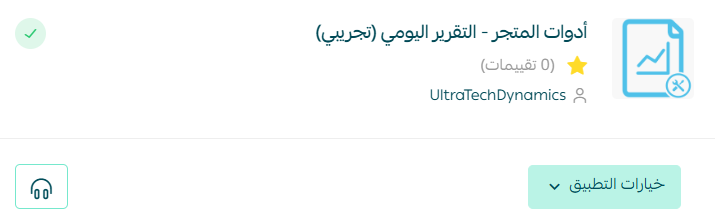
For more details, see managing your store's apps.
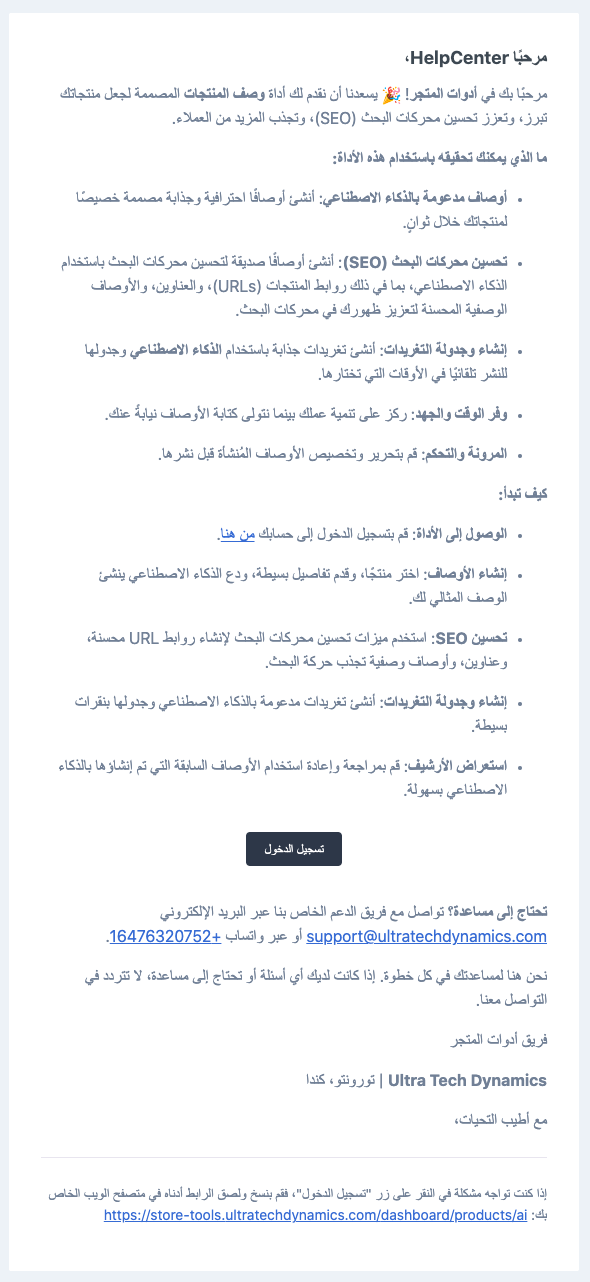
6. You'll receive an email from the Store Tools - AI product descriptions app explaining how to sign in to your account.
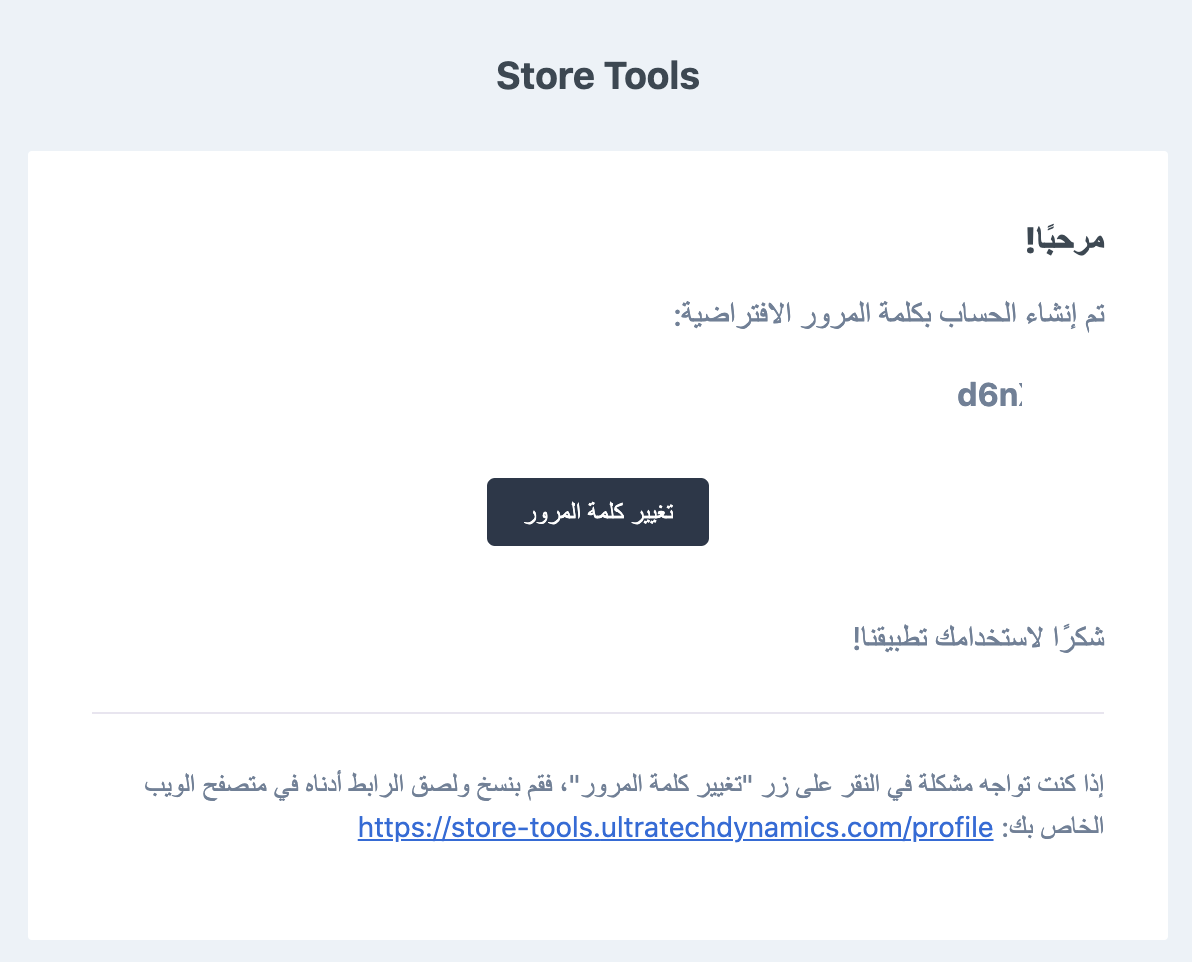
Your account password is sent to you by email as well.
👣 How to sign in to the platform and generate descriptions
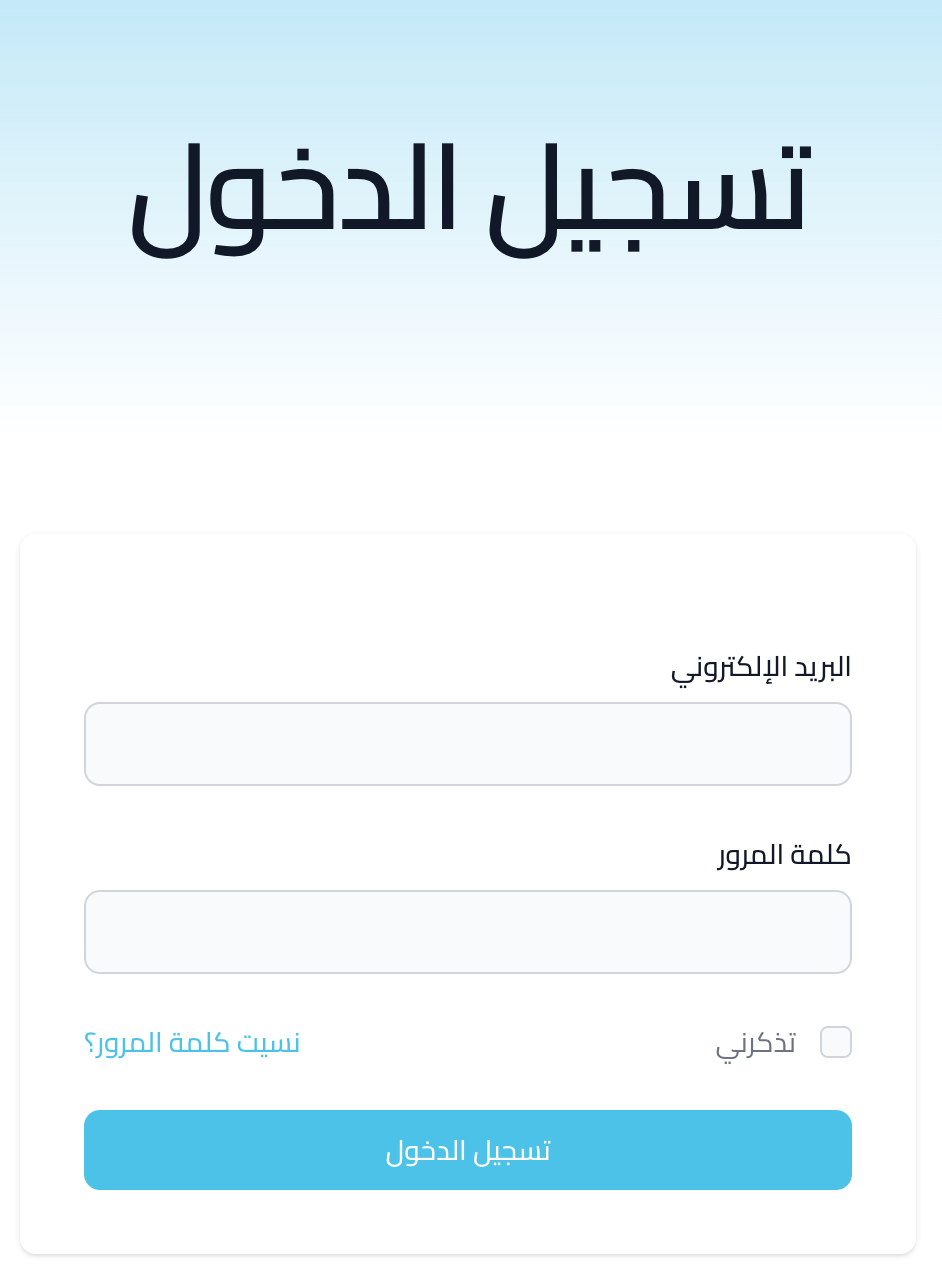
Sign in to the platform using the credentials sent to your email.
Start by importing the products from your store so you can try the description writer.
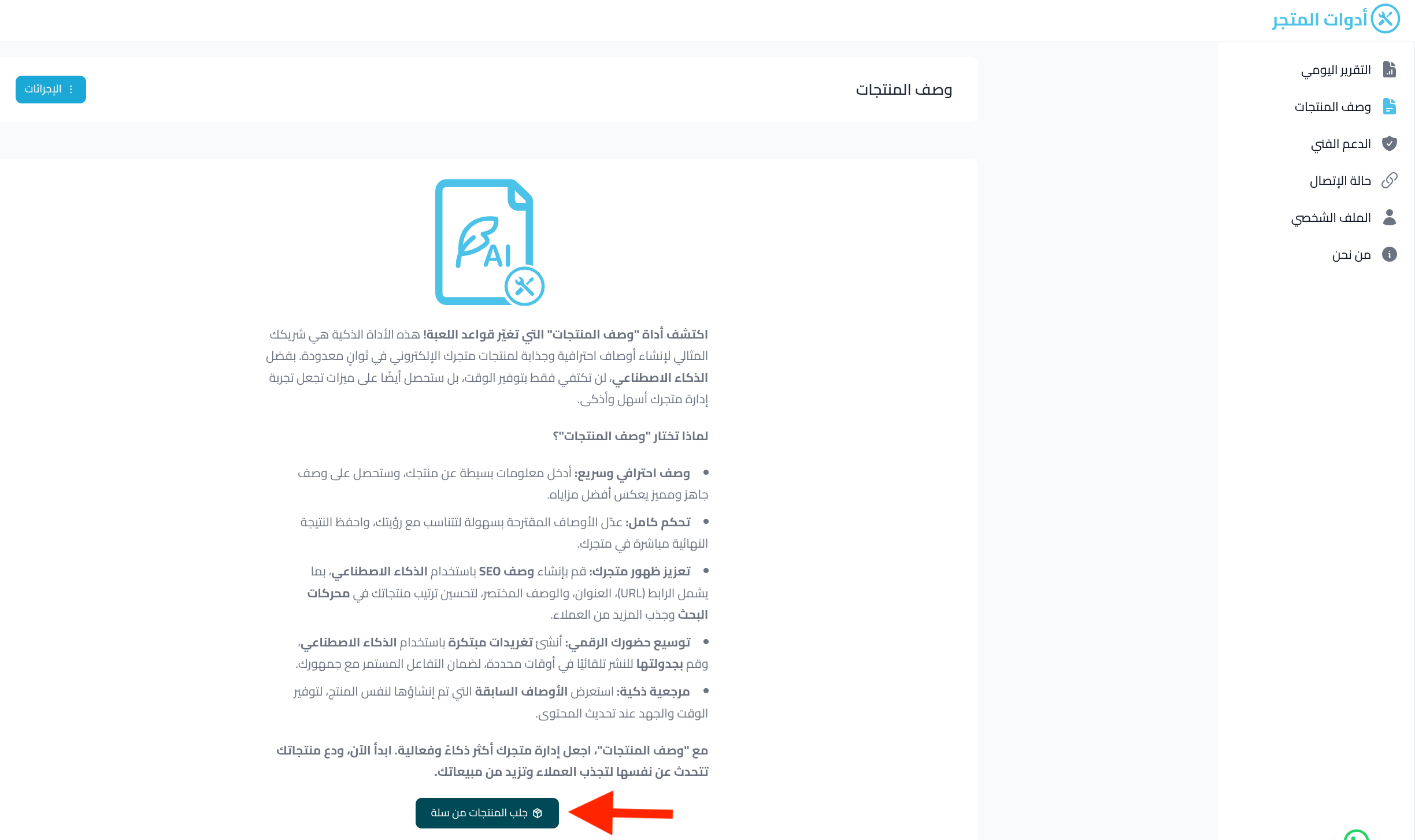
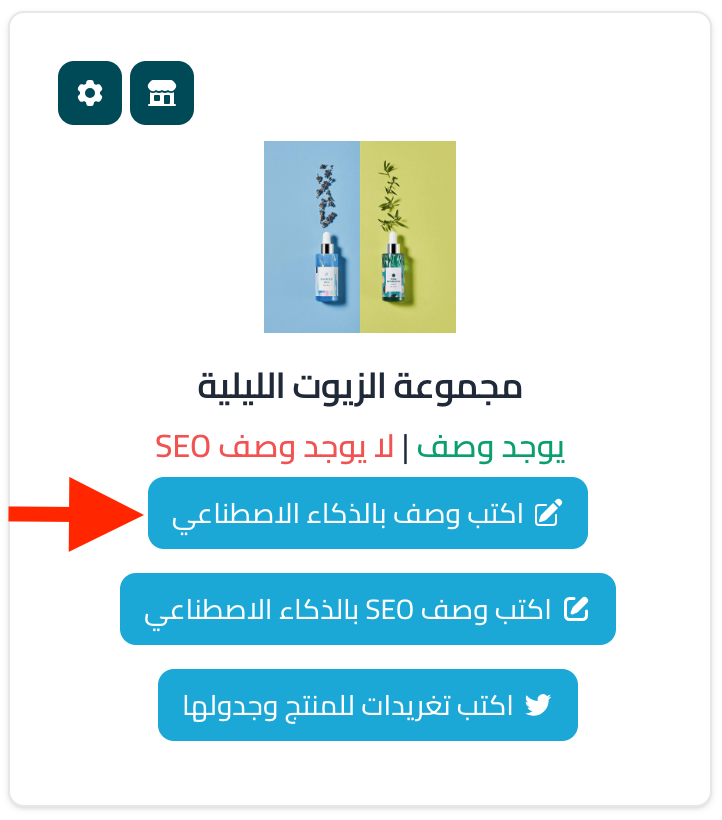
Choose the product you want a description for, then click (Write a description with AI).
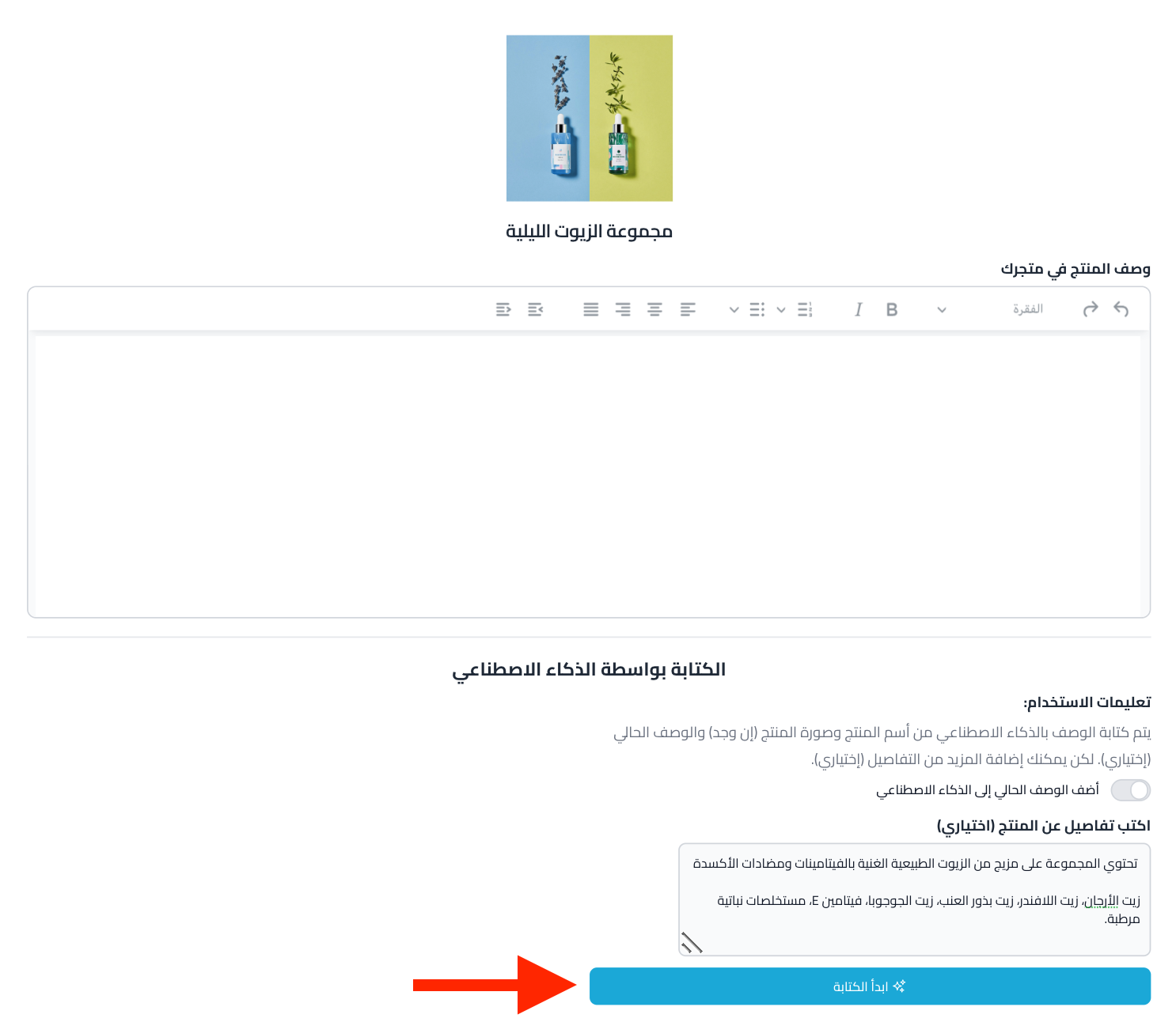
Add any details about the product to help the AI write an accurate description, then click (Start writing).
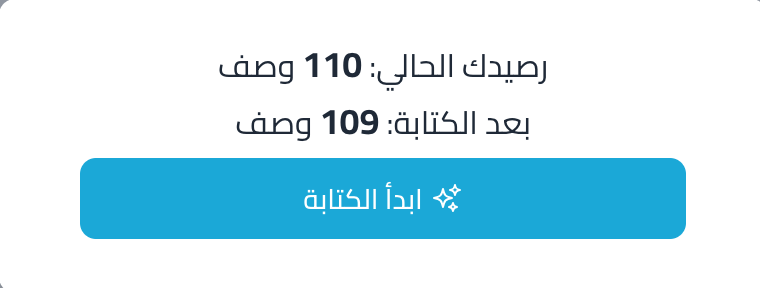
A notice appears showing the points that will be used. Click (Start writing).
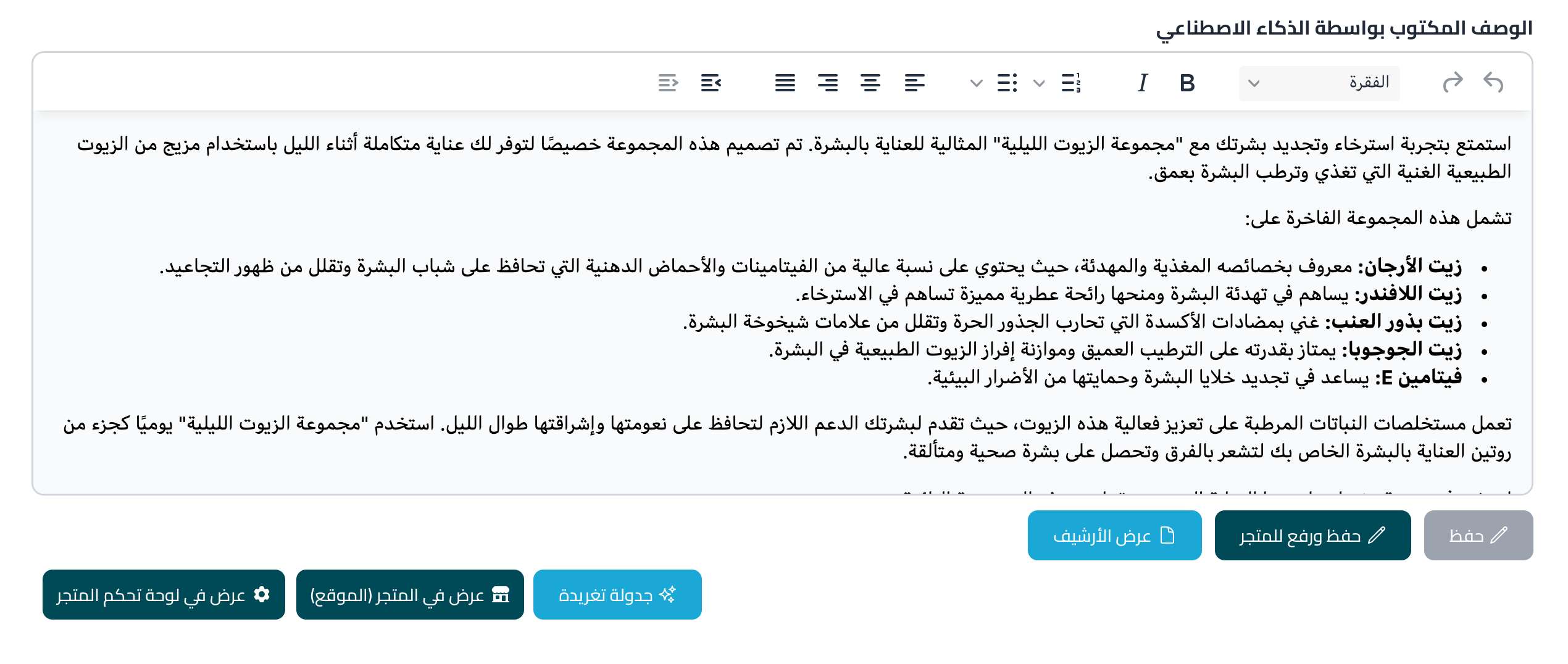
The product description appears as shown below, and you can choose whichever action suits you next.
How to delete the app
1. From the main menu of your store dashboard, click (Installed apps).

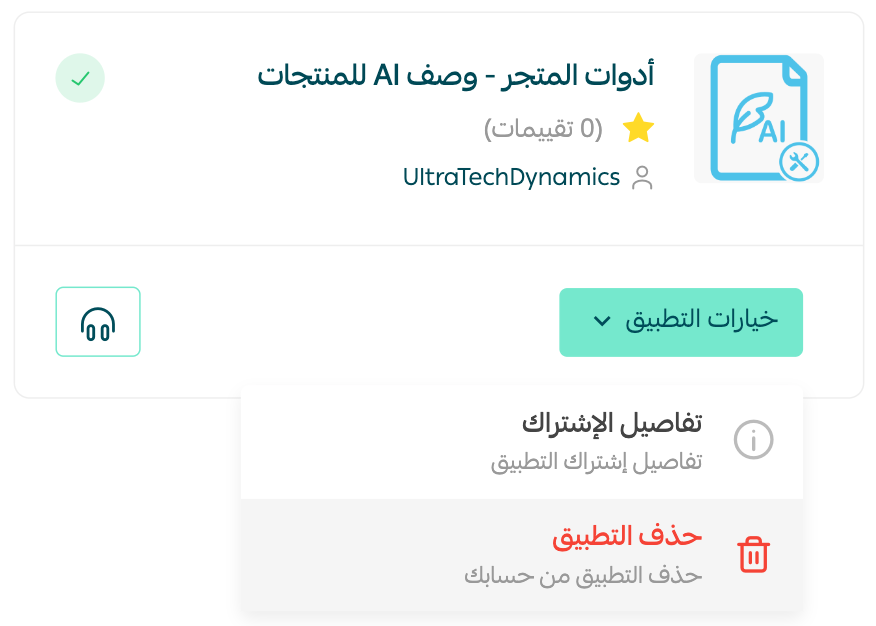
2. From the all apps page, find the Store Tools - AI product descriptions app, click (App options), then click (Delete app).
Frequently asked questions
❓ What does the Store Tools - AI product descriptions app do?
It generates professional product descriptions for your store's products in seconds using AI, which saves you time and helps your products appear better in search engines.
❓ Where do I get my login credentials for the platform?
After you install the app and complete payment, the app emails you your sign-in details, including your account password.
❓ How do I remove the app from my store?
From your dashboard, open (Installed apps), find the app, click (App options), then click (Delete app).
Clear, well-written product pages sell more. Let the AI handle the first draft so you can spend your time running the store.