Your store is live, your products are ready — so why isn't Google showing them to anyone?
Getting your store onto the first page of search results takes a deliberate approach, not luck. Salla store SEO is built into the dashboard: your store description, product descriptions, category and brand pages, image alt text, and your sitemap are all things you control, and each one changes how search engines read your store. In this guide, you'll learn what SEO is, and how to use every Salla tool that improves where your store lands in search results.
SEO stands for search engine optimization: improving how your store appears in the free, unpaid results on engines like Google. On Salla you do it by filling in page titles, descriptions, and keywords for your home page, products, categories and brands, submitting your sitemap to Google, controlling crawler access with robots.txt, and publishing a blog.
📌 Article overview
- What SEO means
- Improve how your store's home page appears in search
- Tell Google about your store by submitting your sitemap
- Restrict search engine access to specific pages
- Improve how product pages appear in search
- Improve how store categories appear in search
- Improve how brand pages appear in search
- Help search engines read and index your product images
- Start a blog
- Frequently asked questions
🎯 What SEO means
SEO is short for search engine optimization. It means improving how your online store appears in the free, unpaid results on engines like Google, so your pages land near the top. You get there by understanding how search engines work, knowing which factors decide the order of results, using Salla's SEO tools, and avoiding the practices that hurt a store.
Salla helps you improve your store's search visibility in several ways, and this article covers each one:
1. Improve how your store's home page appears in search.
2. Tell Google about your store by submitting your sitemap.
3. Restrict search engine access to specific pages in your store.
4. Improve how product pages appear in search.
5. Improve how store categories appear in search.
6. Improve how brand pages appear in search.
7. Help search engines read and index your product images.
8. Start a blog.
💡 Worth your time: watch the free course on the basics of improving your store's visibility in search engines on Salla Academy.
It's also worth learning the five fundamentals that make SEO work:
- How to find out what your customers are searching for.
- How to optimize your web pages for the keywords you're targeting.
- How to make sure both search engines and people can reach your site.
- How to build backlinks from other sites.
- How to start measuring whether your SEO is working.
All five are covered in SEO basics.
🚀 Improve how your store's home page appears in search
1. From the side menu of your dashboard, click (Marketing tools).

2. From the marketing tools page, click (Search engine optimization).

3. On the SEO page, under general settings, click (Home page improvements).
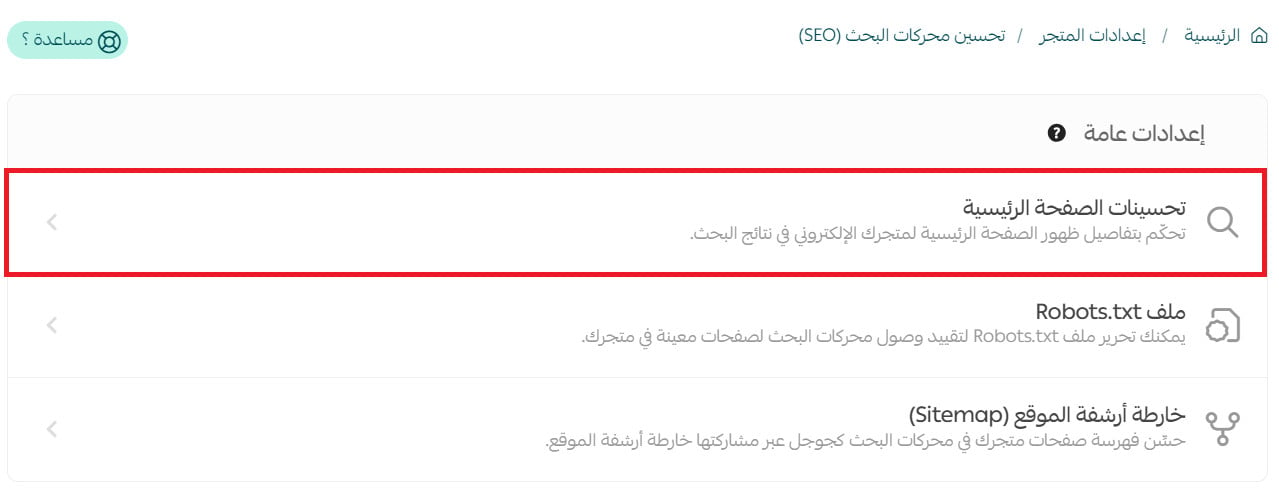
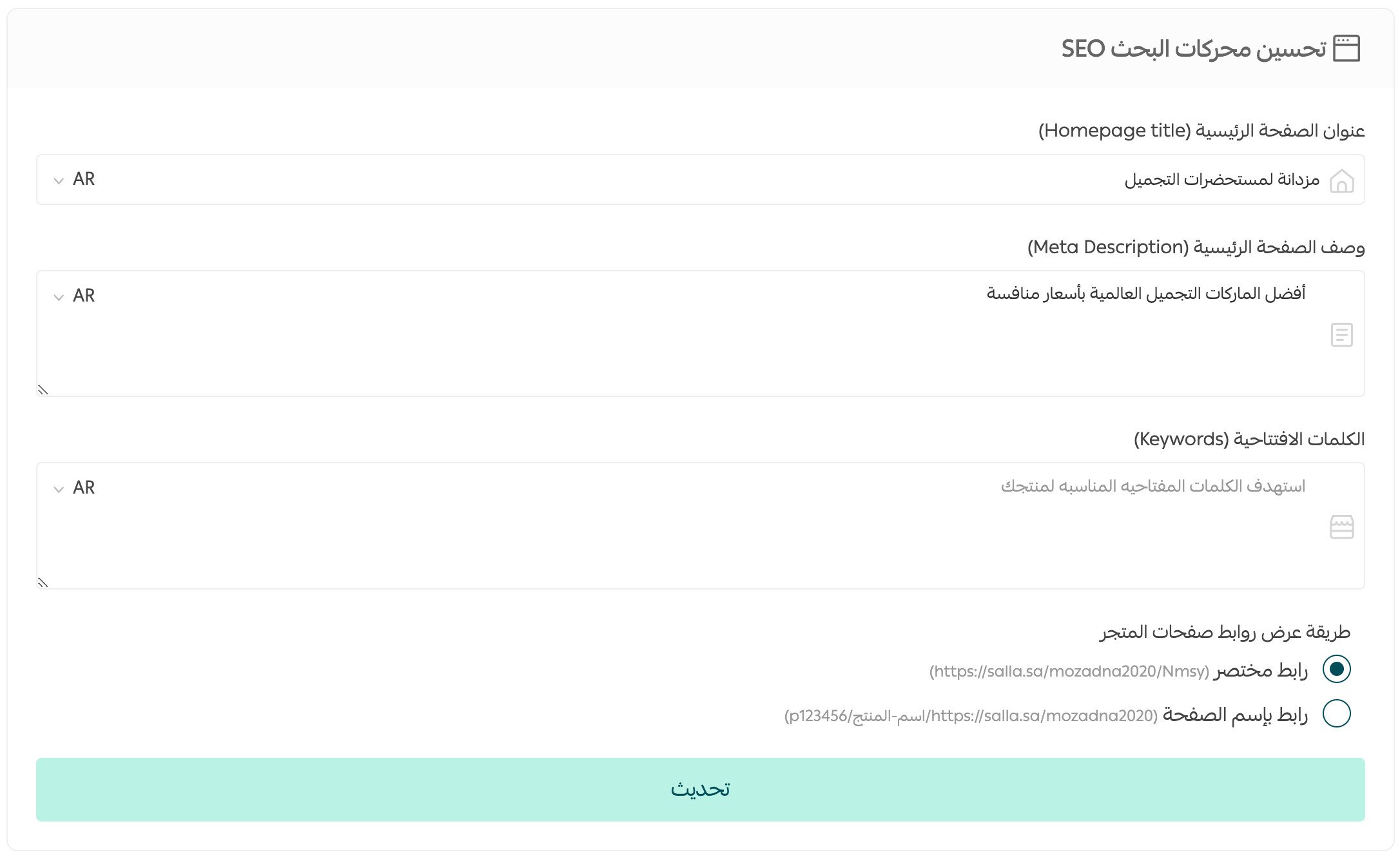
4. Write your home page title and description, add the keywords that best describe what you sell, choose how your store's page links are displayed, then click (Save).
For a walkthrough on video, watch search engine optimization to boost your store's performance.
👣 Tell Google about your store by submitting your sitemap
1. From the side menu of your dashboard, click (Marketing tools).
2. From the marketing tools page, click (Search engine optimization).
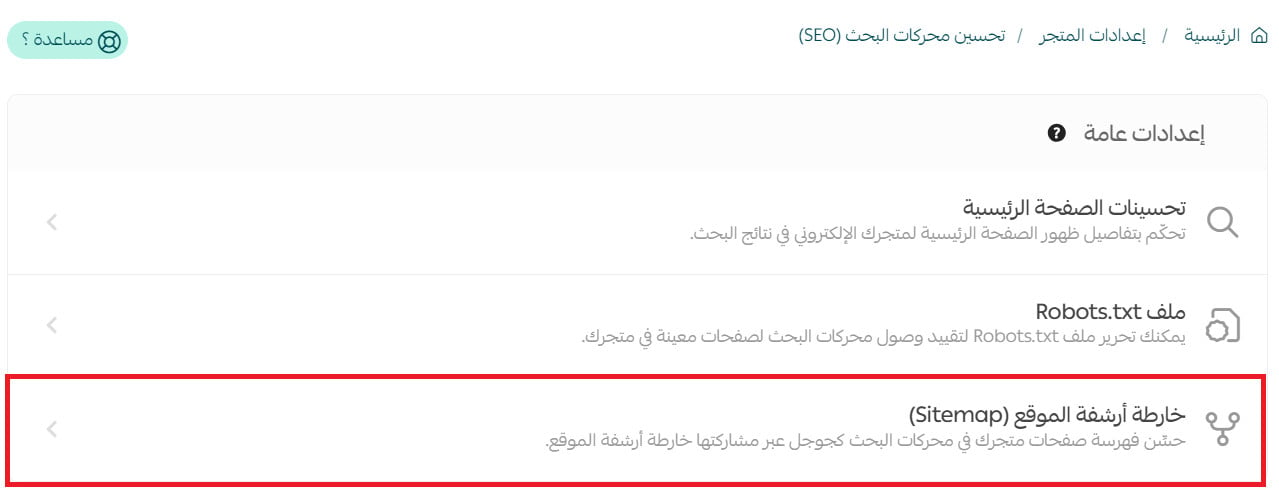
3. On the SEO page, under general settings, click (Sitemap) to help search engines index your store's pages.
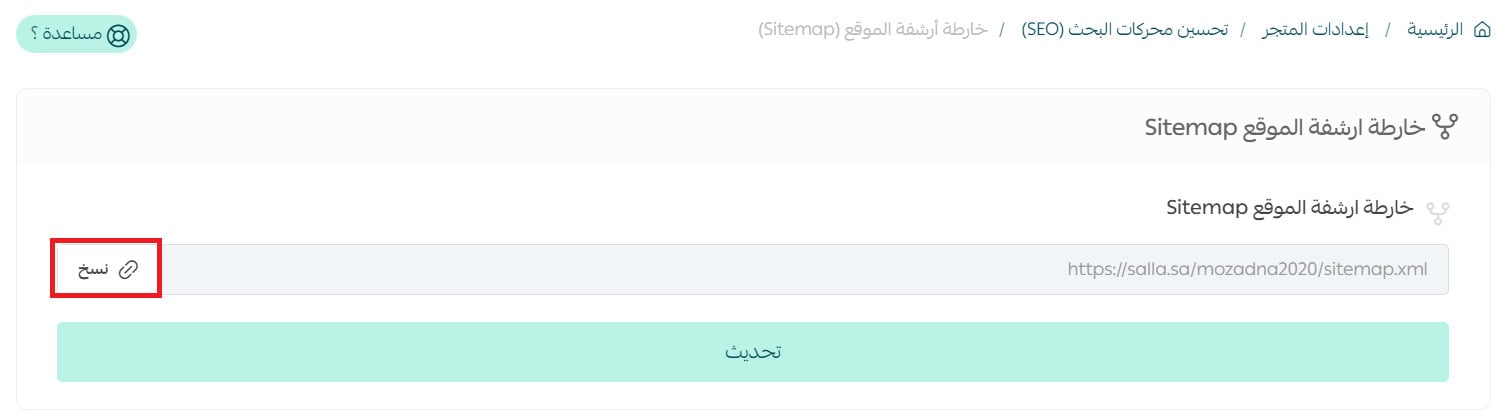
4. Click (Copy) to copy your sitemap link.
5. In your Google Search Console admin account, click (Sitemaps) in the side menu.
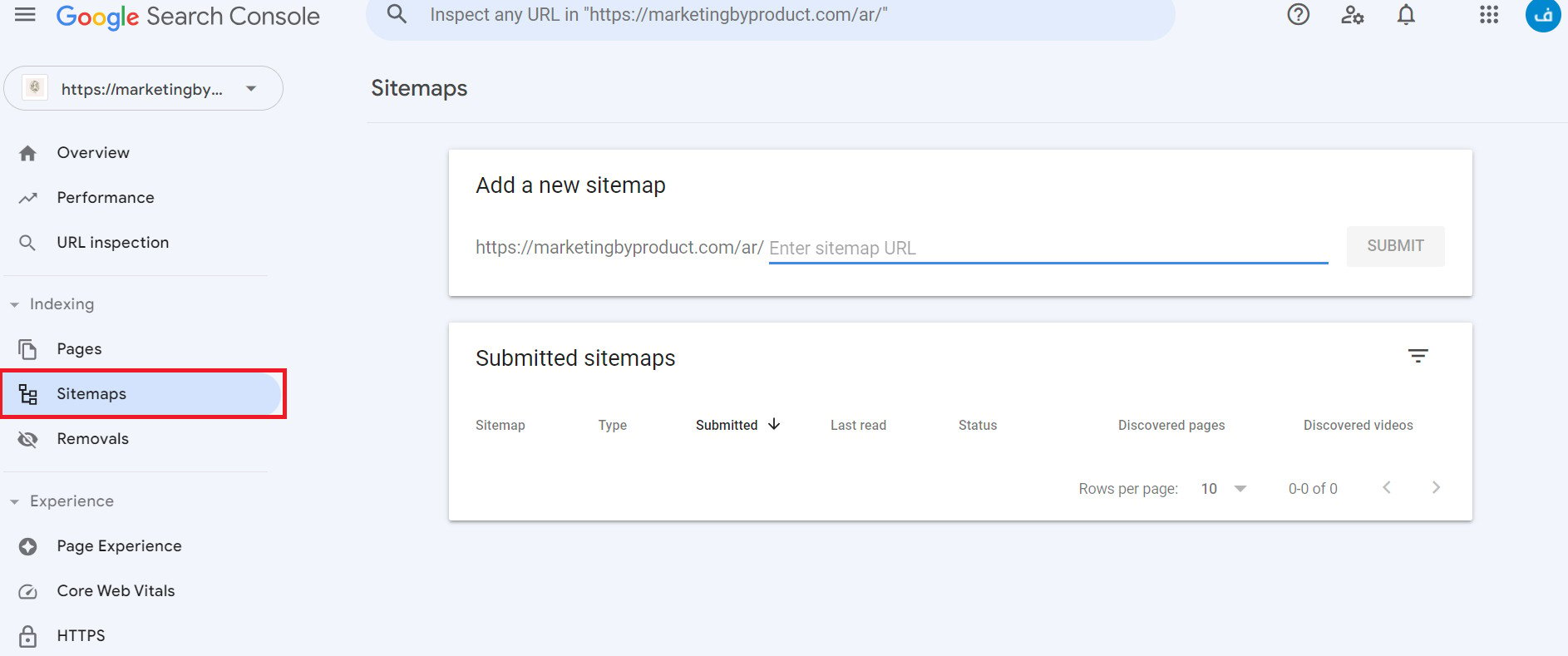
6. Paste the sitemap link you copied in step 4 into the box, then click (Submit).

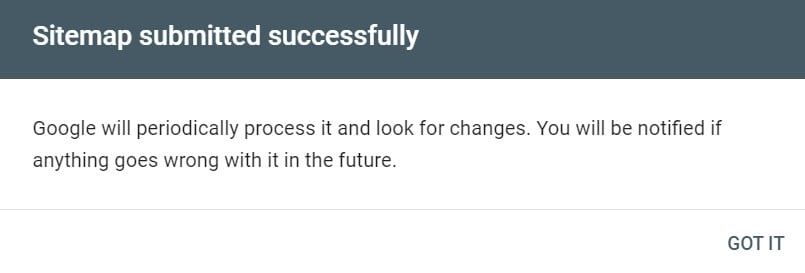
A message confirms the sitemap was submitted successfully.
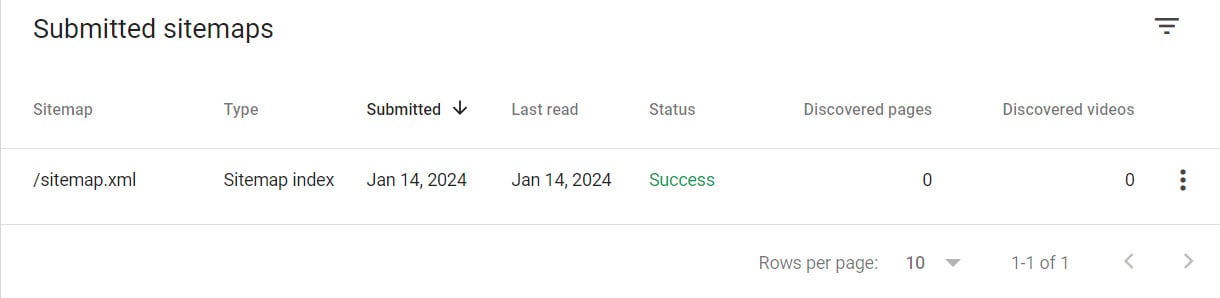
The link then appears on the page like this:
For more detail, read improving your store's visibility in search with Google Search Console.
👣 Restrict search engine access to specific pages
1. From the side menu of your dashboard, click (Marketing tools).
2. From the marketing tools page, click (Search engine optimization).
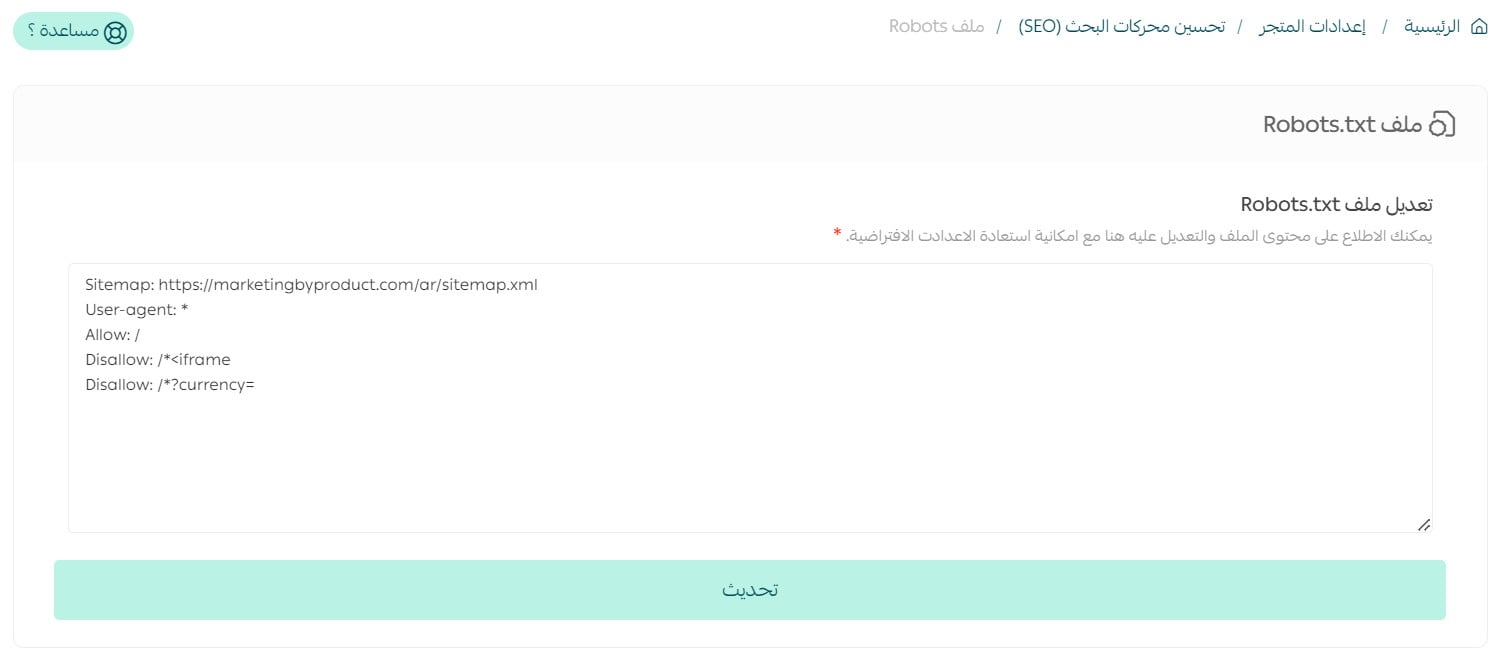
3. On the SEO page, under general settings, click (Robots.txt file).
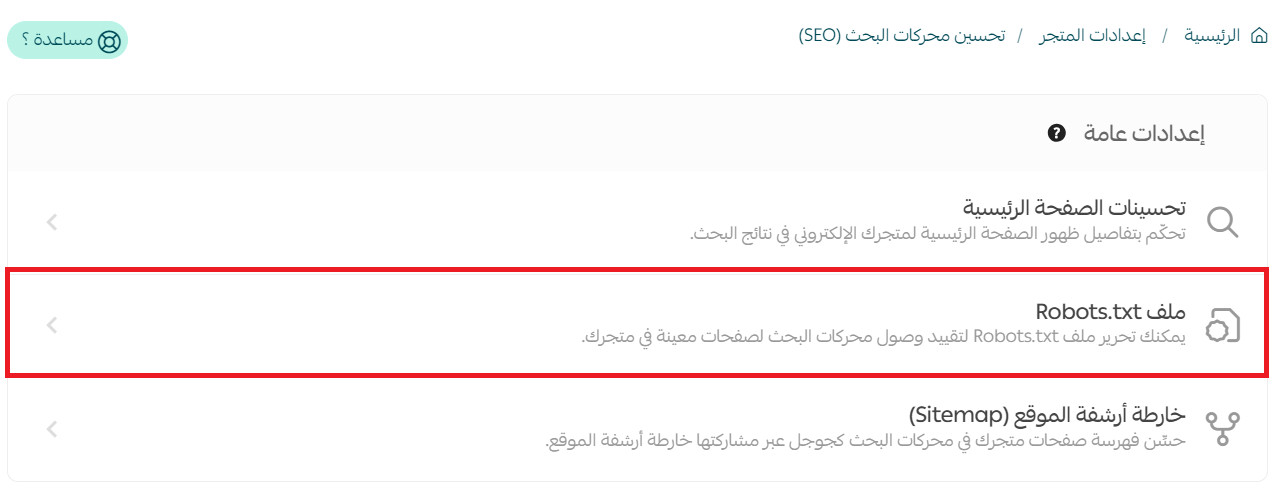
A robots.txt file is a plain text file holding a few simple rules that keep crawlers away from pages you don't want in search results. Blocking files and folders that don't matter speeds up indexing of the ones that do, so the crawler spends its time on your real content.
4. Edit the robots.txt file to restrict search engine access to specific pages in your store.
📝 Important notes
After you submit your sitemap in Google Search Console, you may see the status "Crawled - currently not indexed". This is not a Salla issue; Google decides it under its own policies. Review your content against Google's policies, request a review again, and wait for Google's response.
Google's help center explains how to write robots.txt rules and submit the file.
👣 Improve how product pages appear in search
1. From the product page, click (Product data).
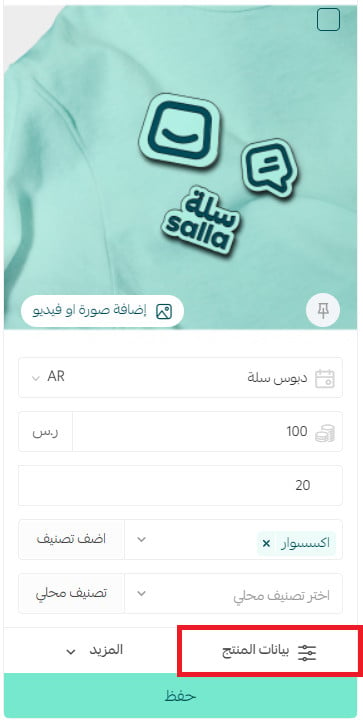
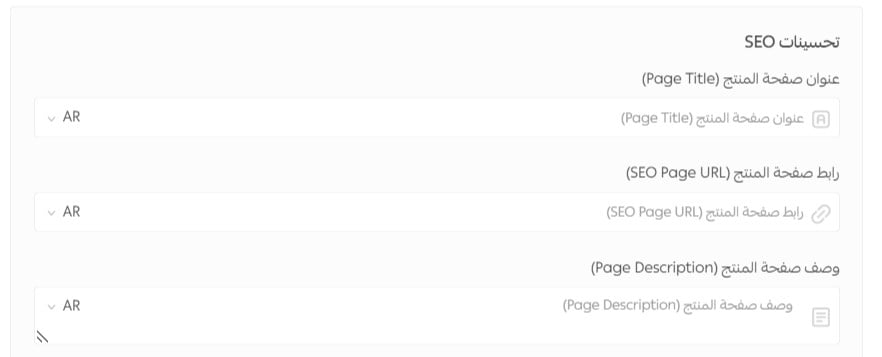
2. On the product data page, in the (SEO improvements) section, enter the product page title, add a custom product link — leave it empty and the default product link is used — and enter a description for the product page. Then click (Save product data).
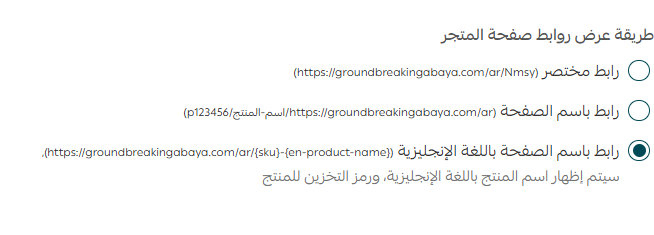
To preview the product link, look at the bottom of the product data page:

📝 Important notes about product links in the sitemap
The "page link in English" option does not currently show up in the sitemap if your store runs in a single language, such as Arabic only.
To get English product links into your sitemap:
- Turn on multiple languages in your store.
- Add English, and enter product names in both Arabic and English.
Your sitemap then carries both the Arabic and the English product links correctly.
👣 Improve how store categories appear in search
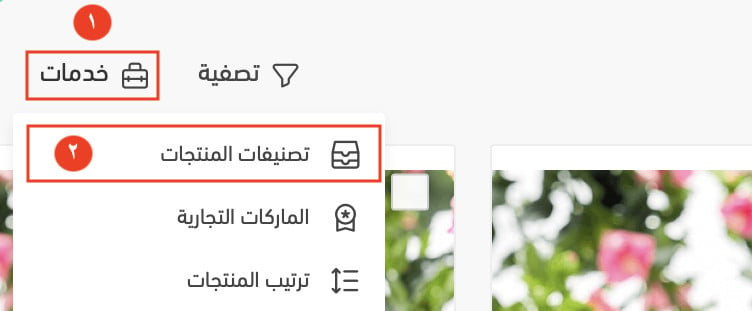
1. From the main menu, click (Services), then choose (Store categories) from the list.
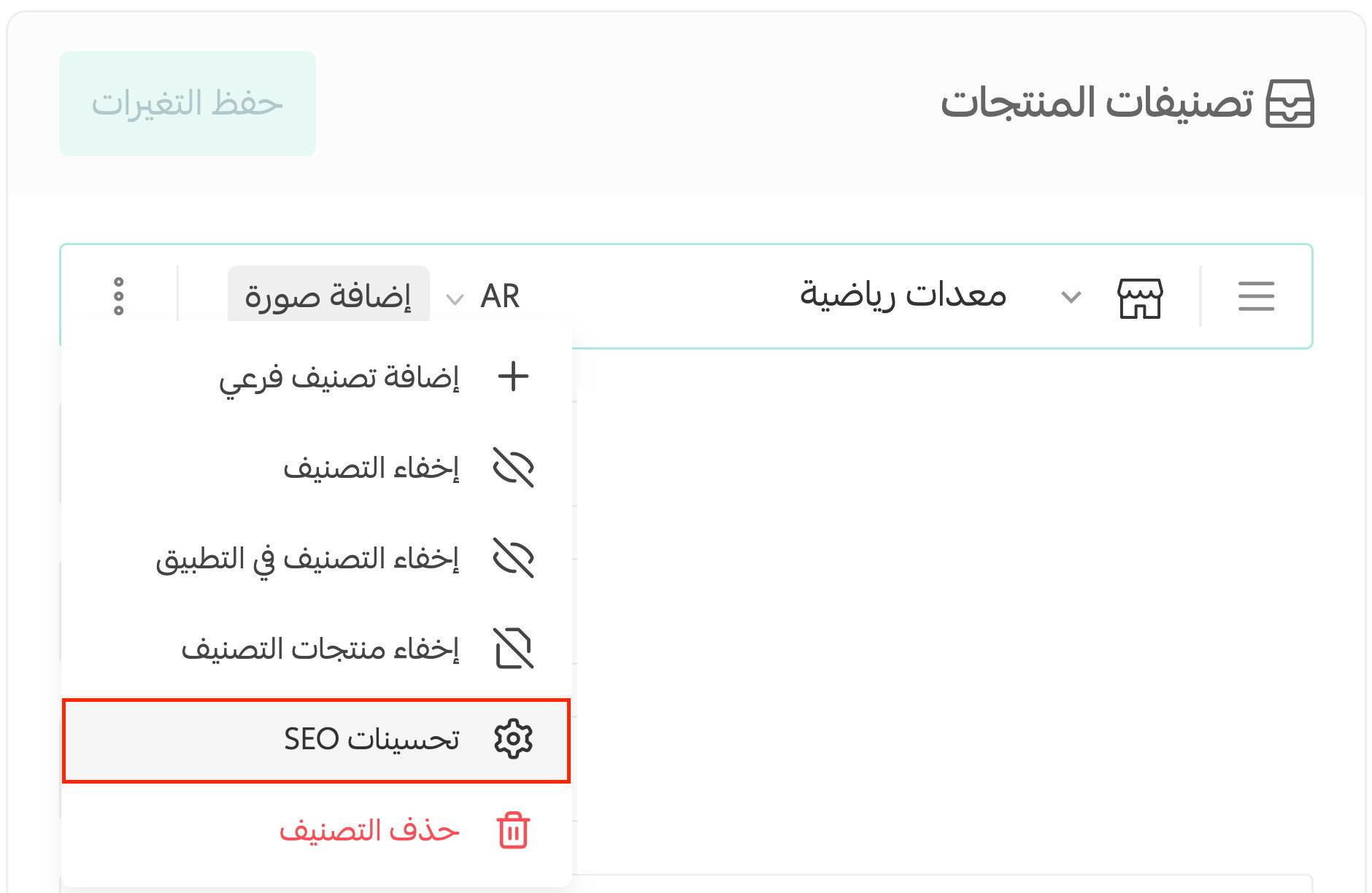
2. On the row of the category you want, click the (...) button and choose (SEO improvements) from the list.
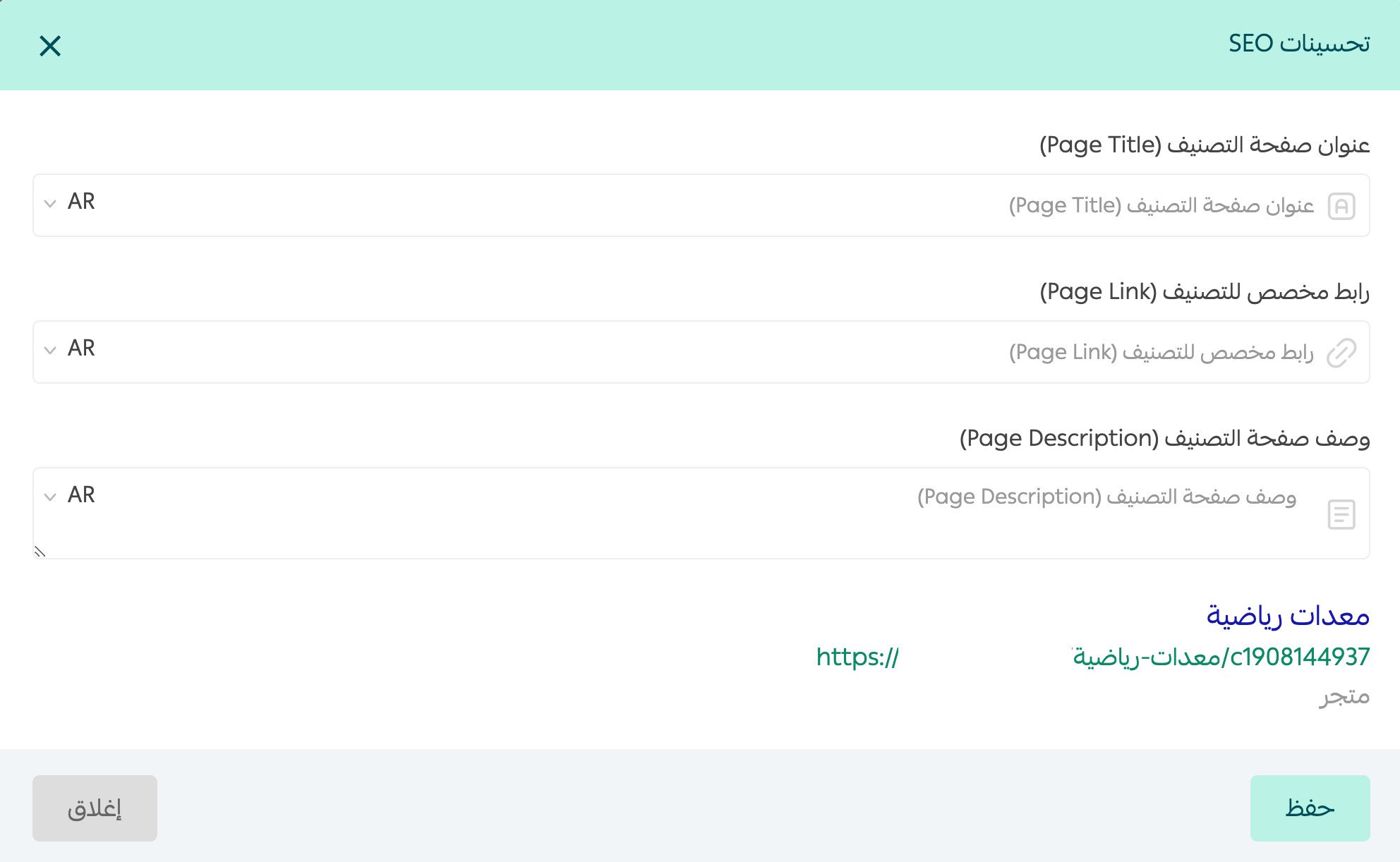
3. On the (SEO improvements) page, enter the category page title, add a custom link for the category, and enter a description for the category page. Then click (Save product data). [Verify: the Arabic names the save button on the category screen as "Save product data" — confirm the actual label.]
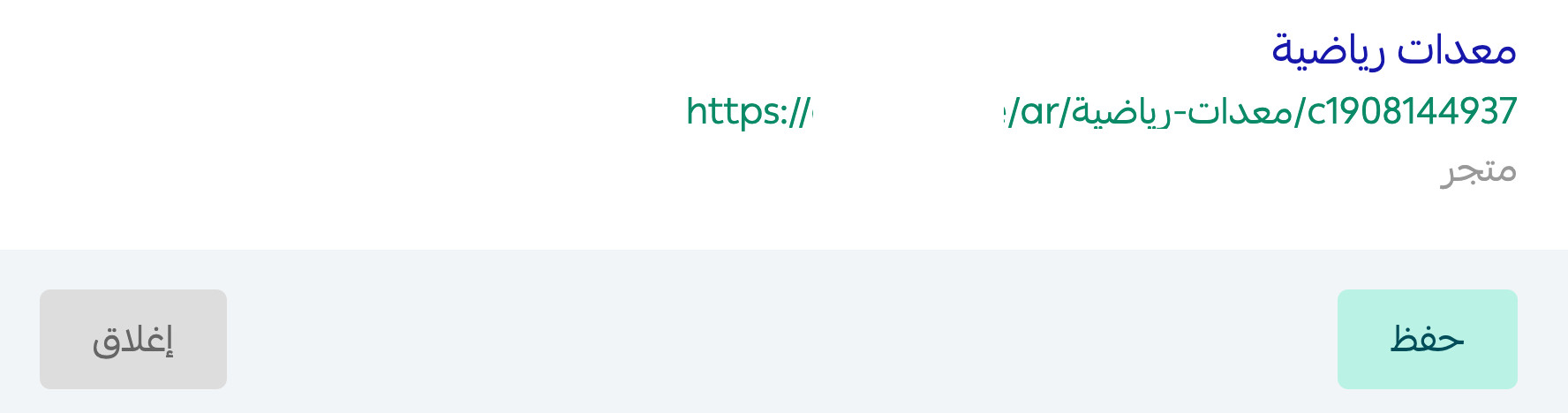
To preview the category page link, look at the bottom of the data page:
👣 Improve how brand pages appear in search
1. From the main menu, click (Services), then choose (Brands) from the list.
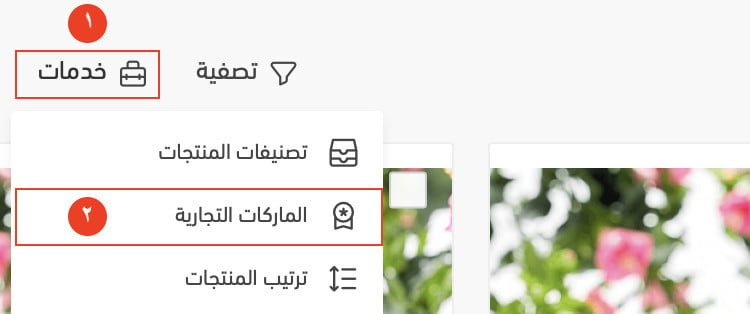
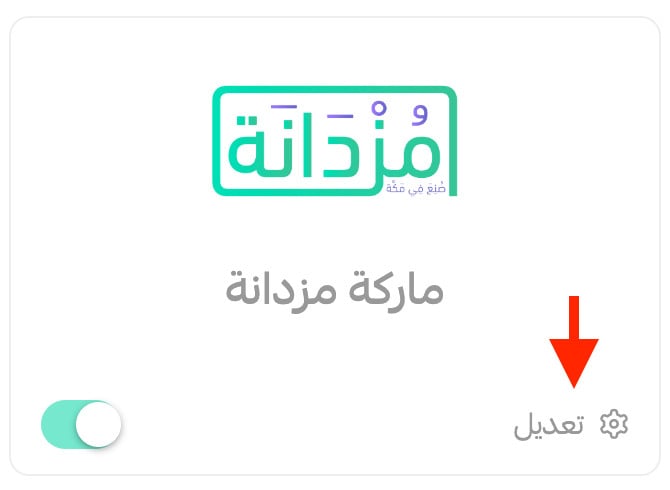
2. Click (Edit).
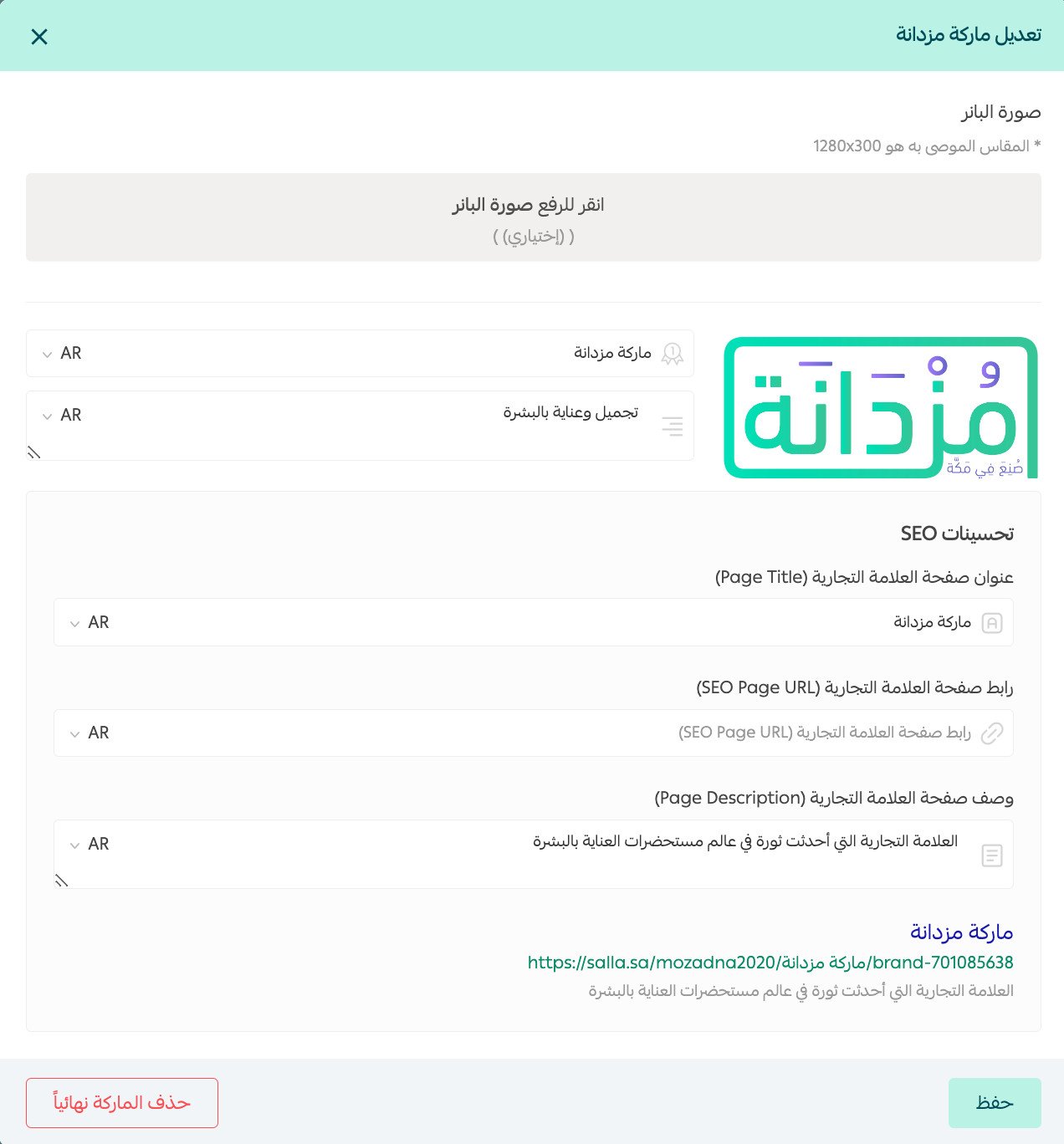
3. On the (Edit brand) page, enter the brand page title, add the custom page link and the brand page description, then click (Save).
To preview the brand page link, look at the bottom of the data page.
👣 Help search engines read and index your product images
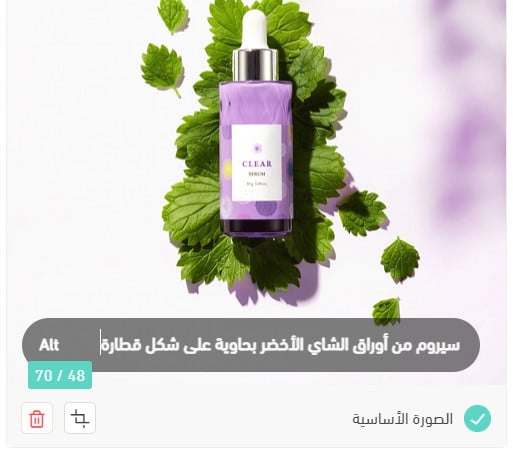
Writing a description for each image gives search engines a much better idea of what it shows. Here's how:
1. From the products page, on the product card, click (Add image or video).
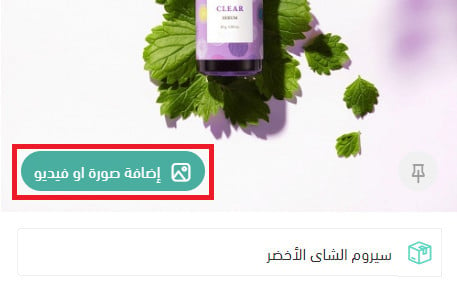
2. Click (Alt).
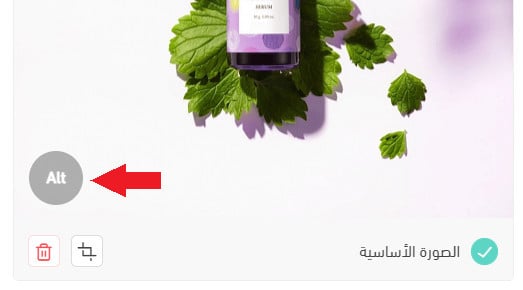
3. Write a product description that helps search engines understand the image, then click (Save).
✅ Start a blog
Publishing regularly tells search engines your site is being updated. Every new page is a sign that your store is active, and search engines follow those changes — which helps your pages rank higher and improves your visibility in search.
A blog is also a good place to answer customer questions, teach people about your products, and pull new shoppers toward your store.
Tips for a blog that works:
- Publish content that gives the reader something. Solve a visitor's problem or tell them something new and useful.
- Write in a way that's engaging, easy to follow, and well organized.
- Use keywords properly. They should be relevant to what the post is about and read naturally in the sentence.
For more detail, read managing your store's blog on Salla.
❓ Frequently asked questions
Where do I find the SEO settings in my dashboard?
From the side menu, click (Marketing tools), then (Search engine optimization). Home page improvements, your sitemap, and the robots.txt file all live there under general settings.
Do I have to write a custom link for every product?
No. Leave the custom link field empty and Salla assigns the product's default link.
Why does Google say my pages are crawled but not indexed?
That status comes from Google, not from Salla, and Google applies its own policies to it. Check your content against those policies, submit another review request, and wait for Google's response.
Why don't my English product links show in the sitemap?
Because the store runs in one language. Turn on multiple languages, add English, and enter product names in both Arabic and English — the sitemap then includes both sets of links.
Where do I set the alt text for a product image?
On the products page, open the product card, click (Add image or video), click (Alt), write a description of the image, and click (Save).
We also recommend reading:
- Visits report through Google Analytics
If you have an app for your store, read improving your app's visibility with ASO.
If you don't, take a look at the App Builder service from Salla, which gives your store a complete, professional app.
If you need extra help with your store's SEO, merchant services connects you with outside providers who handle this kind of work professionally.
For more detail, read merchant services.
SEO is not a switch you flip once. Fill in the fields Salla gives you, keep your sitemap submitted, and publish something worth reading — the ranking follows the work.