Do you know which parts of your store's pages catch your visitors' attention — and which ones they scroll right past?
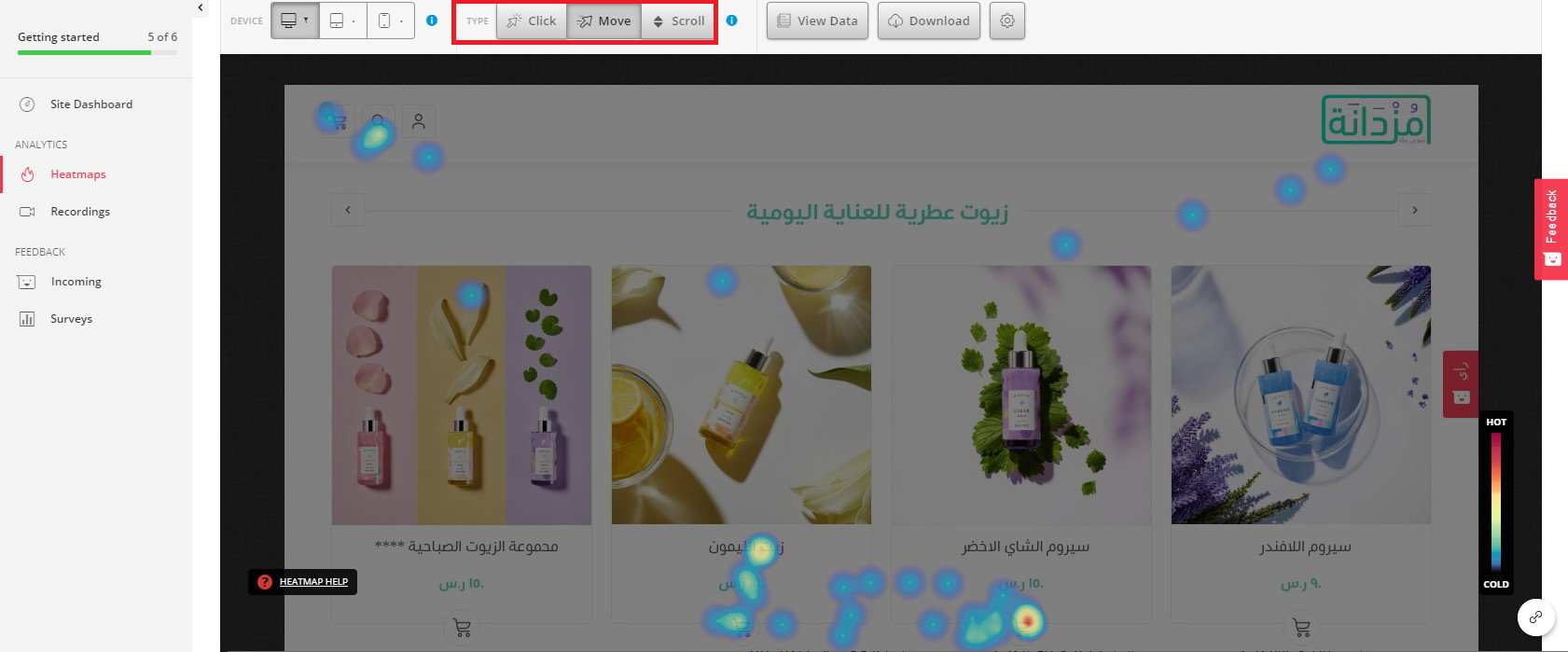
Hotjar heatmaps turn real visitor behavior into a visual map of your store. A heatmap shows where visitors click most, how far down they scroll, and which areas they ignore, using a warm-to-cool color scale — the warmer the color, the more attention that spot receives. With Hotjar heatmaps, you can redesign pages with confidence and place your most important content where visitors actually look. In this guide, you'll learn how to create, view, and manage heatmaps in Hotjar.
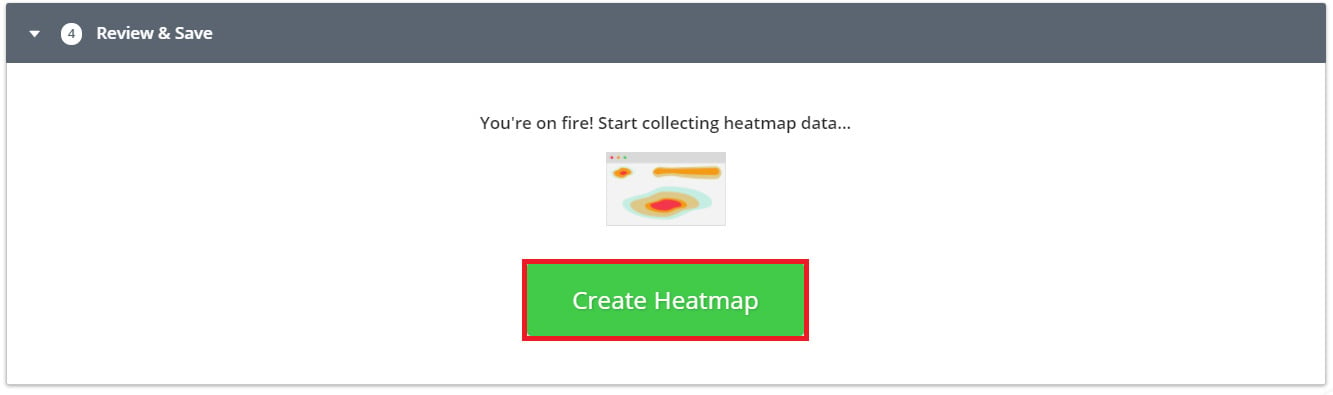
To set up a heatmap, log in to your Hotjar account, open the Heatmaps page, and create a new heatmap. Give it a short descriptive name, choose the data format, target a specific page or a group of similar pages, then click (Create Heatmap). Hotjar starts collecting click, tap, and scroll data automatically.
📌 Article overview
- Why use Hotjar heatmaps?
- How to set up a heatmap
- Frequently asked questions
🎯 Why use Hotjar heatmaps?
- They help you decide where to place strong call-to-action (CTA) buttons — in the spots that get the most clicks.
- They guide you to add engaging content to the areas that get the least attention, helping reduce bounce rates.
- They reveal how visitors behave on each page and show you the most profitable areas of your store.
For more details on connecting your store with Hotjar.
👣 How to set up a heatmap
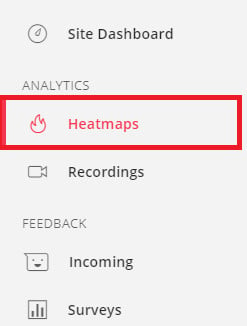
1. Log in to your Hotjar account, then click (Heatmaps) from the main dashboard.
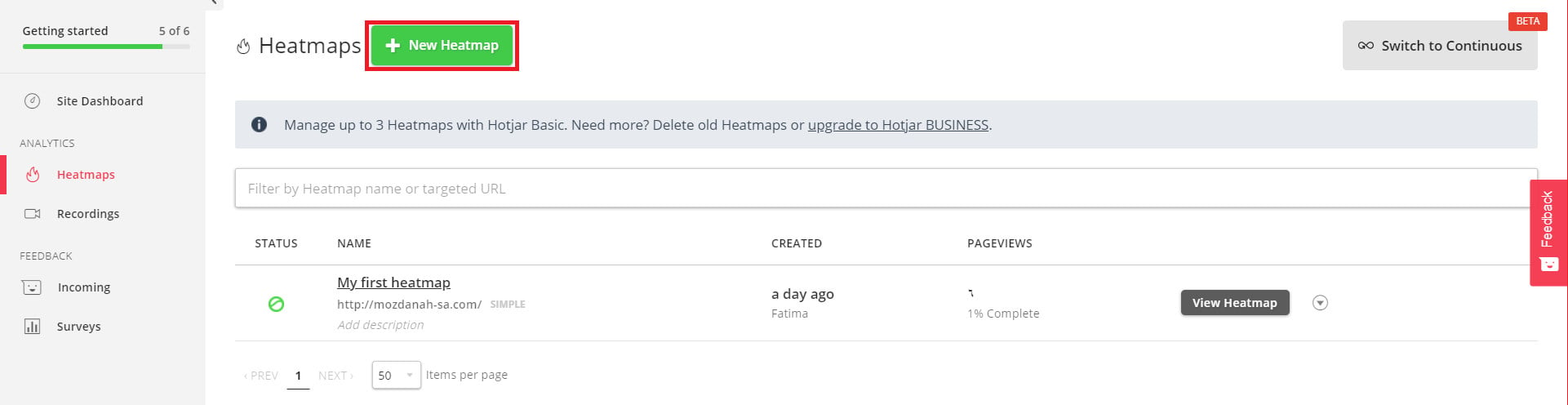
2. From the Heatmaps page, click (New Heatmap) to record a new heatmap.
3. Customize the heatmap:
- Enter a name for the heatmap — keep it short and descriptive.

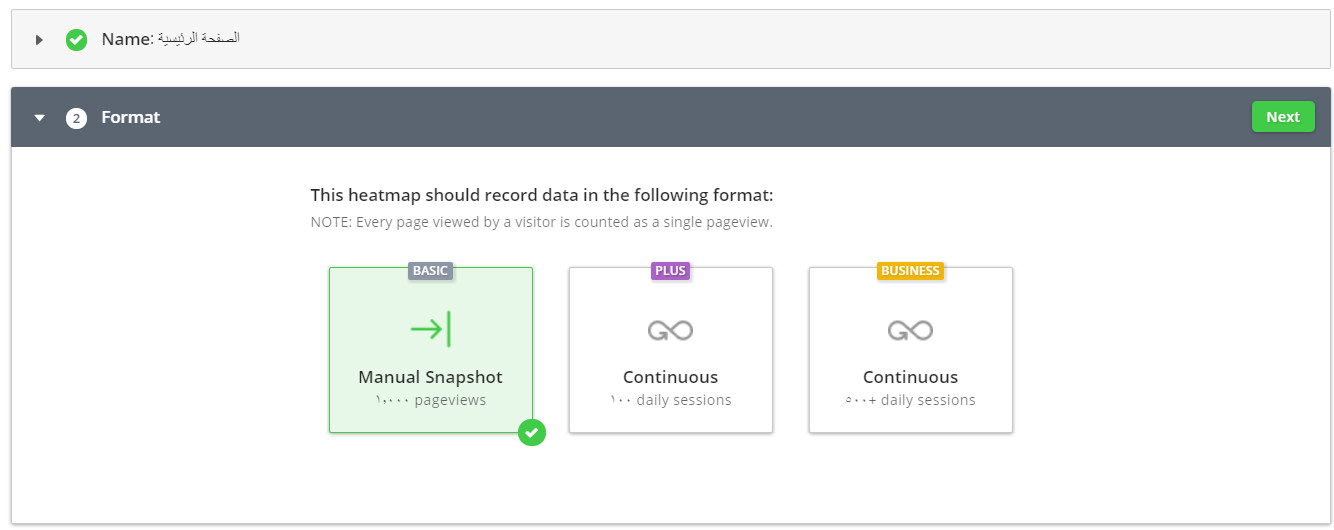
- Choose the format the heatmap should use when recording its data.
📝 Important notes
Each page a visitor views is counted as one page view.
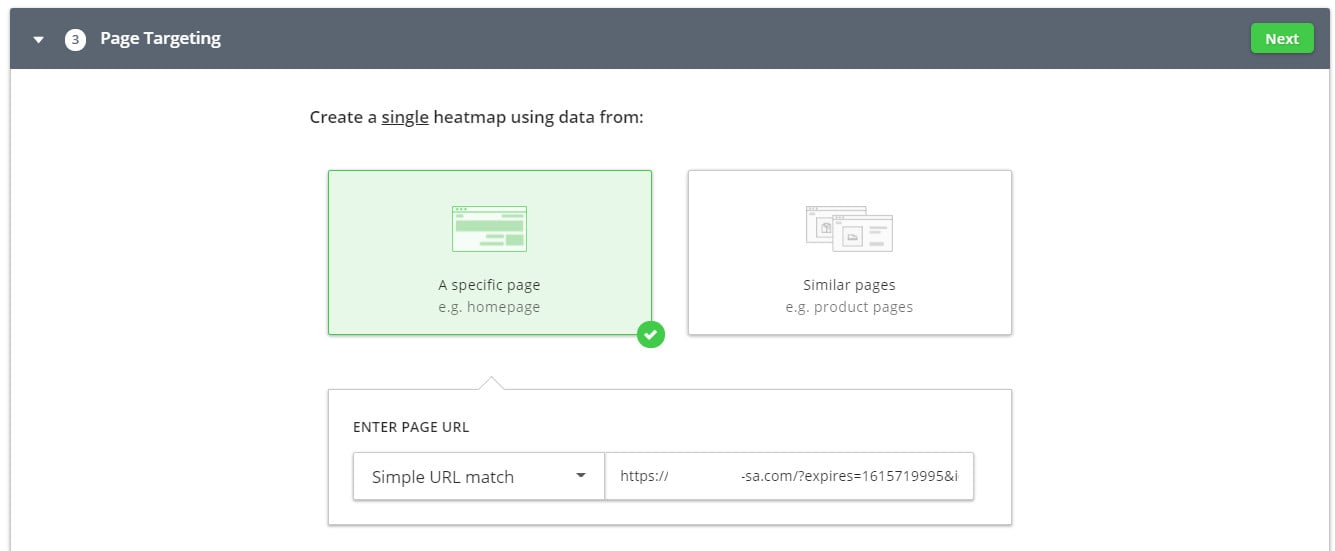
- Select the target pages.
Build the heatmap from data for a specific page (such as the home page) or for similar pages (such as product pages).
Enter the address of the target page in the box provided.
- Click (Create Heatmap) to create the heatmap.
Frequently asked questions
❓ How do I view a heatmap I created?
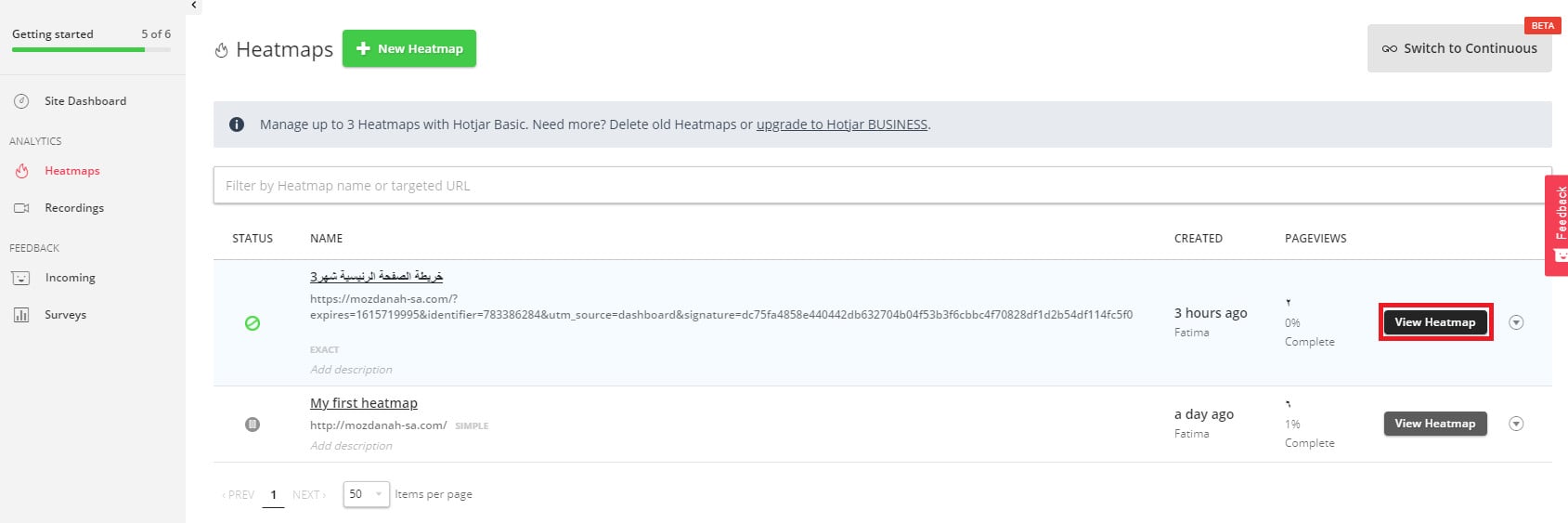
From the Heatmaps page, click (View Heatmap) next to the heatmap you want to open.
Then, from the heatmap's page, select the type you want to display, as shown below:
❓ How do I stop or manage a heatmap?
Click the options menu for the heatmap, then choose the action you want to apply.
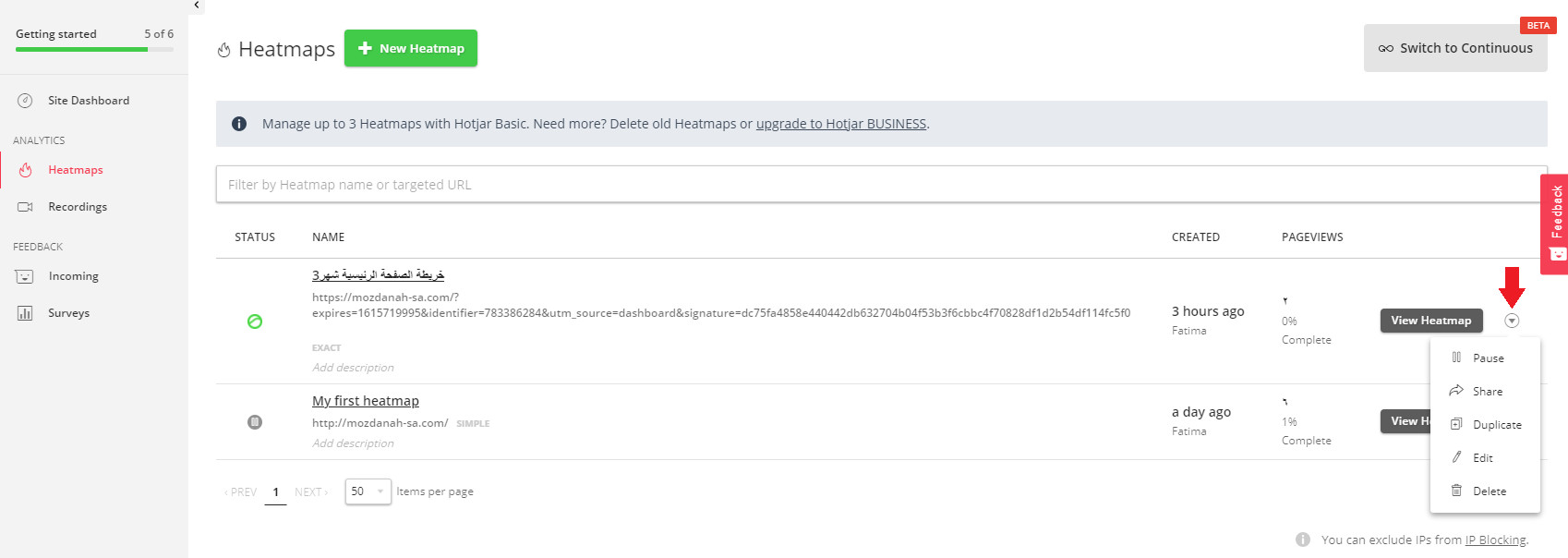
The menu includes:
- Stop recording sessions for the heatmap.
- Share the heatmap with someone else.

- Duplicate the heatmap, so you can adjust the copy instead of building a new one from scratch.
- Edit the heatmap.

- Delete the heatmap.
Heatmaps take the guesswork out of design decisions — let your visitors' clicks and scrolls tell you where your store's next improvement should go.