Translating a full catalog by hand is a project. Translating it automatically is a button.
Switch instant translation on for a language and everything in your store is translated for you: products, categories, storefront text, the lot. It is a paid service billed against a translation credit measured in characters, and it is optional; new languages start on manual translation until you change that. In this guide, you'll learn how to turn instant translation on for a language, what it costs you in credit, how to top that credit up, and where the automatic translation still needs your hand.
Instant translation converts your whole store into another language automatically. From the languages page, click the (...) button next to the language, choose activate instant translation, review the character count it needs, then click start. Your translation credit covers the characters.
📌 Article overview
- How to translate your store with instant translation
- Frequently asked questions
For more answers, see frequently asked questions about languages.
🚀 How to translate your store with instant translation
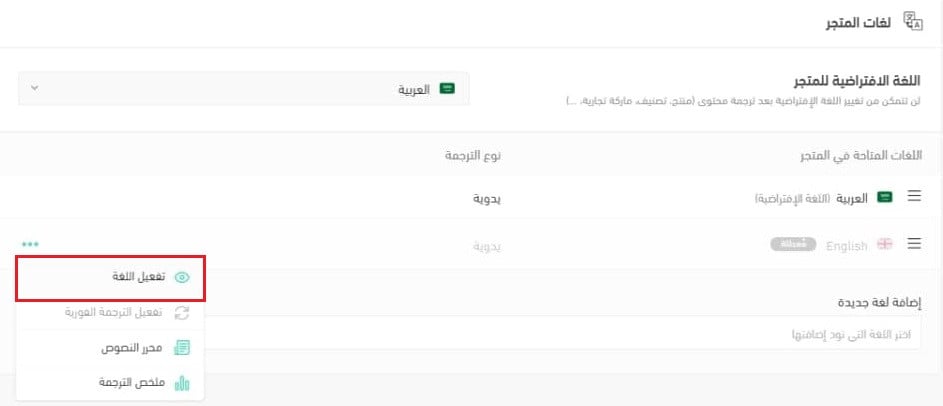
1. From the languages page, click the (...) button next to the language you want to run instant translation on.

2. From the language control menu, click (Activate instant translation).

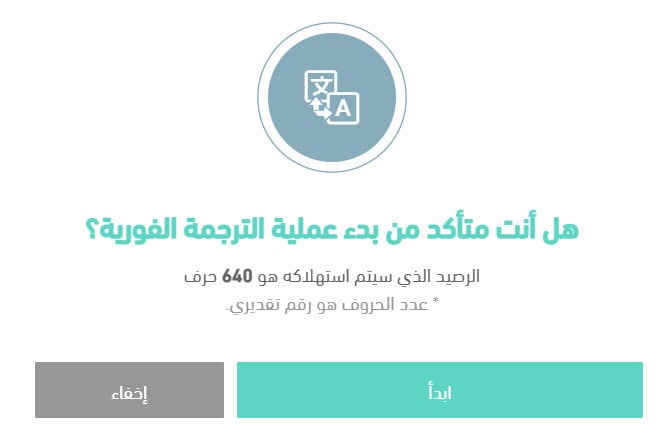
3. Check the total number of characters the translation needs, which Salla calculates for you.
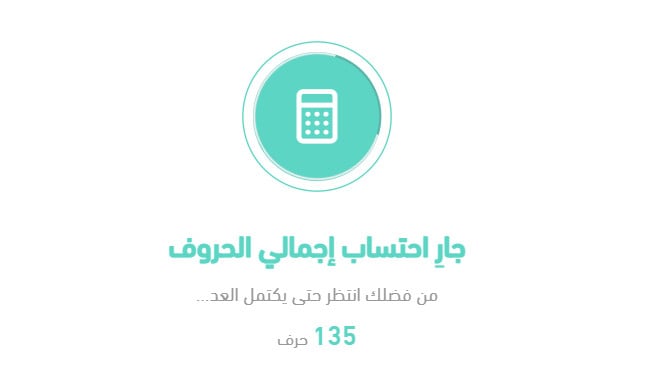
4. Click (Start) to begin the instant translation.
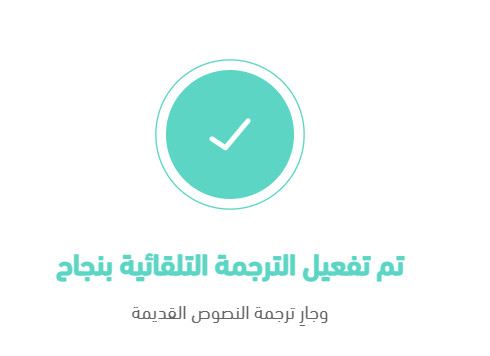
A message confirms that automatic translation is on.
The language's translation type then shows as (Automatic).

❓ Frequently asked questions
Is instant translation free?
No, it is a paid service.

Can I run instant translation on a language that is disabled?
No. Activate the language first: click (...) next to the disabled language, then click (Activate language).
Does instant translation take long?
Processing your product text, categories, and everything else into the new language can take a while, depending on how much text there is.
Do I have to switch instant translation on to support languages?
No. Instant translation is optional; it exists to make language support and entering new markets take less effort. Manual translation is what every new language you add starts on.
Is instant translation accurate?
It is not as accurate as translating by hand, but it is far less work.
I don't want instant translation. How do I translate the text myself?
Use manual translation. For the full walkthrough, see translating your store manually with the text editor.
Can I edit the text after instant translation?
Absolutely. You can edit any of it at any time. Instant translation is a way to get started fast with minimal effort, not a final answer.
What is translation credit and how do I top it up?
Translation credit is the number of characters available for translating text in your store: products, categories, storefronts, and the rest.

There are two ways to add more credit.
Method 1: click (+) on the instant translation bar on the translation page.

Fill in your payment details, then click (Confirm payment).
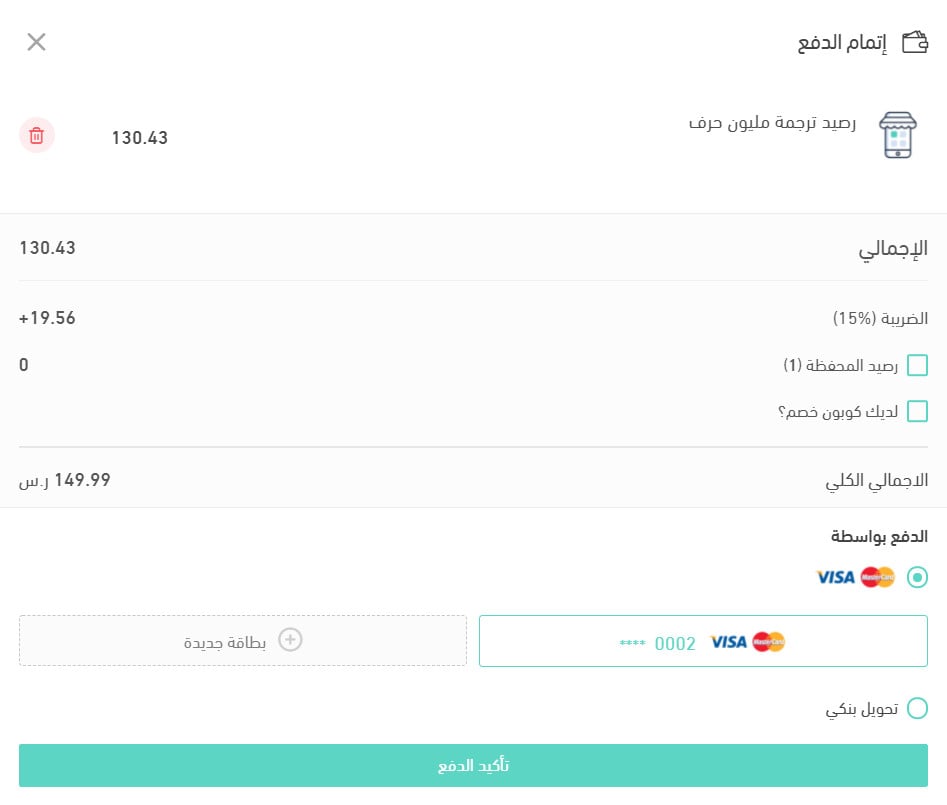
Method 2: from the Salla Store, in the translation section, click (Add to your store).
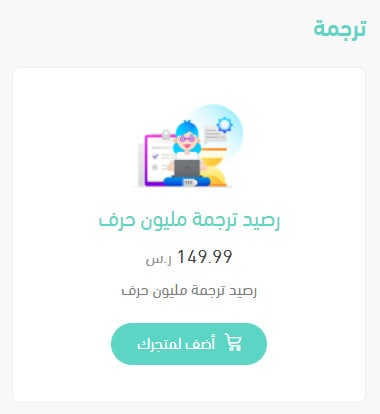
That takes you to the same payment page.
For the full walkthrough, see how to order from the Salla Store.
How do I get text that was left untranslated translated automatically?
Disable the language that has untranslated text, then activate it again. All the untranslated text is translated on the way back in.
Is new or updated content translated automatically?
Yes, adding new content or updating existing content in your default language adds or updates the translated version in your other languages automatically, provided instant translation is switched on.
📝 Important notes
Instant translation is billed against your character credit, so check the character count in step 3 before you click start.
The pragmatic route is both: let instant translation cover the store in a day, then spend your time by hand on the handful of pages that actually sell, product names and descriptions first.