How do you pick a shipping partner when there are dozens to choose from, and every contract takes weeks to sign?
Choosing a shipping company is one of the decisions that quietly shapes your margins and your customer reviews. Salla brings the carriers together in one place, so shipping your products at a competitive price and a short delivery time does not depend on long negotiations. In this guide, you'll learn which shipping options Salla offers, how to connect to them, how to issue and print a waybill, and how cash on delivery is handled.
Salla gives you two ways to ship: Salla waybills, which are pre-negotiated rates you buy directly from your wallet, and integrations with shipping providers you install from the Salla App Store. Both connect through one dashboard, and you can also add a carrier manually from your shipping and delivery options.
📌 Article overview
- Shipping companies available on Salla
- How to issue a shipping waybill
- Extra fees for international shipping
- Cash on delivery
- Frequently asked questions
🚚 Shipping companies available on Salla
Salla works with a mix of large, mid-size, and smaller carriers. You can use them in two ways, and both share the same advantages: a single dashboard to connect through, and competitive waybill pricing.
1. Salla waybills
This option covers a group of the strongest carriers, with packaging services suited to every kind of product and rates negotiated on behalf of Salla merchants. Connecting is immediate, with no drawn-out paperwork. The price of each waybill is deducted from your wallet balance, or from an electronic payment method once you add one.
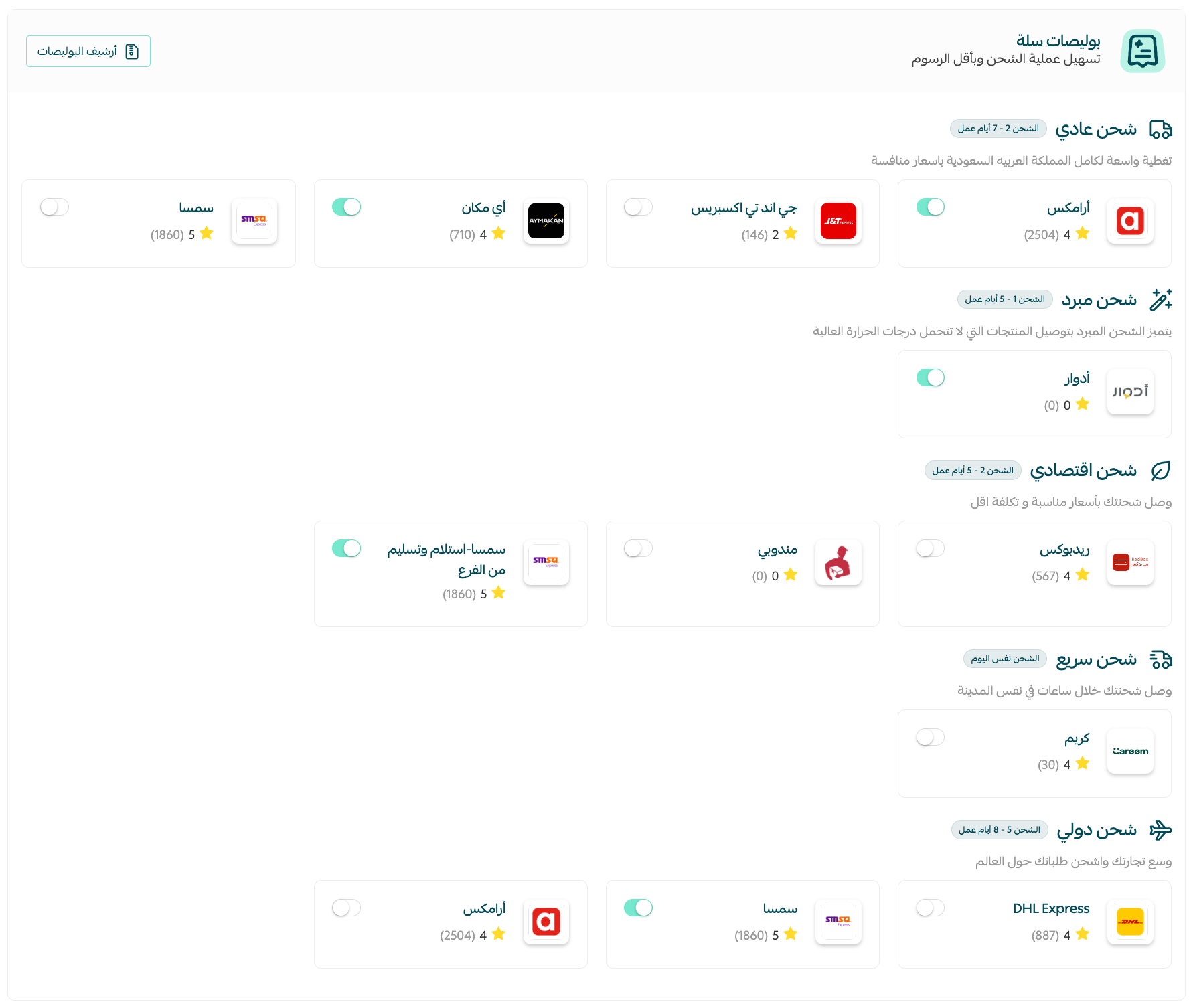
Payment stays flexible: the waybill price comes out of your electronic wallet balance automatically. You can also track the shipment at any time and follow live status updates, so you always know where your products are.
2. Connecting to shipping and delivery providers
Salla also lets your store connect directly to a shipping company by installing one of the providers already contracted with Salla from the Salla App Store.
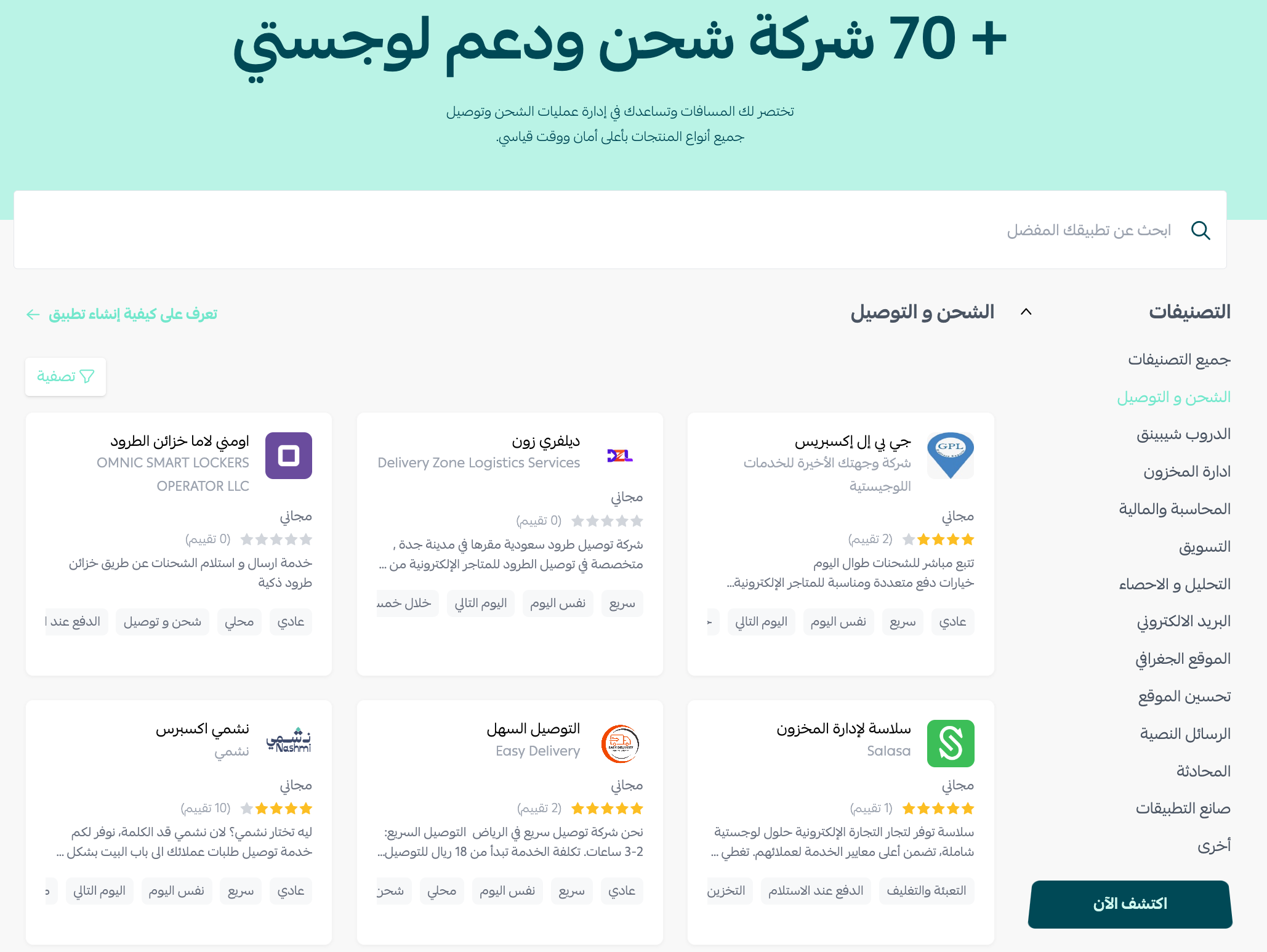
If the carrier you want is not listed, you can add a shipping company manually from the shipping and delivery options in your store settings.

👣 How to issue a shipping waybill
You can issue a waybill straight from the orders page, with clear prompts and the order details already filled in.
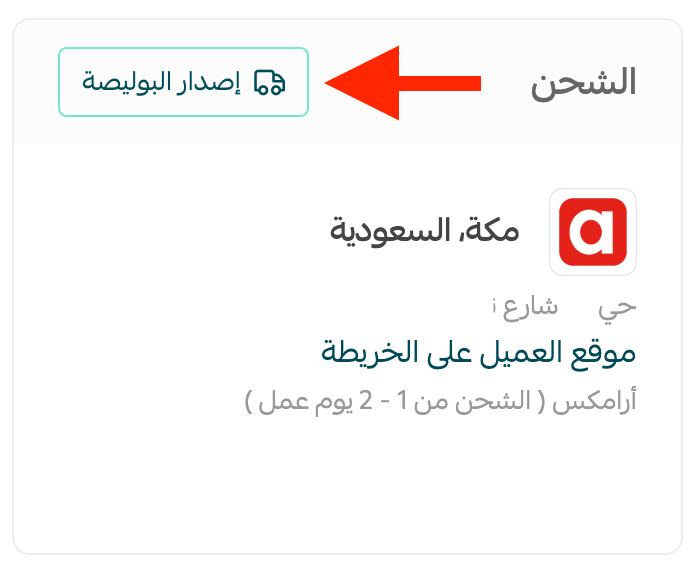
1. On the order page, click (Issue waybill).
2. Choose the branch the shipment will be sent from.
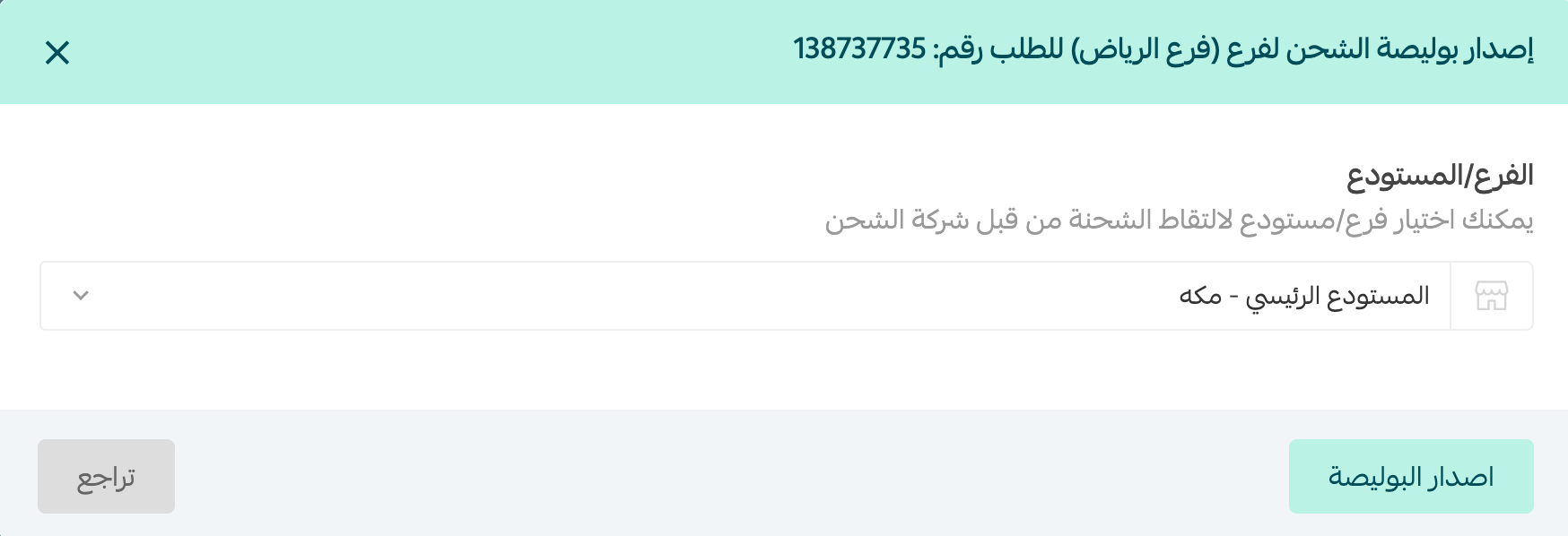
The waybill amount is deducted from your wallet balance right away. If you have already added electronic payment methods, it is charged to them instead (mada, Visa, Apple Pay).
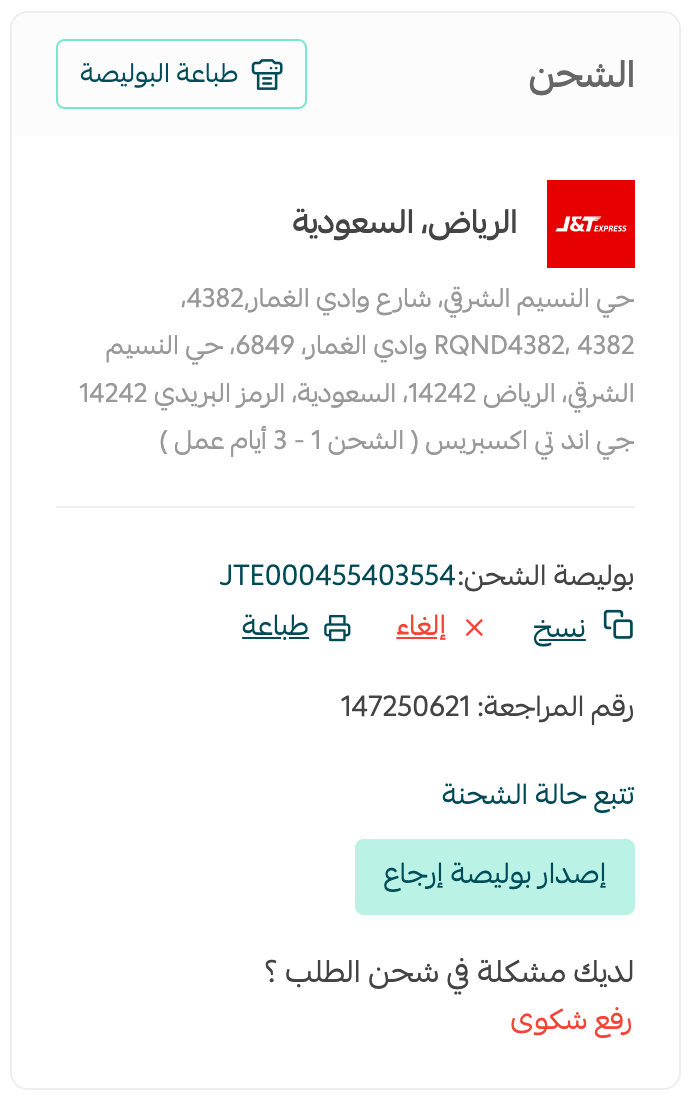
To print a waybill from the orders page, click the order you want, then click (Print waybill).
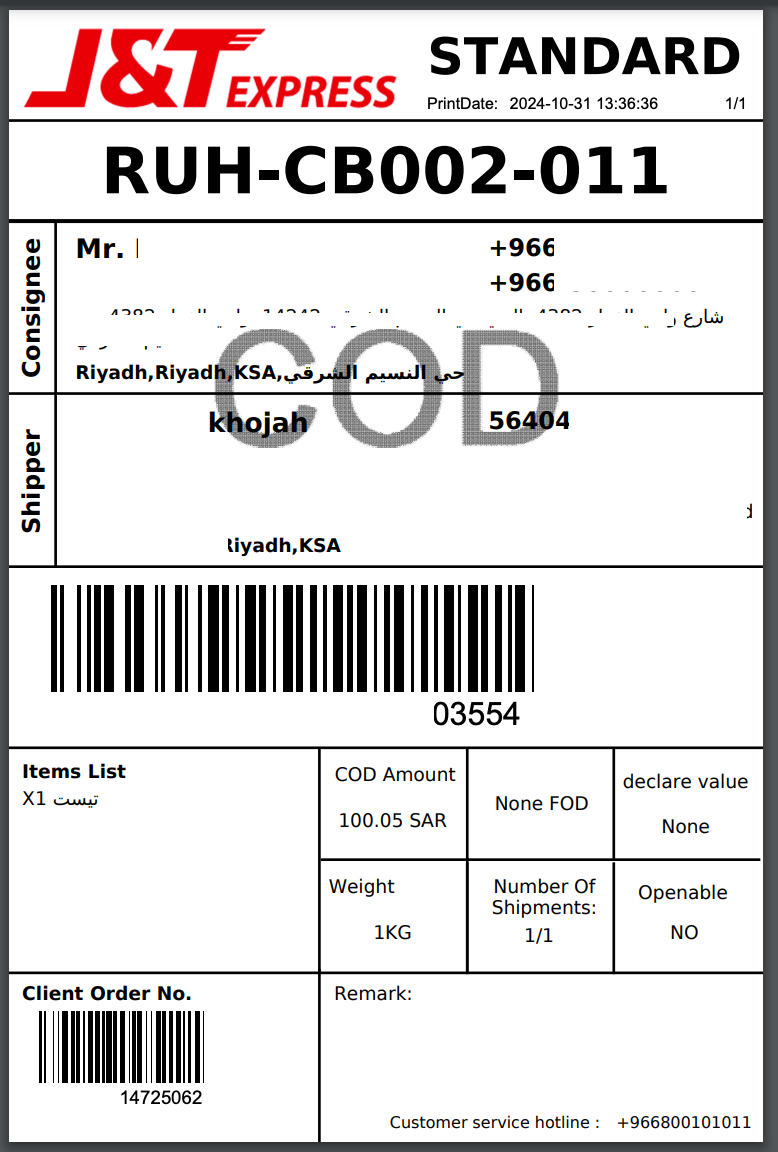
The printed waybill looks something like this:
For more details, see printing shipping waybills.
To change how the waybill fee is charged, see setting up order options.
For more details, see the wallet and invoices.
For more details, see shipping waybills step by step.
🌍 Extra fees for international shipping
Customs duties and the extra fees that apply to international shipping are calculated on the waybill and then settled directly from your wallet balance.
For more details, see managing shipping waybills.
💳 Cash on delivery
Cash on delivery is one of the payment methods customers ask for most, and how those amounts are settled back to you depends on each shipping company's policy. You control when the option is offered from your store settings.
1. From the side menu of your dashboard, click (Store settings).

2. On the store settings page, click (Shipping and delivery options).
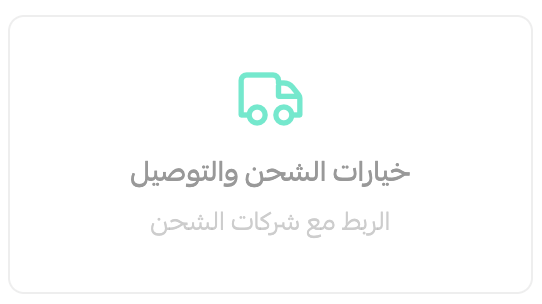
3. On the shipping and delivery page, click (Cash on delivery).
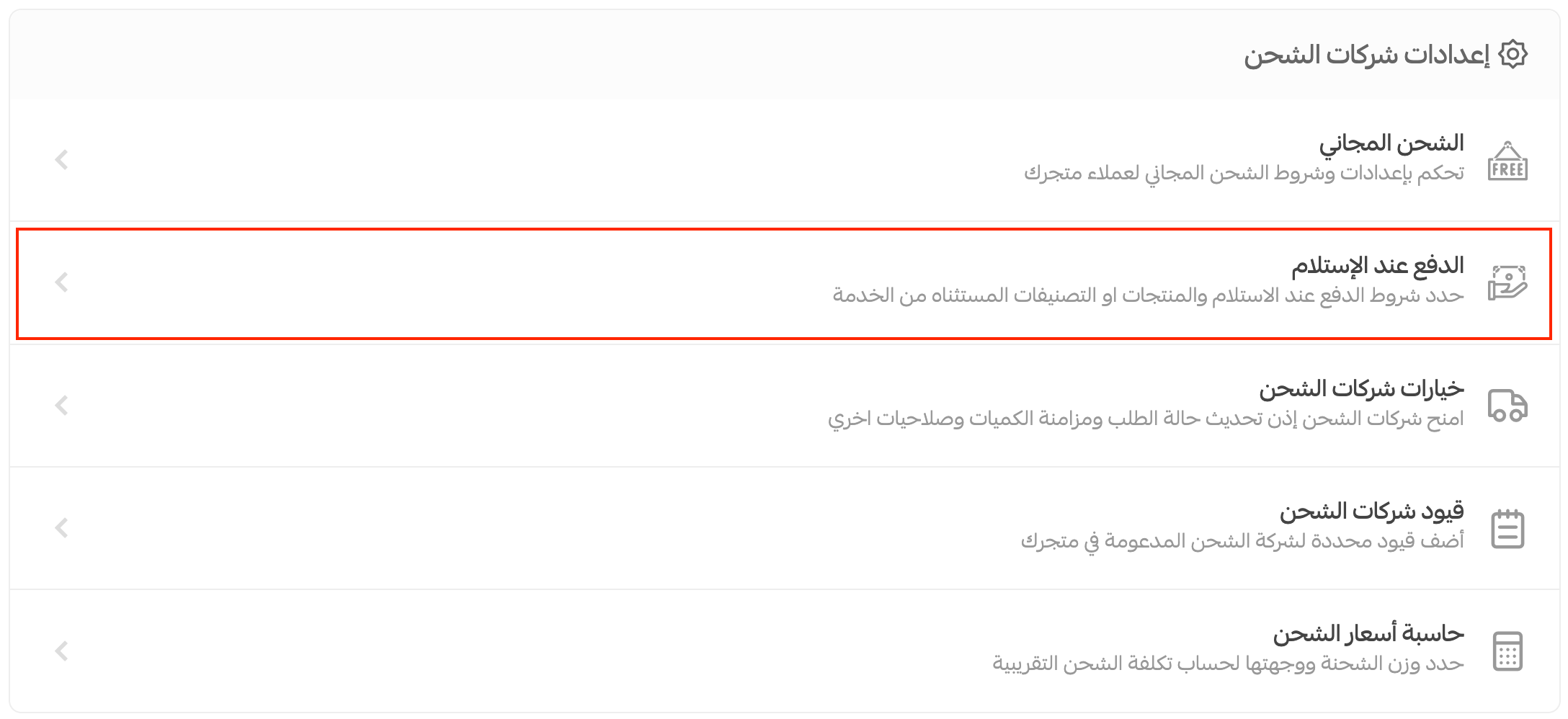
4. Enter the conditions that will disable cash on delivery when they are met, then click (Save).
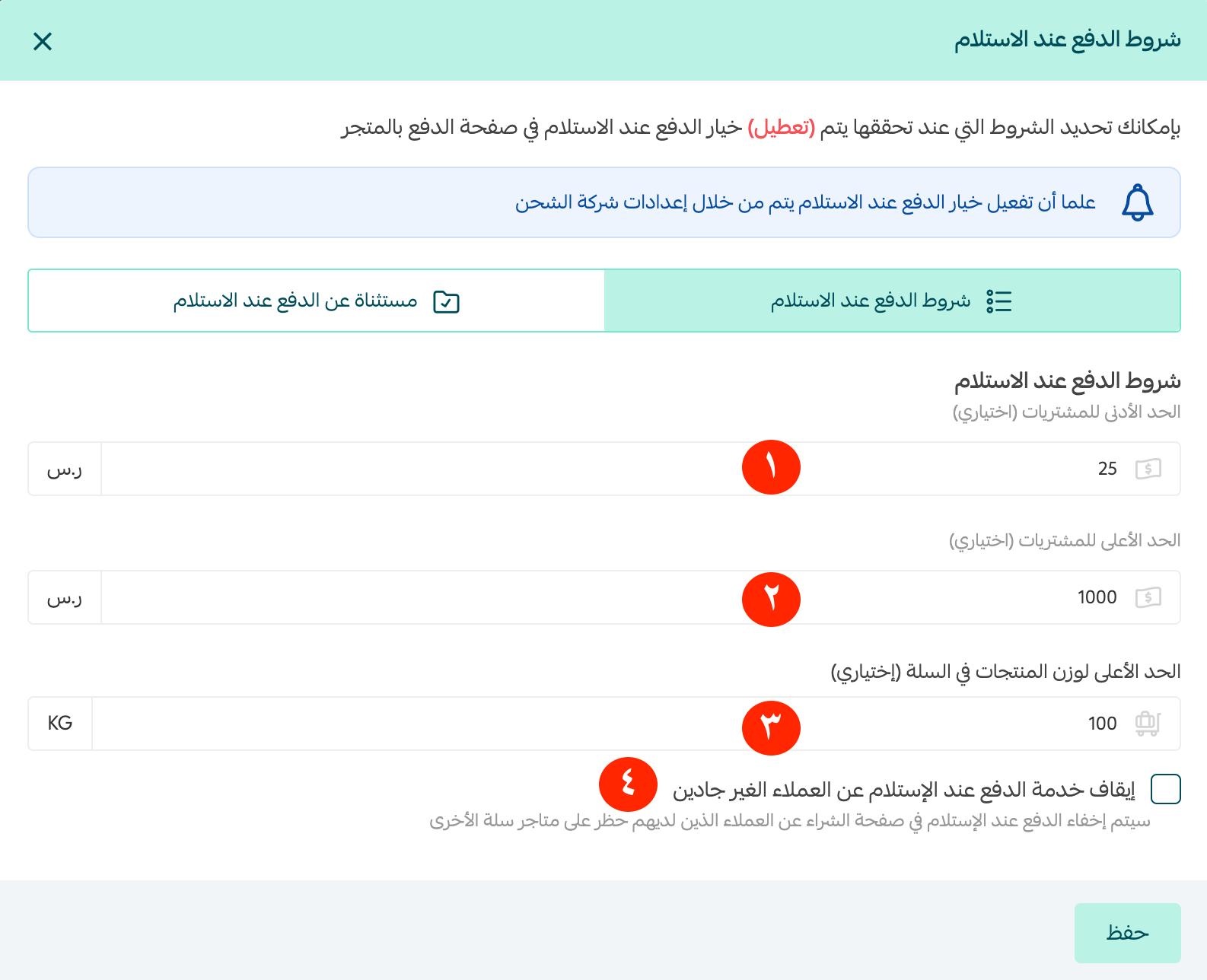
1. Enter the minimum cart value. If the customer's cart falls outside it, cash on delivery is turned off.
2. Enter the maximum cart value. If the customer's cart goes above it, cash on delivery is turned off.
3. Enter the maximum product weight. If the cart goes above it, cash on delivery is turned off.
4. Turn the option that blocks cash on delivery for unreliable customers on or off. The option is hidden only for those customers.
5. Select the products and categories excluded from cash on delivery, then click (Save).
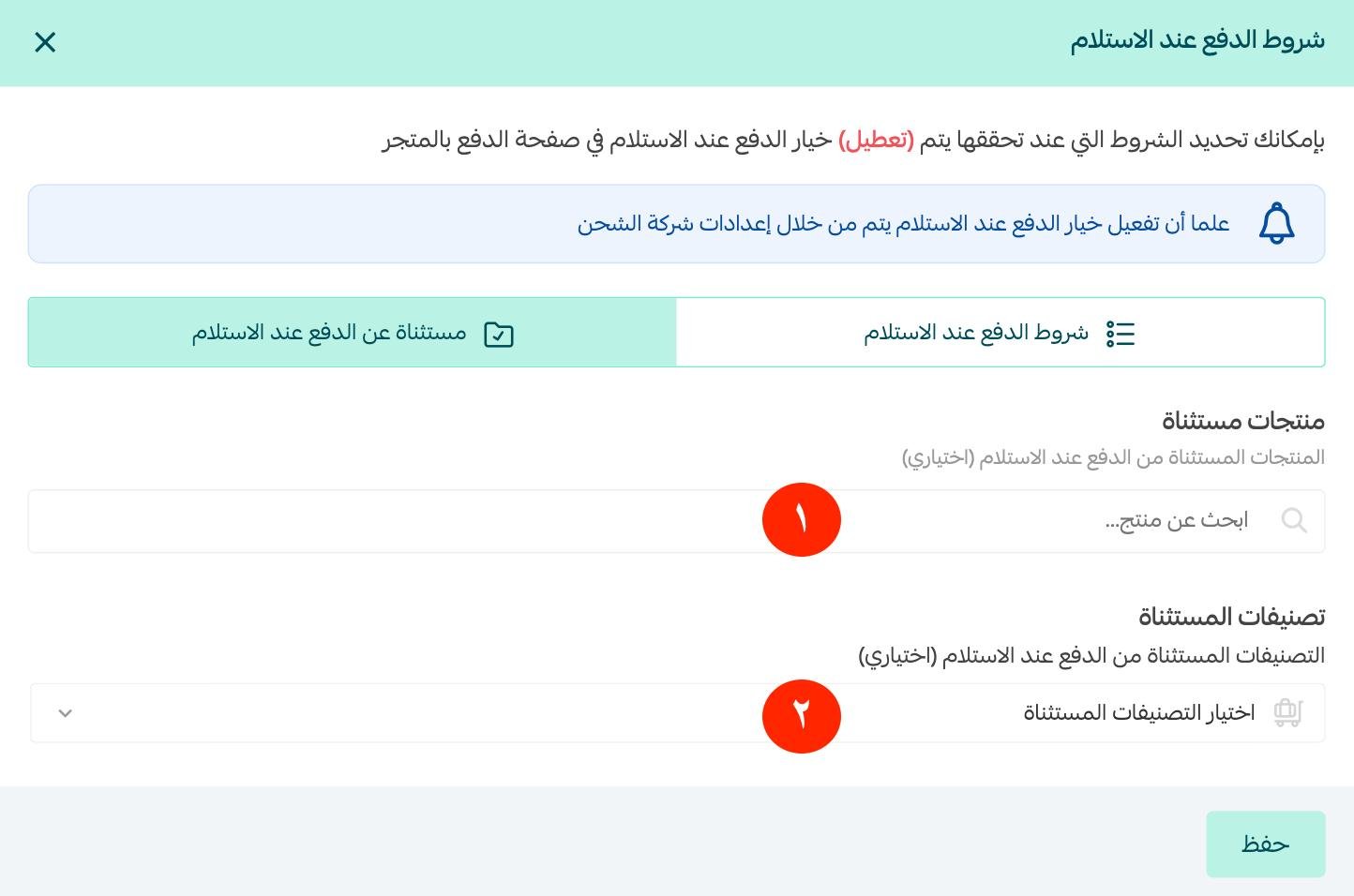
1. Add the excluded products. If a customer puts one of them in the cart, cash on delivery is turned off.
2. Add the excluded categories. If a customer puts a product from one of them in the cart, cash on delivery is turned off.
❓ Frequently asked questions
What is the difference between Salla waybills and connecting to a shipping provider?
Salla waybills use rates Salla has already negotiated with a group of carriers, and you pay per waybill from your wallet. Connecting to a provider means installing that company's app from the Salla App Store and shipping under your own arrangement with it.
How is the waybill fee charged?
It is deducted from your wallet balance as soon as the waybill is issued. If you have added electronic payment methods, the amount is charged to them instead (mada, Visa, Apple Pay).
What if the shipping company I use is not on the list?
Add it manually from the shipping and delivery options in your store settings.
Who pays the customs and extra fees on international shipments?
They are calculated on the waybill and settled from your wallet balance.
Can I turn cash on delivery off for specific products?
Yes. On the cash on delivery page, add the products or categories you want excluded and save. Cash on delivery is then turned off whenever one of them is in the cart.
Extra learning resources
Packaging a product well creates an emotional and mental link between the customer and what they bought. Enroll in the product packaging course from Salla Academy, presented by Al Anoud Al Salem, and learn how to build value for the customer through the way you package your products.