Want to bring back the visitors who browsed your store on Google's networks — and turn them into paying customers?
Retargeting on Google lets you show ads to people who already visited your Salla store, right when they search or browse across Google's networks. Because these audiences already know your brand, retargeting campaigns typically convert better and cost less than cold campaigns. In this guide, you'll learn how to build a custom audience of your store's visitors in Google Ads, then launch a retargeting campaign aimed at exactly that audience.
To run a Google retargeting campaign, sign in to Google Ads, create an audience segment of your website visitors from Audience manager, then create a new campaign — choose your goal, campaign type, and settings, attach the audience segment you built, write your ads, set a daily budget, and publish.
📌 Article overview
- Stage one: create a custom audience of your store's visitors
- Stage two: create a retargeting campaign for that audience
🚀 Steps to create a Google retargeting campaign
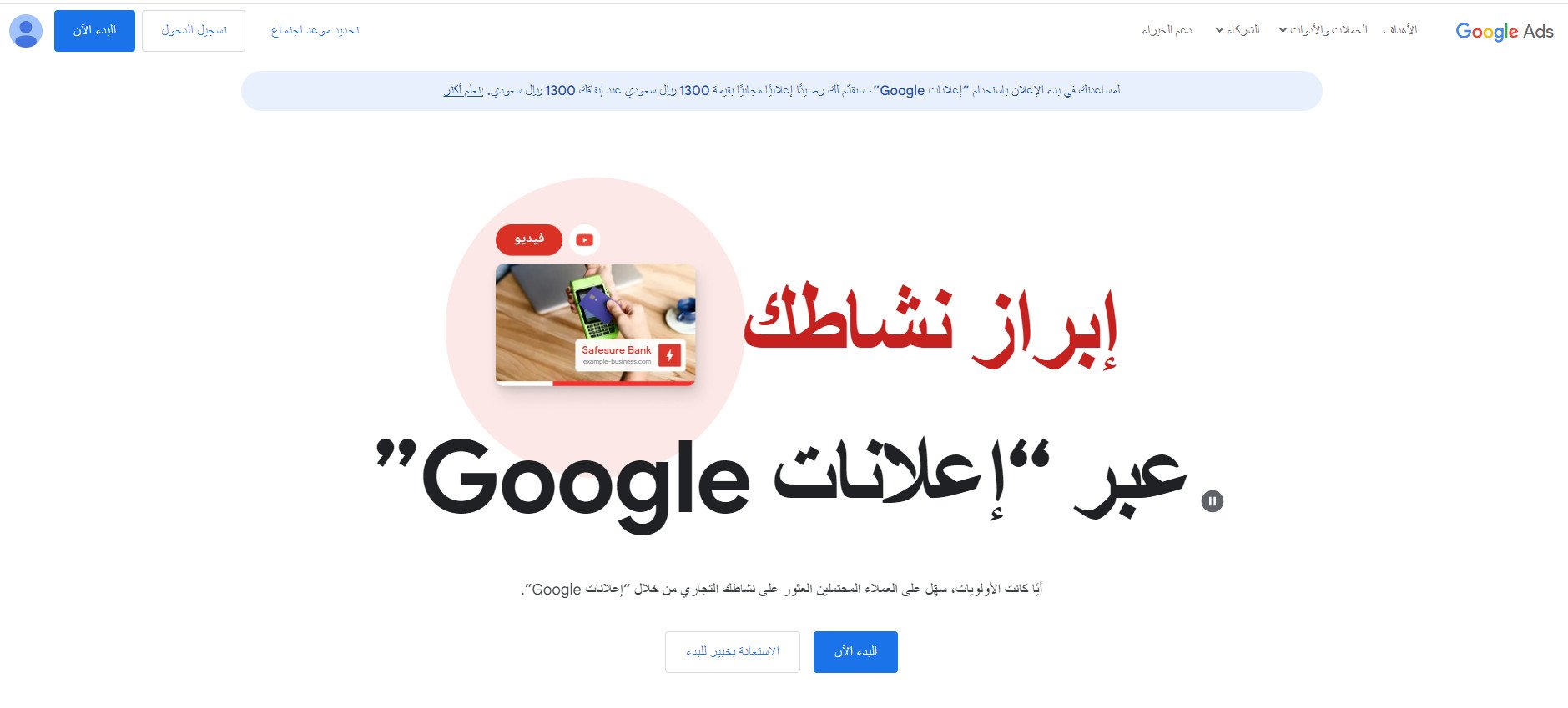
Sign in to your Google Ads account, click (Start now), and log in to your advertising account.
For more details, see creating a new advertising account and connecting with Google Ads.
📝 Important notes
To complete these steps successfully, make sure Google Analytics is connected to your account on the Google Ads platform.
Stage one: create a custom audience of your store's visitors
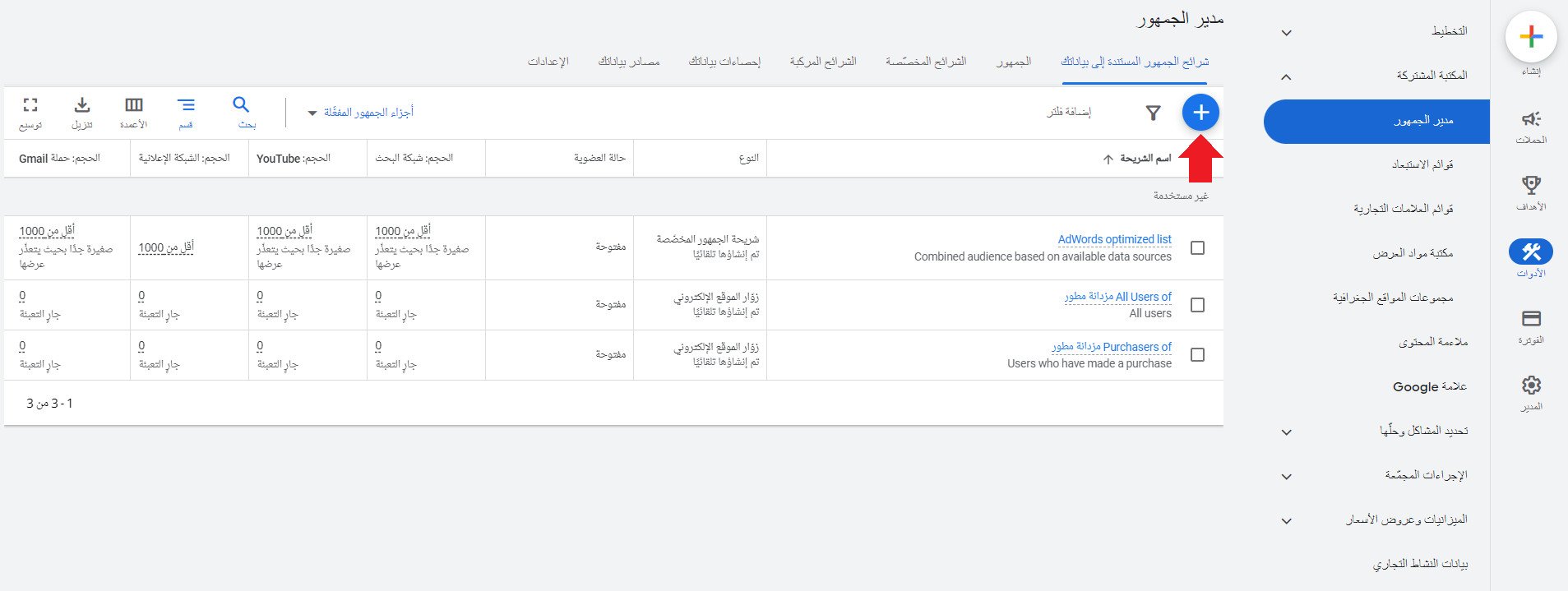
1. From the side menu of your advertising account, click (Tools), then under the shared library, click (Audience manager), and finally click (+) to add an audience segment.
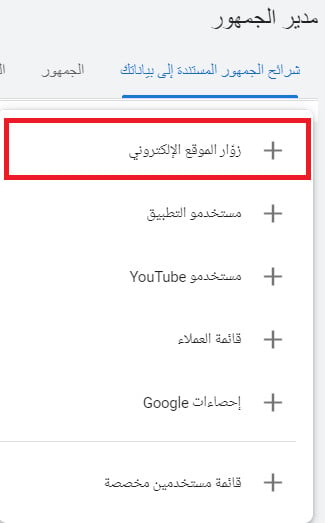
2. A list of audience sources appears. Choose (Website visitors) to retarget the audience that came from your store.
3. Enter the segment's details:
- The audience segment's name

- The type of visitors you want to target
From the segment members section, choose which pages' visitors to target (visitors of web pages).
From the actions section, choose the actions to target the audience by, and the time window in which those actions happened.
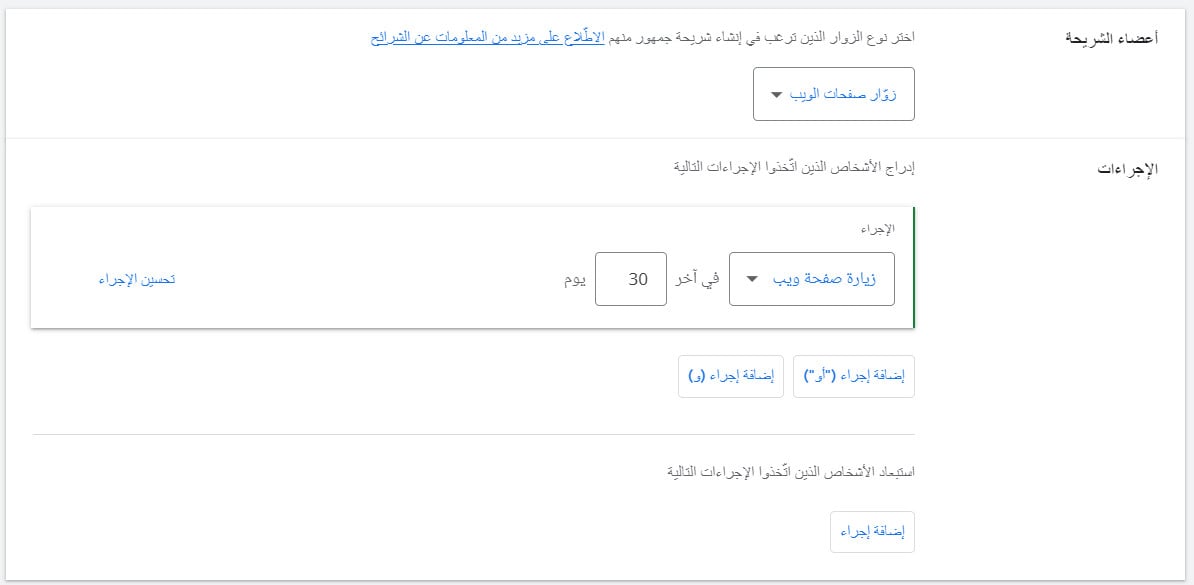
Complete the required details, then click (Create segment).
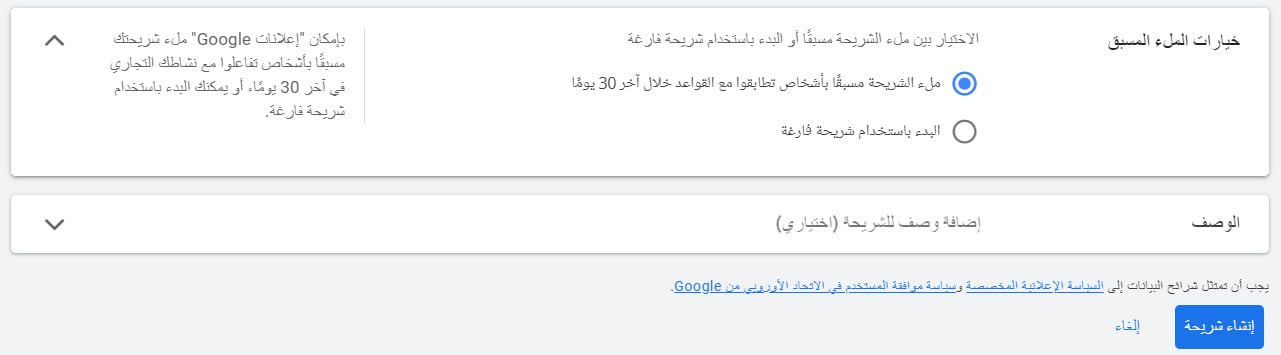
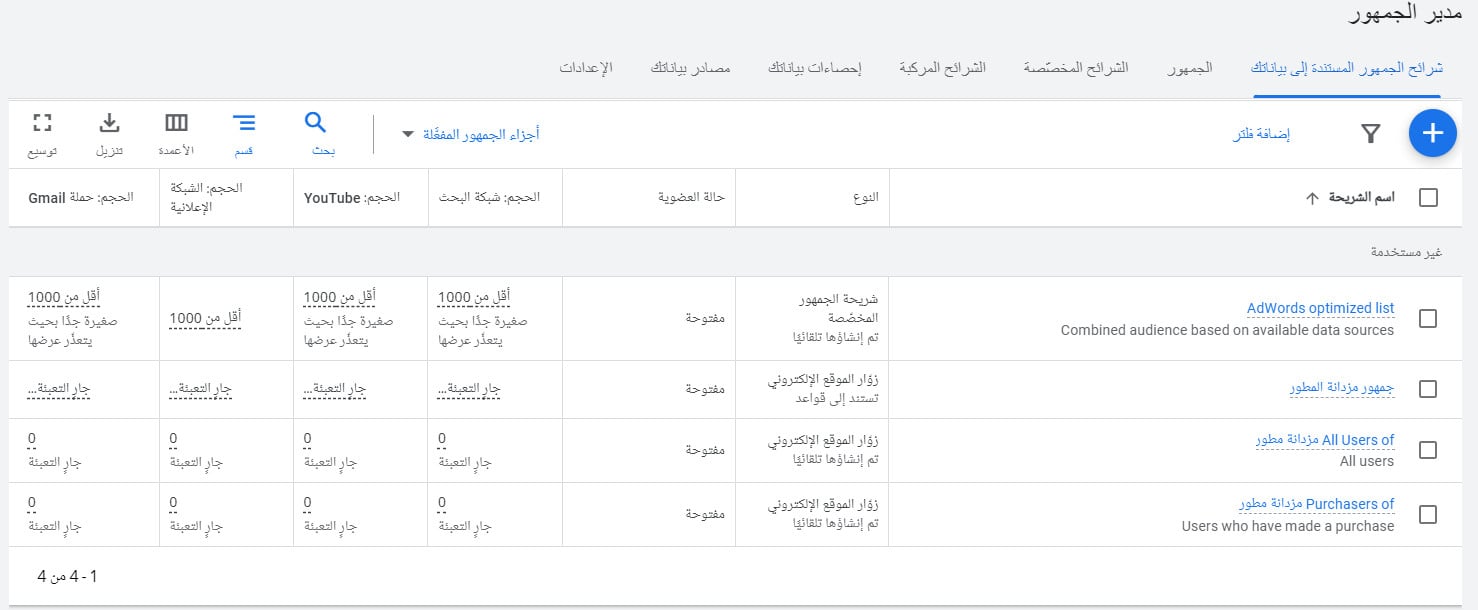
Your new segment now appears in the audience segments table.
Stage two: create a retargeting campaign for that audience
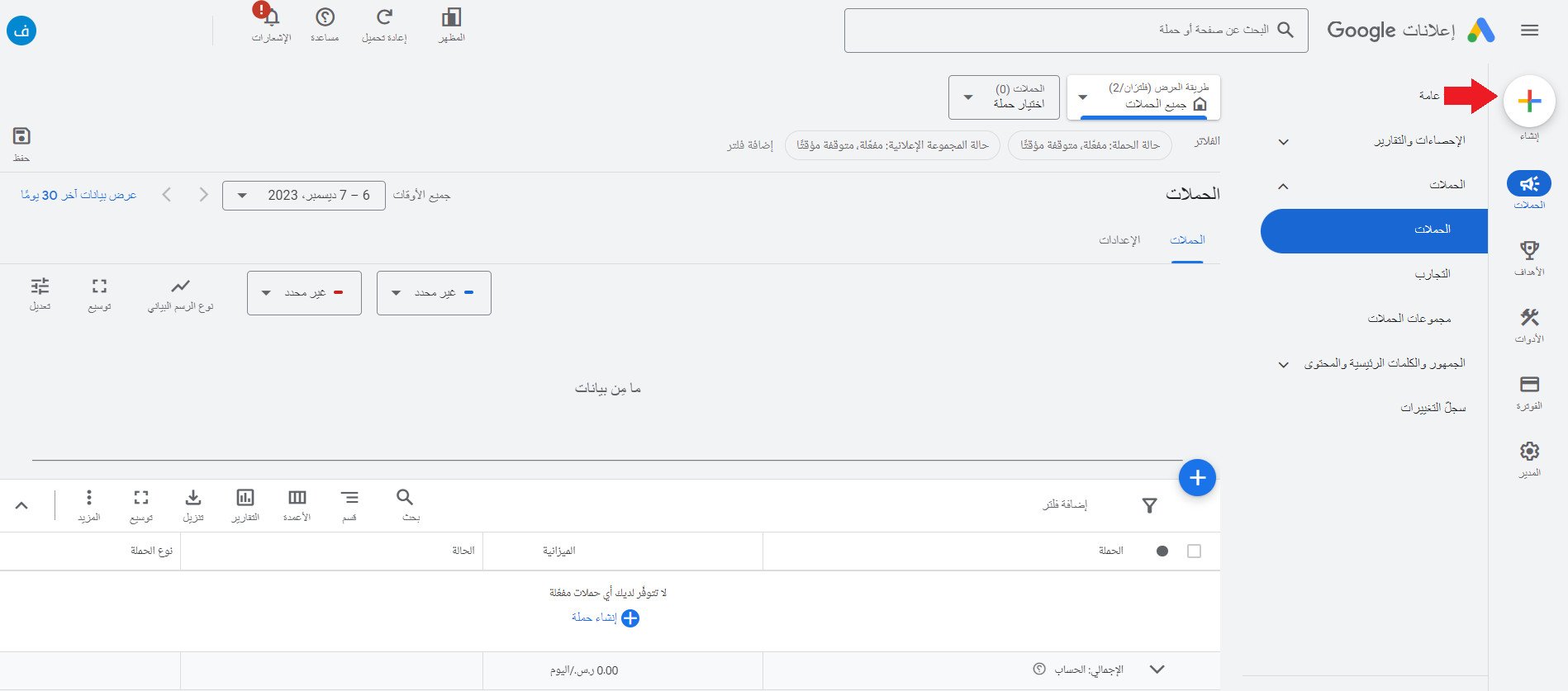
1. From the side menu of your advertising account, click new (+).
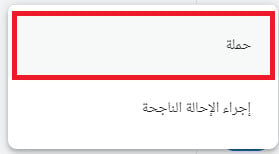
Then choose (Campaign).
2. Choose the campaign goal — for example, (Sales).
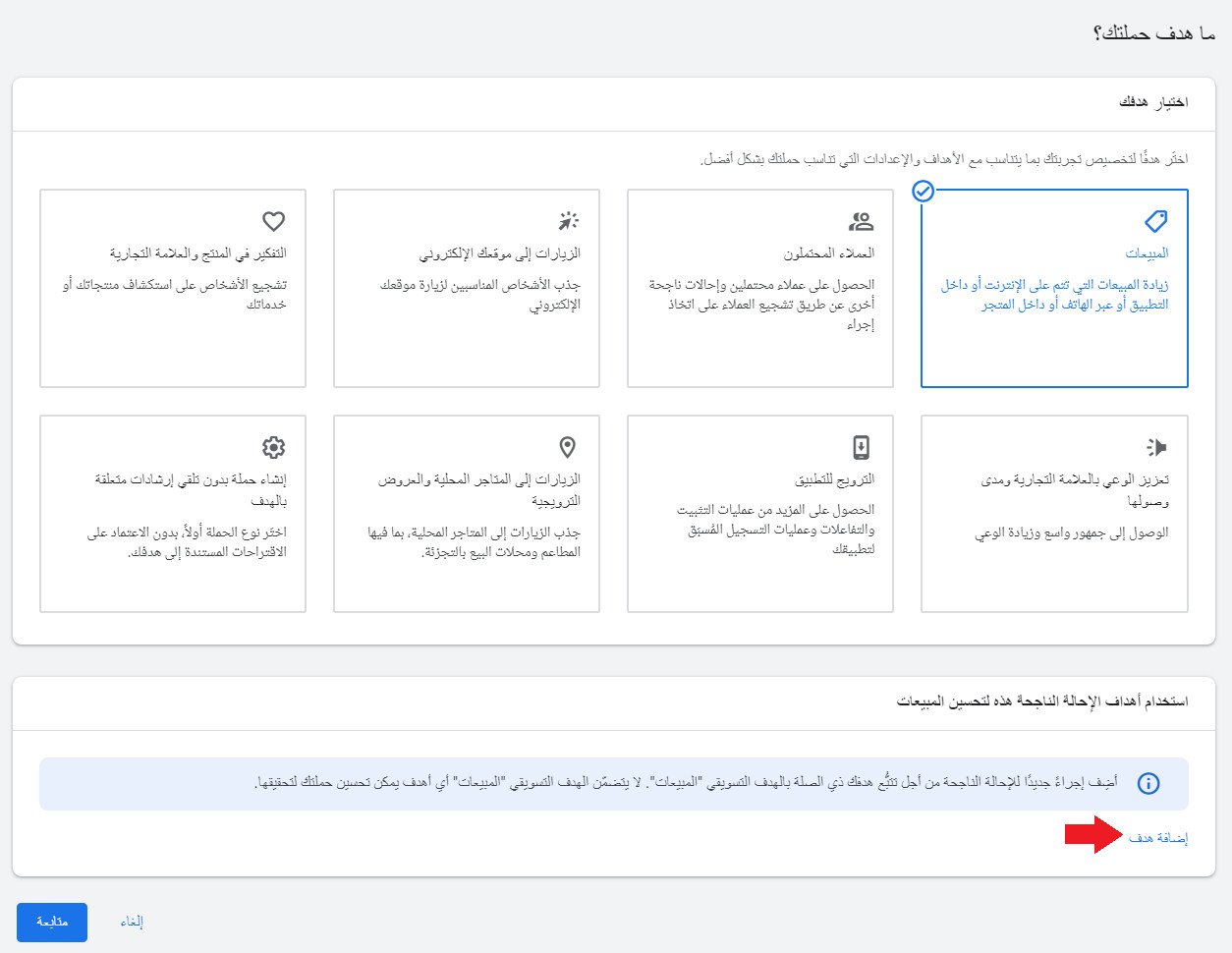
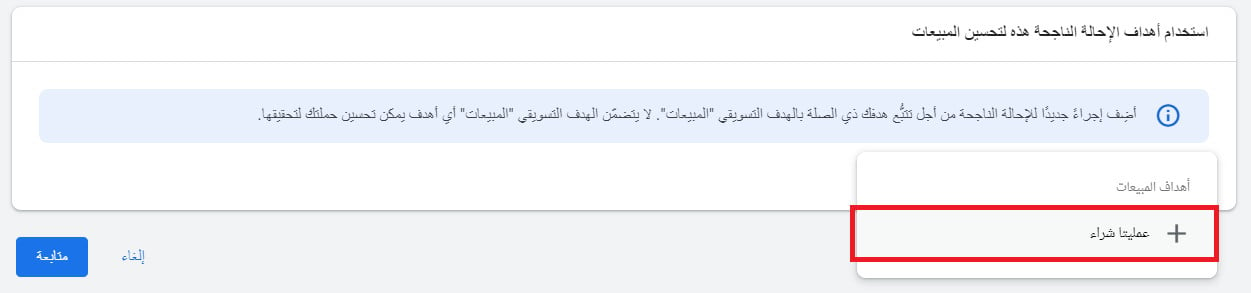
Click (Add goal) to add a new conversion action for tracking a goal tied to the Sales marketing objective, since the Sales objective doesn't yet include any goals your campaign can optimize for.
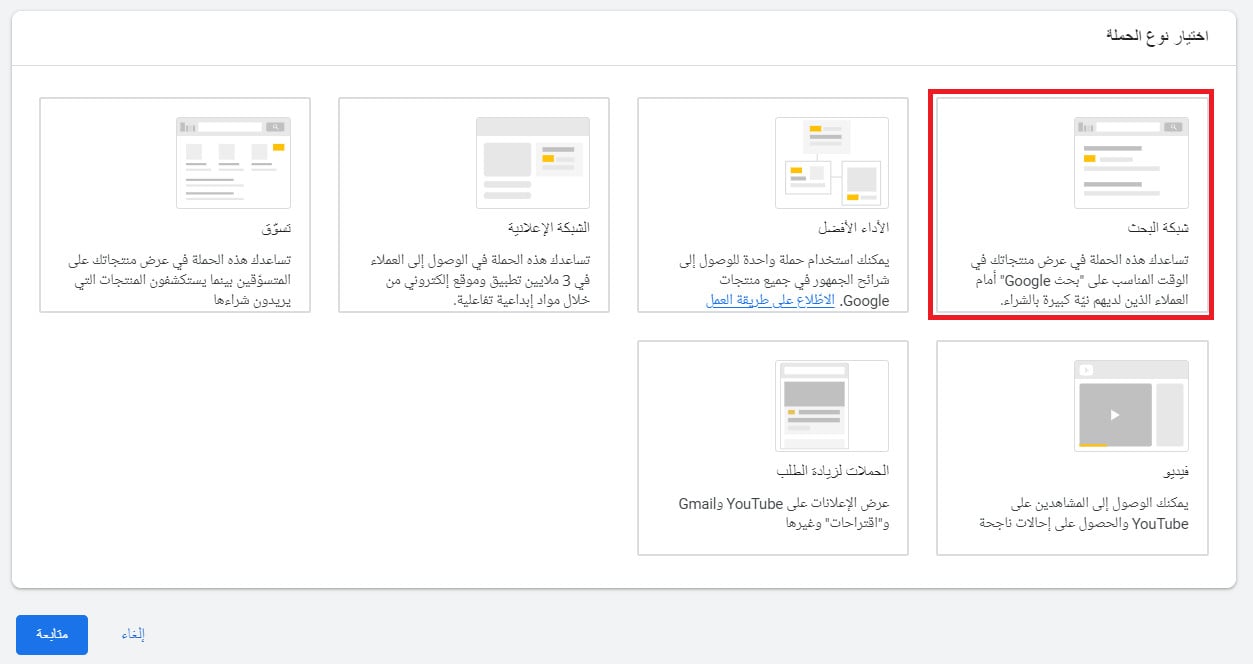
3. Choose the campaign type.
For example, Search: it can bring you more sales through text or call ads that appear near Google.com search results and on Google search partner sites.
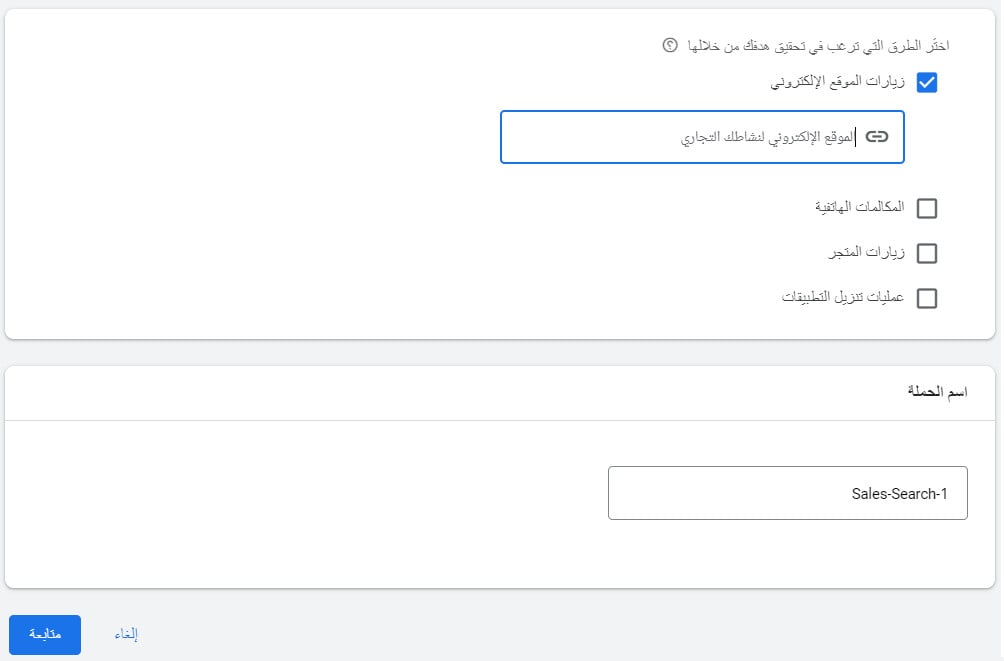
4. Choose how you want to reach your goal (website visits, phone calls, store visits, app downloads).
For example, if the way to your goal is website visits, select (Website visits) and enter your site's URL in the box provided.
5. Track conversion actions.
Enabling conversion tracking is recommended.
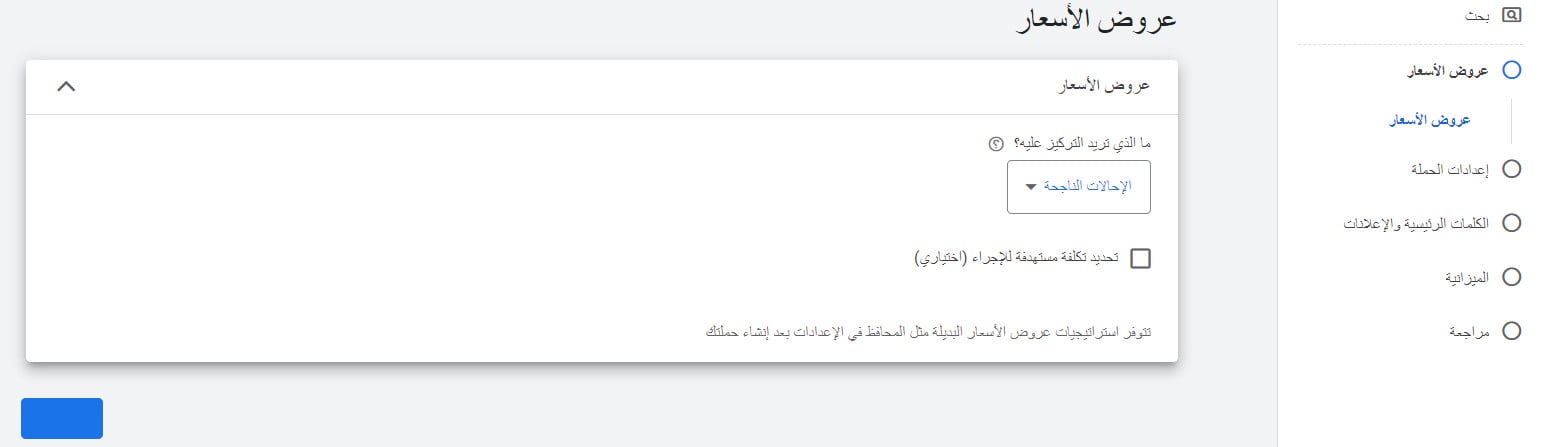
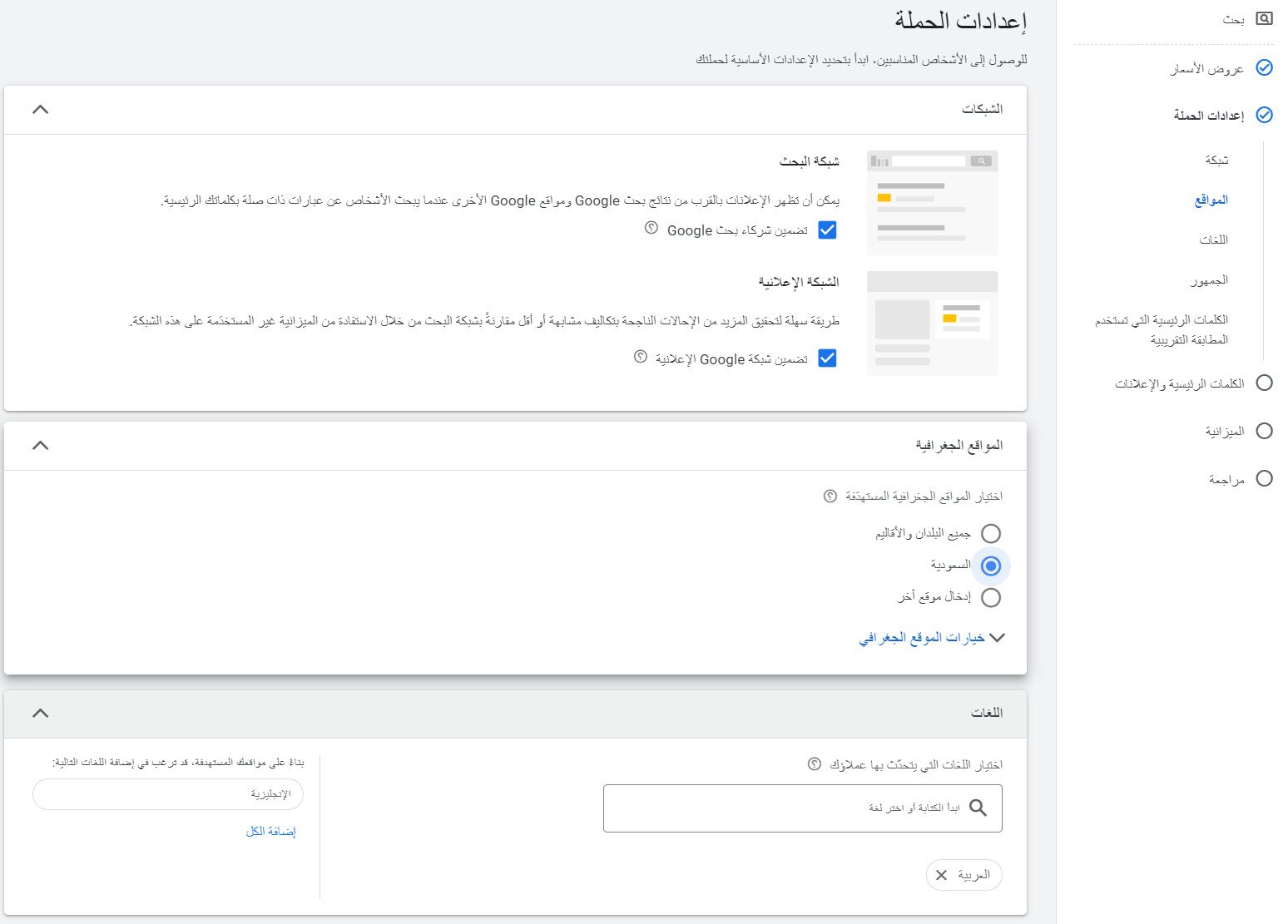
6. Customize the campaign settings.
- Choose the networks your ad will appear on, the geographic locations where your target audience is, and the languages your customers speak.
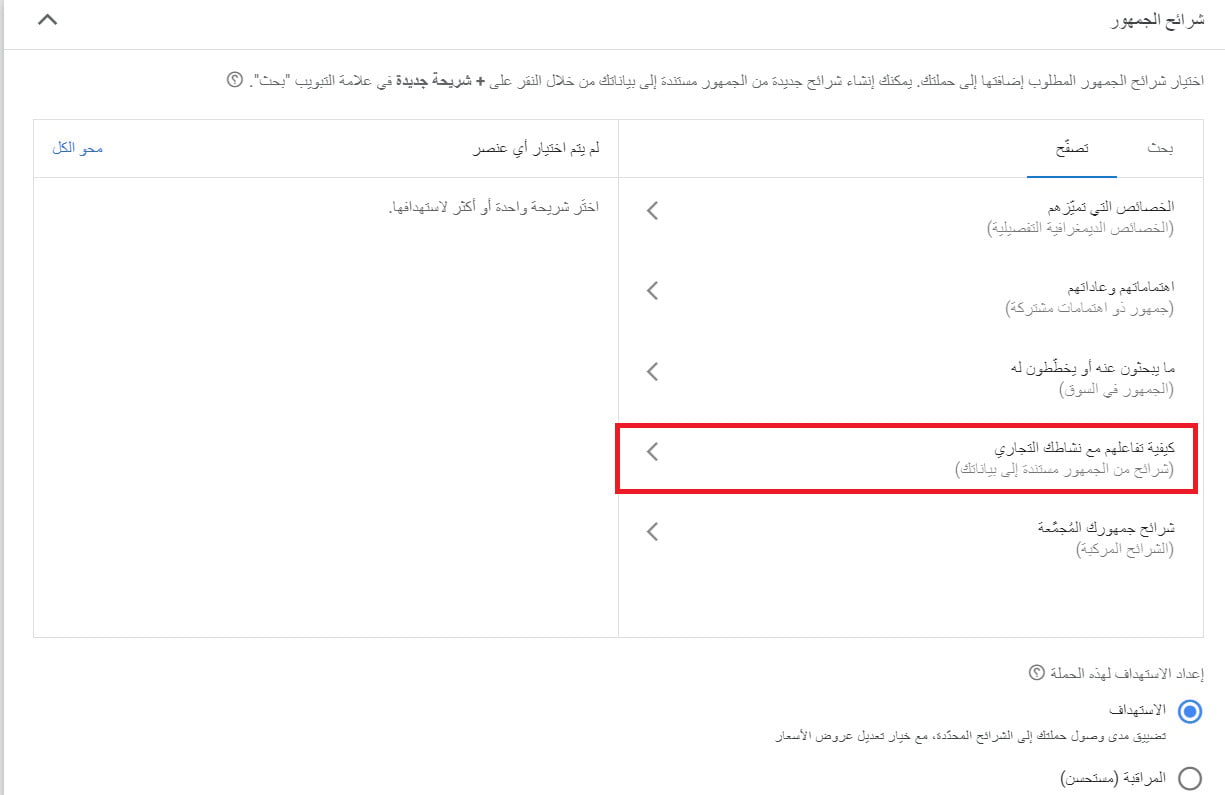
- Pinpoint your target audience from the audience segments built on your data (how they interacted with your business).
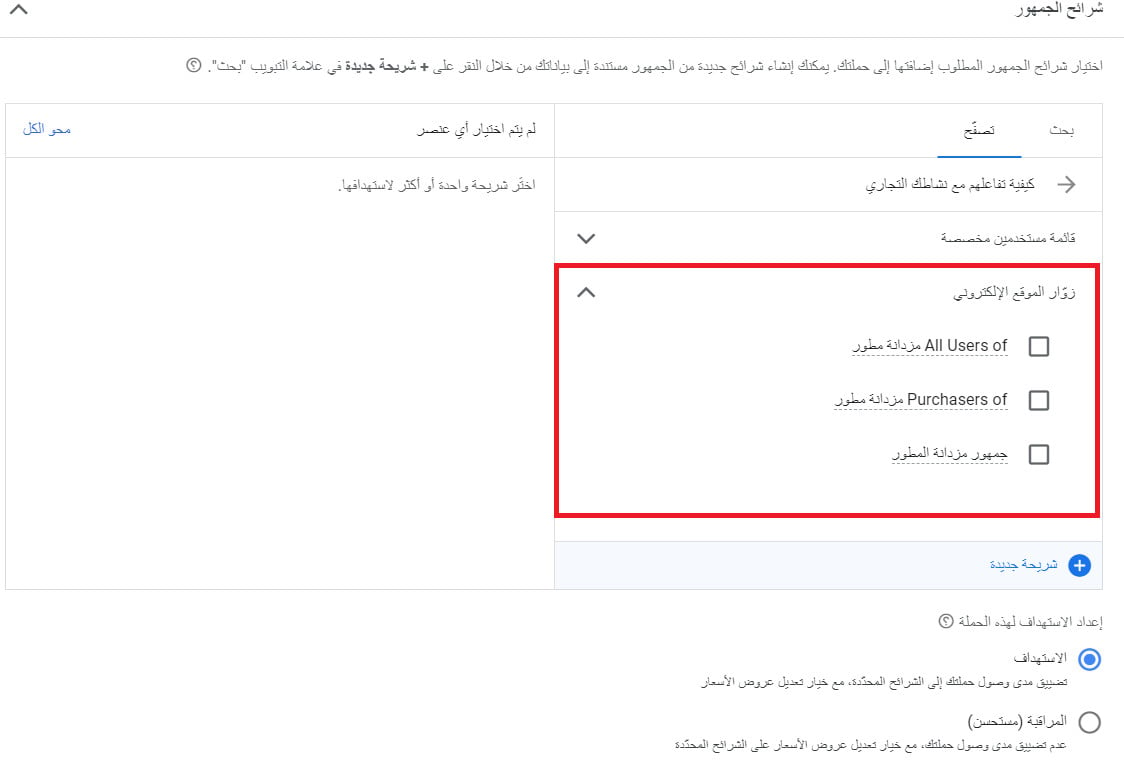
Then, from the website visitors list, choose the audience you created in stage one.
7. Set up keywords and ads.
- Enter your store's URL and the keywords that match what people search for and fit your business.
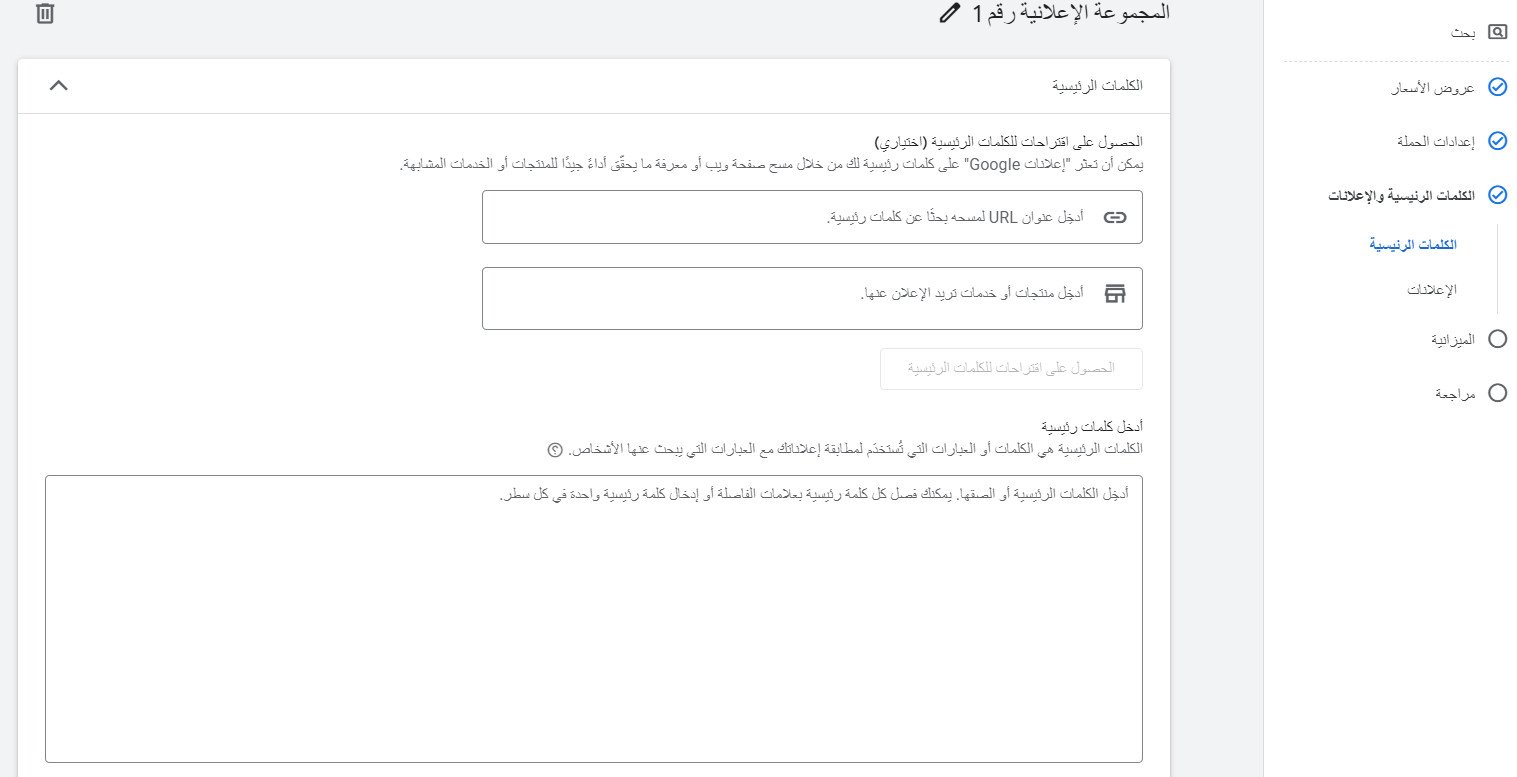
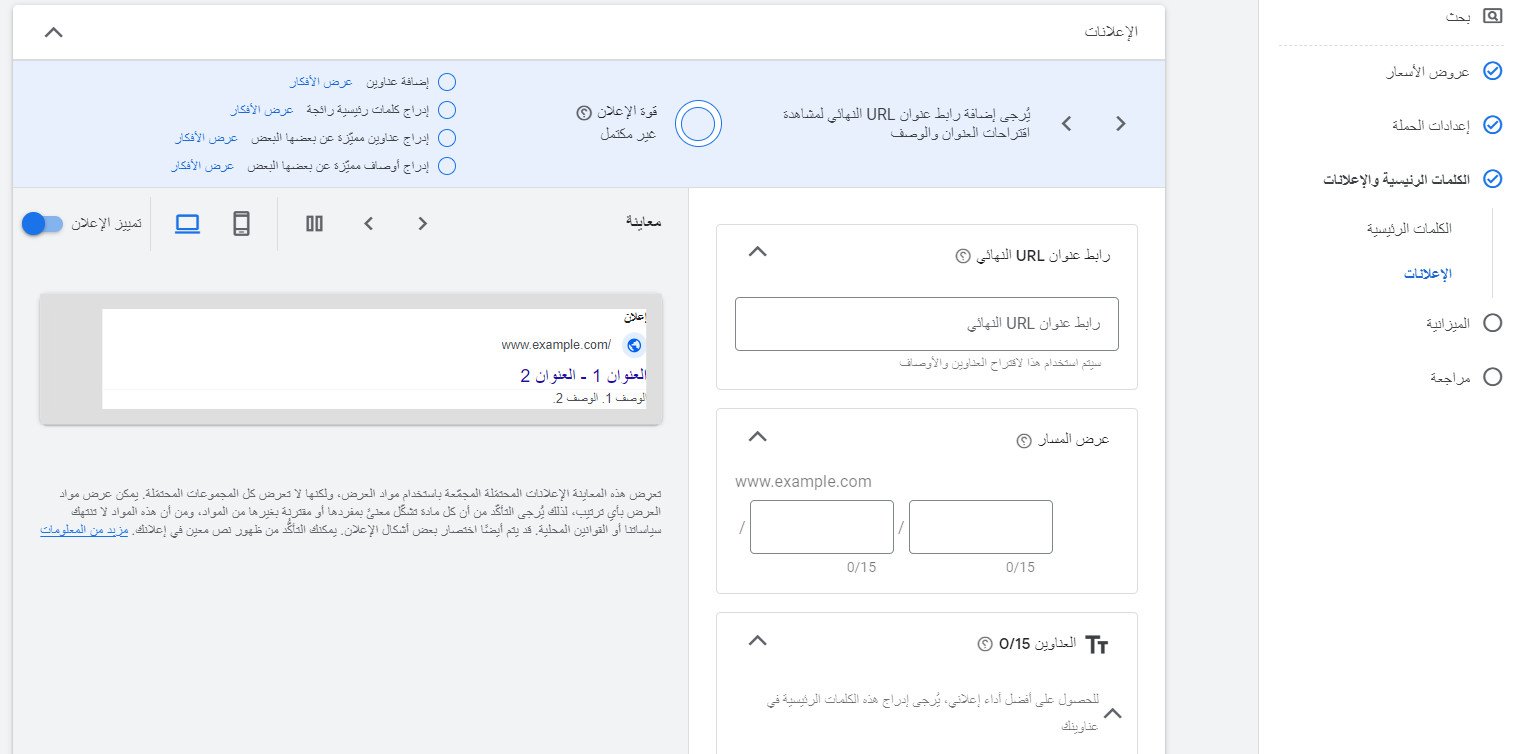
- Customize the content and look of the ad your target audience will see, then click (Done).
Build the ad by entering your ad text in the boxes provided; you can preview how the ad looks on mobile or desktop in the side panel, as shown:
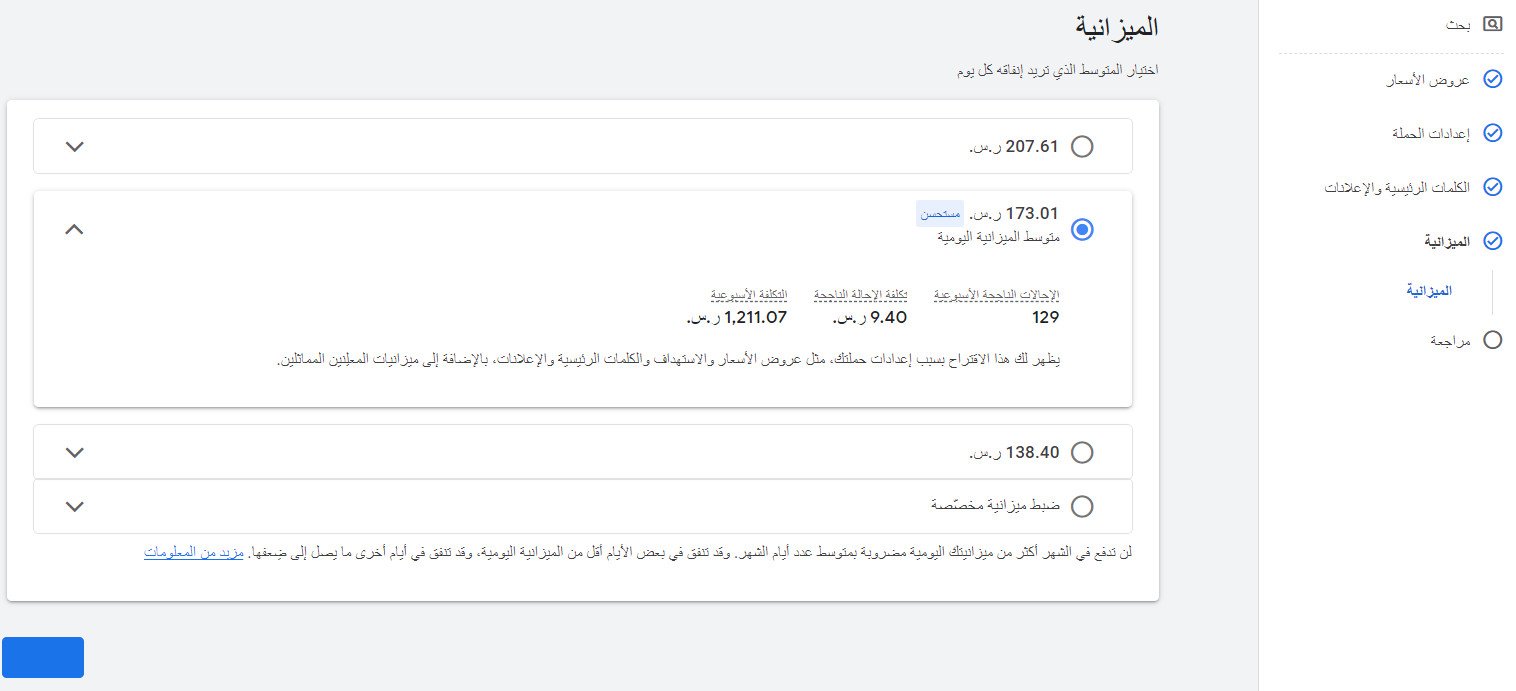
8. Set the campaign budget.
Enter the average you want to spend each day. Over a month, you won't pay more than your daily budget multiplied by the average number of days in a month — on some days you may spend less than your daily budget, and on others up to twice as much.
9. Launch the campaign.
Your campaign is ready to go. Click (Publish) to launch it and track its performance as it runs.
📝 Important notes
The Google help center has more details on targeting settings on the Display Network.
For more details, see retargeting on the other platforms and retargeting campaign basics.