Has a customer ever received two invoices for the same order, each with a different serial number?
That is exactly what the order invoicing settings are there to prevent. They let you control which elements appear on the invoice and how they behave, and they stop invoices being issued twice when your store is connected to an accounting service — so no customer ends up holding two documents for one order. In this guide, you'll learn how to set up order invoicing on Salla using either Salla's own invoicing or an external system, and what changes on the order details page in each case.
To set up order invoicing on Salla, open (Store settings) from your dashboard and click (Store invoice settings). Choose your issuing method, Salla or custom, then adjust the available options, such as the tax number, order barcode, product barcode, and product descriptions, and click (Save).
📌 Article overview
- Why set up order invoicing
- How to set up order invoicing on Salla
- Frequently asked questions
🎯 Why set up order invoicing
Setting up order invoicing does two things. It controls the properties and elements that appear on the invoice, and it prevents duplicate invoices being sent to your customers when you connect an accounting service — which spares everyone the problems caused by two invoices with different serial numbers going out for a single order.
👣 How to set up order invoicing on Salla
1. From the side menu of your dashboard, click (Store settings).

2. On the store setup page, click (Store invoice settings).
3. Set the invoicing options that match how you work — Salla invoices or an external invoicing system — then click (Save).
Option 1: Salla's invoicing system
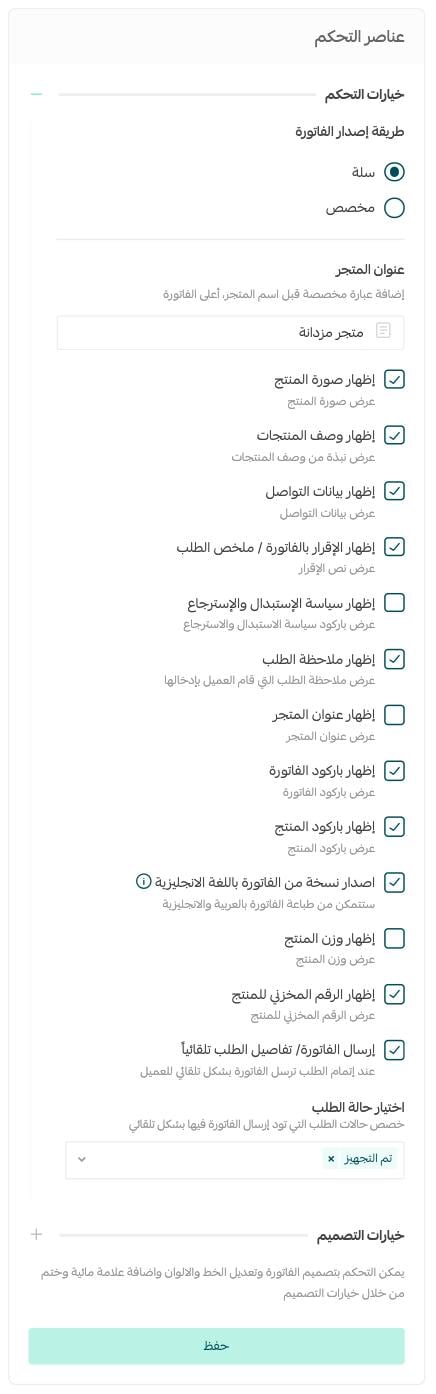
From the (Invoice issuing method) list, select (Salla).
Then adjust the available settings, such as showing the tax number, showing the order barcode, showing the product barcode, showing product descriptions, and others, and click (Save).
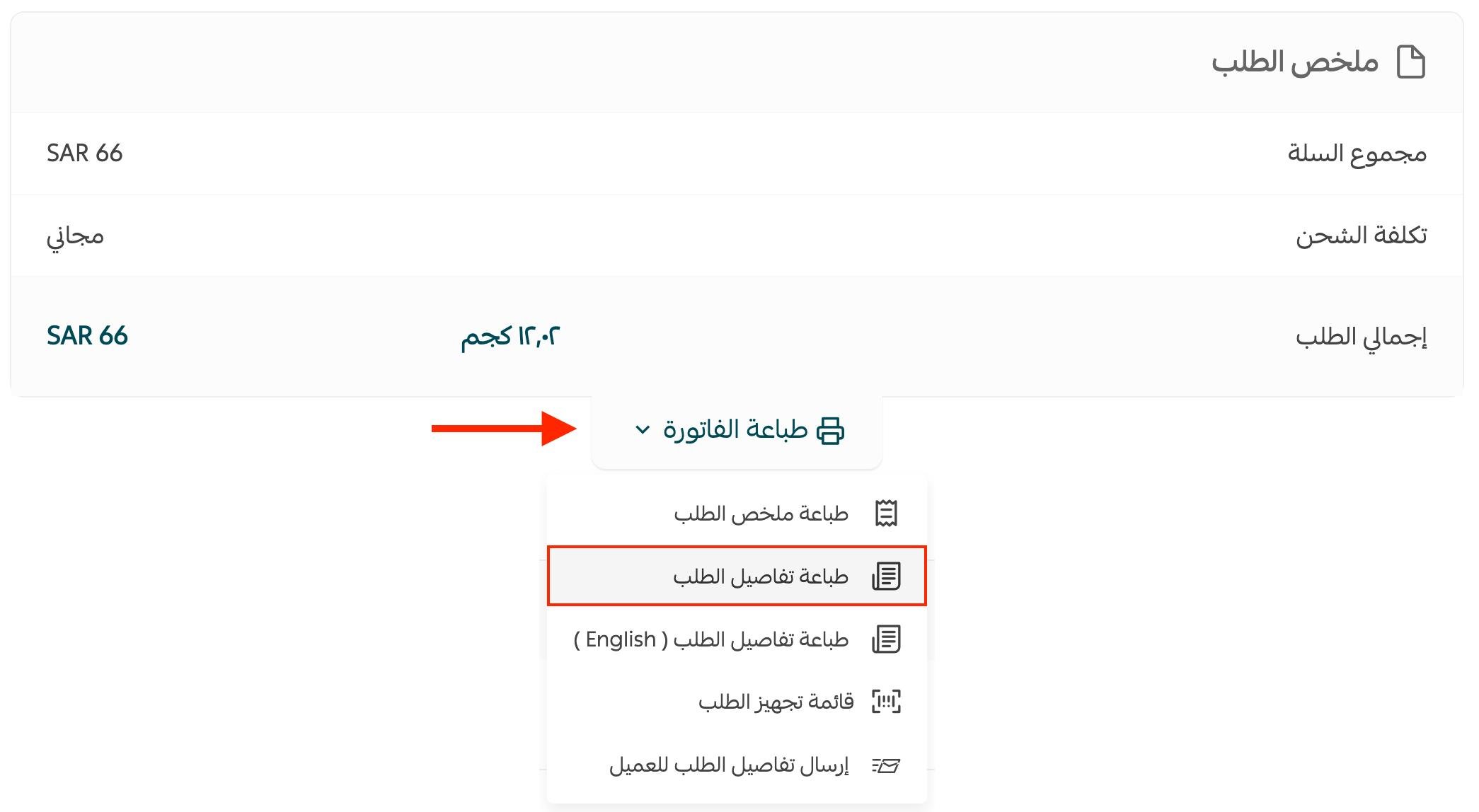
The (Issue/print order invoice) command then appears in the print menu on the order details page, like this:
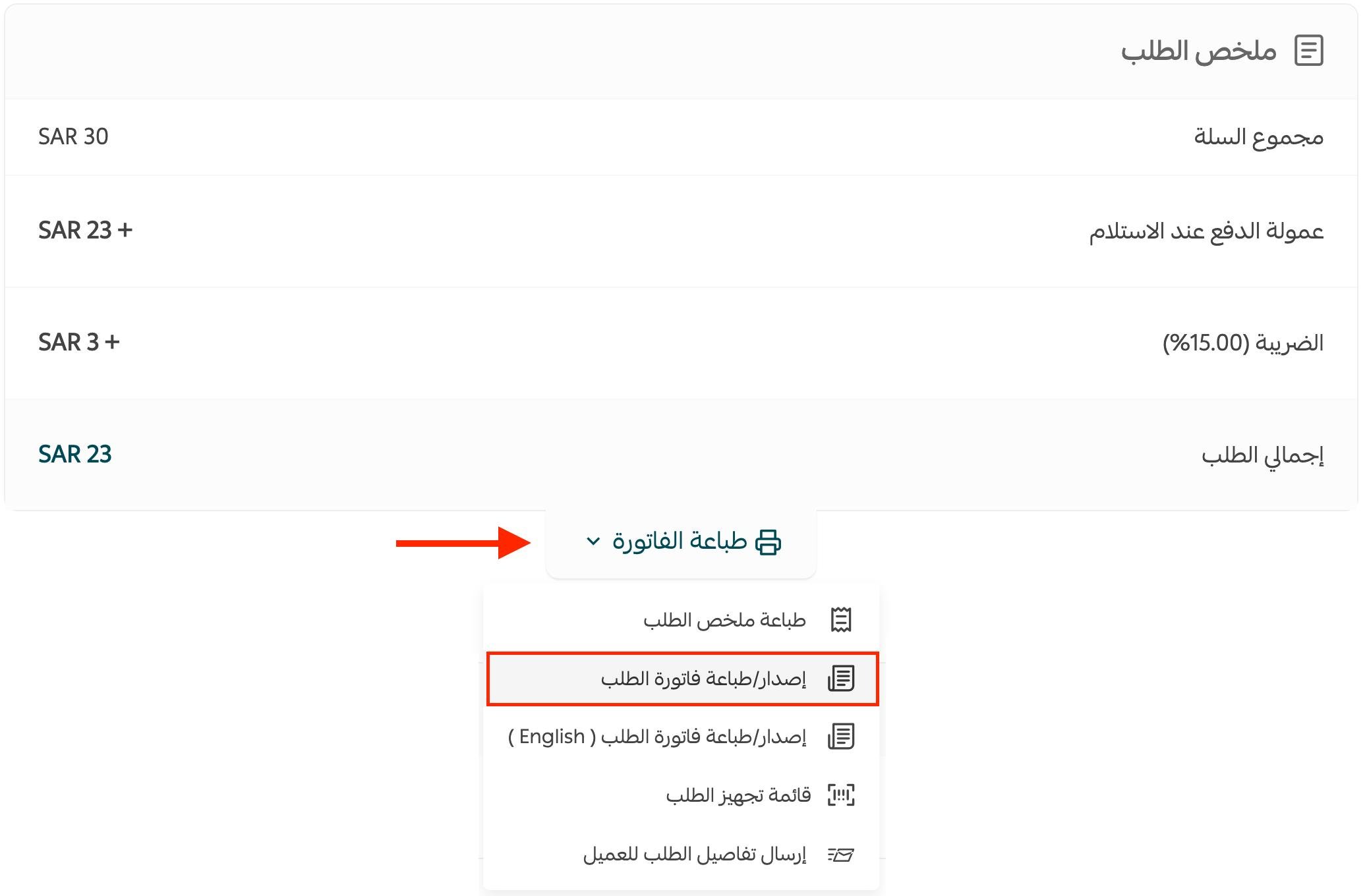
The invoice is issued automatically when you change the order status to completed or returned.
Option 2: an external invoicing system
From the (Invoice issuing method) list, select (Custom).
Then adjust the available settings, such as showing product descriptions and others, and click (Save).
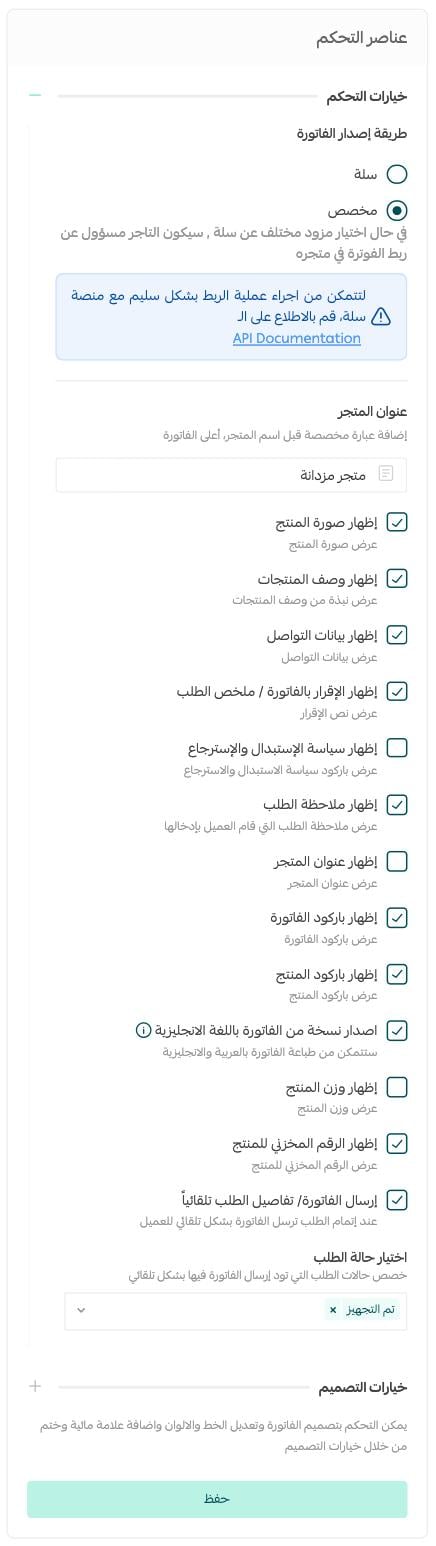
On the order details page, the print menu then shows (Print order details) if the order details were not sent through the API, and (Issue/print order invoice) if they were, like this:
❓ Frequently asked questions
Can I set the invoicing options if I rely on an external invoicing system?
Yes. When you choose an external invoicing app connected through the API, you can set all the invoicing options automatically. [Verify: the setup steps above list only a smaller set of options for the custom method, so the two passages do not fully agree.]
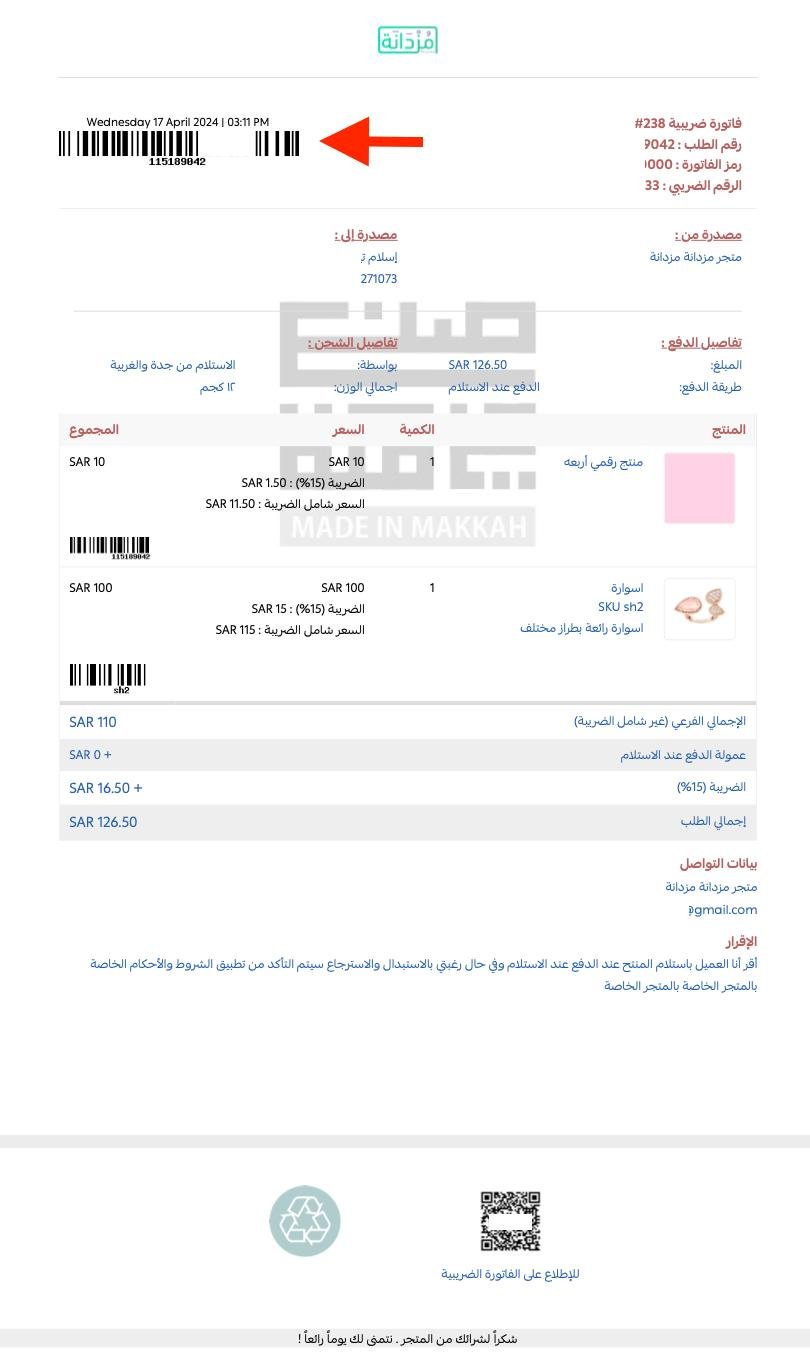
Can I show the order barcode or the product barcode on the invoice?
Yes. When you turn on the show order barcode or show product barcode option in the store invoice settings, it appears on the invoice like this:
Will the customer see a print invoice button if I use an external accounting provider?
No. When your customer clicks the print invoice button, the invoice opens at a separate link. If it is not available, they see the order details along with a message asking them to contact you.
Do external invoices open the same way as invoices in Salla's system?
If the order details were sent through the API, the invoice is shown as a PDF file when it is sent as ordinary data, or the link opens when the invoice is sent as an external link.
Deciding once who issues the invoice — Salla or your accounting system — is what keeps a single order tied to a single invoice number.