Your customers already watch stories all day. Why not inside your store?
The Interactive Stories app puts scrollable, tappable stories on your storefront in the same format shoppers know from Instagram and TikTok. You choose the design, where the stories appear and when, and fill them with images or videos, links, and call-to-action buttons, all from the app's own dashboard. In this guide, you'll learn how to install the interactive stories app, sign in to its dashboard, create your first story, and delete the app if you decide it isn't for you.
Interactive Stories is a Salla App Store app that displays Instagram-style story cards inside your store. You install it from the App Store, choose a package, sign in to the app dashboard using the credentials emailed to you, then build a story from images or videos with links and buttons.
📌 Article overview
- How to install the Interactive Stories app
- How to create your first interactive story
- How to delete the Interactive Stories app
- Frequently asked questions
🚀 How to install the Interactive Stories app
1. From the main menu, click (All), then under helper tools, click (App Store).
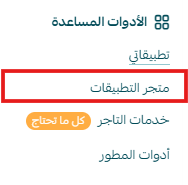
2. Search for the app using the search field.

3. On the Interactive Stories app page, click (Install).

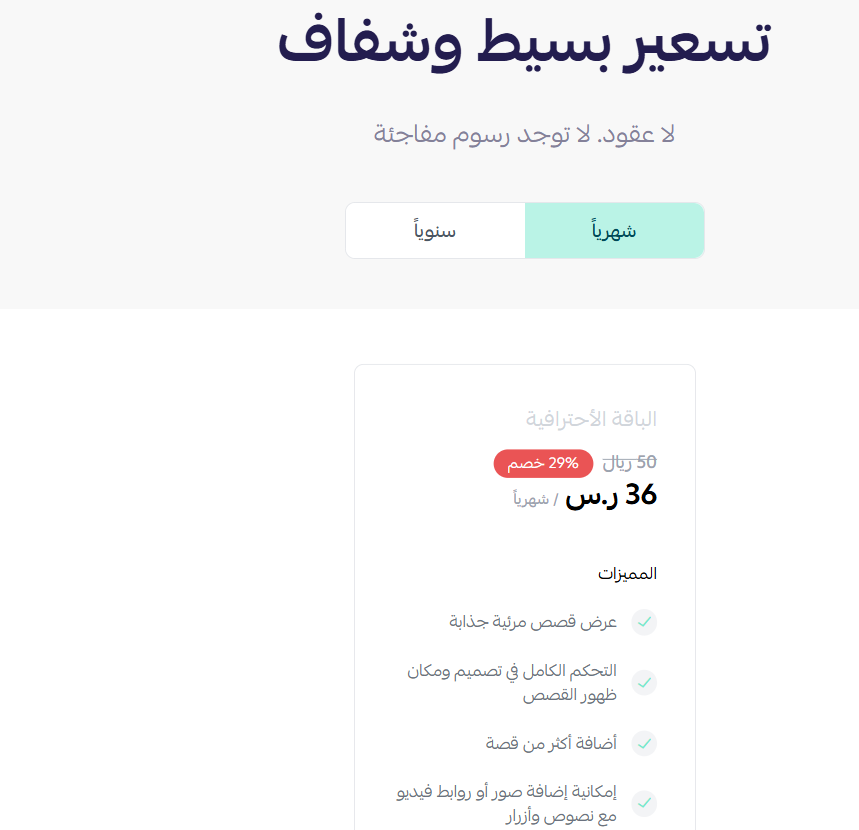
4. Choose the package that fits your business to continue with the installation.
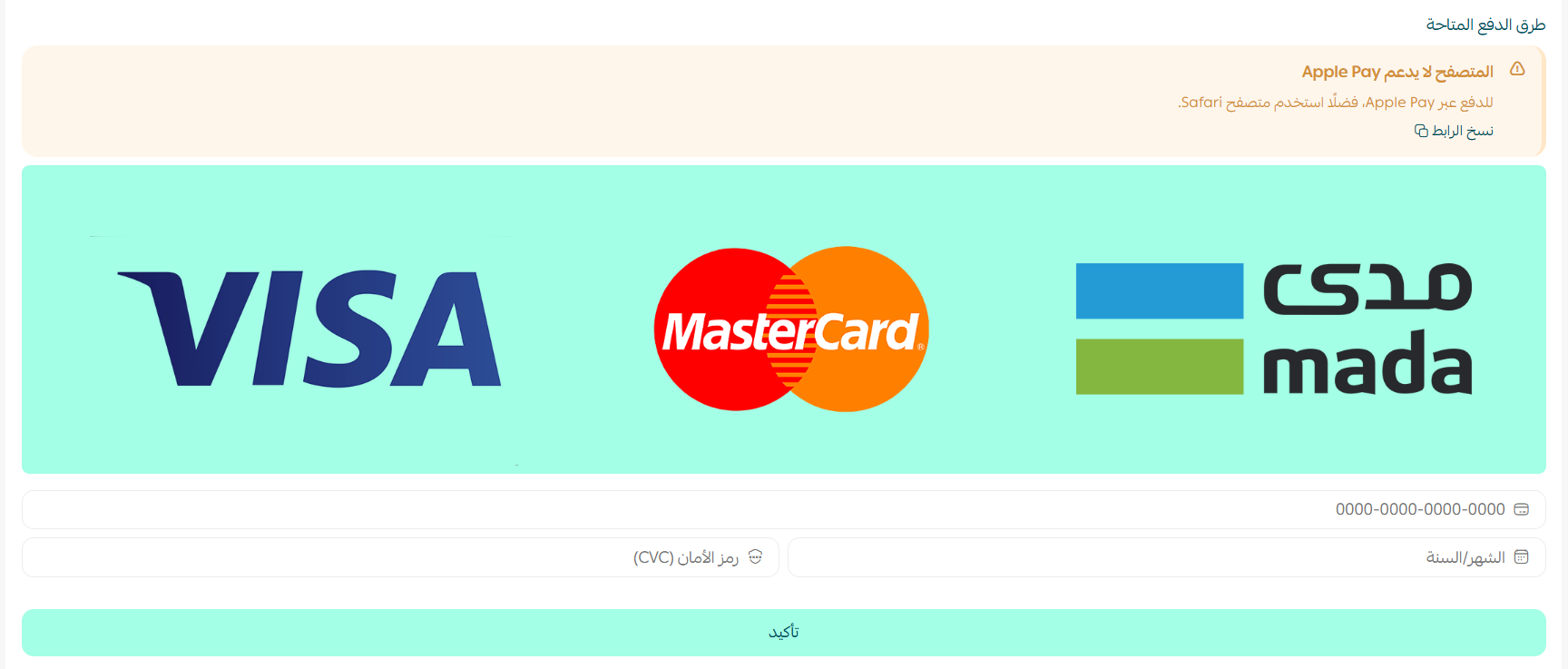
5. Complete the payment to unlock the app's features.
6. Find the app under (My apps).

⚙️ How to create your first interactive story
1. Open the email you receive once the app is activated. It contains your sign-in details for the Interactive Stories platform.

2. Sign in to the platform with the credentials from that email.

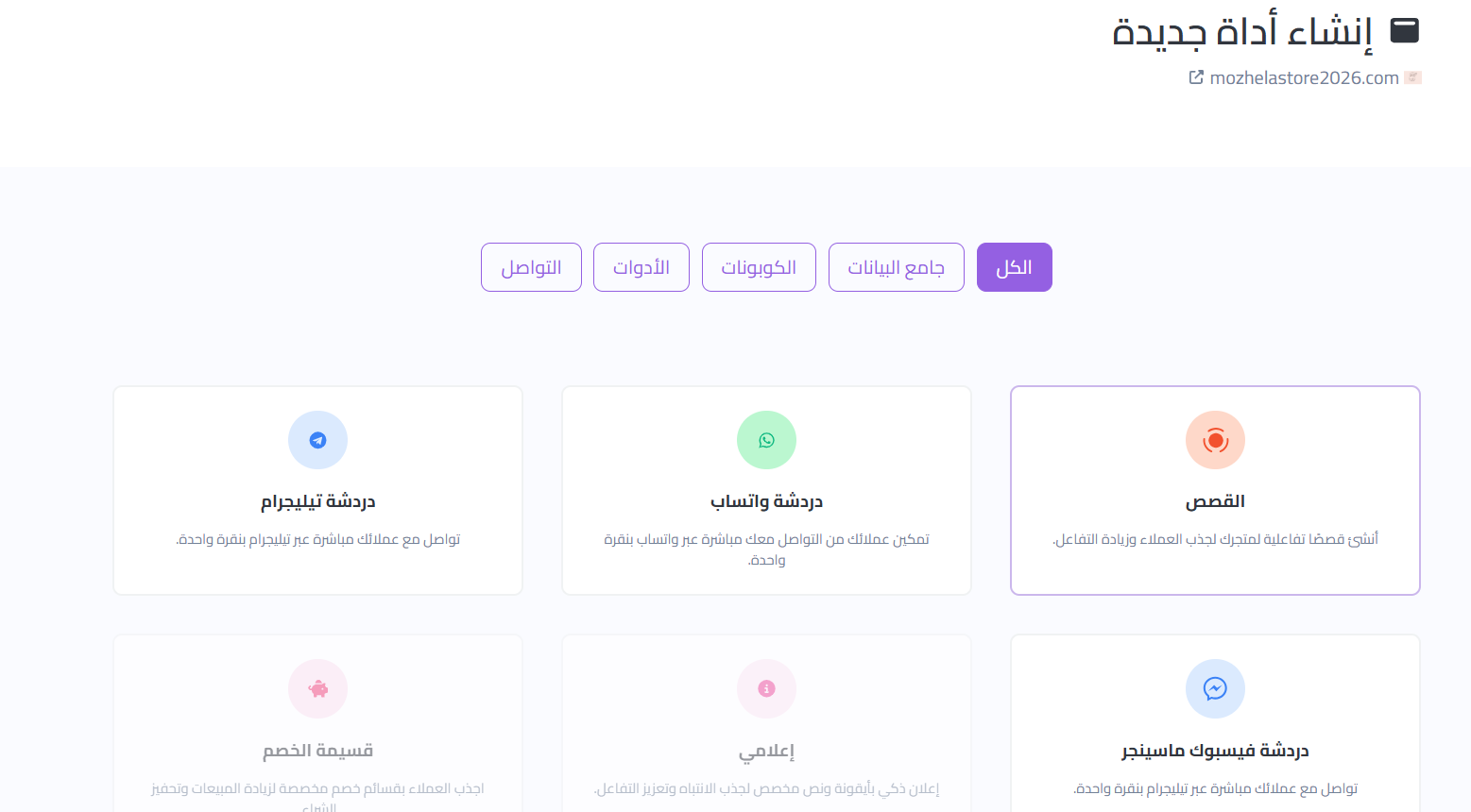
3. From the dashboard, choose to create a new widget, then build the story you want for your store.
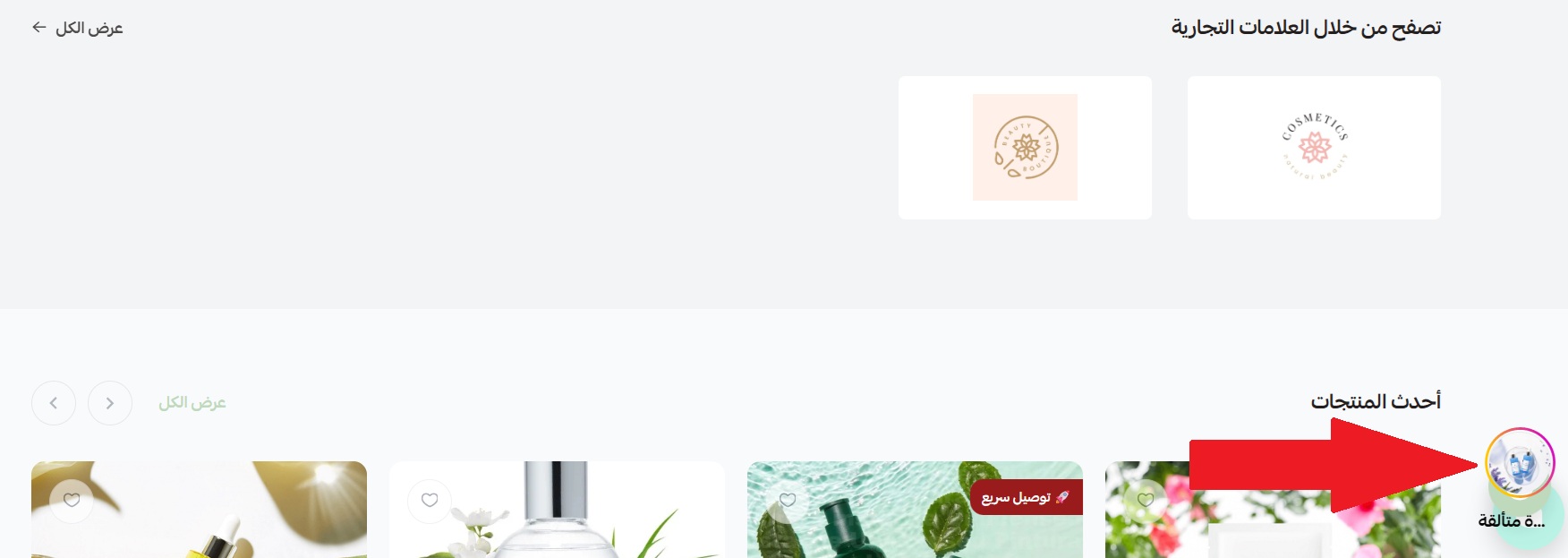
Once published, the story appears in your store like this.
🗑️ How to delete the Interactive Stories app
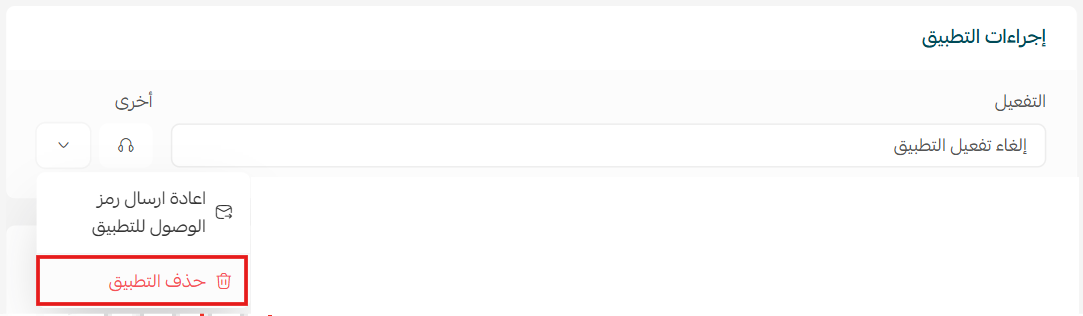
1. From the (App actions) section, click (Other).
2. Click (Delete app).
📝 Important notes
- Stories are built and edited in the app's own dashboard, not in your Salla dashboard.
- Each story can carry images or videos along with links and buttons, so give shoppers somewhere to go once you have their attention.
❓ Frequently asked questions
What do interactive stories look like in my store?
They appear as story cards shoppers tap through, in the same style they already use on Instagram and TikTok.
Can I control where and when the stories show?
Yes. The dashboard lets you set the design, the placement in your store, and the timing of each story.
What can I put inside a story?
Images or videos, plus links and call-to-action buttons that send shoppers to the page you want.
How do I sign in to the app dashboard?
Use the credentials sent to your email address after the app is activated.
How do I remove the app?
Open (App actions), click (Other), then click (Delete app).
Stories give a product a few seconds of undivided attention, which a static banner rarely gets. For more details about pricing and features, see the Interactive Stories app page.