Have you ever wished you could watch over a visitor's shoulder as they browse your store?
That is exactly what Hotjar session recordings (visitor recordings) give you. They let you analyze and monitor how real users interact with the different elements of your store's pages — how they scroll, where they click, and where they hesitate — so you can rethink your design and build a smoother, more effective user experience. In this guide, you'll learn what session recordings are, why they matter, and how to play, share, and delete them.
Session recordings are video playbacks of real visitor actions on your store. Hotjar captures mouse movement, clicks, taps, and scrolling across multiple pages on both desktop and mobile. To watch one, open your Hotjar account, go to the recordings list, pick a segment, and press play on any session.
📌 Article overview
- What session recordings are
- Why use session recordings?
- How to view session recordings
- Frequently asked questions
🎯 What are session recordings?
Session recordings are video playbacks of the real actions visitors take while browsing your store. The recordings capture mouse movement, clicks, and scrolling across multiple pages, on both desktop and mobile devices.
✅ Why use session recordings?
- Gain a genuine understanding of how users interact with your store.
- Make better decisions about fixing issues, improving the user experience, and raising your conversion rate.
- Put yourself in your users' shoes and build empathy with them.
- Experience your store exactly the way a visitor does.
- See where visitors get stuck — and discover what actually convinces them to convert.
For more details on connecting your store with Hotjar.
👣 How to view session recordings
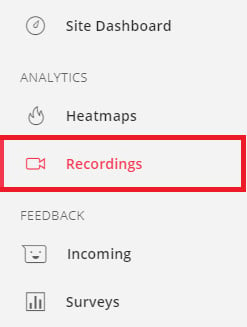
1. Log in to your Hotjar account, then open the (Recordings) section from the main dashboard.
2. From the Segments list, choose the segment whose sessions you want to review, then click (Play) on any session.
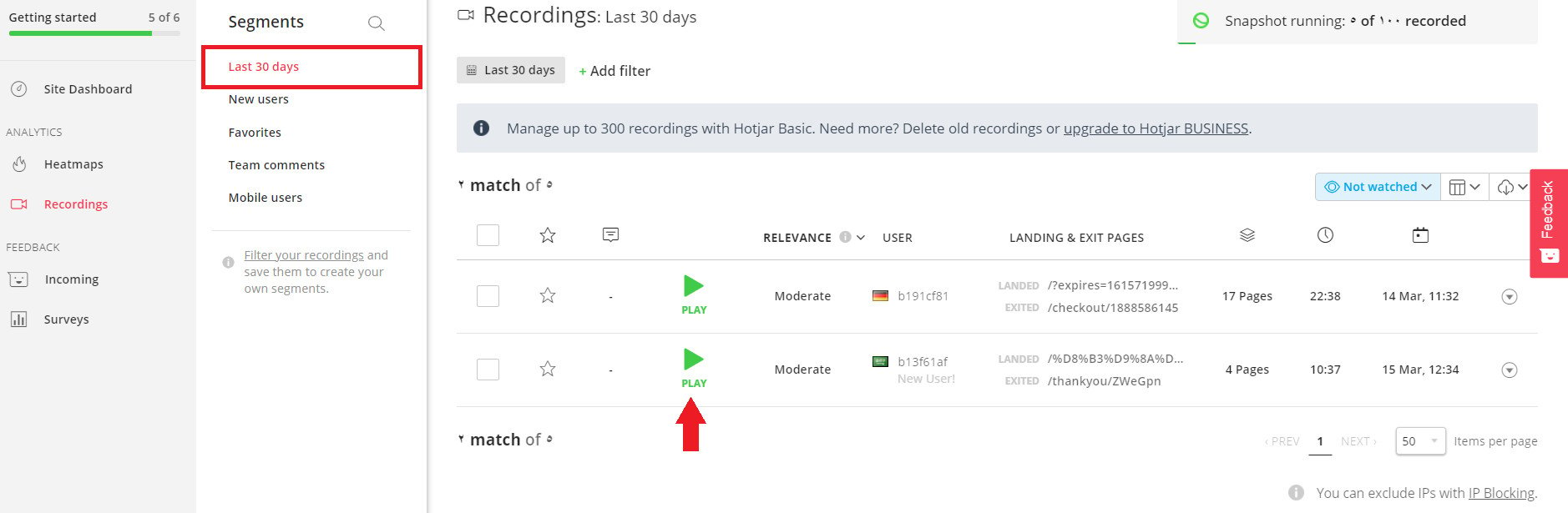
The session recording plays back as shown below:
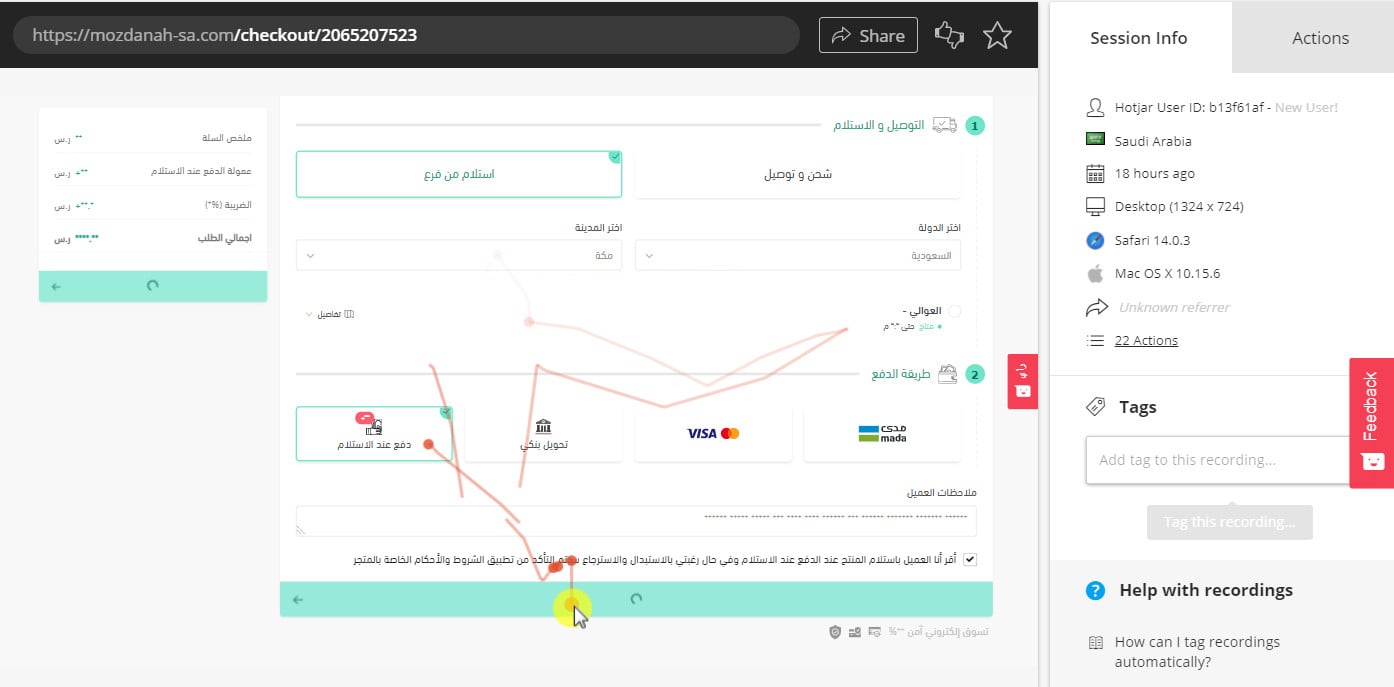
You can follow the visitor's movement through your store and see exactly where they clicked.
You can also spot the moments where the visitor lost focus — those are the areas to revisit and improve.
Frequently asked questions
❓ Can I share a session recording?
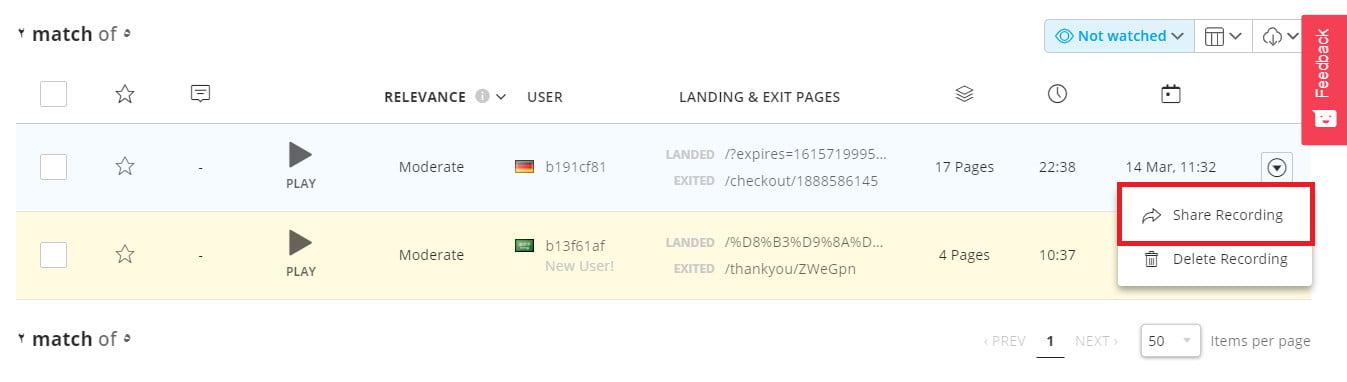
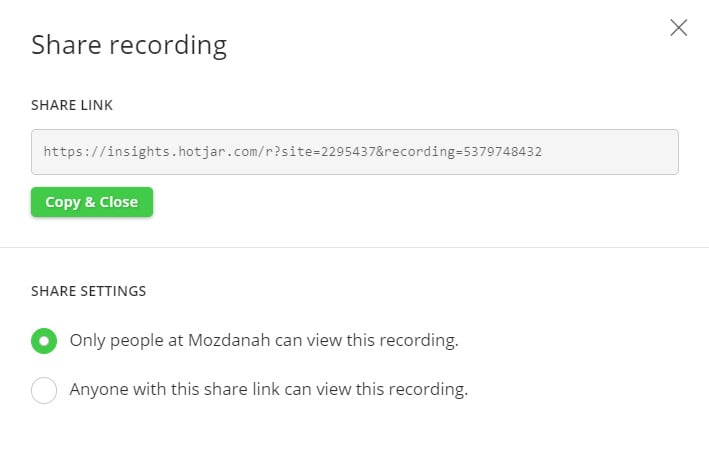
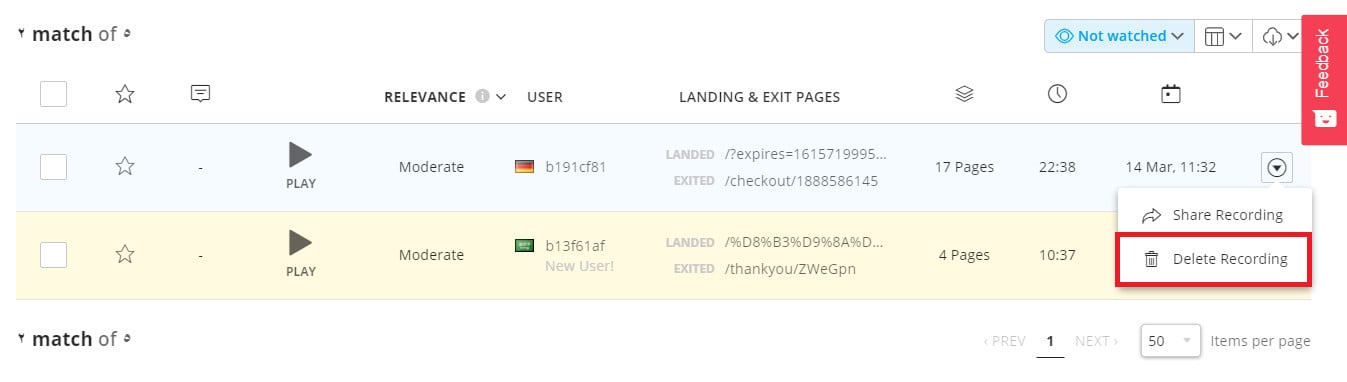
Yes. To share a session, open the session's options menu, then click (Share Recording).
From the sharing window, click (Copy & Close), then share the session link however you like.
❓ How do I delete a session?
To delete a session, open the session's options menu, then click (Delete Recording).
Every recording is a chance to see your store through a customer's eyes — watch a few sessions each week and let what you see guide your next improvement.