Are you sure the next improvement you're planning is the one your visitors actually want?
Without the right kind of feedback, your team can burn valuable time polishing a part of your store that never needed changing. With Hotjar's incoming feedback feature, you get instant feedback — immediate, visual reactions from the visitors browsing your site. You see what people love and what they don't, pinpoint problems, and uncover opportunities to grow. In this guide, you'll learn what you can survey with Hotjar and how to set up a feedback widget step by step.
To collect instant feedback with Hotjar, log in to your Hotjar account, open (Incoming), and click (+ New Feedback Widget). Name the survey, customize its appearance and messages, choose which devices, pages, and users see it, then set its status to (Active) and click (Start Incoming Feedback).
📌 Article overview
- What surveys can I run with Hotjar?
- Steps to set up a visitor feedback survey
- Viewing the feedback you collect
- Frequently asked questions
🎯 What surveys can I run with Hotjar?
You can run all kinds of surveys for your site's users — for example:
- Rate the store's technical support.
- Collect opinions on the new collection.
- Rate the checkout page.
- Rate the home page user experience.
- Gather opinions on the discounted products page.
For more details, see connecting Hotjar to your store.
👣 Steps to set up a visitor feedback survey
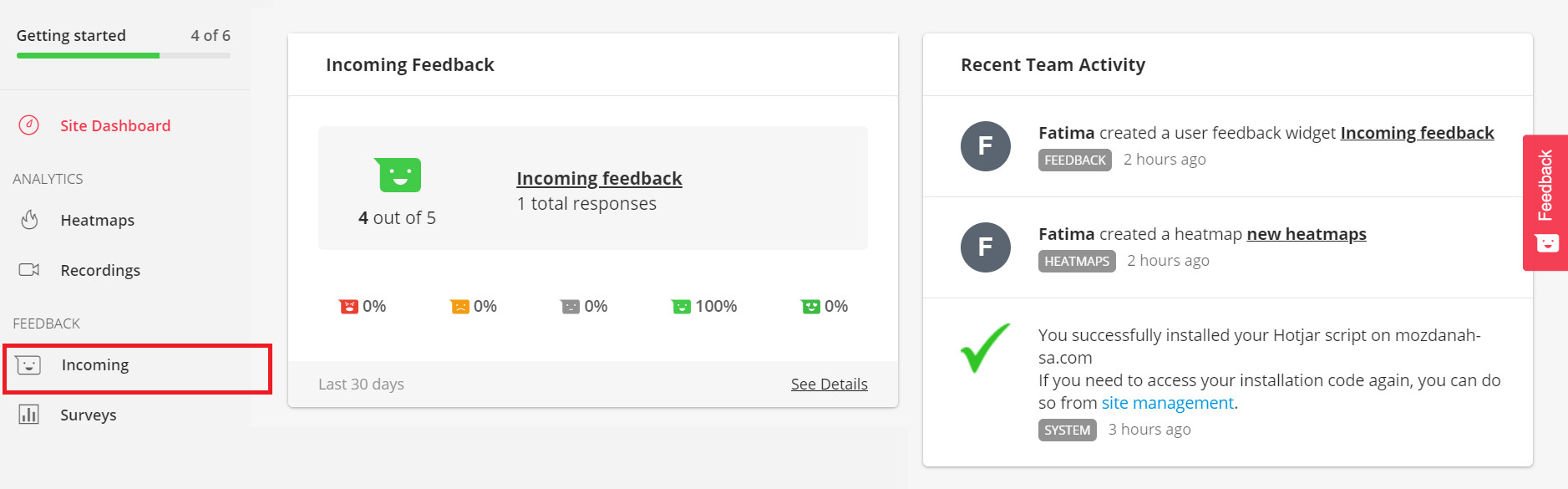
1. Log in to your Hotjar account, and from the home page, click (Incoming).
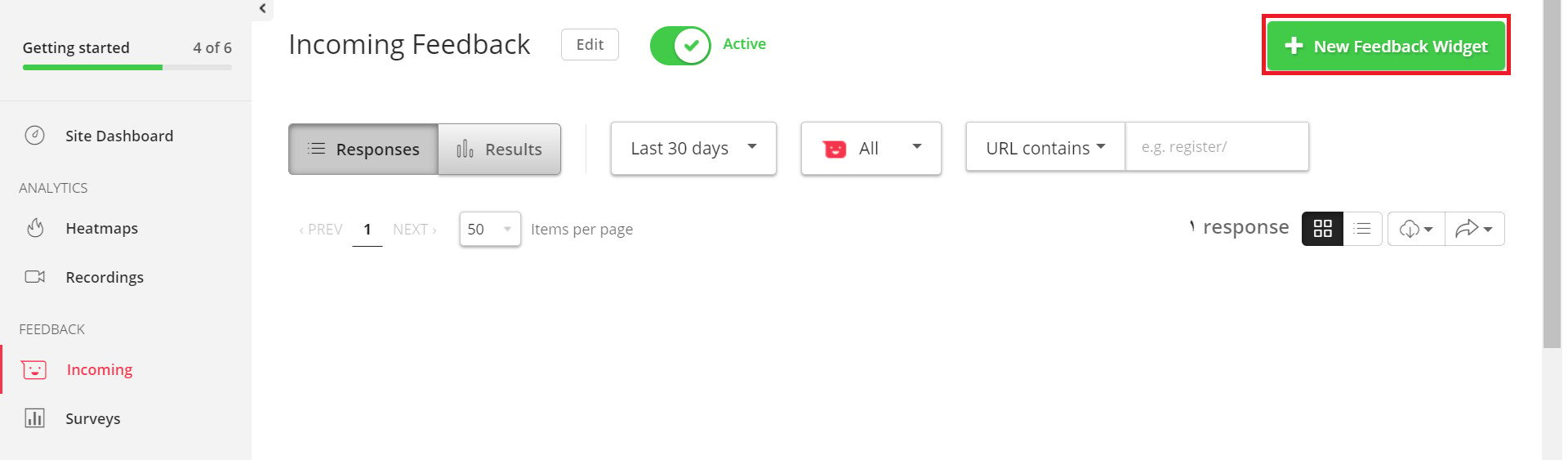
2. From the Incoming page, click (+ New Feedback Widget).
3. Enter the survey's settings.
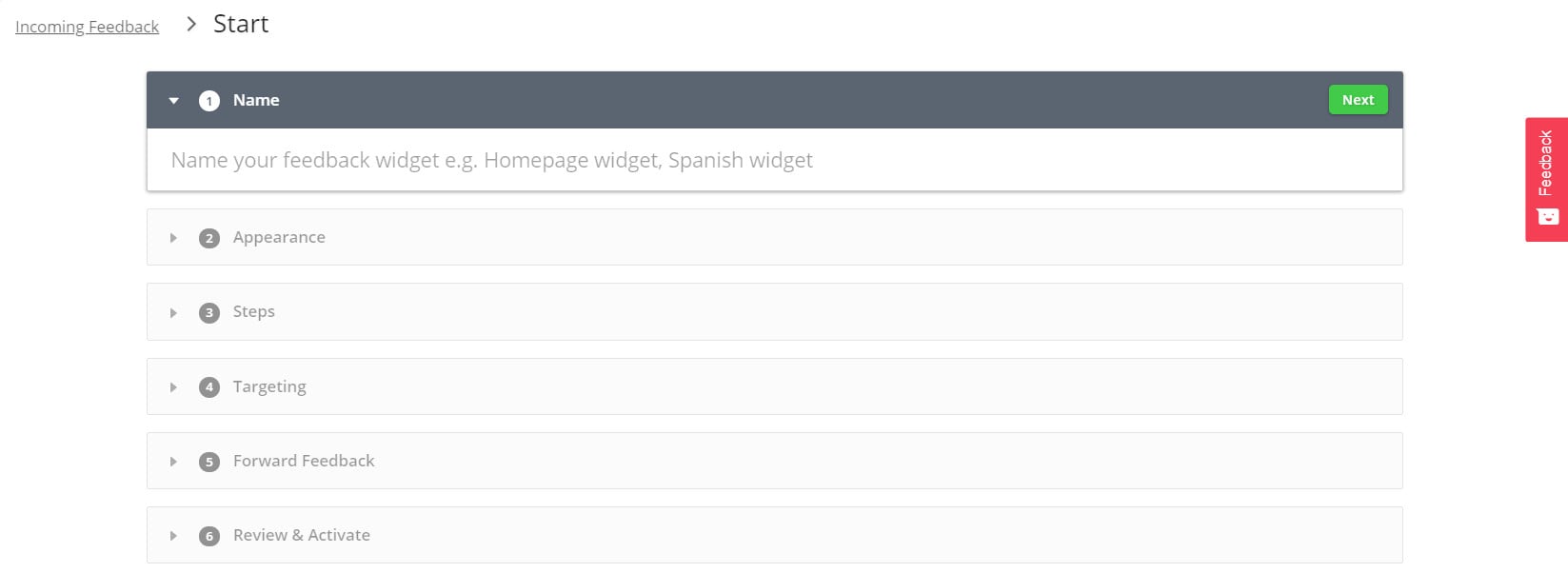
They are as follows:
First: enter a short, descriptive name for the survey. For example:

Second: customize how the survey looks.
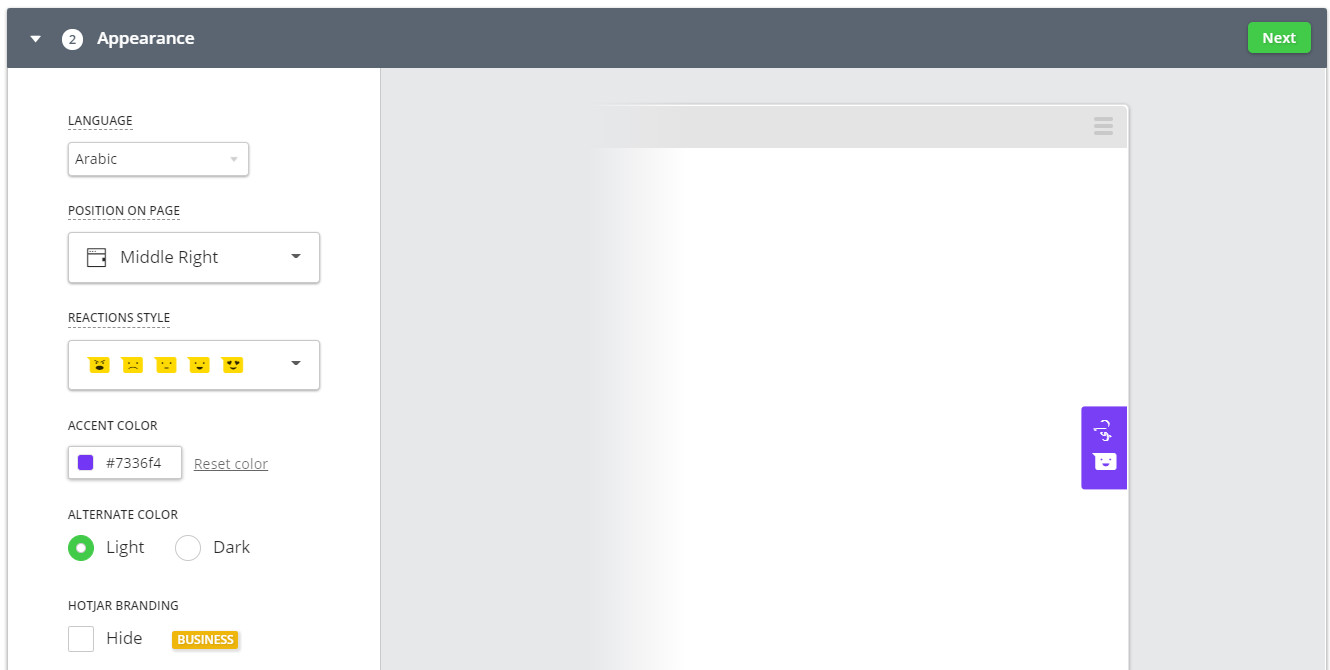
Set the following:
- The widget's language.

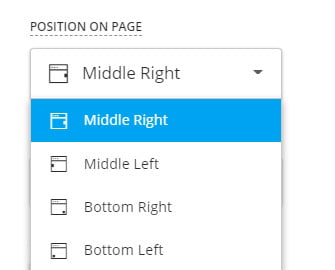
- The widget's position on the page.
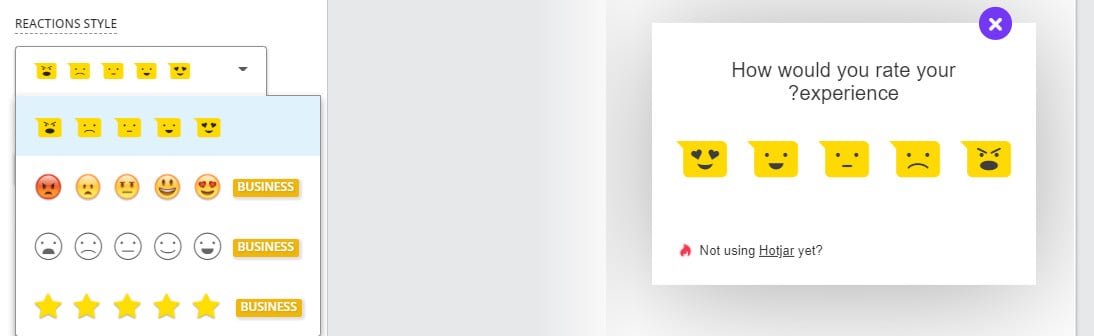
- The widget's style.
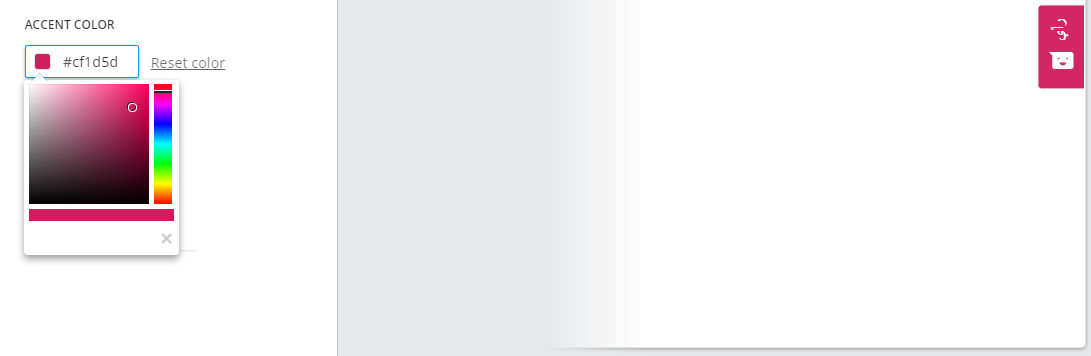
- The widget's background color.
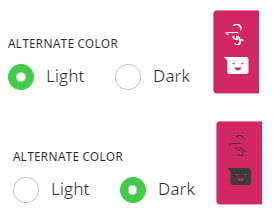
- The text color contrast inside the widget.
Third: customize the messages visitors see.
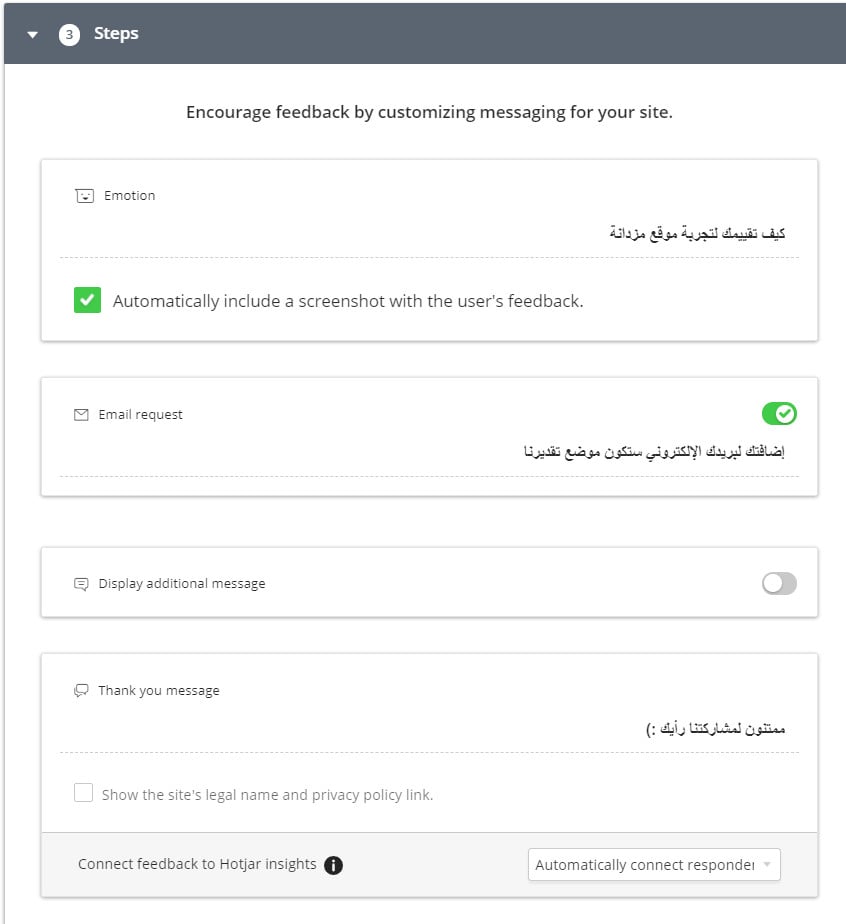
Fourth: choose where and to whom the widget appears.
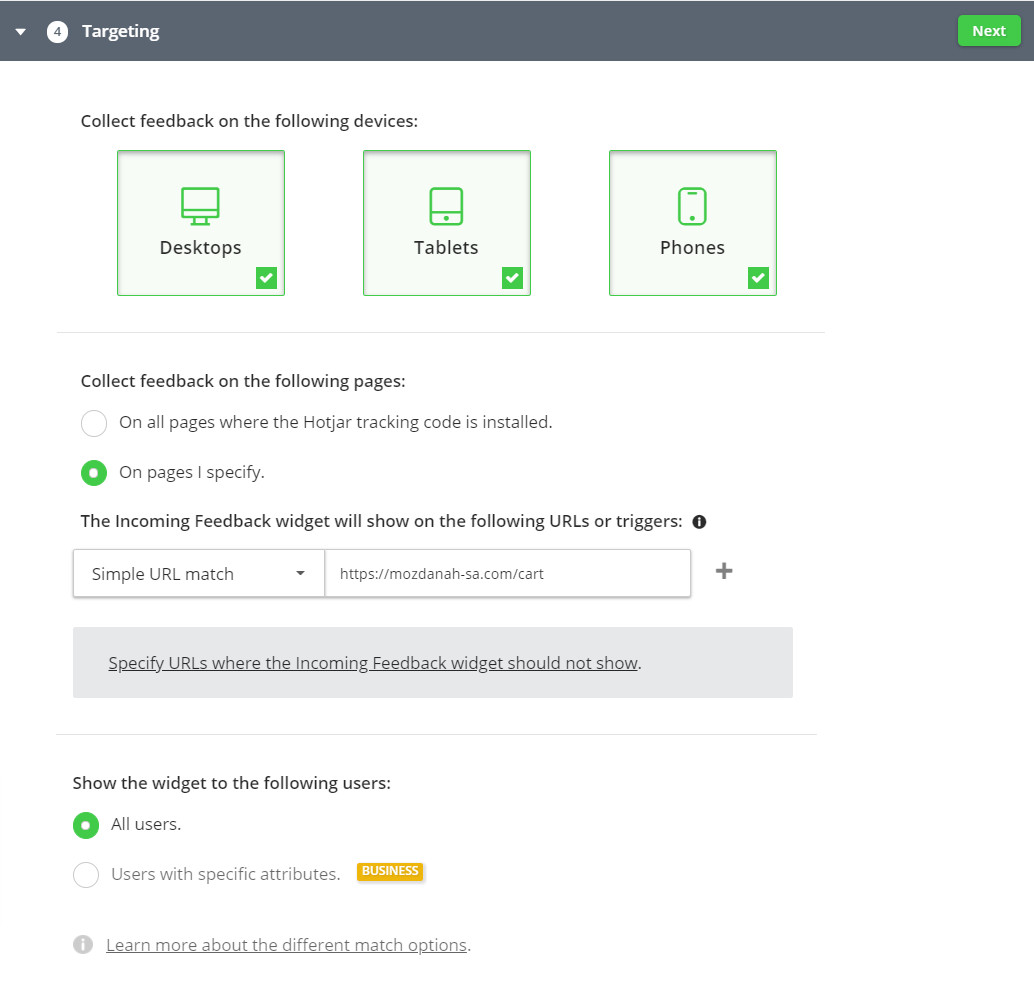
- Show the widget on specific devices or on all available devices.
- Collect feedback on every page where the Hotjar tracking code is installed, or only on pages you specify.
- Show the message to all users, or only to users with specific attributes.
Fifth: set the Incoming Feedback status to (Active), then click (Start Incoming Feedback).

The survey widget then appears to users on the target page, like this:

📊 Viewing the feedback you collect
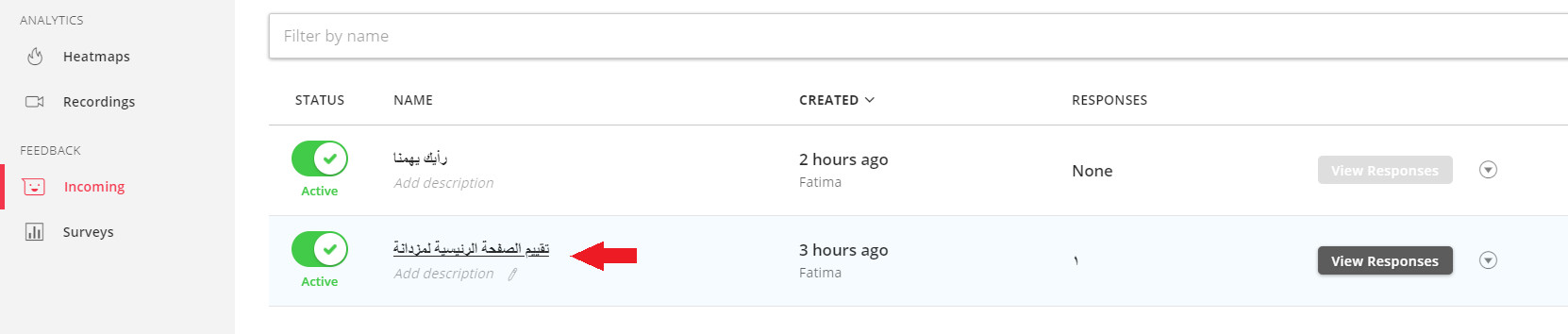
To see the comments on any survey widget you created, open the (Incoming) page and click the widget whose feedback you want to view:
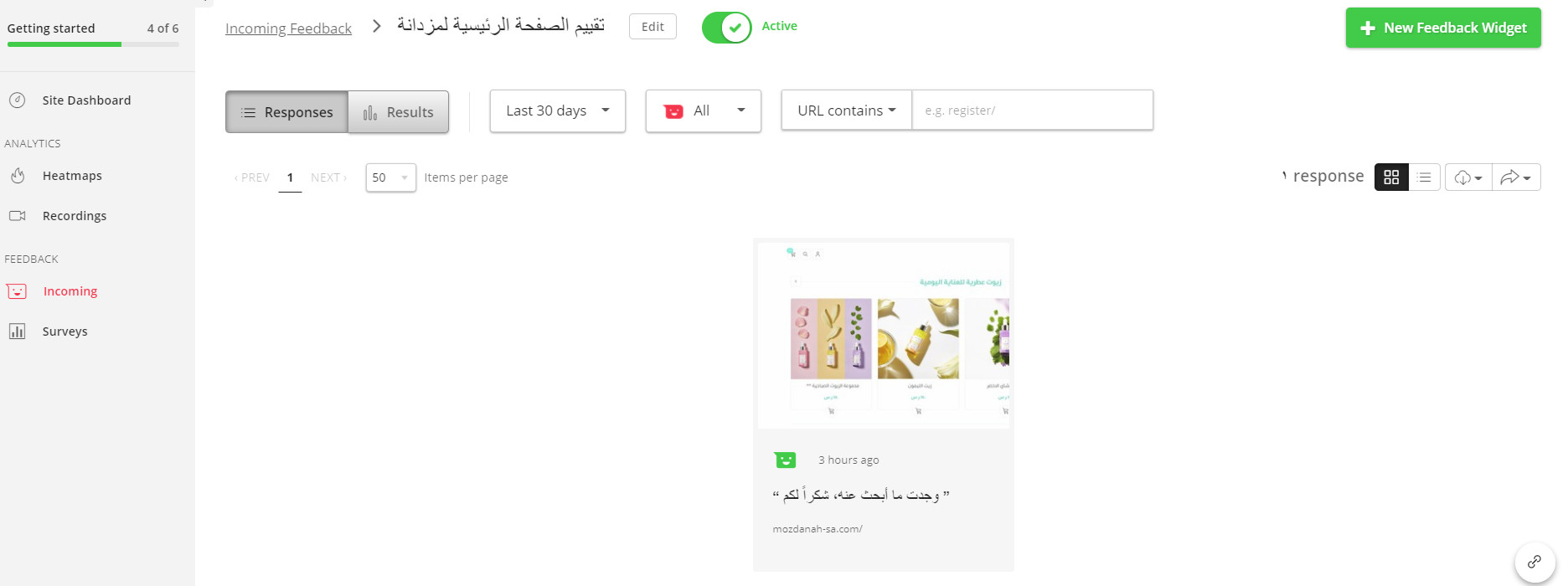
The feedback you've received appears like this:
❓ Frequently asked questions
What kinds of feedback can I collect with the widget?
Anything visitors can react to on a page — support quality, a new collection, the checkout page, the home page experience, or your discounted products page.
Can I control which pages show the survey?
Yes. Collect feedback on every page carrying the Hotjar tracking code, or limit the widget to the specific pages you choose — and to specific devices or user attributes.
Where do I read the responses?
From the (Incoming) page: click the widget you want, and all the feedback it has collected appears.
Can the widget match my store's look?
Yes — you control its language, position, style, background color, and text contrast before you launch it.
Ask your visitors while they're still on the page, and you'll never have to guess what to improve next — they will tell you, in the moment it matters.