How much of your catalog is Google actually able to show shoppers today?
You can hand your product data to Google one item at a time, or by uploading a file, but the version that scales is an automated Merchant Center feed. A feed lets Google pull your Salla store's products on a schedule, so prices and availability stay current without anyone re-uploading a spreadsheet. In this guide, you'll learn how to send and manage product data with feeds in Merchant Center, and how to put those products to work in a Google Ads campaign.
A Merchant Center feed is a file listing the products you want to advertise through Google. Create a primary feed, set its country, language and destinations, choose scheduled fetch, and paste the product file URL that Salla's Merchant Center app gives you. Google then pulls your catalog automatically.
📌 Article overview
- Before you start
- What is a feed?
- Feed types in Google Merchant Center
- How to manage your feeds in Merchant Center
- Frequently asked questions
✅ Before you start
- You need a Merchant Center account already connected to your Salla store.
- For more details, see connecting your business to Google Merchant Center.
🎯 What is a feed?
A feed is a file holding the list of products you want to advertise through Merchant Center.
When you add products, you set attributes for each one, and the feed uses those attributes to group your products together. Once a feed exists, you can reuse it across several Merchant Center features.
Attributes are simply the properties a product has: the country it sells in, the language, availability, price, the destinations where you want it shown, and so on.
🎯 Feed types in Google Merchant Center
There are two basic types.

1. Primary feeds. A primary feed is the central data source Merchant Center uses to reach and display your product data.
2. Supplemental feeds. A supplemental feed adds data on top of the products already in one or more primary feeds. It cannot add or remove products, and it cannot stand on its own.
🚀 How to manage your feeds in Merchant Center
Managing feeds in Merchant Center covers the following tasks:
- Create a new primary feed
- Pull products into the feed
- Create a new supplemental feed
- Edit product details in Merchant Center
- Delete a product from a feed
- Delete a feed
All of them start from the home page of your Google Merchant Center account.
Create a new primary feed
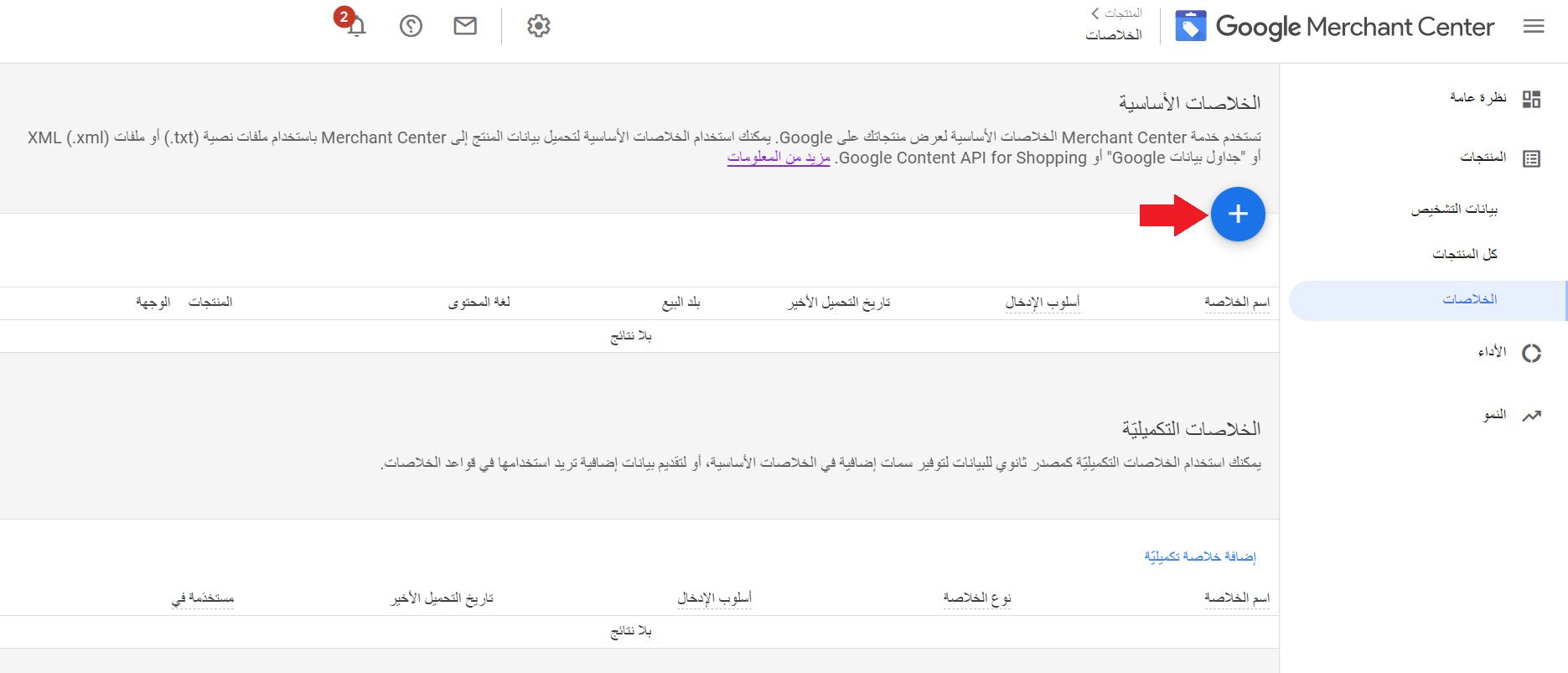
1. On the Merchant Center feeds page, click (+) to create a new primary feed.
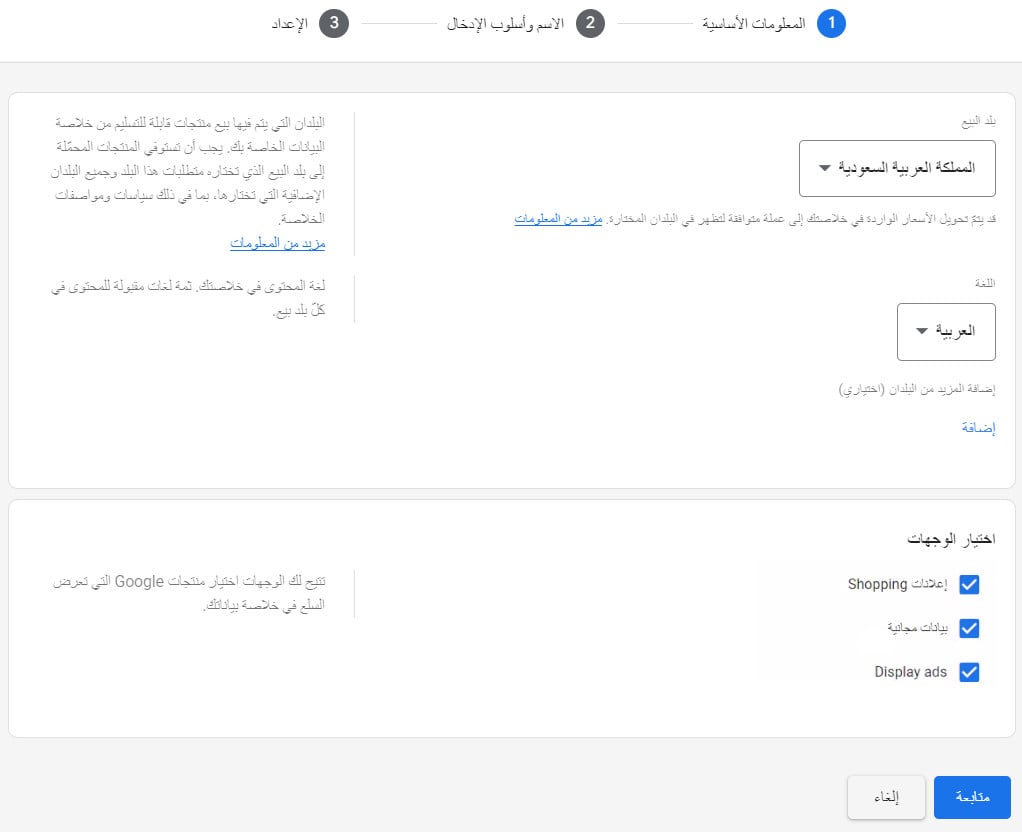
2. Enter the feed's basic information: the country of sale, the language, and the destinations where you want your products shown. Then click (Continue).
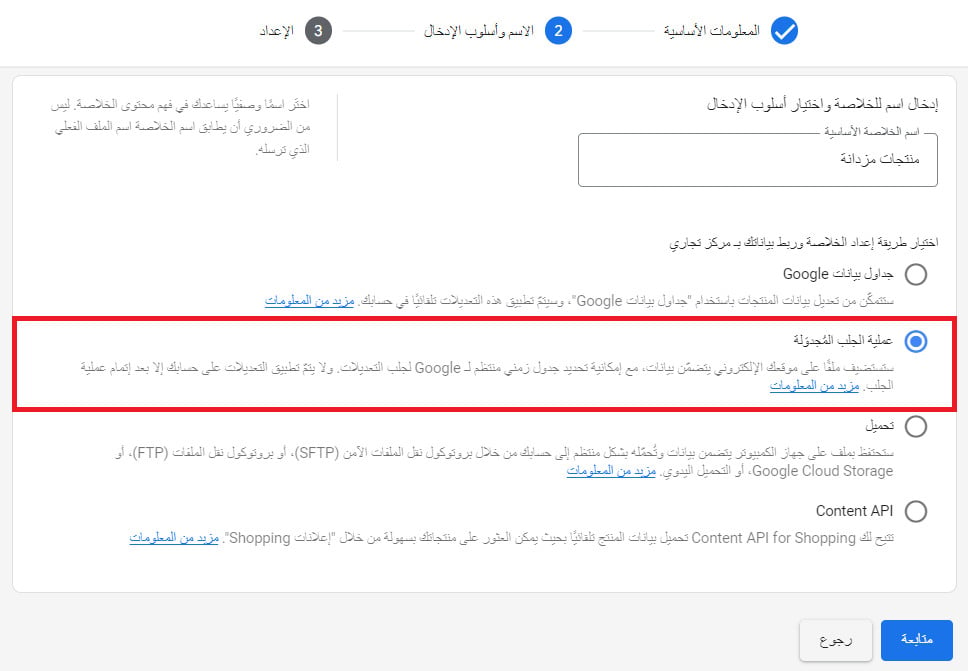
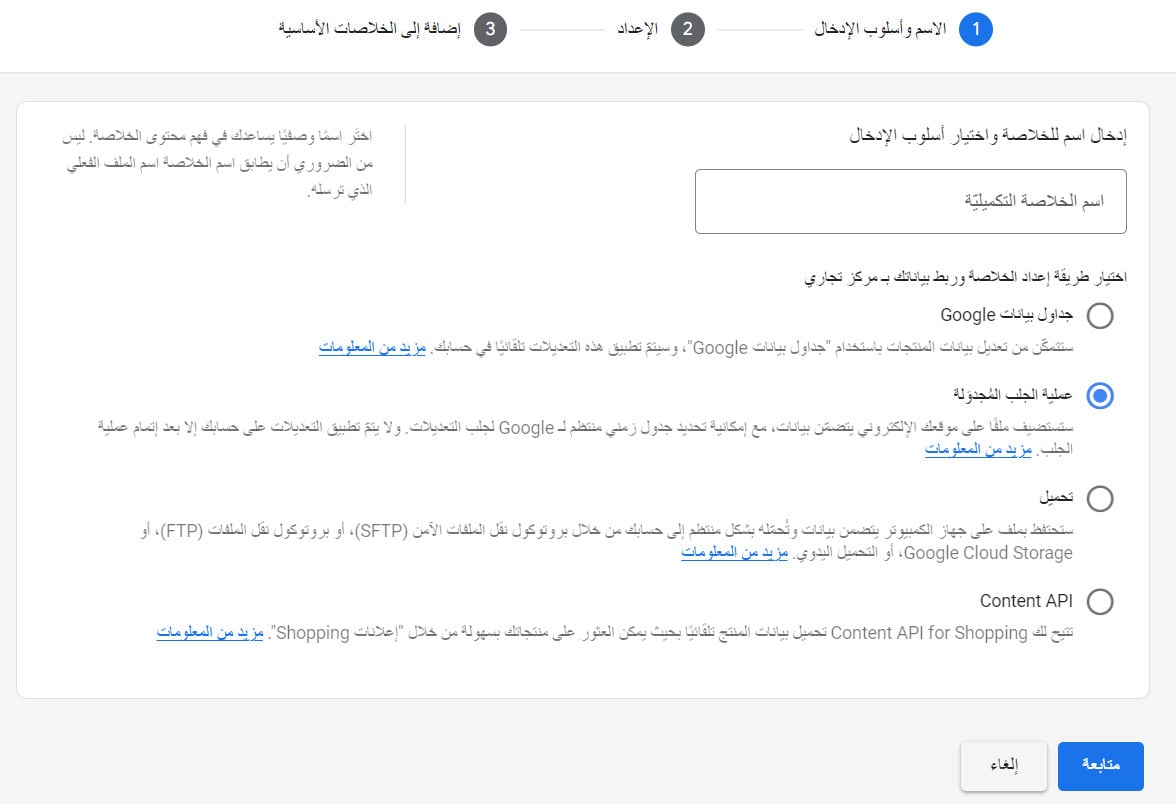
3. Give the feed a descriptive name, choose (Scheduled fetch) as the setup method, then click (Continue).
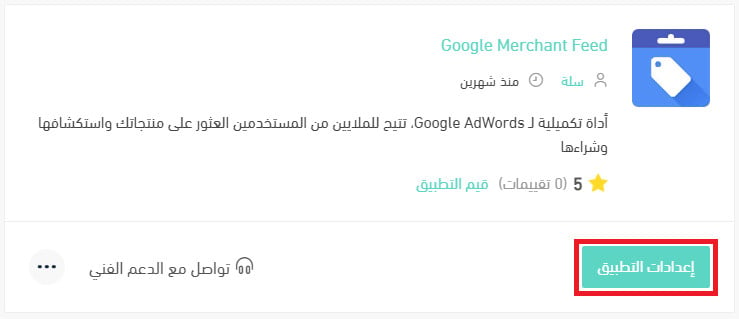
4. In another browser tab, open your store dashboard, go to the installed apps page, and click (App settings) on the Merchant Center app.
Then click (Copy link).
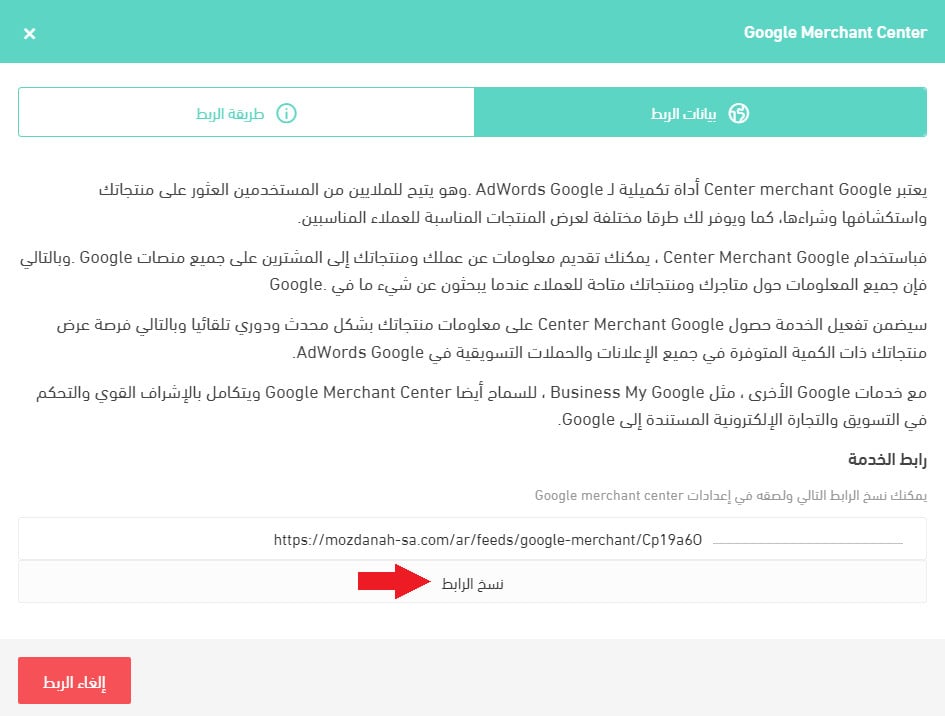
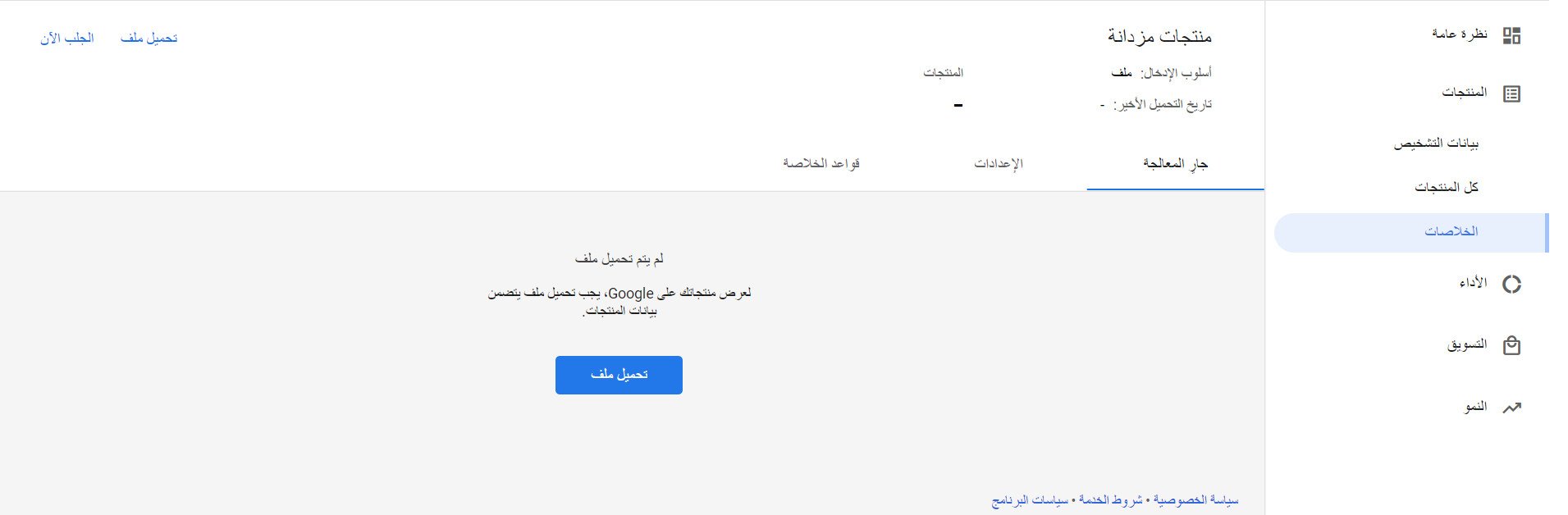
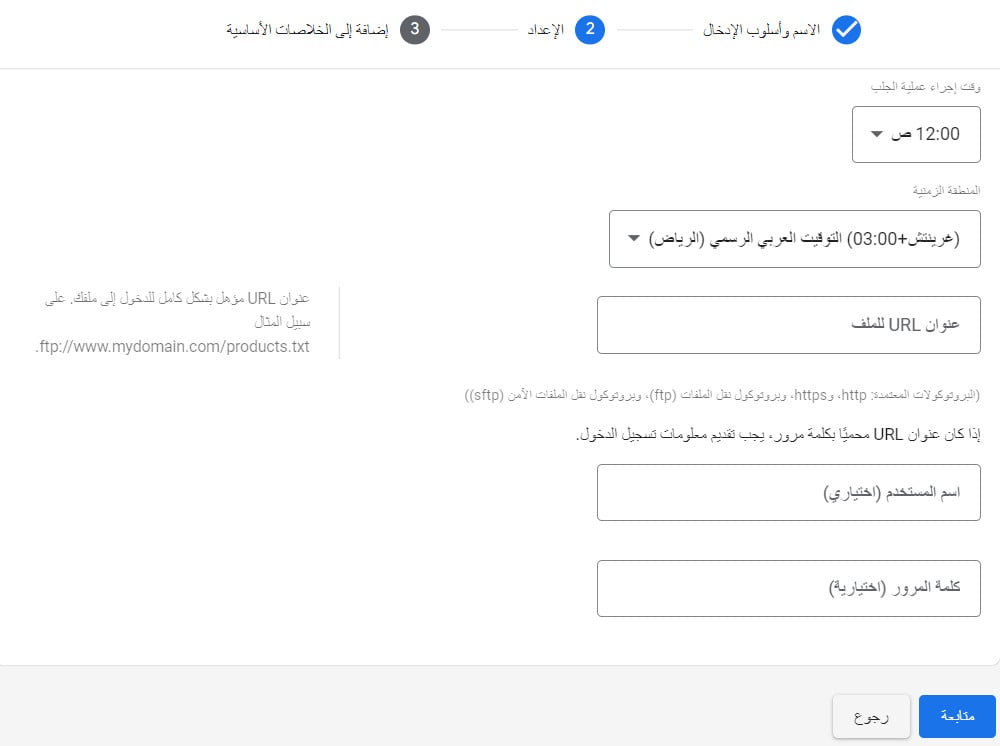
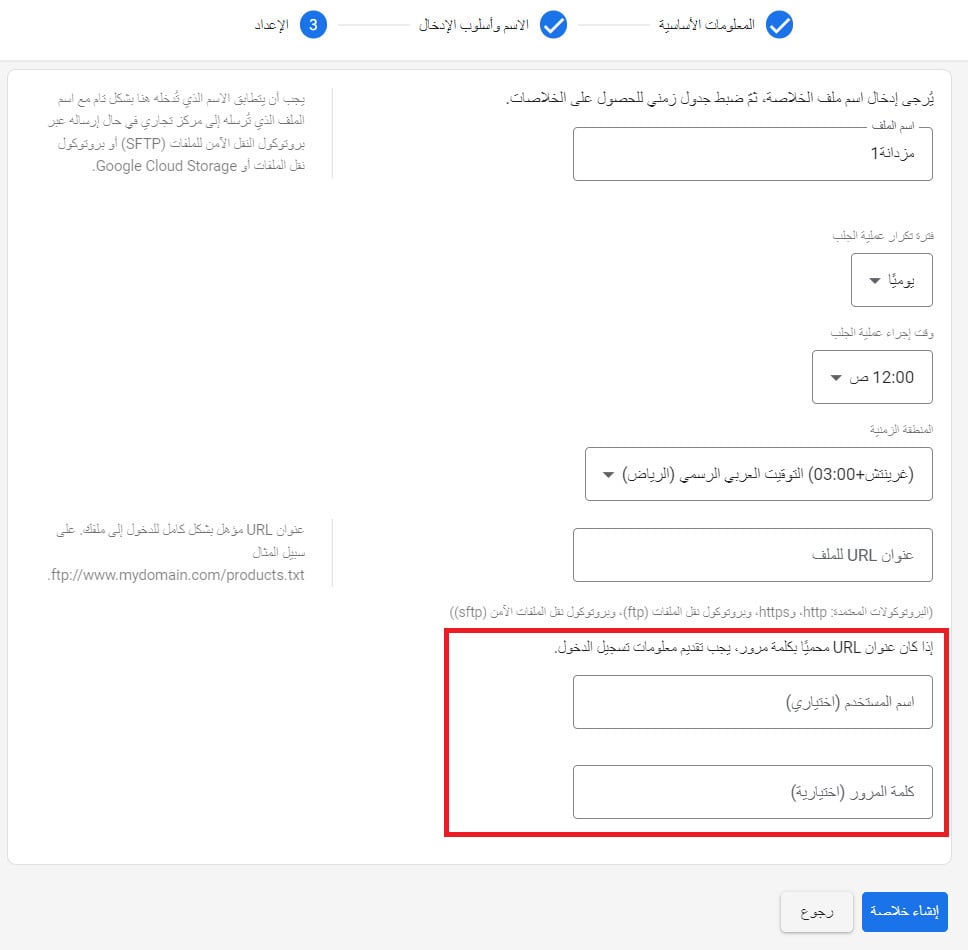
5. Back on the new feed page, give the feed file a name if you want one, set how often Google should fetch your product data, paste the file URL you just copied, then click (Create feed).
The new feed then looks like this.
Pull products into the feed
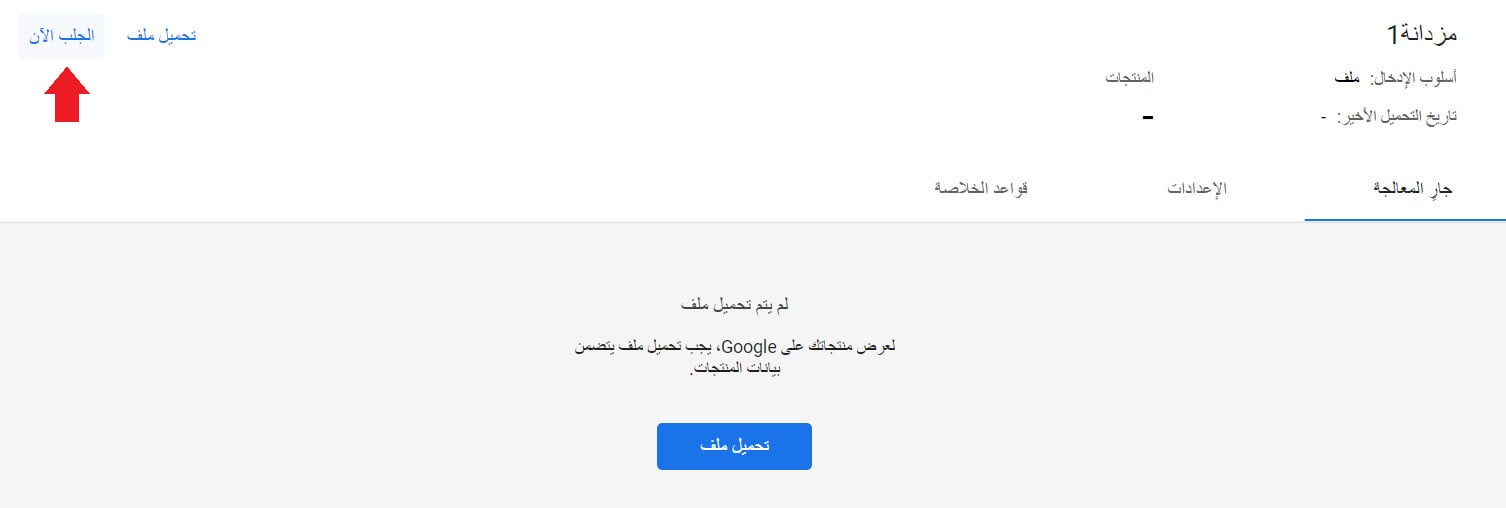
To pull products from your Salla store into the feed's product list, click (Fetch now).
📝 Important notes
Fetching the full catalog can take up to three days, depending on how many products your store has.
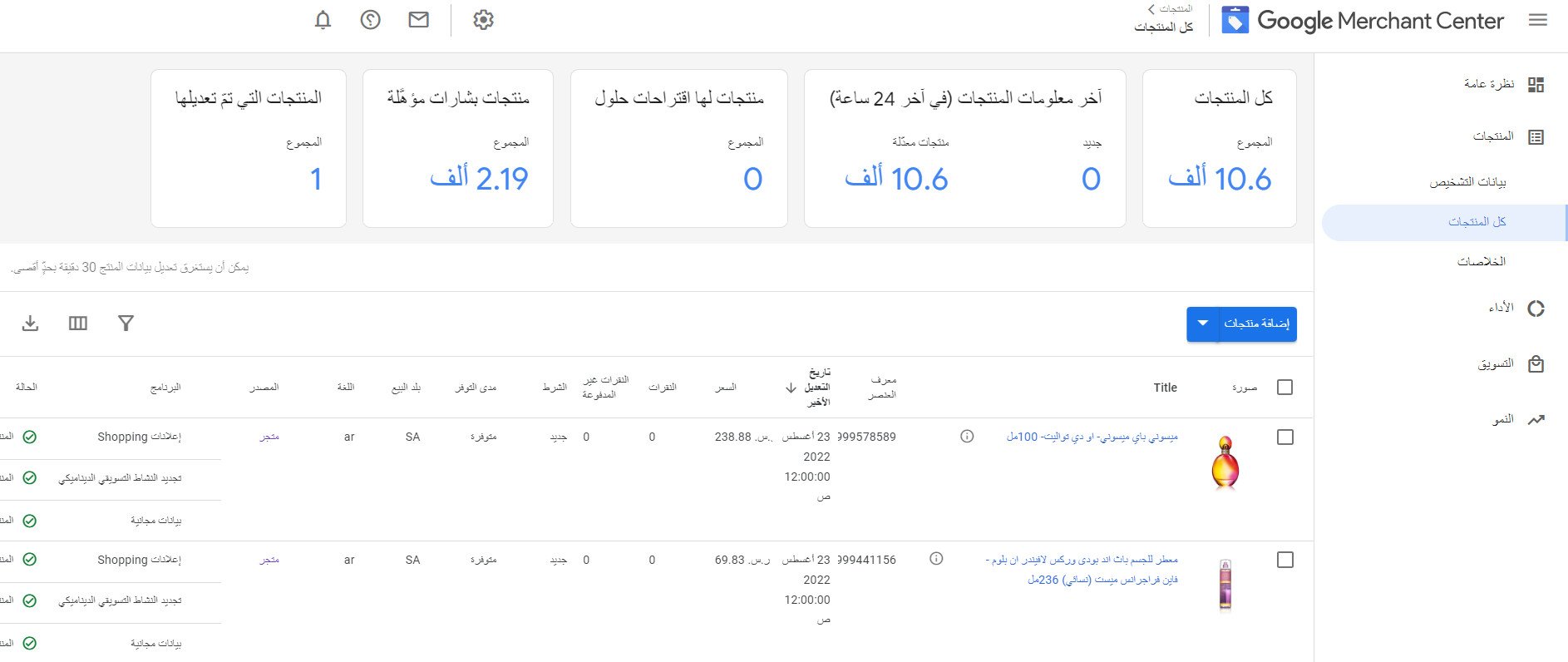
To see the products a specific feed brought in, go to the feeds page and click (View products) on that feed.
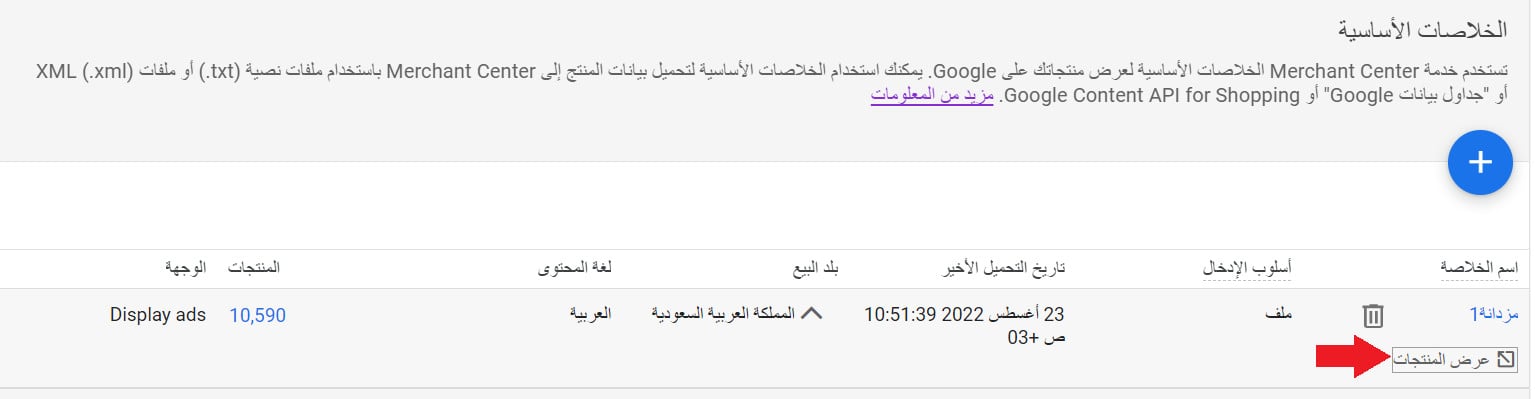
To see everything that has come across from your Salla store into Merchant Center, click (All products) in the Merchant Center dashboard.
Create a new supplemental feed
To use a supplemental feed, link it to an existing primary feed through the [id] attribute. A supplemental feed only changes your product data where its ids match ids already in a primary feed.
1. On the feeds page, click (Add supplemental feed).
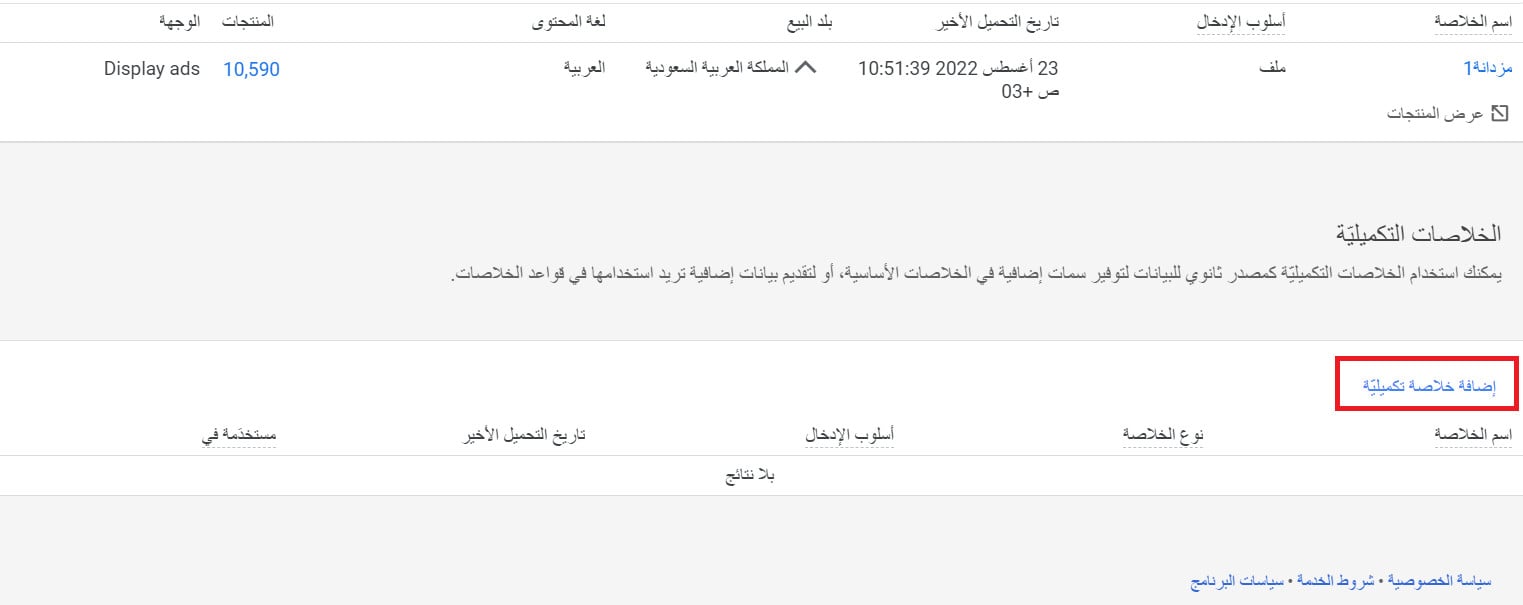
2. Give the feed a descriptive name, choose (Scheduled fetch) as the input method, then click (Continue).
3. Set up the supplemental feed the same way you set up the primary feed, then click (Continue).
4. Attach the supplemental attribute to one or more primary feeds, then click (Create feed).
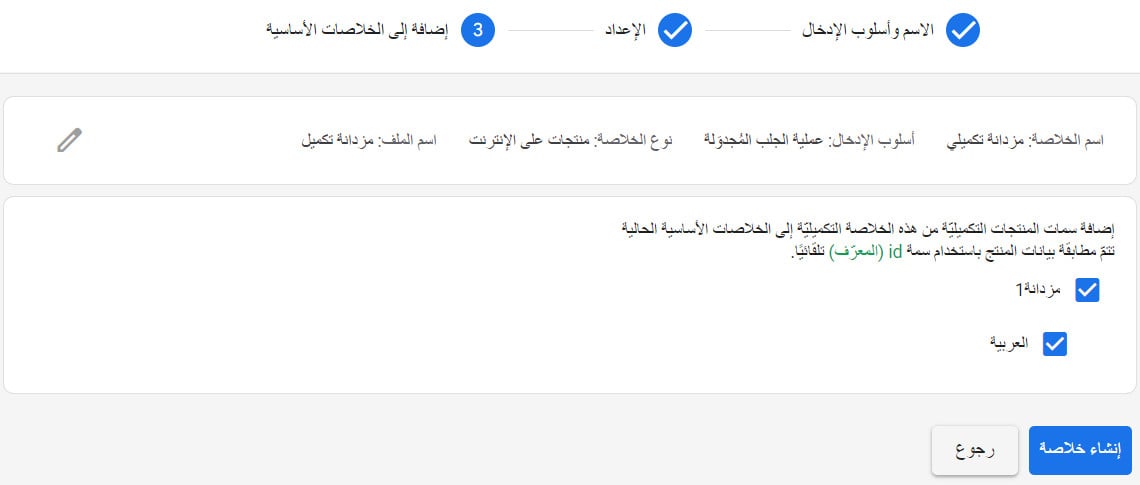
The supplemental feed then looks like this.
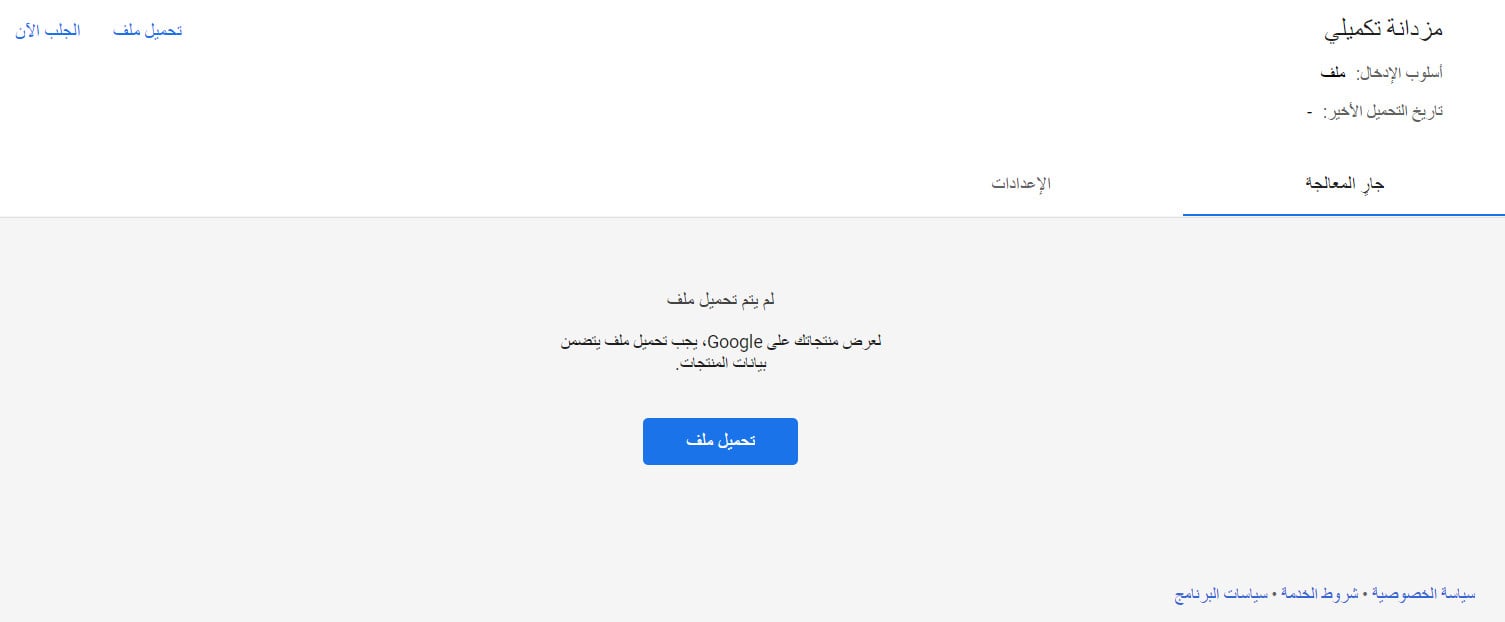
Add products directly in Merchant Center
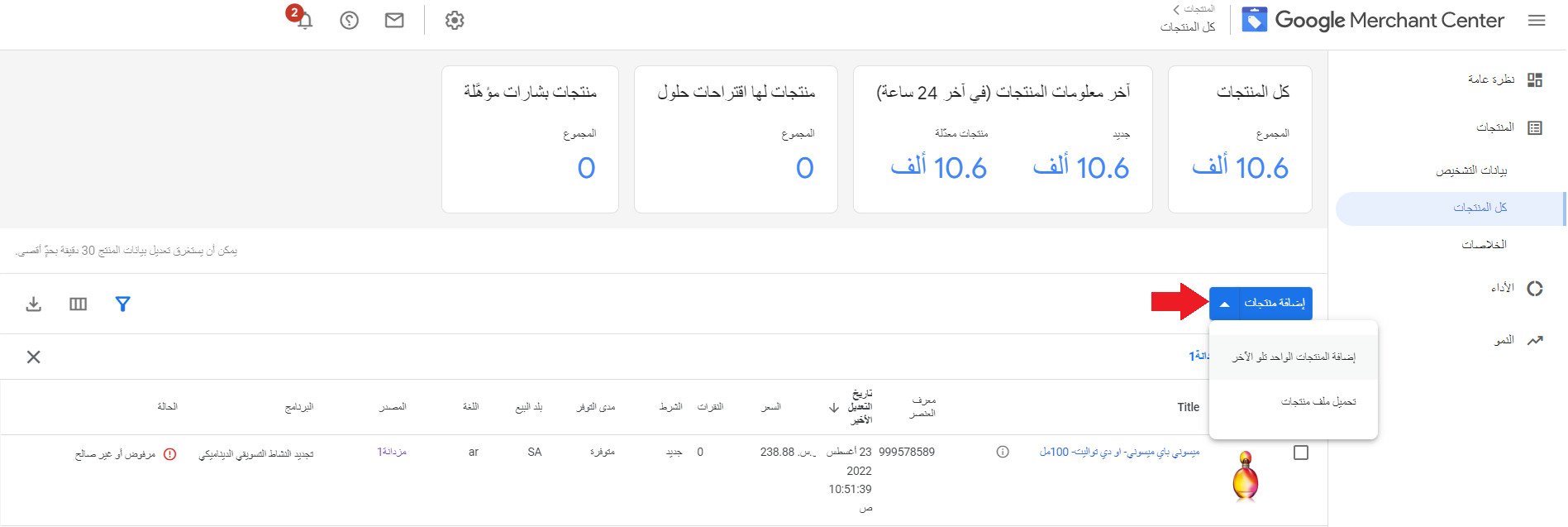
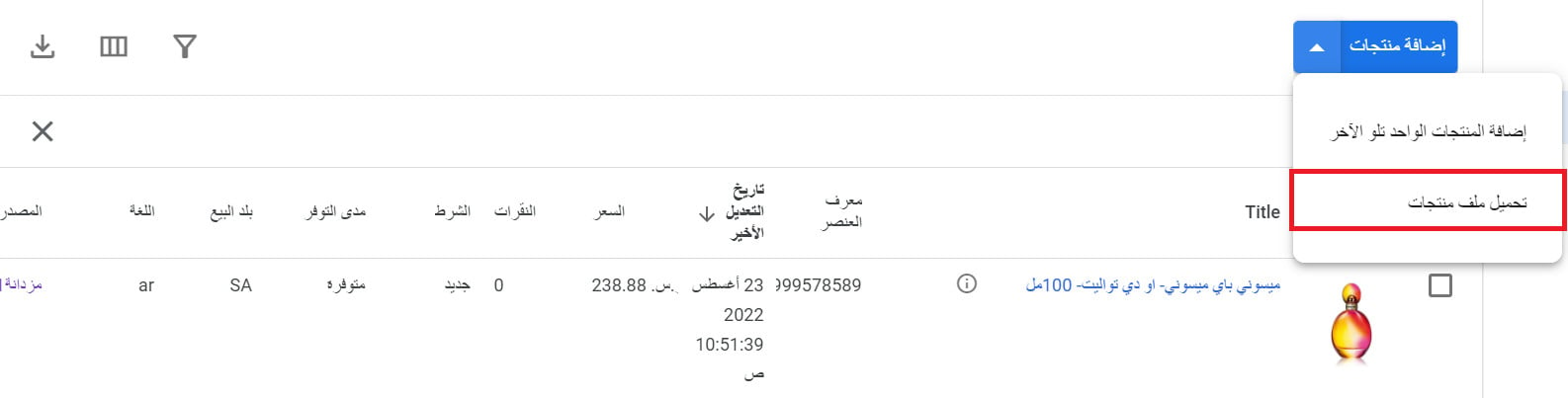
On the products page, click (Add products) and choose how you want to add them: one at a time, or from a product file.
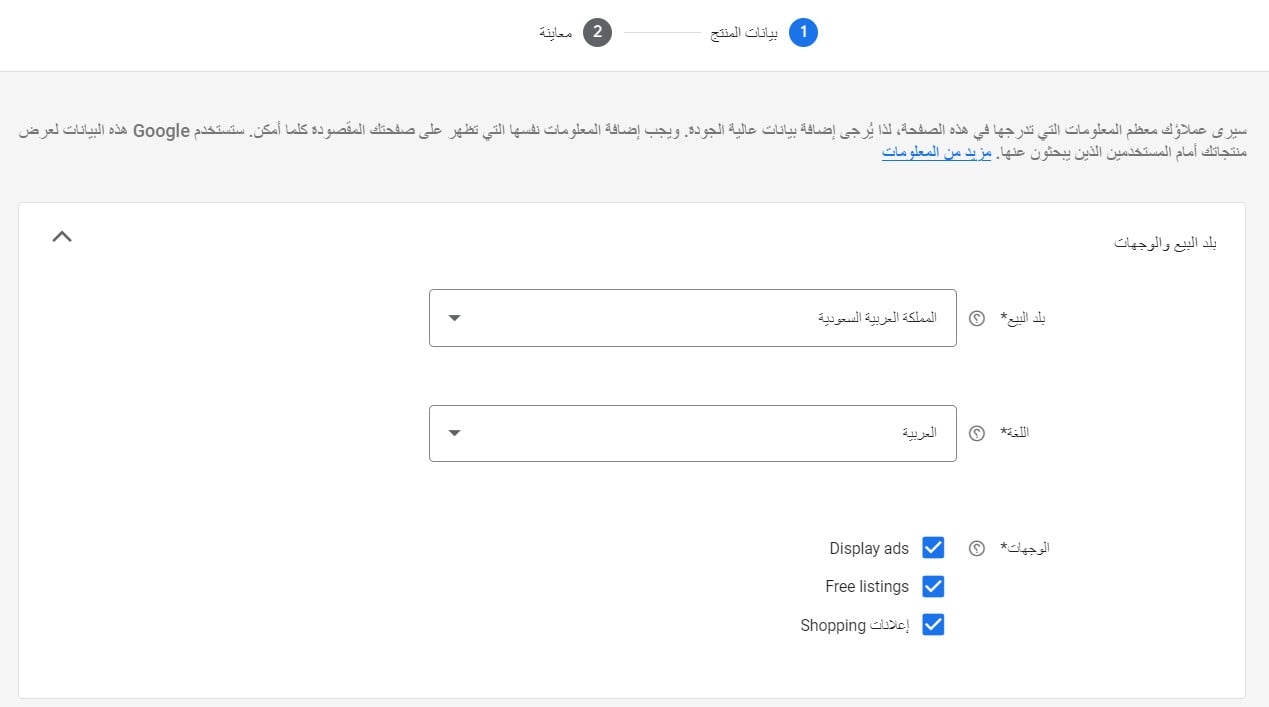
To add products one at a time, enter the product data, then click (Save) to preview the product.
To add them from a file, upload your product file and click (Add products from file).
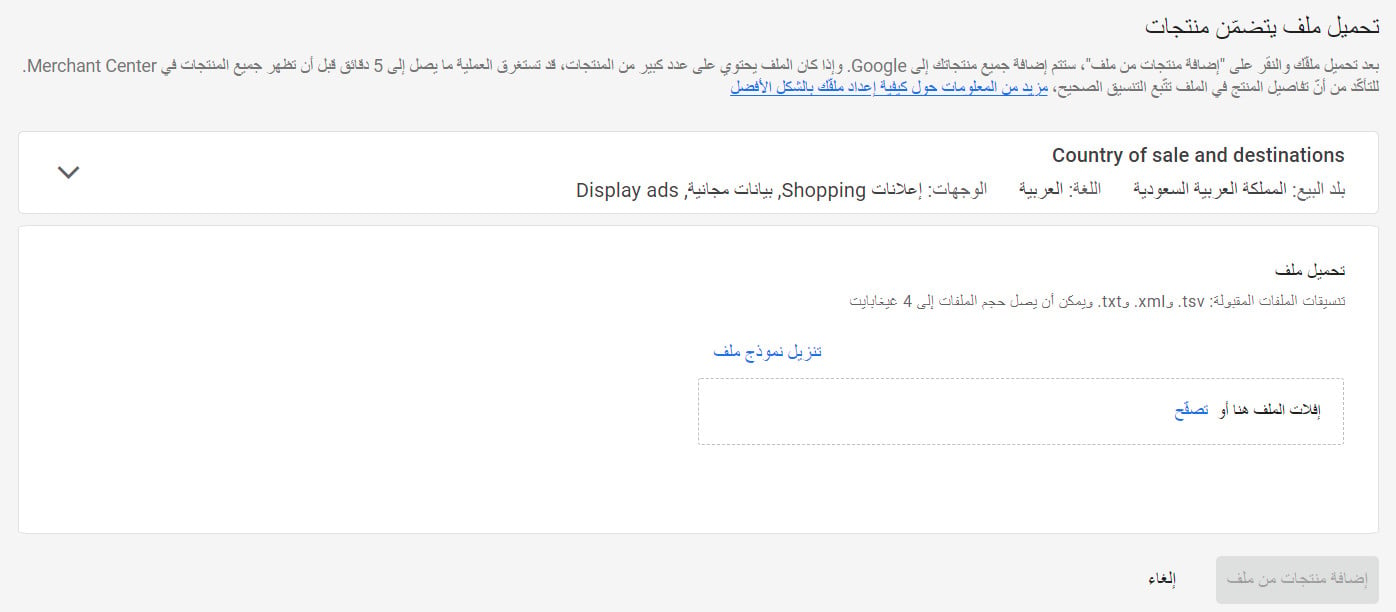
Edit product details in Merchant Center
On the products page, hover over the product, then click (Edit product).
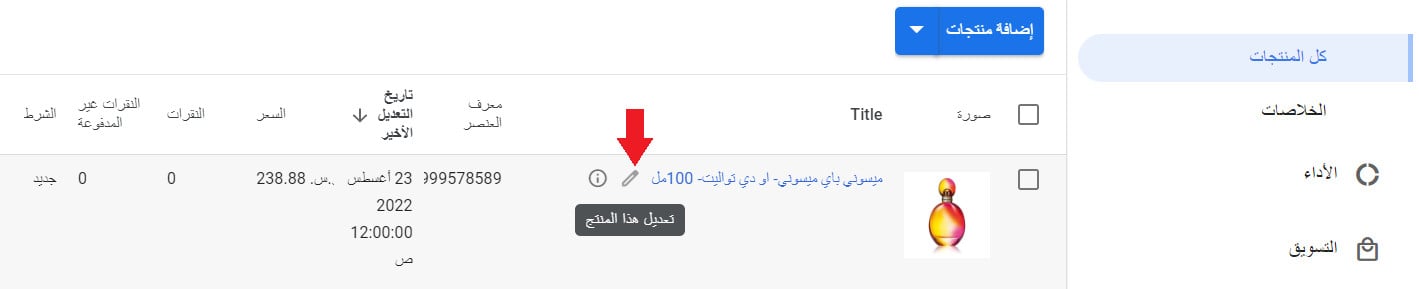
Delete a product from Merchant Center
On the products page, select the product or products you want to remove from the feed. A toolbar with a delete button appears.
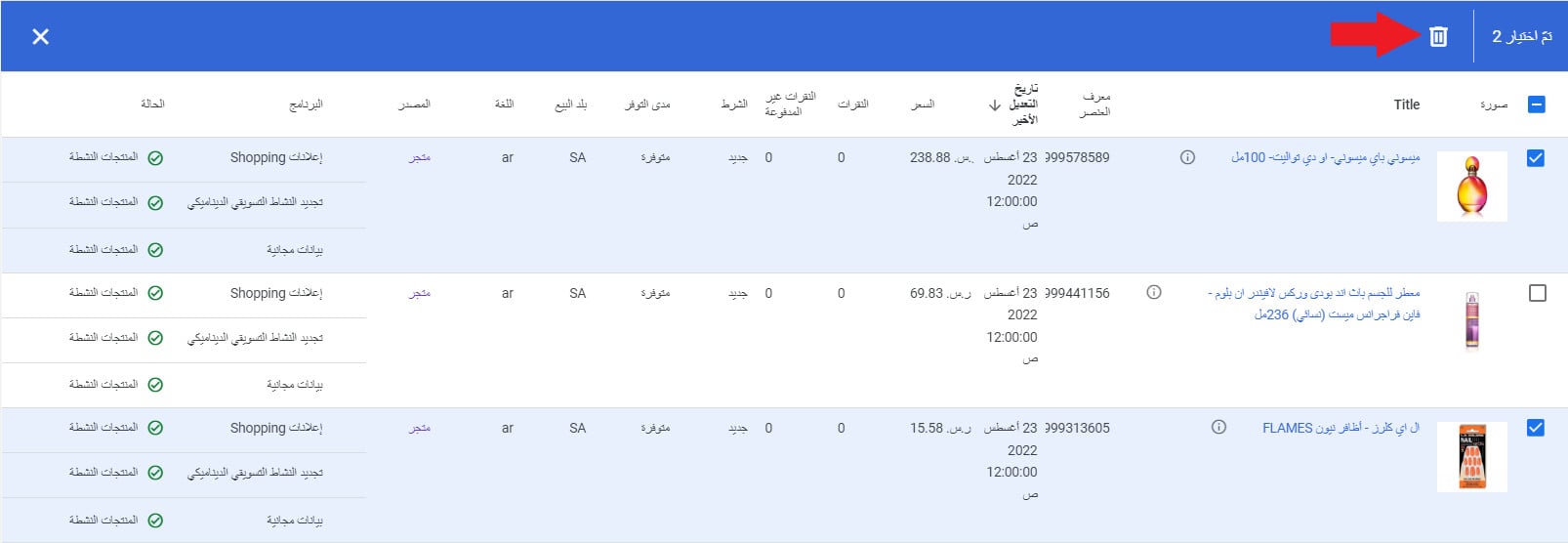
To remove products from one specific feed, view that feed's products first, then select and delete them there.
Delete a feed
On the feeds page, click (Delete) next to the name of the feed you want to remove.
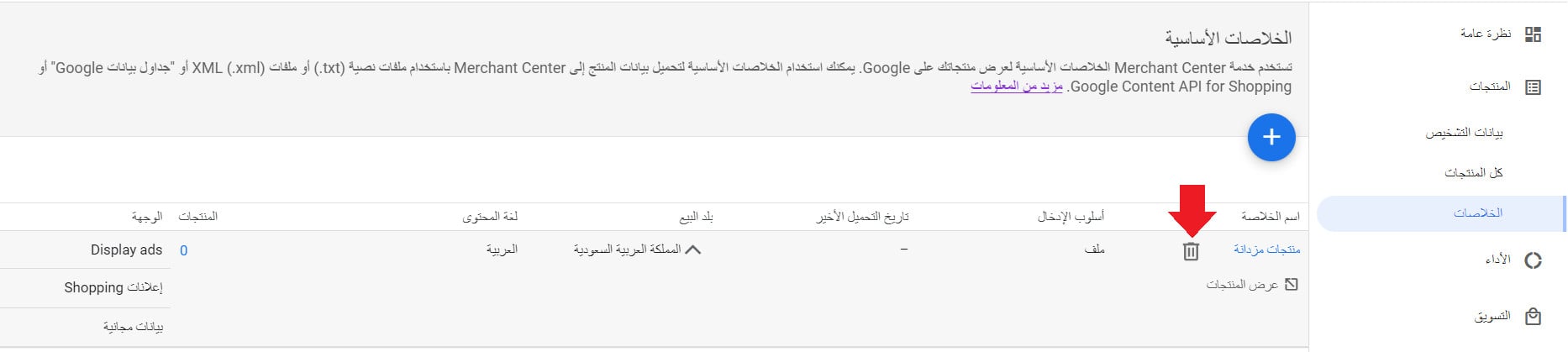
❓ Frequently asked questions
Will Merchant Center tolerate errors or missing product data?
No. Clear every error, issue and gap in the fetched product data before you go any further, and fix each one manually, product by product.
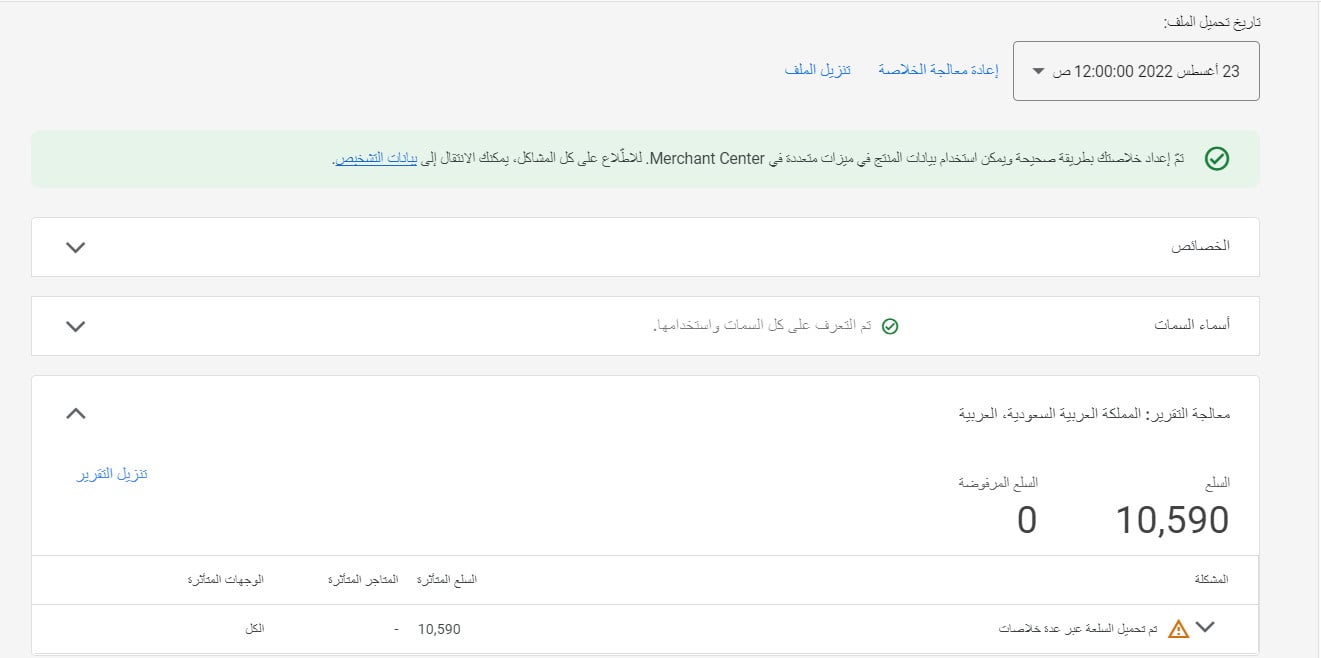
For more details, see Google's product data specification.
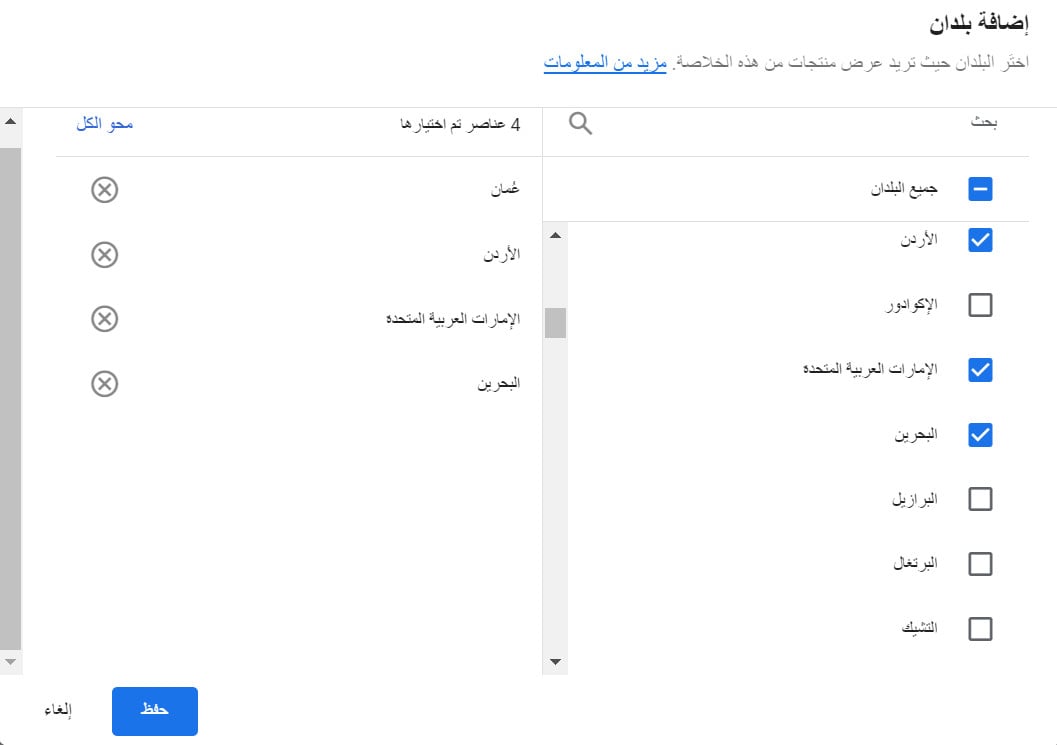
Can I sell into more than one country from a single feed?
Yes. In the first step of creating the feed, after you pick the main country:
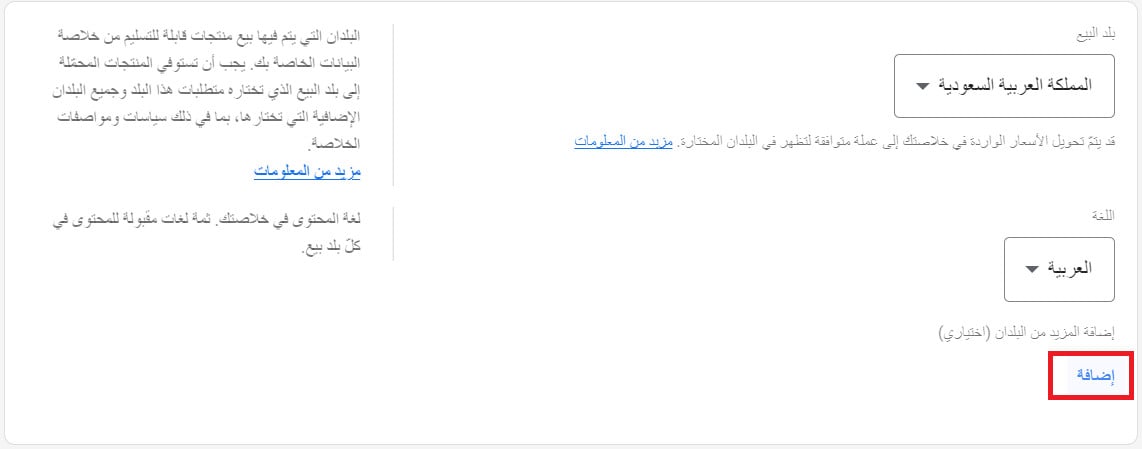
Choose the other countries you consider a good market for your products, then click (Add).
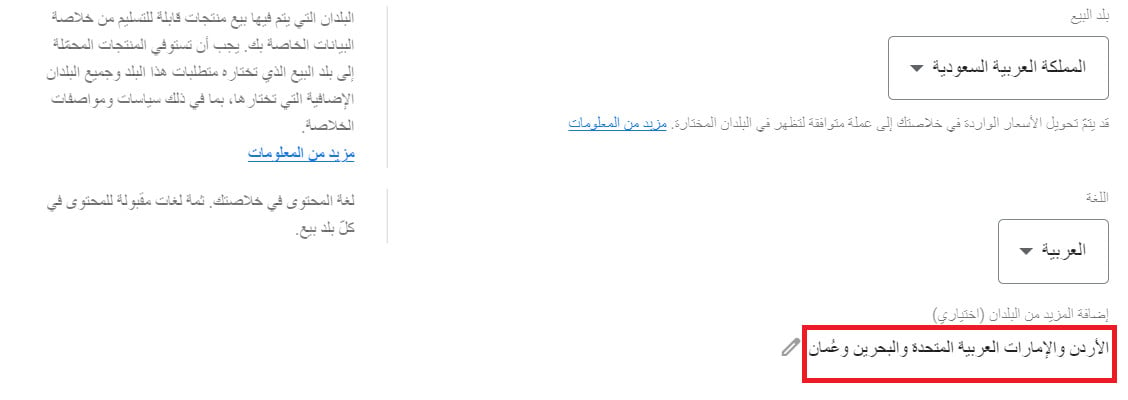
The countries you added then appear like this.
Does the feed file need a username?
No. You don't need to enter a username or a password.
How do I build a feed of products that got a certain number of clicks?
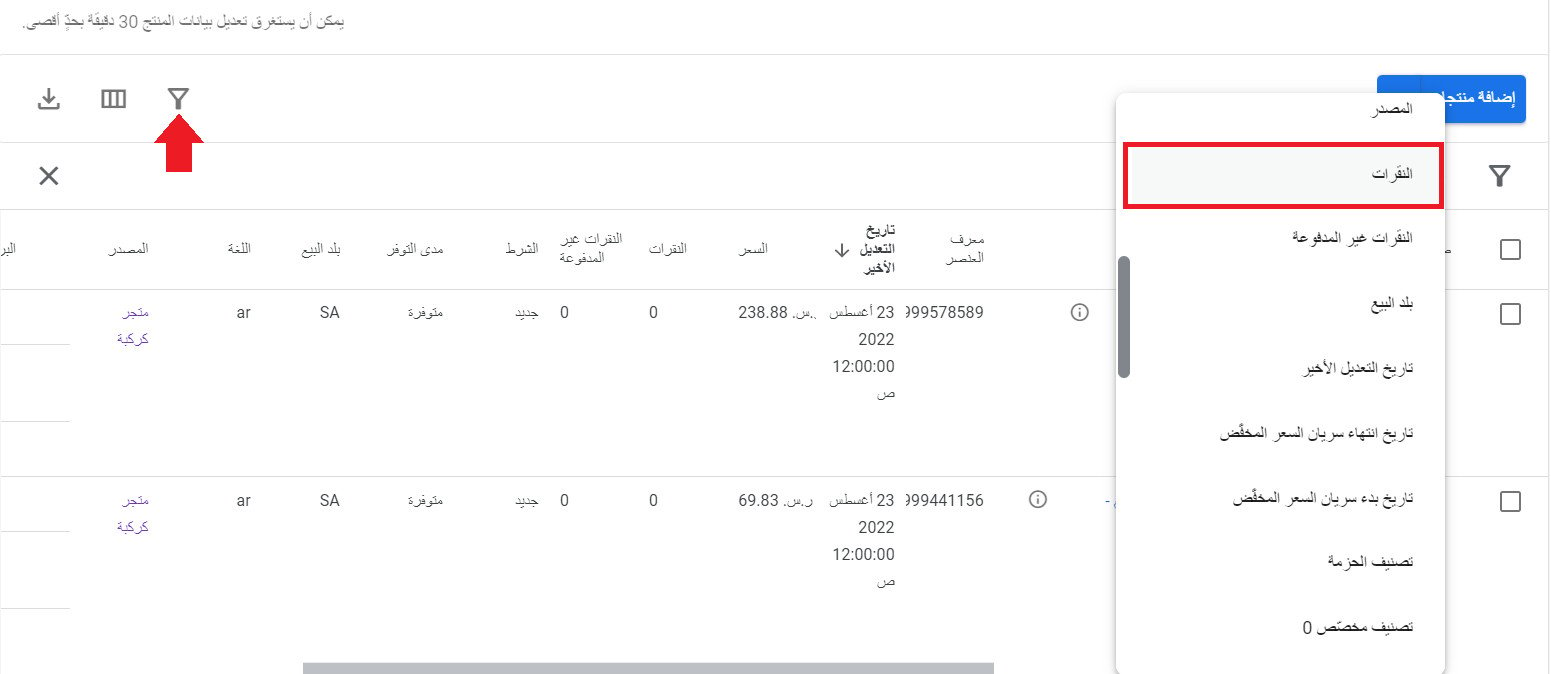
You have several options here. You can build a feed from products that reached a click threshold, products carrying an active discount, products whose discount ends on a given date, or any other condition available to you.
1. On the products page, click (Filter), then set the condition or conditions you want.
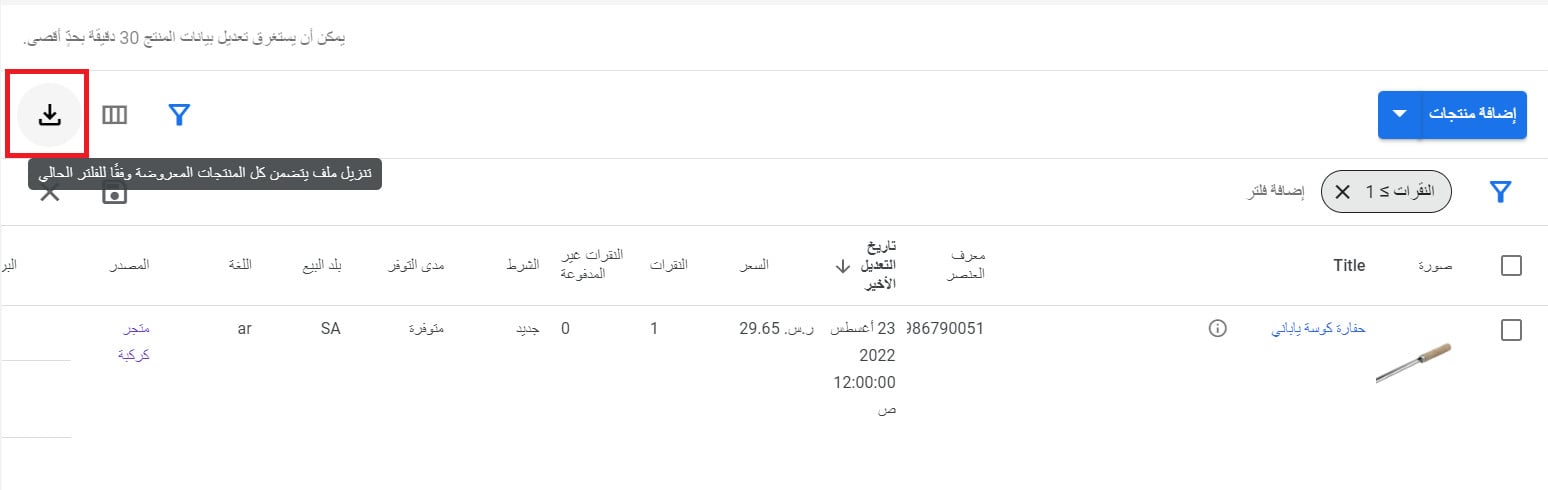
2. With the filters applied, download the file containing the products the filter returned.
3. Edit the products in that file as needed, then add them to a new feed through (Add products) and the product file option.
How do I use my feeds in a marketing campaign?
Before you start, you need a Google advertising account. For more details, see connecting Google Ads.
To build a campaign from your Merchant Center products, open the Google Ads home page, then click (+ New campaign).
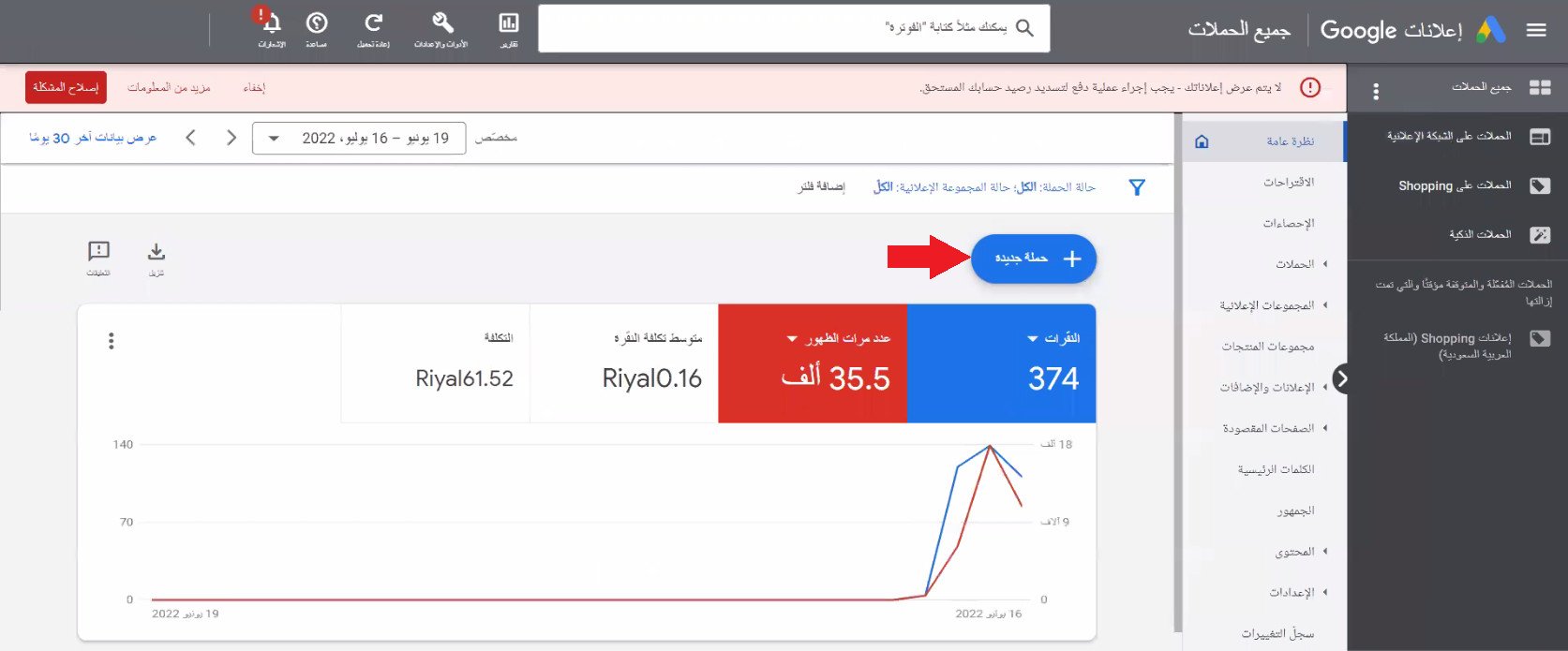
1. Choose the goal you want from this campaign. Ask yourself what the campaign is actually for. In this example, we'll use increasing sales.
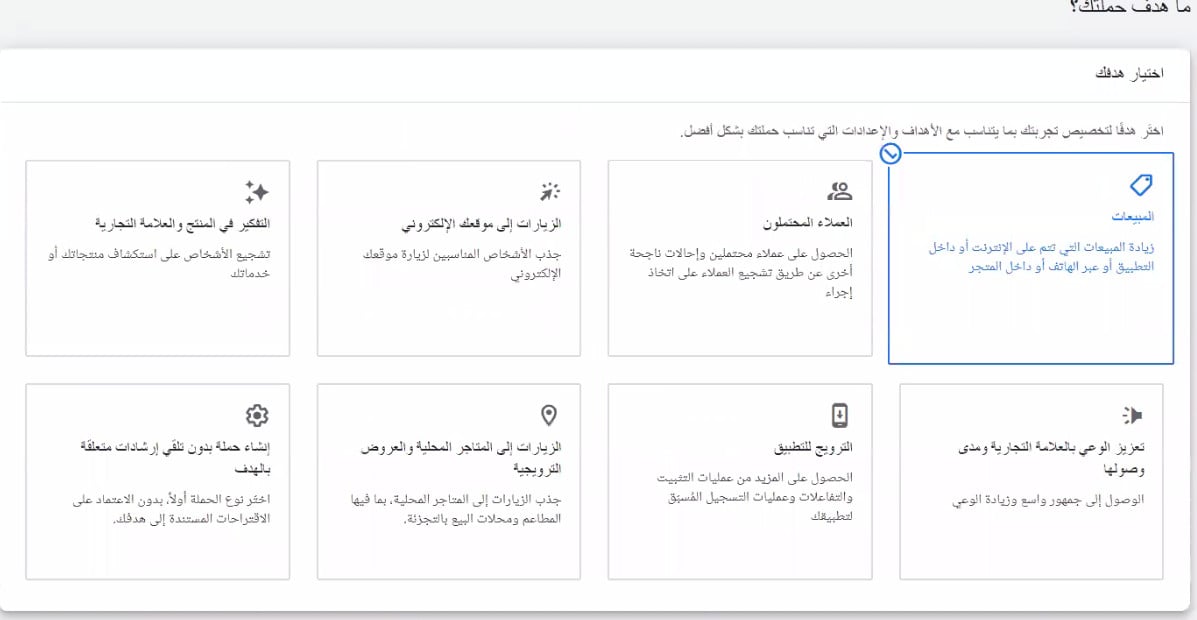
Choose the actions you want to track, then click (Continue).
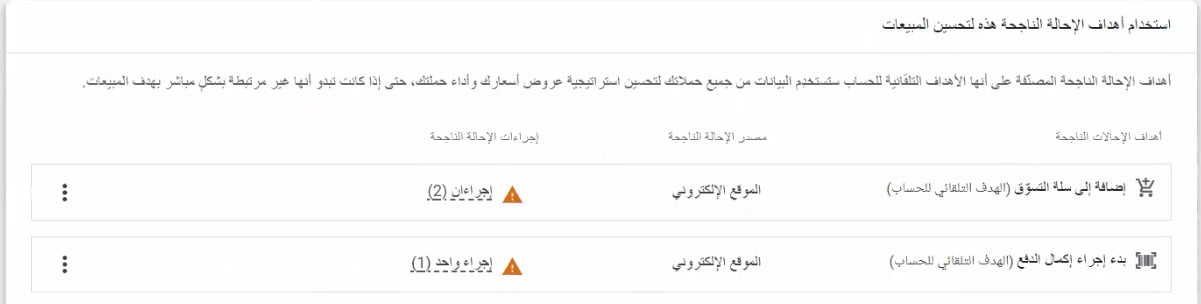
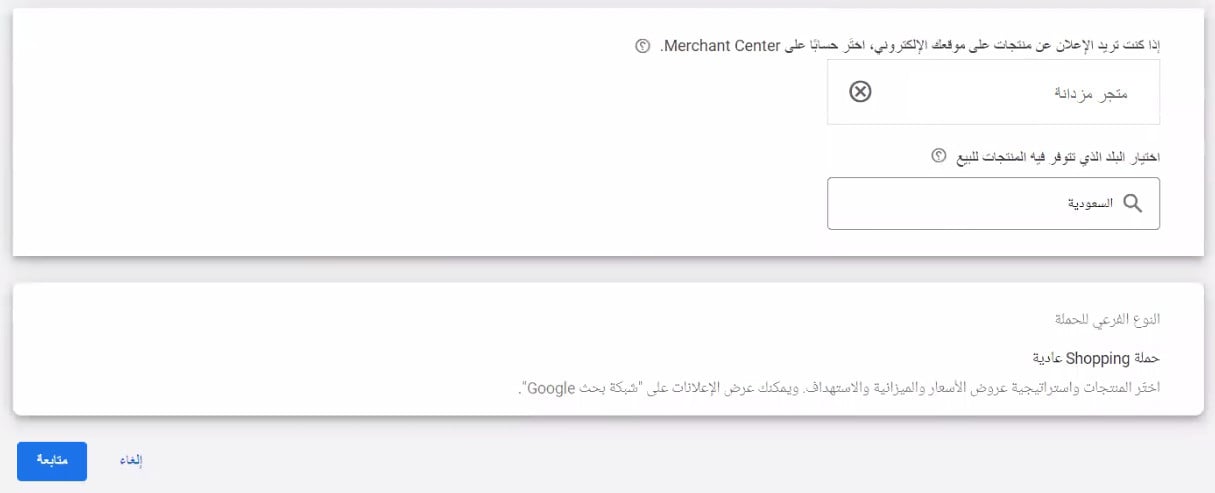
2. Choose the campaign type. (Shopping), for example, shows your products to shoppers while they are searching for something to buy.
Then pick the Merchant Center account connected to your store, which supplies the products to advertise, and choose a country where your products sell. Click (Continue).
📝 Important notes
You can select only one country of sale per campaign, and you cannot change it once the campaign is set up.
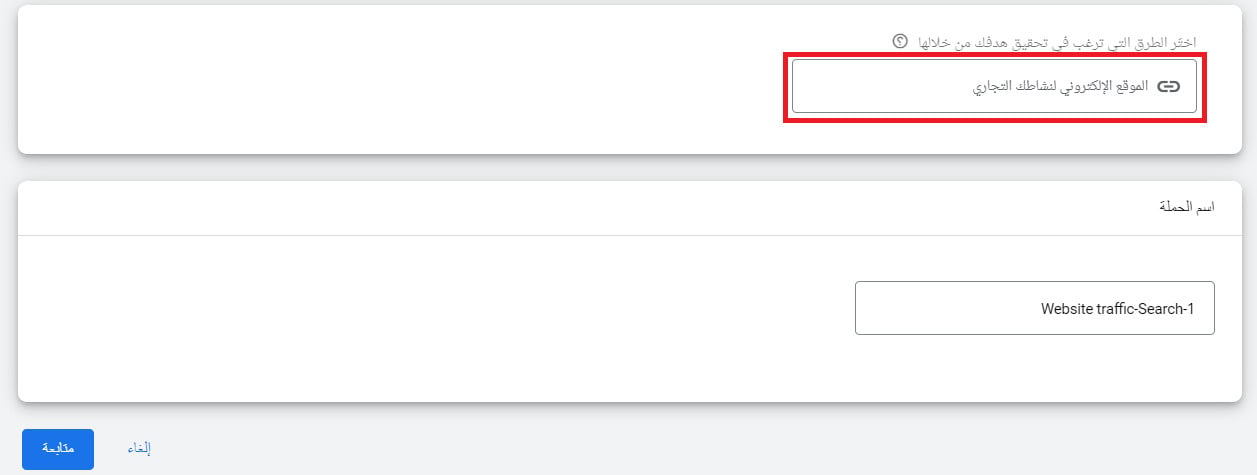
3. Set out how you'll reach that goal: enter your store link, name the campaign, then click (Continue).
Next, set up your product groups and assets. Choose the individual products or product groups you want to advertise. If you skip this step, every product in your Google Merchant Center feed is eligible to appear in your ads.
Then upload your assets, such as your logo, product images and text. Google builds different asset combinations from them, and, much like display ads, the best-performing combinations get shown more often.
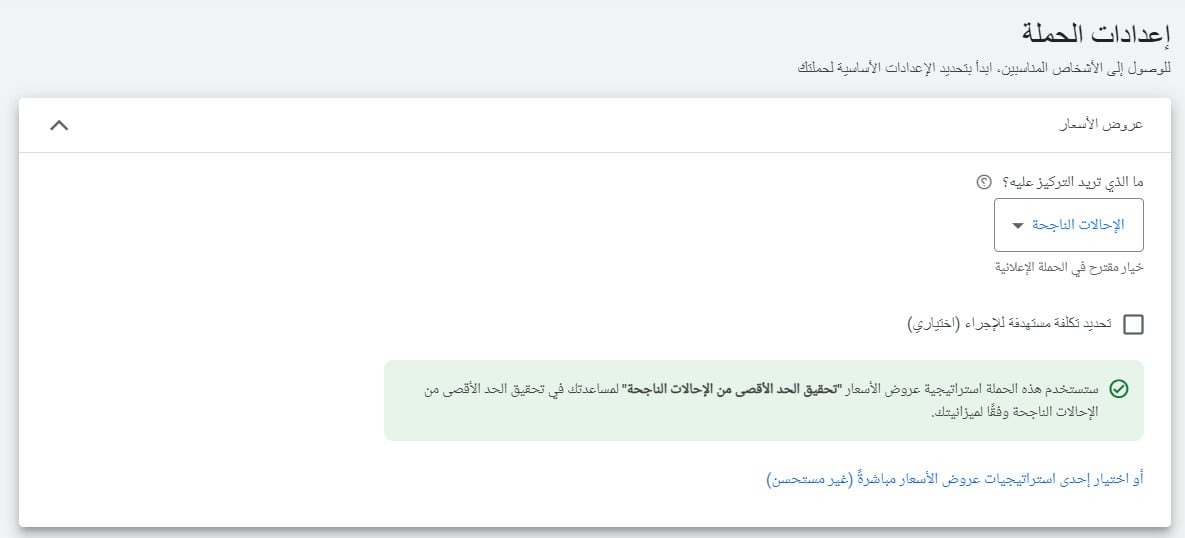
4. Customize the campaign settings: what you want to focus on, location, languages, audience segments and the rest. Then click (Next).
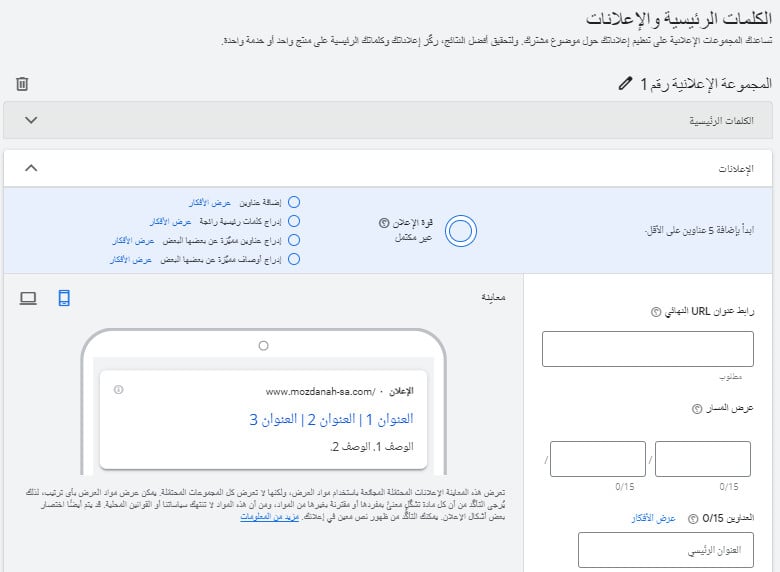
5. Customize your ads and keywords.
6. Set your budget, meaning the average you can spend per day.
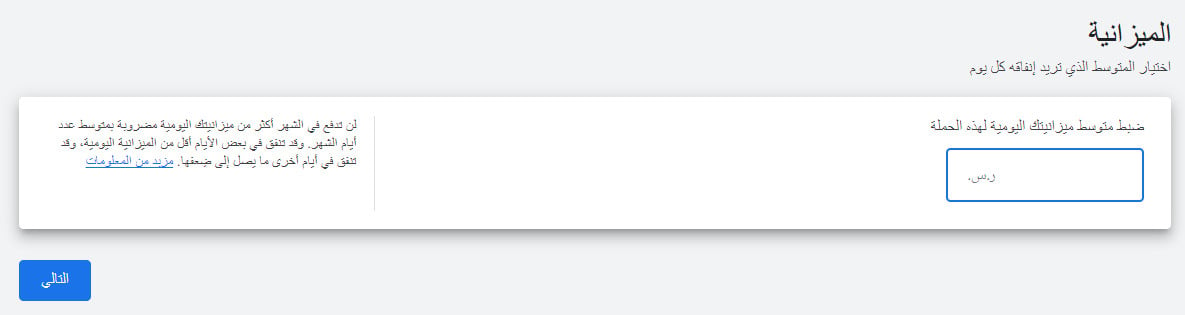
How your budget works:
- You pay for clicks. You only pay for clicks on your ads, or for calls to your business.
- Your daily average. Some days you'll spend less than the daily average, and on others up to four times that amount. Across the month, you won't pay more than the monthly maximum.
- If you change your mind. Try running the ad without committing to it. You can change your budget or cancel the ad at any time.
7. Review your campaign settings, confirm your payment information, then click (Submit).
For more details, see your guide to understanding customer behavior with Google Analytics.
A feed that fetches on a schedule is the difference between a catalog Google can sell from and one that quietly goes stale. Set it up once, clear the errors, and let it run.