How many carts does your store lose because the shopper got distracted before paying?
Most shoppers who fill a cart never reach the payment page, and chasing every one of them by hand is not realistic. Glam is a Salla app built for abandoned cart recovery: it follows the cart through every stage of the buying journey and sends email and SMS reminders that bring the shopper back to finish the order. You install it from the Salla App Store, choose a plan, and run everything else from the Glam platform. In this guide, you'll learn how to connect Glam to your store, where to sign in, and how to cancel it.
To connect Glam, open the Salla App Store from your dashboard, search for Glam, and click (Install) on its app page. Choose the plan that fits your store, enter your payment details, and confirm the payment. Once the installation finishes, you receive an email with your sign-in details for the Glam platform.
📌 Article overview
- What Glam does for your abandoned carts
- How to connect Glam to your Salla store
- How to manage the Glam app
- Frequently asked questions
🎯 What Glam does for your abandoned carts
Glam lets you manage and market your abandoned carts at every stage of the buying journey, and send email and SMS messages that remind customers to complete their order.
🚀 How to connect Glam to your Salla store
1. From the main menu, click (All), then under the helper tools section, click (App Store).

2. Search for the app using the search field.

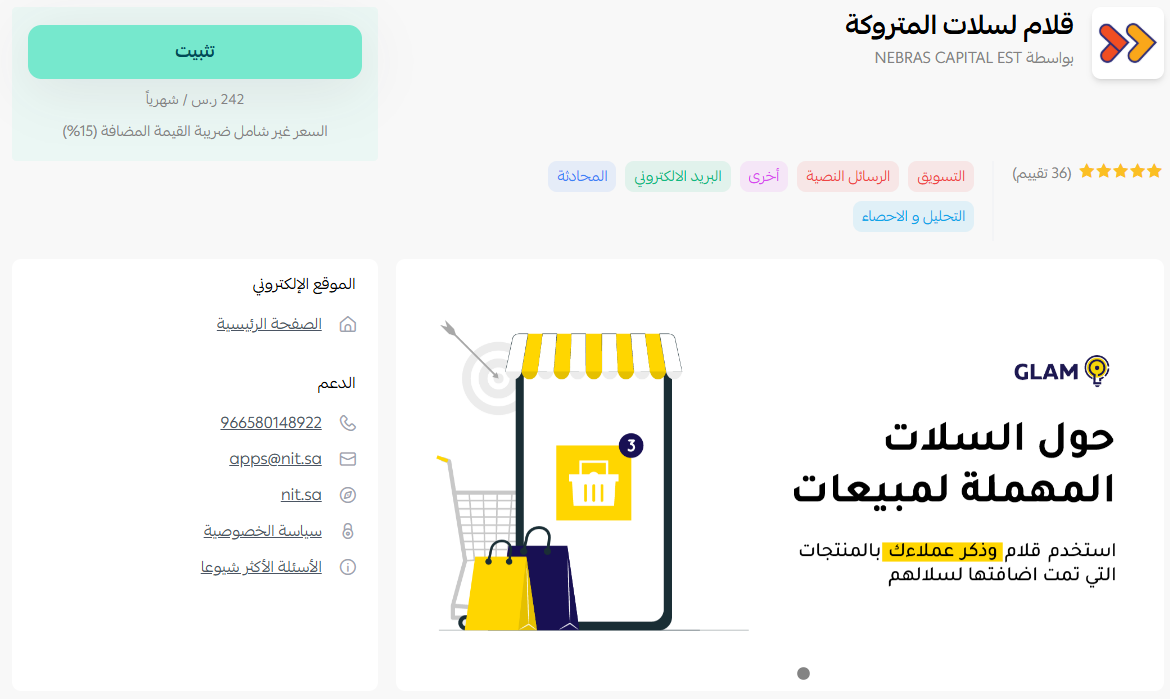
3. On the Glam app page, click (Install).
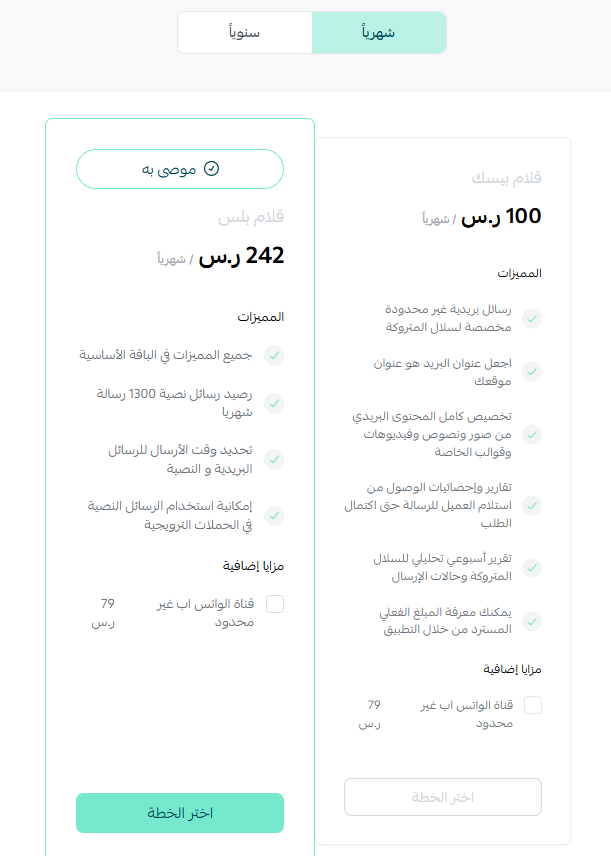
4. Choose the plan that fits your store's activity to continue installing the app.
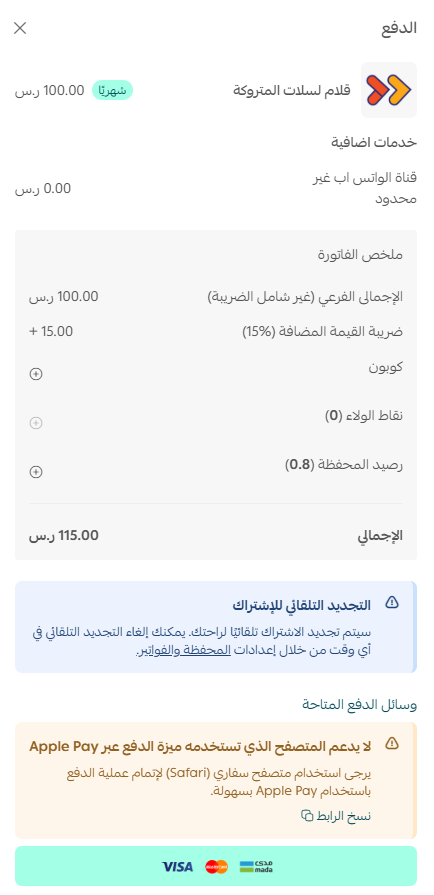
5. Enter your payment details, then click (Confirm payment).
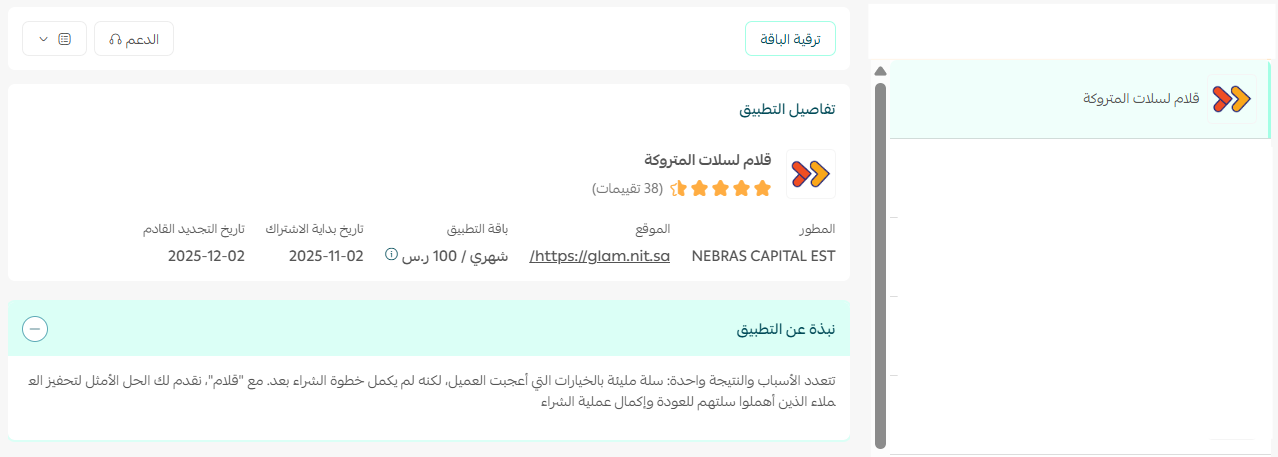
Glam is now installed on your store, and it appears in your installed apps like this:
Once the installation is complete, you receive an email with your sign-in details for the Glam platform.
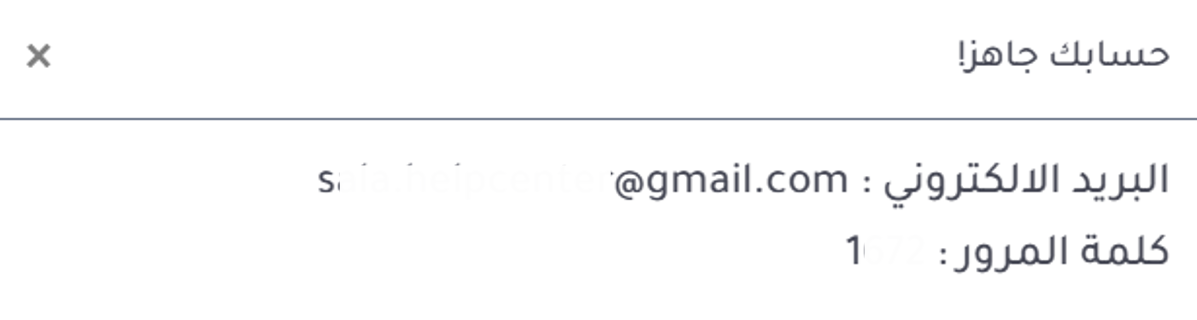
Sign in to the Glam platform with the details from that email, and you land on the dashboard home page.
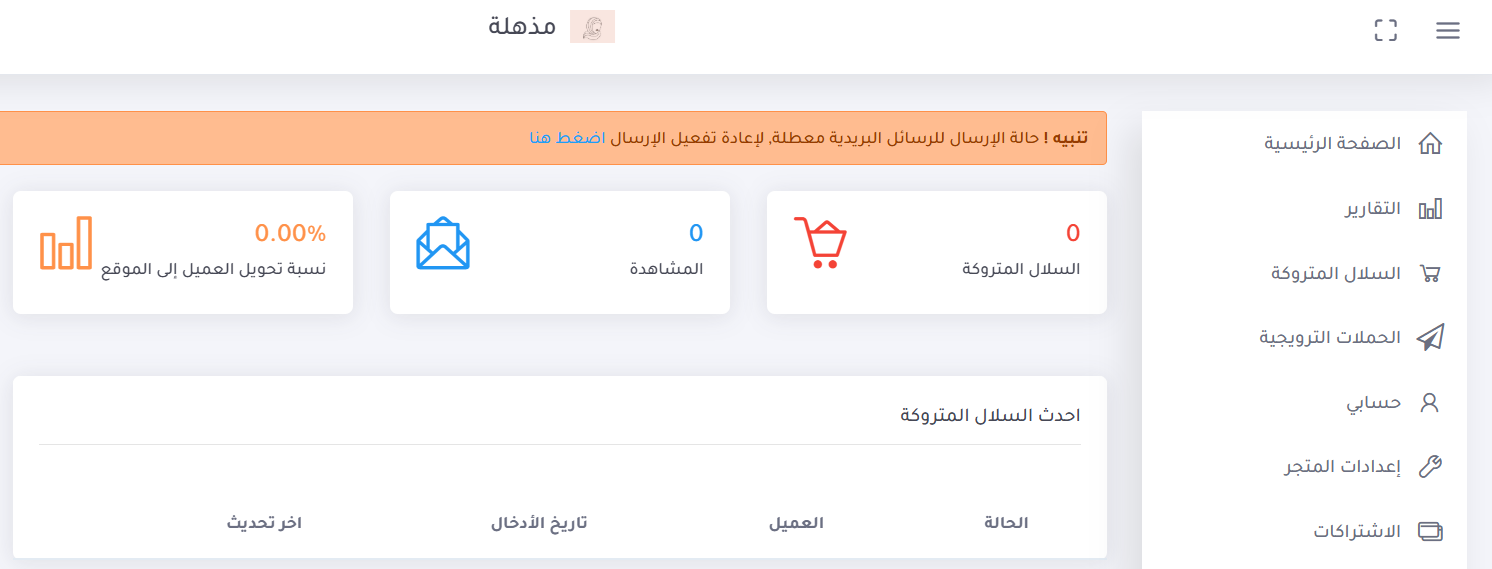
For more details, visit Glam.
👣 How to manage the Glam app
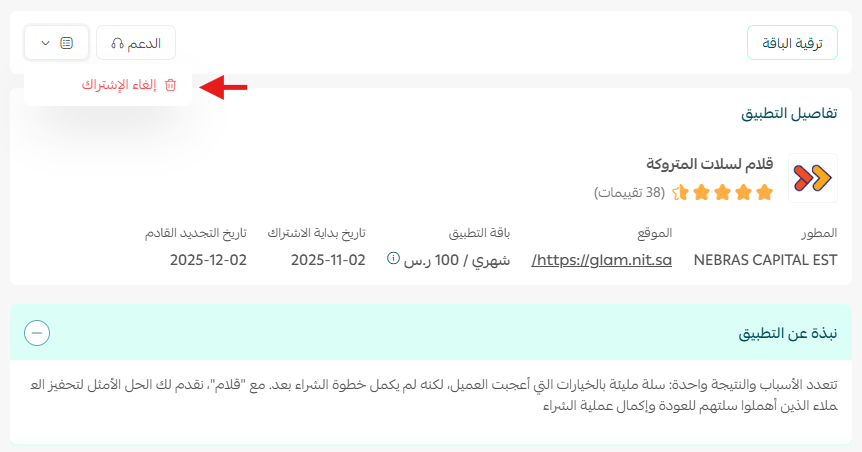
Cancel your Glam subscription
1. On the all apps page, find the Glam app, click ( ), then click (Cancel subscription), as shown below.
❓ Frequently asked questions
What can I do with the Glam platform?
- Reports. Weekly and monthly reports show you the stage where the customer dropped out of the order, plus a report on customer recovery at each step.
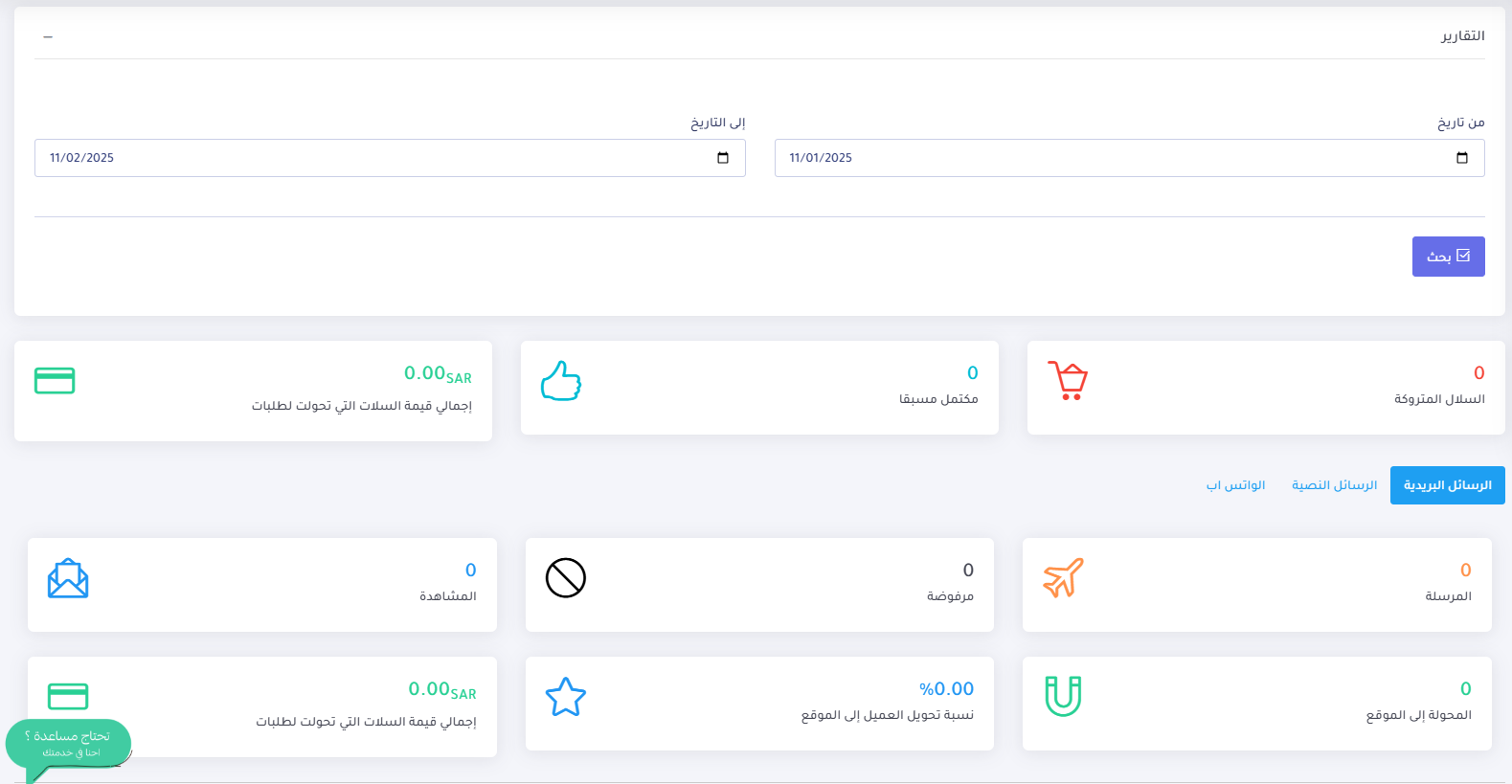
- Several contact channels. Encourage the customer to buy from their abandoned cart through SMS or email.
- Easier customization. Customize the email you send end to end: the sending address, the sender name, and the message content.
- Lower recovery cost. Glam runs automatically and moves the cart to (abandoned) status until the customer comes back, which cuts the effort and the cost of winning that customer back.
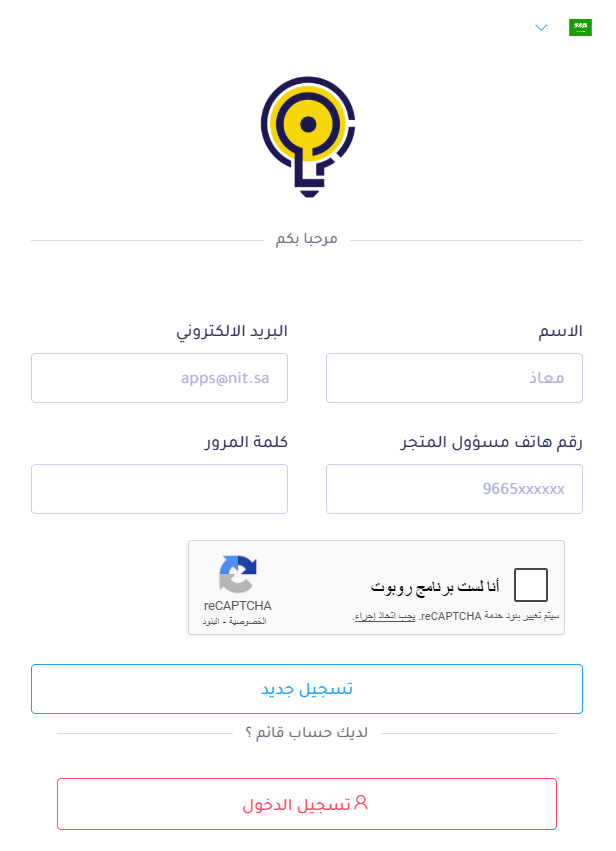
How do I register a new account on Glam?
Go to the new account registration page on Glam, enter the required details, then click (New registration).
Is Glam a paid app?
Yes. You choose a plan during installation and enter your payment details before the app is added to your store.
Where do I get my Glam sign-in details?
They arrive by email once the app finishes installing on your store. Use them to sign in to the Glam platform.
📝 Important notes
Canceling your Glam subscription is done from the app card on the all apps page in your Salla dashboard, not from the Glam platform.
Abandoned carts are already-interested shoppers, so a well-timed reminder is usually the cheapest sale your store can make.