Need to connect your store's tax invoices to Saudi Arabia's e-invoicing platform?
ZATCA e-invoicing integration lets a Salla store submit tax invoices electronically to the Zakat, Tax and Customs Authority (ZATCA) through an automated connection. This guide covers the source's eligibility checklist, two installation routes, verification-code process, activation, postponement, account-registration overview, plan availability, and app removal.
To activate the ZATCA e-invoicing integration, install Salla's Zakat and Tax app, review its permissions, and confirm your store and default-branch data. Generate a one-time activation code from ZATCA's FATOORA portal, return to Salla, enter the code within its stated validity period, and complete activation.
📌 Article overview
- Requirements for the ZATCA e-invoicing integration
- How to install the Zakat and Tax app
- How to generate and enter the activation code
- How to pause and resume activation
- Frequently asked questions
💡 What is the ZATCA e-invoicing integration?
Salla's Zakat and Tax app connects your store's tax invoices to ZATCA so they can be submitted electronically through an automated process. The Arabic source alternates between the authority's former and current names; this English version uses its current official English name, Zakat, Tax and Customs Authority (ZATCA).
✅ Requirements for the ZATCA e-invoicing integration
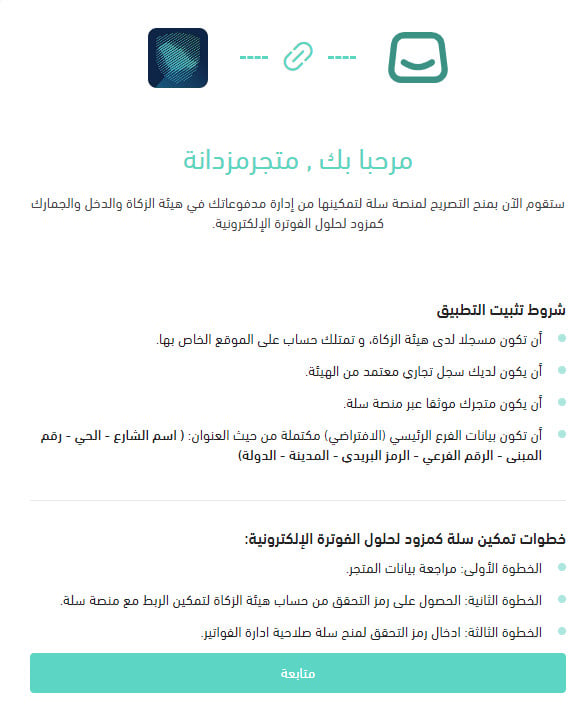
- Be registered with ZATCA and have an account on its website.
- Have a valid commercial registration. [Verify: the source says it must be “approved by the Authority,” but does not explain this requirement.]
- Have a store verified through Salla.
- Complete the default main branch address, including street name, district, building number, additional number, postal code, city, and country.
For more details, see:
- preparing your store to comply with the E-Commerce Law
- store branch and warehouse settings
🚀 How to install the ZATCA e-invoicing integration
The connection has two stages: installing the app and activating it.
Route 1: Install from the Salla App Store
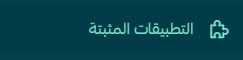
1. From the dashboard side menu, click (Installed apps).
2. From the Salla App Store banner, click (Browse the Salla App Store).

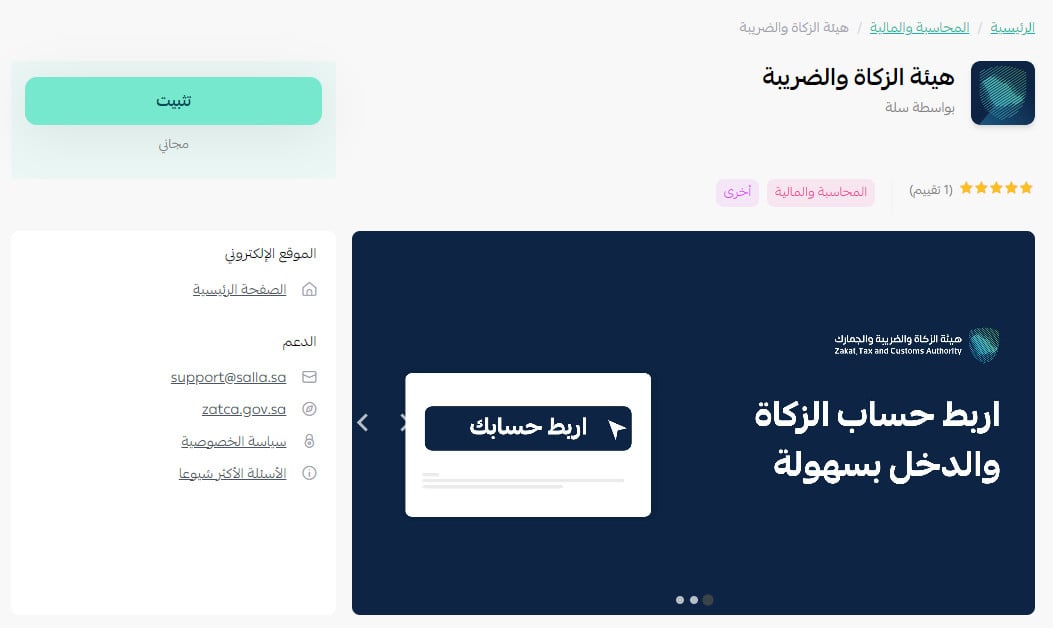
3. On the Zakat and Tax app page, click (Install).
Route 2: Install from VAT settings
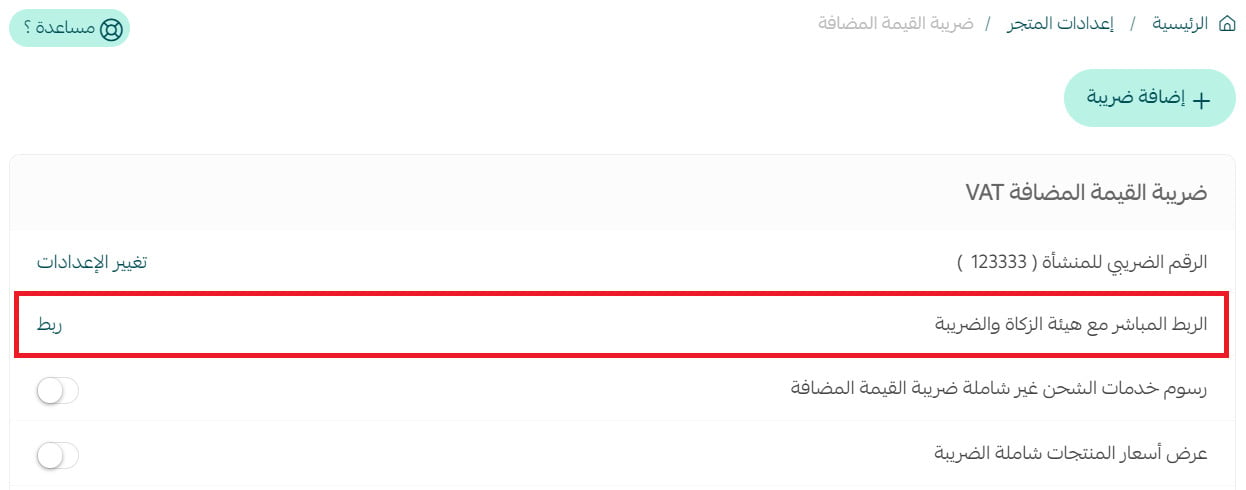
1. From the dashboard side menu, click (Store settings).

2. On the Store settings page, click (Value-added tax).

3. On the Value-added tax page, click (Direct integration with ZATCA).
🔐 How to activate the ZATCA e-invoicing integration
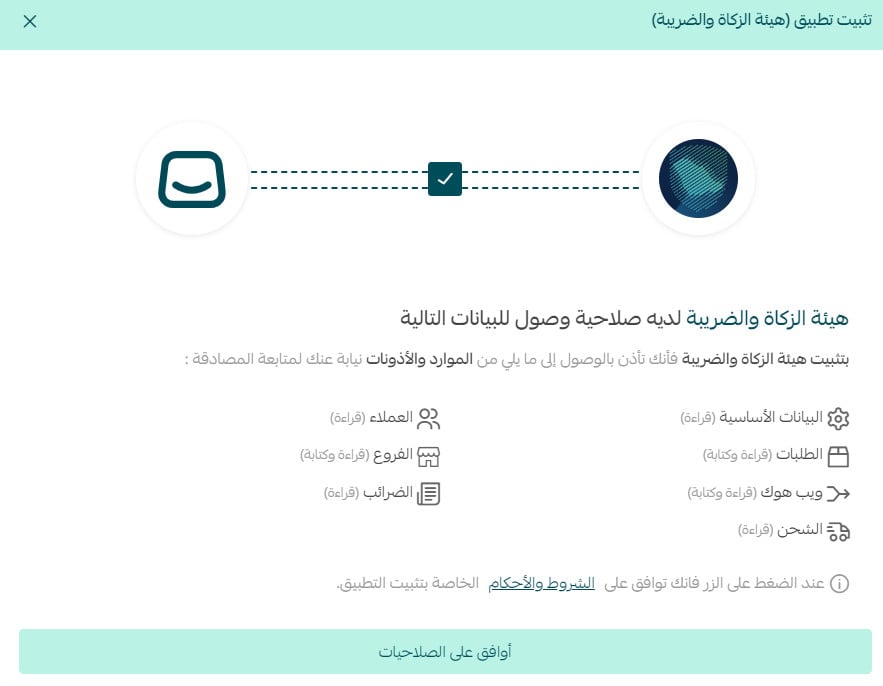
1. Review the requested permissions, then click (Grant permission).
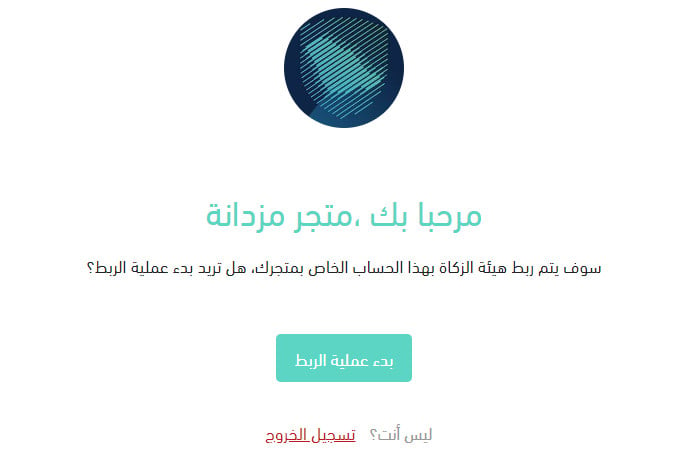
2. Click (Start connection process).
3. Read the activation requirements carefully, confirm that your store meets them, then click (Continue).
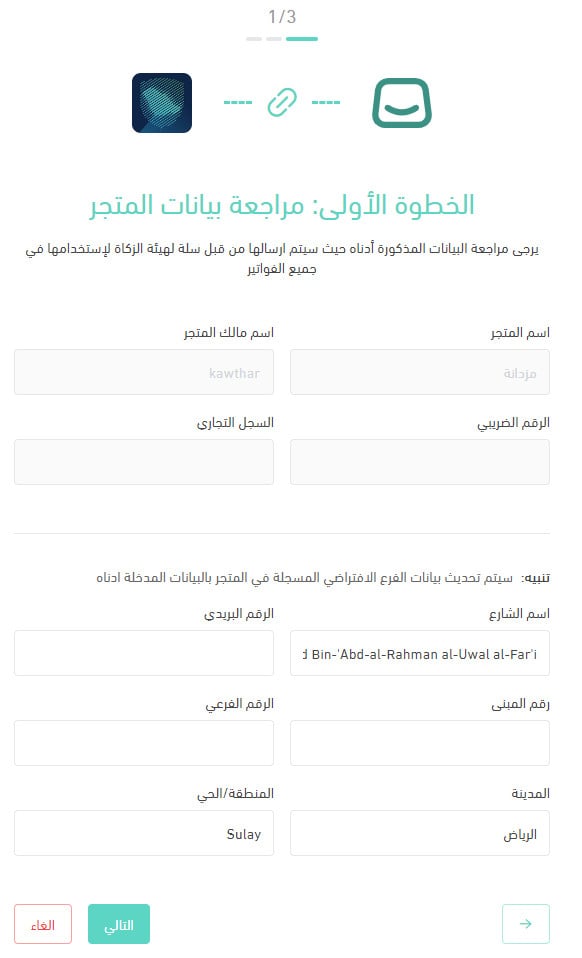
Step 1: Review your store data
Verify your store details and the default branch information registered in your store, then click (Next).
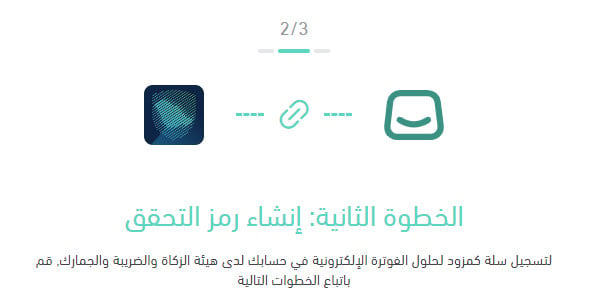
Step 2: Generate an activation code from ZATCA
Generate a verification code from your ZATCA account to authorize the Salla integration.
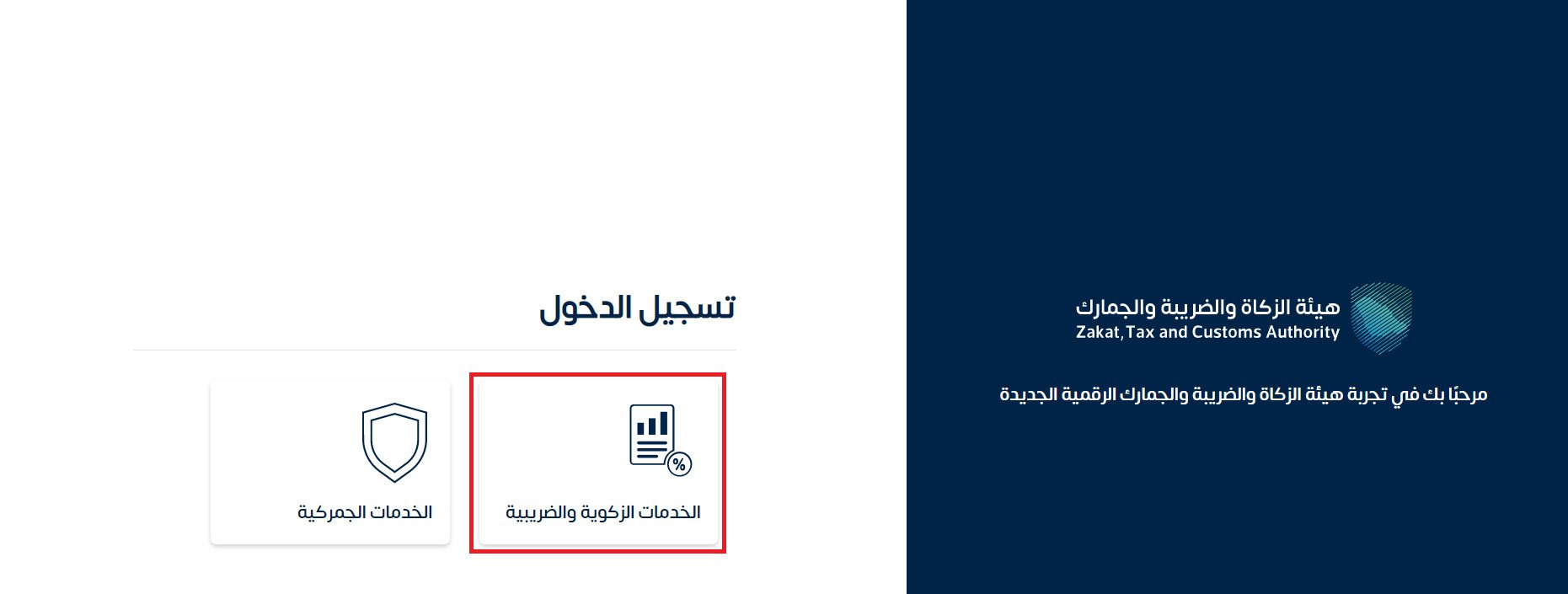
1. Sign in to your ZATCA account, then click (Zakat and tax services).
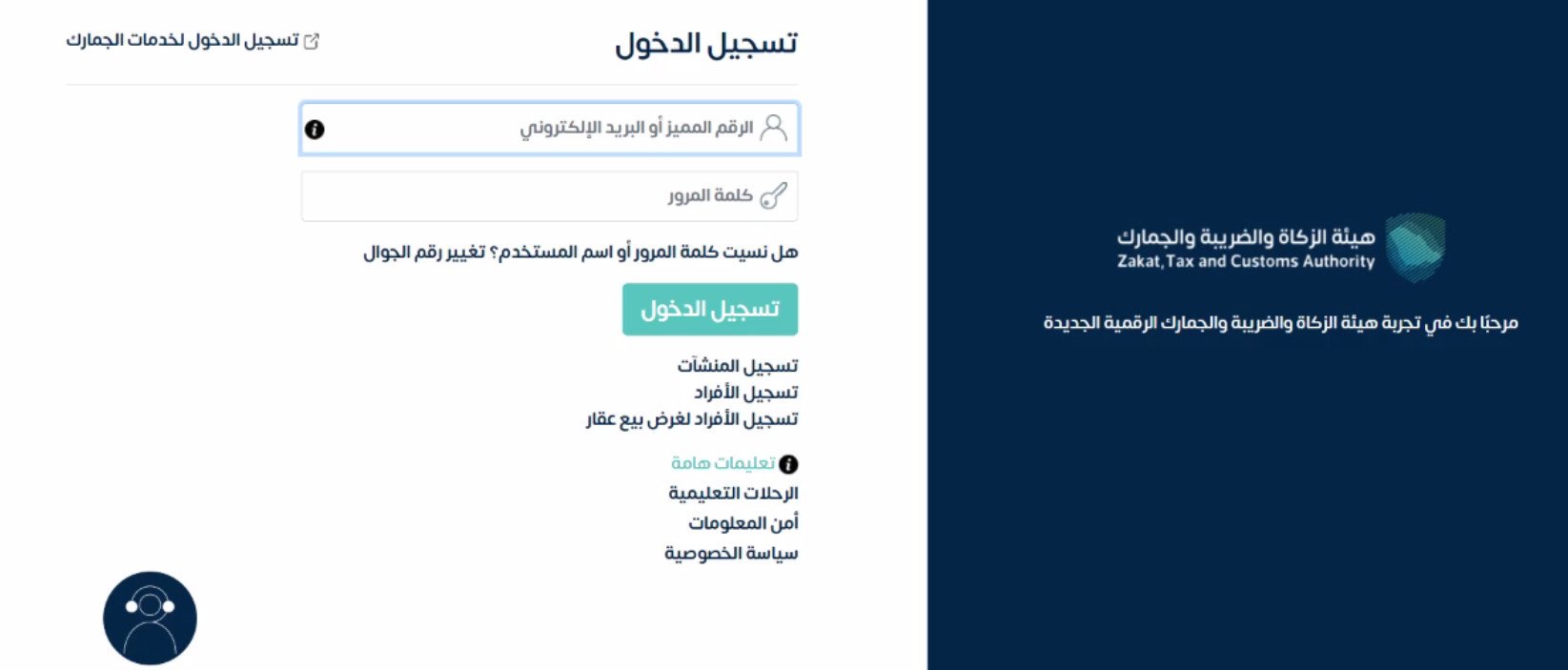
2. Enter your ZATCA account's unique number and password, then click (Sign in).
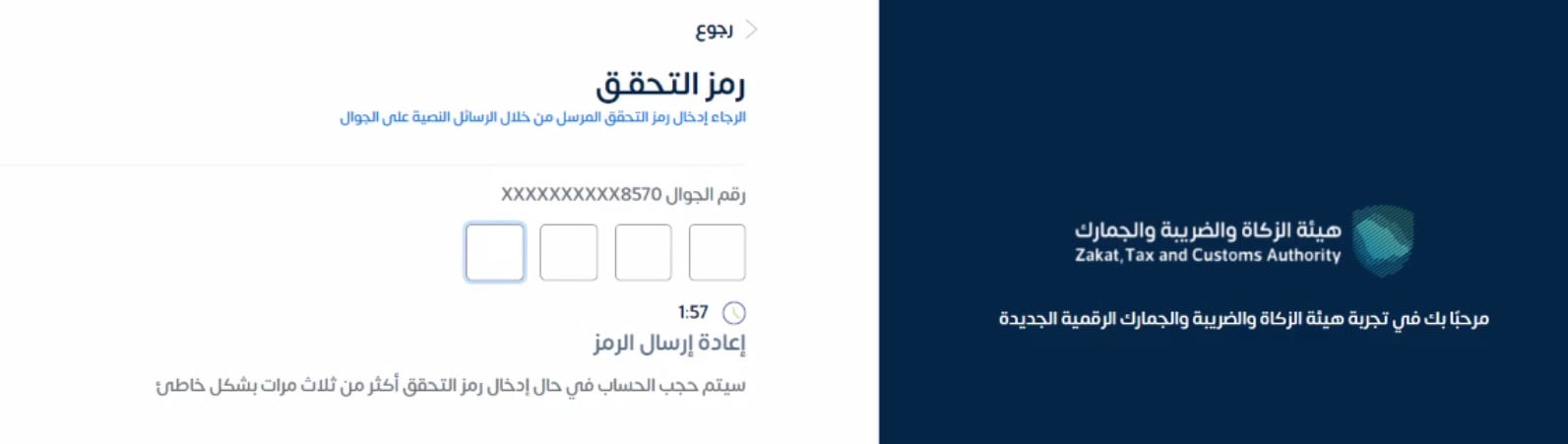
3. Enter the verification code sent to the mobile number registered with your ZATCA account.
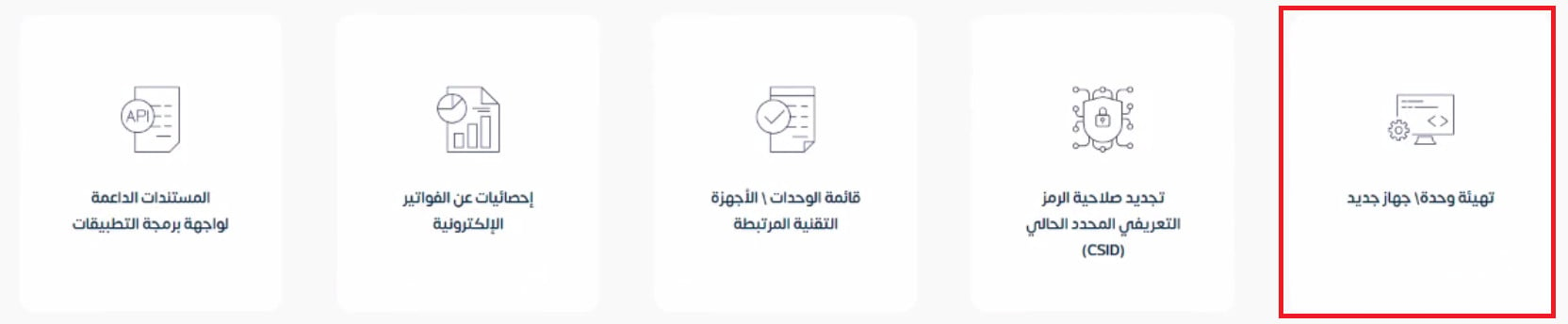
4. Click (Onboard new solution unit/device).
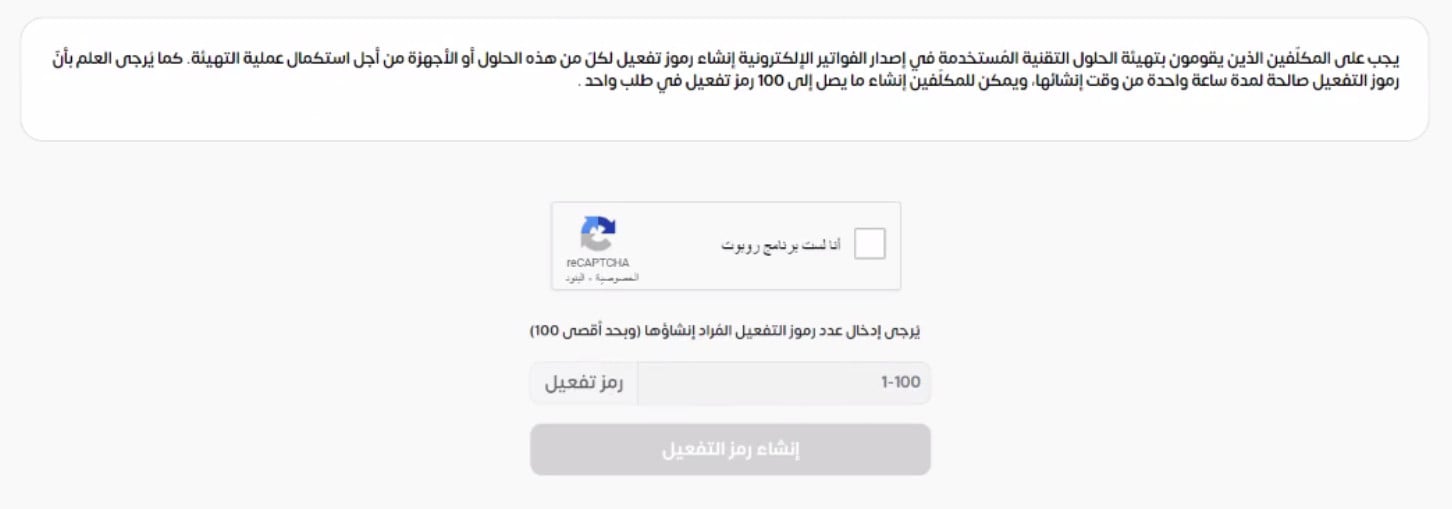
5. Complete the anti-bot check, request one activation code, then click (Generate activation code).
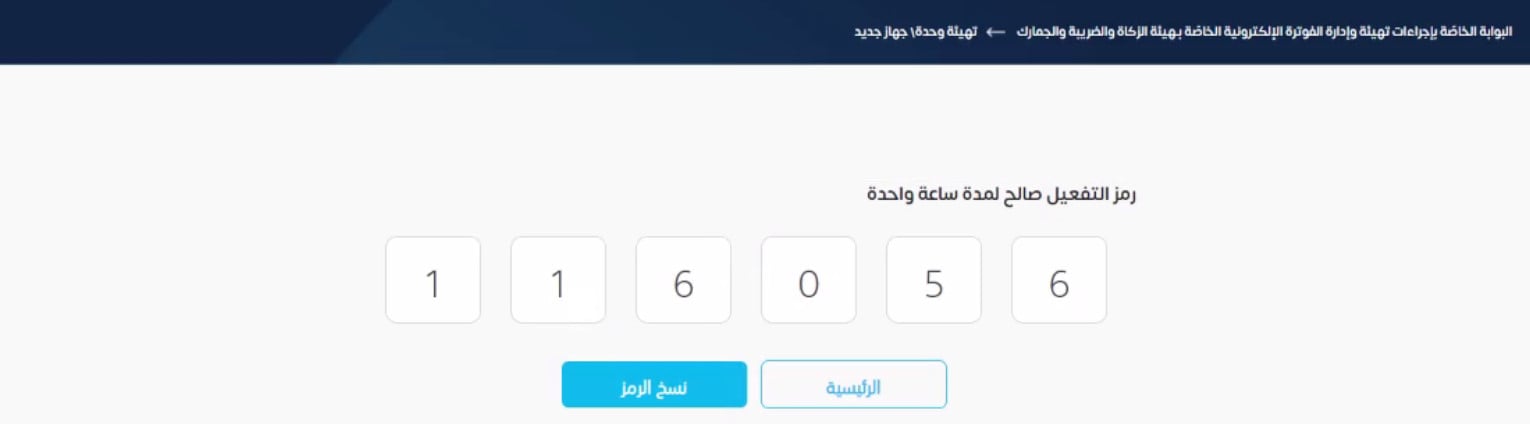
6. Copy the generated activation code. The source says it is valid for one hour only.
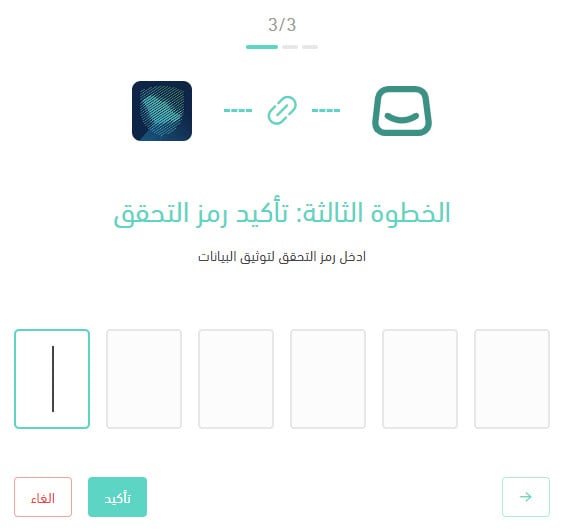
Step 3: Enter the activation code in Salla
Return to the Zakat and Tax app activation page, then enter the code generated in the previous step to authorize Salla to manage invoices.
The connection and activation process is now complete.
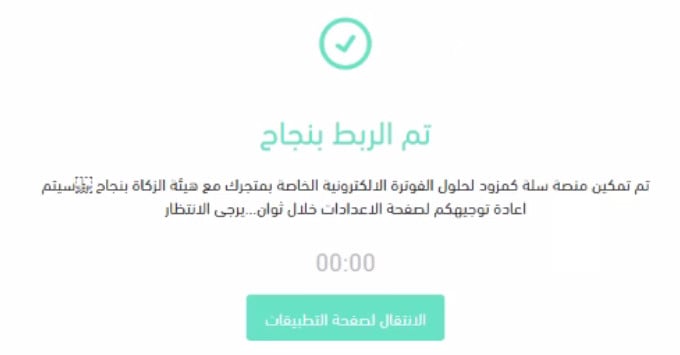
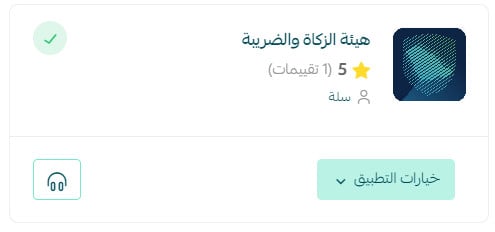
The Zakat and Tax app is installed and active on your store.
❓ Frequently asked questions about the ZATCA e-invoicing integration
Can I finish the connection later after installing the app?
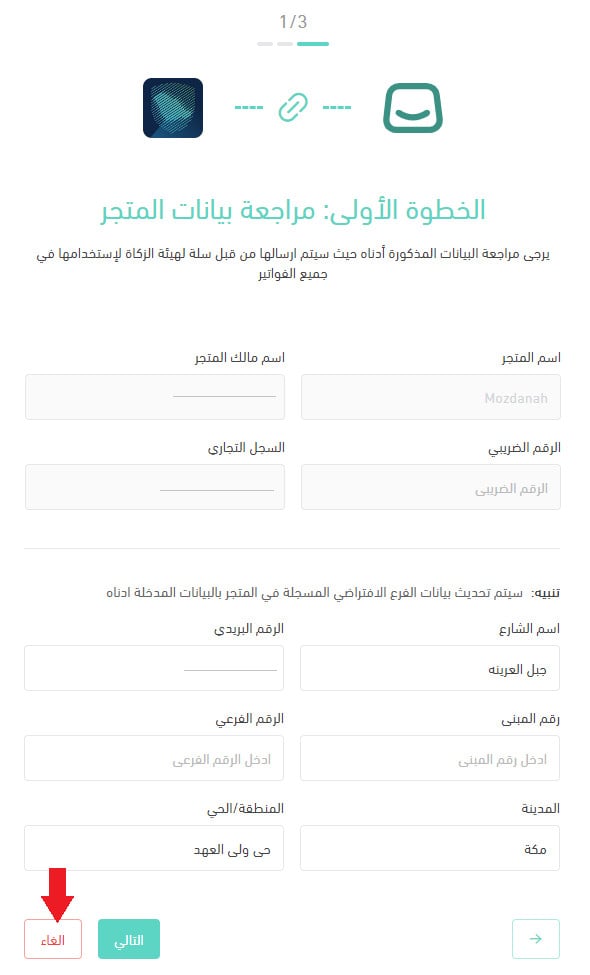
Yes. If your store data is incomplete or you need to stop for another reason, click (Cancel), then confirm by clicking (Cancel connection process).
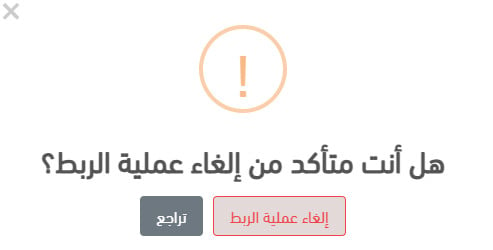
To confirm cancellation, click (Cancel connection process).
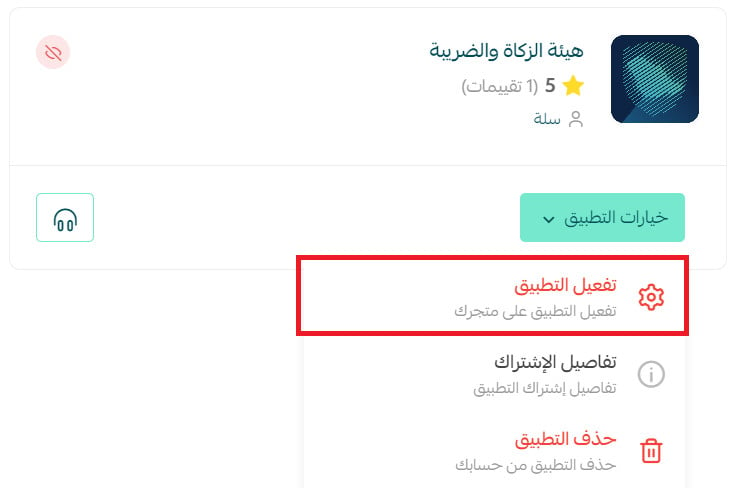
To resume later, open (Installed apps), find the Zakat and Tax app, open (App options), then click (Activate app).
How do I create a ZATCA account?
The source lists these prerequisites:
- Register the business with the Ministry of Commerce.
- Have the company's articles of association, for companies only.
The source then gives this registration overview:
- Complete registration with the Ministry of Commerce.
- Receive an SMS or email containing the authority portal login details.
- Sign in to the ZATCA e-invoicing portal.
- Go to (Zakat and income tax).
- Complete the Zakat/Income Tax Registration Form shown after sign-in.
- Wait for notification that the application is complete.
For more details, see the government service page for creating an authority account. [Verify: the source uses the former authority name and may describe a legacy registration flow.]
Is the Zakat and Tax app free?
The source says yes. Confirm current pricing in the Salla App Store before publication.
Is the app available on every Salla plan?
No. The source says it is available only on the Pro and Special plans. Confirm current plan eligibility before publication.
How can I remove the Zakat and Tax app from my store?
1. From the dashboard side menu, click (Installed apps).
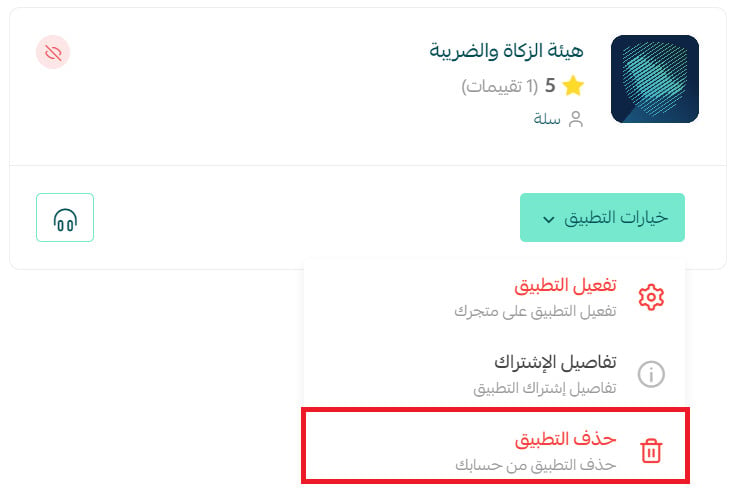
2. On the all apps page, find the Zakat and Tax app, open (App options), then click (Delete app).
📝 Important notes
This article is operational guidance, not tax or legal advice. Confirm current eligibility, onboarding steps, pricing, plan access, and regulatory requirements with Salla and ZATCA before publication or implementation.
Generate the activation code only when you are ready to finish the connection, verify the default branch address first, and never share account passwords or verification codes.