Do your customers have to guess which channel your store actually replies on?
Unifonic Connect lets your Salla store manage customer communication across several channels, WhatsApp and email among them, from one place. It comes with smart tools that automate replies, follow up on orders, and run campaigns, and it hands a conversation over to a human agent whenever the situation calls for one. In this guide, you'll learn how to install Unifonic Connect, verify your account, upgrade your plan, and remove the app if you need to.
Unifonic Connect is a Salla App Store app for managing customer communication across multiple channels, including WhatsApp and email. It automates replies, follows up on orders, runs campaigns, and routes conversations to human agents when needed. Extra fees may apply depending on how much you use it.
📌 Article overview
- How to install and connect Unifonic Connect
- How to manage Unifonic Connect: upgrade, customize, and remove
- Frequently asked questions
👣 How to install and connect Unifonic Connect
1. From the main menu, click (All), then under helper tools, click (App Store).

2. Search for the app using the search field.

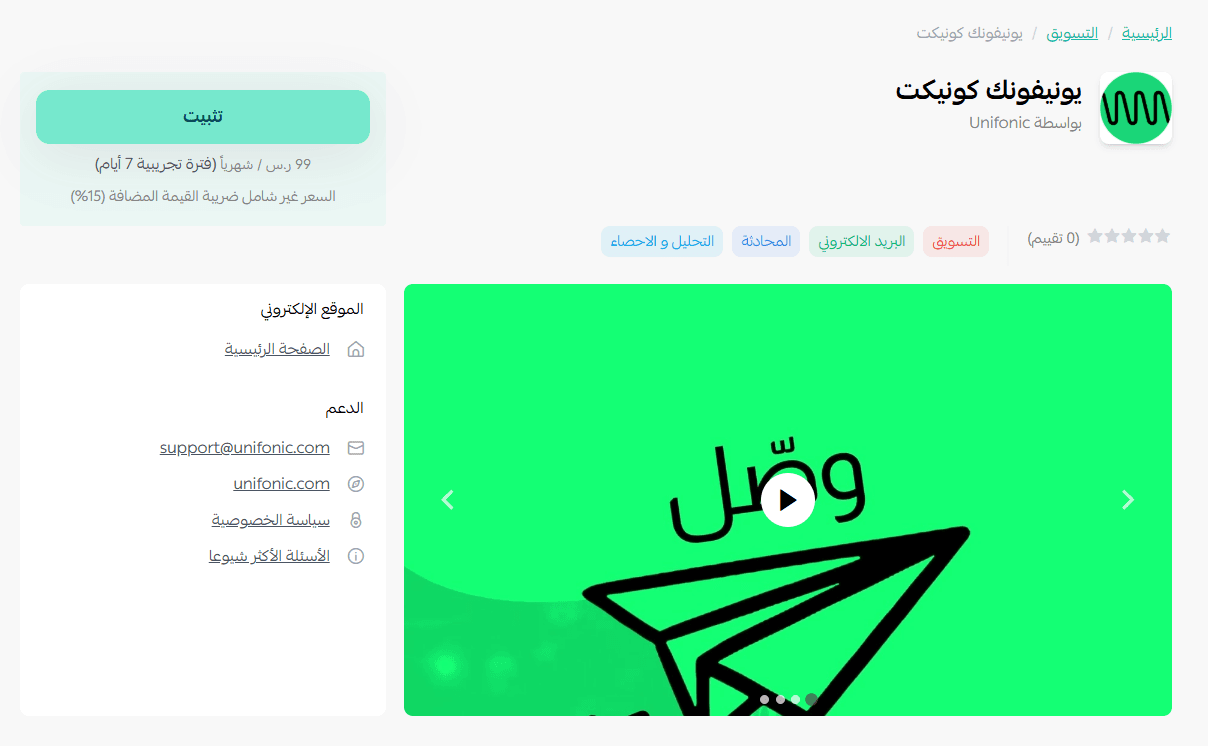
3. On the Unifonic Connect app page, click (Install).
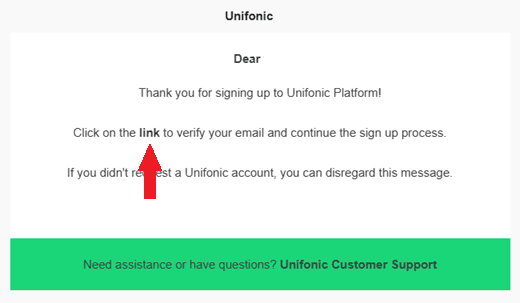
4. Open the email you receive and click the verification link to confirm your email address.
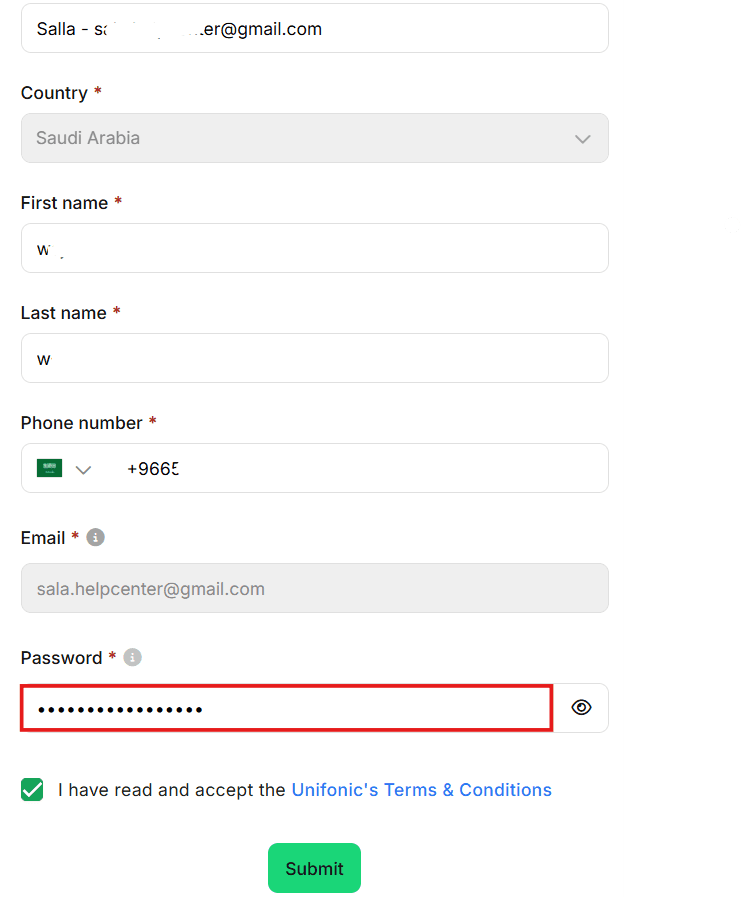
5. Set your password, then click (Submit).
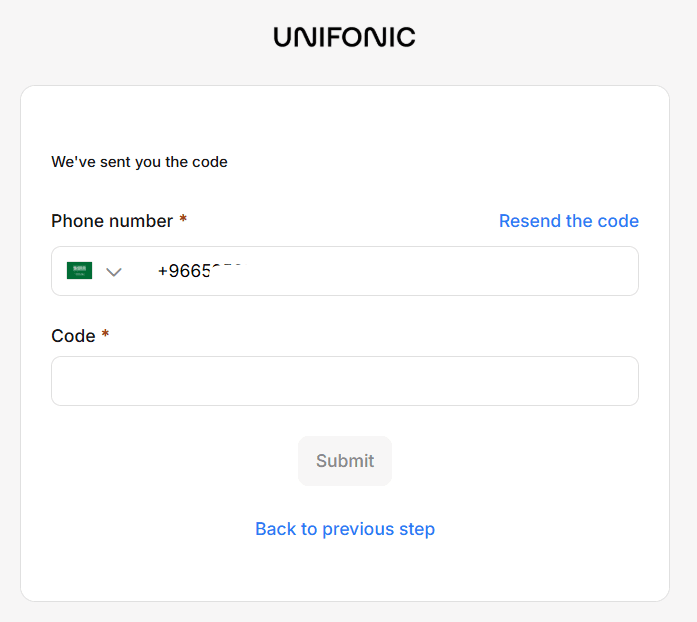
6. Enter the verification code.
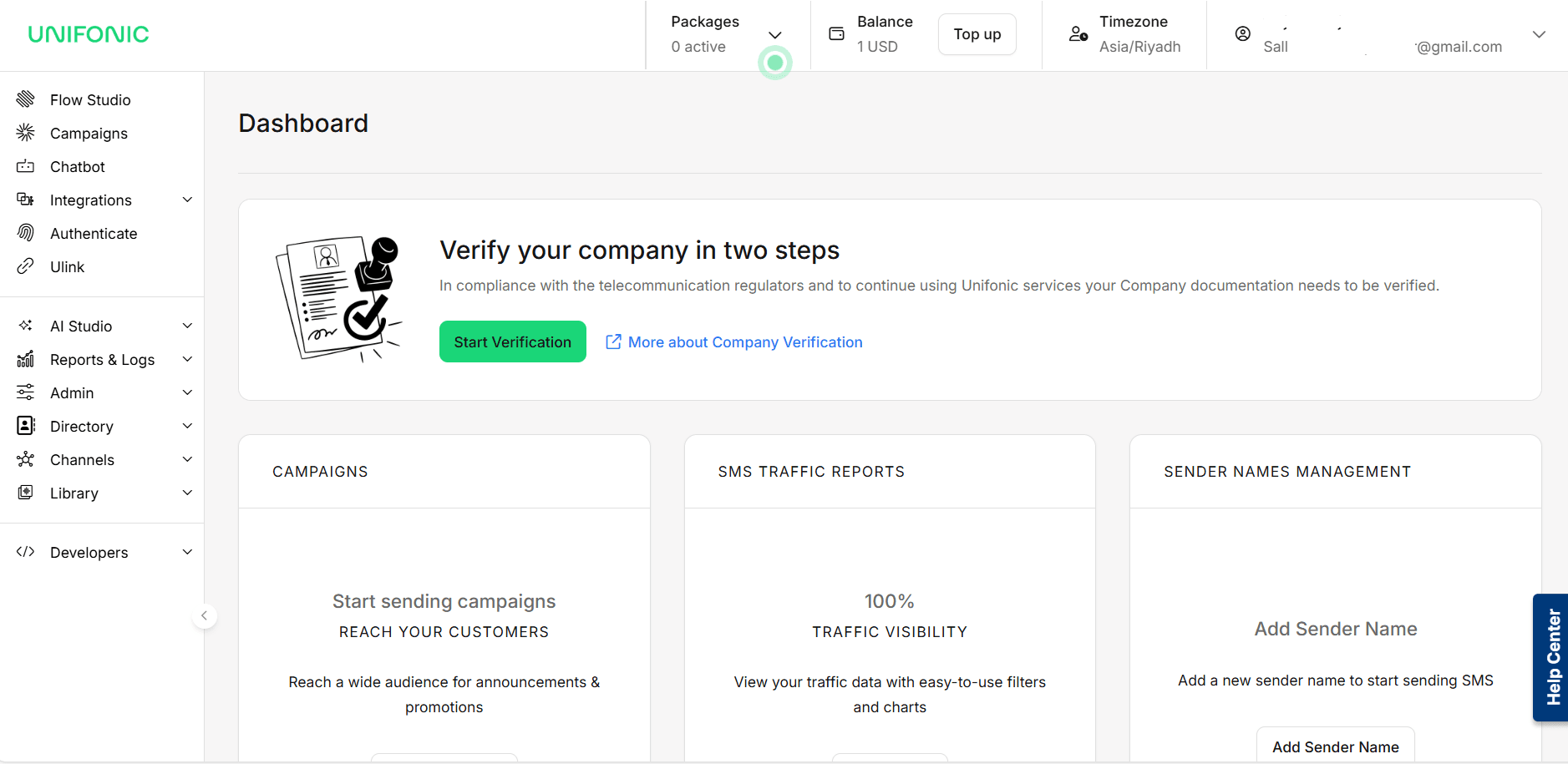
Once sign-in is complete, the home page of your Unifonic Connect account opens.
🚀 How to manage the Unifonic Connect app
Upgrade your plan
1. On the app details page in your store, click (Upgrade plan).

2. Choose the plan you want, then click (Go to payment).

3. Complete your payment details, then click (Confirm) to finish the upgrade.

Customize the app
🎯 You manage the app from the dashboard on the Unifonic Connect site.
Remove the app
1. From the app options list, click (Cancel subscription), then choose your reason for cancelling.

2. From the app options list, click (Delete app), then choose your reason for deleting.

3. On the Deleted apps page, open the app options list and click (Delete app permanently) to remove it from your store for good.

📝 Important notes
- Additional fees may apply depending on how much you use the app and what you need from it.
- Day-to-day management happens in the Unifonic Connect dashboard, not in your Salla dashboard.
- For more, see the Unifonic Connect app page.
❓ Frequently asked questions
Which channels does Unifonic Connect cover?
Several, including WhatsApp and email, all managed from one place instead of channel by channel.
Can a real person take over a conversation?
Yes. Conversations can be handed to human agents whenever a customer needs more than an automated reply.
Will I pay more than the plan price?
You might. The app notes that extra fees can apply depending on your usage and requirements, so check that against your plan.
What do I do if the verification email does not arrive?
Account setup depends on it: the email carries the verification link, and only after that do you set a password and enter the verification code. [Verify: the Arabic gives no troubleshooting path for a missing verification email. Confirm the recovery route with the app provider.]
Customers do not think in channels, they think in conversations. Unifonic Connect keeps yours in one thread no matter where it started.