Running your store and your app from one dashboard gives you more control and a smoother day-to-day operation.
With unified store and app management, most of what you already do for your store applies to your app automatically, while a smaller set of features can be aimed at the app alone. Knowing which is which is what lets you get the most out of both sales channels. In this guide, you'll learn what unified management means, what is managed the same way in both places, and what you can customize for the app only.
Unified management means your Salla store and your mobile app run from one dashboard. Products, orders, customers, reports, payments, and most settings work identically across both. A smaller set of features can be targeted at the app alone: special offers, the announcement bar, coupons, product and category visibility, chat, and ratings.
📌 Article overview
- What unified store and app management means
- What you manage the same way in the store and the app
- What you can customize for the app only
- Frequently asked questions
What unified store and app management means
Some features are set once and apply to both the store and the app, such as adding products and controlling their options and details. Others can be handled separately, such as showing a special offer in the app but not on the store website, or running an ad in both places at once.
✅ What you manage the same way in the store and the app
1. Adding products and controlling their options and details works the same way, apart from some of the design choices in App Maker.
2. Receiving and handling orders works the same way from the store and the app.
3. Managing customers is the same for the store and the app.
4. Reports are read the same way for the store and the app.
5. Customizing information pages and electronic payments is shared between the store and the app.
6. Store and app settings are managed together, apart from integrations with certain services and ads.
🚀 What you can customize for the app only
- Run special offers in the app only
- Control announcement bar ads for the app only
- Apply discount coupons in the app only
- See the sales made through the app
- Control product and category visibility in the app only
- Chat services supported in the app
- Questions and ratings in the app
1. Run special offers in the app only
To apply a special offer in the app only:
1. From the (Marketing) tab in the main menu, click (Special offers).
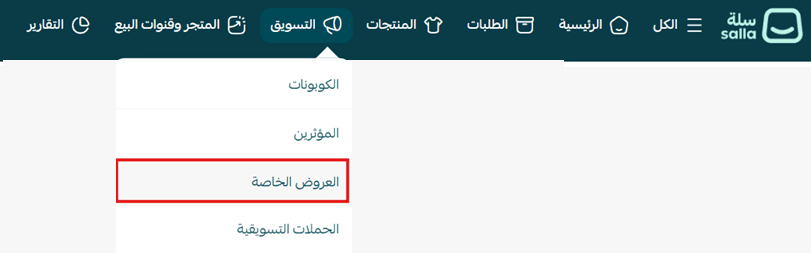
2. On the special offers page, click (+ Create new offer).

3. Enter the offer details and choose the platform the offer will run on, for example the app only. Then click (Save).
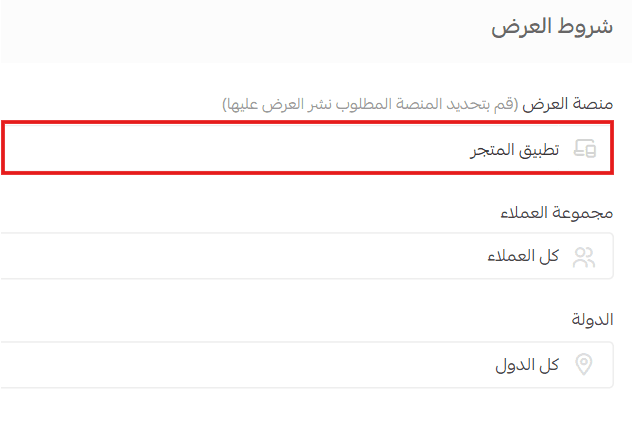
For more detail, see Managing offers and adding a new special offer.
2. Control announcement bar ads for the app only
Ads appear in a banner strip while customers browse your store. Use them to highlight an activity, draw attention to a specific offer, or share store news with your customers.
To set an ad to appear in the app only:
1. From the (Store and sales channels) tab in the main menu, click (Store design).
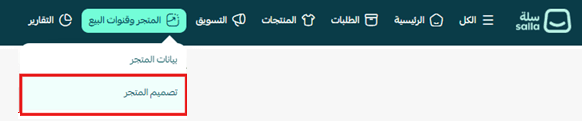
2. Click (Customize) to open the theme settings.
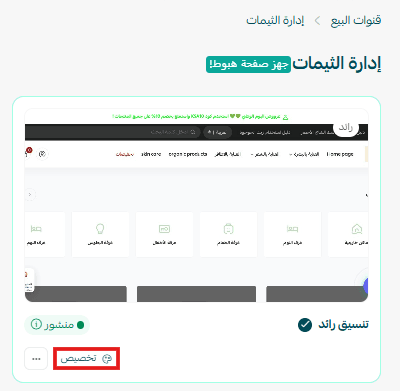
3. From the (Header and footer) tab, choose (Announcement bar).
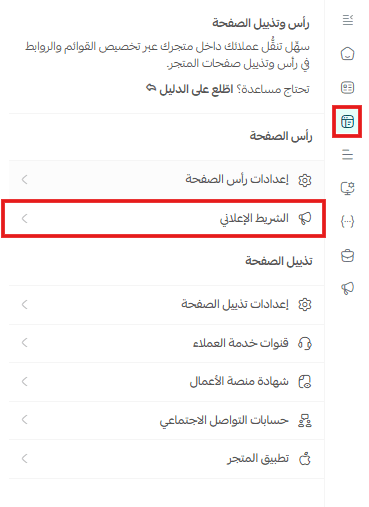
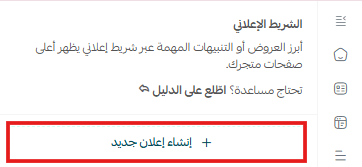
4. Click (+ Create new ad) to add an ad.
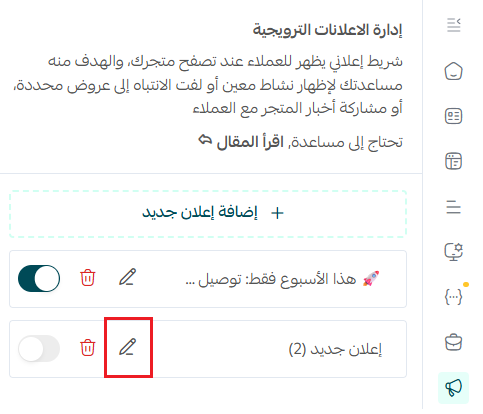
5. On the new ad bar, click (Ad settings).
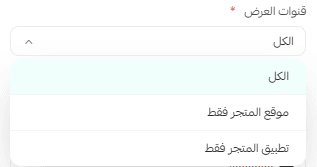
6. Enter the ad details and choose whether it appears in the app, on the website, or both. Then click (Save changes).
For more detail, see Customizing the promotional bar at the top of your store.
3. Apply discount coupons in the app only
To make a discount coupon work in the app only:
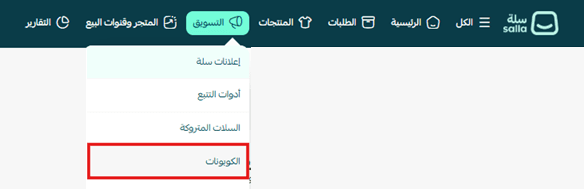
1. From the (Marketing) tab in the main menu, click (Coupons).
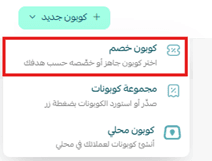
2. On the coupons page, click (+ New coupon), then choose (Discount coupon).
3. Enter the coupon details, and in the (Settings) section set the coupon to apply in the app. Then click (Save).

For more detail, see Adding a coupon or a new batch of coupons.
4. See the sales made through the app
Filter your orders by sales channel and choose (Mobile app) to see what the app is selling.
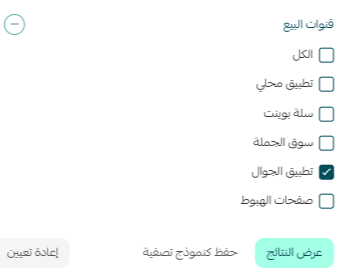
For more detail, see Managing the orders page.
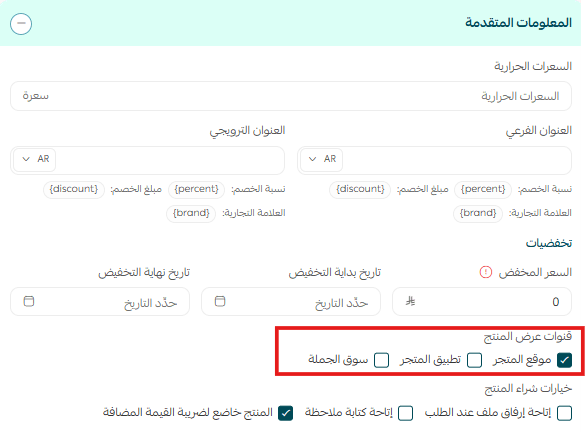
5. Control product and category visibility in the app only
You can control which categories and products appear in the app:
Hide a category from the app only
1. From the (Products) page in the main menu, choose (Categories and options).

2. Inside the category page, set the category to appear on the store website only.
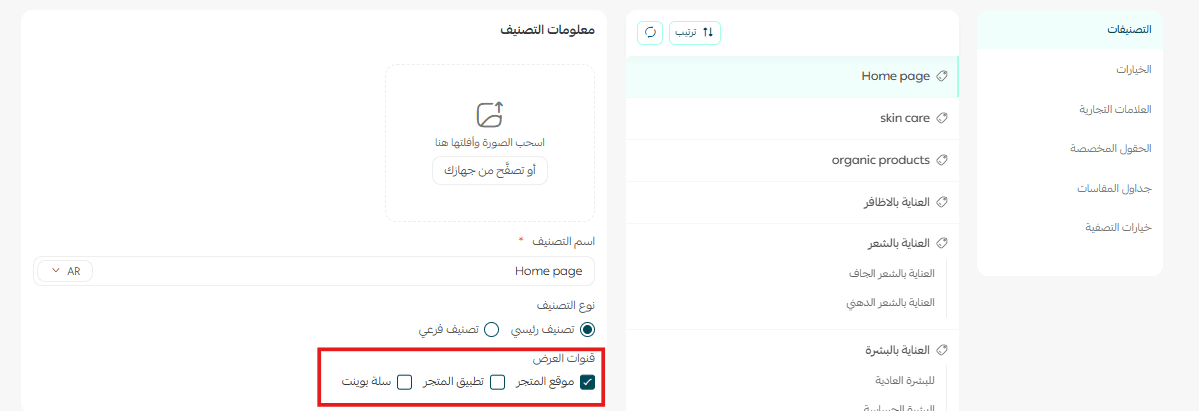
For more detail, see Managing product categories.
Hide a product from the app only
1. From the (Products) tab in the main menu, choose (Manage products).

2. From the (Advanced information) tab on the product details page, select store website only.
6. Chat services supported in the app
The chat services supported in the app are Intercom and Zendesk.
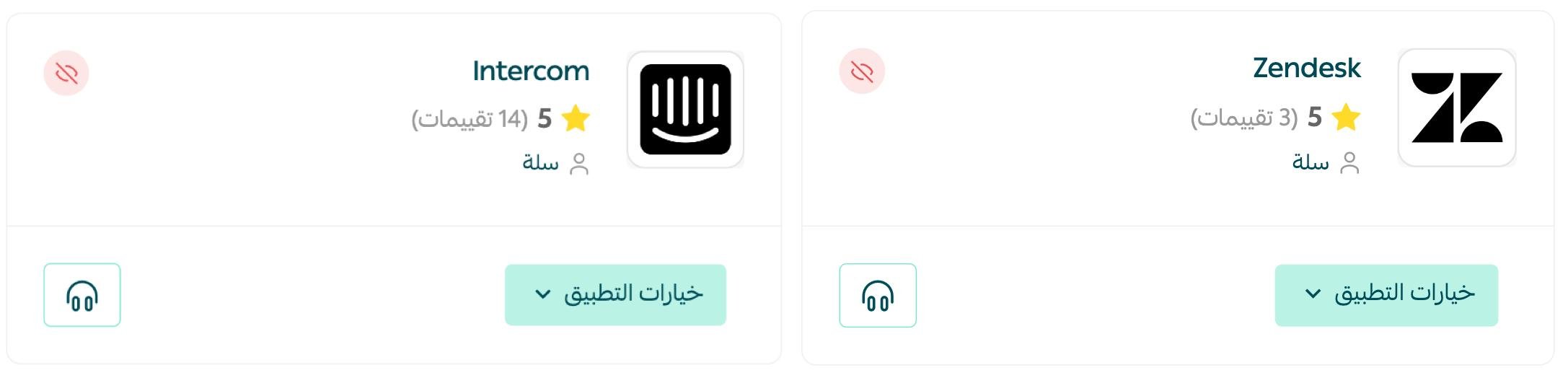
For more detail, see Connecting the app to Intercom chat.
For more detail, see Connecting the app to Zendesk chat.
7. Questions and ratings in the app
Questions and ratings for the app are managed in the Apple and Google stores, not in your Salla dashboard.
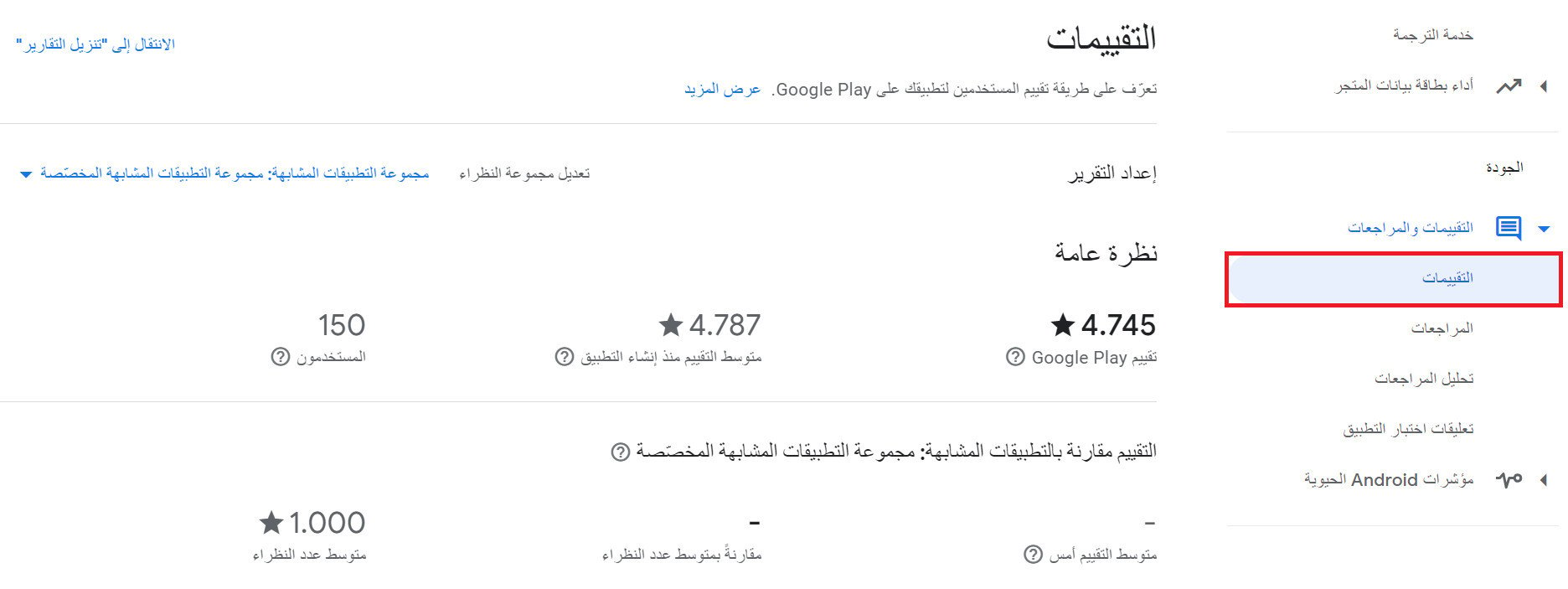
For more detail, see Viewing app ratings and reviews on Google Play.
For more detail, see The My Apps page in the Apple app dashboard.
📝 Important notes
Product data, orders, customers, reports, and payments are shared. Changing them in one channel changes them in the other.
To hide something from the app, you set its visibility to the store website only. There is no separate app switch.
App ratings and reviews live on the App Store and Google Play, so they follow those stores' rules, not your store settings.
Frequently asked questions
❓ Do I have to add my products twice, once for the store and once for the app?
No. Products are added once and appear in both, apart from some of the design choices you make in App Maker.
❓ Can I run an offer in the app without showing it on my store website?
Yes. When you create the special offer, choose the app as the platform the offer runs on.
❓ How do I know how much the app is selling?
Filter your orders by sales channel and choose (Mobile app).
❓ Which chat services can I use inside the app?
Intercom and Zendesk.
❓ Where do I manage app reviews?
In the Apple and Google stores. App ratings and reviews are handled from Google Play Console and the Apple app dashboard, not from your Salla dashboard.
💪 Use unified management to simplify your daily operations, and start customizing the features that grow your store through the app. Every step you take organizing offers, managing products, and tracking performance shows up directly in your customers' experience and in your sales.